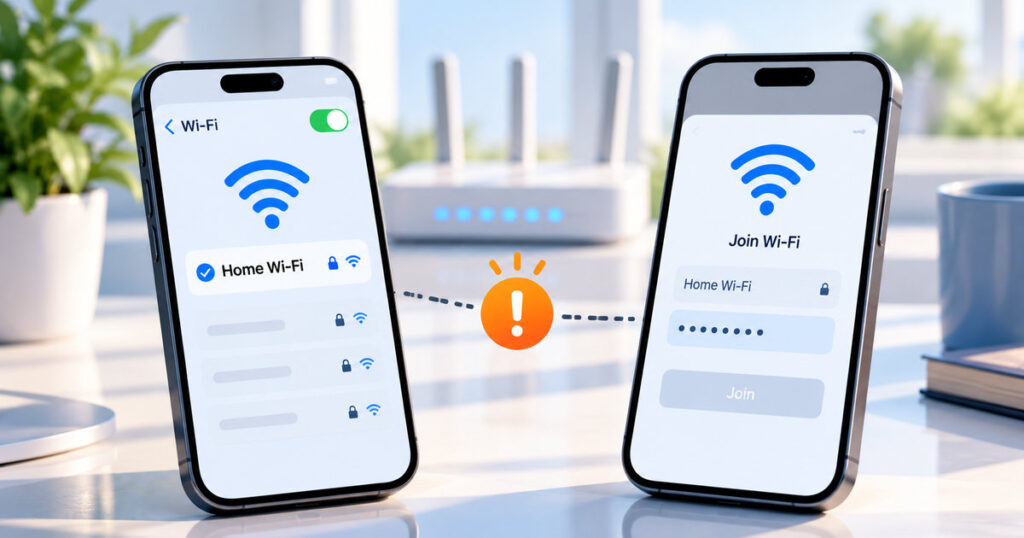
Is iPhone wifi password sharing not working when you’re trying to connect another Apple device to your home or office network? Maybe the Share Password popup never appears, your friend keeps waiting on the Wi-Fi password screen, or tapping Share Password doesn’t complete the connection.
You might also notice that password sharing works with one iPhone but refuses to work with another.
Fortunately, a missing Wi-Fi sharing popup doesn’t automatically mean something is wrong with your router or iPhone.
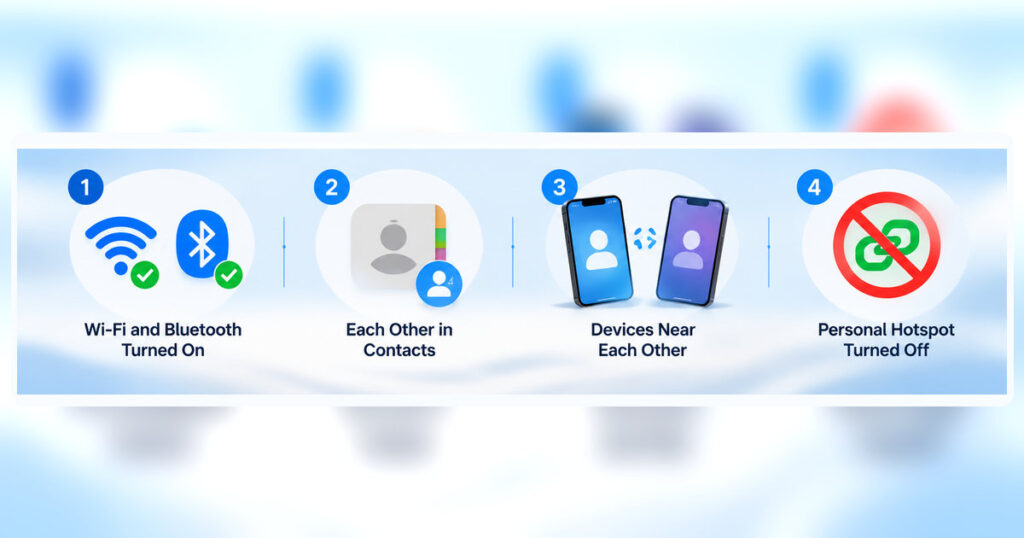
Apple’s password-sharing feature relies on several conditions, including nearby devices, Bluetooth, Wi-Fi, Apple Accounts, and contact information.
If even one of those requirements isn’t met, the automatic sharing process may not work as expected.
In this guide, we’ll explain 10 practical fixes for iPhone wifi password sharing not working, including missing Share Password notifications, Contacts problems, Bluetooth settings, iOS compatibility, and alternative ways to share a network password.
We’ll start with Apple’s basic requirements before moving to more advanced checks.
Table of Contents
Quick Answer
If your iPhone won’t share a Wi-Fi password, try these steps:
- Make sure the sharing iPhone is already connected to the correct Wi-Fi network.
- Unlock the iPhone that has the password.
- Turn on Wi-Fi and Bluetooth on both devices.
- Confirm both people are signed into their Apple Accounts and have each other’s contact details saved.
- Move the devices close together.
- Turn off Personal Hotspot on both devices.
- Ask the receiving device to select the correct Wi-Fi network.
- Restart both devices if the Share Password popup is missing.
- Check for compatible iOS, iPadOS, or macOS updates.
- Use a saved password or QR code if automatic sharing still fails.
Important: The normal Apple password-sharing popup is intended for nearby compatible Apple devices. Sharing a password with an Android phone or Windows computer may require a different method.
Why Is iPhone Wi-Fi Password Sharing Not Working?
Apple’s automatic Wi-Fi sharing feature lets one compatible Apple device help another join a protected wireless network without manually typing the password.
For example, your iPhone might already be connected to your home network.
When another nearby iPhone selects that network, your phone may offer a Share Password notification.
After you approve it, the other device can attempt to join the network.
However, several conditions must be satisfied.
Wi-Fi or Bluetooth Is Disabled
Apple requires both devices to have Wi-Fi and Bluetooth enabled.
Contact Information Is Missing
The devices use contact and Apple Account information as part of the sharing process.
Devices Are Too Far Apart
The devices need to remain within suitable Wi-Fi and Bluetooth range.
Personal Hotspot Is Enabled
An active Personal Hotspot can interfere with the normal password-sharing procedure.
The Wrong Network Is Selected
The receiving device must request the network whose password is available on the sharing device.
Software or Network Problems
Outdated software, a temporary device issue, or the receiving device’s inability to join the network may prevent completion.
The next steps will help determine which issue is responsible.
1. Confirm the Connected Wi-Fi Network
Before changing other settings, make sure the iPhone sharing the password is already connected to the intended network.
Having a Wi-Fi network saved isn’t always the same as currently being connected to it.
How to Check
- Unlock the iPhone that has the password.
- Open Settings.
- Tap Wi-Fi.
- Find the connected network with the checkmark.
- Confirm that it’s the network the other device needs to join.
- Keep Wi-Fi enabled.
If your home has multiple networks with similar names, compare their names carefully.
For example, HomeWiFi and HomeWiFi-Guest are different networks.
What if the Sharing iPhone Isn’t Connected?
Connect it to the correct Wi-Fi network first.
Then ask the receiving device to select the same network.
If the sharing iPhone itself cannot join the network, solve that connection problem before attempting automatic password sharing.
See our iPhone Unable to Join Network guide for help with ordinary Wi-Fi connection failures.
2. Unlock Both Devices
One easy requirement to overlook is that the iPhone providing the password needs to be awake and unlocked.
Apple specifically instructs users to unlock the sharing device before attempting to share Wi-Fi credentials.
What to Do
- Wake the iPhone that already has Wi-Fi.
- Unlock it using Face ID, Touch ID, or your passcode.
- Keep the device nearby.
- Open Wi-Fi settings on the receiving device.
- Select the network.
- Watch the sharing iPhone for the password notification.
If the sharing iPhone remains locked, the expected prompt may not appear.
Should You Leave Settings Open?
You can keep the Wi-Fi settings screen visible while troubleshooting.
The important conditions are that the sharing device is unlocked, connected to the intended network, and meets the other Apple requirements.
Don’t repeatedly open and close settings without testing whether the receiving device has requested the correct network.
3. Turn On Wi-Fi and Bluetooth
If iPhone wifi password sharing not working continues, confirm that both devices have Wi-Fi and Bluetooth turned on.
Apple requires both wireless features for its nearby password-sharing process.
On the First iPhone
- Open Settings → Wi-Fi.
- Make sure Wi-Fi is enabled.
- Return to Settings.
- Open Bluetooth.
- Make sure Bluetooth is enabled.
On the Second Device
Repeat these checks.
If the second device is a Mac, check Wi-Fi and Bluetooth in System Settings.
Why Bluetooth Matters
Apple’s secure password-sharing process uses nearby wireless communication to identify a suitable receiving device.
Even when your Wi-Fi network works, disabling Bluetooth can prevent the normal sharing experience.
What if Bluetooth Is Greyed Out?
That is a separate connectivity problem.
If the Bluetooth switch cannot be enabled, restarting the device and checking software availability may be appropriate.
Don’t reset every network setting merely because the first password-sharing attempt failed.
4. Check Contacts and Apple Accounts
This is one of the most important steps when the Share Password popup never appears.
Apple requires each person to be signed into their respective Apple Account and have the other person’s relevant Apple Account contact information saved.
Check the Apple Account
On each device:
- Open Settings.
- Check that the correct Apple Account is signed in.
- Confirm that account setup isn’t waiting for an important verification step.
- Avoid signing out merely to troubleshoot a missing popup.
Check Contacts
On each person’s device:
- Open Contacts.
- Find the other person’s contact card.
- Check whether their Apple Account email address or associated phone number is saved.
- Correct any outdated details.
- Make sure the other person also has your relevant contact information.
Why This Helps
Apple’s sharing procedure uses identity information to determine whether a nearby device can receive the network password.
If the contact details don’t match the relevant Apple Account information, the sharing prompt may not work.
Important Precaution
Only share network access with someone you trust and who has permission to join that network.
You don’t need to share your Apple Account password, verification codes, or personal security answers.
After checking the contact details, return to Wi-Fi settings and attempt password sharing again.
5. Move the Devices Closer
Automatic Wi-Fi password sharing depends on nearby wireless communication.
If the devices are in different rooms or separated by walls, the connection may not be reliable enough for the sharing process.
How to Test
- Place both devices on the same desk or table.
- Keep Wi-Fi and Bluetooth enabled.
- Unlock the sharing device.
- On the receiving device, open Wi-Fi settings.
- Choose the intended network.
- Watch for the Share Password prompt.
Avoid Wireless Interference
For testing, move away from large metal objects or other equipment that might interfere with wireless communication.
You don’t need to place the phones directly against each other.
Keep them comfortably close.
What if the Popup Still Doesn’t Appear?
If both devices are nearby and the sharing phone is unlocked, investigate Personal Hotspot and the receiving device’s network selection.
6. Turn Off Personal Hotspot
An enabled Personal Hotspot can interfere with the normal Apple Wi-Fi password-sharing procedure.
Apple explicitly recommends turning it off on both devices before attempting automatic sharing.
Check the Setting
- Open Settings on the first iPhone.
- Tap Personal Hotspot, if available.
- Turn off Allow Others to Join or disable the active hotspot as appropriate.
- Repeat on the second iPhone if it has the feature.
- Return to the standard Wi-Fi sharing procedure.
The exact controls can depend on the iPhone, carrier, and iOS version.
Why This Matters
Personal Hotspot is intended to share an iPhone’s cellular internet connection.
Normal Wi-Fi password sharing is a different feature.
If someone is trying to connect to your iPhone’s hotspot rather than an ordinary Wi-Fi router, follow the hotspot-specific instructions instead.
What About a Home Router?
Turning off Personal Hotspot doesn’t turn off your home’s Wi-Fi router.
It simply removes a possible conflict involving the phone’s own shared internet connection.
If Personal Hotspot is already disabled, leave it alone and continue.
7. Select the Correct Network on the Receiving Device
Automatic sharing begins when the receiving device requests access to a Wi-Fi network.
If the receiving device isn’t requesting the right network, your iPhone may have nothing to share.
Try Again
On the receiving iPhone or iPad:
- Open Settings → Wi-Fi.
- Find the intended wireless network.
- Tap its name.
- Wait for the password prompt or connection attempt.
- Watch the unlocked sharing iPhone.
- Tap Share Password if the notification appears.
- Tap Done once sharing completes.
Check the Network Name
If multiple networks use similar names, confirm you’re selecting the exact one already connected to the sharing device.
What if the Receiving Phone Says Incorrect Password?
The receiving device may have an outdated saved password or there may be a router authentication problem.
This is different from a missing Share Password popup.
Use the network’s current password or investigate whether the receiving device can join manually.
Don’t assume the sharing feature is responsible when the network itself refuses authentication.
8. Restart Both Devices
Apple recommends restarting both devices when the password-sharing setup animation doesn’t appear.
This is an appropriate step after the basic requirements have been checked.
Restart an iPhone With Face ID
- Press and hold the Side button and either Volume button.
- Wait for the power-off slider.
- Drag the slider.
- Wait about 30 seconds.
- Turn the iPhone back on.
Repeat on the second iPhone, or use the normal restart method for the Mac or iPad.
Try Sharing Again
After restarting:
- Confirm both devices are signed into their Apple Accounts.
- Enable Wi-Fi and Bluetooth.
- Keep Personal Hotspot off.
- Unlock the sharing device.
- Choose the network on the receiving device.
- Look for the Share Password popup.
Does Restarting Delete Anything?
A normal restart doesn’t erase your saved photos, messages, or contacts.
There’s no need to factory reset your device just because the automatic Wi-Fi sharing prompt isn’t appearing.
If restarting doesn’t help, continue with the software checks.
9. Check for Software Updates and Restrictions
Apple recommends keeping both devices on compatible, up-to-date software.
Software updates can address compatibility and other system problems.
Check iPhone Updates
- Open Settings.
- Tap General.
- Choose Software Update.
- Review available compatible updates.
- Back up important data before a major update.
- Install the update if appropriate.
If the receiving device is a Mac, check macOS updates through System Settings.
Check Managed Devices
A school or work iPhone may have device-management restrictions that affect password sharing.
Apple documents that organizations can restrict this feature through device management.
If you use a managed device, contact the administrator rather than attempting to bypass the restriction.
What if Both Devices Are Updated?
Don’t repeatedly reinstall the operating system.
Check whether the password itself can be shared manually, or whether the receiving device has a separate Wi-Fi problem.
For example, if the receiver cannot turn on Wi-Fi at all, see our iPhone Wi-Fi Greyed Out guide.
10. Share the Password Manually or With a QR Code
If the automatic Share Password popup still doesn’t appear, you may be able to provide the network password another way.
Apple’s newer software includes options for finding saved Wi-Fi passwords and displaying network QR codes.
Find a Saved Password
On iOS 18 or later, you can use the Passwords app.
- Open Passwords.
- Authenticate with Face ID, Touch ID, or your passcode.
- Tap Wi-Fi.
- Choose the relevant saved network.
- Tap the password field.
- Copy or view the password if available.
Only share the password with someone authorized to use the network.
Find the Password Through Settings
On supported iOS versions:
- Open Settings → Wi-Fi.
- Tap the information button next to the connected network.
- Tap Password.
- Authenticate to view it.
The exact interface may vary by iOS release.
Use a Network QR Code
On supported newer versions, the Passwords app may also offer Show Network QR Code for saved Wi-Fi networks.
Open the appropriate network and show the QR code to the trusted person who needs access.
They can scan it using a compatible device.
A QR code can help when the nearby sharing popup isn’t working.
Security Warning
Anyone who receives a reusable network password or scans its joining QR code may be able to connect to that Wi-Fi network.
Don’t post the QR code publicly.
For a visitor, consider using an authorized guest network if your router supports one.
What if Manual Entry Also Fails?
The problem may involve network authentication rather than Apple’s automatic password-sharing feature.
Read our iPhone Unable to Join Network guide for more specific troubleshooting.
Share Password Popup Not Showing on iPhone
If the popup doesn’t appear at all, focus on the conditions that allow the sharing process to begin.
Check that the sharing iPhone is unlocked and already connected to the correct Wi-Fi network.
Both devices should have Wi-Fi and Bluetooth enabled.
Make sure Personal Hotspot is off and the devices are close together.
Then verify that both users are signed into their Apple Accounts and have the relevant contact details saved.
Finally, ask the receiving device to select the same network again.
If the prompt is still missing, restart both devices.
A missing popup is different from a popup that appears but fails to complete sharing.
iPhone Wi-Fi Password Sharing Works With One Person but Not Another
If you can share your Wi-Fi password with one iPhone but not another, the sharing device and router may be functioning normally.
Focus on the second person’s setup.
Check that the person is signed into their Apple Account and that the correct contact information is saved on both devices.
Also confirm that Bluetooth is enabled and Personal Hotspot is off.
The receiving device should be close to the sharing iPhone and request the correct network.
If the problem continues, use manual password entry as a comparison test.
iPhone Wi-Fi Password Sharing Not Working After iOS Update
If sharing stopped working after an update, begin with the usual requirements.
Check Wi-Fi, Bluetooth, Apple Account sign-in, contact details, and Personal Hotspot.
Restart both devices.
Also check whether either device has another compatible software update available.
Don’t assume the update caused the problem just because the issue appeared around the same time.
If the receiving device cannot join Wi-Fi using the correct password manually, investigate the wireless network separately.
Avoid factory resetting an otherwise functional iPhone for a missing sharing notification.
Can You Share an iPhone Wi-Fi Password With Android?
The automatic Apple-to-Apple sharing popup isn’t the standard method for sharing passwords with Android devices.
However, there are other options.
On supported iOS versions, open the Passwords app and find the saved Wi-Fi network.
If Show Network QR Code is available, someone using a compatible Android device may be able to scan the code.
Alternatively, an authorized user can enter the network password manually.
Remember that access to a Wi-Fi password should be limited to people permitted to use the network.
Can You Share an iPhone Wi-Fi Password With a Mac?
Yes, Apple’s automatic password-sharing feature supports compatible nearby Apple devices, including Macs.
Both devices should have Wi-Fi and Bluetooth enabled, be signed into Apple Accounts, and have the necessary contact details.
The sharing iPhone should be unlocked and connected to the network.
On the Mac, select that Wi-Fi network.
Watch the iPhone for the Share Password notification.
If the popup doesn’t appear, restart the devices and retry.
You can also use an authorized manual password method if necessary.
What Not to Do
Avoid these mistakes while troubleshooting Wi-Fi password sharing:
- Don’t disable router security to make another device connect.
- Don’t share your Apple Account password or verification code.
- Don’t repeatedly reset your iPhone’s network settings without a specific reason.
- Don’t install unknown Wi-Fi password-sharing applications.
- Don’t publish a private network QR code online.
- Don’t factory reset both devices because a popup is missing.
- Don’t bypass school or workplace network restrictions.
Start with the simple device and account requirements before investigating broader problems.
Frequently Asked Questions
Why is my iPhone not sharing the Wi-Fi password?
The sharing device may be locked, Bluetooth may be disabled, the devices may be too far apart, or the Apple Account and Contacts requirements may not be met. Check those conditions first.
How do I get the Share Password popup to appear?
Unlock the iPhone already connected to Wi-Fi. Enable Wi-Fi and Bluetooth on both devices, confirm Apple Account and contact details, keep the devices close, and select the network on the receiving device.
Does Bluetooth need to be on to share a Wi-Fi password?
Yes. Apple’s automatic nearby password-sharing procedure requires Wi-Fi and Bluetooth to be enabled on both devices.
Do both iPhones need to be in Contacts?
Apple instructs users to save the relevant Apple Account email address or phone number for the other person in Contacts on both devices.
Can I share a Wi-Fi password without typing it?
Yes. Compatible Apple devices can use the Share Password popup. Newer supported iOS versions may also provide a Wi-Fi network QR code through Passwords.
Why isn’t Share Password appearing after updating iOS?
The update may coincide with changes in device configuration, but that doesn’t establish the cause. Check Bluetooth, Wi-Fi, Contacts, Apple Account sign-in, and Personal Hotspot, then restart both devices.
Does AirDrop need to be enabled?
Apple’s standard password-sharing instructions require Wi-Fi, Bluetooth, nearby devices, Apple Accounts, and Contacts. They don’t instruct users to enable AirDrop receiving as a separate requirement.
Can I share Wi-Fi with someone who has an Android phone?
You can provide an authorized network password manually or use a QR code where supported. The regular Apple-to-Apple popup isn’t the standard Android sharing method.
Why does the popup appear but the other iPhone won’t connect?
The receiving iPhone may have a separate Wi-Fi authentication or network problem. Verify the network name and password, then test whether it can join manually.
Does restarting my iPhone delete Wi-Fi passwords?
A normal restart doesn’t ordinarily delete saved Wi-Fi passwords. It may help resolve a temporary problem with the sharing process.
Does Personal Hotspot prevent Wi-Fi sharing?
Apple specifically recommends turning off Personal Hotspot on both devices before using the automatic Wi-Fi password-sharing procedure.
Should I reset network settings?
Not as the first step. Apple recommends checking the sharing requirements, restarting, and entering the password manually if needed. A network reset removes saved network configurations and can create unnecessary extra work.
Final Thoughts
If iPhone wifi password sharing not working is preventing another Apple device from joining your network, begin with Apple’s basic requirements.
Keep both devices close together, unlock the sharing iPhone, and confirm that Wi-Fi and Bluetooth are enabled.
Next, review both users’ Apple Account and Contacts information.
Turn off Personal Hotspot and ask the receiving device to choose the network again.
If the popup is still missing, restart both devices.
When automatic sharing isn’t available, the Passwords app, a supported Wi-Fi QR code, or manual password entry may provide an alternative.
Most importantly, distinguish between a failure to share the password and a failure to connect to the network itself.
Check each requirement individually, protect your network credentials, and avoid unnecessary resets.
Official Apple References
- Apple Support: How to Share Your Wi-Fi Password
- Apple Support: Find Your Saved Wi-Fi Passwords
- Apple Support: Find and Share Your Wi-Fi Password on iPhone
- Apple Platform Security: Wi-Fi Password Sharing
Last reviewed: October 23, 2026. Features and menu locations may vary by iOS version, device compatibility, and network administration settings.