Is your Apple Watch not pairing with iPhone, even when both devices are sitting next to each other? Maybe your iPhone cannot detect the watch, the pairing animation keeps spinning, or the Apple Watch app displays an Unable to Connect message.
Sometimes the pairing process starts normally but gets stuck during setup. Other times, your watch worked perfectly with an older iPhone but refuses to connect to your new one.
Fortunately, a failed Apple Watch pairing attempt doesn’t automatically mean either device is damaged.
The problem may involve Bluetooth, internet connectivity, software compatibility, an existing pairing, or Apple Account security.
In this guide, we’ll explain 10 practical fixes for Apple Watch not pairing with iPhone, including manual pairing, missing setup animations, failed connections after switching iPhones, and Activation Lock errors.
We’ll start with safe checks before discussing resets that can erase your watch.
Table of Contents
Quick Answer
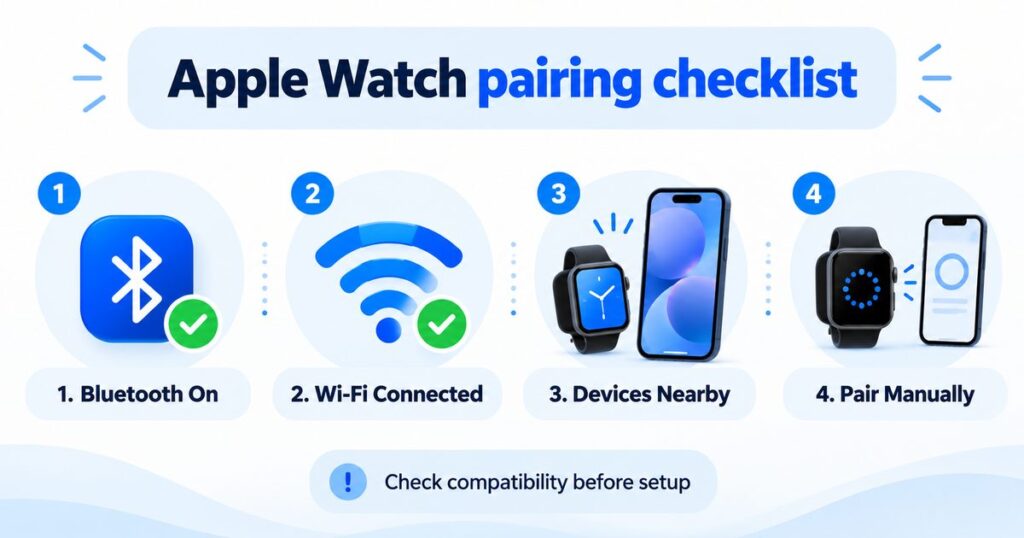
If your Apple Watch won’t pair with your iPhone, try these steps:
- Check whether your Apple Watch and iPhone are compatible.
- Charge both devices and keep them close together.
- Enable Bluetooth and connect your iPhone to Wi-Fi or cellular data.
- Open the Apple Watch app and try pairing manually.
- Check whether the watch is already paired with another iPhone.
- Restart both devices.
- Check iOS and watchOS software requirements.
- Complete the transfer if you’re using a new iPhone.
- Reset a pairing process that remains stuck.
- Unpair or erase the watch only when necessary, then contact Apple Support if the problem continues.
Important: Don’t erase your Apple Watch as the first troubleshooting step. Erasing can remove data and settings, and Activation Lock may remain enabled.
Why Is Apple Watch Not Pairing With iPhone?
Apple Watch uses a guided setup procedure through the Apple Watch app on your iPhone.
The devices communicate during setup, verify compatibility, and configure the watch for your Apple Account.
Several problems can prevent the process from finishing.
Bluetooth or Internet Problems
The iPhone needs Bluetooth and a working Wi-Fi or cellular connection for normal Apple Watch setup.
Incompatible Devices
Different Apple Watch generations require particular iPhone models and minimum iOS versions.
Existing Pairing
A watch previously configured with another iPhone may need to be transferred or unpaired before a new setup.
Software Requirements
A watch running a newer watchOS version may require a compatible iOS version on the iPhone.
Activation Lock
A previously owned watch may remain linked to another Apple Account.
Temporary Setup Problems
The pairing animation, camera scan, or setup process may sometimes stop responding.
The following steps will help identify which situation applies.
1. Check Device Compatibility
Before troubleshooting Bluetooth, confirm that your iPhone supports the Apple Watch you’re trying to set up.
Not every watch works with every iPhone.
Check the Requirements
Apple states that setting up Apple Watch Series 11, Apple Watch SE 3, and Apple Watch Ultra 3 requires an iPhone 11 or later running iOS 26 or later.
Older Apple Watch models can have different requirements.
A watch may also require an iPhone software update before setup can continue.
Identify Your Devices
On your iPhone:
- Open Settings.
- Tap General.
- Select About.
- Check the iPhone model and iOS version.
Check the Apple Watch model using its documentation, packaging, or Apple’s identification guidance.
Why Compatibility Matters
A newer Apple Watch may not support an older iPhone even when Bluetooth is working normally.
Restarting or resetting the devices won’t remove a hardware compatibility requirement.
What to Do
Visit Apple’s official Apple Watch setup documentation and check the requirements for your exact model.
If both devices are compatible, continue with the next fix.
2. Charge and Move Both Devices Closer
Low battery power or excessive distance can complicate device setup.
Before troubleshooting further, make sure the Apple Watch has enough power to complete its configuration.
What to Do
- Place your Apple Watch on its charger.
- Confirm that it is receiving power.
- Make sure your iPhone has sufficient battery.
- Put the devices next to each other.
- Unlock your iPhone.
- Wait for the Apple Watch setup notification.
If you’re transferring an existing Apple Watch to a new iPhone, Apple recommends that the new iPhone and Apple Watch each have at least 50% battery.
Start the Watch
Press and hold the Apple Watch side button until the Apple logo appears.
Wait for the watch to finish starting.
Why Distance Matters
Apple’s setup instructions recommend keeping the devices close throughout the pairing process.
Moving the watch away while configuring it may interrupt the setup.
What if the Watch Won’t Turn On?
A watch that cannot start or display its setup interface has a different problem from ordinary pairing failure.
Check its charging equipment and contact Apple Support if it remains unresponsive.
3. Check Bluetooth and Internet
If Apple Watch not pairing with iPhone continues, confirm that the iPhone’s wireless connections are available.
Apple recommends enabling Bluetooth and connecting the iPhone to Wi-Fi or a cellular network before setting up Apple Watch.
Check Bluetooth
- Open Settings on your iPhone.
- Tap Bluetooth.
- Confirm the switch is enabled.
- Leave Bluetooth turned on.
Check Wi-Fi
- Open Settings → Wi-Fi.
- Connect to a trusted wireless network.
- Open Safari.
- Confirm that a website loads normally.
If Wi-Fi isn’t available, a suitable cellular internet connection may also be used during setup.
Check Airplane Mode
Make sure Airplane Mode isn’t preventing the required connections.
You can review this in the iPhone’s Settings app.
Important Difference
Apple Watch isn’t normally paired by choosing it from the generic Bluetooth accessories list.
Instead, use the dedicated Apple Watch app.
If your iPhone has trouble finding other Bluetooth accessories too, see our iPhone Bluetooth Not Finding Devices guide.
If Bluetooth works but your Wi-Fi connection has no internet access, read our iPhone Connected to Wi-Fi but No Internet guide.
4. Try Manual Pairing
Apple Watch normally displays a pairing animation that the iPhone camera scans.
However, Apple also provides a manual pairing option.
This is useful if the camera cannot recognize the animation or automatic setup doesn’t appear.
Start Pairing
- Unlock your iPhone.
- Open the Apple Watch app.
- Tap All Watches.
- Select Add Watch.
- Choose the appropriate setup option.
- Keep your Apple Watch nearby.
For your own watch, select Set Up for Myself.
Scan the Animation
If the watch shows the pairing animation, position it inside the iPhone camera’s viewfinder.
Wait for the confirmation that the devices are paired.
Pair Manually
If camera pairing doesn’t work:
- Select Pair Apple Watch Manually on the iPhone.
- Follow the instructions displayed by the Apple Watch app.
- Select the correct watch when prompted.
- Enter or confirm any pairing information requested by the official setup process.
- Continue until the watch is paired.
What if Manual Pairing Also Fails?
If the Apple Watch displays an ordinary clock face instead of its setup animation, it may already be configured.
Check the next step before attempting a reset.
Important: Follow the instructions inside the Watch app rather than manually connecting through the normal iPhone Bluetooth device list.
5. Check for an Existing Pairing
A watch that’s already paired with another iPhone may not behave like a new watch.
Apple specifically recommends checking whether the watch is already paired when setup repeatedly fails.
Look at the Watch Screen
If the Apple Watch displays a normal clock face, it has probably already been set up.
A new or fully erased Apple Watch normally presents setup screens instead.
If You Have the Previously Paired iPhone
- Keep the watch and old iPhone close together.
- Open the Apple Watch app on the old iPhone.
- Go to My Watch → All Watches.
- Tap the information button next to the watch.
- Select Unpair Apple Watch.
- Follow Apple’s confirmation instructions.
Unpairing through the paired iPhone erases the watch and removes Activation Lock when completed successfully.
Back up important information before making this change.
What if You Don’t Have the Old iPhone?
You may be able to erase the watch, but erasing alone does not necessarily remove Activation Lock.
You’ll still need the Apple Account credentials associated with the watch.
Do not erase the watch until you’ve considered whether important data or settings could be lost.
6. Restart Both Devices
If the watch is compatible and isn’t blocked by an existing pairing, a restart may resolve temporary setup problems.
Restart Your iPhone
For an iPhone with Face ID:
- Hold the Side button and either Volume button.
- Drag the power-off slider.
- Wait approximately 30 seconds.
- Turn the iPhone back on.
- Unlock it.
Restart Apple Watch
For a responsive Apple Watch that isn’t updating:
- Press and hold the side button.
- Open the power controls.
- Turn the watch off.
- Wait for the device to shut down.
- Press and hold the side button to turn it back on.
The interface may vary slightly by watchOS version.
Try Pairing Again
After both devices restart:
- Check Bluetooth on the iPhone.
- Connect to Wi-Fi or cellular data.
- Open the Apple Watch app.
- Bring the watch nearby.
- Attempt the guided pairing process again.
Important
Don’t restart the watch while a software update is actively being installed.
A normal restart should not be confused with erasing the watch or resetting it to factory settings.
7. Review Software Updates
Apple Watch pairing depends on compatible software.
If your iPhone is running an older iOS version, it might not support the watch’s current software.
Check the iPhone
- Open Settings.
- Tap General.
- Select Software Update.
- Review the available compatible updates.
- Back up important information.
- Install an update if it is required or appropriate.
What if Apple Watch Requests an Update?
During setup, Apple may require an update before pairing can continue.
Keep both devices charged and near each other.
Maintain a reliable internet connection and follow the onscreen instructions.
What if the Update Doesn’t Complete?
Check whether the internet connection is stable and the devices have enough battery.
If the watch repeatedly fails during setup or updating, consult Apple’s official support instructions for the exact message.
Should You Install Unofficial Watch Software?
No.
Avoid third-party watchOS installation tools that promise to bypass compatibility checks or repair pairing problems.
Use Apple’s supported update and recovery procedures.
8. Finish Pairing With a New iPhone
If Apple Watch not pairing with iPhone started after switching phones, your existing watch may still be associated with the old device.
Apple provides a separate transfer process for this situation.
If You Still Have the Old iPhone
Before moving the watch:
- Confirm your Apple Account details.
- Update your devices if required.
- Back up the old iPhone.
- Make sure important Health data is synchronized or backed up appropriately.
- Set up your new iPhone.
- Follow any prompt offering to transfer your Apple Watch.
Check the New iPhone
- Open the Apple Watch app.
- Tap All Watches.
- Look for the watch you’re transferring.
- If Pairing Not Complete appears, select Finish Pairing.
- Keep the watch unlocked and on your wrist.
- Follow the onscreen instructions.
What if It Asks to Start Pairing?
If the new iPhone can’t complete the transfer, you may need to unpair the watch from the old phone and set it up again.
Restore an available watch backup when prompted, if appropriate.
What if the Old iPhone Is Gone?
Apple provides a separate procedure for users who no longer have the previously paired iPhone.
However, erasing the watch may remove data changed since its last backup.
Activation Lock may also remain until the correct Apple Account credentials are entered.
Review those consequences before proceeding.
9. Reset a Stuck Pairing Animation
Sometimes the Apple Watch remains on the pairing animation for several minutes without completing setup.
Apple provides a specific reset procedure for this situation.
This is different from erasing an already-configured watch as a first troubleshooting step.
If the Pairing Animation Is Stuck
- Make sure the watch is in pairing mode.
- Press and hold the Digital Crown.
- Wait for Reset to appear.
- Tap Reset.
- Allow the watch to reset.
- Begin pairing again through the Apple Watch app.
Apple recommends this procedure when pairing has stalled.
Important Precautions
Only perform this step when the symptoms match a stuck pairing process.
If your watch contains important existing data, confirm its backup status before using a reset that can remove settings or content.
What if the Watch Shows the Apple Logo?
A watch stuck on the Apple logo during a new-iPhone transfer may require a different recovery procedure.
Use the corresponding Apple Support instructions rather than assuming the pairing-animation reset applies.
If the Problem Continues
Record the exact screen or error message.
That information will help distinguish a software issue from an account or device problem.
10. Check Activation Lock and Get Support
If none of the earlier steps works, check whether Activation Lock or another account issue prevents setup.
Activation Lock is an anti-theft security feature.
It helps prevent someone from activating a watch without the authorization of the account associated with it.
How to Recognize Activation Lock
During setup, the watch may request the Apple Account credentials previously associated with it.
If the watch belonged to someone else, those credentials may belong to the previous owner.
If You Own the Account
Sign in with the correct Apple Account when prompted.
If you’ve forgotten your credentials, use Apple’s official account recovery process.
If You Purchased a Used Apple Watch
Contact the previous owner and ask them to remove the watch from their account using Apple’s official instructions.
Do not rely on third-party Activation Lock bypass services.
Should You Erase the Watch?
Unpairing or erasing may be appropriate when supported by Apple’s instructions and when you’ve prepared for the possible loss of watch data.
Remember:
- Unpairing through the paired iPhone can remove Activation Lock.
- Erasing directly on the watch does not automatically remove Activation Lock.
- Resetting a watch can remove settings and content.
- Cellular plans may require special handling.
If you intend to pair the watch again, follow Apple’s instructions for retaining any applicable cellular plan.
Contact Apple Support
Contact Apple Support if:
- Compatible devices cannot start pairing.
- Manual pairing repeatedly fails.
- The watch cannot complete setup.
- A legitimate Activation Lock problem remains unresolved.
- The watch gets stuck on the Apple logo.
- You suspect a hardware fault.
Use the official Apple Support website for assistance.
Apple Watch Not Showing Up on iPhone
If the iPhone doesn’t detect your Apple Watch, confirm that the watch is powered on and close to the phone.
Enable Bluetooth on your iPhone and connect it to the internet.
Open the Apple Watch app rather than relying on the regular Bluetooth list.
If the watch shows a clock face, investigate whether it’s already paired.
If it shows the setup animation, try manual pairing.
For persistent problems, verify compatibility and software requirements.
Apple Watch Stuck on Pairing
A pairing process that never finishes may involve a temporary setup failure.
If the animation remains stuck for several minutes, follow Apple’s Digital Crown reset instructions for a watch in pairing mode.
If an update is actively installing, avoid interrupting it.
If the watch displays a different screen, such as an Apple logo or Activation Lock prompt, use the troubleshooting procedure for that specific state.
Don’t repeatedly erase the watch without checking the reason setup cannot complete.
New Apple Watch Not Pairing
When setting up a brand-new watch, first check the iPhone model and minimum iOS requirements.
Charge the devices, enable Bluetooth, and connect the iPhone to Wi-Fi or cellular data.
Open the Apple Watch app and choose Add Watch.
Use the camera setup procedure or manual pairing when necessary.
If setup requests a software update, follow the official instructions.
A new watch doesn’t necessarily work with every older iPhone.
Apple Watch Not Pairing After iPhone Upgrade
If the watch worked with your previous iPhone, check whether the transfer to your new device was completed.
Open the Watch app on the new iPhone and look for Pairing Not Complete.
If that appears, select Finish Pairing.
Otherwise, follow Apple’s transfer procedure.
If you no longer have the old iPhone, review the backup and Activation Lock consequences before erasing the watch.
What Not to Do
Avoid these common mistakes:
- Don’t pair Apple Watch through the ordinary Bluetooth accessories list.
- Don’t erase the watch before considering backups and account security.
- Don’t interrupt a software update.
- Don’t install unofficial Apple Watch recovery tools.
- Don’t enter your Apple Account password on suspicious websites.
- Don’t attempt to bypass Activation Lock.
- Don’t remove a cellular plan without understanding the consequences.
- Don’t assume your iPhone and Apple Watch are compatible just because both support Bluetooth.
Work through the basic requirements before attempting destructive changes.
Frequently Asked Questions
Why is my Apple Watch not pairing with iPhone?
The problem may involve Bluetooth, missing internet connectivity, software incompatibility, a previous pairing, or an account restriction. Check compatibility and connection requirements first.
How do I pair Apple Watch manually?
Open the Apple Watch app on your iPhone, choose Add Watch, and select Pair Apple Watch Manually when offered. Follow the onscreen instructions to complete setup.
Does Apple Watch need Wi-Fi to pair?
Apple recommends that the iPhone have Bluetooth enabled and be connected to Wi-Fi or cellular internet for setup. The required connection can depend on the setup stage and whether updates are needed.
Why is my Apple Watch pairing animation not working?
The camera may be unable to recognize the animation, or the pairing process may have stalled. Try manual pairing. If the animation remains stuck, use Apple’s specific reset procedure.
Why won’t my Apple Watch pair with my new iPhone?
It may still be paired with the old iPhone or the transfer may be incomplete. Check the Apple Watch app for Finish Pairing and review Apple’s transfer procedure.
Can Apple Watch pair with Android?
No. Apple Watch setup requires a compatible iPhone. Android phones cannot replace the required iPhone for normal Apple Watch pairing.
Can I pair Apple Watch without the old iPhone?
In some situations, yes, but you may need to erase the watch and use the correct Apple Account credentials. Data not included in a backup may be lost.
Will resetting Apple Watch remove Activation Lock?
Not necessarily. Erasing the watch directly does not remove Activation Lock. Successfully unpairing it through its paired iPhone can remove the lock.
Does Apple Watch need to be charged before pairing?
Yes, sufficient battery power is important. For transferring a watch to a new iPhone, Apple recommends that the watch and new iPhone each have at least 50% charge.
Will resetting network settings on iPhone fix Apple Watch pairing?
It isn’t a recommended first step. Check Bluetooth, internet access, compatibility, previous pairing and the official Watch app setup process before considering broader resets.
Final Thoughts
If your Apple Watch is not pairing with iPhone, start with compatibility, battery power, Bluetooth, and internet connectivity.
Then open the Apple Watch app and try the official pairing procedure.
If the camera cannot recognize the setup animation, manual pairing may help.
If your watch already shows a clock face, check whether it’s still paired with another iPhone.
For problems after upgrading to a new iPhone, review the watch transfer process before erasing anything.
A stalled pairing animation has its own Apple-supported reset procedure, but ordinary troubleshooting shouldn’t begin with factory resets.
Most importantly, protect your Apple Account credentials and understand the consequences of Activation Lock before changing an existing pairing.
Test each fix separately, preserve your backups, and use Apple’s official support options if the watch still won’t connect.
Official Apple References
- Apple Support: Set Up Your Apple Watch
- Apple Support: If You Can’t Pair an Apple Watch With Your iPhone
- Apple Support: Pair Apple Watch With a New iPhone
- Apple Support: Unpair and Erase Your Apple Watch
- Apple Support: If You Can’t Pair an Apple Watch With a New iPhone
Last reviewed: October 23, 2026. Setup screens, compatibility requirements and available features may vary by Apple Watch model, iPhone model and software version.