Does your iPhone Bluetooth keep disconnecting from headphones, a speaker, or your car? It might connect at first, then drop a few minutes later.
Low battery, weak signal, another paired device, or a software issue could be responsible. Start with the easy checks below. You usually do not need to reset your iPhone.
These 12 fixes help you find the cause and test a solution, one step at a time.
Table of Contents
Quick Answer
If Bluetooth keeps dropping on your iPhone, try these checks first:
- Charge your Bluetooth accessory and keep it close to your iPhone.
- Check Settings → Bluetooth to see whether it is actually disconnected.
- Disconnect other phones or computers that may be using the accessory.
- Turn Bluetooth off and on in Settings, then restart both devices.
- If needed, forget the accessory and pair it again.
Tip: If the device still shows Connected, the problem may be audio switching rather than a lost Bluetooth connection.
Why Does iPhone Bluetooth Keep Disconnecting?
An iPhone can lose a Bluetooth connection when the accessory has little power or moves too far away. Walls, crowded wireless areas, and nearby electronics can also affect the signal.
Some headphones switch between phones and laptops automatically. Older pairing details, app settings, or software problems may also cause trouble. The checks below help narrow it down.
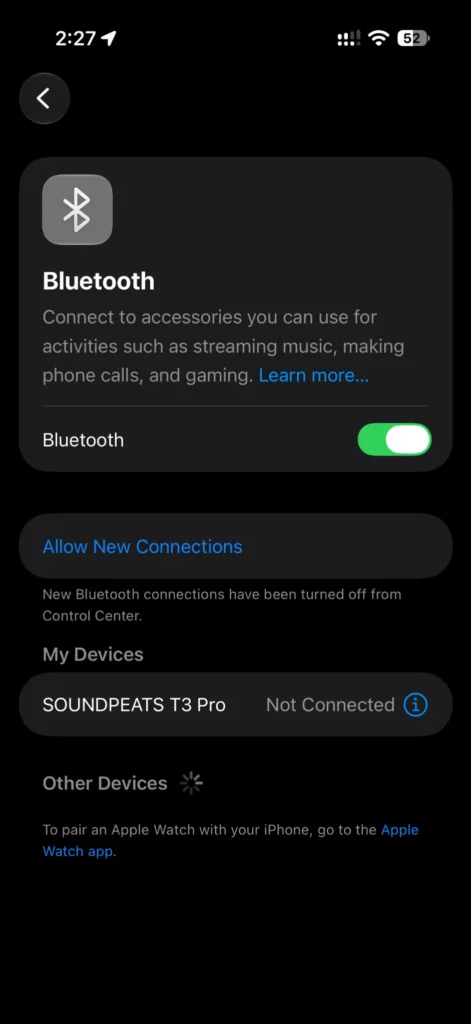
1. Confirm What Is Actually Disconnecting
First, find out whether Bluetooth disconnects or the sound simply moves to a different output.
- Open Settings → Bluetooth.
- Find the accessory under My Devices.
- Use the accessory until the problem happens.
- Return to the list and check its status.
If it still says Connected, open Control Center and check where audio is playing. If it says Not Connected, reconnect it and note when the connection drops.
Look for patterns. Does it happen during calls, when you move away, or when a laptop wakes up? That clue can save time.
2. Move Your iPhone and Accessory Closer
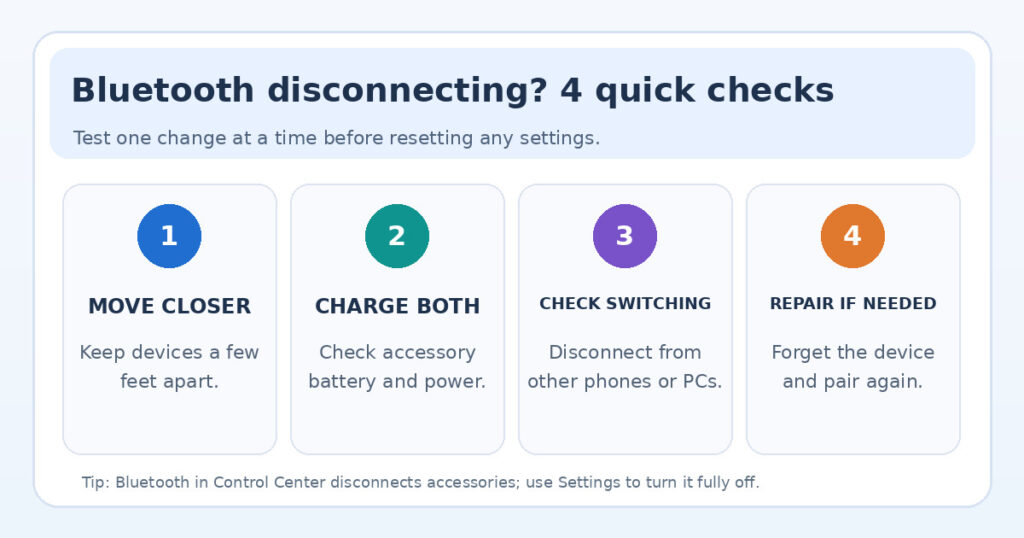
Bluetooth works best when the devices are near each other with few obstacles. Apple recommends keeping an accessory within about 33 feet (10 meters) for pairing, but usable range varies.
- Place the iPhone and accessory on the same desk.
- Move away from thick walls and large metal objects.
- Use the accessory for several minutes.
If it stays connected up close but fails farther away, distance or obstacles may be part of the problem.
3. Charge and Restart the Bluetooth Accessory
Low battery power can make some earbuds and speakers shut down or disconnect. Check both the accessory and its charging case, if it has one.
- Charge the accessory using the recommended charger.
- Turn it off using its normal power button.
- Wait about 20 seconds and turn it on again.
- Reconnect it to your iPhone and test.
For earbuds, make sure both earpieces sit correctly in the case. If one does not charge, follow the maker’s cleaning instructions.
4. Reduce Wireless Interference
Other wireless devices can disrupt Bluetooth, especially in crowded areas. You may notice skipping audio or brief disconnections.
- Move both devices to another room, keeping them close.
- Stay away from a running microwave, cordless phone, or busy wireless equipment.
- Play audio for a few minutes and compare the result.
If Bluetooth works well elsewhere, the room or nearby equipment may be affecting the connection. There is usually no need to turn Wi-Fi off permanently.
5. Check Whether Another Device Is Taking Over
Some headphones can connect to more than one phone or computer. They may change audio sources when another device starts a call or plays sound.
- Check other phones, tablets, and computers paired with the accessory.
- Temporarily disconnect the accessory from those devices.
- Reconnect it to your iPhone and test again.
If the accessory supports multipoint or automatic switching, check its official companion app for connection options.
Some AirPods switch between Apple devices using the same Apple Account. On supported models, connect the AirPods, open their settings, find Connect to This iPhone, and choose When Last Connected to This iPhone. The menu location can vary by iOS version.
6. Turn Bluetooth Off and On in Settings
A full Bluetooth toggle can clear a temporary connection problem.
- Open Settings → Bluetooth.
- Turn Bluetooth off and wait about 15 seconds.
- Turn it back on and reconnect your accessory.
Use Settings instead of the Control Center Bluetooth button. Control Center can disconnect accessories without fully turning Bluetooth off. Temporarily disabling Bluetooth may affect other connected devices.
7. Forget the Accessory and Pair It Again
If the device still disconnects, remove its saved pairing and connect it again.
- Open Settings → Bluetooth.
- Tap the ⓘ beside the accessory.
- Select Forget This Device and confirm.
- Put the accessory into pairing mode using the maker’s instructions.
- Select it again under Bluetooth devices and test.
Before you start: Make sure you know how to put the accessory back into pairing mode. Some devices need a button combination or passcode.
If the accessory does not appear, follow our iPhone Bluetooth Not Finding Devices guide.
8. Restart Your iPhone
Restarting your iPhone can clear a temporary software problem without deleting saved Bluetooth devices.
For iPhones with Face ID: Hold the Side button and either Volume button, then drag the power-off slider. Wait about 30 seconds. Hold the Side button again to turn it on.
For iPhones with a Home button: Hold the Side or Top button until the power-off slider appears. Slide to turn off, then use the same button to restart.
After restarting, open Settings → Bluetooth, reconnect the accessory, and check whether the connection stays active.
9. Review Bluetooth Permissions and Companion-App Settings
Some smartwatches, trackers, and other accessories use an app for setup or extra features. An app without Bluetooth permission may not work correctly.
- Open Settings → Privacy & Security → Bluetooth.
- Find the accessory’s official app.
- Allow Bluetooth access if the app needs it.
- Reopen the app and check its connection settings.
Ordinary Bluetooth headphones usually do not need a third-party app for basic audio. Do not grant Bluetooth access to unrelated apps.
10. Update iOS and Accessory Firmware
Updates may fix known connection problems. They will not fix every issue, but they are worth checking if simpler steps fail.
- Open Settings → General → Software Update on your iPhone.
- Review any available update and back up important data before a major upgrade.
- Check the accessory maker’s official app or website for firmware updates.
- Follow the maker’s instructions and keep the accessory charged during an update.
Never use firmware made for a different accessory model or download unofficial repair utilities.
11. Test Another Accessory and Another Phone
Two quick comparisons can tell you whether the problem is more likely on the iPhone or the Bluetooth accessory.
- Connect another known-working Bluetooth accessory to your iPhone.
- Use it long enough to see whether it disconnects.
- If possible, pair the original accessory with another compatible phone.
- Compare the results under similar conditions.
- Only one accessory fails: Check that accessory, its firmware, and its pairing instructions.
- Several accessories fail on the iPhone: Look more closely at iPhone settings or software.
- The accessory fails with several phones: Contact its manufacturer.
These tests give clues, but do not prove that a particular part is faulty.
12. Contact Support Before Advanced Resets
If several known-working accessories disconnect, Bluetooth cannot be enabled, or the switch is greyed out, contact Apple Support. If just one accessory fails across phones, contact its manufacturer.
Avoid a factory reset as a first step. A network-settings reset can remove saved network configurations and disrupt Wi-Fi or VPN settings. It may not fix an accessory problem.
Tell support your iPhone model, iOS version, accessory model, and which checks you tried. That helps them narrow down the cause.
iPhone Bluetooth Keeps Disconnecting From Car
First, check whether the problem affects Bluetooth calls, music playback, or Apple CarPlay. They may need different fixes.
- Park safely before changing settings.
- Check the car’s paired-phone list and remove competing connections if necessary.
- Restart the infotainment system using the vehicle maker’s instructions.
- Check for approved vehicle software updates.
If only the CarPlay screen is failing, see our Apple CarPlay Not Working guide. Never troubleshoot complicated settings while driving.
iPhone Bluetooth Keeps Disconnecting From Headphones
Charge the headphones, keep them close to your iPhone, and test without other paired devices nearby. If the headphones support multipoint or automatic switching, review those settings in the official app.
If the problem continues, forget and pair the headphones again. Use the maker’s instructions if a reset is required.
iPhone Bluetooth Keeps Disconnecting After iOS Update
Restart the iPhone and accessory. Then check whether the issue affects one product or several. Look for accessory firmware updates and test another device if possible.
A problem appearing after an update does not always mean the update caused it. If several devices now fail, give Apple Support the update version and a clear description of the problem.
Bluetooth Connected but Sound Keeps Cutting Out
If the accessory still says Connected, the Bluetooth link may be active even though audio stops. Check the chosen audio output, move closer, and try another app.
If only one app has the problem, check that app first. If several apps have the same problem, test for interference or automatic switching.
iPhone Bluetooth Keeps Disconnecting and Reconnecting
Repeated drop-and-reconnect cycles can point to weak power, interference, or competing connections. Start with a full charge and a close-range test. Then disconnect other paired devices.
If the same accessory repeatedly fails on another phone, contact its maker. If it works elsewhere, try pairing it again on your iPhone.
iPhone Bluetooth Disconnects When Wi-Fi Is On
Wi-Fi and Bluetooth normally work together. Both can use the 2.4 GHz band, so interference is possible in some locations.
Keep the accessory close and test in another room. If the problem occurs only near one router or appliance, investigate that environment. Do not weaken your Wi-Fi security or disable Wi-Fi permanently as a general fix.
Bluetooth Disconnects When I Lock My iPhone
Check whether the accessory truly disconnects after you lock the screen. Some apps slow down in the background, and some accessories enter power-saving mode.
Test the accessory with another app or phone. If Bluetooth still says Connected, investigate the app’s background behavior instead of resetting Bluetooth.
What Not to Do
- Do not factory-reset your iPhone before testing simple causes.
- Do not assume audio switching means the Bluetooth connection dropped.
- Do not install unknown Bluetooth repair apps or unofficial firmware.
- Do not change router security settings or troubleshoot while driving.
- Do not repeatedly forget and pair the accessory without checking battery, distance, and other paired devices.
Frequently Asked Questions
Why does my iPhone Bluetooth keep disconnecting? Common causes include low accessory power, interference, distance, automatic device switching, and pairing or software issues.
How do I stop Bluetooth from disconnecting? Start by charging the accessory, keeping it close, checking other paired devices, and restarting both devices. Re-pair if needed.
Does restarting my iPhone delete Bluetooth pairings? No. A normal restart usually keeps paired devices saved.
Should I reset network settings? Not as a first step. Test the accessory and basic settings before making changes that affect saved networks.
How can I tell whether the iPhone is the problem? Compare several known-working accessories and test the original accessory with another phone. Contact Apple Support if several devices fail on the iPhone.
Final Thoughts
If your iPhone Bluetooth keeps disconnecting, start with the accessory’s battery, distance, and competing devices. Check whether the connection really drops, then try a restart and a fresh pairing.
Work through one change at a time. If the problem happens across several accessories, contact Apple Support rather than using an unnecessary factory reset.
Official Apple References
- If a Bluetooth Accessory Won’t Connect to Your iPhone or iPad
- Connect a Third-Party Bluetooth Accessory
- Resolve Wi-Fi and Bluetooth Wireless Interference
- Use Bluetooth and Wi-Fi in Control Center
- iPhone User Guide: Connect Bluetooth Accessories
Last reviewed: October 23, 2026. Menu names and features may vary by iPhone, iOS version, and accessory model.