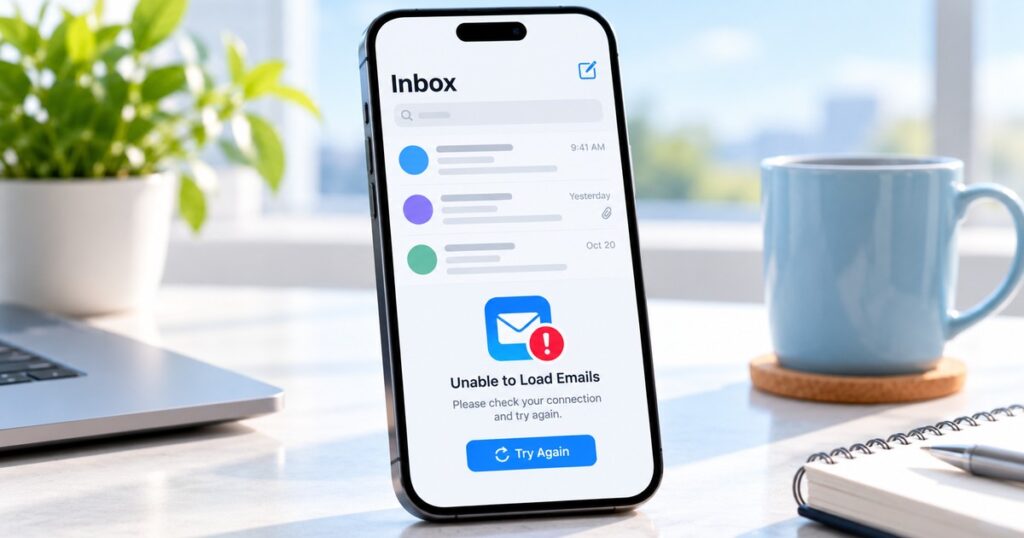
Is your Mail app not working on iPhone, even though your internet connection seems fine? Maybe the Mail app refuses to open, your inbox stops updating, or important messages aren’t appearing.
Sometimes Apple Mail displays an error such as “Cannot Get Mail” or “Account Error.” Other times, emails remain stuck in the Outbox, messages arrive hours late, or the app suddenly closes when you try to read something.
These problems can affect iCloud Mail, Gmail, Outlook, Yahoo, and other email accounts configured in Apple’s Mail app.
Fortunately, a malfunctioning inbox doesn’t automatically mean your emails have been deleted or your account has been compromised.
The problem may involve your internet connection, account authentication, an email provider’s server, synchronization settings, or a temporary software issue.
In this guide, we’ll explain 12 practical fixes for Mail app not working on iPhone, including missing emails, syncing errors, failed sending, password problems, and issues after iOS updates.
We’ll start with safe checks before discussing changes that could remove locally stored messages or drafts.
Table of Contents
Quick Answer
If the Mail app isn’t working on your iPhone, try these steps:
- Identify whether the app is crashing, not syncing, or failing to send messages.
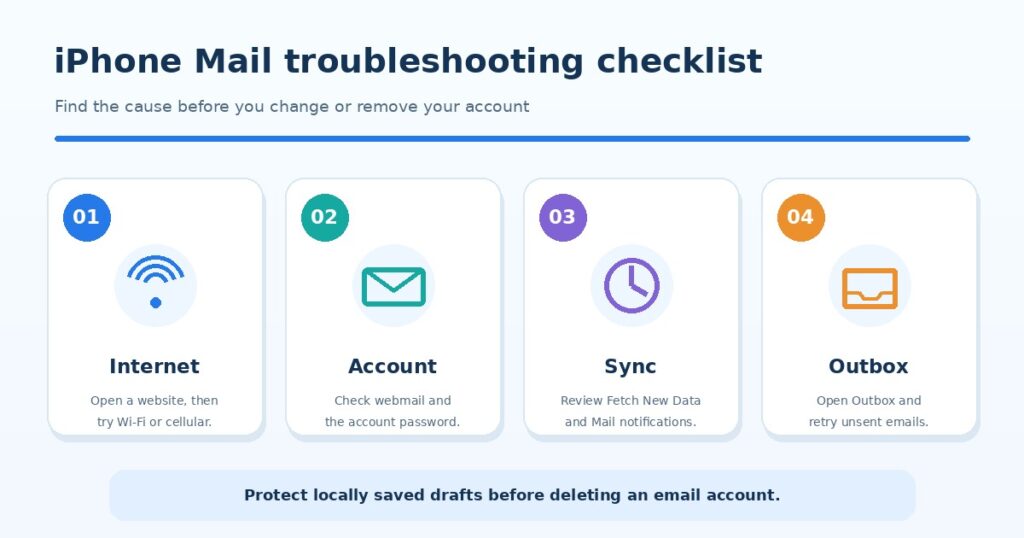
- Check your Wi-Fi or cellular internet connection.
- Sign in to your email provider’s website to test the account.
- Close and reopen Mail, then restart your iPhone.
- Check inbox categories, filters, and hidden messages.
- Review Fetch New Data and Push settings.
- Check the Outbox for unsent emails.
- Verify that your email account is enabled and authenticated.
- Review Mail notifications if messages arrive without alerts.
- Check for a compatible iOS update.
- Review VPN, security, and work-account restrictions.
- Remove and add the account again only after protecting your data.
Important: Don’t delete an email account or reinstall Mail without first checking whether important drafts and messages are safely stored on your email provider’s server or backed up elsewhere.
Why Is the Mail App Not Working on iPhone?
Apple Mail relies on both your iPhone and the email provider associated with your account.
If either side develops a problem, the application may stop receiving messages or display an error.
Internet Connectivity Problems
An unstable Wi-Fi or cellular connection may prevent Mail from communicating with email servers.
Email Provider Problems
Gmail, Outlook, Yahoo, iCloud Mail, and other services can experience outages or account-specific problems.
Incorrect Account Credentials
If your password changes or your email provider requires additional authentication, Mail may lose access to the account.
Synchronization Settings
Fetch New Data and Push settings affect how and when the app checks for new messages.
Mail Filters and Categories
Some emails may be placed in separate categories or hidden by active filters.
Software Problems
The Mail app may freeze or unexpectedly close due to temporary iOS or application problems.
The following steps will help determine which situation applies.
1. Identify the Exact Mail Problem
Before changing anything, check what happens when you open Mail.
Different symptoms require different troubleshooting approaches.
Mail App Won’t Open
If Mail closes immediately after launching, investigate a possible application problem.
Start by closing the app and restarting the iPhone.
Emails Aren’t Arriving
If the app opens but your inbox doesn’t update, check the internet connection, email account, and synchronization settings.
Cannot Get Mail Error
This message may indicate a connection problem, authentication failure, or an issue communicating with the email server.
Read the complete error if possible.
Emails Won’t Send
If you can read messages but can’t send replies, check your Outbox, account credentials, and outgoing mail service.
Missing Emails
If certain messages seem to have disappeared, inspect other mailboxes, categories, and filters before assuming they were deleted.
Notifications Aren’t Working
If emails appear when you open Mail but alerts never arrive, the problem may involve notification settings rather than email delivery.
How to Test
- Open Mail.
- Select the affected email account.
- Check whether older messages are visible.
- Pull down on the inbox to request an update.
- Send a short email to another address you own.
- Check whether it arrives.
- Reply from that second account.
- See whether the reply appears in Mail.
These results can help distinguish receiving, sending, and app-loading problems.
2. Check Your Internet Connection
If Mail app not working on iPhone continues, verify that the phone can actually connect to the internet.
A Wi-Fi icon doesn’t guarantee that the network has working internet access.
Test Wi-Fi
- Open Safari.
- Visit a reliable website.
- Check whether it loads.
- Open another website to confirm.
- Return to Mail and try refreshing.
If Safari cannot load pages, the issue may affect your network rather than Mail alone.
Test Cellular Data
If your plan allows it:
- Open Settings.
- Tap Wi-Fi.
- Temporarily turn Wi-Fi off.
- Confirm cellular data is enabled.
- Open Safari and test a website.
- Return to Mail.
If Mail works over cellular data but not Wi-Fi, investigate your router or wireless network.
Check Cellular Access for Mail
Open Settings → Cellular and review the cellular data settings available for apps.
Make sure Mail has permission to use cellular data if you want it to synchronize outside Wi-Fi.
Related Troubleshooting
If your iPhone connects to Wi-Fi but websites don’t load, see our iPhone Connected to Wi-Fi but No Internet guide.
For mobile network problems, read our iPhone Cellular Data Not Working guide.
If internet access works normally, continue with the email account checks.
3. Check Your Email Provider’s Website
Sometimes the Apple Mail app is functioning correctly, but the email service itself is unavailable.
Testing your account outside the app is one of the most useful troubleshooting steps.
Sign In Through a Browser
Open Safari or a computer browser.
Visit your email provider’s official website, such as:
Sign in using your regular account credentials.
Check Your Inbox
Look for recent messages.
Try sending a test email to another address you control.
If possible, reply to it.
How to Understand the Results
Webmail works, but iPhone Mail doesn’t: The issue may involve local account settings, authentication, synchronization, or the app.
Webmail doesn’t work either: The issue may involve the provider, account access, or a service outage.
Receiving works but sending fails everywhere: Investigate the provider’s outgoing mail service or account restrictions.
Check for an Outage
Use the email provider’s official service status page when one is available.
For iCloud services, check Apple System Status.
For a work or school email account, contact your organization’s IT administrator if the service isn’t accessible.
Important: Only enter your email password on the provider’s legitimate website or trusted sign-in screen.
4. Close Mail and Restart Your iPhone
Temporary application problems can sometimes prevent Mail from loading correctly.
Apple recommends closing and reopening an unresponsive app before attempting more disruptive solutions.
Close the Mail App
On an iPhone with Face ID:
- Swipe upward from the bottom of the screen.
- Pause in the middle to open the App Switcher.
- Find the Mail app.
- Swipe upward on its preview.
- Return to the Home Screen.
- Open Mail again.
On an iPhone with a Home button, double-press the Home button to open the App Switcher.
You generally don’t need to force-close applications that are working normally.
Restart Your iPhone
If Mail is still unresponsive:
- Press and hold the Side button and either Volume button on a Face ID iPhone.
- Drag the power-off slider.
- Wait approximately 30 seconds.
- Turn the device on again.
- Unlock the iPhone.
- Open Mail.
How to Test
Return to the affected inbox.
Try refreshing the message list.
Open an existing email, then compose a short test message.
If everything works normally, the issue may have been temporary.
What if Mail Still Crashes?
If the application closes immediately every time, check for a compatible iOS update later in this guide.
You can also read our iPhone Apps Keep Crashing guide for broader app troubleshooting.
Don’t delete and reinstall Mail before protecting any locally stored information.
5. Check Mail Categories and Message Filters
Sometimes emails aren’t actually missing.
They may be hidden by a filter, displayed under another category, or stored in a different mailbox.
On supported iOS versions and in supported regions, Apple Mail can automatically organize incoming email.
Check Mail Categories
Open Mail and inspect the categories at the top of your inbox.
Depending on your settings, you may see:
- Primary
- Transactions
- Updates
- Promotions
A message that isn’t visible under Primary may appear under another category.
View All Messages
On supported versions of Mail, swipe left across the categories to open All Mail.
You can also open the More menu in your inbox and select List View to turn off the category layout.
The exact controls may vary by iOS version.
Review Mail Filters
Look for the filter icon in Mail.
If filtering is active, switch it off temporarily.
Some filters show only unread, flagged, or otherwise selected messages.
Check Other Mailboxes
- Open Mail.
- Return to the Mailboxes screen.
- Select the relevant account.
- Check Inbox.
- Review Junk, Archive, Trash, and other folders.
- Use Search to locate a specific message.
Why This Matters
Deleting or resetting an account won’t help when an email is merely displayed in another category.
Always inspect message organization before changing synchronization settings.
6. Check Fetch New Data and Push Settings
If your inbox doesn’t update automatically, review how Mail retrieves messages.
Apple explains that some accounts support Push,while others use Fetch to check for new emails periodically.
If Push isn’t supported by your email provider, the account normally uses Fetch instead.
How to Check Fetch New Data
- Open Settings.
- Tap Apps.
- Select Mail.
- Tap Mail Accounts.
- Select Fetch New Data.
- Review the available Push and Fetch settings.
- Choose a suitable fetching schedule.
Depending on your account and iOS version, you may see options such as Automatically, Manually, or scheduled intervals.
Push vs Fetch
Push: When supported and enabled, new email information can be delivered automatically without waiting for a scheduled check.
Fetch: Your iPhone checks for new messages according to the selected schedule.
Manual: New messages are checked when you open Mail or manually refresh the mailbox.
Why Automatically May Be Slower
Apple explains that the default Automatically setting fetches new data in the background when the iPhone is charging and connected to Wi-Fi.
If you want more frequent background checks, choose an available timed schedule.
However, more frequent fetching can increase battery usage.
Check Individual Account Settings
If you have multiple email accounts, their synchronization options may differ.
One account might support Push while another relies on Fetch.
Review the affected account rather than changing every email account unnecessarily.
How to Test
- Adjust the appropriate fetching setting.
- Return to Mail.
- Refresh the affected inbox.
- Send a test email from another account.
- Check whether the message appears.
- Compare the result with your email provider’s website.
Important: Fetch settings control when Mail checks for messages. They cannot fix a provider outage, incorrect password, or disabled email account.
7. Check the Outbox for Unsent Emails
If your Mail app not working on iPhone problem involves messages that won’t send, checking the Outbox is one of the most useful steps.
Apple Mail may save an outgoing message in the Outbox when delivery fails.
This allows you to review the message and attempt sending again.
How to Find the Outbox
- Open Mail.
- Return to the Mailboxes screen.
- Look for Outbox.
- Tap Outbox if it appears.
- Open the unsent message.
- Check the recipient’s email address.
- Tap Send to try again.
Apple notes that if the Outbox isn’t visible, the message may already have been sent.
You should still verify delivery through Sent and, when necessary, with the recipient.
Check the Recipient’s Address
An incorrect email address can prevent successful delivery.
Look for:
- Missing characters.
- Incorrect domain names.
- Extra spaces.
- Misspelled addresses.
- Outdated contact information.
If necessary, type the correct address manually.
Test Without an Attachment
Large or unsupported attachments can create additional sending problems.
To investigate:
- Compose a new email.
- Enter an address you own.
- Use a short subject.
- Write a simple message.
- Don’t attach a photo or file.
- Tap Send.
- Check whether it arrives.
If a plain email works but an email with attachments fails, investigate attachment size, provider restrictions, and internet connectivity.
Check Outgoing Mail Authentication
If every outgoing message fails while incoming messages work, your outgoing mail service may require attention.
Sign in to the provider’s website to verify that your account is functioning.
For manually configured email accounts, incorrect outgoing server settings can prevent sending.
Avoid changing SMTP server names, ports, or security settings unless you have accurate instructions from your provider.
What if Email Remains Stuck?
Don’t repeatedly tap Send without checking the result.
Sometimes a message may have been transmitted even when the app displays a temporary error.
Verify whether a copy appears in Sent and whether the recipient received it.
If multiple messages continue failing, contact your email provider.
8. Verify Your Email Account and Password
An expired sign-in session, changed password, or security requirement may prevent Apple Mail from accessing your account.
This is especially relevant when Mail displays:
- Account Error.
- Cannot Get Mail.
- Incorrect Password.
- Unable to Verify Account.
- Authentication Failed.
- Server Not Responding.
These messages can have different causes, so read the full error before changing anything.
Check Whether the Account Is Enabled
- Open Settings.
- Tap Apps.
- Select Mail.
- Tap Mail Accounts.
- Choose the affected email account.
- Confirm that Mail is enabled for that account, if the option is available.
For iCloud Mail, you can also check the iCloud Mail settings associated with your Apple Account.
Verify Your Password
Open the email provider’s official website.
Try signing in using your usual account credentials.
If you can access your account in the browser, your password may be correct even if the iPhone Mail app still displays an authentication error.
What if You Recently Changed Your Password?
Your Mail account may need to authenticate again.
If your iPhone displays an official account sign-in prompt, follow the instructions.
For services using modern sign-in authentication, you may be redirected to the provider’s login page.
Don’t enter your email password into an unfamiliar website or third-party troubleshooting application.
Review Two-Factor Authentication
Some email providers require extra verification when a new device or application connects.
For example, you may need to approve a login attempt or complete your provider’s authorization process.
Certain older or manually configured accounts may require an app-specific password, depending on provider requirements.
Always follow the provider’s official instructions.
For Work or School Email
If your account is managed by an employer or educational institution, contact the IT administrator before changing authentication settings.
Some organizations require:
- Device management.
- Additional security verification.
- Approved account configurations.
- Organizational sign-in policies.
- Specific network or access requirements.
Important Precaution
Don’t remove the email account immediately because of a password error.
First confirm that you can access the mailbox through your email provider and that important messages and drafts are safely stored.
9. Check Mail Notification Settings
Sometimes the Mail app works normally, but you don’t receive notifications when new messages arrive.
This can make it appear as though Mail app not working on iPhone is the problem.
However, notifications and email synchronization are separate functions.
How to Check Mail Notifications
- Open Settings.
- Tap Apps.
- Select Mail.
- Tap Notifications.
- Turn on Allow Notifications if necessary.
- Review Lock Screen, Notification Center, and Banner options.
- Check the selected alert sound.
Customize Notifications by Account
If you use several accounts:
- Open Mail notification settings.
- Tap Customize Notifications.
- Select the relevant email account.
- Review the available Alerts and Badges settings.
- Enable the notifications you want.
Some settings may vary depending on your iOS version and account configuration.
Check Focus Mode
Focus modes can silence or limit notifications.
To review them:
- Open Settings.
- Tap Focus.
- Check the active Focus mode.
- Review which apps are allowed to send notifications.
- Make sure Mail isn’t being unintentionally silenced.
Review Scheduled Summary
If you use Scheduled Summary, some notifications may be delivered together at a scheduled time rather than immediately.
Review your notification summary settings if email alerts seem delayed.
Why Your Mail Badge May Look Wrong
On iOS versions supporting Mail categories, badge counts may reflect only selected categories, such as Primary.
Apple allows users to adjust whether the Mail badge counts messages from Primary or all unread mail.
This can explain why the number on the Mail icon differs from the total unread messages.
How to Test
Ask someone to send a short email.
Wait until the message reaches your inbox.
Check whether the app displays a notification.
If the email arrives but no alert appears, continue troubleshooting notification preferences.
If the email doesn’t arrive at all, return to account and synchronization troubleshooting instead.
10. Check for an iOS Update
Software issues can sometimes cause Mail to freeze, crash, or behave unexpectedly.
Installing a compatible iOS update may resolve certain application problems.
However, an update isn’t guaranteed to correct email provider or account configuration issues.
How to Check
- Open Settings.
- Tap General.
- Select Software Update.
- Review the available updates.
- Back up important information before a major update.
- Follow Apple’s instructions if you choose to install it.
Keep the iPhone charged or connected to power during the process.
Check Your Available Storage
Extremely limited device storage can interfere with normal app behavior.
To investigate:
- Open Settings.
- Tap General.
- Select iPhone Storage.
- Review the available space.
- Remove unnecessary downloads or applications if required.
Don’t delete important documents, photos, or locally stored email data without confirming you have copies.
What if Mail Started Crashing After Updating?
Check whether the app opens successfully after restarting.
Then test the email account through a browser.
If the website works but Mail keeps crashing, the problem may be limited to the app or device.
Avoid assuming that the latest update caused the issue merely because the symptoms began afterward.
Should You Reinstall Mail?
Reinstalling the Mail app isn’t the preferred first solution.
Depending on your configuration, removing the app or account information may affect locally stored data and require accounts to be configured again.
Try the safer checks first.
If the Mail application continues crashing, follow Apple’s official app troubleshooting guidance before taking more disruptive action.
11. Review VPN, Security, and Work Account Restrictions
Some network configurations or security tools may affect how Mail connects to email servers.
This is particularly relevant for work, school, and manually configured accounts.
Check Whether a VPN Is Active
- Open Settings.
- Review whether a VPN connection is active.
- Identify the VPN application or configuration.
- If appropriate and permitted, temporarily disconnect it.
- Test your email again.
- Reconnect the VPN after testing.
If you use a mandatory corporate VPN, don’t disable it without authorization.
Why a VPN May Matter
A VPN changes how network traffic travels between your iPhone and internet services.
A malfunctioning VPN server or an incompatible network configuration could interfere with some connections.
However, not every Mail error is caused by a VPN.
Check Security Applications
Certain network-filtering, DNS, or security applications can affect connectivity.
If Mail stopped working immediately after installing or changing one of these tools, review its configuration.
Use the application’s official documentation.
Avoid disabling important security protections merely to experiment.
Review Work or School Restrictions
If you use a managed device or organization account, your employer may control certain email features.
Examples include:
- Approved mail applications.
- Security certificates.
- Device compliance requirements.
- Account authentication methods.
- Network access policies.
How to Investigate
- Test the account using an authorized browser.
- Check whether other applications can access the internet.
- Review any recent configuration changes.
- Contact your IT administrator if the account is managed.
- Follow approved troubleshooting instructions.
What if Mail Works on Another Network?
If the same account works through cellular data but fails on a particular Wi-Fi connection, investigate that network’s configuration.
This suggests a possible network-specific problem, although further testing is necessary.
Important Precaution
Don’t remove device-management profiles, certificates, or corporate security settings unless the organization responsible for them instructs you to do so.
These settings may be required for continued account access.
12. Remove and Re-Add the Email Account Carefully
If your Mail app not working on iPhone issue continues after the earlier checks, removing and re-adding the affected account may be worth considering.
However, this step requires more caution than restarting an app or checking notifications.
Apple warns that changing or removing an email account may remove previously downloaded messages from the device.
An iPhone backup doesn’t necessarily include copies of emails stored on your provider’s servers, and locally stored messages or drafts may require separate protection.
Before Removing the Account
Complete these checks:
- Open your email provider’s official website.
- Confirm that you can sign in.
- Verify that important messages are available.
- Check Drafts, Sent, Archive, and custom folders.
- Save any important messages that exist only on the iPhone.
- Confirm that you know the account password or sign-in method.
- Make sure you can complete two-factor authentication.
Be Careful With POP Accounts
Some older email accounts use POP rather than IMAP or Exchange.
Depending on configuration, certain downloaded messages may exist only on the device.
Removing the account could result in losing local copies.
If you’re unsure how the account stores messages, contact your email provider before proceeding.
How to Remove an Email Account
Only after confirming that your data is protected:
- Open Settings.
- Tap Apps.
- Select Mail.
- Tap Mail Accounts.
- Choose the affected account.
- Tap Delete Account or Sign Out, depending on the account type.
- Read the confirmation carefully.
- Confirm only if you understand what will be removed.
Removing an email account from your iPhone doesn’t normally close the email account with your provider.
How to Add the Account Again
- Open Settings.
- Tap Apps.
- Select Mail.
- Tap Mail Accounts.
- Choose Add Account.
- Select your email provider.
- Enter the account information.
- Complete the official authentication process.
- Enable Mail for the account.
- Open Mail and check synchronization.
What if Mail Still Doesn’t Work?
If the account works through the provider’s website but fails again after re-adding, contact the provider or Apple Support.
For a work or school account, consult the system administrator.
Don’t repeatedly remove and recreate the account.
Should You Factory Reset Your iPhone?
No. A factory reset isn’t an appropriate routine solution for an email synchronization problem.
It introduces unnecessary risks and won’t resolve every provider-side or account-specific issue.
Mail App Not Receiving Emails on iPhone
If the Mail app opens normally but new emails don’t arrive, start with the account itself.
Check whether your email provider’s website shows recent messages.
If messages appear through the browser, the account is probably receiving mail successfully.
Then review Fetch New Data, account authentication, and internet connectivity.
Also check Mail categories and filters to make sure messages aren’t hidden.
If the problem affects only one account, focus on that account rather than changing all Mail settings.
Mail App Not Sending Emails on iPhone
When Mail can receive messages but cannot send them, check the Outbox.
Review unsent emails and confirm the recipient’s address.
Try sending a plain message without attachments.
If the problem continues, verify your account through the provider’s website.
For manually configured accounts, check whether the outgoing email server settings match your provider’s official instructions.
Contact the email provider if outgoing messages fail across multiple devices.
Mail App Not Updating Automatically
If new emails appear only when you open Mail, investigate Fetch New Data settings.
Some accounts support Push while others retrieve messages at scheduled intervals.
Review the account’s fetching schedule under Settings → Apps → Mail → Mail Accounts → Fetch New Data.
Remember that the Automatically setting doesn’t necessarily mean continuous background checking.
Apple explains that automatic background fetching can depend on whether the device is charging and connected to Wi-Fi.
If you need more frequent checks, select a supported interval that suits your needs.
Mail App Keeps Crashing on iPhone
If Apple Mail opens briefly and then closes, start by restarting the application.
Next, restart your iPhone normally.
Check whether a compatible iOS update is available.
Also review whether the device has sufficient free storage.
If Mail continues closing immediately, consult Apple’s app troubleshooting guidance.
Avoid deleting email accounts or reinstalling Mail without checking important locally stored information.
Mail App Not Working After iOS Update
Sometimes users notice email problems after installing a software update.
The timing alone doesn’t confirm that the update caused the issue.
First, check whether your internet connection works.
Then confirm that the email account is still enabled.
Test the account through its official website.
Review synchronization settings and notifications if the problem involves delayed messages.
If Mail displays a password or authentication error, follow your provider’s official sign-in procedure.
Don’t reset your entire iPhone simply because the issue started after an update.
Gmail Not Working in Apple Mail
If your Gmail account isn’t updating in Apple’s Mail app, first check Gmail through its official website.
Confirm that the inbox works and that you can send and receive messages.
Then review your Gmail account under iPhone Mail Accounts settings.
If the account requires authentication, follow Google’s official sign-in process.
Check Fetch New Data settings because not every account supports the same background delivery method in Apple Mail.
If the problem affects only Gmail, avoid removing unrelated email accounts.
Outlook Not Working in Apple Mail
If an Outlook account stops syncing, test it through Microsoft’s official website.
Check for security notices or account sign-in requirements.
Review whether the account remains enabled in Apple Mail.
For Microsoft 365 work or school accounts, organization policies may affect how the account connects.
If necessary, contact your administrator.
Don’t manually change Exchange server details unless you have accurate configuration information.
iCloud Mail Not Working on iPhone
If you use an iCloud email address, start by checking Apple’s system status page.
You can also open iCloud Mail through a browser.
Confirm that iCloud Mail is enabled for your device.
On supported iPhones, check:
- Open Settings.
- Tap your name.
- Select iCloud.
- Find Mail or iCloud Mail.
- Confirm Use on this iPhone is enabled.
The exact layout can vary by iOS version.
If iCloud Mail works through the browser but not on the device, investigate the local settings.
If iCloud Mail itself is unavailable, check Apple’s official service guidance.
Mail Notifications Not Working on iPhone
If messages arrive correctly but don’t trigger an alert, inspect notification settings.
Check whether Mail notifications are allowed.
Review account-specific alerts and badges.
Also examine Focus and Scheduled Summary settings.
If you use Mail categories, check whether the unread badge count is limited to Primary messages.
Notification problems don’t necessarily mean email synchronization has failed.
What Not to Do
Avoid these common troubleshooting mistakes:
- Don’t remove your email account before protecting important locally stored messages and drafts.
- Don’t assume missing emails have been deleted before checking categories and folders.
- Don’t repeatedly enter passwords into unfamiliar sign-in prompts.
- Don’t disable two-factor authentication just to troubleshoot.
- Don’t change SMTP, IMAP, or Exchange settings without accurate provider instructions.
- Don’t reinstall Mail as your first troubleshooting step.
- Don’t remove corporate management profiles without permission.
- Don’t assume notification delays mean that emails aren’t arriving.
- Don’t repeatedly resend important emails without verifying delivery.
- Don’t factory reset your iPhone for a routine Mail synchronization problem.
Start with the least disruptive fixes and test each one before moving forward.
Frequently Asked Questions
Why is my Mail app not working on iPhone?
Common causes include network connectivity issues, email provider outages, incorrect authentication, synchronization settings, active filters, and temporary software problems. Identify whether sending, receiving, notifications, or the app itself is failing.
Why is my iPhone not receiving emails automatically?
Your account may use Fetch instead of Push. Check Fetch New Data settings and confirm the selected schedule. Some accounts don’t support Push in Apple Mail.
Why does Apple Mail say Cannot Get Mail?
The app may be unable to communicate with the email provider. Possible causes include internet problems, authentication errors, server availability, or account configuration issues.
How do I refresh the Mail app on iPhone?
Open the affected inbox and pull down on the message list to request a refresh. If the account remains unchanged, check your connection and provider account.
Why is my Mail app not sending emails?
Messages may be stuck in the Outbox due to network issues, incorrect recipient information, authentication problems, or outgoing mail restrictions. Check the Outbox and test a short email without attachments.
Why are my emails arriving late?
Delivery delays may involve Fetch scheduling, network availability, email provider processing, or notification settings. Check whether the messages are actually arriving late or only generating delayed notifications.
Does restarting my iPhone delete emails?
A normal restart doesn’t ordinarily delete existing emails. However, email availability depends on how the messages are stored and synchronized with the provider.
Will deleting the Mail app delete my email account?
Removing the Mail app doesn’t normally close your account with the provider. However, deleting the app or changing account settings may affect locally stored information. Protect important data first.
Why is Gmail not syncing with Apple Mail?
Possible causes include Fetch settings, account authorization, internet connectivity, or a provider-side issue. Test Gmail through its official website and review its configuration in Apple Mail.
Why are Mail notifications not working?
Mail notifications may be disabled or limited by account-specific settings, Focus, Scheduled Summary, or category-based badge options. Check these preferences before changing the email account.
Can I use Apple Mail without Wi-Fi?
Yes. Apple Mail can use cellular internet data when your carrier plan allows it and cellular access is enabled for the app.
Should I remove and re-add my email account?
Consider it only after simpler troubleshooting fails and you’ve confirmed that important messages and drafts are safely stored or backed up. Removing an account may delete previously downloaded information from the device.
Does Low Power Mode affect Mail?
Low Power Mode can reduce background activity, including certain email-fetching behavior. If messages appear only when opening Mail, check both Low Power Mode and Fetch New Data settings.
Can VPN settings prevent Mail from working?
A misconfigured VPN or network filter may interfere with email connectivity. Test carefully and follow organization policies if the device or account is managed.
Final Thoughts
If your Mail app is not working on iPhone, begin by identifying whether the problem involves sending, receiving, synchronization, notifications, or the application itself.
Start with basic internet checks and verify your email account through its official website.
If webmail works normally, review the Mail app’s account configuration, filters, and Fetch New Data settings.
When emails won’t send, check the Outbox before changing advanced server information.
If messages arrive but notifications don’t appear, inspect notification settings and Focus modes.
Restart the iPhone and check for compatible software updates before considering more disruptive fixes.
Most importantly, avoid removing an email account without first confirming that important messages and drafts are safely stored.
Test each fix individually, protect your email data, and contact your provider or Apple Support if the problem continues.
Official Apple References
- Apple Support: If You Can’t Receive Email on Your iPhone or iPad
- Apple Support: If You Can’t Send Email on Your iPhone or iPad
- Apple Support: Add and Remove Email Accounts on iPhone
- Apple Support: Change Your Mail Settings on iPhone
- Apple Support: Customize Mail Notifications
- Apple Support: If iCloud Mail Isn’t Working
- Apple System Status
Last reviewed: October 23, 2026. Available Mail features, menu locations, and synchronization behavior may vary by iOS version, email provider, region, and account configuration.