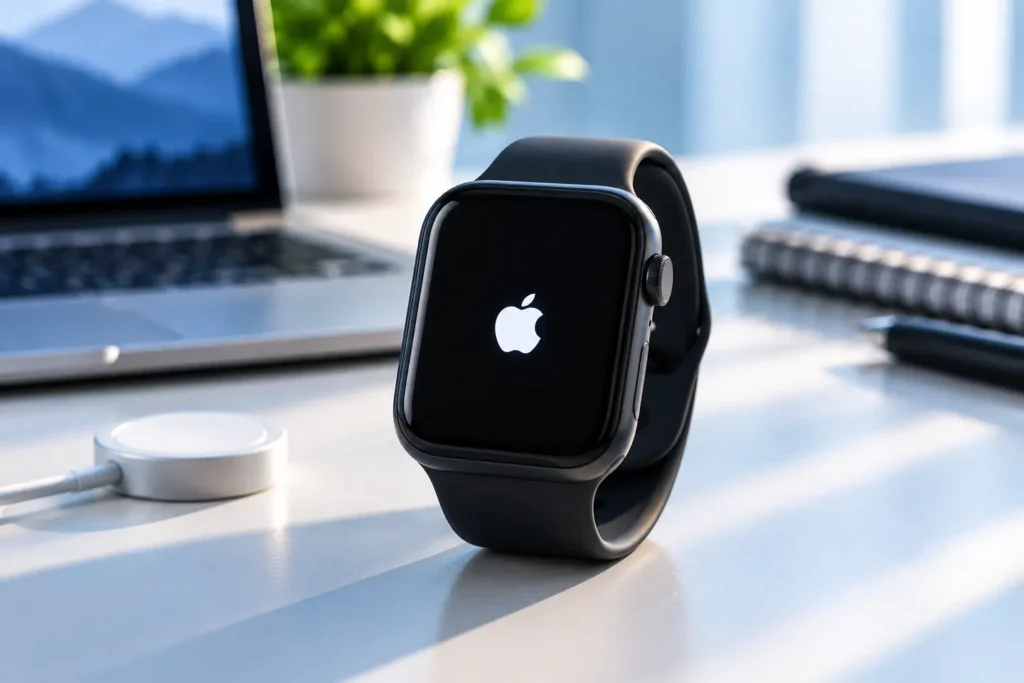
Is your Apple Watch stuck on Apple logo and refusing to start normally? Maybe the white Apple logo stays on a black screen, your watch keeps restarting, or the device stopped responding after a watchOS update.
A frozen startup screen can be frustrating, especially when your Apple Watch contains fitness history, settings, and other personal information.
Fortunately, an Apple Watch that won’t finish starting isn’t necessarily permanently damaged. A temporary software issue, interrupted startup, or charging problem may be involved.
In this guide, we’ll explain 10 safe ways to troubleshoot an Apple Watch stuck on the Apple logo, including force restarting, charging checks, watchOS updates, unpairing, and Apple’s official recovery options.
We’ll also explain which steps can erase your data and when professional service is the better choice.
Table of Contents
Quick Answer: How to Fix Apple Watch Stuck on Apple Logo
If your Apple Watch is frozen on the Apple logo and isn’t actively installing an update, try this first:
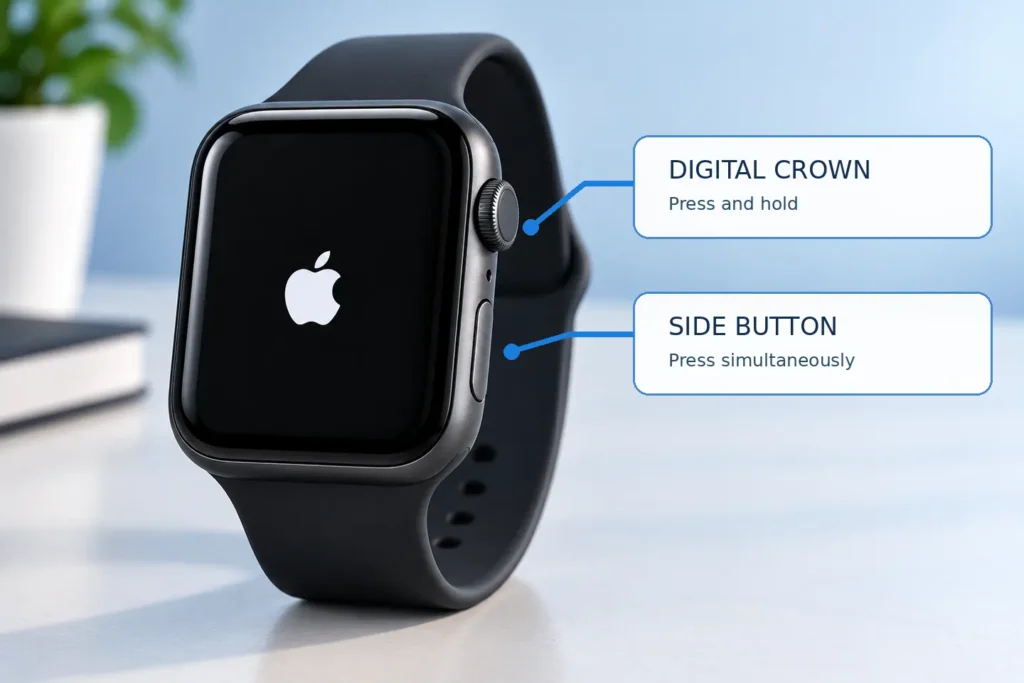
- Press and hold the Digital Crown and side button simultaneously.
- Keep holding for at least 10 seconds, until the display turns black and the Apple logo reappears.
- Release both buttons.
- Give your Apple Watch time to finish restarting.
- If it doesn’t start, check whether the battery and charging setup are working.
- If the problem persists, use the paired iPhone to investigate unpairing and pairing again.
Apple specifically recommends force restarting an Apple Watch that remains stuck on the Apple logo.
Important: Do not force-restart the watch while a watchOS update is actively installing. Interrupting an update can cause additional problems.
Why Is My Apple Watch Stuck on the Apple Logo?
When an Apple Watch starts, it displays the Apple logo while loading its operating system and other essential components.
Normally, this process finishes and the watch face or passcode screen appears.
If startup doesn’t complete, the Apple logo may remain on the screen or repeatedly disappear and return.
Possible causes include:
- A temporary watchOS software problem.
- An interrupted or incomplete update.
- Insufficient battery power.
- A charging problem.
- A problem following pairing or restoration.
- A system issue causing repeated restarts.
- A hardware fault affecting the watch.
The logo alone doesn’t reveal the exact cause.
Three situations are worth distinguishing.
Apple logo stays on the screen: The watch may be frozen during startup.
Apple logo repeatedly appears and disappears: The watch may be experiencing a boot loop.
Apple logo appears with a moving progress indicator: A software update or another system process may still be running.
Identifying the situation helps you choose the safest troubleshooting method.
1. Check Whether a watchOS Update Is Still Running
Before pressing buttons, consider whether the problem started during a watchOS update.
Apple Watch updates can take time to download, prepare, install, and finish.
During installation, the watch may show the Apple logo with a circular progress indicator.
This isn’t necessarily a malfunction.
What to check
- Look for a circular progress indicator around the Apple logo.
- Recall whether you recently started a watchOS update.
- Check the paired iPhone for an active update status.
- If installation is still running, leave the watch on its charger.
- Keep the paired iPhone nearby.
- Allow the update to finish without interrupting it.
Apple warns against restarting an Apple Watch during an active software update.
You should also avoid closing the Watch app on the paired iPhone during installation.
If the watch is clearly no longer updating and remains unresponsive, continue with the next step.
Do not assume the device is frozen solely because the Apple logo is visible.
2. Force-Restart Your Apple Watch
A force restart is Apple’s main recommended step for an Apple Watch stuck on Apple logo after an ordinary startup failure.
Unlike a factory reset, a force restart attempts to reboot the device without erasing its stored content.
How to force-restart Apple Watch
- Locate the Digital Crown, the round dial on the side of your watch.
- Find the side button, positioned below the Digital Crown.
- Press and hold both buttons at the same time.
- Continue holding for at least 10 seconds, until the screen turns black and the Apple logo reappears.
- Release both buttons.
- Allow the watch to complete its startup sequence.
Don’t repeatedly press the buttons while the watch is attempting to restart.
If the watch reaches its normal watch face or passcode screen, the temporary problem may be resolved.
What if the Apple logo returns but stays frozen?
If the same screen returns after the force restart, your watch may be experiencing a persistent startup problem.
Apple’s next major recommendation is to unpair and pair the watch again, if that process is available through your paired iPhone.
Before using that more disruptive option, check the charging setup and whether the paired iPhone can still communicate with the watch.
3. Charge Your Apple Watch if the Battery May Be Low
Insufficient power can prevent an Apple Watch from starting correctly.
Although a discharged battery doesn’t explain every frozen Apple logo, checking the battery is a useful early troubleshooting step.
To test:
- Connect a compatible Apple Watch magnetic charging cable to a power adapter.
- Plug the adapter into a working outlet.
- Place the back of the watch against the magnetic charging connector.
- Make sure the watch is properly aligned.
- Leave it connected and check whether charging begins.
- If the battery was completely depleted, give it time to recover before attempting another startup.
Apple explains that a deeply discharged Apple Watch may need up to 30 minutes before a charging indicator appears.
If you see a red lightning bolt or charging-cable symbol, follow Apple’s charging instructions.
What if the Apple logo still won’t disappear?
If the battery has had time to charge but the Apple Watch remains frozen on the logo, charging alone may not resolve the problem.
Check the charger and power connection next.
Safety warning: If your Apple Watch is unusually hot, physically damaged, or appears swollen, stop charging or using it and seek professional assistance.
4. Check the Magnetic Charger and Power Adapter
Sometimes a charging problem makes an Apple Watch startup failure more difficult to diagnose.
For example, the magnetic charging connector may not be aligned properly, or the power adapter may not be providing power.
Apple recommends checking the charger and its connections when an Apple Watch won’t charge or turn on.
Inspect the charging setup
- Disconnect and reconnect the charging cable from the power adapter.
- Confirm that the adapter is connected to a working electrical outlet.
- Reposition the magnetic charging connector against the watch.
- Inspect the back of the watch and charging puck for visible debris.
- Remove any protective plastic film left on the charging surface.
- If available, test another compatible Apple Watch charging cable or adapter.
Use a soft, dry cloth for ordinary exterior cleaning.
Avoid inserting tools into openings or using damaged charging equipment.
Some larger Apple Watch models may require an adjusted charging angle with certain charging docks.
If charging begins with another cable or adapter, the original charging equipment may be the problem.
If your watch still displays the Apple logo without starting, continue with the software troubleshooting steps.
5. Restart the Paired iPhone
Apple recommends restarting both the Apple Watch and its paired iPhone when troubleshooting certain device problems.
Restarting your iPhone isn’t a guaranteed fix for a watch frozen during startup, but it’s a reasonable check before attempting to unpair the devices.
Restart an iPhone with Face ID
- Press and hold the Side button and either Volume button.
- Drag the power-off slider.
- Wait approximately 30 seconds.
- Press and hold the Side button until the Apple logo appears.
- Unlock your iPhone.
For an iPhone with a Home button, use the normal restart procedure for that model.
After the iPhone restarts:
- Keep it close to your Apple Watch.
- Make sure Bluetooth is enabled.
- Open the Watch app.
- Check whether the watch remains listed.
- Observe whether it reconnects or displays any useful status.
A normal iPhone restart doesn’t erase your Apple Watch data.
If the Apple Watch remains frozen, the paired iPhone may provide the next available recovery option.
6. Check the Apple Watch App Before Resetting Anything
Before removing the watch from your iPhone, inspect its current pairing status.
This matters because unpairing an Apple Watch is a destructive operation: the watch is erased as part of the normal unpairing process.
If you use a GPS + Cellular model, you also need to consider the cellular plan.
Check pairing status
- Open the Watch app on your paired iPhone.
- Select the My Watch tab.
- Tap All Watches.
- Look for your Apple Watch.
- Confirm whether the device is still listed.
- Note whether the app allows you to access its information.
If the watch doesn’t appear, don’t immediately assume it has been erased. Check that you’re using the iPhone previously paired with it.
Understand the backup
Apple explains that a paired iPhone normally creates an Apple Watch backup during successful unpairing.
However, a frozen or disconnected watch may not be able to communicate normally.
You should not assume the newest data has been backed up successfully.
If you have important unsynchronized information, consider contacting Apple Support before choosing an erase or unpair operation.
If the watch remains listed and you’re comfortable proceeding, the next step follows Apple’s official stuck-logo guidance.
7. Unpair Apple Watch Using Your iPhone
If your Apple Watch is stuck on Apple logo after force restarting, Apple recommends trying to unpair and pair it again.
This is a more significant step than a restart.
Warning: Unpairing erases Apple Watch content and settings. Proceed only after considering your available backups and account information.
How to unpair your Apple Watch
- Keep the Apple Watch and paired iPhone close together.
- Open the Watch app on your iPhone.
- Go to My Watch → All Watches.
- Tap the information button next to your Apple Watch.
- Tap Unpair Apple Watch.
- Confirm by tapping Unpair [your Apple Watch name].
- If you have a GPS + Cellular watch, choose to keep the cellular plan if you’ll pair it with the same iPhone again.
- Enter your Apple Account password when requested.
- Follow the remaining onscreen instructions.
When this process completes normally, Apple Watch is erased and prepared for another setup.
What if unpairing fails?
If the paired iPhone cannot communicate with the frozen Apple Watch, normal unpairing may not complete.
Don’t keep trying unrelated reset combinations.
If the app cannot finish unpairing, contact Apple Support for help with the watch’s actual startup condition.
Also remember that erasing a watch without properly removing it from the Apple Account can leave Activation Lock enabled.
You may need the original Apple Account credentials to activate it again.
8. Pair Your Apple Watch Again and Restore From Backup
If unpairing finishes successfully, try pairing the watch again.
Apple specifically recommends this after unpairing an Apple Watch that was stuck on its startup logo.
Pair the watch again
- Keep your Apple Watch close to your iPhone.
- Open the Watch app.
- Tap Start Pairing or Add Watch, as appropriate.
- Follow the setup instructions on the iPhone.
- Scan the pairing animation if prompted.
- Sign in with the required Apple Account.
- Select an available Apple Watch backup if you want to restore your previous settings.
- Complete the remaining setup steps.
Depending on the watch and iPhone software versions, an update may be required during setup.
If a watchOS update begins, keep the watch properly charged and don’t interrupt the installation.
Should you restore from a backup?
Restoring from a backup is usually the better option if you want to recover compatible settings and other backed-up information.
You may also have the option to set the watch up as new.
However, setting up as new can mean starting again without some of your previous watch settings and locally stored information.
Use that choice deliberately rather than treating it as a harmless troubleshooting shortcut.
If pairing succeeds and the Apple Watch opens normally, check whether the startup problem has been resolved.
9. Check for a watchOS Update After the Watch Starts
If you manage to restore normal startup, check whether an appropriate watchOS update is available.
Apple updates watchOS to provide security fixes, bug fixes, and other improvements.
A compatible software update may help prevent a recurring issue, although it isn’t a guaranteed repair for every boot loop.
Check watchOS through the iPhone
- Open the Watch app.
- Select My Watch.
- Tap General.
- Choose Software Update.
- Check whether an update is available.
- Follow the installation instructions.
Keep your paired iPhone nearby throughout the update.
Apple recommends that the watch have at least 50% battery, be connected to its charger, and that the iPhone remain connected to Wi-Fi.
Do not restart the watch or iPhone during installation.
Can you update a watch frozen on the Apple logo?
Not through the normal on-watch Settings screen.
If the watch cannot finish starting and the Watch app cannot communicate with it, an ordinary software update may not be possible.
Don’t attempt random computer-based firmware installation methods meant for iPhones. Apple Watch uses different supported recovery procedures.
If the device remains frozen, continue to the next section.
10. Use Apple’s Recovery Instructions or Arrange Service
If the previous troubleshooting steps don’t restore your Apple Watch, check whether the device displays a recovery symbol rather than an ordinary Apple logo.
Apple provides a supported nearby-device recovery process for certain Apple Watch software problems.
For example, a watch may show:
- An image indicating that an iPhone and Apple Watch should be brought close together.
- A red exclamation mark.
These screens are different from a normal Apple logo frozen during startup.
If the watch displays a recovery symbol
Follow Apple’s recovery instructions:
- Prepare a compatible, updated iPhone or iPad with Wi-Fi and Bluetooth enabled.
- Charge the Apple Watch to at least 50%.
- Keep the watch connected to its charger.
- Bring the iPhone or iPad close to the watch.
- Follow the documented side-button procedure for the symbol displayed.
- Complete the recovery steps presented on the nearby device.
Apple’s updated instructions allow a compatible nearby iPhone or iPad to assist with certain recovery situations.
Do not treat this as a universal recovery procedure for every frozen Apple logo. It applies when the watch shows the supported recovery screen.
See Apple’s official nearby recovery instructions.
When to contact Apple Support
Arrange professional assistance if:
- The logo remains stuck after the recommended force restart.
- Unpairing or pairing cannot be completed.
- The watch repeatedly restarts and never reaches the watch face.
- Charging and power connections have been checked.
- The watch shows persistent recovery errors.
- The device has been dropped, damaged, or exposed to liquid.
You can start through Apple Watch Service and Repair.
A technician can assess whether software recovery or hardware service is appropriate.
Avoid opening the watch, disconnecting its battery, or using unverified repair software.
Apple Watch Stuck on Apple Logo After Update
If the problem began during a watchOS update, first determine whether the update is still running.
A progress indicator around the Apple logo can mean installation is in progress.
Apple specifically warns against restarting an Apple Watch during an active update.
If the update finishes but the watch remains stuck, follow Apple’s force-restart instructions.
If the problem persists, use the paired iPhone to investigate unpairing and pairing again.
An incomplete update may require professional recovery if the watch cannot communicate with the iPhone.
Avoid attempting to manually install firmware from unknown websites.
Apple Watch Keeps Showing Apple Logo and Turning Off
If the Apple logo appears, disappears, and then returns repeatedly, the watch may be experiencing a boot loop.
A boot loop means that the device repeatedly attempts to start but never reaches normal operation.
To investigate:
- Check whether the watch is actively updating.
- Verify that the battery has sufficient power.
- Inspect the charging connection.
- Try Apple’s force-restart procedure if no update is running.
- Check whether the paired iPhone recognizes the watch.
- Consider Apple’s unpairing procedure if available and appropriate.
If the same cycle continues after the recommended steps, contact Apple Support.
A boot loop doesn’t conclusively indicate a damaged battery or main board. Proper diagnosis is needed before attributing it to hardware.
Apple Watch Stuck on Apple Logo While Charging
If your Apple Watch remains frozen while connected to its charger, don’t assume that the charger is causing the problem.
A watch can be charging correctly while experiencing a separate startup issue.
Check that the magnetic connector is properly aligned and that the power adapter works.
If the watch was completely discharged, let it charge before judging the startup behavior.
If the watch remains frozen despite adequate power, follow Apple’s stuck-logo troubleshooting steps.
If an update is actively installing, keep the watch on its charger and avoid interrupting the installation.
If the watch becomes unusually hot or shows signs of damage, stop charging it and seek service.
Apple Watch Stuck on Apple Logo but Won’t Force Restart
If holding the Digital Crown and side button has no apparent effect, confirm that you’re using the correct controls.
The Digital Crown is the circular dial. The side button is the elongated button below it.
Press and hold both simultaneously, following Apple’s instructions.
If nothing changes:
- Check whether a software update is currently installing.
- Make sure the watch has sufficient battery power.
- Test a reliable charging setup.
- Check for visible physical damage.
- Seek assistance if the watch continues to ignore the controls.
A permanently unresponsive watch may require professional diagnosis.
Repeatedly applying force to the buttons or attempting to open the watch isn’t recommended.
Apple Watch vs. iPhone Stuck on Apple Logo
Although both devices display the Apple logo during startup, the supported recovery procedures are different.
For an Apple Watch, Apple’s main steps are force restarting, unpairing and pairing again, updating watchOS when possible, and arranging service if necessary.
For an iPhone, Apple provides separate recovery procedures, including computer-based recovery methods.
Don’t follow an iPhone recovery-mode tutorial when trying to repair an Apple Watch.
If your iPhone is also frozen on its startup logo, see our separate guide: iPhone Stuck on Apple Logo? 10 Best Fixes (2026).
Frequently Asked Questions
Why is my Apple Watch stuck on the Apple logo?
Possible reasons include a temporary watchOS problem, an incomplete update, insufficient power, or a hardware fault. The Apple logo alone can’t identify the exact cause.
How do I force-restart an Apple Watch stuck on the Apple logo?
Press and hold the Digital Crown and side button together until the display turns black and the Apple logo reappears, then release both buttons. Don’t do this during an active watchOS update.
Will force restarting my Apple Watch erase data?
A force restart doesn’t normally erase Apple Watch content. It attempts to restart the watch without performing a factory reset.
Why does my Apple Watch keep restarting with the Apple logo?
Repeated appearances of the Apple logo can indicate a boot loop. Check for an active update or power issue, then use Apple’s supported troubleshooting methods.
Can I fix an Apple Watch stuck on the Apple logo without an iPhone?
You can attempt a force restart and check charging without an iPhone. However, unpairing, restoring backups, and some recovery methods require a compatible Apple device.
Will unpairing Apple Watch delete everything?
Unpairing erases the watch as part of the normal process. The paired iPhone ordinarily creates a backup during successful unpairing, but you shouldn’t assume all recent data has been saved if the watch is unresponsive.
Should I leave my Apple Watch charging if it is stuck on the logo?
If the battery is low, charging is appropriate. If a watchOS update is actively installing, Apple instructs users to keep the watch on its charger. Otherwise, investigate charging separately from the startup problem.
How long should an Apple Watch display the Apple logo?
A brief Apple logo during normal startup is expected. Software updates can take considerably longer. There isn’t one fixed time that proves every watch is frozen, so check whether an update is running and whether the watch is responding.
Can I restore an Apple Watch using a Mac or Windows PC?
Apple’s ordinary consumer troubleshooting for a watch stuck on the Apple logo doesn’t use the same Finder or Apple Devices recovery process as an iPhone. Use Apple’s watch-specific instructions or arrange service.
What if Apple Watch is stuck on the Apple logo after a watchOS update?
Make sure the update isn’t still installing. If it has finished and the watch remains unresponsive, follow Apple’s force-restart guidance. If necessary, try unpairing and pairing again or contact Apple Support.
Does a frozen Apple Watch mean the battery is damaged?
Not necessarily. A software problem or temporary startup issue can produce similar symptoms. Battery and hardware problems are possibilities, but they require additional diagnosis.
Can Apple repair an Apple Watch stuck on the logo?
Apple offers service options for Apple Watch. Eligibility and costs depend on the watch model, warranty or coverage, location, and diagnostic findings.
Final Thoughts
If your Apple Watch is stuck on Apple logo, start by checking whether a watchOS update is still running.
If no update is active and the device is unresponsive, Apple’s recommended first troubleshooting action is to force-restart it using the Digital Crown and side button.
Next, confirm the battery and charger are working.
If the logo persists, Apple’s official guidance recommends unpairing and pairing the watch again when possible. Remember that unpairing erases the device, so consider backups and account credentials before proceeding.
If the watch still won’t start, or it displays a recovery error, contact Apple Support rather than experimenting with unverified repair tools.
Using the correct Apple Watch recovery procedure is the safest way to troubleshoot the problem while minimizing unnecessary data loss.