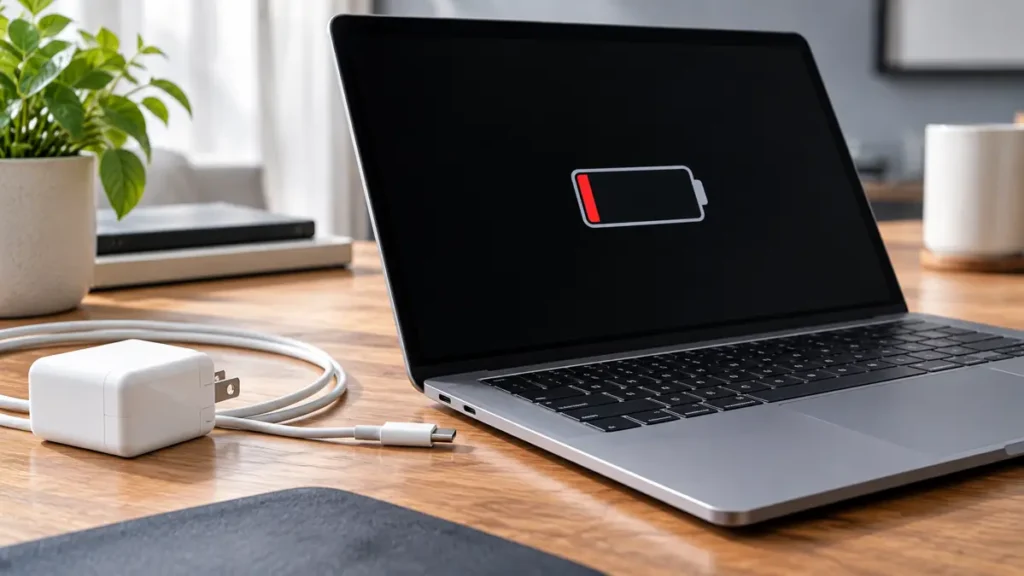
MacBook not charging even though it’s plugged in? Maybe your MacBook Air or MacBook Pro shows “Battery Is Not Charging,” the battery percentage stays the same, or the laptop refuses to turn on despite being connected to power.
Sometimes the MagSafe charging light appears, but the battery doesn’t increase. In other cases, a USB-C charger works intermittently or the MacBook stops charging around 80%.
Fortunately, a MacBook not charging doesn’t always mean its battery is damaged. The problem may involve an unsuitable power adapter, a faulty cable, battery health settings, temperature restrictions, or a temporary software issue.
In this guide, we’ll explain 12 practical fixes for a MacBook not charging, including solutions for USB-C and MagSafe models, charging paused at 80%, charging that suddenly stops, and MacBooks that appear completely dead.
These steps apply to compatible MacBook Air and MacBook Pro models, although certain settings and procedures differ between Apple silicon and Intel-based Macs.
Safety first: If your MacBook battery is swollen, the charger is damaged, the connector shows signs of burning, or liquid has entered the device, disconnect it from power and seek professional assistance.
Table of Contents
Quick Answer: Fix MacBook Not Charging
If your MacBook isn’t charging, start with these checks:
- Connect the power adapter directly to a working wall outlet.
- Use a charger that provides sufficient wattage for your MacBook.
- Try another compatible USB-C or MagSafe charging cable.
- Inspect the charging port for visible damage or debris.
- Disconnect unnecessary USB hubs and accessories.
- Restart your MacBook.
- Check Battery settings for charging limits or a charging pause.
- Allow your MacBook to cool down if it’s unusually warm.
- If the battery is completely depleted, leave it connected to power.
- Check battery condition and run Apple Diagnostics if necessary.
Work through the detailed solutions below before replacing your charger or battery.
Why Is My MacBook Not Charging?
There are several possible reasons why a MacBook battery may stop charging.
Common causes include:
- A damaged USB-C or MagSafe cable.
- An incompatible or low-wattage power adapter.
- A faulty wall outlet or USB hub.
- Debris or damage around the charging connector.
- Optimized Battery Charging delaying a full charge.
- An intentional battery Charge Limit.
- Excessive heat or demanding applications.
- A deeply discharged battery.
- A temporary macOS or power-management issue.
- A deteriorated battery or internal hardware problem.
It’s important to distinguish a charging failure from a deliberate charging pause.
For example, “Charging On Hold” can be normal battery-protection behavior, while a MacBook that receives no power with several known-working chargers may need hardware inspection.
1. Check the Power Outlet
If your MacBook is not charging when plugged in, begin by checking the power source.
A damaged extension cord, unreliable power strip, or faulty wall outlet may interrupt charging.
What to do:
- Disconnect your MacBook charger.
- Plug the power adapter directly into a wall outlet.
- Make sure the adapter is connected securely.
- Test the outlet with another appropriate electrical device.
- Reconnect the MacBook and check the battery indicator.
If your MacBook charges from another outlet, the original power source may be responsible.
Apple also explains that electrical line noise can occasionally affect power adapters.
If you suspect this problem, unplug the adapter from the wall, wait 60 seconds, and reconnect it.
If the issue happens repeatedly with a particular outlet, seek qualified electrical assistance rather than continuing to use a potentially faulty connection.
2. Use the Correct Charger
An unsuitable charger is one of the most important things to investigate when a MacBook isn’t charging properly.
A small USB-C phone charger may provide enough power for some tasks but not enough to charge a MacBook efficiently, especially during demanding workloads.
Check these details:
- Identify your MacBook model.
- Review the recommended power adapter wattage for that model.
- Check the power output of your current adapter.
- Use a compatible USB-C or MagSafe charging solution with sufficient power.
- Check whether the battery percentage begins increasing.
You can identify your model by opening Apple menu > About This Mac.
Apple provides model-specific recommendations for power adapters and charging cables.
A higher-wattage compatible USB-C adapter does not automatically force excessive power into your MacBook. The computer negotiates the power it can use.
However, charging performance still depends on the adapter, cable, and MacBook model.
For more information, see Apple’s official Mac charging guide.
3. Try Another Charging Cable
A damaged cable can prevent your MacBook from charging even when the power adapter itself works correctly.
Some cables are designed primarily for data transfer, while others support higher-power charging.
What to do:
- Disconnect the existing charging cable.
- Inspect it for fraying, exposed wires, damaged connectors, or discoloration.
- Stop using it if you notice physical damage.
- Try another compatible cable that supports your MacBook’s charging requirements.
- Reconnect the charger and check the battery status.
If your MacBook starts charging normally with another cable, the original cable may be defective or unsuitable.
USB-C connectors can look identical while supporting different capabilities, so use a cable designed for the required charging power.
Avoid repeatedly bending a cable into position to make charging work. An intermittent connection can indicate damage.
4. Inspect USB-C and MagSafe
MacBook models use different charging connections.
Many newer MacBook Air and MacBook Pro models support MagSafe 3 and USB-C charging, while older models may use an earlier MagSafe connector or USB-C exclusively.
Check the connector appropriate for your model.
For USB-C MacBooks
- Disconnect the charger.
- Examine the USB-C port for visible debris, damage, or moisture.
- Check whether the cable fits securely.
- If your MacBook has another USB-C charging port, try that port with a compatible charger.
If one port works but another does not, the affected port may need further inspection.
For MagSafe MacBooks
Check whether the MagSafe connector is sitting properly and whether the charging indicator appears.
On MagSafe 3:
- Amber: Charging is underway or temporarily on hold.
- Green: The battery is fully charged.
An amber light does not always mean the battery percentage should be increasing immediately.
If the charging port or connector is dirty, disconnect power and clean only accessible surfaces using Apple’s approved cleaning guidance.
Do not insert metal tools, pins, liquids, or sharp objects into charging ports.
If the connector appears damaged, arrange professional inspection.
5. Disconnect USB Hubs
Some MacBook charging issues involve accessories rather than the computer itself.
USB-C hubs, docking stations, monitors, and adapters may supply insufficient or inconsistent charging power.
A compatible external monitor can charge certain MacBooks, but the power it delivers must be suitable for the computer.
Try this:
- Disconnect external USB hubs and docking stations.
- Remove unnecessary accessories.
- Connect your MacBook directly to a compatible power adapter.
- Plug that adapter into a working wall outlet.
- Check whether charging resumes.
If direct charging works, reconnect accessories one at a time to identify the source of the problem.
Also remember that connecting multiple chargers does not make a compatible MacBook charge faster. Apple’s charging system selects the available power source according to its design.
6. Let the MacBook Cool Down
Excessive heat can temporarily interfere with MacBook charging.
Your MacBook may become warm during gaming, video editing, intensive multitasking, or prolonged use in direct sunlight.
Apple recommends using Mac laptops at ambient temperatures between 50°F and 95°F (10°C and 35°C).
If your MacBook feels unusually hot:
- Disconnect it from power if necessary.
- Move it to a cool, dry, well-ventilated location.
- Close demanding applications.
- Place it on a hard, flat surface.
- Allow the temperature to return to a normal range.
Avoid using your MacBook on soft bedding or surfaces that restrict ventilation.
Do not place it in a refrigerator or use water to cool it.
Once the MacBook reaches a suitable operating temperature, reconnect a compatible charger and check whether charging resumes.
7. Check Battery Charging Limits
A MacBook not charging beyond 80% may be working as designed.
Apple offers battery protection features that reduce the amount of time a battery remains fully charged.
Optimized Battery Charging
This feature learns your charging habits and may delay charging past 80% when macOS expects the MacBook to remain connected to power.
You may see Charging On Hold in the battery status menu.
If you need a full charge immediately, open the battery menu and select Charge to Full Now, when available.
Charge Limit
On supported Apple silicon Macs running macOS Tahoe 26.4 or later, Apple also provides a configurable Charge Limit.
To review it:
- Open Apple menu > System Settings.
- Select Battery.
- Open the available Charging or Battery Health information controls.
- Check whether a charge limit is enabled.
The available interface depends on your macOS version and model.
A MacBook stopping near a configured charging limit is not automatically experiencing a battery failure.
For additional details, read Apple’s Optimized Battery Charging and Charge Limit guide.
8. Check Heavy Power Usage
Sometimes your MacBook is connected to power, but its battery percentage isn’t increasing.
This can happen when demanding applications consume a large amount of energy or the charger provides insufficient power.
For example, video editing, gaming, and other intensive workloads may use significant power.
To investigate:
- Save your work.
- Close unnecessary demanding applications.
- Reduce display brightness if practical.
- Disconnect accessories that draw significant power.
- Connect a suitable charger.
- Let the MacBook charge while idle.
You can also open Activity Monitor > Energy to examine application energy usage.
If charging improves while the computer is idle, investigate the power adapter’s capacity and your workload.
This behavior does not necessarily mean the battery itself is defective.
9. Restart Your MacBook
A temporary software or power-management issue can sometimes affect the way a MacBook reports charging information.
Restarting the computer is a simple troubleshooting step.
What to do:
- Save your open documents.
- Open the Apple menu.
- Select Restart.
- Allow macOS to start normally.
- Reconnect your charger if needed.
- Check the battery status.
For Apple silicon Macs, a normal restart also resets the relevant power-management state. There is no separate SMC reset procedure.
If the MacBook is completely unresponsive, follow Apple’s startup troubleshooting guidance rather than repeatedly forcing shutdowns.
10. Reset SMC on Intel Macs
If you’re using an older Intel-based MacBook and charging still fails, resetting the System Management Controller may help.
The SMC manages several hardware functions, including power delivery, charging, and thermal behavior.
However, the reset procedure differs depending on whether your MacBook has an Apple T2 Security Chip.
For this reason, it’s important to follow the instructions for your exact model.
Important:
- Apple silicon Macs do not require a separate SMC reset.
- Intel-based Macs may benefit from an SMC reset if other troubleshooting steps fail.
- The keyboard shortcut differs between Intel models.
Follow Apple’s verified instructions here:
Avoid using an SMC reset sequence intended for a different MacBook.
11. Update macOS
In some cases, software or firmware updates may improve communication between your MacBook and its charging equipment.
If the computer is operating normally and has sufficient power, check for available updates.
Steps:
- Open Apple menu > System Settings.
- Select General.
- Click Software Update.
- Review available compatible updates.
- Back up important data before installing an update.
Do not start a major macOS update when the battery is critically low and the power supply is unreliable.
If your MacBook cannot charge or power on at all, resolve the basic power problem before attempting software changes.
Software updates cannot repair damaged connectors or failed charging circuitry.
12. Check Battery Health
If your MacBook still refuses to charge after testing a suitable adapter, cable, and power source, it’s time to investigate the battery and hardware.
Open System Settings > Battery and look for battery condition information.
Depending on your MacBook model and macOS version, you may see an indication such as:
- Normal
- Service Recommended
A Service Recommended message suggests that the battery may require professional assessment.
You can also use Apple Diagnostics to check for certain hardware problems.
On Apple silicon Macs, diagnostics is accessed through startup options. Intel-based Macs use different startup key combinations.
Follow Apple’s official Diagnostics instructions.
If charging still fails, contact Apple Support or an Apple Authorized Service Provider.
Do not attempt to remove or puncture a built-in lithium-ion battery yourself.
MacBook Not Charging When Plugged In?
If your MacBook shows that a charger is connected but the percentage remains unchanged, there are several possibilities.
The charger might provide enough power to run the MacBook but not enough to recharge the battery while you’re using it.
macOS may also have temporarily paused charging to protect battery health.
Start by checking the battery status message.
If it says Battery Is Not Charging, check whether the power adapter delivers sufficient wattage.
If it says Charging On Hold, review Optimized Battery Charging.
If the MacBook reports a charging limit, inspect the available Battery settings.
Finally, test a compatible charger directly connected to a wall outlet.
These checks can help distinguish normal charging management from an actual power problem.
MacBook Won’t Turn On or Charge?
A completely unresponsive MacBook requires slightly different troubleshooting.
If the battery has been depleted for a long time, the computer may need additional charging time before it starts.
Apple notes that some Macs may require approximately 20 minutes of charging after long-term storage.
Try these checks:
- Connect the MacBook to a known-working compatible power adapter.
- Leave it connected for at least 20 minutes.
- Check that the outlet and charging cable are functioning.
- Disconnect unnecessary accessories.
- Try starting the MacBook normally.
If the MacBook remains unresponsive, consult Apple’s startup troubleshooting guidance or arrange professional inspection.
Avoid repeatedly attempting firmware recovery or erasing storage without a clear diagnosis.
Frequently Asked Questions
Why Is My MacBook Not Charging When Plugged In?
A low-wattage adapter, faulty cable, charging-port problem, battery setting, or hardware issue could be responsible. Start by checking the power source and trying a compatible charger that meets your MacBook’s requirements.
Why Does My MacBook Say Battery Is Not Charging?
Your MacBook may be receiving enough power to operate but not enough to recharge its battery. It may also temporarily pause charging for battery management. Check the charger wattage and Battery settings.
Why Is My MacBook Not Charging Past 80%?
Optimized Battery Charging, a supported Charge Limit, or temperature-related protection may delay charging beyond 80%. Check the battery status menu and System Settings before assuming the battery is damaged.
Can I Charge a MacBook With a Phone Charger?
A compatible USB-C phone charger may supply some power, but many phone chargers do not provide sufficient wattage for normal MacBook charging, especially under heavy workloads. Use a charger that meets the recommended requirements for your model.
Why Is My MacBook Charging Slowly?
A low-power adapter, unsuitable USB-C cable, external hub, high energy usage, or battery temperature can affect charging speed. On supported macOS versions, a Slow Charger message may appear.
Why Is My MacBook MagSafe Light Orange but Not Charging?
On MagSafe 3 models, an amber light may indicate that charging is underway or on hold. Check the battery status menu to determine whether the MacBook has intentionally paused charging.
Does Resetting SMC Fix MacBook Charging?
An SMC reset can help with certain power-related problems on Intel-based MacBooks. Apple silicon Macs do not require a separate SMC reset procedure; restarting is the appropriate initial step.
How Do I Know if My MacBook Battery Needs Replacement?
Battery condition information may show Service Recommended. Persistent charging failures, swelling, or abnormal battery behavior also warrant professional assessment. Apple Diagnostics and qualified service providers can help identify the cause.
Final Thoughts
If your MacBook is not charging, don’t immediately assume that you need a new battery.
First, check the power outlet, charging cable, and adapter. Make sure the charger provides sufficient power for your particular MacBook.
Next, inspect USB-C or MagSafe connections, check macOS Battery settings, allow the computer to cool if necessary, and restart it.
Remember that a MacBook stopping around 80% can be normal battery-protection behavior.
If the problem continues after testing known-working equipment, seek professional diagnosis rather than attempting unsafe repairs.
For a similar issue on another Apple device, read our iPhone Not Charging troubleshooting guide.