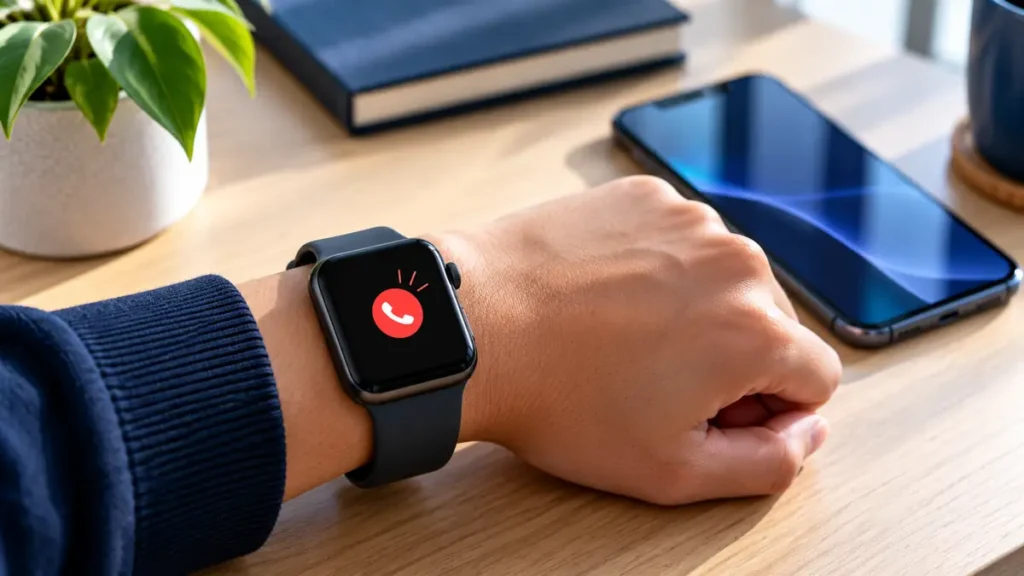
Apple Watch not receiving calls even though your iPhone rings normally? Maybe incoming calls never appear on your wrist, the watch stays silent, or you only see missed calls after the caller hangs up.
Sometimes your Apple Watch receives messages and other notifications but doesn’t alert you to incoming phone calls. In other situations, calls work while your iPhone is nearby but stop appearing when you leave your phone behind.
Fortunately, an Apple Watch not receiving calls doesn’t automatically mean the watch is defective. The problem may involve Bluetooth connectivity, Focus settings, a locked watch, call-screening preferences, or alert sounds and haptics.
In this guide, we’ll explain 12 practical fixes for an Apple Watch that isn’t receiving calls, including how to restore incoming call alerts, fix missing vibrations, troubleshoot calls away from your iPhone, and identify when a network connection is responsible.
These steps apply to compatible Apple Watch Series, SE, and Ultra models, although certain cellular and watchOS features vary by model and region.
Table of Contents
Quick Answer: Fix Apple Watch Not Receiving Calls
If your Apple Watch doesn’t notify you about incoming calls, try these checks first:
- Make sure your iPhone can receive ordinary phone calls.
- Keep your Apple Watch and paired iPhone close together.
- Check their Bluetooth connection.
- Turn off Airplane Mode if it’s preventing connectivity.
- Unlock your Apple Watch.
- Check whether Do Not Disturb, Sleep, or another Focus is silencing calls.
- Review Silent Mode, alert volume, and haptic feedback.
- Check call notification preferences in the Watch app.
- Review your iPhone’s unknown-caller and spam-screening settings.
- Turn off Low Power Mode temporarily for testing.
- Verify Wi-Fi Calling or cellular availability when away from your iPhone.
- Restart both devices and install any relevant software updates.
Start with the connection and call-alert settings before resetting or unpairing anything.
Why Is My Apple Watch Not Receiving Calls?
There are several possible reasons why your Apple Watch isn’t alerting you to incoming calls.
Common causes include:
- Your Apple Watch has disconnected from its paired iPhone.
- Bluetooth or another required connection is unavailable.
- Airplane Mode is enabled.
- The Apple Watch is locked.
- A Focus mode is silencing calls.
- Silent Mode is enabled, and haptic feedback is off or too weak.
- Phone alert settings aren’t configured as expected.
- Unknown callers are being screened or silenced on the iPhone.
- Low Power Mode is limiting communication when the iPhone isn’t nearby.
- Wi-Fi Calling isn’t available or configured.
- A cellular watch doesn’t have an active usable cellular connection.
- A temporary software problem affects incoming call alerts.
The symptoms matter.
If calls arrive but your wrist doesn’t vibrate, start with sounds and haptics.
If calls don’t appear at all, investigate the iPhone connection and notification settings.
If the problem only happens when you leave your iPhone behind, check Wi-Fi Calling, cellular connectivity, and Low Power Mode.
1. Test Incoming Calls
Before changing settings, identify exactly what isn’t working.
An Apple Watch that displays incoming calls silently has a different problem from one that receives no call information whatsoever.
Try these steps:
- Wear your Apple Watch and unlock it.
- Place your paired iPhone nearby.
- Ask someone to call your iPhone’s regular phone number.
- Observe what happens on the iPhone and Apple Watch.
- Repeat the test with your iPhone locked.
- Record whether the watch displays the call, makes a sound, or produces haptic feedback.
Apple’s general notification system often delivers alerts to either the iPhone or the Apple Watch based on whether the iPhone is unlocked and whether the watch is locked.
However, incoming phone-call presentation can differ from ordinary app notifications, so test actual calls rather than relying only on text-message alerts.
If the watch displays the incoming call without making a sound, focus on alert settings.
If the iPhone itself never receives the call, troubleshoot the iPhone’s telephone service first.
2. Check the iPhone Connection
Apple explains that missing calls, messages, and notifications may indicate that the Apple Watch is no longer connected to its paired iPhone.
Your watch normally communicates with the iPhone using Bluetooth when the devices are nearby.
How to check:
- Keep your Apple Watch near its paired iPhone.
- Press the side button on the Apple Watch to open Control Center.
- Look for the connection status.
- Check whether a red iPhone icon or red X appears.
- If disconnected, make sure Bluetooth and Wi-Fi are enabled on the iPhone.
- Allow the devices to reconnect.
A green iPhone connection indicator shows that the paired iPhone is connected.
If the watch remains disconnected even when the devices are nearby, restart both devices.
Don’t immediately erase or unpair the watch.
If connection problems continue, follow Apple’s official Apple Watch connection guide.
3. Check Airplane Mode and Bluetooth
If Airplane Mode is enabled or the necessary wireless connections are unavailable, your Apple Watch may not be able to receive calls as expected.
Check your iPhone:
- Open Control Center.
- Confirm that Airplane Mode is turned off.
- Make sure Bluetooth is enabled.
- Confirm Wi-Fi is available when needed.
For a clearer Bluetooth check, you can also open Settings > Bluetooth on the iPhone.
Check your Apple Watch:
- Press the side button to open Control Center.
- Locate the Airplane Mode icon.
- Turn off Airplane Mode if it’s interfering with your connection.
- Check whether the watch reconnects.
Airplane Mode behavior can vary depending on previously configured Wi-Fi and Bluetooth settings. Therefore, don’t assume it always disables every wireless connection.
The most important thing is to confirm that the Apple Watch has a usable connection.
Ask someone to call again after reconnecting.
4. Unlock Your Apple Watch
If your Apple Watch is locked, notification behavior can change.
Apple generally sends notifications to the paired iPhone when the watch is locked rather than displaying them normally on the wrist.
What to do:
- Raise your wrist.
- Check whether the lock icon appears.
- Enter your Apple Watch passcode if requested.
- Make sure the watch remains unlocked while you’re wearing it.
- Ask someone to call your iPhone again.
If your Apple Watch keeps locking while you’re wearing it, check that the band fits comfortably and the watch maintains proper skin contact.
A loose fit can interfere with Wrist Detection.
Avoid disabling Wrist Detection simply to receive calls because doing so changes other security and device features.
The goal is to make sure the watch correctly recognizes that it’s being worn.
5. Turn Off Do Not Disturb or Focus
Do Not Disturb, Sleep Focus, and other Focus modes can silence incoming calls and alerts.
If your Apple Watch isn’t ringing, check whether one of these modes is enabled.
Steps:
- Open Control Center on your Apple Watch.
- Look for the Focus or Do Not Disturb icon.
- Temporarily turn off the active Focus.
- Ask someone to call your number.
- Check whether the call alert appears.
If the call works with Focus disabled, review the Focus configuration.
On your iPhone, open Settings > Focus, choose the relevant mode, and inspect which people and calls are allowed.
Some Focus configurations allow calls from selected contacts or repeated callers while silencing others.
You don’t need to permanently disable Focus if you rely on it.
Instead, adjust the allowed callers so important calls can reach you.
6. Check Silent Mode and Haptics
If your Apple Watch shows incoming calls but doesn’t ring or vibrate, review its sound and haptic settings.
Silent Mode mutes sounds but can still allow haptic alerts.
However, if haptics are disabled as well, an incoming call may be easy to miss.
What to do:
- Open Settings on your Apple Watch.
- Select Sounds & Haptics.
- Check whether Silent Mode is enabled.
- Turn off Silent Mode temporarily to test audible alerts.
- Review the ringtone and alert-volume settings available on your model.
- Tap Haptics.
- Choose Default or Prominent rather than Off.
- Ask someone to call again.
On newer supported watchOS versions, Apple Watch may adjust alert volume automatically based on ambient noise.
Where supported, you can change the alert-volume level or disable automatic adjustment to use a fixed volume.
For more noticeable wrist feedback, try Prominent haptics.
Also make sure your watch band fits snugly but comfortably. Haptic feedback is easier to notice when the back of the watch maintains proper contact with your wrist.
7. Review Phone Notification Settings
If other notifications arrive but phone calls don’t alert your watch properly, review notification settings in the Apple Watch app on your iPhone.
Some notification settings can be mirrored from the iPhone, while other apps offer custom preferences.
Try these steps:
- Open the Watch app on your paired iPhone.
- Select My Watch.
- Tap Notifications.
- Find the Phone settings, if shown on your model and software version.
- Review whether the settings mirror your iPhone or use custom preferences.
- Make sure relevant incoming-call alert options aren’t disabled.
- Test another incoming call.
For other apps, you may see options such as Allow Notifications, Send to Notification Center, or Notifications Off.
Those app-notification options don’t necessarily control ordinary cellular phone calls in the same way.
If you mainly miss WhatsApp or other third-party calling alerts, check the relevant application’s iPhone and Apple Watch notification settings separately.
Avoid changing unrelated notification settings without first identifying which type of call is being missed.
8. Check Unknown Caller Settings
Sometimes a phone call doesn’t reach your Apple Watch because the paired iPhone screens or silences the caller before an ordinary ringing alert occurs.
This is particularly important if calls from saved contacts work but unknown numbers do not.
On newer supported iOS versions, Apple offers call screening and unknown-caller filtering options.
What to check:
- Open Settings on your iPhone.
- Tap Apps.
- Select Phone.
- Find the incoming-call screening or unknown-caller settings.
- Review whether unknown callers are being screened or silenced.
- Check whether carrier spam filtering is enabled.
If your iPhone is set to silence unknown callers, those calls may go to voicemail without ringing normally.
For testing, temporarily select the setting that allows normal incoming calls, where available.
Then ask someone whose number isn’t saved in your contacts to call you.
If the call now appears, you’ve identified a call-screening issue rather than an Apple Watch hardware problem.
Re-enable your preferred spam protection afterward and adjust the relevant settings to balance safety with important calls.
9. Turn Off Low Power Mode
Low Power Mode is useful for extending Apple Watch battery life, but it can affect certain features.
Apple confirms that when Low Power Mode is active and the paired iPhone isn’t nearby, incoming phone calls may be sent to voicemail and notifications may be delayed.
To check:
- Press the side button on Apple Watch to open Control Center.
- Tap the battery percentage.
- Check whether Low Power Mode is enabled.
- Temporarily turn it off.
- Test receiving a call while your iPhone is nearby.
- If relevant, repeat the test with the watch on a supported independent connection.
If incoming calls begin working after disabling Low Power Mode, its connection restrictions may have been contributing to the problem.
Keep in mind that Low Power Mode can also affect other background features and alerts.
For more battery-related guidance, read our Apple Watch Battery Draining Fast guide.
10. Check Calls Away From Your iPhone
If your Apple Watch receives calls when the iPhone is nearby but not when you leave it behind, check how the watch connects independently.
A GPS-only Apple Watch doesn’t have its own cellular connection.
However, supported Apple Watch models may still be able to make or receive certain calls over Wi-Fi when the necessary calling features are available.
A GPS + Cellular Apple Watch may use an active supported cellular plan.
What to check:
- Place the Apple Watch within range of a usable Wi-Fi network.
- Check the watch’s wireless connection status in Control Center.
- On your iPhone, open Settings > Cellular > Wi-Fi Calling, where supported.
- Check whether Wi-Fi Calling is enabled.
- Review any available option for Wi-Fi Calling on other devices.
- Check whether your carrier supports the relevant calling features.
If you have an Apple Watch cellular model, verify that the watch has a supported cellular plan and a usable cellular connection.
Carrier and country availability vary.
If you only experience trouble with cellular service, treat that as a separate network issue rather than changing all notification settings.
11. Restart Both Devices
A temporary software or Bluetooth connection issue can interfere with incoming calls.
Restarting both your Apple Watch and iPhone may help restore normal communication.
Restart your Apple Watch:
- Take the watch off its charger if it’s charging.
- Press and hold the side button.
- Tap the power icon when it appears.
- Drag the Power Off slider.
- After the watch shuts down, press and hold the side button until the Apple logo appears.
Restart your iPhone:
- Use the standard shutdown procedure for your iPhone model.
- Turn the iPhone off.
- Turn it back on.
- Wait for cellular service and Bluetooth connectivity to return.
Keep both devices near each other while they reconnect.
Then make a test call.
Don’t force restart either device while a system update is actively installing.
If both devices reconnect normally but the problem continues, move to the software update check.
12. Update iOS and watchOS
If your Apple Watch still isn’t receiving calls, check whether updates are available for the paired iPhone and Apple Watch.
Software updates may address compatibility issues, connectivity bugs, and other system problems.
Update your iPhone:
- Open Settings > General > Software Update.
- Check for a compatible update.
- Back up important data before a major update.
- Install the update if appropriate.
Update your Apple Watch:
- Connect your watch to its charger.
- Make sure it has sufficient battery charge.
- Keep the watch near the paired iPhone.
- Open the Watch app on your iPhone.
- Go to My Watch > General > Software Update.
- Follow the onscreen instructions.
Don’t remove the watch from its charger or restart it during an active update.
For help with a failed installation, read our Apple Watch Not Updating guide.
After both devices are updated and connected, test incoming calls again.
Apple Watch Not Receiving Calls or Texts?
If neither calls nor texts appear on your Apple Watch, the problem may involve a broader connection or notification issue.
Check whether your Apple Watch is connected to its paired iPhone.
Also make sure the watch is unlocked and a Focus mode isn’t suppressing alerts.
For ordinary app notifications, Apple generally routes alerts to the iPhone when it’s unlocked and to an unlocked Apple Watch when the iPhone is locked or asleep.
Third-party app notifications may have additional network requirements.
Start with connectivity before investigating every individual application’s settings.
Apple Watch Not Receiving Calls When Away From Phone?
If calls work near your iPhone but stop when you move away, your Apple Watch may be losing the connection required to handle them.
Apple Watch can use Bluetooth, Wi-Fi, or cellular depending on its model and network availability.
A GPS-only watch doesn’t have independent cellular service.
Certain calls over Wi-Fi require supported Wi-Fi Calling or FaceTime audio functionality.
Cellular calling on a GPS + Cellular model requires compatible carrier service and an active plan.
Low Power Mode can also affect incoming calls when your paired iPhone isn’t nearby.
Before assuming that your watch is broken, check the available network connection and carrier requirements.
Apple Watch Not Receiving Calls When Locked?
An Apple Watch that is locked doesn’t behave the same way as an unlocked watch on your wrist.
Apple’s notification-delivery behavior can send alerts to the paired iPhone when the watch is locked.
Unlock your watch and perform another test call.
If the watch keeps locking unexpectedly while you’re wearing it, check the band fit and Wrist Detection.
Avoid turning off security features permanently just to work around unexpected locking.
Apple Watch Receives Calls but Doesn’t Vibrate?
If incoming calls appear on the display but you don’t feel an alert, check Settings > Sounds & Haptics > Haptics.
Choose Default or Prominent.
Also check that the watch fits comfortably against your wrist.
Silent Mode doesn’t necessarily prevent vibration, but haptic feedback must be enabled.
If calls still arrive without haptic feedback and other watch vibrations are missing too, you may be dealing with a broader haptic settings or hardware problem.
If your Apple Watch receives calls but doesn’t vibrate, the problem may be related to its haptic feedback settings rather than call connectivity. Follow our Apple Watch Haptics Not Working guide for detailed troubleshooting steps.
Apple Watch Only Receives Missed Call Notifications?
If you receive a missed-call notification after the call ends but never see the incoming call, check Focus settings, the iPhone connection, and call screening.
Also test with a saved contact.
If the problem only affects unknown numbers, the iPhone’s screening or spam-filtering options may be responsible.
If it occurs when your iPhone is away, verify that your watch has a supported network connection and that Low Power Mode isn’t restricting incoming calls.
The missed-call notification alone doesn’t prove that the watch received the original incoming call in real time.
When to Unpair Apple Watch
If all normal connection, notification, and software checks fail, unpairing and pairing again may be a reasonable last-resort troubleshooting step.
However, don’t do this first.
Unpairing can be time-consuming and may require setting up Apple Watch again.
Before proceeding:
- Confirm that you know your Apple Account credentials.
- Keep your iPhone and Apple Watch near each other.
- Review Apple’s backup and unpairing instructions.
- Understand the implications for cellular plans, if applicable.
- Use the Watch app on your iPhone to unpair the device.
Apple normally creates a backup when you unpair using the paired iPhone, although not every type of information is included in the backup.
If you eventually decide to re-pair, follow Apple’s official instructions rather than attempting to bypass Activation Lock.
If the watch still doesn’t receive calls after being correctly paired and configured, contact Apple Support.
Frequently Asked Questions
Why Is My Apple Watch Not Receiving Calls?
Your Apple Watch may be disconnected from your iPhone, locked, affected by Focus settings, or missing the necessary network connection. Low Power Mode and iPhone call-screening settings can also affect incoming calls.
Why Does My iPhone Ring but Not My Apple Watch?
Check whether your Apple Watch is connected, unlocked, and allowed to alert you. Review Silent Mode, haptics, Focus settings, and the Watch app’s available call-notification preferences.
Why Is My Apple Watch Not Receiving Calls or Texts?
A disconnected iPhone, locked watch, disabled notifications, or Focus mode may be responsible. If both calls and messages fail, investigate the overall connection before troubleshooting individual apps.
Why Is My Apple Watch Not Receiving Calls When Away From My Phone?
Your watch may not have a usable Wi-Fi or cellular connection. Check your model, carrier plan, Wi-Fi Calling availability, and Low Power Mode settings.
Can Apple Watch Receive Calls Without an iPhone Nearby?
Yes, under supported conditions. Cellular models can use a compatible active cellular plan. Some calls may also work over Wi-Fi when the necessary calling services are configured.
Why Doesn’t My Apple Watch Vibrate for Calls?
Haptic feedback may be disabled or difficult to feel. Open Settings > Sounds & Haptics > Haptics and try Default or Prominent. Check your watch band’s fit as well.
Does Silent Mode Stop Apple Watch From Receiving Calls?
Silent Mode primarily suppresses audible alerts. Haptic notifications can still work if enabled. It doesn’t automatically mean that incoming phone calls cannot be received.
Does Do Not Disturb Block Apple Watch Calls?
Do Not Disturb can silence incoming call alerts. Depending on your Focus configuration, certain people or repeated callers may still be allowed through.
Why Does My Apple Watch Receive Only Some Calls?
Check whether the missing calls come from unknown numbers, blocked contacts, or callers affected by Focus settings. Your iPhone may also be screening or silencing certain calls.
Why Is My Apple Watch Not Receiving Calls When Locked?
When your Apple Watch is locked, notification behavior changes and alerts may be routed to the paired iPhone. Unlock the watch and test again.
Will Restarting My Apple Watch Fix Missed Calls?
A normal restart may resolve temporary connection or software problems. It won’t fix unsupported cellular service, an incompatible carrier plan, or a persistent hardware fault.
Should I Reset My Apple Watch to Fix Calls?
A factory reset or unpairing should be a last resort after checking connectivity, Focus, notification settings, and updates. Review Apple’s backup guidance before proceeding.
Final Thoughts
If your Apple Watch is not receiving calls, begin by testing whether the watch is connected to your iPhone and whether incoming calls reach the iPhone normally.
Next, unlock the watch and check Focus, Silent Mode, and haptic settings.
If you miss calls from unknown numbers, review your iPhone’s call-screening preferences.
If incoming calls stop working when you’re away from your iPhone, investigate Wi-Fi Calling, cellular service, and Low Power Mode.
Restarting both devices and installing relevant software updates may help with temporary connection problems.
Most importantly, don’t erase or unpair your Apple Watch until you’ve checked the less disruptive solutions.
For more Apple Watch troubleshooting, read our Apple Watch Battery Draining Fast guide or Apple Watch Not Updating guide.
Official Apple References
- Apple Support: If Your Apple Watch Isn’t Connected or Paired With Your iPhone
- Apple Support: Notifications on Your Apple Watch
- Apple Support: Change Volume, Audio, and Haptic Settings
- Apple Support: Use Apple Watch Without Your iPhone Nearby
- Apple Support: Manage Unknown Callers on iPhone
- Apple Support: Accept or Decline Incoming Calls on Apple Watch
- Apple Support: Use Low Power Mode on Apple Watch