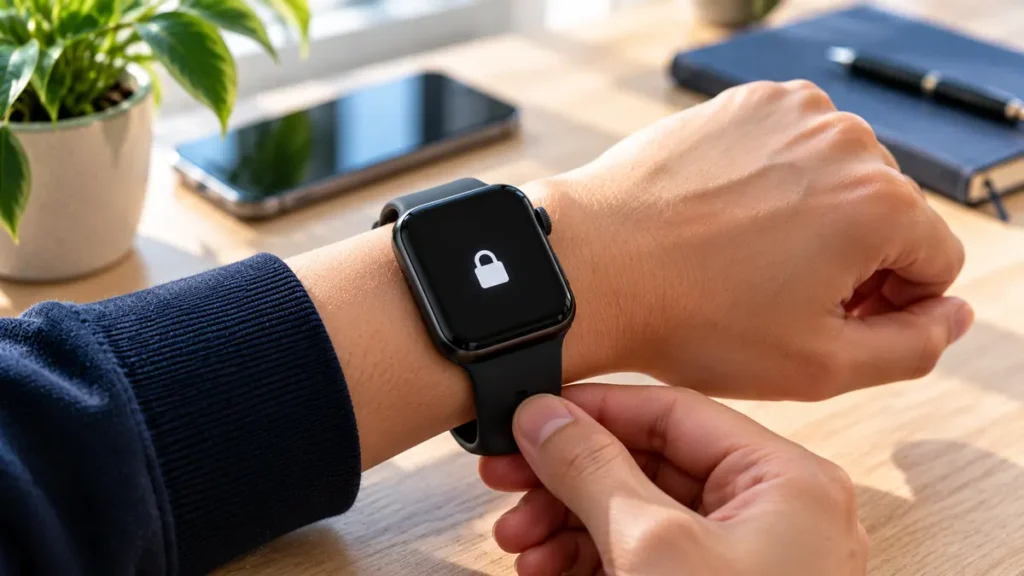
Apple Watch keeps locking even while you’re wearing it? Maybe your watch repeatedly asks for the passcode, locks during a workout, or stops displaying notifications until you unlock it again.
Sometimes the watch works normally for a few minutes before unexpectedly locking. In other situations, it locks whenever you move your wrist or adjust the band.
Fortunately, an Apple Watch that keeps locking doesn’t automatically have a hardware problem.
Apple Watch uses a feature called Wrist Detection to determine whether you’re wearing it. If the sensors temporarily lose contact with your skin or fail to detect your wrist, the watch may lock to protect your personal information.
A loose band, incorrect watch position, moisture, tattoos, or sensor-related issues can contribute to repeated locking.
In this guide, we’ll explain 12 practical fixes for an Apple Watch that keeps locking, including how to improve wrist detection, check passcode settings, clean the sensors, and determine whether professional service is necessary.
These instructions apply to compatible Apple Watch Series, SE, and Ultra models, although some controls can vary depending on your watchOS version.
Table of Contents
Quick Answer: Fix Apple Watch Keeps Locking
If your Apple Watch repeatedly locks while you’re wearing it, start with these checks:
- Confirm whether it’s asking for a passcode or displaying Water Lock.
- Adjust the band so the watch fits snugly but comfortably.
- Position the watch above your wrist bone.
- Try another properly fitting band if necessary.
- Clean and dry the back of the watch.
- Remove anything between the watch sensors and your skin.
- Try your other wrist if tattoos or scars affect sensor readings.
- Check that Wrist Detection is enabled.
- Make sure the watch wasn’t accidentally locked manually.
- Enable Unlock with iPhone if you want easier unlocking.
- Restart your Apple Watch and check for watchOS updates.
- If the problem persists, consider re-pairing or contacting Apple Support.
Important: Don’t immediately disable Wrist Detection to prevent locking. Doing so affects important security, health-monitoring, notification, and safety features.
Why Does My Apple Watch Keep Locking?
Apple Watch uses sensors on the back of the device to detect whether it’s being worn.
If you’ve enabled a passcode, the watch normally locks automatically after you take it off.
This protects your personal information and supported payment features.
However, when the sensors cannot reliably detect your wrist, the device may behave as though you’ve removed it.
Possible reasons include:
- A loose or incorrectly sized watch band.
- Wearing the watch directly over the wrist bone.
- Clothing or another object between the sensors and your skin.
- Dirt, lotion, or residue on the back of the watch.
- Tattoos or scars interfering with optical sensors.
- Wrist Detection settings.
- The watch being locked manually.
- A temporary watchOS software issue.
- Physical or sensor hardware damage.
Apple confirms that unreliable Wrist Detection can also cause problems beyond repeated passcode requests.
For example, you may notice missing notifications, unexpectedly paused workouts, or unreliable heart-rate measurements.
These additional symptoms can help identify whether the watch is losing contact with your wrist.
1. Identify Which Lock Is Appearing
Before changing settings, determine which type of lock your Apple Watch is displaying.
There are two common situations that can look similar.
Passcode Lock
If the watch displays a lock symbol and asks for your passcode, it’s using its normal security lock.
This may happen because Wrist Detection believes you’ve removed the watch.
Water Lock
Water Lock is different.
It temporarily prevents the touchscreen from responding to accidental taps while you’re in water.
When Water Lock is active, a water-droplet symbol appears.
How to disable Water Lock:
- Wake your Apple Watch.
- Check whether the water-droplet symbol appears.
- Press and hold the Digital Crown.
- Continue until the watch indicates that Water Lock has been turned off.
- Test the touchscreen again.
The watch may play tones to help clear water from its speaker.
If your Apple Watch keeps asking for a passcode rather than displaying Water Lock, continue with the Wrist Detection checks below.
2. Adjust the Watch Band
One of the most common reasons an Apple Watch keeps locking on your wrist is an unreliable fit.
If the band is too loose, the watch may move away from your skin when you walk, type, or exercise.
When this happens, the sensors can temporarily lose contact with your wrist.
Apple recommends a snug but comfortable fit.
Try these steps:
- Put on your Apple Watch normally.
- Check whether the back of the watch lies flat against your skin.
- Gently move your wrist.
- Notice whether the watch slides or lifts away.
- Adjust the band slightly if necessary.
- Unlock the watch and test it again.
The band shouldn’t be painfully tight.
An excessively tight band can cause discomfort or skin irritation.
Your goal is steady sensor contact without restricting circulation or causing pressure.
If the watch stops locking after you adjust the band, the original fit was likely contributing to the problem.
3. Position the Watch Correctly
Even a well-fitting band may not work reliably if the watch is positioned incorrectly.
Apple recommends wearing the watch on top of the wrist, above the wrist bone.
That means positioning it slightly farther from your hand and closer to your elbow.
What to do:
- Loosen the watch band.
- Move the watch slightly above your wrist bone.
- Make sure the back of the watch rests flat against your skin.
- Tighten the band until it feels snug but comfortable.
- Unlock the Apple Watch.
- Wear it normally and check whether it locks again.
Avoid positioning the watch directly over a prominent wrist bone.
That position can reduce consistent sensor contact when your wrist moves.
If the watch was previously sliding toward your hand, moving it slightly higher may improve Wrist Detection.
You don’t need to change your watchOS settings simply because the device was positioned incorrectly.
4. Try a Different Watch Band
Sometimes the problem isn’t the watch itself but the band you’re using.
Bands can loosen with use, stretch over time, or fail to maintain consistent contact during exercise.
A band that feels comfortable when you’re sitting may become loose when your wrist moves.
Try this:
- Check whether the existing band is correctly attached.
- Inspect the clasp, fastening mechanism, or adjustment holes.
- Make sure the band hasn’t stretched excessively.
- Try another compatible band that fits properly, if available.
- Wear the watch and test Wrist Detection again.
Different band styles may provide different levels of stability.
The best band is one that keeps the watch comfortably positioned without sliding.
Don’t buy a replacement band before checking the current band’s adjustment.
If the locking problem only occurs with one particular band, fit or fastening may be contributing to the issue.
5. Clean the Back of Your Apple Watch
Dirt, sunscreen, lotion, or other residue can collect on the back of an Apple Watch.
Apple recommends keeping the rear crystal clean because buildup can affect sensor performance.
If your watch keeps locking unexpectedly, cleaning the area that contacts your wrist is a sensible check.
How to clean it safely:
- Remove the Apple Watch from your wrist.
- Turn it off and disconnect it from its charger.
- Take off the band if necessary.
- Use a soft, nonabrasive, lint-free cloth.
- Gently wipe the back of the watch.
- If needed, lightly dampen the cloth with fresh water.
- Dry the watch thoroughly before putting it back on.
Avoid using abrasive cleaners, compressed air, or sharp objects.
Don’t insert tools into the case or attempt to open the sensor housing.
Also make sure your wrist is clean and dry before wearing the watch again.
If dirt or residue was interfering with the sensor area, cleaning may help restore consistent detection.
For complete care instructions, follow Apple’s official Apple Watch cleaning guide.
6. Remove Anything Blocking the Sensors
Apple Watch needs direct contact with your skin for reliable Wrist Detection.
Objects between the back of the watch and your wrist can interfere with that contact.
Examples include:
- Shirt sleeves.
- Bracelets or wrist accessories.
- Fabric or protective coverings.
- Adhesive materials.
- Other objects that lift the watch away from your skin.
What to do:
- Remove the watch from your wrist.
- Check that nothing covers the rear sensors.
- Make sure your sleeve isn’t trapped beneath the watch.
- Put the watch back on directly against your skin.
- Adjust the band to maintain a comfortable fit.
- Unlock the watch and check whether the problem continues.
If you wear several bracelets or accessories on the same wrist, consider moving them away from the watch.
Avoid placing anything underneath the watch to stop the sensors from touching your skin.
If the watch works normally after removing an obstruction, the problem may have been related to sensor contact rather than software.
7. Check Tattoos or Scars
Tattoos and certain changes to the skin can affect Apple Watch sensor performance.
Apple explains that the ink, pattern, and saturation of some tattoos can interfere with the light used by its optical sensors.
This may make it harder for the device to recognize that it’s being worn.
Scars or other skin changes may also affect sensor contact or readings.
Try these steps:
- Identify whether the watch rests directly over a tattoo or scar.
- Check whether the problem occurs consistently in that position.
- If practical, try wearing the watch on your other wrist.
- Make sure the band fits properly.
- Unlock the watch and test it again.
If switching wrists solves the problem, the original sensor location may have been contributing to unreliable detection.
Update the Watch Orientation
If you change wrists permanently:
- Open Settings on your Apple Watch.
- Select General.
- Tap Orientation.
- Choose the correct wrist.
- Adjust the Digital Crown orientation if needed.
The goal is to find a position where the watch can reliably detect your wrist.
You don’t need to remove tattoos or make permanent changes to your skin.
8. Check Wrist Detection Settings
Wrist Detection is the main feature responsible for automatically locking your Apple Watch after removal.
Apple enables this setting by default on supported watches.
If your watch is repeatedly asking for its passcode, check that Wrist Detection is configured normally.
Follow these steps:
- Open Settings on your Apple Watch.
- Scroll down to Passcode.
- Tap Passcode.
- Find Wrist Detection.
- Confirm that Wrist Detection is enabled.
- Return to the watch face and test the watch while wearing it.
You can also review available passcode settings in the Watch app on your paired iPhone.
If Wrist Detection is enabled but the watch still locks unexpectedly, continue checking the physical fit and sensors.
Should You Turn Wrist Detection Off?
Not as your normal solution.
Turning it off prevents normal automatic wrist-based locking and changes several important features.
Depending on your watch model and watchOS version, these changes can include:
- Reduced or disabled automatic heart-rate tracking.
- Missing heart-rate notifications.
- Unavailable sleep tracking.
- Reduced Activity measurements.
- Changes to automatic Fall Detection emergency calling.
- Changes to Apple Pay authorization.
- Other unavailable safety or gesture features.
If you choose to disable Wrist Detection briefly for diagnosis, review Apple’s warnings carefully and turn it back on afterward.
Don’t permanently sacrifice these features just to avoid entering your passcode.
9. Check Manual Locking
An Apple Watch can also be locked manually.
If the device locks after you interact with Control Center, check whether you’re activating its Lock control.
What to do:
- Wake your Apple Watch.
- Enter your passcode to unlock it.
- Press the side button to open Control Center.
- Look for the Lock control, where available.
- Avoid selecting it unless you intentionally want to lock the watch.
The controls and their availability can vary between watchOS versions.
Manual locking requires you to enter your passcode again.
If the watch locks at random times without any interaction, the problem is less likely to be caused by the manual Lock control.
Instead, review Wrist Detection and sensor contact.
Don’t disable your Apple Watch passcode as an initial fix.
The passcode helps protect your information and is required for some important security features.
10. Enable Unlock With iPhone
If your Apple Watch locks occasionally, enabling Unlock with iPhone can make unlocking more convenient.
This feature lets your Apple Watch unlock when you unlock your paired iPhone under supported conditions.
It doesn’t repair a faulty sensor, but it may reduce how often you need to enter the watch passcode manually.
How to enable it:
- Open the Watch app on your paired iPhone.
- Tap My Watch.
- Select Passcode.
- Turn on Unlock with iPhone.
- Keep your iPhone within normal Bluetooth range.
- Unlock the iPhone and check whether the watch unlocks.
Apple notes that the iPhone generally needs to be within approximately 10 meters, or 33 feet, of the Apple Watch.
This feature also depends on the required connection being available.
Remember that unlocking with your iPhone is a convenience feature.
If the Apple Watch keeps locking because Wrist Detection loses contact, it may continue locking even with this feature enabled.
You should still address the underlying cause.
11. Restart and Update Apple Watch
If your watch fits correctly and the sensor area is clean but repeated locking continues, check for a temporary software problem.
Restarting the device may clear an issue affecting normal operation.
Restart Apple Watch
- Remove the watch from its charger if it’s charging.
- Press and hold the side button.
- Tap the power icon when it appears.
- Drag the Power Off slider.
- Wait until the watch shuts down.
- Press and hold the side button until the Apple logo appears.
After restarting, unlock your Apple Watch and check whether it remains unlocked while you’re wearing it.
Don’t force restart the watch while a watchOS update is actively installing.
Check for watchOS Updates
- Open the Watch app on your iPhone.
- Go to My Watch > General > Software Update.
- Check whether an update is available.
- Make sure your watch has sufficient battery charge.
- Follow Apple’s installation instructions.
A software update may resolve some system-related issues, but it cannot repair a physically damaged sensor.
For detailed update troubleshooting, read our Apple Watch Not Updating guide.
12. Re-Pair or Contact Apple Support
If your Apple Watch keeps locking after you’ve checked fit, sensor contact, Wrist Detection, and software, further troubleshooting may be necessary.
Before resetting anything, try identifying whether the issue happens under different conditions.
For example:
- Does it lock on both wrists?
- Does it happen with different bands?
- Does the watch also lose heart-rate readings?
- Does it pause workouts unexpectedly?
- Are notifications missing while you’re wearing it?
These symptoms may help identify unreliable wrist sensing.
Consider Unpairing Only as a Last Resort
If Apple Support recommends re-pairing or other evidence suggests a persistent software configuration issue:
- Keep the Apple Watch near its paired iPhone.
- Open the Watch app.
- Select All Watches.
- Tap the information button beside the affected watch.
- Choose Unpair Apple Watch.
- Follow the instructions carefully.
- Pair the watch again if appropriate.
Unpairing through the paired iPhone normally creates a watch backup, although some information isn’t included.
For cellular models, review the option to retain your cellular plan.
Re-pairing can be time-consuming and isn’t guaranteed to repair an underlying sensor problem.
If the watch continues locking with different bands and on different wrist positions, contact Apple Support.
Professional service may be appropriate if the sensors or other internal components aren’t functioning correctly.
Apple Watch Keeps Locking on My Wrist?
If your Apple Watch locks even though you’re wearing it, start with the band.
Check whether the watch sits flat against your skin and stays in contact when your wrist moves.
Then inspect the back sensor area.
Remove lotion, dirt, or other residue using Apple’s recommended cleaning procedure.
If the watch rests over a tattoo or scar, try the other wrist.
Finally, confirm that Wrist Detection is enabled.
A watch that continues locking despite reliable fit and clean sensors may need further diagnosis.
Apple Watch Keeps Locking During Workout?
Unexpected locking during a workout can be particularly frustrating.
You might also notice that the Workout app pauses unexpectedly.
Apple identifies both symptoms as possible signs of unreliable Wrist Detection.
During exercise, arm movement and changes in band fit can cause the watch to shift.
Try this:
- Position the watch above your wrist bone.
- Adjust the band for a snug but comfortable workout fit.
- Make sure the back of the watch remains against your skin.
- Remove anything trapped between the watch and your wrist.
- Check whether workouts continue without unexpected pauses.
You can loosen the band slightly after exercising if necessary for comfort.
If the workout keeps pausing alongside repeated passcode locks, investigate Wrist Detection before changing unrelated fitness settings.
Apple Watch Keeps Locking After an Update?
If the problem appeared after installing watchOS, it doesn’t automatically mean the update damaged your Apple Watch.
First check whether your band and wrist position have changed.
Review Wrist Detection and restart your watch normally.
Then confirm that the update completed successfully and whether another compatible update is available.
If the watch continues locking, note whether other sensor-based functions are affected.
Persistent problems after software troubleshooting may require Apple Support.
Apple Watch Keeps Asking for Passcode?
If your Apple Watch repeatedly requests its passcode while you’re wearing it, the watch may be detecting a temporary loss of wrist contact.
Start by tightening an overly loose band and positioning the watch correctly.
Clean and dry the sensor area.
If appropriate, enable Unlock with iPhone to make legitimate unlocking easier.
Avoid turning off your passcode simply to stop the repeated prompts.
A passcode helps protect stored information and supported payment functions.
The long-term solution is to address why the watch believes it has been removed.
Apple Watch Keeps Locking With Tattoos?
Certain tattoos can interfere with the optical sensors used for wrist-related measurements and detection.
The effect depends on the tattoo’s ink, pattern, and saturation.
If you have a tattoo where the watch rests, try wearing the device on your other wrist.
Update the wrist orientation afterward.
If the watch works reliably on a different wrist, that can help explain the original problem.
Turning off Wrist Detection may prevent automatic locking, but it also disables or limits important features and isn’t an equivalent replacement for reliable sensor contact.
Frequently Asked Questions
Why Does My Apple Watch Keep Locking?
The most common explanation is unreliable Wrist Detection. A loose band, incorrect positioning, dirt on the back sensor, tattoos, or certain hardware problems may prevent the watch from recognizing that it’s being worn.
Why Does My Apple Watch Keep Locking While Wearing It?
Your watch may be temporarily losing contact with your skin. Adjust the band so the sensors remain flat against your wrist and check for anything blocking the back of the watch.
How Do I Stop My Apple Watch From Locking?
Check the band fit, wear the watch above your wrist bone, clean the sensors, and confirm that Wrist Detection is enabled. If the problem persists, restart the watch and investigate possible sensor issues.
Why Does My Apple Watch Keep Asking for a Passcode?
An Apple Watch with a passcode automatically locks when it believes it has been removed. If the watch repeatedly loses wrist contact, it may request the passcode even while you’re wearing it.
Can a Loose Band Make Apple Watch Lock?
Yes. Apple confirms that an incorrectly fitting watch can interfere with Wrist Detection. The band should keep the sensors in contact with your skin without being uncomfortably tight.
Do Tattoos Cause Apple Watch Locking Problems?
Some tattoos can interfere with optical sensor readings. If you have a tattoo beneath the watch, switching to your other wrist may improve detection.
Should I Turn Off Wrist Detection?
Generally, no. Turning it off affects automatic locking and several health, safety, notification, and activity features. It’s better to troubleshoot the cause of unreliable wrist contact first.
Why Does My Apple Watch Lock During Exercise?
Movement, an incorrectly fitted band, or unreliable sensor contact can cause the watch to think it’s no longer being worn. Adjust the fit and watch position before changing Workout settings.
Does Unlock With iPhone Fix Repeated Locking?
It can make unlocking easier but doesn’t repair unreliable Wrist Detection. The Apple Watch may continue locking if it repeatedly loses contact with your wrist.
Why Does My Apple Watch Lock After I Remove It?
That’s normal behavior when Wrist Detection and a passcode are enabled. The watch locks to protect your personal information.
Will Restarting My Apple Watch Fix Locking?
A restart may resolve a temporary software problem. However, it won’t correct a loose band, a blocked sensor, or damaged hardware.
Can Apple Watch Sensors Become Faulty?
Yes, hardware problems are possible. If the device continues locking despite a proper fit, clean sensors, updated software, and testing on another wrist, contact Apple Support for assessment.
Final Thoughts
If your Apple Watch keeps locking, start by checking whether the device can reliably detect your wrist.
Adjust the band, position the watch above your wrist bone, and make sure the back sensors maintain comfortable contact with your skin.
Next, clean and dry the rear sensor area and remove anything between the watch and your wrist.
If tattoos or scars affect the sensor location, try the other wrist.
Review Wrist Detection settings and use Unlock with iPhone if you want a more convenient way to unlock the watch.
If the problem continues, restart your watch, check for compatible watchOS updates, and consider professional diagnosis.
Most importantly, avoid permanently disabling important security or safety features simply to stop repeated passcode prompts.
For related problems, read our Apple Watch Not Updating guide or Apple Watch Battery Draining Fast guide.