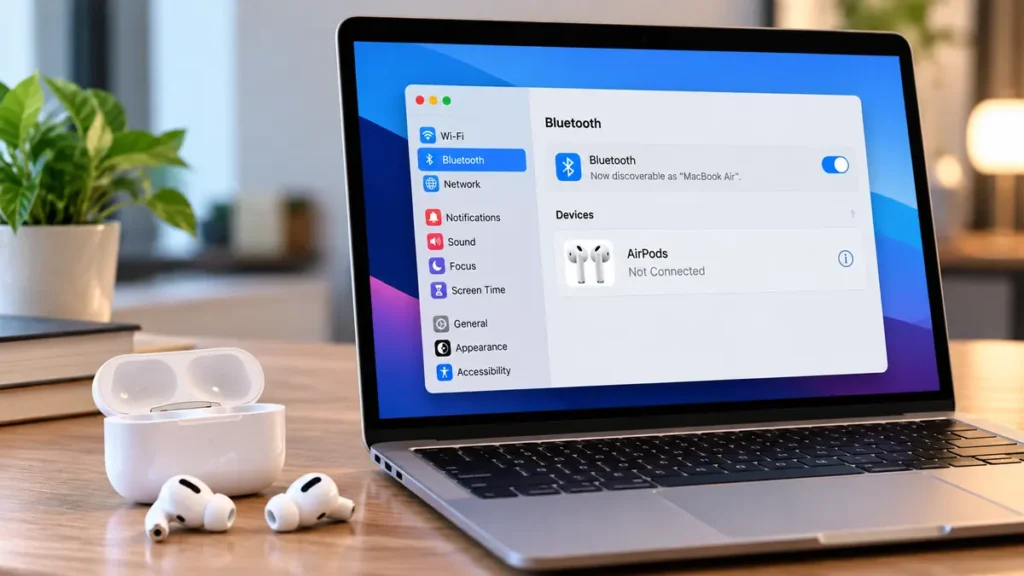
Are your AirPods not connecting to Mac even though Bluetooth is turned on? Maybe your AirPods don’t appear in the Bluetooth device list, your MacBook keeps showing “Connection Failed,” or your AirPods connect successfully but sound continues playing through the Mac speakers.
This can be frustrating when you’re trying to join a Zoom meeting, watch a video, or listen to music.
Fortunately, AirPods connection problems don’t necessarily mean your earbuds or MacBook are damaged.
Low battery, incorrect pairing settings, automatic device switching, outdated macOS software, and temporary Bluetooth problems can all prevent your AirPods from connecting properly.
In this guide, we’ll explain 12 practical fixes for AirPods not connecting to Mac, including solutions for MacBook Air, MacBook Pro, AirPods Pro, and newer AirPods models.
We’ll start with simple checks before moving to reconnecting and resetting your AirPods.
Table of Contents
Quick Answer
If your AirPods won’t connect to your Mac, try these steps:
- Identify whether your AirPods are missing or failing to connect.
- Check that Bluetooth is enabled on your Mac.
- Charge both AirPods and their case.
- Make sure your Mac supports your AirPods model.
- Select your AirPods as the audio output.
- Put your AirPods into pairing mode manually.
- Restart your AirPods.
- Check automatic switching between Apple devices.
- Restart your Mac.
- Update macOS and your AirPods firmware.
- Forget your AirPods and pair them again.
- Reset your AirPods using the correct method.
Most users should begin with Bluetooth settings, battery levels, and manual pairing before attempting a reset.
Why AirPods Won’t Connect
There are several reasons why AirPods may refuse to connect to a Mac.
Understanding the difference between these problems can help you find the correct solution.
Bluetooth Is Disabled
Your Mac uses Bluetooth to establish a wireless connection with your AirPods.
If Bluetooth is turned off or not functioning correctly, the earbuds won’t connect.
AirPods Aren’t in Pairing Mode
Your AirPods may already be paired with another device or might not be advertising themselves for a new connection.
Manually activating pairing mode can make them discoverable.
The Battery Is Low
If your AirPods or charging case have insufficient power, they may fail to enter pairing mode or maintain a stable connection.
Automatic Switching
Supported AirPods can automatically switch between Apple devices.
This may make it appear that your AirPods are disconnecting from your Mac when they’re actually switching to your iPhone or iPad.
Software Compatibility
Certain AirPods features and models require newer macOS versions.
An older Mac operating system may prevent successful pairing or limit supported features.
Audio Output Is Incorrect
Sometimes Bluetooth shows your AirPods as connected, but the Mac continues playing sound through its speakers.
That is usually an audio-routing problem rather than a pairing failure.
Let’s troubleshoot each possibility.
1. Identify the Problem
Before changing any settings, check exactly what happens when you try connecting your AirPods.
Open System Settings → Bluetooth on your Mac.
Look for your AirPods in the device list.
You might encounter one of these situations:
- AirPods aren’t listed: They may need charging, pairing mode, or a compatible macOS version.
- AirPods appear but won’t connect: There may be a saved pairing or temporary Bluetooth problem.
- AirPods show Connected but have no sound: Your Mac may be using the wrong audio output.
- AirPods connect and disconnect repeatedly: Automatic switching, interference, or battery problems may be involved.
If your AirPods connect normally to your iPhone but never appear on your Mac, focus on the Mac’s Bluetooth settings and manual pairing procedure.
If the connection fails across several devices, investigate the AirPods themselves.
2. Turn On Bluetooth
One of the first things to check is whether Bluetooth is enabled on your Mac.
Even if Bluetooth was working yesterday, a settings change or temporary software issue may prevent new connections.
Check Bluetooth Settings
- Click the Apple menu in the upper-left corner.
- Select System Settings.
- Click Bluetooth in the sidebar.
- Make sure Bluetooth is enabled.
- Keep the Bluetooth window open.
- Bring your AirPods close to your Mac.
- Check whether the AirPods appear in the device list.
If Bluetooth is already enabled, try turning it off briefly and then enabling it again.
Important: Turning off Bluetooth may disconnect wireless keyboards, mice, and other accessories. Make sure you can control your Mac before disabling it.
Try Control Center
You can also open Control Center from the Mac menu bar.
Select Bluetooth and check whether your AirPods are listed.
If they appear, choose Connect.
If Bluetooth is greyed out or won’t turn on at all, the problem may involve your Mac’s Bluetooth functionality rather than the AirPods.
For related Apple Bluetooth troubleshooting, read our iPhone Bluetooth Keeps Disconnecting guide.
3. Charge Your AirPods
Low battery power is another common reason AirPods won’t connect.
Remember that both earbuds have separate batteries.
One AirPod may have enough charge while the other is almost empty.
Charge the AirPods
- Put both AirPods inside their charging case.
- Make sure they’re seated correctly.
- Close the case lid.
- Connect the case to a compatible charger.
- Allow the earbuds and case to charge.
- Open the lid and attempt to reconnect.
If your case supports wireless charging, you can also use a compatible charging pad.
Check the Status Light
The status light provides information about charging and pairing.
On many AirPods models, a green indicator means the relevant battery is charged, while amber can indicate that charging is incomplete.
A flashing white light generally indicates pairing mode.
The exact behavior depends on the model and what the AirPods are doing.
If the case doesn’t show any light, try a different charging cable or compatible power adapter.
Don’t assume your AirPods are defective before confirming they’re receiving power.
4. Check Mac Compatibility
Not every AirPods model supports every macOS version.
Some newer AirPods require a more recent operating system than older models.
For example, Apple’s compatibility information lists different minimum macOS versions for AirPods 3, AirPods 4, AirPods 5, and the various AirPods Pro generations.
Check Your macOS Version
- Click the Apple menu.
- Select About This Mac.
- Find your installed macOS version.
- Identify your AirPods model.
- Compare the two with Apple’s compatibility information.
You can find current model requirements in Apple’s AirPods setup documentation.
If your Mac supports a newer compatible version of macOS, updating may restore compatibility.
However, if your Mac cannot run the macOS version required by your AirPods, resetting the earbuds won’t solve that limitation.
Some advanced AirPods features also require newer software even when basic Bluetooth audio is supported.
5. Select the Audio Output
Sometimes AirPods appear as connected in Bluetooth settings, but sound still plays through your MacBook speakers.
This doesn’t necessarily indicate a Bluetooth failure.
Your Mac may simply be using the wrong audio-output device.
Choose AirPods Manually
- Connect your AirPods to your Mac.
- Click the Apple menu.
- Open System Settings.
- Select Sound.
- Find the Output section.
- Choose your AirPods from the available devices.
- Adjust the output volume.
- Play music or another audio file to test.
You can also change audio output through Control Center.
Click the Sound controls and select your AirPods.
Check Application Settings
If music plays through your AirPods but Zoom or another app doesn’t, the application may be using a different speaker or microphone.
Open the application’s audio settings and choose your AirPods as the preferred device.
For video meetings, check both the speaker and microphone settings.
If your AirPods work correctly in one application but not another, investigate the affected application before resetting Bluetooth.
6. Pair AirPods Manually
If your AirPods are not connecting to Mac automatically, manual pairing is one of the most important fixes.
Apple provides different pairing procedures for different AirPods generations.
AirPods 1, 2, 3 and AirPods Pro 1 or 2
- Place both AirPods inside the charging case.
- Open the lid.
- Keep the case near your Mac.
- Press and hold the setup button on the back of the case.
- Wait approximately five seconds, until the status light flashes white.
- Open System Settings → Bluetooth on your Mac.
- Find your AirPods under nearby devices.
- Click Connect.
AirPods 4, AirPods 5 and AirPods Pro 3
Newer models use a different pairing method.
- Place your AirPods in their charging case.
- Open the lid.
- Hold the case near your Mac.
- Double-tap the front of the charging case.
- Wait until the status light flashes white.
- Open Bluetooth settings on your Mac.
- Select your AirPods.
- Click Connect.
These models don’t use the same rear setup-button procedure as older AirPods.
AirPods Max
For AirPods Max, use the listening-mode button to enter pairing mode.
Hold it for approximately five seconds until the status light flashes white, then select the headphones in your Mac’s Bluetooth settings.
Apple’s official AirPods pairing instructions provide additional information for each model.
If your AirPods don’t appear after activating pairing mode, continue with the next fixes.
7. Restart Your AirPods
A temporary AirPods connection issue may prevent successful pairing.
Restarting the earbuds is less disruptive than a full reset.
Restart AirPods and AirPods Pro
- Put both AirPods inside their charging case.
- Close the lid.
- Wait at least 10 seconds.
- Open the lid again.
- Bring the AirPods close to your Mac.
- Try connecting through Bluetooth settings.
This restarts regular AirPods and AirPods Pro without necessarily removing their saved pairing.
If you’re using AirPods Max, follow Apple’s model-specific restart instructions instead.
After restarting, check whether the earbuds appear in Bluetooth settings.
If they connect successfully, play audio for several minutes to confirm the connection is stable.
8. Stop Automatic Switching
AirPods can automatically switch between compatible Apple devices signed in to the same Apple Account.
For example, your AirPods might be connected to your Mac when an incoming call on your iPhone causes the audio to move to the phone.
This is an expected feature, but it can be confusing.
Change the Switching Setting
- Connect your AirPods to your Mac.
- Open System Settings.
- Select your AirPods in the sidebar.
- Find Connect to This Mac.
- On supported versions, open Audio & Routing if necessary.
- Choose When Last Connected to This Mac.
The available settings depend on your AirPods model and macOS version.
This prevents certain automatic switching behaviors, although you can still manually choose where your AirPods play audio.
Check Your iPhone
You can also review the AirPods connection preferences on your iPhone.
Open Settings, select your AirPods, and find Connect to This iPhone.
If necessary, change the automatic connection preference there too.
Note: You don’t need to sign out of your Apple Account to troubleshoot AirPods switching.
Also, the same Apple Account is not required for ordinary manual Bluetooth pairing. It is relevant to automatic setup and switching between supported Apple devices.
9. Restart Your Mac
Sometimes the problem originates from macOS rather than the earbuds.
Temporary Bluetooth or system processes can behave unexpectedly, especially after an update or extended use.
Restarting your Mac is a simple way to test this possibility.
Restart Safely
- Save your open documents.
- Close unnecessary applications.
- Click the Apple menu.
- Select Restart.
- Allow your Mac to start normally.
- Open System Settings → Bluetooth.
- Try connecting your AirPods again.
If you’re using a MacBook, keep the AirPods nearby while testing.
Also disconnect unnecessary Bluetooth audio accessories if they’re competing for audio output.
There’s no need to erase your Mac, delete system files, or run Terminal commands as an initial solution.
10. Update Software and Firmware
Software compatibility issues can occasionally affect Bluetooth accessories.
Keeping both macOS and AirPods firmware updated is a sensible troubleshooting step.
Update macOS
- Click the Apple menu.
- Open System Settings.
- Select General.
- Click Software Update.
- Check whether a compatible update is available.
- Back up important information before updating.
- Install the update if appropriate.
After updating, test your AirPods again.
Check AirPods Firmware
AirPods receive firmware updates automatically when the required conditions are met.
To check the firmware version on your Mac:
- Connect your AirPods.
- Open System Settings.
- Select Bluetooth.
- Click the information button beside your AirPods.
- Find the firmware version.
Apple explains that firmware updates are delivered automatically while AirPods are charging and within Bluetooth range of a compatible Apple device connected to Wi-Fi.
For regular AirPods and AirPods Pro, you can generally allow an update by placing them in their charging case, connecting the case to power, closing the lid, and keeping them near the paired device for at least 30 minutes.
AirPods Max use a different charging procedure.
Check Apple’s AirPods firmware update guide for current instructions.
There is no standard button that manually downloads AirPods firmware from macOS.
Avoid third-party applications that claim to install unofficial firmware.
11. Forget and Reconnect
If your AirPods appear in Bluetooth settings but repeatedly fail to connect, the saved pairing may need to be replaced.
Forgetting the AirPods allows you to establish a new connection.
Remove the Existing Pairing
- Open System Settings on your Mac.
- Click Bluetooth.
- Find your AirPods in the device list.
- Click the information button beside them.
- Select Forget This Device.
- Confirm the removal.
Depending on your macOS version, you may also find the removal option under the dedicated AirPods settings page.
Pair Again
After forgetting the AirPods:
- Place both earbuds inside their case.
- Open the lid.
- Activate pairing mode using your model’s correct method.
- Return to System Settings → Bluetooth.
- Wait for your AirPods to appear.
- Click Connect.
Important: If your AirPods are associated with your Apple Account, forgetting them can affect their pairing on other Apple devices too.
You may need to reconnect them afterward.
If your AirPods also refuse to connect to your iPhone, read our AirPods Not Connecting to iPhone guide.
12. Reset Your AirPods
If none of the earlier fixes works, consider resetting your AirPods.
A factory reset removes certain saved settings and requires pairing again.
However, different models use different reset procedures.
AirPods 1, 2, 3 and AirPods Pro 1 or 2
- Place the AirPods in their charging case.
- Close the lid for 30 seconds.
- Forget the existing pairing if necessary.
- Open the lid.
- Press and hold the setup button on the back for about 15 seconds.
- Wait for the status light to flash amber and then white.
- Reconnect the AirPods to your Mac.
AirPods 4, AirPods 5 and AirPods Pro 3
- Put both AirPods inside the charging case.
- Close the lid for 30 seconds.
- Open the lid.
- Double-tap the front of the case while the status light is on.
- Double-tap again when the light flashes white.
- Double-tap a third time when the light flashes faster.
- Wait for the light to flash amber and then white.
- Pair the AirPods with your Mac again.
AirPods Max require a separate reset procedure involving the Digital Crown and listening-mode button.
For the latest model-specific guidance, follow Apple’s AirPods reset instructions.
A reset may fix certain configuration problems, but it won’t repair damaged batteries or other defective components.
AirPods Not Showing on Mac
If your AirPods don’t appear anywhere in the Mac’s Bluetooth list, focus on device discovery.
Start by confirming Bluetooth is enabled.
Next, make sure your AirPods are charged and in pairing mode.
A few additional checks can help:
- Keep the charging case close to your Mac.
- Confirm the status light flashes white during pairing.
- Check whether your AirPods are already connected to another nearby device.
- Restart the AirPods and Mac.
- Verify macOS compatibility.
- Try pairing the AirPods with another compatible device.
If your AirPods appear on another device but not your Mac, the issue may be related to your Mac’s Bluetooth configuration or compatibility.
If the AirPods appear on neither device, examine their charging and pairing behavior.
Connected but No Sound
Sometimes your AirPods show as connected, but you can’t hear anything.
This is different from AirPods failing to pair.
Try these checks:
- Open System Settings → Sound.
- Select your AirPods under Output.
- Increase the Mac’s volume.
- Check the application’s volume controls.
- Test audio using another application.
- Make sure the AirPods haven’t switched to another device.
If only one earbud produces sound, check its battery level and whether the earbud is properly charging.
You can also review Automatic Ear Detection, which controls some playback behavior.
For that specific problem, see our AirPods Automatic Ear Detection Not Working guide.
Connection Failed on Mac
If your Mac repeatedly displays a connection error, try forgetting the existing AirPods pairing and connecting again.
Before doing so, check whether the earbuds successfully enter pairing mode.
A flashing white status light generally indicates they’re discoverable.
If the message appears only when another Apple device is nearby, test again after disconnecting the AirPods from that device.
You can also try restarting both the Mac and AirPods.
Avoid repeatedly resetting all your Mac’s network settings or removing system Bluetooth configuration files.
Those changes are more disruptive and usually unnecessary for an individual accessory connection problem.
MacBook Air vs. MacBook Pro
AirPods connect to MacBook Air and MacBook Pro through the same basic Bluetooth pairing process.
Both use macOS Bluetooth settings to discover compatible accessories.
The troubleshooting process is therefore largely identical:
- Check Bluetooth.
- Confirm compatibility.
- Charge the earbuds.
- Enter pairing mode.
- Select the correct audio output.
- Reconnect or reset if necessary.
The most important differences involve the Mac’s installed operating system and the AirPods model, not simply whether the computer is a MacBook Air or Pro.
An older MacBook running an unsupported version of macOS may have difficulty pairing with a newer generation of AirPods.
AirPods Pro Not Connecting
If AirPods Pro won’t connect to your Mac, begin with the same steps.
Check that Bluetooth is enabled and the charging case has enough power.
Make sure you’re following the correct pairing method for your AirPods Pro generation.
AirPods Pro 1 and 2 use the setup button on the back of their case.
AirPods Pro 3 use the newer front-tap pairing method.
If the AirPods pair successfully but Noise Cancellation or other features behave unexpectedly, the issue may be different from a Bluetooth connection failure.
Check the AirPods settings and firmware before considering a reset.
Frequently Asked Questions
Why are my AirPods not connecting to my Mac?
AirPods may fail to connect because Bluetooth is disabled, they aren’t in pairing mode, their battery is low, macOS is incompatible, or there’s a saved pairing problem. Start by checking Bluetooth, charging, and manual pairing.
Why won’t my AirPods show up on my Mac?
Your AirPods may not be discoverable. Put them in their charging case, open the lid, and activate pairing mode using the correct procedure for your model. Check whether the status light flashes white.
Why are my AirPods connecting to my iPhone but not my Mac?
Your AirPods might be automatically switching to your iPhone, or your Mac may need a separate manual pairing. Check the connection preferences on both devices and verify macOS compatibility.
Can I connect AirPods to a MacBook Air?
Yes. Compatible AirPods can connect to a MacBook Air through Bluetooth. The required macOS version depends on the AirPods generation.
Do I need the same Apple Account?
No, not for ordinary manual Bluetooth pairing. However, using the same Apple Account with the required security settings enables supported automatic setup and switching features across Apple devices.
Why do my AirPods say connected but have no sound?
Your Mac may be using another output device. Open System Settings → Sound and select your AirPods. Also check volume controls and the audio settings of the application you’re using.
Will resetting AirPods fix Mac connection problems?
Resetting can resolve certain pairing and configuration issues, but it won’t repair hardware damage or overcome an unsupported macOS version.
Can outdated macOS prevent AirPods from connecting?
Yes. Some newer AirPods require more recent macOS versions. Check your AirPods model’s minimum operating-system requirements before attempting advanced fixes.
Why do AirPods disconnect when I open another Apple device?
Supported AirPods may switch automatically between compatible Apple devices. You can adjust Connect to This Mac to reduce unwanted switching.
What if my AirPods won’t connect to any device?
Charge and restart them, confirm they’re entering pairing mode, and try a model-specific reset. If they still fail across multiple compatible devices, contact Apple Support for further assessment.
Final Thoughts
If your AirPods are not connecting to Mac, don’t assume that your earbuds or MacBook need repair.
Start by checking Bluetooth, battery levels, compatibility, and audio-output settings.
If your AirPods aren’t visible, put them into pairing mode using the correct procedure for your model.
If they appear but won’t connect, restart both devices and consider removing the saved Bluetooth pairing.
Updating macOS and checking AirPods firmware can also help rule out software compatibility issues.
A factory reset should be one of your later troubleshooting steps, not the first.
If your AirPods continue failing on multiple compatible devices after these checks, contact Apple Support or an Apple Authorized Service Provider for a hardware assessment.
Official Apple Support Resources
For additional instructions, refer to Apple’s official documentation:
- Set Up AirPods With Your Mac
- If Your AirPods or AirPods Pro Won’t Connect
- Reset Your AirPods and AirPods Pro
- About Firmware Updates for AirPods
- Connect Bluetooth Devices With Your Mac
The Synced Desk | Practical solutions for everyday technology problems.