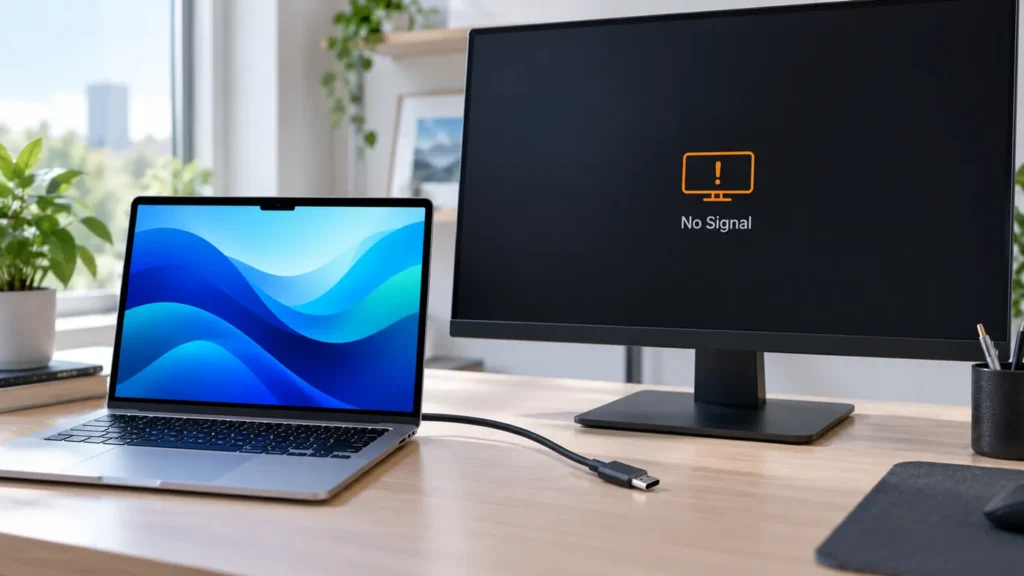
Is your MacBook external monitor not detected even though you’ve connected it using HDMI, USB-C, or Thunderbolt? Maybe your monitor displays a “No Signal” message, stays completely black, or doesn’t appear in macOS Display Settings.
Connecting an external monitor to a MacBook Air or MacBook Pro should be straightforward. You plug in a compatible cable, turn on the monitor, and macOS normally recognizes the display automatically.
Unfortunately, that doesn’t always happen.
Sometimes the problem is as simple as selecting the wrong monitor input. Other times, a faulty cable, unsupported adapter, docking station, display setting, or macOS issue prevents your MacBook from detecting the monitor.
The good news is that you don’t need to replace your MacBook or monitor immediately.
In this guide, we’ll walk through 12 practical fixes for a MacBook external monitor not detected problem, including HDMI, USB-C, Thunderbolt, and dual-monitor setups.
Table of Contents
Quick Answer
If your MacBook external monitor is not detected, first confirm that the monitor is powered on and using the correct HDMI, DisplayPort, or USB-C input. Disconnect and reconnect the video cable, then open System Settings > Displays, hold the Option key, and click Detect Displays.
If that doesn’t work, connect the monitor directly to your MacBook without a dock, try another video-capable cable, restart both devices, and confirm your Mac supports the display’s resolution and refresh rate.
Why MacBook Won’t Detect an External Monitor
Several different issues can prevent an external display from connecting successfully.
The most common causes include:
- The monitor is switched off or set to the wrong input source.
- The HDMI, USB-C, or DisplayPort cable is loose or damaged.
- A USB-C charging cable is being used instead of a video-capable cable.
- The connected adapter or docking station doesn’t support video output.
- macOS hasn’t recognized the newly connected display.
- A new USB or Thunderbolt accessory hasn’t been approved.
- The monitor is configured for an unsupported resolution or refresh rate.
- The MacBook has reached its maximum supported number of external displays.
- A temporary macOS or monitor firmware issue is affecting the connection.
- The monitor, cable, or MacBook port has a hardware problem.
Before changing advanced settings, determine whether the monitor receives power and whether macOS recognizes it.
A monitor displaying “No Signal” is different from one that appears in macOS but stays black.
1. Check Monitor Power and Input
The first thing to check when your MacBook external monitor is not detected is whether the monitor itself is working correctly.
Even when the video cable is connected, the display may be switched off or listening to the wrong input.
Check the Power Connection
- Make sure the monitor’s power cable is securely connected.
- Verify that the power adapter is plugged into a working outlet.
- Press the monitor’s power button.
- Look for a power indicator or manufacturer logo.
- Open the monitor’s built-in menu if available.
If the monitor shows no signs of power, troubleshoot its power supply before changing anything on your MacBook.
Select the Correct Input
Many external monitors support several connection types, including HDMI, DisplayPort, and USB-C.
For example, if your MacBook is connected through HDMI 2 but the monitor is set to HDMI 1, the display may show “No Signal.”
Use the monitor’s physical buttons or joystick to open its menu.
Find Input Source, Source, or a similar option.
Select the connection corresponding to the cable you’re using.
Then wait a few seconds to see whether the Mac desktop appears.
This simple check can resolve many apparent MacBook display detection problems.
2. Reconnect the HDMI or USB-C Cable
If the monitor has power but isn’t displaying anything, inspect the physical connection.
A cable may look connected while its plug isn’t fully inserted.
Reconnect Your Monitor
- Disconnect the video cable from your MacBook.
- Disconnect the cable from the monitor.
- Inspect both ends for visible damage.
- Reconnect the cable securely to the monitor.
- Connect the other end directly to your MacBook or compatible adapter.
- Wait for macOS to detect the display.
Avoid excessive force when inserting connectors.
If a cable feels unusually loose or the connection works only when you bend it, stop using that cable.
Try Another Cable
If possible, test another known-working HDMI, USB-C, or DisplayPort cable.
Make sure the replacement supports the required video standard.
A cable that charges your MacBook or transfers ordinary data doesn’t necessarily support external display output.
If the monitor works immediately with a different cable, you’ve probably identified the problem.
3. Detect Displays Manually
One of the most useful solutions for a MacBook external monitor not detected issue is the built-in macOS display detection feature.
Normally, macOS identifies connected monitors automatically.
If that process fails, you can request another scan.
How to Detect Displays on Mac
- Click the Apple menu.
- Select System Settings.
- Open Displays.
- Press and hold the Option key.
- Look for Detect Displays, which can appear in place of the Night Shift button.
- Click Detect Displays.
- Wait for macOS to check your connected monitors.
On older macOS versions, the same function may appear inside System Preferences > Displays.
If your external monitor appears, select it and configure how you want to use it.
You can extend your desktop, mirror the MacBook screen, or change the display arrangement.
What If Detect Displays Doesn’t Work?
If nothing appears after detection, continue checking the cable, adapter, ports, and monitor compatibility.
Repeatedly clicking the button won’t resolve a physically incompatible connection.
4. Bypass the USB-C Hub or Dock
If your MacBook connects to the monitor through a USB-C hub, docking station, or multiport adapter, that accessory may be causing the problem.
Some docks support external displays only through specific ports.
Others have restrictions involving resolution, refresh rate, power delivery, or the number of connected monitors.
Test a Direct Connection
- Disconnect the monitor from your USB-C hub or docking station.
- Unplug the dock from your MacBook.
- Connect the monitor directly to a supported MacBook video port.
- Use a compatible video cable or simple video adapter if needed.
- Open System Settings > Displays.
- Check whether macOS recognizes the monitor.
If the monitor works when connected directly but fails through the docking station, investigate the dock rather than the monitor.
Check Dock Compatibility
Review the docking station manufacturer’s specifications.
Confirm that it supports your MacBook model, macOS version, required display connection, and desired resolution.
Some docks rely on DisplayLink technology and require compatible software from the manufacturer. Other Thunderbolt and USB-C docks use native display output.
Don’t install unofficial display drivers simply because a dock isn’t working.
Follow the manufacturer’s documented setup instructions for your particular model.
5. Check USB-C Video Support
Not every USB-C cable or port supports the same capabilities.
USB-C describes the connector’s shape, not necessarily the video technologies available through it.
This is particularly important when a MacBook external monitor is not detected through USB-C.
Understand USB-C Connections
Depending on the MacBook and accessory, external video may use:
- DisplayPort Alternate Mode.
- Thunderbolt video capabilities.
- A supported USB-C-to-HDMI or USB-C-to-DisplayPort adapter.
- A compatible Thunderbolt docking station.
A USB-C cable designed only for charging might not carry a video signal.
Similarly, some low-cost multiport adapters don’t support the resolution or refresh rate required by your monitor.
What to Check
Look up the specifications of your USB-C cable and adapter.
Confirm that they support video output and the resolution you want to use.
If you’re connecting a high-resolution monitor, such as a 4K display, make sure every component in the connection supports the intended video mode.
Try a known-compatible cable or adapter if the current one is uncertain.
For MacBook Air and Pro models, Apple’s official specifications explain which ports support external displays.
6. Allow the Display Accessory
MacBooks with Apple silicon may ask permission before allowing certain new USB or Thunderbolt accessories to connect.
If you deny the connection request, the accessory may receive power but won’t be recognized properly.
This can make it seem as though your external monitor is defective.
Approve the Connection
- Disconnect the external monitor or adapter.
- Unlock your MacBook.
- Reconnect the accessory.
- Watch for a macOS permission notification.
- Choose Allow if you recognize and trust the connected device.
- Check whether the monitor starts working.
Review Accessory Settings
Open System Settings > Privacy & Security.
Look for Accessories or Allow accessories to connect, depending on your MacBook and macOS version.
Apple offers options controlling whether new accessories require approval.
For security, it’s usually better to approve trusted devices individually rather than allowing every unknown accessory automatically.
If your MacBook is managed by an organization, the setting may be controlled by an administrator.
7. Restart Your MacBook and Monitor
Temporary software or connection problems can prevent a display from being recognized.
Restarting both devices is a practical way to clear a stuck connection without changing important system settings.
Restart the Monitor
- Turn off the external monitor.
- Disconnect it from power.
- Disconnect its video cable.
- Wait approximately 30 seconds.
- Reconnect power.
- Turn the monitor back on.
- Reconnect the video cable.
Restart the MacBook
- Save your work.
- Click the Apple menu.
- Choose Restart.
- Allow macOS to load normally.
- Sign in.
- Connect the monitor again.
If MacBook external monitor not detected problems occur after sleep, also try putting the MacBook to sleep and waking it before performing a full restart.
Avoid forcing a shutdown unless your MacBook is completely unresponsive.
After restarting, open Displays settings to confirm whether the monitor has been recognized.
8. Check Display Resolution and Refresh Rate
Sometimes macOS detects the monitor, but the display remains black because the selected video mode isn’t supported.
This can happen when using high-resolution monitors or high refresh rates.
For example, a monitor might support 4K at 60Hz through one connection but not through another adapter or cable.
Change Display Settings
If your external display appears in macOS:
- Open System Settings > Displays.
- Select the external monitor.
- Find Resolution.
- Choose Default initially.
- If available, select a refresh rate supported by both the monitor and connection.
- Test the display again.
If the screen became black immediately after changing the resolution, wait briefly for macOS to revert the change.
You can also press Escape to attempt to return to the previous setting.
Why This Matters
Your MacBook, monitor, cable, and adapter all have display bandwidth limits.
Even if the MacBook supports a particular resolution, the cable or docking station might not support the same resolution at the requested refresh rate.
Use the monitor’s native resolution and a supported refresh rate whenever possible.
If the display is detected but remains dark, confirm that its brightness isn’t turned down.
9. Check External Display Limits
If you’re trying to connect two or more monitors, the problem may be your MacBook’s display support limit.
Different MacBook models support different numbers of external displays.
The processor alone doesn’t tell the whole story; the exact model and configuration matter.
Check Your MacBook Model
- Open Apple menu > About This Mac.
- Identify your MacBook model and chip.
- Open Apple’s official technical specifications for that model.
- Find Display Support or Video Support.
- Check the number of external monitors supported.
For example, the original M1 MacBook Air and 13-inch M1 MacBook Pro support one external display natively.
Some later MacBook Air models support two external monitors, although certain models have specific requirements involving the built-in display or lid position.
MacBook Pro models with Pro or Max chips may support more displays, depending on the generation.
Disconnect Extra Monitors
If your MacBook external monitor is not detected when another display is already connected:
- Disconnect the other external monitors.
- Connect only the monitor that isn’t working.
- Check whether macOS detects it.
- Reconnect additional displays only if supported.
A docking station cannot automatically increase the native display limit of your MacBook.
Some docks offer additional displays through separate software-based technologies, but those have their own compatibility requirements and limitations.
Always check Apple’s specifications for your exact MacBook.
10. Test With the MacBook Lid Open
Some users encounter external display issues specifically when using their MacBook with the lid closed.
This is often called clamshell mode.
If your MacBook external monitor is not detected with the lid closed, reopen the MacBook and test the connection.
Test With the Lid Open
- Open your MacBook.
- Unlock macOS.
- Connect the monitor.
- Check whether the external display works.
- Connect your external keyboard and mouse if needed.
- Confirm the accessories are working before trying closed-lid operation.
For many MacBook configurations, Apple recommends using external power and an external keyboard and mouse when operating with the lid closed.
Some setups have different requirements, so check the instructions for your particular model.
Check External Keyboard and Mouse
If the external display works with the lid open but not closed, inspect your keyboard and mouse connections.
A disconnected wireless accessory may make it difficult to wake or control the MacBook.
Our MacBook Bluetooth Not Working guide can help if your wireless mouse or keyboard keeps disconnecting.
You can also review our MacBook Keyboard Not Working guide if the keyboard itself isn’t responding.
Once the monitor and accessories are working reliably, try closing the lid again.
11. Update macOS and Monitor Firmware
Software compatibility can affect external monitor detection, especially after a major macOS update.
Apple recommends installing available macOS updates when external displays don’t work correctly.
Update macOS
- Open the Apple menu.
- Select System Settings.
- Go to General > Software Update.
- Check for available updates.
- Back up important data before a major upgrade.
- Install a compatible update if appropriate.
- Restart your MacBook.
After updating, reconnect the external monitor and check Displays settings again.
Update Monitor Firmware
Some external monitors have firmware that can be updated by their manufacturers.
Check the manufacturer’s official support page for your exact monitor model.
Follow the recommended firmware update process only if an applicable update exists.
Never install firmware intended for a different monitor model.
If the issue started after a macOS update, this doesn’t necessarily mean the update caused permanent damage.
Cables, adapters, monitor firmware, and previously configured display settings can all affect the result.
12. Test Another Monitor or MacBook Port
If your MacBook external monitor is still not detected, it’s time to identify which physical component may be failing.
The simplest approach is to test parts of the connection separately.
Test Another Monitor
Connect your MacBook to another compatible external monitor or television.
If the second display works, your MacBook’s video output is probably functioning, and the original monitor or its settings deserve closer inspection.
Test Another Computer
Connect the original monitor to another computer using a suitable video cable.
If it works, investigate the original MacBook’s video port, adapter, cable, or display configuration.
Try Another Port
If your MacBook has multiple video-capable USB-C or Thunderbolt ports, try another supported port.
On MacBook Pro models with HDMI output, test HDMI directly if your monitor supports it.
Don’t insert cables into ports that aren’t designed for them.
Inspect for Physical Damage
Check for:
- Bent or damaged connectors.
- Loose ports.
- Visible corrosion.
- Damaged cables.
- Signs of liquid exposure.
- Connections that work only at certain angles.
If you notice significant damage or abnormal heating, stop using the affected accessory.
Persistent hardware problems may require assistance from Apple or the monitor manufacturer.
MacBook External Monitor Not Detected via HDMI
If your MacBook isn’t detecting an HDMI monitor, focus on the HDMI connection before changing advanced macOS settings.
Check these points:
- Confirm the monitor is set to the correct HDMI input.
- Disconnect and reconnect the HDMI cable.
- Try another HDMI cable.
- Avoid unnecessary adapters or hubs.
- If your MacBook has a built-in HDMI port, test it directly.
- Use System Settings > Displays > Detect Displays.
If you’re using a USB-C-to-HDMI adapter, make sure it’s compatible with your MacBook and the monitor’s resolution.
Some adapters support only certain refresh rates or display modes.
If the HDMI display works with another computer but not your MacBook, continue investigating the Mac’s ports, software, and adapter.
MacBook External Monitor Not Detected via USB-C
USB-C monitor problems can be confusing because a cable may provide charging without transmitting video.
When MacBook external monitor not detected via USB-C is the issue, start by confirming that the monitor supports USB-C video input.
Then verify that the cable supports video output rather than charging alone.
If you’re using a USB-C hub, bypass it temporarily.
Connect the monitor directly to your MacBook using a known-compatible video cable.
Unlock your MacBook and approve any trusted accessory connection prompt that appears.
If possible, test another video-capable port.
If the monitor still isn’t detected, check its USB-C input specifications and contact the manufacturer for model-specific requirements.
MacBook External Monitor Not Detected After Sleep
Sometimes an external monitor works normally until the MacBook goes to sleep.
When the Mac wakes, the monitor may display “No Signal” or remain black.
Start with these steps:
- Wake and unlock your MacBook.
- Turn the monitor off and back on.
- Disconnect and reconnect the video cable.
- Open System Settings > Displays.
- Hold Option and select Detect Displays.
- Restart your MacBook if the connection doesn’t recover.
If this happens repeatedly, check for macOS updates and monitor firmware updates.
Also test whether bypassing your dock improves reliability.
A connection that fails only after sleep may point toward a wake-related software or accessory compatibility issue rather than a permanently faulty monitor.
MacBook Detects Monitor but Screen Is Black
If macOS shows the monitor in Displays settings, the problem is different from complete display detection failure.
Try changing the monitor’s input source, increasing its brightness, and selecting a supported resolution.
You can also switch temporarily between mirroring and extending the desktop.
Open System Settings > Displays, select the connected monitor, and review the Use as setting.
If the display is extended, a blank desktop may simply mean no application windows have been moved to it.
Move the pointer across the display boundary and try dragging a window onto the monitor.
If the monitor continues showing nothing, test a different cable and refresh rate.
External Monitor Not Working With a Docking Station
If your external monitor works directly with the MacBook but fails through a dock, concentrate on dock compatibility.
Check whether the dock supports the required display technology, the number of connected monitors, and your MacBook’s chip.
Try another dock video port if the manufacturer supports it.
Disconnect unnecessary USB accessories during testing.
Some docking stations also require external power to support their full range of functions.
If your docking station uses DisplayLink, obtain the appropriate software and instructions from its manufacturer.
A MacBook that can recognize the monitor through a direct connection is less likely to have a completely failed video output system.
If the docking setup also affects your other accessories, our MacBook Trackpad Not Working guide can help troubleshoot a separate pointing-device problem.
Frequently Asked Questions
Why is my MacBook not detecting my external monitor?
Your MacBook may not detect the monitor because of the wrong input source, an incompatible cable, an unsupported adapter, display settings, or a hardware issue. Start with the monitor’s power and input, then use Detect Displays in macOS.
How do I force my MacBook to detect an external monitor?
Open System Settings > Displays, hold the Option key, and click Detect Displays. If the monitor still doesn’t appear, reconnect the cable, test a direct connection, and restart the devices.
Why is my MacBook external monitor not detected through HDMI?
Common causes include the wrong HDMI input, a damaged cable, an incompatible adapter, or a connection issue. Try another cable and connect directly to a supported HDMI port whenever possible.
Why does my MacBook charge through USB-C but not detect the monitor?
A USB-C connection may support charging without supporting video. Check whether the cable, port, adapter, and monitor support the required video technology.
Why is my MacBook not detecting a second external monitor?
Your MacBook may have reached its native external display limit. Display support depends on the exact MacBook model, chip, and resolution or refresh rate of connected monitors. Review Apple’s specifications.
Does closing my MacBook affect the external monitor?
It can. Closed-lid operation has requirements involving connected displays, input accessories, and sometimes external power. Test the display with the lid open first, then follow your MacBook model’s instructions for closed-lid use.
Why does my external monitor say No Signal?
The monitor isn’t receiving a usable video signal through its selected input. Check the input source, cable, adapter, and MacBook connection. The message doesn’t necessarily mean the monitor is broken.
Can a macOS update fix external monitor detection?
Yes, an update may resolve software compatibility issues affecting external displays. However, it won’t fix a physically damaged cable, incompatible adapter, or unsupported display configuration.
Should I reset my MacBook to fix an external monitor?
A factory reset isn’t a sensible first troubleshooting step. Check the monitor, cable, adapter, display settings, connected accessories, and software updates before considering more disruptive options.
Final Thoughts
If your MacBook external monitor is not detected, don’t assume that your MacBook or monitor needs replacement.
Start by checking the monitor’s power, input source, and video cable.
Then use the built-in Detect Displays option in macOS and try a direct connection without a docking station.
If the issue continues, confirm that your cable supports video output, approve any necessary accessory permissions, and check your MacBook’s external display limits.
Finally, restart both devices, install compatible updates, and test another cable or monitor to identify possible hardware problems.
Most display detection issues can be narrowed down through these checks without changing advanced system files or erasing your MacBook.
If the monitor still doesn’t work after testing compatible cables, ports, and displays, contact Apple Support or the monitor manufacturer for further assistance.
Official Apple Support Resources
- Apple Support: If Your External Display Is Dark or Low Resolution
- Apple Support: Connect Displays to Your Mac
- Apple Support: Allow USB and Other Accessories to Connect to Your Mac
- Apple Support: How Many Displays Can Be Connected to MacBook Air
- Apple Support: How Many Displays Can Be Connected to MacBook Pro