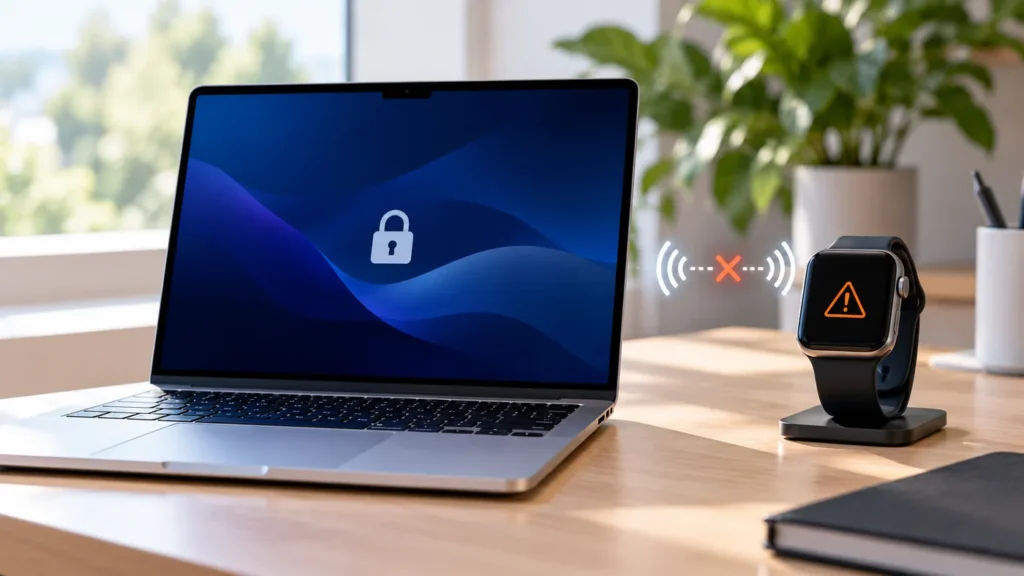
Is Unlock Mac With Apple Watch Not Working even though your Apple Watch is on your wrist and your MacBook is nearby? Maybe your Mac keeps asking for a password, the Auto Unlock option won’t turn on, or you see an error saying your Mac cannot communicate with your Apple Watch.
Apple’s Auto Unlock feature allows a compatible Apple Watch to unlock your Mac automatically when you wake it from sleep. It can also approve certain password requests without requiring you to type your Mac administrator password.
However, Auto Unlock depends on several security and wireless settings working together.
A locked Apple Watch, disabled Bluetooth connection, incorrect Apple Account settings, or an outdated operating system can prevent the feature from working.
The good news is that you usually don’t need to reset your Mac or unpair your Apple Watch to solve the problem.
In this guide, we’ll explain 12 practical fixes for Unlock Mac With Apple Watch Not Working, including Auto Unlock setup errors, connection failures, and problems after macOS or watchOS updates.
Table of Contents
Quick Answer
If Unlock Mac With Apple Watch Not Working is your problem, first make sure your Apple Watch is unlocked, securely worn on your wrist, and close to your Mac.
Enable Wi-Fi and Bluetooth on both devices, confirm they use the same Apple Account with two-factor authentication, and check that your watch has a passcode.
Then open System Settings > Touch ID & Password (or Login Password) on your Mac and enable your Apple Watch under the Auto Unlock options.
If it still fails, enter your Mac password once, restart both devices, and turn Auto Unlock off and back on.
Why Auto Unlock Stops Working
Apple Watch uses secure wireless communication to verify your identity and proximity before unlocking your Mac.
Several conditions must be satisfied for this process to work.
Common causes include:
- Your Apple Watch is locked or isn’t being detected on your wrist.
- Bluetooth or Wi-Fi is disabled.
- The Mac and Apple Watch aren’t using the same Apple Account.
- Two-factor authentication is not enabled.
- The Auto Unlock setting is disabled on your Mac.
- Your Mac has just restarted and requires a password.
- The devices are too far apart.
- The Mac doesn’t support Auto Unlock.
- Screen Sharing or Internet Sharing is enabled.
- A temporary macOS or watchOS problem interrupts communication.
- The Mac or Apple Watch needs a compatible software update.
Understanding the difference between a normal password request and an actual connection failure can save considerable troubleshooting time.
1. Enter Your Mac Password
Before changing your Apple Watch settings, check whether macOS is behaving normally.
Apple requires you to enter your Mac account password manually the first time you sign in after starting, restarting, or logging out of your Mac.
This is a security requirement.
Auto Unlock is designed primarily to unlock your Mac when it wakes from sleep after that initial password login.
What to Do
- Start or wake your Mac.
- Enter your regular Mac login password.
- Wait for the desktop to appear.
- Make sure your Apple Watch is unlocked and on your wrist.
- Put the Mac to sleep.
- Wake the Mac using its keyboard, trackpad, or lid.
- Check whether Apple Watch unlocks it automatically.
If Auto Unlock works after entering your password once, the original password prompt was normal.
You don’t need to change your security settings.
If the Mac continues asking for your password every time it wakes, move to the next fix.
2. Unlock Your Apple Watch
If Apple Watch is not unlocking your Mac, the watch itself may be locked.
Auto Unlock requires your Apple Watch to be unlocked and worn on your wrist.
Simply having the watch nearby isn’t sufficient.
Check Your Watch
- Raise your wrist to wake the display.
- Look for a lock symbol or passcode screen.
- Enter your Apple Watch passcode if prompted.
- Make sure the watch remains unlocked.
- Move close to your Mac.
- Try waking the Mac again.
If the watch immediately locks again, check its fit and Wrist Detection.
A loose band can cause the watch to believe you’ve removed it.
For a detailed explanation, see our Apple Watch Keeps Locking guide.
Important
Don’t disable your Apple Watch passcode to troubleshoot Auto Unlock.
Apple requires a passcode for this feature, and removing it can also disable other security functions.
3. Check Wi-Fi and Bluetooth
When Unlock Mac With Apple Watch Not Working continues despite an unlocked watch, investigate the wireless connections.
Apple requires Wi-Fi and Bluetooth to be enabled for Auto Unlock.
These technologies help the devices communicate and verify proximity.
On Your Mac
- Open System Settings.
- Select Wi-Fi.
- Make sure Wi-Fi is enabled.
- Return to System Settings.
- Select Bluetooth.
- Confirm Bluetooth is enabled.
On Your Apple Watch
- Open the Settings app.
- Tap Bluetooth.
- Make sure Bluetooth is enabled.
- Return to Settings.
- Open Wi-Fi and confirm it is enabled.
If either wireless feature was disabled, enable it and try again.
Check for Connection Problems
If your Mac’s Bluetooth setting won’t turn on or repeatedly disconnects, the problem may be broader than Auto Unlock.
Read our MacBook Bluetooth Not Working guide for additional troubleshooting.
If wireless connections work normally, continue checking the account settings.
4. Use the Same Apple Account
Auto Unlock requires the Mac and Apple Watch to use the same Apple Account.
If you use different accounts for personal and work devices, the feature may not be available.
Check Your Mac
- Open System Settings.
- Select your Apple Account name.
- Review the account details.
Check Your Apple Watch
Apple Watch normally uses the Apple Account associated with the iPhone used to set it up.
On your paired iPhone:
- Open Settings.
- Select your Apple Account name.
- Review the signed-in account.
- Confirm that it matches your Mac.
Check Two-Factor Authentication
Apple also requires two-factor authentication.
On your iPhone, open Settings > Your Name > Sign-In & Security and check the two-factor authentication status.
The location or wording may vary slightly depending on the software version.
Don’t sign out of your Apple Account as an initial troubleshooting step. Signing out can affect synchronized files, passwords, messages, and other services.
If your account and two-factor authentication settings are correct, proceed to the Auto Unlock setting.
5. Enable Auto Unlock
Sometimes Unlock Mac With Apple Watch Not Working simply means the feature is disabled.
This can happen after changing settings, setting up a different watch, or restoring a Mac.
On macOS Ventura or Later
- Click the Apple menu.
- Open System Settings.
- Select Touch ID & Password or Login Password, depending on your Mac model.
- Find the Apple Watch section.
- Locate your watch.
- Turn on the option beside its name.
- Enter your Mac password if requested.
On Older macOS Versions
- Open System Preferences.
- Select Security & Privacy.
- Open the General tab.
- Enable Use your Apple Watch to unlock apps and your Mac, or the equivalent setting.
If the feature turns on successfully, lock or sleep the Mac and test it.
What If the Option Is Missing?
If your Apple Watch doesn’t appear in the settings, check hardware compatibility, Apple Account requirements, and whether the watch is unlocked.
You may also need to install compatible software updates.
Don’t assume that every Mac and Apple Watch combination supports every Auto Unlock feature.
6. Check Mac Compatibility
If the Auto Unlock setting is completely missing, your Mac may not support the feature.
Apple’s compatibility requirements depend on the Mac model, operating system, and intended Auto Unlock function.
General Requirements
According to Apple, Auto Unlock supports:
- MacBook Pro models introduced in late 2013 or later.
- Other supported Mac models introduced in 2013 or later.
- Compatible Apple Watch models running supported watchOS versions.
For most supported configurations, macOS High Sierra 10.13 or later is required.
Certain older Apple Watch models also support Auto Unlock with macOS Sierra.
Approving administrator password requests requires newer software than basic Mac unlocking.
Check Your Mac
- Click the Apple menu.
- Select About This Mac.
- Review the model and macOS version.
Check Auto Unlock Support
Apple provides a built-in compatibility indicator.
- Hold the Option key.
- Open the Apple menu.
- Choose System Information.
- Select Wi-Fi in the sidebar.
- Look for Auto Unlock: Supported.
If your Mac doesn’t support Auto Unlock, changing account or Bluetooth settings won’t add the missing capability.
7. Check Wrist Detection
Apple Watch uses Wrist Detection to determine whether you’re wearing it.
If the watch isn’t securely positioned, its sensors may decide you’ve removed it and automatically lock the device.
Since Auto Unlock requires an unlocked watch, this can stop your Mac from unlocking.
Check Your Watch Fit
- Wear your Apple Watch normally.
- Make sure the back rests against your skin.
- Adjust the band so it fits snugly but comfortably.
- Keep the watch above your wrist bone.
- Unlock the watch.
- Check whether it remains unlocked.
Check Wrist Detection Settings
On your paired iPhone:
- Open the Watch app.
- Select My Watch.
- Tap Passcode.
- Check whether Wrist Detection is enabled.
Keep Wrist Detection enabled.
Disabling it affects important functions, including automatic locking, notifications, health measurements, and certain safety features.
If the watch repeatedly locks despite a proper fit, troubleshoot the watch itself rather than repeatedly changing Mac settings.
8. Move Your Watch Closer
Auto Unlock depends on your Apple Watch being sufficiently close to your Mac.
You may be able to use other Bluetooth functions at a greater distance, but that doesn’t guarantee Auto Unlock will recognize your watch as nearby.
If Unlock Mac With Apple Watch Not Working occurs intermittently, try testing at a shorter distance.
What to Do
- Sit directly in front of your Mac.
- Wear your unlocked Apple Watch.
- Keep your wrist near the keyboard.
- Remove unnecessary objects between the devices.
- Wake your Mac.
- Check whether it unlocks.
Reduce Wireless Interference
Nearby electronic equipment can interfere with wireless signals.
Potential sources include:
- Certain USB hubs and adapters.
- Poorly shielded USB accessories.
- Crowded wireless equipment.
- Large metal objects between devices.
Try moving unnecessary accessories away temporarily.
If Auto Unlock works reliably when your watch is very close to your Mac, distance or interference may be contributing.
Apple does not guarantee that the feature will work at the full range of an ordinary Bluetooth connection.
9. Restart Both Devices
Temporary software problems can interrupt communication between your Mac and Apple Watch.
Restarting both devices is a practical way to refresh their connections.
Restart Your Mac
- Save your open work.
- Click the Apple menu.
- Select Restart.
- Wait for macOS to start.
- Enter your Mac password manually.
Remember that Auto Unlock cannot replace the first password login after restarting.
Restart Your Apple Watch
- Remove the watch from its charger if necessary.
- Open its power controls.
- Choose the power-off option.
- Wait for the watch to shut down.
- Turn it back on.
- Enter the watch passcode.
The exact power-control procedure varies by watchOS version.
Test Auto Unlock Again
After restarting both devices:
- Keep the watch unlocked and on your wrist.
- Sign in to your Mac with your password.
- Put the Mac to sleep.
- Wake it.
- Check whether Auto Unlock works.
If the feature still fails, continue with the next fix.
10. Re-Enable Auto Unlock
Apple specifically recommends switching Auto Unlock off and back on if the connection isn’t working.
This is less disruptive than resetting network settings or removing your Apple Account.
Refresh the Setting
- Open System Settings on your Mac.
- Select Touch ID & Password or Login Password.
- Find the Apple Watch section.
- Turn off Auto Unlock for your watch.
- Restart your Mac.
- Enter your Mac account password.
- Return to the Apple Watch setting.
- Turn Auto Unlock back on.
- Authenticate if requested.
- Test the feature after putting your Mac to sleep.
If the Setting Won’t Enable
Check the specific error displayed by macOS.
For example, an error saying the Mac cannot communicate with your Apple Watch suggests a connection or device-configuration problem.
Verify the account requirements, watch passcode, Bluetooth, Wi-Fi, and proximity again.
Avoid repeatedly entering passwords or changing unrelated security settings.
If your watch still cannot be recognized, proceed to software and sharing checks.
11. Disable Conflicting Sharing
Apple advises checking whether Internet Sharing or Screen Sharing is enabled when Auto Unlock doesn’t work.
These features are normally disabled unless you’ve chosen to use them.
Check Internet Sharing
- Open System Settings.
- Select General.
- Open Sharing.
- Find Internet Sharing.
- Check whether it’s enabled.
If you’re not actively using Internet Sharing, turn it off while testing Auto Unlock.
Check Screen Sharing
In the same Sharing menu, find Screen Sharing.
If it’s enabled and you don’t currently need it, temporarily disable it and test Auto Unlock again.
Important Precaution
Turning off Internet Sharing or Screen Sharing can disconnect other users and devices.
If your Mac is used for remote support, work collaboration, or network sharing, don’t change these settings without considering the impact.
Also avoid disabling security software or organizational protections unnecessarily.
Once you’ve finished testing, restore any sharing configuration you still need.
12. Update macOS and watchOS
If Unlock Mac With Apple Watch Not Working continues after checking every setting, install available compatible software updates.
Apple recommends keeping both macOS and watchOS updated when Auto Unlock fails.
Update macOS
- Open System Settings.
- Select General.
- Click Software Update.
- Check for available compatible updates.
- Back up important data before a major upgrade.
- Install the update if appropriate.
- Restart your Mac.
Update Apple Watch
On your paired iPhone:
- Open the Watch app.
- Select My Watch.
- Tap General.
- Select Software Update.
- Follow the onscreen instructions.
You can also check for updates directly from Apple Watch settings on supported versions.
Keep the watch sufficiently charged and follow Apple’s instructions during installation.
After both devices are updated, verify Auto Unlock is enabled and test it after the initial Mac password login.
When to Contact Apple
If you still cannot enable Auto Unlock despite meeting all requirements, contact Apple Support.
Unpairing the watch, deleting system authentication files, or resetting your Mac is not an appropriate first-line fix.
Those actions can introduce additional problems and should not be attempted without a specific reason.
Apple Watch Unable to Communicate With Mac
Sometimes macOS displays an error stating that your Mac cannot communicate with your Apple Watch.
This typically indicates that the Auto Unlock setup process couldn’t establish the required connection.
Try the following:
- Unlock your Apple Watch.
- Check that it is on your wrist.
- Move close to your Mac.
- Confirm Bluetooth and Wi-Fi are enabled.
- Verify both devices use the same Apple Account.
- Check two-factor authentication.
- Restart your Mac and Apple Watch.
- Turn Auto Unlock off and back on.
If the same message appears repeatedly, check for updates and verify compatibility.
A communication error doesn’t automatically mean the watch’s Bluetooth hardware is damaged.
Apple Watch Not Unlocking Mac After Update
If Apple Watch is not unlocking your Mac after an update, start by entering your Mac password manually.
Because software updates usually restart your Mac, the first password login is expected.
After signing in, put your Mac to sleep and wake it again.
If Auto Unlock still fails:
- Confirm the watch is unlocked.
- Check the Auto Unlock switch.
- Verify Wi-Fi and Bluetooth.
- Restart both devices.
- Check for additional compatible software updates.
Avoid assuming that a recent macOS update caused permanent damage.
Sometimes the problem is simply that Auto Unlock needs to be re-enabled or the devices need to reconnect.
Auto Unlock Option Missing on Mac
If you cannot find the option to unlock your Mac with Apple Watch, there are several possibilities.
Your Mac may not support the feature, your Apple Watch may not be properly configured, or you’re looking in the wrong settings section.
On recent macOS versions, check System Settings > Touch ID & Password or Login Password.
On earlier versions, look under System Preferences > Security & Privacy > General.
If the option remains missing, check your Mac model using System Information.
Review Apple’s official compatibility requirements before making additional changes.
Apple Watch Unlock Works but Password Approval Fails
Auto Unlock can perform two related but different tasks.
The first is unlocking your Mac when it wakes from sleep.
The second is approving certain requests for your Mac administrator password.
If your watch unlocks your Mac but won’t approve a password request, check whether the application or system prompt supports Apple Watch approval.
When a supported approval prompt appears, Apple instructs you to double-click the Apple Watch side button.
Not every security prompt can be approved this way.
You may still need to enter your password for certain operations.
If the issue involves the MacBook’s built-in fingerprint sensor rather than your Apple Watch, see our MacBook Touch ID Not Working guide.
Frequently Asked Questions
Why is my Apple Watch not unlocking my Mac?
Your Apple Watch may be locked, outside the required proximity, or unable to communicate with your Mac. Check Wi-Fi, Bluetooth, Apple Account settings, two-factor authentication, and Auto Unlock.
Why does my Mac ask for a password instead of using Apple Watch?
macOS requires your password after starting, restarting, or logging out. Enter your password once, then test Auto Unlock when the Mac wakes from sleep.
Does Apple Watch need Wi-Fi to unlock Mac?
Yes. Apple requires Wi-Fi and Bluetooth to be enabled as part of the Auto Unlock setup.
Does Apple Watch need a passcode for Auto Unlock?
Yes. Your watch must have a passcode and be unlocked while you’re wearing it.
Why is Unlock With Apple Watch greyed out?
The option may be unavailable because of compatibility, Apple Account configuration, or other requirements. Confirm your Mac supports Auto Unlock and review the Apple Watch setup requirements.
Can I unlock Mac with Apple Watch without Touch ID?
Yes. Auto Unlock is a separate feature from Touch ID. A compatible Mac and Apple Watch can use Auto Unlock without relying on a fingerprint sensor.
Does Auto Unlock work after restarting Mac?
Not for the initial login. Apple requires you to enter your Mac password first. Auto Unlock can then work when the Mac wakes from sleep.
Can multiple Apple Watches unlock the same Mac?
Apple provides Auto Unlock settings for compatible watches associated with your account. If multiple eligible watches are available, you can configure the supported watches individually.
Can Apple Watch approve Mac password requests?
Yes, for supported prompts. Double-click the watch’s side button when your Mac asks for Apple Watch approval.
Should I reset my Apple Watch to fix Auto Unlock?
Usually not. Start with compatibility, account settings, wireless connections, passcode requirements, restarting, and software updates. Resetting or unpairing your watch is significantly more disruptive.
Final Thoughts
If Unlock Mac With Apple Watch Not Working is frustrating you, remember that many password requests are normal security behavior.
First, enter your Mac password after restarting or logging out.
Then confirm that your Apple Watch is unlocked, properly worn, and close to your Mac.
Check Wi-Fi, Bluetooth, the Apple Account, two-factor authentication, and the Auto Unlock option.
If the connection continues to fail, restart both devices, turn Auto Unlock off and back on, and install compatible software updates.
Most problems can be investigated through these settings without deleting passwords, resetting the watch, or reinstalling macOS.
If the feature remains unavailable despite meeting Apple’s requirements, contact Apple Support for further assistance.