
Are your iCloud Drive files not syncing on iPhone even though they appear on your Mac? Perhaps a PDF is missing from the Files app, a document won’t download, or changes you made on another device aren’t showing up.
Before changing your Apple Account settings, it’s important to determine where synchronization is failing.
A file that appears on iCloud.com but not your iPhone requires different troubleshooting from a file that never uploaded to iCloud in the first place.
We’ll use the Files app, iCloud.com, and your device settings to identify the cause, then work through 10 practical fixes.
Important: Don’t delete your original documents, disable iCloud Drive or sign out of your Apple Account until you’ve confirmed that your important files are safely stored.
Table of Contents
Quick Answer
If iCloud Drive files aren’t syncing on your iPhone, start by checking that iCloud Drive is enabled.
- Open Settings on your iPhone.
- Tap your name.
- Select iCloud.
- Tap Drive.
- Enable Sync this iPhone.
- Open the Files app.
- Tap Browse > iCloud Drive.
- Check whether your missing files appear.
If you don’t see iCloud Drive immediately, tap Browse again to display the available Locations.
Make sure your iPhone is connected to the internet and uses the same Apple Account as your other devices.
If the files still aren’t visible, open iCloud Drive on the web to check whether they have actually reached iCloud.
Important: Don’t delete files, disable synchronization, or sign out of your Apple Account until you’ve confirmed where your documents are stored.
Find Out Where iCloud Drive Syncing Is Failing
The fastest way to investigate missing iCloud Drive files is to compare three locations: your iPhone, iCloud.com, and the device where the file was originally saved.
1. File Appears on iCloud.com but Not iPhone
This suggests the document has reached iCloud, but your iPhone isn’t displaying it correctly.
Check:
- Open Settings > Your Name > iCloud > Drive.
- Confirm Sync this iPhone is enabled.
- Open Files > Browse > iCloud Drive.
- Check the correct folder.
- Confirm your iPhone is connected to the internet.
Expected result: The document should become visible in its iCloud Drive folder once the iPhone can access the synchronized information.
2. File Appears on Mac but Not iCloud.com
The document may not have uploaded to iCloud Drive.
Check:
- Open Finder on your Mac.
- Locate the document.
- Confirm it is stored in iCloud Drive rather than a local-only folder.
- Check the Mac’s internet connection and iCloud Drive settings.
- Allow time for the upload to finish.
- Check iCloud.com again.
Expected result: After a successful upload, the document should appear in iCloud Drive on the web.
If it doesn’t appear, also verify that you’re using the correct Apple Account and that the file hasn’t been moved or deleted.
3. File Appears Under On My iPhone
Documents stored under On My iPhone don’t automatically synchronize through iCloud Drive.
Check:
- Open the Files app.
- Tap Browse.
- Select On My iPhone.
- Locate the document.
- If you want it synchronized, move or copy it to iCloud Drive.
Expected result: Once the file uploads successfully, it should become accessible through iCloud Drive on your other devices.
4. File Is Visible but Won’t Open
This may be a downloading problem rather than a synchronization problem.
Check:
- Confirm your internet connection works.
- Open Files > iCloud Drive.
- Find the document.
- Tap it to attempt a download.
- Check whether your iPhone has sufficient available storage.
Expected result: A successfully downloaded document should open in a compatible app.
If only one file fails, investigate the file format or application rather than resetting your entire iCloud configuration.
A Safe Way to Test Synchronization
Create a small, non-sensitive test document in iCloud Drive.
Check whether it appears on iCloud.com and your other Apple devices.
If the test document synchronizes successfully but an older file remains missing, focus on that file’s original location, upload status, and history.
This test helps distinguish a general iCloud Drive problem from an issue involving one specific document.
Why iCloud Drive Files Stop Syncing
iCloud Drive stores files online and makes them available across devices using the same Apple Account.
On your iPhone, you can access these files through the Files app. On a Mac, iCloud Drive is available through Finder.
However, not every file visible in the Files app is necessarily stored in iCloud.
For example, a document saved under On My iPhone remains local unless you deliberately move or copy it to a synchronized location.
Common reasons for synchronization problems include:
- iCloud Drive synchronization is disabled.
- The document is saved under On My iPhone.
- Your Apple devices use different Apple Accounts.
- Your internet connection is unstable.
- Your iCloud storage is full.
- The original document hasn’t uploaded successfully.
- An application isn’t configured to use iCloud.
- Your device has insufficient space to download a file.
- An Apple Account verification issue requires attention.
- A file has been moved or deleted.
Let’s identify which issue is affecting your documents.
1. Check Where Your Files Are Stored
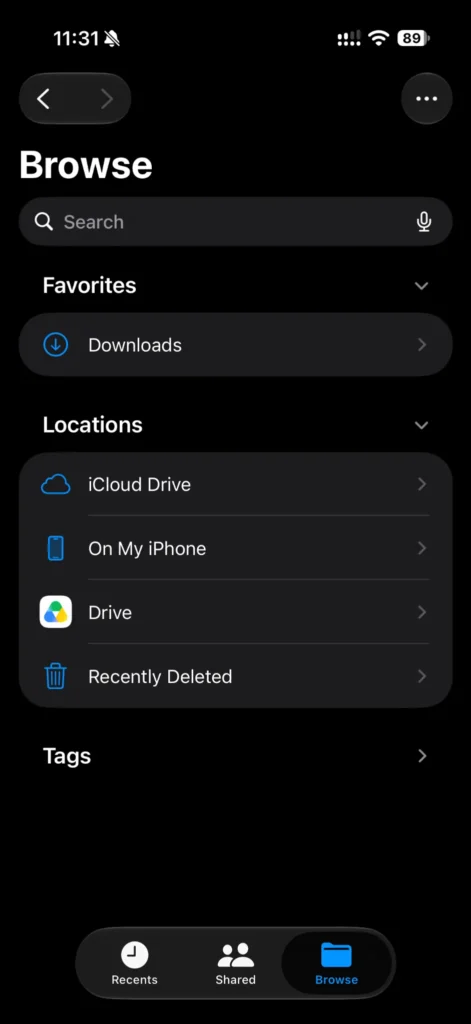
One of the most common reasons iCloud Drive files don’t appear on another device is that the original documents were saved locally.
The Files app supports multiple storage locations.
These can include iCloud Drive, On My iPhone, external storage, and supported third-party cloud services.
Find Your Documents
- Open the Files app.
- Tap Browse.
- Tap Browse again if necessary.
- Look under Locations.
- Select iCloud Drive.
- Search for the missing document.
- Return to Locations and open On My iPhone.
- Check whether the document is stored there instead.
If the file exists under On My iPhone, it won’t automatically synchronize to your MacBook through iCloud Drive.
Move a Local File to iCloud Drive
If you want that document available across devices:
- Locate the file under On My iPhone.
- Touch and hold the document.
- Select Move.
- Choose iCloud Drive.
- Select the destination folder.
- Confirm the operation.
Allow time for the file to upload.
Before removing any original or backup copy, verify that the document appears in iCloud Drive and can be accessed on another device.
This distinction between local and cloud storage is essential when troubleshooting iCloud Drive files not syncing on iPhone.
2. Enable iCloud Drive on Your iPhone
Even when you’re signed in to your Apple Account, iCloud Drive may not be enabled.
Apple lets you control which services use iCloud.
For example, your iPhone could synchronize Contacts while iCloud Drive remains switched off.
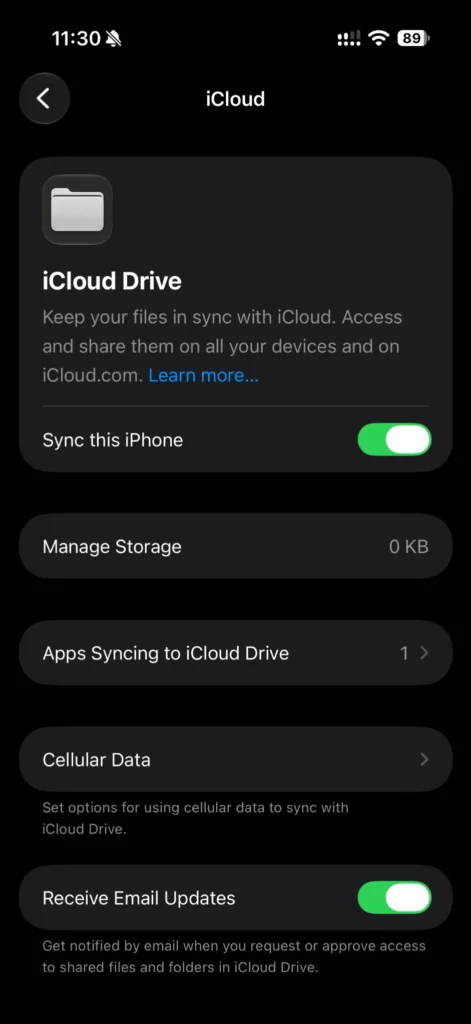
Turn On iCloud Drive
- Open Settings.
- Tap your name.
- Select iCloud.
- Tap Drive.
- Enable Sync this iPhone.
- Return to the Files app.
- Open Browse > iCloud Drive.
On some older iOS versions, the setting may be labeled iCloud Drive rather than Drive.
After enabling synchronization, leave your iPhone connected to the internet.
If you have many documents stored online, their contents may take time to become available.
What If Syncing Is Already Enabled?
Leave it enabled while checking the other possible causes.
Repeatedly disabling and re-enabling iCloud Drive isn’t necessary for ordinary troubleshooting.
Turning synchronization off can change which files remain available locally, so verify your document locations first.
3. Check Your Apple Account
Your iPhone and other devices must use the correct Apple Account to access the same private iCloud Drive files.
If your MacBook uses one account and your iPhone uses another, their files won’t automatically appear in the same cloud storage.
Check the iPhone Account
- Open Settings.
- Tap your name.
- Review the Apple Account information.
- Confirm it’s the account where your documents are stored.
Check Your MacBook
- Click the Apple menu.
- Open System Settings.
- Select your name.
- Review the Apple Account details.
- Compare them with your iPhone.
If the accounts are different, you’ve found a possible explanation for the missing files.
However, don’t immediately sign out.
Signing out can affect access to synchronized files, contacts, photos, passwords, and other information.
Check for Account Verification Alerts
Apple may also display a notification when your iCloud account needs authentication.
Open Settings and look for any alerts requesting account verification.
Follow Apple’s instructions if a message appears.
If other account-related services are also failing, our iCloud Keychain Not Syncing guide covers additional Apple Account checks.
4. Check Your Files on iCloud.com
One of the most effective ways to diagnose iCloud Drive files not syncing on iPhone is to check the online copy directly.
This helps you determine whether the problem involves uploading from the original device or downloading to your iPhone.
Open iCloud Drive Online
- Open Safari or another supported browser.
- Visit iCloud.com/iclouddrive.
- Sign in with the correct Apple Account.
- Complete any required authentication.
- Open iCloud Drive.
- Search for the missing document.
Understand the Results
File appears on iCloud.com but not iPhone:
The file has reached iCloud. Focus on the iPhone’s Drive settings, Files app, storage, and internet connection.
File appears on Mac but not iCloud.com:
The file may not have uploaded. Check its location and the Mac’s synchronization status.
File appears on iPhone but not iCloud.com:
Check whether it’s stored under On My iPhone or another provider rather than iCloud Drive.
File appears on iCloud.com and iPhone:
Basic synchronization may already be working. If you still can’t open the document, investigate the download or application instead.
This test can prevent unnecessary account resets.
5. Fix Wi-Fi and Cellular Connectivity
iCloud Drive requires a working internet connection to upload changes and retrieve documents.
Your iPhone might show a Wi-Fi connection even when the network cannot reliably reach the internet.
Test Your Connection
- Open Safari.
- Load a trusted website.
- Check whether the page opens normally.
- Return to the Files app.
- Try opening a small document from iCloud Drive.
If the connection is unstable, move closer to your router or try another trusted Wi-Fi network.
If you’re using cellular data, check that cellular connectivity is working and that your current settings permit the necessary data access.
Check Low Data Mode
Low Data Mode reduces network data usage and can restrict some background network activities.
To review it for Wi-Fi:
- Open Settings.
- Tap Wi-Fi.
- Select the information button beside your connected network.
- Find Low Data Mode.
- Temporarily disable it if appropriate.
- Test synchronization again.
This isn’t a guaranteed fix, but it can help rule out data-saving restrictions.
Test Another Network
If documents upload normally on another Wi-Fi connection, investigate your original network.
Avoid resetting all network settings before checking simpler explanations.
If your connection frequently drops, focus on restoring a stable internet connection before troubleshooting iCloud Drive further.
6. Check iCloud and iPhone Storage
Insufficient storage is another important reason files may stop updating.
iCloud storage and iPhone storage are different.
iCloud storage holds your synchronized files and other cloud data.
iPhone storage holds locally saved files, installed apps, and downloaded content.
A problem with either can affect how documents are saved or opened.
Check Available iCloud Storage
- Open Settings.
- Tap your name.
- Select iCloud.
- Review the storage information.
- Open Storage or Manage Account Storage for additional details.
Apple provides 5 GB of free iCloud storage.
If your account is full, new iCloud Drive changes may stop updating across your devices.
Check Local iPhone Storage
- Open Settings.
- Tap General.
- Select iPhone Storage.
- Review the available space.
If your iPhone is nearly full, downloading a large cloud document may be difficult.
Free storage carefully by reviewing unnecessary downloads or apps.
Warning: Deleting files from iCloud Drive can remove them from your other synchronized devices. Don’t delete important cloud documents just to create space unless you have a verified separate copy.
If you’re also struggling with device backups, see our iCloud Backup Stuck on Estimating Time Remaining guide.
Remember that iCloud Drive synchronization and iCloud Backup are separate features.
7. Check iCloud Drive on Your MacBook
If the missing document was originally created on your Mac, check whether it was saved in an iCloud Drive location.
Saving a document somewhere on your Mac doesn’t automatically mean it will appear on your iPhone.
Enable iCloud Drive on Mac
- Open the Apple menu.
- Select System Settings.
- Click your name.
- Open iCloud.
- Select Drive.
- Enable Sync this Mac if necessary.
- Open Finder.
- Find iCloud Drive.
The location and wording of some settings may vary between macOS releases.
Check the Original File Location
Find the missing document in Finder.
Check whether it’s stored inside iCloud Drive or only in a local folder.
If you’re expecting Mac Desktop or Documents files to synchronize, review the Desktop & Documents Folders setting under iCloud Drive.
When enabled, that feature can make supported Desktop and Documents content available through iCloud Drive.
However, it isn’t automatically enabled on every Mac.
Test a Small Document
Create a nonessential test file inside iCloud Drive on your Mac.
Allow it to upload, then check whether it appears on iCloud.com.
If it appears online but not on your iPhone, focus on the phone’s settings.
If it doesn’t appear online, troubleshoot the upload from your Mac.
Avoid moving or deleting important source files until you’ve verified that synchronization is working.
8. Check App-Specific iCloud Settings
Some applications can store documents in iCloud Drive or use their own supported iCloud features.
However, an app may save files locally when you expect them to synchronize.
For example, you might create a document in an app that has iCloud access disabled.
Review Application Permissions
- Open Settings.
- Tap your name.
- Select iCloud.
- Tap See All under Saved to iCloud, if necessary.
- Find the application involved.
- Review whether iCloud access is enabled.
Some apps require iCloud Drive to be enabled before their own iCloud options can work.
Check Where the App Saves Files
Open the application experiencing the problem.
Review its document storage or export options.
If available, choose an iCloud Drive destination when saving a document that you want accessible across devices.
Don’t assume that enabling an app’s iCloud setting will automatically move every existing local file into iCloud Drive.
What About Notes and Photos?
Apple Notes and iCloud Photos have separate synchronization systems.
A missing note doesn’t necessarily indicate an iCloud Drive failure.
If your notes aren’t updating across devices, read our iPhone Notes Not Syncing guide.
Similarly, photos stored in the Photos app should generally be investigated through iCloud Photos settings, not simply through the Files app.
9. Restart and Update Your iPhone
If the account, storage, and cloud settings all look correct, a temporary software problem may be affecting synchronization.
Restarting the iPhone is a relatively safe troubleshooting step.
Restart Your Device
On a recent iPhone with Face ID:
- Press and hold the Side button and either Volume button.
- Wait for the power-off slider.
- Drag the slider.
- Wait approximately 30 seconds.
- Press and hold the Side button until the Apple logo appears.
After restarting:
- Reconnect to Wi-Fi.
- Open the Files app.
- Select iCloud Drive.
- Check for the missing files.
Install Compatible Software Updates
Open:
Settings > General > Software Update
Check for an available update.
Install an appropriate update after making sure your important information is backed up.
Software updates may correct bugs and improve compatibility with iCloud services.
If your iCloud Drive files are not syncing on iPhone after an iOS update, restart the device and check the cloud settings before attempting more disruptive changes.
Check for iCloud Data Not Syncing Alerts
Apple also documents an “iCloud Data Not Syncing” alert that can require account authentication.
If such a warning appears in Settings, tap it and follow the instructions.
If the alert remains after authentication, contact Apple Support rather than repeatedly signing out of your account.
10. Check Apple System Status and Missing Files
If your files still aren’t updating, check whether an Apple service interruption is affecting iCloud Drive.
Check Apple’s Service Status
- Open Safari.
- Visit Apple System Status.
- Look for iCloud Drive or related service issues.
- Check whether Apple reports an interruption.
If there is a relevant service problem, local resets may not help until the service is restored.
Not every temporary issue necessarily appears on the public status page.
Check Recently Deleted
Sometimes a document is missing because it was deleted rather than because synchronization failed.
Apple provides a Recently Deleted area for recovering eligible files.
On iPhone:
- Open the Files app.
- Tap Browse.
- Select Recently Deleted.
- Find the missing document.
- Touch and hold the file.
- Tap Recover, if available.
You can also check Recently Deleted on iCloud.com.
Apple generally keeps eligible deleted iCloud Drive files available for recovery for 30 days, unless they have been permanently deleted.
Search Other Storage Locations
If the document isn’t in Recently Deleted, search other locations, including:
- On My iPhone.
- Third-party cloud storage apps.
- Your Mac’s local folders.
- The Mac Trash.
- External storage.
- iCloud Drive Archive folders, if available.
Don’t assume a file is permanently lost until you’ve checked the possible storage locations.
For additional recovery guidance, visit Apple’s missing iCloud Drive files guide.
iCloud Drive Files Not Downloading on iPhone
Sometimes the file is visible but its contents won’t open.
That isn’t necessarily the same problem as a missing file.
iCloud Drive can display files stored online without keeping every document fully downloaded on the device.
Try Downloading the File
- Open Files.
- Select iCloud Drive.
- Find the document.
- Tap the file to download or open it.
- If necessary, touch and hold it and look for Download Now, if available.
The available options depend on the file and your iOS version.
If the download fails, check your internet connection and local iPhone storage.
If only one file won’t open, the issue might involve the document’s format or the application used to read it.
Frequently Asked Questions
Why are my iCloud Drive files not syncing on iPhone?
The most common causes include disabled iCloud Drive settings, files saved under On My iPhone, different Apple Accounts, unstable internet connections, or insufficient iCloud storage.
How do I force iCloud Drive to sync on iPhone?
First, ensure Sync this iPhone is enabled under Settings > Your Name > iCloud > Drive. Connect to a reliable network and open Files > Browse > iCloud Drive. There is no universal manual Sync Now button for all iCloud Drive files on iPhone.
Why do iCloud Drive files appear on Mac but not iPhone?
The original files may be stored locally on the Mac, iCloud Drive may be disabled on the iPhone, or the two devices may be using different Apple Accounts. Check iCloud.com to identify where synchronization stops.
Are iCloud Drive and iCloud Backup the same?
No. iCloud Drive synchronizes files and folders, while iCloud Backup preserves supported device information for restoration. They use iCloud storage but serve different purposes.
Does deleting a file from iCloud Drive delete it everywhere?
Generally, deleting an iCloud Drive file synchronizes that deletion across devices using the same account. Eligible files may be recoverable from Recently Deleted for up to 30 days.
Can iCloud Drive sync without Wi-Fi?
iCloud Drive can work through supported cellular data connections, depending on your device, carrier plan, and settings. A reliable connection is necessary for uploading and downloading content.
Why are my iCloud Drive documents visible but not opening?
The file might be stored online and waiting to download. Other possibilities include insufficient iPhone storage, a poor internet connection, or an unsupported file format.
Will restarting my iPhone delete iCloud Drive files?
A normal restart doesn’t intentionally delete your stored iCloud Drive documents. However, avoid disabling synchronization, removing accounts, or deleting files without confirming their availability elsewhere.
Final Thoughts
When iCloud Drive files are not syncing on iPhone, the most important first step is to identify where your documents are stored.
Check the Files app, confirm that iCloud Drive is enabled, and make sure your devices use the same Apple Account.
Then compare the documents with iCloud.com to determine whether the problem involves uploading from another device or downloading to your iPhone.
If the issue continues, inspect your internet connection, cloud storage, application settings, and software updates.
Most importantly, preserve your original files while troubleshooting.
A synchronization problem shouldn’t become a data-loss problem.
For additional assistance, consult Apple’s official documentation: