Are your iPhone Notes not syncing with iCloud, your MacBook, or your iPad? Maybe a note you created on your iPhone isn’t appearing on your Mac, an important checklist seems to have disappeared, or changes made on one device never show up on another.
Apple Notes is designed to keep your notes available across compatible Apple devices. When iCloud syncing is enabled, you can create a note on your iPhone, edit it on your Mac, and access the updated version on your iPad.
However, synchronization doesn’t always work as expected.
Sometimes the problem involves disabled iCloud settings, different Apple Accounts, or an unstable internet connection. Other times, the missing note is stored under On My iPhone, Gmail, or another account instead of iCloud.
Fortunately, missing notes don’t necessarily mean your information has been deleted.
In this guide, we’ll explain 12 practical fixes for iPhone Notes not syncing, including problems with iCloud, MacBook, iPad, Gmail, and notes that disappear after software updates.
Table of Contents
Quick Answer
If your iPhone Notes are not syncing, open Settings > Your Name > iCloud > See All > Notes and enable Sync this iPhone.
Then open the Notes app, return to the Folders screen, and make sure the missing notes are saved under iCloud rather than On My iPhone or Gmail.
If you’re syncing with a Mac, open System Settings > Your Name > iCloud > Notes and enable Sync this Mac.
Make sure your devices use the same Apple Account, have an internet connection, and are running compatible software. Restart them if necessary.
Important: Before turning off syncing, removing accounts, or deleting notes, confirm where your existing information is stored.
Why iPhone Notes Stop Syncing
Apple Notes can store information in different accounts. Before changing settings, identify where your missing note is saved.
1. Notes stored in iCloud
These can synchronize between your iPhone, iPad, Mac, and iCloud.com when you’re signed in to the same Apple Account and have Notes synchronization enabled.
2. Notes stored under On My iPhone
These notes are stored locally. They do not automatically appear on your other devices through iCloud Notes.
3. Notes stored in Gmail or Outlook
These belong to the corresponding account, not your iCloud Notes library. They may synchronize with other devices configured to use that same account.
4. Notes visible on iCloud.com but missing from your Mac
This usually suggests checking your Mac’s iCloud Notes settings, Apple Account, or selected Notes folders.
5. Notes missing from iCloud.com and your other devices
Check whether the note is stored locally, belongs to another account, or has been moved or deleted.
Quick Diagnostic Test
- Open Notes on your iPhone.
- Go to the Folders screen.
- Look for iCloud, On My iPhone, and any other available accounts.
- Identify the account containing the missing note.
- If the note belongs to iCloud, check whether it appears at iCloud.com/notes.
- Compare the result with your other Apple devices.
Expected result: You should be able to determine whether the issue involves account selection, local storage, or iCloud synchronization.
Important: Don’t remove accounts, delete notes, or repeatedly disable iCloud Notes before confirming where your information is stored.
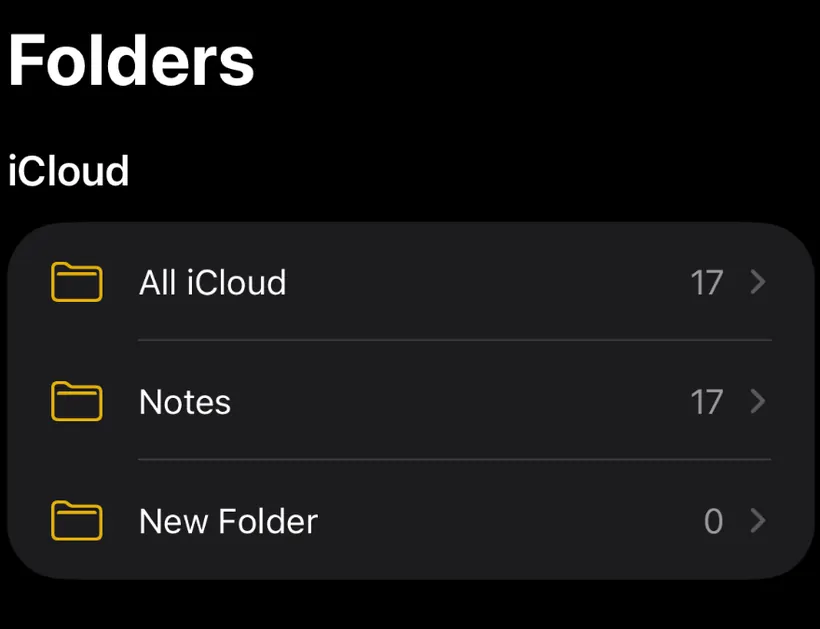
1. Check Your Notes Folders
Before changing any settings, open the Notes app and check which account contains your notes.
This is particularly important if you use iCloud and Gmail together.
Find Your Notes
- Open the Notes app.
- Tap the back arrow until you reach Folders.
- Review the available sections.
- Look for iCloud, On My iPhone, and any third-party accounts.
- Open each section.
- Search for the missing note.
You may also see folders such as Recently Deleted, Shared, or folders you’ve created yourself.
Understand the Difference
Suppose you create a note called “Meeting Notes” under On My iPhone.
That note is stored locally.
Even if your MacBook uses the same Apple Account, the note won’t automatically appear there because it isn’t an iCloud note.
Similarly, notes saved under Google or Exchange belong to those accounts.
If you locate the missing note under another account, you may not have a synchronization failure at all.
The note simply needs to be accessed through the correct account or moved carefully to your intended storage location.
2. Enable iCloud Notes on iPhone
One of the most common reasons for iPhone Notes not syncing with iCloud is that Notes synchronization is disabled.
Apple allows you to control which applications use iCloud.
For example, your iPhone might successfully synchronize Contacts and Photos while Notes remains switched off.
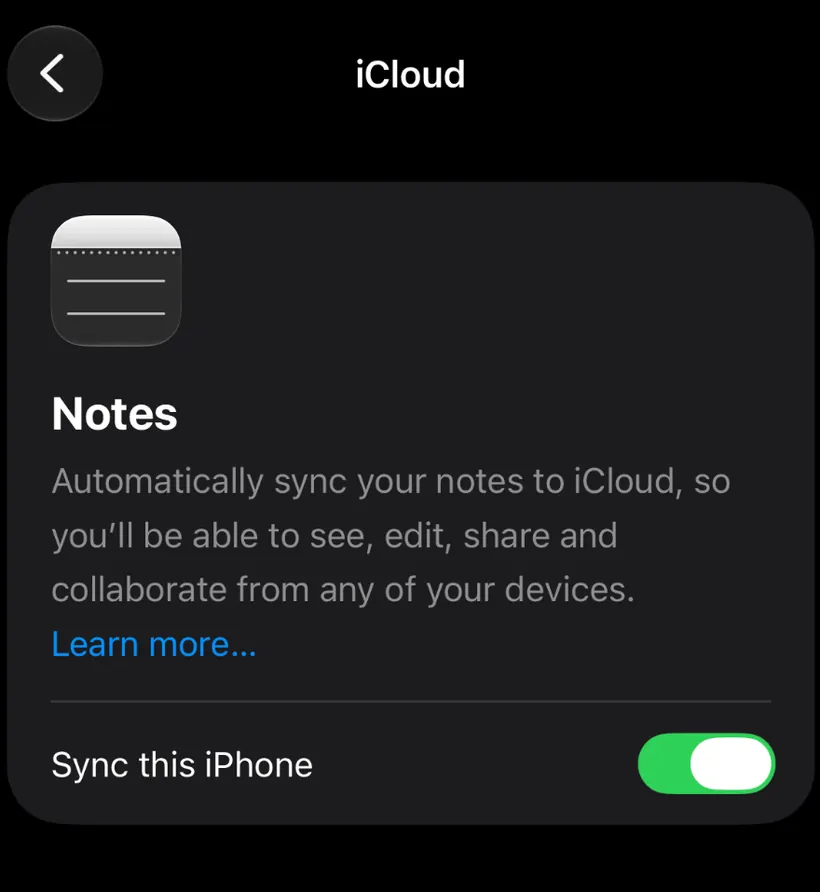
Turn On Notes Syncing
- Open Settings.
- Tap your Apple Account name.
- Select iCloud.
- Find Saved to iCloud.
- Tap See All if Notes isn’t immediately visible.
- Select Notes.
- Enable Sync this iPhone.
- Return to the Notes app.
On older iOS versions, the menu arrangement may differ slightly.
Check Your iCloud Folder
Open Notes and return to the Folders screen.
Look for the iCloud section.
Select an iCloud folder and check whether your notes appear.
If synchronization was previously disabled, allow the device time to retrieve available iCloud notes.
What If Syncing Is Already Enabled?
Leave it enabled initially.
Repeatedly switching iCloud Notes on and off isn’t necessary for ordinary troubleshooting.
Turning off a synchronization service can affect which notes remain available locally.
Instead, verify your Apple Account and other devices before making more changes.
3. Check Your Apple Account
If your iPhone Notes are not syncing between devices, confirm that your iPhone, Mac, and iPad use the same Apple Account.
iCloud Notes is associated with the account used to store the information.
Two devices signed in to different accounts won’t automatically share the same private iCloud Notes collection.
Check Your iPhone
- Open Settings.
- Tap your name at the top.
- Review the Apple Account.
- Confirm you’re signed in to the intended account.
Check Your Mac
- Click the Apple menu.
- Open System Settings.
- Select your Apple Account name.
- Review the account details.
- Compare them with your iPhone.
Check Your iPad
Open Settings and tap your Apple Account name.
Make sure the account matches the one used on the iPhone.
What If the Accounts Are Different?
That may explain why your notes aren’t appearing.
However, don’t immediately sign out of one account.
Signing out can affect synced photos, contacts, passwords, files, and other data.
If you intentionally use separate accounts, consider whether the notes can be shared or moved through a supported method.
If contacts are also failing to update between your devices, our iPhone Contacts Not Syncing guide covers those separate account and synchronization settings.
4. Enable Notes Syncing on Mac
If iPhone Notes not syncing to Mac is your main problem, check the Mac’s iCloud settings.
It’s possible for Notes syncing to be enabled on your iPhone but disabled on your MacBook.
Turn On iCloud Notes on Mac
- Open the Apple menu.
- Select System Settings.
- Click your Apple Account name.
- Select iCloud.
- Find Notes under Saved to iCloud.
- Enable Sync this Mac if it’s turned off.
- Open the Notes application.
On older macOS versions, you may need to select Show All under Apps Using iCloud.
Check the Notes Sidebar
- Open Notes on your Mac.
- Show the sidebar if it’s hidden.
- Find the iCloud section.
- Select the appropriate iCloud folder.
- Search for the missing note.
If it appears, synchronization may already be functioning.
What About On My Mac?
Notes stored under On My Mac are local to the computer.
They don’t automatically synchronize to your iPhone.
If you’ve created notes in On My Mac, check whether they’re supposed to be stored in iCloud instead.
Don’t move or delete them until you’ve confirmed that your information is safely preserved.
5. Check Notes on iCloud.com
One of the most useful ways to diagnose iPhone Notes not syncing is to compare your device with the copy stored in iCloud.
Apple allows you to access compatible iCloud Notes through a web browser.
Check iCloud Notes Online
- Open a supported web browser.
- Visit iCloud Notes.
- Sign in using the correct Apple Account.
- Complete any required verification.
- Open the Notes section.
- Search for the missing note.
Understand the Results
Note appears on iCloud.com but not your iPhone:
The note has reached iCloud. Investigate the iPhone’s synchronization settings, account, network connection, or Notes app.
Note appears on iPhone but not iCloud.com:
Check whether it’s stored in On My iPhone, Gmail, or another account.
If it’s supposed to be an iCloud note, investigate the upload connection and iCloud settings.
Note appears on iCloud.com but not Mac:
Focus on the Mac’s iCloud Notes configuration.
Checking iCloud.com helps separate a missing cloud record from a problem on one device.
It can prevent unnecessary account resets or accidental deletion of notes.
6. Check On My iPhone Notes
A common reason for iPhone Notes not syncing to MacBook is that your notes are saved locally.
Apple provides an On My iPhone account for storing notes directly on your phone.
These notes can be included in iPhone backups, but they don’t automatically appear across devices through iCloud Notes.
Check Local Notes
- Open Notes.
- Return to Folders.
- Look for On My iPhone.
- Open its folders.
- Search for the missing note.
If the note is there, you’ve identified why it isn’t appearing in your Mac’s iCloud Notes collection.
Move a Note to iCloud
If you want to synchronize a locally stored note:
- Confirm iCloud Notes is enabled.
- Open the local note.
- Return to the note list if necessary.
- Select the note using the available selection controls.
- Choose Move.
- Select an appropriate folder under iCloud.
- Confirm the note appears in its new location.
The exact controls may vary with your iOS version.
Important Precaution
Moving notes between accounts can affect supported formatting, attachments, and special features.
Make sure the destination supports the note’s content.
After moving, verify that the note appears in iCloud and on another device before removing any original or backup copy.
Don’t move hundreds of important notes at once without first testing the process with a nonessential note.
7. Check Gmail and Outlook Notes
If iPhone Notes are not syncing with Gmail or another email account, check the account’s Notes settings.
Apple Notes supports certain third-party accounts, including Google and Microsoft Exchange.
However, not every provider supports all the features available with iCloud Notes.
Check Notes Accounts
- Open Settings.
- Select Apps.
- Tap Notes.
- Select Notes Accounts.
- Choose the account you want to inspect.
- Check whether Notes is enabled.
On older versions of iOS, you may find Notes settings directly under Settings.
Check Google Notes
If you use Google:
- Open the configured Google account.
- Confirm Notes synchronization is enabled.
- Return to the Notes app.
- Open the Gmail section in Folders.
- Search for the missing note.
Remember that Apple Notes associated with Gmail are not the same as Google Keep notes.
Check Outlook or Exchange
If your Notes app uses a supported Microsoft account, review its account configuration.
For workplace accounts, some settings may be controlled by your organization.
Contact your administrator before removing or reconfiguring a managed account.
Avoid Removing Accounts Immediately
Removing an account can make its notes disappear from the iPhone’s local view.
If you suspect an authentication problem, first verify that the notes remain available through the provider or another connected device.
8. Check the Default Notes Account
Your iPhone allows you to choose a default account for certain new notes.
If you use multiple accounts, new notes may be stored somewhere other than the location you expected.
This can create the impression that notes aren’t syncing correctly.
Review the Default Account
- Open Settings.
- Select Apps.
- Tap Notes.
- Find Default Account.
- Review the available choices.
- Select iCloud if that’s where you want applicable new notes saved.
Apple documents this option for notes created through features such as Siri and the Notes widget.
When manually creating a note inside a specific folder, check which account that folder belongs to.
What Happens to Existing Notes?
Changing the default account doesn’t automatically move your previously saved notes.
For example, if you already have 100 notes under On My iPhone, choosing iCloud won’t instantly upload all of them.
Those notes remain in their original location unless you move them through a supported process.
Test the Location
Create a clearly named nonessential test note in an iCloud folder.
Check whether it appears on another device using the same Apple Account.
Then delete the test note after confirming the result.
9. Check Internet and Apple System Status
iCloud Notes requires a working connection to synchronize changes between devices.
If your iPhone loses internet access, newly edited notes may not appear elsewhere until connectivity returns.
Test Your Internet Connection
- Open Safari.
- Visit a trusted website.
- Confirm that the page loads.
- Check whether Wi-Fi or cellular data is working.
- Try another trusted connection if necessary.
- Return to Notes and check again.
If your iPhone has internet problems across several applications, resolve those first.
Check Apple’s Service Status
Visit Apple System Status.
Look for relevant iCloud service interruptions.
If Apple reports an applicable service problem, local troubleshooting may not resolve it until the service recovers.
What About VPNs?
Certain VPN or network restrictions can interfere with access to online services.
If you use a personally managed VPN and suspect a connection problem, test the network without it only when appropriate and permitted.
Don’t disable workplace security profiles or managed network protections without authorization.
Check Other iCloud Services
If Photos also isn’t updating across your devices, our iCloud Photos Not Syncing on iPhone guide can help investigate broader iCloud connectivity problems.
Remember that Notes and Photos are separate synchronization services.
One can work normally while the other experiences problems.
10. Check iCloud Storage and Data Settings
If iPhone Notes are not syncing with iCloud, review your available iCloud storage.
Apple provides a limited amount of free iCloud storage, shared across supported iCloud services.
If the account is full, new changes may be unable to upload normally.
Check Storage
- Open Settings.
- Tap your name.
- Select iCloud.
- Review the storage information.
- Check whether your account has available space.
If storage is full, review which services are using it.
Don’t immediately delete important notes or other synchronized files.
When synced content is deleted, that change may affect other devices using the same account.
Check Low Data Mode
Low Data Mode is designed to reduce network data usage.
It can postpone certain background activities.
If you’re troubleshooting a delayed sync:
- Open Settings > Wi-Fi.
- Tap the information button beside your network.
- Review Low Data Mode.
- Turn it off temporarily if appropriate.
- Check whether Notes begins updating.
Check Low Power Mode
Low Power Mode reduces certain background activities to conserve battery.
If your iPhone has a low battery, charge it and consider temporarily disabling Low Power Mode for testing.
These settings don’t necessarily stop every Notes synchronization operation.
They are secondary checks after verifying the correct account and enabled iCloud Notes settings.
11. Restart and Update Your Devices
Sometimes iPhone Notes not syncing after an update is caused by a temporary software problem.
Apple recommends restarting the affected device when iCloud Notes don’t appear despite being enabled.
Restart Your iPhone
For modern iPhones with Face ID:
- Press and hold the side button and either volume button.
- Wait for the power-off slider.
- Drag the slider.
- Wait until the iPhone shuts down.
- Turn it back on.
- Unlock the device.
- Open Notes.
For older iPhones, use the restart method appropriate for your model.
Restart Your Mac or iPad
If the missing notes aren’t appearing on your Mac, save your work and restart the computer.
For iPad, restart it normally and reopen Notes after unlocking.
Check Software Updates
On iPhone or iPad:
Settings > General > Software Update
On Mac:
System Settings > General > Software Update
Install available compatible updates after backing up important information.
Check Notes Again
After restarting, confirm that iCloud Notes synchronization remains enabled.
Then check whether the expected notes appear under the correct account.
Don’t immediately erase your iPhone or reinstall macOS just because a software update coincided with a syncing problem.
12. Check Recently Deleted Notes
If a note is missing from every expected folder, it may have been deleted rather than failing to synchronize.
Apple Notes includes a Recently Deleted folder for supported accounts.
Check Recently Deleted
- Open Notes.
- Return to Folders.
- Look for Recently Deleted under the relevant account.
- Open the folder.
- Search for the missing note.
- Select the note and use the available recovery or Move option.
For supported iCloud Notes, deleted notes are generally recoverable for up to 30 days.
Check iCloud.com
You can also sign in to iCloud Notes and look for Recently Deleted.
If the note is available, follow the onscreen recovery instructions.
What If the Folder Is Missing?
The Recently Deleted folder may not appear if there are no recoverable deleted notes or the account doesn’t support it.
Apple notes that some third-party and older Notes account configurations don’t provide the same recovery features.
Important Precaution
Don’t delete a note from another device to try to force synchronization.
For iCloud Notes, deleting a note on one synced device normally propagates the deletion to other devices.
If the missing note contains important information, preserve all surviving copies while investigating.
Contact Apple Support if the note remains missing and you need additional recovery guidance.
iPhone Notes Not Syncing to Mac
If iPhone Notes not syncing to Mac is your primary issue, focus on these requirements:
- Both devices use the same Apple Account.
- iCloud Notes syncing is enabled on the iPhone.
- iCloud Notes syncing is enabled on the Mac.
- The missing note is stored in an iCloud folder.
- Both devices have internet access.
Open Notes on your Mac and check the iCloud section.
If the note appears on iCloud.com but not your Mac, focus on the Mac’s synchronization configuration.
If it exists only under On My iPhone, it won’t automatically appear on your Mac.
Move it carefully to iCloud if you want it synchronized across devices.
The key is confirming the note’s storage location before changing other settings.
iPhone Notes Not Syncing to iPad
If your iPhone Notes aren’t appearing on your iPad, verify the Apple Account first.
On iPad:
- Open Settings.
- Tap your Apple Account name.
- Select iCloud.
- Tap See All.
- Select Notes.
- Enable Sync this iPad.
- Open Notes.
- Check the iCloud folders.
If the Notes app is showing a Gmail or On My iPad folder, switch to the relevant iCloud folder.
You can also compare your Notes collection with iCloud.com.
If a particular note exists online but not on the iPad, restart the iPad and check for compatible software updates.
Avoid removing your Apple Account as an initial fix.
iPhone Notes Not Syncing With Gmail
Google-backed notes can behave differently from iCloud Notes.
Apple Notes may display notes associated with a configured Gmail account, but those notes aren’t automatically part of iCloud.
What to Check
- Open Settings > Apps > Notes.
- Select Notes Accounts.
- Choose your Google account.
- Verify that Notes is enabled.
- Return to the Notes app.
- Open the Gmail folder.
- Look for the missing note.
If a Gmail-backed note appears on your iPhone but not Mac, check whether the same Google account is enabled for Notes on the Mac.
Some Apple Notes features aren’t available with third-party accounts.
If you need full Apple Notes functionality across Apple devices, consider storing supported notes in iCloud instead.
Always verify important formatting and attachments before moving a note between accounts.
Shared iPhone Notes Not Syncing
Apple Notes allows you to collaborate on supported notes and folders.
When collaboration works correctly, participants can see edits made by other people.
If a shared note isn’t updating, the problem may involve account permissions or software compatibility rather than ordinary personal iCloud syncing.
Check Collaboration
- Open the shared note.
- Confirm you’re signed in to the correct Apple Account.
- Check whether the shared note is still accessible.
- Review the participants or collaboration controls.
- Confirm that your device has internet access.
- Check whether supported iCloud Notes features are enabled.
If you were invited to collaborate, make sure you accepted the invitation using the intended Apple Account.
Check Permissions
Some shared notes allow participants to make changes.
Others may have viewing restrictions.
If you can open a note but can’t edit it, check whether the owner has granted editing permission.
Don’t delete a shared note or remove yourself from a collaboration just to fix syncing.
Notes Missing After Switching to a New iPhone
If your notes disappeared after setting up a new iPhone, start by identifying their original storage location.
Notes saved in iCloud can become available after signing in with the correct account and enabling synchronization.
But notes stored under On My iPhone are handled differently.
Check Your Previous iPhone
If you still have the old device:
- Open Notes.
- Review its Folders.
- Identify which notes are stored locally.
- Confirm which notes already appear in iCloud.
- Preserve important information before erasing the device.
Check the New iPhone
On the new device:
- Sign in to the intended Apple Account.
- Enable iCloud Notes.
- Add any required third-party Notes accounts.
- Open Notes and review the folders.
- Compare the available information.
Apple explains that On My iPhone notes can be included in iCloud device backups, but they aren’t independently synchronized like notes stored in iCloud.
Don’t erase your old iPhone until you’ve confirmed that all important notes are safely transferred or backed up.
iPhone Notes vs. Other Syncing Services
Although Notes, Contacts, Calendar, and Photos can all use iCloud, they have separate synchronization settings.
| Service | Main content | Syncing control |
|---|---|---|
| Apple Notes | Notes, lists, supported attachments | iCloud > Notes |
| Contacts | Names, phone numbers, email addresses | iCloud > Contacts |
| Calendar | Events and appointments | iCloud > iCloud Calendar |
| Photos | Photos and videos | iCloud > Photos |
An iPhone that successfully synchronizes photos doesn’t necessarily have Notes syncing enabled.
If you notice appointments also missing across devices, our iPhone Calendar Not Syncing guide explains the separate iCloud, Google, and Outlook calendar settings.
Troubleshoot each service according to where its information is actually stored.
Frequently Asked Questions
How do I force Notes to sync on iPhone?
There isn’t a universal button that guarantees immediate syncing.
Confirm iCloud Notes is enabled, connect to the internet, and open the correct iCloud folder.
If notes still don’t appear, restart the iPhone as Apple recommends.
Why are my Notes not syncing from iPhone to Mac?
Your Mac may have iCloud Notes disabled, use another Apple Account, or be displaying a different Notes folder.
Also check whether the missing note is stored locally on your iPhone.
Can Apple Notes sync with Gmail?
Apple Notes supports certain Google account configurations.
However, Gmail-backed notes remain separate from iCloud Notes, and some Notes features may not be available with third-party accounts.
Will turning off iCloud Notes delete my notes?
Turning off iCloud Notes can change which synchronized notes remain visible on a device.
Because the consequences depend on the account and available local data, avoid switching it off without first checking where important notes are stored.
How long does iCloud Notes take to sync?
There isn’t one guaranteed synchronization time.
Small notes often update quickly when devices have good connectivity, but delays can occur because of network conditions, service availability, or account settings.
Why did my Notes disappear after an iOS update?
The app may be displaying another folder, an account may need authentication, or iCloud syncing may not be enabled as expected.
Check the source account and Recently Deleted before assuming the notes were permanently lost.
Can I recover deleted iPhone Notes?
Supported iCloud Notes generally remain in Recently Deleted for up to 30 days.
Other accounts may have different recovery rules.
Check the relevant account and Apple’s recovery instructions.
Does Low Power Mode stop Notes syncing?
Low Power Mode reduces some background activity, but it doesn’t necessarily stop all Notes synchronization.
Check the account, folder, and network settings first.
Final Thoughts
If your iPhone Notes are not syncing, start by checking where your notes are stored.
The Notes app can display information from iCloud, On My iPhone, Gmail, and other supported accounts. Those notes don’t automatically merge into one synchronized collection.
Make sure iCloud Notes is enabled on your iPhone, Mac, and iPad, and confirm that your devices use the same Apple Account.
Then compare the missing notes with the copies available on iCloud.com.
If the notes belong to a local or third-party account, investigate that account before changing iCloud settings.
Finally, check connectivity, available storage, software updates, and Recently Deleted when necessary.
Most importantly, don’t delete important notes, remove accounts, or reset your device just to force synchronization.
If your notes remain missing despite these checks, contact Apple Support for further assistance.