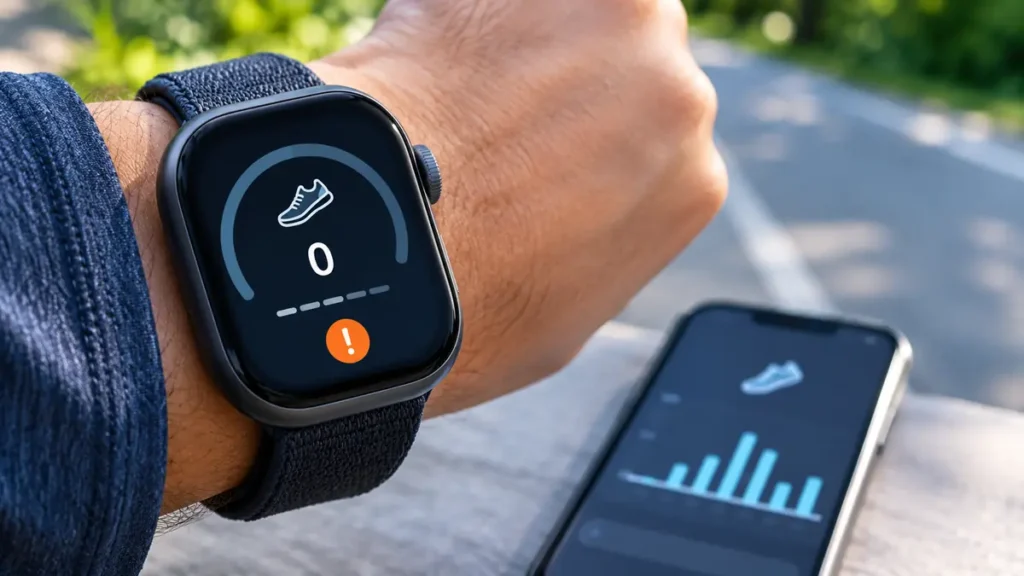
Apple Watch not counting steps even though you’ve been walking? Perhaps your daily step total stays at zero, your iPhone Health app shows a different number, or the watch misses steps when you’re pushing a stroller or walking on a treadmill.
Before resetting anything, it’s important to identify where the problem occurs. Apple Watch tracks movement using motion sensors, while the Health app can combine step data from your watch, iPhone, and other sources.
This guide covers 10 practical fixes for missing or inaccurate Apple Watch steps, including Fitness Tracking permissions, wrist detection, Health app data sources, and activity calibration.
Table of Contents
Quick Answer: How to Fix Apple Watch Not Counting Steps
If your Apple Watch stops counting steps, try these checks:
- Check the actual step total in the Activity app.
- Wear the watch correctly and check Wrist Detection.
- Make sure Fitness Tracking is enabled.
- Check Apple Watch step data in the iPhone Health app.
- Allow natural arm movement when walking.
- Check the connection with your paired iPhone.
- Restart the Apple Watch and iPhone.
- Install available watchOS and iOS updates.
- Check Motion Calibration & Distance settings.
- Calibrate your Apple Watch with an outdoor walk.
Start by checking whether the watch itself records steps. That tells you whether to investigate step detection or Health app syncing.
Why Is My Apple Watch Not Counting Steps?
Apple Watch uses its built-in motion sensors to recognize movement and estimate steps. However, several situations can affect the results.
Common causes include:
- Fitness Tracking is disabled.
- The watch is not being worn securely.
- Wrist Detection or watch recognition is malfunctioning.
- Your arm remains relatively still while walking.
- The Health app is displaying data from another source.
- Your watch and iPhone are not syncing correctly.
- A temporary software issue affects activity tracking.
- Walking or running calibration needs improvement.
- A sensor or hardware problem requires inspection.
Important: Step counting is not the same as closing your Activity rings.
Apple Watch’s Move ring measures estimated active calories. Its Exercise ring measures qualifying exercise minutes, while the Stand ring tracks eligible standing activity. A walk can add steps without increasing every ring equally.
1. Check Your Apple Watch Step Count First
Before changing settings, find out whether your watch is actually failing to count steps.
How to check steps on Apple Watch
- Press the Digital Crown to open your apps.
- Open the Activity app.
- Scroll down past your activity rings.
- Look for Total Steps.
- Remember the displayed number.
- Walk normally for a few minutes.
- Check Total Steps again.
Apple confirms that the Activity app displays total steps and distance below the rings.
If the number increases, your watch is detecting movement. The issue may be how quickly another app updates or which data source it displays.
If the number stays at zero despite ordinary walking, continue with the following fixes.
Tip: Don’t assume the step counter is broken merely because your Exercise ring hasn’t moved. The two measurements serve different purposes.
2. Check Watch Fit and Wrist Detection
A loose watch can interfere with some sensor readings and wrist recognition.
Apple recommends wearing the watch snugly enough to maintain appropriate sensor contact, without making it uncomfortable.
Try this:
- Place your Apple Watch on the top of your wrist.
- Adjust the band so it stays reasonably stable.
- Make sure clothing is not trapped beneath the sensors.
- Unlock the watch if it requests a passcode.
- Walk briefly and check the step count again.
Check Wrist Detection
On your iPhone:
- Open the Watch app.
- Select My Watch.
- Tap Passcode.
- Confirm that Wrist Detection is enabled.
Apple states that disabling Wrist Detection affects several watch features, including Stand tracking and other Activity measurements.
Wrist Detection is not a universal switch that guarantees accurate step counting, but checking it is useful when several fitness features are behaving unexpectedly.
If your watch repeatedly locks while you’re wearing it, read our Apple Watch Keeps Locking troubleshooting guide.
3. Turn On Fitness Tracking
This is one of the most important settings to check when activity information is missing.
Apple specifically recommends enabling Fitness Tracking if the Health app isn’t recording steps or other information.
Check Fitness Tracking on iPhone
- Open the Health app.
- Tap your profile picture or profile icon.
- Select Devices.
- Choose your Apple Watch.
- Open Privacy Settings.
- Turn on Fitness Tracking, if it’s disabled.
Depending on the software version, related privacy controls may also appear in the Watch app.
After enabling Fitness Tracking, wear the watch and walk normally to check whether new steps appear.
If Fitness Tracking was already enabled, leave it on and continue.
Don’t erase existing Health data or reset your watch at this stage.
4. Check Steps and Data Sources in the Health App
Sometimes the Apple Watch records steps correctly, but the number displayed on your iPhone looks different.
This can happen because the Health app receives information from multiple sources, including your iPhone, Apple Watch, and compatible third-party devices.
Check steps on your iPhone
- Open the Health app.
- Use Search or Browse, depending on your iOS version.
- Open Activity → Steps.
- Check your daily step total.
- Scroll down to Data Sources & Access.
- Look for your Apple Watch in the source list.
Apple allows users to review and prioritize the sources that contribute Health data.
If your Apple Watch is recording steps but they aren’t appearing as expected, check which sources are contributing and whether the relevant Health permissions are enabled.
Should you change data-source priority?
Not automatically.
Apple’s Health app can combine information from multiple devices, and its displayed totals may not match a single watch reading exactly.
Changing source priority may help with certain data inconsistencies, but it will not repair a watch that fails to detect movement.
First determine whether the underlying Apple Watch data exists.
For more information, see Apple’s official Health data management guide.
5. Let Your Watch Arm Move Naturally
Your Apple Watch uses motion information to recognize activity.
When your arm moves naturally during walking, the motion sensors have useful signals to work with.
However, step recognition can be less consistent when your wrist stays relatively still.
Examples include:
- Pushing a stroller.
- Holding a shopping cart.
- Carrying an object with your watch hand.
- Walking on a treadmill while gripping the handrails.
- Keeping your hands in your pockets.
What to try
- Walk at your usual pace in a safe area.
- Allow your watch arm to swing naturally.
- Check whether the total step count increases.
- Compare the result with a similar walk where your arm was relatively still.
Apple recommends natural arm motion for accurate activity recognition and Exercise credit.
If you need to keep your hands on a stroller or another object, starting an appropriate Workout can help the device collect additional workout measurements.
However, starting a Workout doesn’t guarantee that every physical step will be recognized.
6. Check Your Apple Watch and iPhone Connection
Apple Watch can record activity on its own, so it doesn’t need a continuous iPhone connection to recognize every step.
However, communication between the devices matters when your iPhone needs to receive updated activity information.
If your watch shows steps but your Health or Fitness app doesn’t reflect them, check connectivity.
Connection checklist
- Keep your Apple Watch and iPhone near each other.
- Make sure Bluetooth is enabled on the iPhone.
- Confirm the watch isn’t in Airplane Mode with its connections disabled.
- Open the Watch app on your iPhone.
- Confirm that your watch is listed and connected.
- Check Health or Fitness again after allowing synchronization.
If the devices aren’t communicating correctly, follow our Apple Watch Not Pairing With iPhone guide.
Remember: A syncing problem and a motion-sensor problem are different. If the Activity app on your watch counts steps correctly, don’t immediately reset the watch.
7. Restart Apple Watch and iPhone
A normal restart can resolve temporary software problems that affect app updates, sensor reporting, or communication.
Apple recommends restarting the watch and paired iPhone when something isn’t working correctly.
Restart Apple Watch
- Remove the watch from its charger if necessary.
- Press and hold the side button.
- Tap the power icon when it appears.
- Drag the Power Off slider.
- After shutdown, press and hold the side button to turn the watch on again.
Then restart your paired iPhone using the normal restart procedure for its model.
After both devices restart, wear your watch and check whether new steps are counted.
Avoid force restarting unless the watch is unresponsive and a normal restart isn’t possible. Don’t force restart during a software update.
8. Update watchOS and iOS
If the problem started after an update or appeared without an obvious explanation, check for available compatible software updates.
Apple releases updates that can address bugs, improve compatibility, and provide security fixes.
Update Apple Watch
On the paired iPhone:
- Open the Watch app.
- Go to My Watch → General → Software Update.
- Check for an available update.
- Follow the instructions to install it.
Ensure the watch has enough battery, is properly charged when required, and remains near the iPhone.
You can also check the iPhone under Settings → General → Software Update.
If you’re having trouble installing the watch update, see our Apple Watch Not Updating guide.
An update is worth checking, but it isn’t proof that every missing-step problem is caused by watchOS.
9. Enable Motion Calibration & Distance
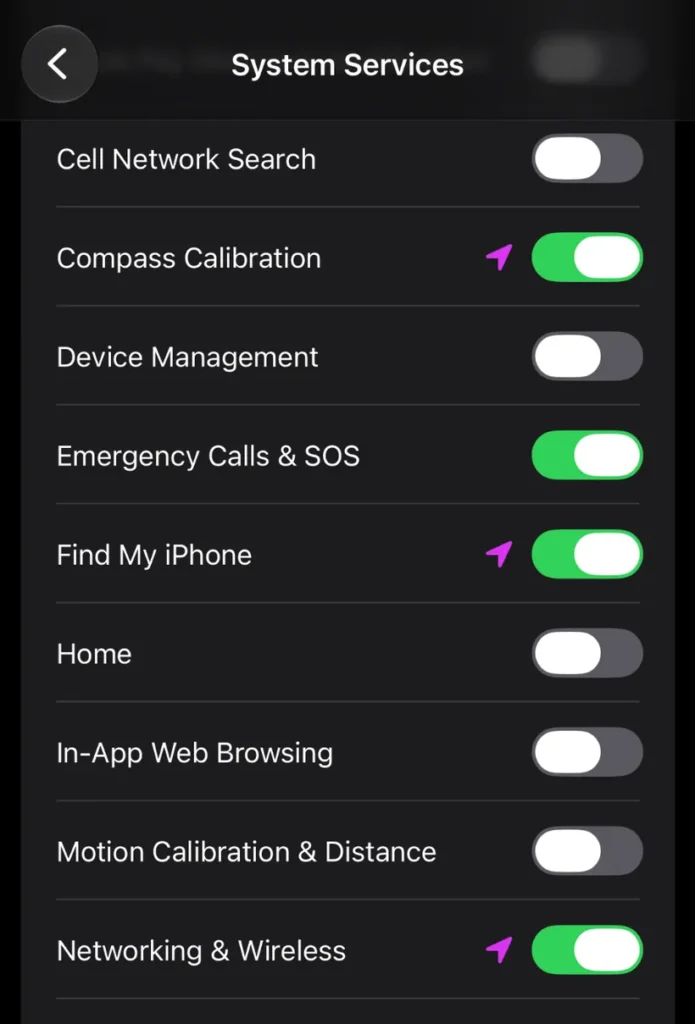
Apple recommends enabling Motion Calibration & Distance to support accurate distance and activity calibration.
This setting is on your paired iPhone.
How to check Motion Calibration
- Open Settings on your iPhone.
- Go to Privacy & Security.
- Tap Location Services.
- Make sure Location Services is enabled.
- Scroll to System Services.
- Find Motion Calibration & Distance.
- Turn it on if it’s disabled.
This helps Apple Watch learn your movement patterns and improve its distance and pace estimates.
Important: This is not a dedicated on/off switch for the step counter. Enabling it won’t necessarily fix a watch showing zero steps, particularly if Fitness Tracking is disabled or the device has a hardware problem.
Apple documents this setting in its Apple Watch calibration instructions.
10. Calibrate Your Apple Watch With an Outdoor Walk
If your Apple Watch records steps but your walking distance or pace appears inaccurate, calibration is worth trying.
Apple recommends an outdoor walk or run in an open area with good GPS reception.
How to calibrate Apple Watch
- Wear your Apple Watch correctly.
- Go outdoors to a relatively open, safe area.
- Open the Workout app on the watch.
- Choose Outdoor Walk or Outdoor Run.
- Walk or run at your normal pace for approximately 20 minutes.
- Finish the workout and review the activity information.
If you can’t complete 20 minutes at once, Apple says the calibration can accumulate across multiple outdoor sessions.
For users who regularly walk or run at different speeds, calibration at each typical speed can be helpful.
Should you reset calibration data?
Only if necessary.
If distance and pace remain inaccurate despite normal tracking, Apple provides an option to reset existing fitness calibration data:
Watch app on iPhone → My Watch → Privacy → Reset Fitness Calibration Data
This clears previous calibration information so the watch can learn again.
It is not a guaranteed repair for missing steps, and there is no reason to use it routinely when your normal step count is working.
Apple Watch Not Counting Steps on a Treadmill
Treadmill walking creates a slightly different tracking situation because GPS is less useful indoors and your arm movement may vary.
If your watch records fewer steps than expected:
- Select an appropriate indoor workout.
- Avoid gripping handrails continuously when it’s safe to do so.
- Allow natural arm movement.
- Wear the watch securely.
- Check whether the Activity app’s step total changes.
- Consider outdoor calibration if distance estimates are consistently inaccurate.
Apple Watch estimates activity using motion information and learned movement patterns.
Treadmill distance and watch-estimated distance may differ, especially when arm movement is restricted.
Do not expect a perfect step-for-step match in every situation.
Apple Watch Steps Not Syncing With iPhone Health
If Apple Watch shows a normal step count but the iPhone Health app doesn’t, prioritize a syncing check rather than recalibration.
| Symptom | Check first |
|---|---|
| Watch shows 0 steps | Fitness Tracking, watch fit, motion detection |
| Watch counts steps but iPhone doesn’t update | Connection, Health permissions, data sources |
| Steps are lower when using a stroller | Arm movement and activity conditions |
| Distance is wrong but steps increase | Calibration and workout choice |
| Watch keeps locking and activity behaves oddly | Wrist Detection and band fit |
| Steps stopped appearing after an update | Restart, software updates and tracking permissions |
This distinction helps avoid unnecessary resets.
When Should You Contact Apple Support?
If your Apple Watch records no new steps after you have checked Fitness Tracking, wrist detection, normal movement, and software updates, further diagnosis may be appropriate.
Contact Apple Support if:
- The Activity app consistently reports no movement during normal walking.
- Several sensor-based features fail together.
- The watch has visible physical damage.
- Restarting and checking the relevant settings have not helped.
- Step detection remains abnormal despite using a supported watch model correctly.
Avoid erasing the watch or unpairing it as a first response. Those actions can introduce backup and setup complications without identifying the cause.
Visit Apple Support for assistance.
Frequently Asked Questions
Why is my Apple Watch not counting steps?
Possible causes include disabled Fitness Tracking, insufficient motion detection, watch fit issues, or a software problem. If the steps appear on your watch but not your iPhone, investigate Health app syncing instead.
Does Apple Watch count steps without starting a workout?
Yes. Apple Watch automatically tracks daily activity, including steps, while you wear it. Starting a Workout is not required for ordinary daily step tracking.
Why does my Apple Watch say zero steps?
First, open the Activity app and verify the Total Steps field. If it remains at zero during normal walking, check Fitness Tracking and wrist detection before restarting the watch.
Does Apple Watch count steps when pushing a stroller?
It may count some or many steps, but recognition can be affected when the watch arm remains relatively still. A suitable Workout may help capture additional activity information.
Why are Apple Watch and iPhone step counts different?
The Health app may use data from both devices and other sources. Differences in sensor placement, timing, or data-source handling can lead to totals that aren’t identical.
Do I need GPS enabled for Apple Watch to count steps?
Apple Watch uses motion sensors for step detection. GPS is useful for outdoor distance, pace, and calibration, but an ordinary step counter does not depend on having a GPS route for every walk.
Will resetting fitness calibration fix missing steps?
Not necessarily. Apple’s calibration reset is mainly relevant to learned movement and activity accuracy. Check Fitness Tracking, actual step recording, and Health data sources first.
Why isn’t my Apple Watch Exercise ring moving when steps increase?
The Exercise ring measures activity that meets qualifying intensity requirements. Ordinary steps do not automatically count as Exercise minutes.
Final Thoughts
When your Apple Watch is not counting steps, start by checking the step total on the watch itself.
If the watch fails to detect movement, investigate Fitness Tracking, wrist fit, and sensor-related settings.
If the watch records steps correctly but your iPhone doesn’t show them, check syncing and Health data sources instead.
For inaccurate distance or pace, Apple’s calibration process may help. Avoid erasing your watch unless Apple Support identifies a reason to do so.
Using these checks in order is the most practical way to identify the cause without unnecessary resets.
Official references: Apple Watch activity tracking · Apple Watch measurement accuracy · Apple Watch calibration · Health data management