iPad not updating even though a new iPadOS version is available? You might see “Unable to Check for Update,” an update stuck on “Preparing Update,” or an installation that repeatedly fails.
Sometimes the update doesn’t appear at all. Other times, the iPad downloads it but cannot verify or install it.
These problems have different causes, so repeatedly restarting or resetting your iPad isn’t the best approach.
This guide explains 10 practical ways to fix an iPad that won’t update, from checking compatibility and available storage to installing iPadOS with a Mac or Windows computer.
Table of Contents
Quick Answer: How to Fix an iPad Not Updating
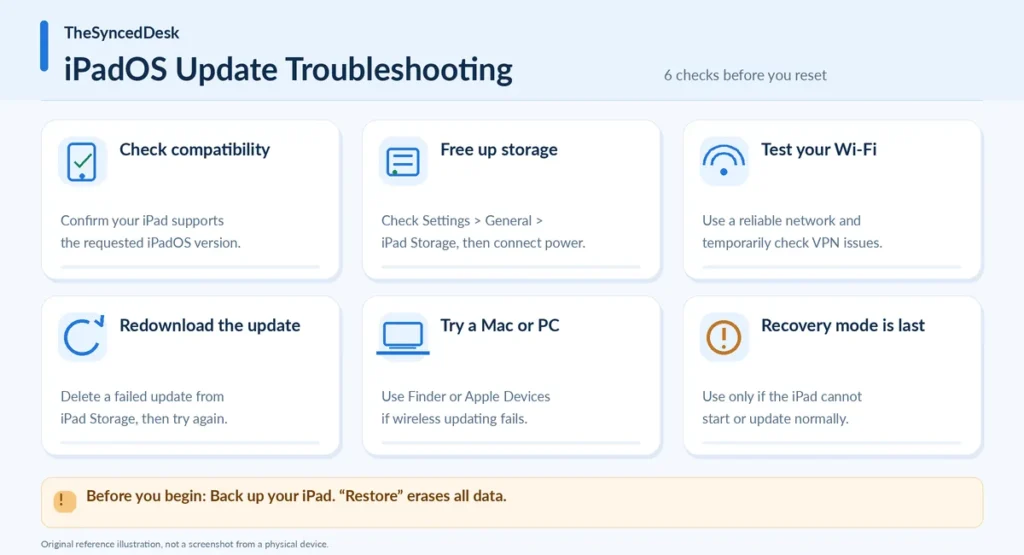
If your iPad won’t download or install an update, try these steps in order:
- Check whether your iPad supports the requested iPadOS version.
- Look for the update under Settings → General → Software Update.
- Check available storage and connect the iPad to power.
- Connect to a reliable Wi-Fi network.
- Resolve update verification or server connection errors.
- Allow enough time for downloads and installation.
- Restart your iPad if it isn’t actively installing an update.
- Delete a failed update download and download it again.
- Update the iPad using a Mac or Windows computer.
- Use recovery mode only if the iPad becomes unresponsive or cannot update normally.
Before you begin: Back up your iPad if possible. A normal software update is intended to preserve your data, but having a backup is important if further troubleshooting becomes necessary.
Why Is My iPad Not Updating?
Apple identifies several common reasons an iPad may fail to update:
- The iPad doesn’t support the requested version.
- There isn’t enough free storage.
- The update takes longer than expected to download.
- The iPad cannot connect to Apple’s update servers.
- The update cannot be verified.
- The installation fails or doesn’t finish.
The correct fix depends on what happens when you open Software Update.
For example, an iPad that doesn’t offer iPadOS 27 may have a compatibility limitation. An iPad displaying “Unable to Verify Update” is more likely to need a network or download check.
The following steps help you identify which situation applies.
1. Check iPadOS Compatibility
Not every iPad supports every major iPadOS version.
Apple released iPadOS 27 for a defined range of compatible iPad models. Older devices may continue receiving eligible updates without supporting the newest major release.
Check your iPad model
- Open Settings.
- Tap General → About.
- Find Model Name.
- Note your current iPadOS version.
- Compare your iPad with Apple’s official compatibility information.
See Apple’s iPadOS 27 compatibility and download guide.
If your iPad doesn’t support a newer major release, that doesn’t automatically mean something is wrong.
You should install the latest compatible update offered for your device, rather than attempting to force an unsupported version.
Tip: If the update is missing, first confirm compatibility before changing Wi-Fi settings or deleting apps.
2. Check Software Update Properly
Sometimes an update is available but isn’t immediately installed because automatic updates are disabled or manual installation is required.
To check:
- Open Settings.
- Go to General → Software Update.
- Allow the iPad to check for available software.
- Read the currently installed version.
- If an update appears, choose Download and Install or the available update option.
If your iPad is already using the latest compatible version offered to it, Software Update may report that the device is up to date.
Check automatic updates
Open Settings → General → Software Update → Automatic Updates.
Depending on the installed iPadOS version, you may see options for automatic downloading and installation.
Automatic installation generally requires suitable conditions, such as Wi-Fi connectivity and charging.
Disabling automatic updates doesn’t necessarily prevent you from installing an update manually.
For Apple’s normal update procedure, see its official software update instructions.
3. Check Storage and Power
An iPad needs enough available storage to download, unpack, and install software.
The exact space required varies by update and device.
Check iPad storage
- Open Settings → General → iPad Storage.
- Wait for the storage information to load.
- Review how much space is available.
- Look for apps or downloads taking up substantial storage.
- Remove unnecessary content only after confirming it is backed up.
If Offload Unused Apps is offered, this can free space while retaining supported app data. However, removing an app or its files manually may cause data loss.
Avoid deleting important documents or photos simply to reach an arbitrary storage target.
Check the power connection
Keep your iPad connected to a reliable power source during the update.
If it won’t charge properly, fix the charging problem first using our iPad Not Charging troubleshooting guide.
A low battery or unreliable charging connection can interrupt installation.
4. Check Your Wi-Fi Connection
Software updates require a suitable internet connection.
An iPad may display a Wi-Fi symbol while the network itself has no internet access.
Try this:
- Open Safari and load a website.
- Check whether the connection works consistently.
- Open Settings → Wi-Fi.
- Reconnect to a reliable Wi-Fi network.
- Return to Software Update and try again.
If the update continues failing, try another trusted network.
Apple also recommends avoiding simultaneous heavy downloads while downloading an update.
What about VPN connections?
A VPN or proxy may interfere with the connection to update servers.
If you use one, consider temporarily disconnecting it and testing again, provided the device isn’t managed by an organization that requires the connection.
Don’t remove workplace or school security profiles without authorization.
If your iPad repeatedly disconnects from Wi-Fi, follow our iPad Not Connecting to Wi-Fi guide first.
5. Fix Unable to Verify Update Errors
Some iPads download an update successfully but fail during verification.
You might see messages such as:
- “Unable to Check for Update”
- “Unable to Verify Update”
- “An error occurred checking for a software update”
- “Unable to Download”
These messages can indicate that the device cannot contact the required software update service or complete verification.
What to do
- Confirm that internet access works.
- Retry the update using the current network.
- If it fails again, switch to another reliable network.
- Temporarily disconnect an optional VPN or proxy.
- Return to Settings → General → Software Update.
If the same error happens on multiple networks, move to the update-download reset described in Fix 8.
Apple specifically recommends trying another network or using a computer when the device cannot reach the update service.
Don’t assume that every verification error is caused by damaged iPad hardware.
6. Check Whether the Update Is Actually Stuck
A slow update isn’t necessarily a failed update.
Downloads can take longer when the update is large or the internet connection is slow. Installation time also depends on the iPad and its existing files.
If the update is downloading
Check whether download progress continues and whether your Wi-Fi connection remains stable.
You can use the iPad for some activities while an update downloads.
If the update is installing
Keep the iPad connected to power and avoid repeatedly pressing buttons.
The Apple logo and a progress bar may appear during installation.
Important: Do not force-restart an iPad simply because the installation progress bar appears slow.
If the iPad remains frozen or stops starting normally, follow Apple’s guidance for an unresponsive device rather than interrupting an installation unnecessarily.
7. Restart Your iPad Safely
If Software Update isn’t responding, or you have already received an error without an installation in progress, a normal restart is reasonable.
iPad without a Home button
- Press and hold the top button and either volume button until the power-off slider appears.
- Drag the slider.
- Allow the iPad to shut down.
- Press and hold the top button to turn it on again.
iPad with a Home button
- Press and hold the top button.
- Drag the power-off slider.
- Turn the iPad on again after it shuts down.
After restarting, reopen Settings → General → Software Update.
A restart can resolve a temporary system or network-state issue. It cannot make an unsupported iPadOS release compatible with an older device.
8. Delete the Failed Update and Download It Again
If an iPadOS update downloaded but repeatedly fails to install, Apple recommends removing the downloaded update and trying again.
Follow these steps:
- Open Settings.
- Tap General → iPad Storage.
- Look for the downloaded iPadOS update in the list.
- Tap the update entry.
- Choose Delete Update, if available.
- Return to Settings → General → Software Update.
- Download the update again.
This removes the downloaded software update package, not your entire iPad.
However, make sure you select the update package rather than unrelated documents or apps.
What if the update isn’t listed?
Not every failed download leaves an update package visible in iPad Storage.
If you cannot find it, don’t delete unrelated files. Try updating with a computer instead.
This procedure is covered by Apple’s official update troubleshooting guide.
9. Update Your iPad Using a Mac or Windows PC
If the wireless update keeps failing, try installing the compatible update from a computer.
This can help when the iPad cannot complete the download or installation through its own Software Update screen.
Back up the iPad before proceeding.
Update using a Mac
For a Mac using macOS Catalina or later:
- Open Finder.
- Connect the iPad using a suitable USB cable.
- Select the iPad in the Finder sidebar.
- Open the General tab.
- Click Check for Update.
- Choose Download and Update, if an update is offered.
- Follow the instructions and enter the iPad passcode if requested.
See Apple’s Finder update instructions.
Update using Windows
On a supported Windows PC:
- Open the Apple Devices app or the applicable supported iTunes workflow.
- Connect the iPad with a suitable data cable.
- Unlock the iPad and trust the computer if prompted.
- Select the connected iPad.
- Find the software update option.
- Follow the installation instructions.
Keep the computer connected to the internet and avoid disconnecting the iPad during the update.
If the computer doesn’t detect the iPad, try a known-working data cable or another USB port.
A computer-based update doesn’t guarantee success if the underlying problem involves incompatible software or damaged hardware.
10. Use Recovery Mode Only When Necessary
Recovery mode is a more advanced troubleshooting option.
It’s generally appropriate when the iPad cannot start normally, the computer reports a recovery problem, or standard update methods fail and the device becomes unresponsive.
Do not enter recovery mode just because an ordinary download is slow.
When recovery may be necessary
Examples include:
- The iPad remains stuck on the Apple logo without a normal progress bar.
- The computer cannot update the device normally.
- The iPad repeatedly starts into a recovery screen.
- The operating system cannot boot correctly.
Recovery-mode Update versus Restore
This difference matters.
| Option | What it does |
|---|---|
| Update | Attempts to reinstall iPadOS without intentionally erasing personal data |
| Restore | Erases the iPad and reinstalls the operating system |
If the computer offers an Update option that may resolve the problem, try that before considering a destructive Restore.
Recovery procedures and available options can vary with the problem and iPad model.
Follow Apple’s official iPad recovery instructions, rather than experimenting with button combinations.
If your device is specifically stuck during startup, our iPad Stuck on Apple Logo guide covers that separate situation.
Warning: Restore erases the iPad. Do not choose it without understanding the consequences and checking your available backups.
iPad Not Updating: Match the Error to the Fix
Use the following table to identify the most relevant step.
| Problem | What to check first |
|---|---|
| New iPadOS version doesn’t appear | Compatibility and Software Update availability |
| Update cannot download | Wi-Fi, internet access, and update servers |
| Not enough storage | iPad Storage and unnecessary downloads |
| Unable to Verify Update | Network connection and downloaded update |
| Preparing Update seems stuck | Allow time; investigate only if progress genuinely stops |
| Installation repeatedly fails | Redownload the update, then try a computer |
| iPad stuck on Apple logo | Startup troubleshooting or recovery-mode guidance |
| Update completes but apps behave incorrectly | Check app updates and isolate the affected app |
This table helps distinguish between missing updates, failed downloads, and startup problems.
Should You Reset Network Settings?
Usually not as a first step.
A network reset changes saved network configurations and may require you to reconnect to Wi-Fi networks afterward.
It also cannot solve an unsupported iPadOS version or a damaged charging connector.
Before considering a reset, try another Wi-Fi network and determine whether the iPad can reach the software update service.
If normal network troubleshooting doesn’t help, a computer-based update is often a more targeted next step.
Frequently Asked Questions
Why is my iPad not updating to the latest iPadOS?
Your iPad may not support the newest release, or the update may be blocked by insufficient storage, internet problems, verification failures, or an incomplete installation. Start by checking compatibility and Software Update.
Why does my iPad say Unable to Check for Update?
The device may be unable to contact the update servers. Check internet access, try another reliable Wi-Fi network, and temporarily disconnect an optional VPN if appropriate.
Why is my iPad stuck on Preparing Update?
The iPad may still be processing the download. Allow reasonable time, particularly for a large update. If the download repeatedly fails and its package appears in iPad Storage, Apple’s procedure allows you to delete the package and download it again.
Can an older iPad install iPadOS 27?
Only if the model is supported. Apple maintains a compatibility list for iPadOS 27. Unsupported devices cannot install the release through normal update methods.
Can I update an iPad without Wi-Fi?
A computer connected to the internet can update a compatible iPad using Finder, Apple Devices, or the supported iTunes workflow. This can be useful when the iPad’s wireless updating process fails.
Will updating my iPad erase my data?
A normal software update is designed to retain your data and settings. However, errors can occur, so making a backup first is strongly recommended. A Restore operation is different and erases the device.
What should I do if my iPad update fails repeatedly?
Check compatibility, storage, network access, and the downloaded update package. If the problem continues, use a computer to install the update. Contact Apple Support if installation still fails or the device cannot start correctly.
Final Thoughts
If your iPad is not updating, begin with compatibility, storage, power, and internet access.
Most routine troubleshooting should focus on the actual failure message instead of immediately resetting the device.
When an update download is damaged or incomplete, deleting the update package and downloading it again may help. If wireless updates continue to fail, try a Mac or Windows computer.
Use recovery mode only when the situation calls for it, and remember that Restore erases your data.
For the latest official procedures, visit Apple’s iPadOS update troubleshooting guide.