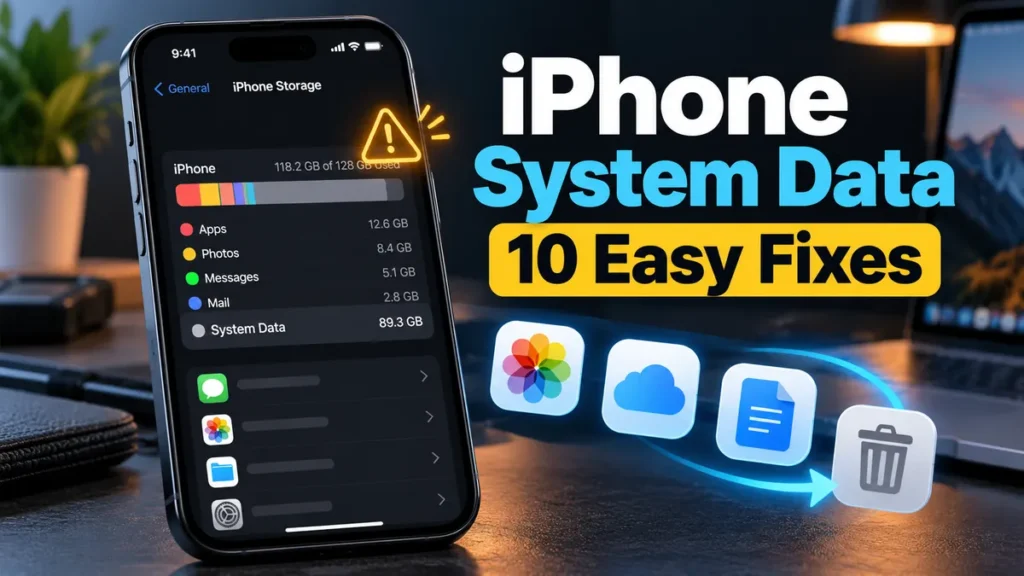
Is iPhone System Data taking up storage until your phone is nearly full? You may open iPhone Storage and find 20GB, 40GB, or more listed as System Data, even though you have already deleted unwanted apps and photos. It is frustrating because Apple does not provide a simple “Clear System Data” button.
The good news is that there are safe ways to check what is happening and recover usable space. Some steps may reduce caches or temporary files; others free storage in different categories so your iPhone can function normally again. Neither outcome is guaranteed to reduce the System Data number itself.
This guide covers 10 practical checks, from a normal restart to more advanced options, without treating a factory reset as the first solution. Settings names may vary slightly between iOS versions.
Important: This guide explains storage management, not a guaranteed way to delete protected iOS system files. Back up important data before deleting anything you cannot replace.
Quick Answer: How to Fix iPhone System Data Taking Up Storage
If iPhone System Data taking up storage is your problem, try these in order:
- Check the actual System Data category under Settings → General → iPhone Storage.
- Restart your iPhone, then give the storage screen time to calculate again.
- Allow routine background cleanup while the phone is charging and connected to Wi-Fi.
- Clear Safari website data if you do not mind being signed out of sites.
- Remove old offline downloads from streaming apps and Files.
- Review unusually large apps and clear their data only using supported app options.
- Offload genuinely unused apps to reclaim app storage without deleting their documents.
- Review large Messages attachments and photo storage carefully.
- Install a compatible iOS update if one is available, after making a backup.
- If the number stays unusually high and causes serious problems, make a verified backup and contact Apple Support before considering an erase-and-restore.
Important: Avoid “one-tap System Data cleaner” promises. iOS manages many system caches automatically, and storage-category figures can change over time.

What Is iPhone System Data?
System Data is a broad storage category that can contain caches, logs, indexes, voices, fonts, dictionaries, and other resources that iOS uses behind the scenes. Some of these files are temporary. Others are needed for normal operation and cannot simply be deleted by the user.
Apple separates the operating system itself from other storage categories, although labels may differ by software version and device. A storage graph can therefore show iOS, System Data, Apps, Photos, and other categories side by side.
Your phone also creates cached files as you stream content, browse websites, or use apps. Caching saves time when you reopen frequently used content. According to Apple, the device can remove certain temporary files automatically when it needs space.
So a large gray System Data section does not mean that everything inside it is useless. The practical question is whether your iPhone is running out of usable space and whether the figure stays unusually high.
Why Is iPhone System Data Taking Up So Much Storage?
The amount may fluctuate after a software update, app activity, streaming, web browsing, or background indexing. Occasionally, a storage-reading issue or unusually persistent cache can make the number appear much larger than expected.
Possible contributors include:
- Temporary files created during normal iOS operation.
- Web content and browsing caches.
- Indexing and other background processes after changes to your phone.
- Cached audio, video, and images from everyday use.
- Logs and system resources that iOS manages itself.
Be careful with a popular misconception: offline downloads, Messages attachments, and photo libraries often belong to their own storage categories. Deleting them can free valuable space without necessarily shrinking System Data. That is still helpful if your main problem is a nearly full iPhone.
1. Check Your iPhone Storage Before Deleting Anything
Begin with accurate information rather than guessing.
- Open Settings.
- Tap General → iPhone Storage.
- Wait for the storage graph and app list to finish loading.
- Scroll down and locate System Data, if shown as a separate entry.
- Note both the System Data size and your available storage.
Take a screenshot so you can compare the numbers after each change. If the app list is still calculating, wait instead of judging a half-loaded graph.
If Apps or Photos uses much more storage than System Data, focus on those categories first. If iPhone System Data taking up storage really is the main issue, keep going with the least disruptive checks below.
Also remember that iPhone storage and iCloud storage are different. Buying more iCloud storage does not automatically increase your iPhone’s physical storage capacity.
2. Restart Your iPhone and Recheck the Number
A normal restart is a good first test because it is quick and does not erase personal information.
On most iPhones with Face ID:
- Press and hold the Side button and either Volume button.
- Drag the power-off slider.
- Wait about 30 seconds.
- Hold the Side button until the Apple logo appears.
- Return to Settings → General → iPhone Storage after the phone has restarted.
Give the storage screen a moment to recalculate. The System Data total may go down, remain unchanged, or even temporarily increase.
A restart is not a guaranteed cache-clearing feature. If it has no effect, do not repeatedly force-restart a normally functioning device.
3. Let Background Storage Cleanup Finish
If you recently updated iOS, restored a backup, or downloaded a large amount of media, the phone may still be processing files in the background.
Try leaving it connected to power and a reliable Wi-Fi network for a while, especially overnight if convenient. Then check the storage graph again.
Apple explains that iOS automatically manages some cached and temporary files when storage is needed. You cannot manually control every step of that process.
If Wi-Fi looks connected but online services fail, use our iPhone connected to Wi-Fi but no internet guide to check your network before relying on it for an update or cloud backup.
This step is particularly worth trying if iPhone System Data taking up storage appeared immediately after a large update. Waiting will not solve every issue, but it is much safer than resetting the phone prematurely.
4. Clear Safari Website Data Carefully
Safari can store browsing data and website resources locally. Clearing that information may recover some space, though Apple does not guarantee it will reduce the System Data category.
For recent iOS versions:
- Open Settings → Apps → Safari.
- Tap Clear History and Website Data.
- Choose the appropriate time range and profiles, if offered.
- Confirm the action.
- Reopen Safari when you need it.
Before clearing: This can remove history and cookies and may sign you out of websites. Saved AutoFill details are treated separately. If you want to preserve browsing history, check Safari → Advanced → Website Data for more selective website-data options.
Don’t repeatedly clear Safari if nothing improves. A browser cache is only one possible contributor.
If Safari also fails to load pages, see our iPhone Safari not loading websites troubleshooting guide.
5. Remove Unneeded Offline Downloads
Downloaded movies, playlists, podcasts, maps, documents, and large files can consume many gigabytes of actual device storage. Removing content you no longer need may solve a “Storage Almost Full” warning even if System Data itself does not shrink.
Check apps you use for offline viewing or listening. For example, open your music, podcast, or video app and look for its Downloads section. Remove only content you are confident you can download again.
Also review the Files app:
- Open Files → Browse.
- Check On My iPhone and any Downloads locations.
- Identify large files you no longer need.
- Move important documents to a verified backup location before deleting them.
- Empty Recently Deleted only when you are certain you no longer need those items.
Removing items from iCloud Drive itself may also remove them from other devices. Understand whether a file is stored locally or synced in the cloud before choosing Delete.
6. Review Large Apps and Their Cache Options
Some apps accumulate sizable documents, downloads, and temporary content. The size may appear under Apps rather than System Data, so check the app-by-app breakdown instead of assuming every large file is a system file.
- Open Settings → General → iPhone Storage.
- Review the largest apps near the top of the list.
- Open a particularly large app’s details.
- Check whether the app itself provides Manage Storage, Downloads, or Clear Cache settings.
- Remove only disposable content using the app’s supported tools.
Be especially cautious with messaging apps, games, authenticators, and apps that keep unsynced files locally. Deleting and reinstalling one of these apps can remove important data.
Offload App and Delete App are different. Offloading keeps documents and data, so it may not clear the cache or data you hoped to remove. Delete App removes the app and its related data and should be considered only after verifying what is backed up.
When the App Store cannot download an app after you have freed space, see our iPhone App Store not downloading apps guide.
7. Offload Unused Apps to Free Space Safely
If your immediate goal is more free space, offloading apps you rarely use can help. This does not directly delete protected System Data files, but it may solve the practical storage shortage.
To review an individual app:
- Open Settings → General → iPhone Storage.
- Choose an app you no longer use regularly.
- Tap Offload App, if available.
- Confirm, then review the available storage.
Apple says offloading removes the app while retaining its documents and data. Its icon may remain on your Home Screen, and you can reinstall it when needed, provided the app is still available.
You can also look for the automatic Offload Unused Apps setting under Settings → Apps → App Store on supported iOS versions.
Don’t offload apps you need urgently when you have limited internet access. And do not expect this setting to transform a 40GB System Data category into 5GB overnight.
8. Review Messages, Photos, and Large Attachments
When storage is critically low, reclaiming space from media can be more useful than obsessing over a fluctuating System Data number.
Check Settings → General → iPhone Storage for storage recommendations, including large attachments or unused content where available. You can also open a Messages conversation, tap its contact or group name, and review shared photos and videos.
Before deleting Messages attachments, remember that some messages may sync through iCloud. A deletion may propagate to other devices using the same account.
For photos and videos, consider Apple’s Optimize iPhone Storage option if you already use iCloud Photos and have sufficient iCloud storage. On iOS 27, look under Settings → [your name] → iCloud → Photos → iPhone Storage; older versions may display the optimization option directly on the Photos settings page.
When enabled, iCloud Photos can keep full-resolution originals in iCloud and space-saving versions on the iPhone as needed. Do not delete photos from your synced library just because you enabled optimization: deletion generally syncs across your devices.
These actions mainly free space from Photos and Messages, not necessarily the System Data category.
9. Check for a Compatible iOS Update
If the storage issue persists, check for an available update rather than installing unofficial “cleaner” profiles or tools.
- Back up important information first.
- Open Settings → General → Software Update.
- Read the information about any available compatible update.
- Connect to power and a stable internet connection.
- Install through Apple’s normal process if appropriate.
- Recheck storage after the phone has finished updating and settling.
A software update may resolve an underlying bug, but it is not guaranteed to reduce System Data. Updates also need temporary free space during installation.
If your phone is too full to update normally, Apple offers computer-based update options. Follow Apple’s official update instructions rather than downloading firmware from an unfamiliar website.
10. Back Up Your iPhone Before Considering a Restore
If iPhone System Data taking up storage remains extreme after the safer checks, and your phone cannot function normally, it is time for careful diagnosis rather than random deletion.
First, confirm you have a recent, usable backup. For an iCloud backup, open Settings → [your name] → iCloud → iCloud Backup → Back Up Now and wait for completion. A Mac or Windows computer can also make a local backup; consider an encrypted computer backup when you need to preserve supported sensitive data.
Important: iCloud Backup does not duplicate everything already synced separately to iCloud, such as iCloud Photos. Verify that your important synced items are accessible and that app-specific information is protected.
Next, contact Apple Support and explain your iPhone model, iOS version, actual free space, and System Data size. Screenshots taken before and after your tests will help.
An erase-and-restore may be discussed as a last resort, but it erases the device and can introduce data-loss risk if your backup is missing or incomplete. Do not proceed without a verified backup, access to your Apple Account, and a clear understanding of what will be restored. Restoring a backup may also bring some data back, so it is not a guaranteed permanent fix.
Can You Delete iPhone System Data Without Resetting?
You can sometimes reduce the System Data total without resetting by allowing temporary caches to be cleaned up automatically, restarting, or clearing certain browser data. However, much of the category is controlled by iOS and cannot be selected and deleted manually.
Other steps, like removing videos or offloading apps, primarily free storage in other categories. They still matter because you need usable space for updates, photos, and new apps.
A useful goal is to keep enough space free for normal operation rather than chase an arbitrary System Data number.
Is 20GB, 40GB, or 50GB of iPhone System Data Normal?
There is no universal number that proves a problem on every iPhone. The size varies with the device, software version, recent activity, and current system needs.
If System Data briefly grows after an update but you still have ample free space and everything works, monitor it before making big changes. If it stays extremely large and you cannot install updates or take photos, investigate using the steps above.
Compare available storage and how the phone actually behaves, not just one screenshot of a gray bar. The figure may recalculate and fluctuate.
iPhone Storage Full but Nothing to Delete: What Now?
Start by checking where space is truly going. Photos, Messages, Apps, and offline downloads may be consuming much more than you realize. iOS can also reserve and manage temporary storage that does not appear as an ordinary deletable file.
If Apps or Photos is the main issue, manage that category directly. If iPhone System Data taking up storage is clearly the problem, start with a restart and Safari-data review, then escalate cautiously.
Remember: upgrading your iCloud plan alone does not increase built-in device capacity. iCloud Photos optimization can help reduce local photo storage only when properly configured and synced.
Frequently Asked Questions
Why is my iPhone System Data suddenly so large?
System Data may fluctuate after updates, app activity, caching, and background processing. Wait for storage calculations to finish and check again after a normal restart. If it remains unusually large and leaves little free space, use the safe troubleshooting steps above.
How do I clear iPhone System Data without deleting photos?
Start with a restart, allow iOS to manage temporary files, and review Safari website data. These do not require deleting your photo library. However, none is guaranteed to reduce System Data, and clearing Safari data can sign you out of websites.
Will clearing Safari history reduce System Data?
It may recover some storage used by Safari website data, but the saved space may be reflected in another category. There is no promise that System Data will fall by a particular amount.
Does offloading an app clear its cache?
Not necessarily. Offloading keeps the app’s documents and data, so much of its stored content may remain. It primarily frees space taken by the installed app itself.
Why is System Data still large after deleting apps?
Deleting apps typically reduces app-related storage. System Data includes a separate collection of iOS-managed resources, so its total may not fall when an app is removed.
Can I use a third-party iPhone cleaner to delete all System Data?
Be skeptical of tools promising complete access to protected system files. iOS controls many of those files, and granting unnecessary permissions to unknown utilities can create privacy or data-loss risks.
Is factory resetting the iPhone the only solution?
No. It should be a last resort, not the first step. Try non-destructive checks and consult Apple Support. A verified backup is essential before any erase-and-restore process.
Final Thoughts
If iPhone System Data taking up storage has made your phone difficult to use, begin by measuring the problem accurately. A restart, background cleanup, Safari website-data review, and careful management of downloads and apps are reasonable first steps.
Keep the distinction clear: freeing overall iPhone storage is not always the same as shrinking System Data. Never delete precious photos, messages, or app data simply to make the gray bar look smaller.
If the number stays unusually high after safe checks, gather screenshots, verify your backup, and seek Apple Support’s help before considering a restore.