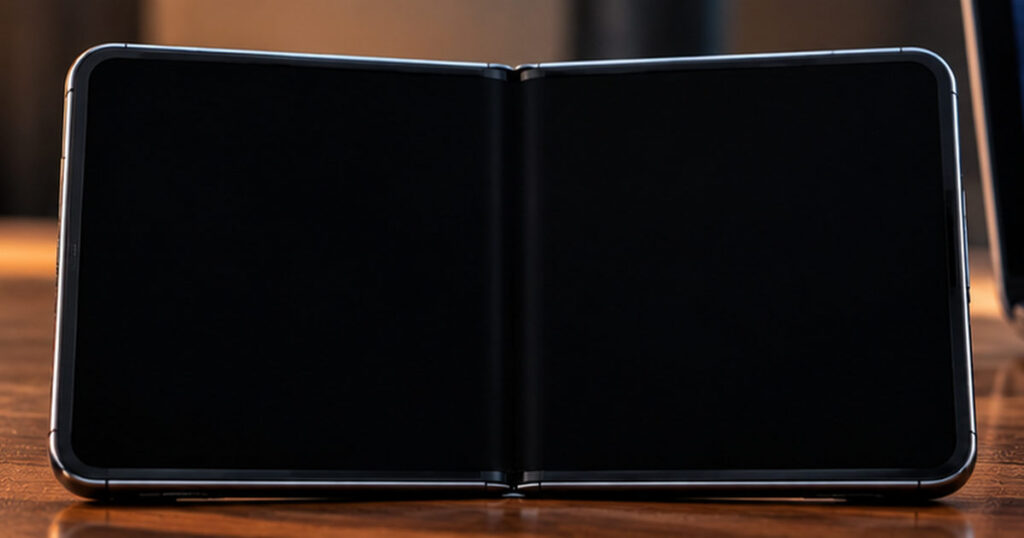
Is your iPhone Duo inner screen not working when you unfold your phone? Maybe the large display stays completely black, stops responding to touch, or refuses to switch from the smaller outer screen.
This can be frustrating, especially on a new foldable iPhone designed around its expansive inner display.
But a black inner screen doesn’t always mean the display is permanently damaged. Sometimes a temporary software problem, an interrupted startup, or an application issue can make the screen appear unresponsive.
Other symptoms, including spreading black spots, flickering lines, damaged display layers, or resistance around the hinge, may require professional repair.
The important thing is knowing when to troubleshoot and when to stop.
In this guide, we’ll cover 10 safe fixes and diagnostic checks for an iPhone Duo inner screen not working, starting with simple, non-destructive steps before considering Apple Support.
Table of Contents
Quick Answer
If your iPhone Duo’s inner screen stays black or stops responding, follow this order:
- Check whether the display is asleep or completely unresponsive.
- Test the outer screen, buttons, sound, and vibration.
- Inspect for physical damage without pressing the folding display.
- Check charging if the entire iPhone appears unresponsive.
- Force restart the iPhone using Apple’s button sequence.
- Remove an accessory or case that may be interfering.
- Check whether the problem affects only one application.
- Install an available iOS update if the phone remains usable.
- Back up your information before any risky recovery procedure.
- Contact Apple for diagnosis if the display remains faulty.
Important: Never force the hinge, press hard on a black display, or peel the folding screen’s protective layers in an attempt to repair the problem.
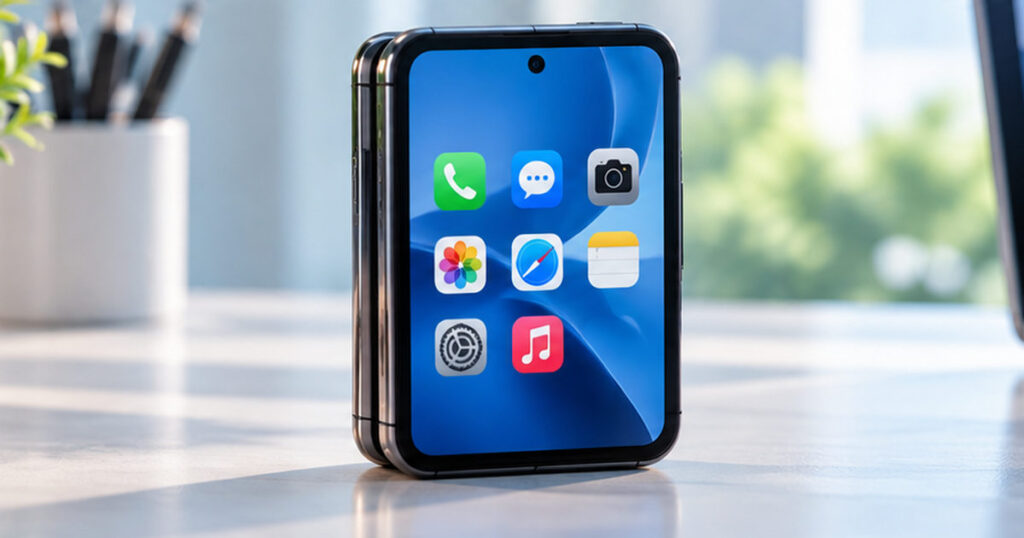
Why Is My iPhone Duo Inner Screen Not Working?
The iPhone Duo is Apple’s first foldable iPhone.
It has two different displays:
- A 5.4-inch outer OLED display used when the phone is closed.
- A 7.6-inch folding OLED display used when the phone is open.
Apple designed iOS 27 to adapt to different device positions and switch content between the displays.
This makes the Duo different from conventional iPhones.
When an inner screen becomes unresponsive, several areas may be involved.
Temporary Software Problems
Sometimes iOS or a particular application becomes temporarily unresponsive.
The device may still be running, even though the display isn’t showing the expected content.
Display Switching Problems
The Duo changes its interface when opened, closed, or reoriented.
An unexpected transition could make the screen appear frozen or leave an application displaying incorrectly.
This possibility should be investigated without assuming that every black screen is a software bug.
Power or Startup Problems
If neither display works, the issue may involve power, charging, startup, or the overall operating system rather than the inner panel alone.
Physical Damage
A foldable OLED display contains multiple specialized layers.
Physical damage, pressure, or a problem involving the folding mechanism can require professional inspection.
Visible cracks, expanding black regions, or repeated touch failures deserve particular attention.
The most important distinction is whether only the inner screen is affected or the entire phone is unresponsive.
1. Check Whether the Screen Is Asleep
Before trying advanced troubleshooting, determine whether the iPhone Duo is simply sleeping.
Modern iPhones can turn off their displays automatically to conserve battery power.
Depending on the device’s current state and settings, the display may remain dark until you wake it.
Try these simple checks:
- Press the Side button once.
- Wait briefly for a response.
- Try waking the outer screen.
- Check whether the Lock Screen appears.
- If the phone is functioning normally, unfold it gently and see whether content moves to the inner display.
Do not repeatedly press the buttons if the phone is in the middle of an update.
If the display appears extremely dim rather than completely black, check brightness settings through the functioning display.
On a responsive iPhone, brightness can be adjusted through Control Center or Settings → Display & Brightness.
However, a completely black screen that never shows the Lock Screen may indicate a different problem.
What this test tells you: If the inner display wakes and continues working normally, the issue may have been temporary. If it remains dark while the outer screen works, continue investigating.
2. Check the Outer Screen
One of the easiest ways to narrow down the problem is to test the other display.
The iPhone Duo includes two separate OLED panels.
If its outer screen works normally while the inner screen stays black, that is useful diagnostic information.
Try the following:
- Close the iPhone gently, provided the hinge moves normally.
- Wake the outer display.
- Check whether the Home Screen or Lock Screen appears.
- Open a basic application such as Settings.
- Test whether touch input works.
- Check whether the phone can receive a call or notification.
You should also observe whether the phone vibrates or plays notification sounds.
If the Outer Screen Works
This suggests the phone is powered and at least part of iOS is functioning.
The problem may be limited to the inner display, the transition between display modes, or another component.
It does not prove that the inner panel is physically broken.
If Both Screens Stay Black
A broader power, charging, startup, or system problem becomes more likely.
Try the charging and force-restart steps later in this guide.
If the Screen Works but Touch Doesn’t
A visible picture with unresponsive touch is a different symptom from a completely black display.
Record which screen is affected and whether the failure covers the entire panel or only one area.
Avoid pressing harder to make the touchscreen respond.
This information will help if professional diagnosis becomes necessary.
3. Inspect for Physical Damage
If your iPhone Duo inner screen is not working, take a moment to inspect the device safely.
Apple describes the Duo’s folding screen as a multilayer structure designed to support repeated opening and closing.
Its inner display includes a specialized cover layer and materials engineered to handle folding.
However, foldable displays can still suffer physical damage.
Look for visible warning signs:
- A crack crossing part of the folding screen.
- Black spots that appear to spread.
- Green, white, or colored display lines.
- Visible bubbling or separation of a screen layer.
- A section of the display that no longer responds to touch.
- An unusual ridge or deformation.
- Resistance, grinding, or clicking around the hinge.
A normal folding crease is not necessarily evidence of damage.
However, a new crack, separation, or suddenly unresponsive area is a different concern.
What Not to Do
Do not press hard along the center of the display.
Do not repeatedly open and close the phone to force the screen to respond.
Do not put tools, cards, or liquids inside the hinge.
Do not attempt to peel or replace the factory-applied folding screen layers yourself.
If the hinge feels unusually resistant, stop moving it.
If you see physical damage or experience unusual hinge resistance, skip further folding tests and seek professional support.
Software troubleshooting cannot repair physically damaged OLED layers.
4. Check Charging and Power
If neither the inner nor outer display responds, investigate the phone’s power state.
A completely discharged battery can make the iPhone appear unresponsive.
However, charging is less likely to explain a problem affecting only one screen while the other continues working.
If the entire phone seems dead:
- Connect a compatible USB-C cable.
- Use a known-working power adapter.
- Plug the charger directly into a reliable outlet.
- Allow the phone time to charge.
- Check whether the outer display shows a charging indicator.
- Try waking the device after charging.
Apple recommends allowing up to one hour of charging when an iPhone will not turn on.
If the device shows a low-battery symbol, continue charging and follow Apple’s instructions.
Avoid using damaged cables or adapters.
If the phone recently became wet, is physically damaged, or shows signs of battery swelling, do not continue charging it.
What If Charging Works?
If the outer display begins working after charging, test the device normally.
If the inner screen still refuses to turn on despite adequate power, the problem likely needs further investigation.
Repeatedly connecting and disconnecting chargers is not a substitute for identifying the actual issue.
5. Force Restart the iPhone
If your iPhone Duo inner screen is not working, the correct restart procedure depends on whether one or both displays are unresponsive.
Apple provides different instructions for these situations.
If the Inner Screen Is Black but the Outer Screen Works
When one display remains functional, try a normal restart using the working screen:
- Open Control Center on the working display.
- Touch and hold the power button at the top-right corner until you feel a vibration.
- Drag the power-off slider to shut down the iPhone.
- Turn your iPhone Duo back on using its Side button.
- Check whether the inner display works again.
This is Apple’s recommended initial procedure when one of the iPhone Duo’s two displays stays black.
If the display remains unresponsive, don’t repeatedly bend the device or press against the folding screen.
If Both iPhone Duo Screens Are Black
If neither display responds, try Apple’s force-restart procedure:
- Press and quickly release the volume button closest to the Side button.
- Press and quickly release the other volume button.
- Press and hold the Side button.
- Continue holding until the Apple logo appears, which typically takes about 10 seconds.
- Release the button and allow the iPhone to restart.
If the phone still does not turn on, Apple recommends charging it for one hour before trying again, provided there are no signs of physical or battery damage.
Important: A force restart does not normally erase personal data. However, it cannot repair a damaged display panel, broken hinge, or other physical hardware failure.
What If the Inner Screen Still Does Not Work?
If the outer display functions normally but the inner screen remains black after restarting, the issue may involve the inner display or its associated hardware.
Avoid repeatedly opening and closing the device to force a response.
If you notice cracks, spreading black spots, unusual hinge resistance, or persistent display failure, contact Apple for professional diagnosis.
For model-specific instructions, see Apple Support: If your iPhone Duo won’t turn on or the screens are black.
6. Remove Interfering Accessories
Sometimes accessories or cases can interfere with ordinary device operation.
Apple recommends checking accessories when an iPhone screen responds inconsistently.
On a foldable phone, a poorly fitting case may also place pressure on an edge or interfere with a button.
Inspect the device for:
- A case pressing against a button.
- An accessory preventing normal operation.
- A damaged or loose USB-C connection.
- Visible debris around an accessible exterior area.
- Signs of pressure near the screen edge.
If a removable case clearly interferes with the phone, remove it carefully.
Disconnect unnecessary USB-C accessories when the phone is not actively updating or restoring.
Then check whether the affected screen responds.
Important: Do not confuse an ordinary removable case with the inner display’s protective construction.
Never peel the folding display’s factory-applied layers or attempt to remove material from the hinge.
Avoid sharp tools, excessive pressure, and liquid cleaners.
If the case or screen layer appears damaged or stuck, seek guidance rather than forcing it.
7. Test Built-In Applications
A black screen inside one app is not necessarily a black display.
This distinction is especially important on the iPhone Duo because third-party apps may use different layouts on the large folding screen.
Apple has introduced updated development tools to help applications adapt to the Duo.
Some apps may not yet be fully optimized.
For example, a particular application could show black borders, use a narrow window, or fail to redraw correctly after unfolding.
To investigate safely, use the functioning screen to open several different applications.
Try:
- Settings.
- Safari.
- Photos.
- Another built-in Apple application.
If the inner screen is visible, compare their behavior.
If Only One App Is Affected
A compatibility issue or temporary application failure becomes more plausible.
You can try closing and reopening the affected app and checking for an update.
Our iPhone Apps Keep Crashing guide explains how to investigate individual application problems safely.
If the Entire Inner Display Is Black
If no application or system interface ever appears on the inner screen, this is not simply an app running in a smaller window.
Don’t keep reinstalling applications to solve a device-wide display problem.
If touch input also fails, the issue may require Apple Support.
If the Keyboard Alone Doesn’t Work
A malfunctioning keyboard does not necessarily indicate a display defect.
For typing-specific issues, see our iPhone Keyboard Not Working guide.
The goal is to identify the exact symptom before making changes.
8. Check for iOS Updates
The iPhone Duo launches with iOS 27.1, which includes software designed for its foldable interface.
Apple may release future updates that address system stability, display behavior, or compatibility issues.
If the outer screen works normally and the phone is otherwise stable, checking for an update is reasonable.
To do this:
- Open Settings.
- Select General.
- Tap Software Update.
- Wait for the available software information.
- Review any compatible update.
- Back up your data before updating.
- Install the update using Apple’s normal procedure.
Use a reliable internet connection and sufficient battery power.
Do not install an unknown configuration profile or unofficial firmware in an attempt to repair the display.
An iOS update can sometimes resolve a software-related problem.
However, an update cannot repair a cracked screen, damaged display layer, or defective physical connection.
What If the Update Won’t Install?
Check the available storage and the error displayed by iOS.
If the iPhone is nearly full, read our iPhone System Data Taking Up Storage guide for safer storage-management steps.
If the device repeatedly restarts or becomes unresponsive during an update, follow Apple’s official recovery instructions.
Avoid choosing Restore unless you understand the consequences for your data.
9. Back Up Your iPhone
If your iPhone Duo inner screen is not working but the outer screen still functions, consider protecting your information before pursuing additional troubleshooting.
A persistent display failure may eventually require a repair or device replacement.
Backing up your information while the device remains accessible can reduce the risk of data loss.
Back Up With iCloud
If you can navigate the outer display:
- Open Settings.
- Tap your Apple Account name.
- Select iCloud.
- Open iCloud Backup.
- Tap Back Up Now.
- Keep the iPhone connected to a reliable Wi-Fi network.
- Wait until the backup finishes.
Confirm that the backup displays a recent completion time.
Back Up With a Computer
You can also use Finder on a compatible Mac or Apple Devices on a Windows computer.
Connect the iPhone with a suitable USB-C cable.
If the device is recognized, follow Apple’s backup instructions.
An encrypted computer backup can preserve certain categories of information that an unencrypted backup may not include.
Don’t Erase the Phone Unnecessarily
A factory reset removes local data.
If the inner display is physically defective, erasing the operating system is unlikely to repair the underlying damage.
Do not reset the device simply because an online guide suggests trying every possible setting.
If your personal information is not backed up, seek professional advice before performing a destructive restore.
10. Contact Apple Support
If the iPhone Duo’s inner display remains black, flickers, shows damaged areas, or has persistent touch failures, it may need professional diagnosis.
Apple offers screen service and repair options through its support channels.
In the United States, customers can arrange service through Apple or an Apple Authorized Service Provider.
Start by visiting Apple’s official iPhone screen repair page.
When contacting support, explain:
- Your exact iPhone model.
- Whether the outer screen works.
- Whether the inner screen is completely black or partially visible.
- Whether touch input responds.
- Whether the issue started after an update, drop, or other event.
- Whether you notice lines, cracks, bubbling, or hinge resistance.
- Which safe troubleshooting steps you already tried.
If the phone is still under warranty or covered by AppleCare, ask about the applicable service options.
Actual repair costs and coverage depend on the diagnosis, warranty terms, and cause of damage.
Do not assume that every screen failure is covered free of charge.
Apple technicians may need to inspect the device before providing a final estimate.
Inner Screen Black but Outer Screen Works?
This is one of the most important scenarios to diagnose.
If your outer screen displays apps, receives notifications, and responds to touch, the phone is not completely dead.
That narrows the possibilities.
The fault may involve display switching, the inner panel, its associated components, or another software or hardware condition.
Try one appropriate force restart if there is no evidence of physical damage.
Check whether the inner screen shows any system interface afterward.
If it remains entirely black, stop repeatedly unfolding the device to test it.
A persistent failure affecting only the inner panel deserves professional inspection.
A working outer screen does not guarantee that the folding screen is healthy.
Inner Screen Shows Lines or Black Spots?
Lines, spots, and localized touch failures are different from a screen that is simply asleep.
A black region that remains visible across all applications may be a sign of display damage.
Watch for changes such as:
- A black patch expanding over time.
- A bright colored line crossing the display.
- Half the panel becoming unresponsive.
- Visible distortion concentrated near the fold.
- Sudden flickering when the device changes position.
These symptoms cannot be reliably diagnosed through a written guide.
Avoid pressing on the damaged area or attempting to smooth out the display.
Do not bend the screen repeatedly to see whether a line disappears.
If these symptoms persist, contact Apple Support.
Inner Screen Not Responding to Touch?
Sometimes the image appears normally, but touching the inner screen produces no response.
If this happens, first determine whether the entire touch surface is affected.
For example, are you unable to tap anywhere, or does only one section fail?
If the device is otherwise undamaged, a force restart may help with a temporary software issue.
Apple also recommends checking for debris, moisture, and interfering accessories when touchscreen input becomes unreliable.
However, you should not apply excessive pressure or attempt to remove the inner display’s specialized layers.
If touch fails repeatedly in the same physical area, professional inspection becomes more appropriate.
Is the Folding Crease Normal?
A foldable display naturally bends along a central region.
Apple designed the iPhone Duo with a special layered display construction and a nano-texture finish that helps reduce the visibility of the crease.
A visible crease alone does not mean the panel is defective.
However, the following symptoms should not be dismissed as normal folding behavior:
- A new visible crack.
- A raised or separating layer.
- A black line spreading from the center.
- Loss of touch response.
- Sudden resistance in the hinge.
- Persistent display failure when the device is unfolded.
Don’t try to flatten the crease by pressing on it.
If the shape of the display changes unexpectedly, ask Apple to assess it.
Can You Fix the Inner Screen Without Losing Data?
Sometimes.
A normal restart, careful power check, compatible software update, and app-specific troubleshooting do not ordinarily require erasing personal information.
If the issue is temporary, those steps may restore normal operation.
But if the folding display or a physical component is damaged, software changes may not solve the problem.
The safest approach is to back up the device while it remains usable.
If Apple recommends a repair, ask whether your information can remain on the device and what backup precautions you should take.
No repair procedure should be assumed to guarantee that all local data will be preserved.
Frequently Asked Questions
Why is my iPhone Duo inner screen not working?
Possible causes include a temporary software problem, interrupted startup, display-switching issue, or physical damage. Check whether the outer display works, then try safe troubleshooting steps before seeking professional diagnosis.
Why is my iPhone Duo inner screen completely black?
A black inner screen could reflect a software or display problem. If the outer screen works normally, the issue may be limited to the inner display or its associated functions. Persistent black screens should be assessed by Apple.
Can a force restart fix the inner screen?
A force restart may resolve a temporary software issue. It cannot repair cracked glass, damaged display layers, or faulty hardware components.
Will restarting erase my photos?
No. A normal restart or force restart does not ordinarily delete personal data. Restoring or factory resetting the device is different and may erase stored information.
Is the crease on iPhone Duo normal?
Some visibility of the folding area can be expected. However, cracks, spreading black marks, layer separation, and unresponsive touch areas are not symptoms you should ignore.
Should I remove the inner screen protector?
Do not peel or remove factory-applied folding display layers yourself. If a layer appears damaged, lifting, or bubbling, contact Apple for appropriate service guidance.
Apple confirms that the iPhone Duo’s nano-texture cover layer is an integral part of its inner display. Do not peel it off or apply an additional screen protector, because doing so may compromise display performance. See Apple’s official iPhone handling guidance.
Why does the outer screen work but not the inner display?
The two displays are separate components. The phone may remain functional even when one display is not operating correctly. A persistent single-display failure needs further investigation.
Can an iOS update repair a black inner screen?
An update may help if the issue is software-related. It cannot physically repair damaged display hardware.
Should I factory reset the iPhone Duo?
Not as an early troubleshooting step. A factory reset erases local information and is not a reliable solution for a physically damaged screen. Back up your data and consider Apple’s advice before proceeding.
Is iPhone Duo covered by Apple’s warranty?
Apple’s limited warranty generally covers eligible manufacturing defects, subject to applicable terms. Accidental damage may require separate coverage or paid service. Apple must assess the issue to determine the applicable repair options.
Final Thoughts
If your iPhone Duo inner screen is not working, don’t immediately assume the entire phone needs replacing.
Start by determining whether the outer screen and other phone functions still work.
If the device is otherwise functioning, try one appropriate restart and check whether an application or software issue could explain the symptoms.
If both screens are unresponsive, investigate charging and startup before considering further recovery.
However, persistent black regions, damaged screen layers, repeated touch failures, and unusual hinge resistance deserve professional attention.
Most importantly, never force a foldable display to respond through pressure, bending, or unauthorized repairs.
Protect your personal data, begin with non-destructive checks, and contact Apple when the symptoms indicate a possible hardware problem.
Official References
- Apple Newsroom: Apple Unveils iPhone Duo
- Apple: iPhone Duo Technical Specifications
- Apple Support: Force Restart iPhone
- Apple Support: If Your iPhone Won’t Turn On or the Screen Is Black
- Apple Support: If the Screen Isn’t Working on Your iPhone
- Apple Support: iPhone Screen Service and Repair
Last reviewed: October 22, 2026. This guide explains safe troubleshooting based on Apple’s published device information and support procedures. It does not claim that a widespread iPhone Duo inner-display defect has been established.