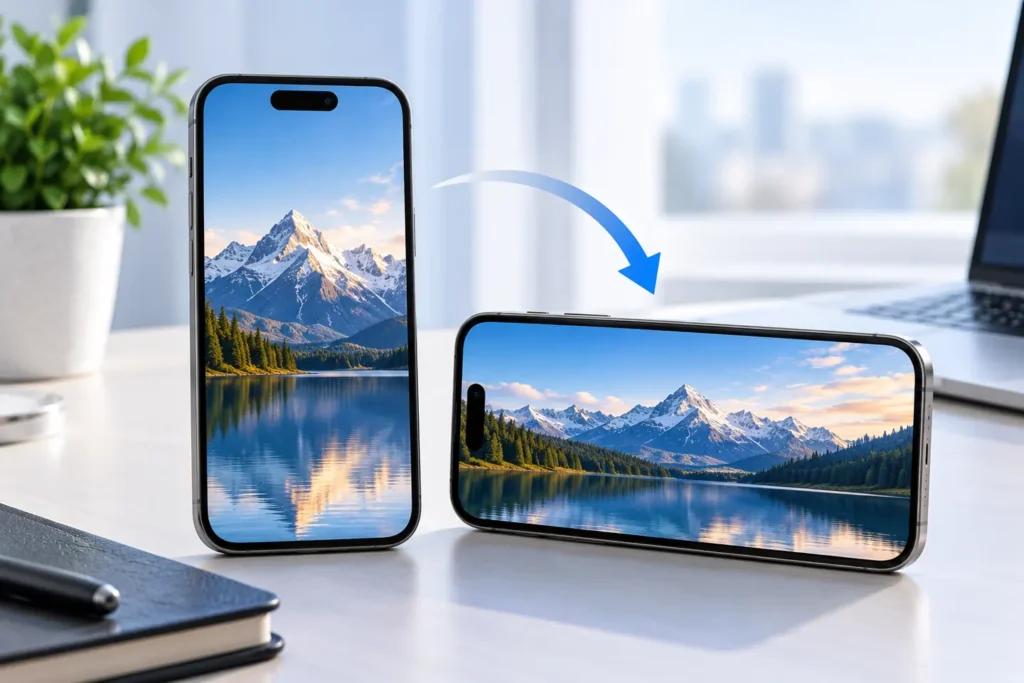
iPhone screen not rotating? If your iPhone stays in portrait mode when you turn it sideways, the problem may be caused by Portrait Orientation Lock, an app that doesn’t support landscape mode, or a temporary software issue.
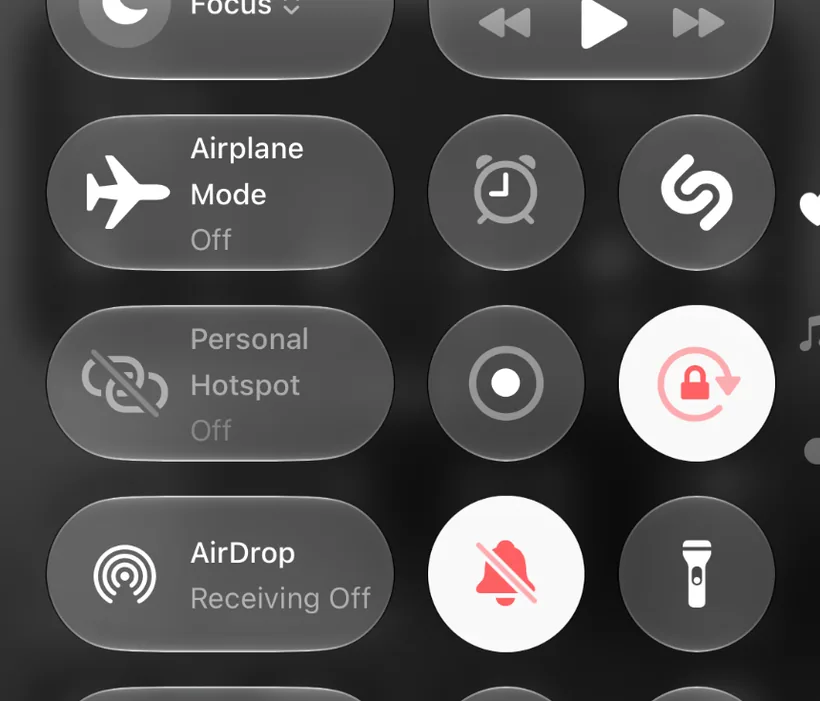
Start by opening Control Center and checking the rotation-lock button. If the lock is off, open Safari or Calculator and turn your iPhone sideways.
If the screen rotates in those apps but not in another application, your iPhone’s orientation detection is probably working normally.
This guide covers 10 practical fixes for iPhone screen rotation problems, including how to check Orientation Lock, test your motion sensors, troubleshoot individual apps, and determine when professional support may be necessary.
Important: Many modern iPhone models don’t rotate their Home Screen into landscape mode. A Home Screen that stays vertical doesn’t necessarily indicate a problem.
Table of Contents
Quick Answer: How to Fix iPhone Screen Not Rotating
If your iPhone screen is not rotating, try these steps first:
- Open Control Center.
- Find the Portrait Orientation Lock button, which looks like a padlock surrounded by a circular arrow.
- If the button is highlighted red, tap it to turn the lock off.
- Open Safari or Calculator and turn your iPhone sideways.
- If the screen still won’t rotate, restart your iPhone.
- Open the Measure app and use its Level feature to check whether your phone responds to movement.
Important: Not every iPhone app supports landscape mode. If the screen rotates in Safari but not in another app, the problem may be specific to that application rather than the iPhone itself.
Identify Why Your iPhone Screen Won’t Rotate
Before changing your settings, try these three simple tests.
Test 1: Check Portrait Orientation Lock
Open Control Center and locate the padlock surrounded by a circular arrow.
- Red or highlighted: Rotation Lock is enabled. Tap it to turn it off.
- Gray or inactive: Rotation Lock is disabled. Try rotating a supported app.
Expected result: If Rotation Lock caused the problem, your screen should rotate when using an application that supports landscape mode.
Test 2: Compare Different Apps
Open Safari and rotate your iPhone sideways. Repeat the test in Calculator.
| What happens | What it suggests |
|---|---|
| Safari rotates normally | Rotation detection is likely working |
| Only one application stays vertical | That application may not support landscape mode |
| Neither application rotates | Continue with software and sensor checks |
| Home Screen stays vertical | Often normal on modern iPhones |
Some apps intentionally use portrait layouts even when Rotation Lock is disabled.
Test 3: Check the Motion Sensor
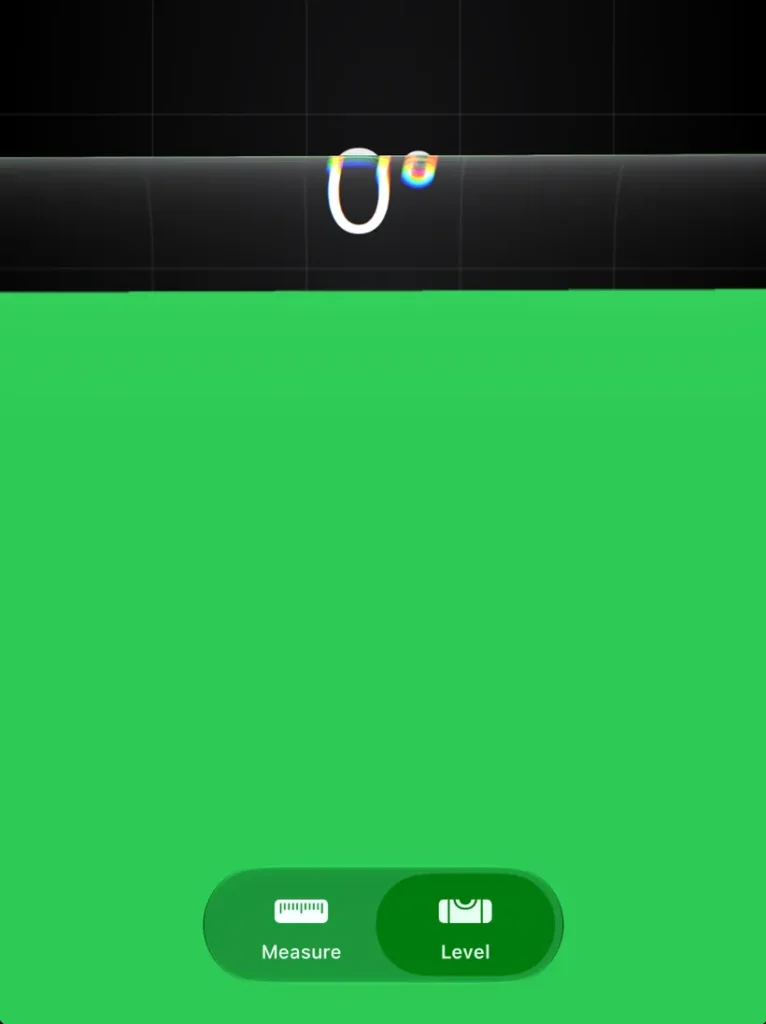
Open the Measure app and select Level.
Slowly tilt your iPhone to the left and right.
If the displayed angle changes, the device is detecting movement.
If Level remains completely unresponsive, restart your iPhone and try again.
Important: An unresponsive Level display doesn’t conclusively prove hardware damage. If the problem persists across multiple supported apps, contact Apple Support.
Avoid resetting all settings simply because an individual app doesn’t rotate.
Why Is My iPhone Screen Not Rotating?
Your iPhone uses motion sensors to detect how you’re holding the device. When an app supports both portrait and landscape orientations, it can adjust its layout as you turn the phone.
However, automatic rotation depends on several conditions.
The most common reasons include:
- Portrait Orientation Lock is enabled.
- The application only supports portrait mode.
- The app is temporarily frozen or experiencing a software problem.
- A full-screen video hasn’t entered a landscape-capable view.
- An iOS or application issue is interfering with rotation.
- The phone’s motion sensors may not be responding correctly.
Understanding which situation applies can save you from changing unnecessary settings.
For example, if a video rotates normally in Safari but your Home Screen remains vertical, your iPhone may be functioning exactly as designed.
Let’s check each possibility.
1. Turn Off Portrait Orientation Lock
The first thing to check when your iPhone screen is not rotating is Portrait Orientation Lock.
This feature prevents the screen from changing orientation when you move your phone. It’s especially useful when reading in bed, but it can also make landscape mode appear broken.
On iPhones with Face ID
- Unlock your iPhone.
- Swipe down from the top-right corner to open Control Center.
- Look for the padlock icon surrounded by a circular arrow.
- If the button is red or highlighted as active, tap it once.
- Close Control Center.
- Open an app that supports landscape mode and rotate your phone.
On iPhones with a Home button
- Swipe up from the bottom edge of the screen to open Control Center.
- Find the Portrait Orientation Lock button.
- Turn it off if it’s enabled.
- Close Control Center and try rotating your iPhone again.
Apple’s iPhone User Guide explains that the rotation-lock control is red when the orientation is locked and gray when it isn’t.
If you cannot find the control, you may need to add it to Control Center using the customization options available on your iOS version.
Tip: Turn the lock off before testing. Disabling it allows supported apps to rotate, but it doesn’t force every screen to display horizontally.
2. Test Rotation in Safari or Calculator
Your iPhone might not be rotating because the app you’re using doesn’t support landscape orientation.
Apple recommends testing another application, such as Safari or Calculator, before assuming something is wrong with the phone.
Here’s how:
- Open Safari.
- Visit a regular website.
- Hold your iPhone upright.
- Turn the phone sideways.
- Observe whether the webpage switches to landscape mode.
- Repeat the test in Calculator if necessary.
If Safari rotates correctly, your iPhone can display landscape content in a supported application.
That means you should investigate the particular app where rotation doesn’t work.
For example, some social media screens and application menus are designed to remain in portrait orientation.
You should also know that the Home Screen on many modern iPhones does not rotate into landscape mode. Don’t use the Home Screen as your only rotation test.
If Safari itself isn’t working properly, you can also read our guide: iPhone Safari Not Loading Websites? 12 Fixes to Try.
3. Check Full-Screen Video Rotation
Sometimes the issue appears only when watching videos.
You might turn your iPhone sideways while watching a video in an application, but the player remains vertical.
First, remember that not all video interfaces work the same way. Some applications require you to enter full-screen playback before landscape mode becomes available.
Try this:
- Open the application where the problem occurs.
- Start playing a video.
- Check whether the player provides a full-screen button.
- Tap that button if available.
- Turn your iPhone sideways.
- Check whether the video changes orientation.
If the video rotates in full-screen mode but not in the regular app feed, that may be normal application behavior.
Also check Portrait Orientation Lock.
Some video players manage full-screen orientation independently, so the behavior can vary between apps.
Avoid installing third-party rotation utilities just to force an app into landscape mode. They aren’t necessary for standard iPhone rotation troubleshooting and may not be able to override an application’s supported orientations.
4. Close and Reopen the Affected App
If your iPhone screen rotates normally in one app but not another, the affected application may have become temporarily unresponsive.
Closing and reopening it can help determine whether the problem is temporary.
On iPhones with Face ID
- Swipe up from the bottom of the screen and pause.
- Find the affected application in the App Switcher.
- Swipe its preview upward to close it.
- Return to the Home Screen.
- Open the application again.
- Try rotating your iPhone.
On iPhones with a Home button
- Double-press the Home button to open the App Switcher.
- Find the affected application.
- Swipe its preview upward.
- Reopen the application and test rotation.
You generally don’t need to force-close apps regularly. This is a troubleshooting step for an application that isn’t behaving as expected.
If the issue happens consistently in only one app, check whether the developer supports landscape orientation for that particular screen.
Closing and reopening an app cannot add landscape support to an app that doesn’t offer it.
5. Restart Your iPhone
A normal restart is a sensible next step if several supported applications refuse to rotate.
It can clear temporary software problems without deleting your personal information.
For iPhones with Face ID
- Press and hold the Side button and either Volume button.
- Wait for the power-off slider.
- Drag the slider to switch off your iPhone.
- Wait approximately 30 seconds.
- Press and hold the Side button until the Apple logo appears.
- Unlock your phone and test screen rotation.
For iPhones with a Home button
- Press and hold the Side button, or the top button on supported older models.
- Drag the power-off slider.
- Wait approximately 30 seconds.
- Turn your iPhone on again.
- Test landscape mode in Safari or Calculator.
Restarting doesn’t normally delete photos, messages, apps, or other personal files.
After restarting, check Portrait Orientation Lock once more before concluding that rotation still isn’t working.
You can find model-specific instructions in Apple’s official iPhone restart guide.
6. Test the Motion Sensor With the Measure App
If your iPhone screen is not rotating in several supported applications, the next step is to check whether the device responds to movement.
Apple recommends using the Level feature inside the built-in Measure app.
This can help determine whether the phone is detecting changes in orientation.
To test it:
- Open the Measure app.
- Tap Level.
- Hold your iPhone upright.
- Slowly tilt it to the left and right.
- Observe whether the Level display changes.
- If necessary, place the phone against a suitable flat surface and test it again.
If the Level responds as you move the device, its orientation-detection functionality is responding at least to some movement.
If the display remains stuck, restart the iPhone and repeat the test.
A stuck Level doesn’t automatically prove that the accelerometer is broken. Software issues can also affect the result.
However, if the Level remains unresponsive and supported apps never rotate, the phone may need a more detailed technical assessment.
For more information, see Apple’s screen rotation troubleshooting instructions.
7. Update the Problematic Application
If only one app refuses to rotate, check whether an update is available.
App updates can contain compatibility improvements and fixes for unexpected behavior.
To check:
- Open the App Store.
- Tap your profile picture or account button.
- Locate available app updates.
- Find the application causing the problem.
- Tap Update, if an update is available.
- Open the updated app and test rotation again.
The exact App Store layout may vary depending on your iOS version.
If the app is already updated, review the developer’s information to confirm whether landscape mode is supported.
For example, an app designed exclusively for portrait orientation won’t start rotating simply because you’ve updated it.
You can also contact the developer if the app previously supported landscape mode and suddenly stopped working.
Describe which screen fails to rotate and which iOS version you’re using.
8. Check for an iOS Update
If multiple supported applications stop rotating, an iOS software issue is another possibility.
Apple periodically releases software updates that include fixes and compatibility improvements.
To check for an available update:
- Connect your iPhone to a reliable Wi-Fi network.
- Back up important data.
- Open Settings.
- Select General.
- Tap Software Update.
- Review any compatible update available for your device.
- Follow Apple’s instructions to download and install it.
After installing an update, check Portrait Orientation Lock and test rotation again.
An update may resolve a software issue, but it isn’t a guaranteed solution for every rotation problem.
If your phone is already running its latest compatible iOS version, continue with the remaining diagnostic steps.
Note: You don’t need to install beta software to fix an ordinary screen-rotation problem. Stable, publicly released updates are generally the more appropriate choice for everyday users.
9. Force Restart if the Screen or System Is Unresponsive
A force restart can help when your iPhone becomes unresponsive and a normal restart isn’t practical.
It is different from erasing your phone or performing a factory reset.
For iPhone 8 and newer models that use the standard volume-button restart sequence:
- Press and quickly release the Volume Up button.
- Press and quickly release the Volume Down button.
- Press and hold the Side button.
- Keep holding until the Apple logo appears.
- Release the button and allow the phone to restart.
Some older iPhones use different button combinations. Check the instructions for your model before attempting the process.
Once the phone restarts, open Safari, Calculator, or another supported app and check whether screen rotation responds normally.
If your iPhone isn’t frozen, begin with the normal restart described earlier.
Apple provides the proper steps in its force restart iPhone guide.
10. Reset All Settings as a Last Resort
If your iPhone screen is not rotating even after the previous checks, you may consider Reset All Settings.
This should be a last resort for a persistent problem affecting multiple applications.
Reset All Settings restores numerous device preferences to their defaults without deleting your photos, apps, or documents.
However, it is not a small change.
It can reset settings related to Wi-Fi, Bluetooth, privacy, display preferences, Apple Pay, and other device features. You may need to reconfigure these afterward.
Before continuing, back up your iPhone and make sure you understand which settings will change.
To reset:
- Open Settings.
- Tap General.
- Choose Transfer or Reset iPhone.
- Tap Reset.
- Select Reset All Settings.
- Enter your passcode if requested.
- Confirm the action.
After the reset, reopen a landscape-capable app and test your phone.
Important: Do not select Erase All Content and Settings. That option erases your device and is not a normal first-line fix for screen rotation.
Apple’s Reset All Settings support guide explains the settings that may be affected.
There is no guarantee that resetting settings will fix a failing motion sensor.
iPhone Screen Not Rotating Even With Orientation Lock Off
What if you’ve already disabled Portrait Orientation Lock, but the screen still stays vertical?
Start by identifying whether the issue affects one app or several apps.
If Safari and Calculator rotate normally, your iPhone’s general screen rotation functionality is probably working. The other app may not support landscape mode or could have its own problem.
If nothing rotates, restart the phone and check the Measure app’s Level feature.
If Level also appears stuck, there may be a broader software or sensor problem that requires further diagnosis.
Avoid performing a factory reset simply because one social media app won’t rotate.
Why Won’t My iPhone Home Screen Rotate?
Many modern iPhones are designed to keep the Home Screen in portrait orientation.
This means turning your phone sideways on the Home Screen may not change the layout, even when Portrait Orientation Lock is disabled.
That doesn’t automatically indicate a problem.
The best way to test rotation is to open an app that supports landscape mode.
Try Safari or Calculator, then turn your iPhone sideways.
If those applications rotate correctly, the Home Screen’s behavior is probably normal for your model.
Older iPhone models have had different Home Screen landscape capabilities, so online tutorials showing older interfaces may not apply to your device.
iPhone Screen Won’t Rotate in YouTube or Other Video Apps
If rotation fails only while watching videos, check whether the player supports full-screen landscape playback.
Begin by turning off Portrait Orientation Lock, then open the video and select full-screen mode if available.
Try another video or another video application.
If landscape mode works elsewhere, the issue may involve the specific app, player layout, or video interface.
You can also close and reopen the problematic app or check for an available update.
Remember that some short-video feeds are intentionally designed for vertical playback.
A vertical video feed remaining upright isn’t necessarily a malfunction.
Could a Broken Accelerometer Cause Rotation Problems?
Yes, a hardware issue involving motion detection can potentially interfere with screen rotation.
iPhones use internal sensors to detect movement and orientation.
But you shouldn’t assume the accelerometer has failed simply because the screen won’t rotate.
Portrait Orientation Lock, unsupported app layouts, and software issues are more straightforward possibilities to investigate first.
Apple recommends using the Measure app’s Level feature as a diagnostic check.
If Level fails to respond after restarting and the issue affects multiple apps, contact Apple Support or an authorized service provider for further assessment.
Tell the technician whether the phone was recently dropped, exposed to liquid, repaired, or updated.
Those details can help with diagnosis, but they don’t establish the cause on their own.
Frequently Asked Questions
Why is my iPhone screen not rotating even when rotation lock is off?
The application may not support landscape mode, or it may be temporarily unresponsive. Test Safari or Calculator, restart the iPhone, and check the Measure app’s Level feature.
Why won’t my iPhone rotate to landscape mode?
Some screens only support portrait orientation. If a supported app also refuses to rotate, check the rotation-lock button and restart the device.
Can I force any iPhone app into landscape mode?
Not through the normal iPhone orientation-lock control. Applications determine which orientations their interfaces support. Disabling the lock allows supported apps to rotate but doesn’t force every app into landscape.
Does restarting an iPhone fix screen rotation?
Restarting can resolve temporary software problems that interfere with orientation changes. However, it cannot make a portrait-only app support landscape mode or repair damaged hardware.
Will resetting all settings delete my photos?
No. Apple’s Reset All Settings option doesn’t delete photos, apps, or documents. However, it resets many device preferences and can require you to reconnect networks and reconfigure features.
How can I tell if my iPhone rotation sensor is broken?
Try the Measure app’s Level feature and check whether supported apps rotate. If neither responds after restarting, contact Apple Support for diagnosis. These checks alone cannot conclusively identify hardware damage.
Final Thoughts
If your iPhone screen is not rotating, start with the simplest solution: open Control Center and make sure Portrait Orientation Lock is disabled.
Next, test rotation in Safari or Calculator. If those apps rotate, focus on the specific application where landscape mode isn’t working.
If rotation fails throughout the device, restart your iPhone, test the Measure app’s Level feature, and check for software updates.
Only consider resetting all settings after the simpler solutions fail, and contact Apple Support if you suspect a persistent sensor problem.
Most importantly, remember that not every screen or app is designed to rotate. Understanding the difference between normal app behavior and a genuine rotation failure will help you choose the right fix without unnecessary changes.