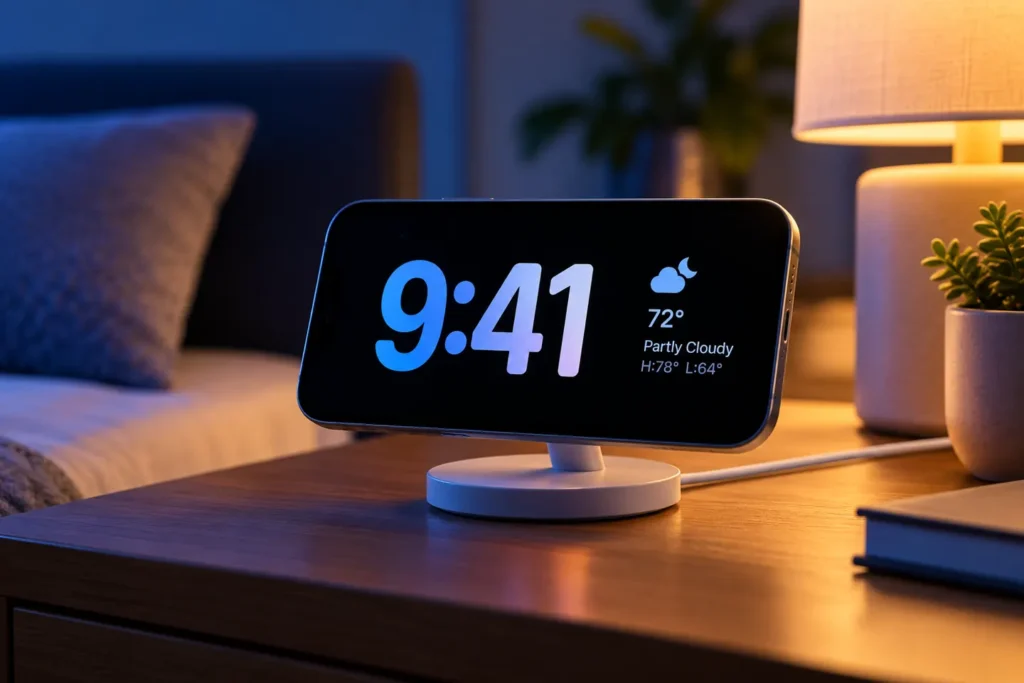
Is your iPhone StandBy Mode not working even though your phone is charging? Maybe the StandBy clock never appears, your screen turns black after a few seconds, or your iPhone refuses to show widgets when placed horizontally.
StandBy is a useful iPhone feature that turns your device into a bedside clock, photo frame, or information display. However, it has specific setup requirements that are easy to overlook.
The good news is that a black screen doesn’t always indicate a problem. Some iPhones automatically turn off the display while StandBy remains available in the background.
In this guide, we’ll explain 12 practical ways to fix iPhone StandBy Mode, including charging problems, landscape positioning, display settings, Always-On limitations, and software issues.
Table of Contents
Quick Answer: How to Fix iPhone StandBy Mode Not Working
If StandBy isn’t activating on your iPhone, try this simple test first:
- Open Settings → StandBy and make sure the feature is enabled.
- Connect your iPhone to a working charger.
- Position your phone horizontally on its side, preferably using a stand.
- Keep it stationary and press the Side button to lock it.
- Check whether the StandBy clock or widgets appear.
- If the screen turns black, tap the display to wake it.
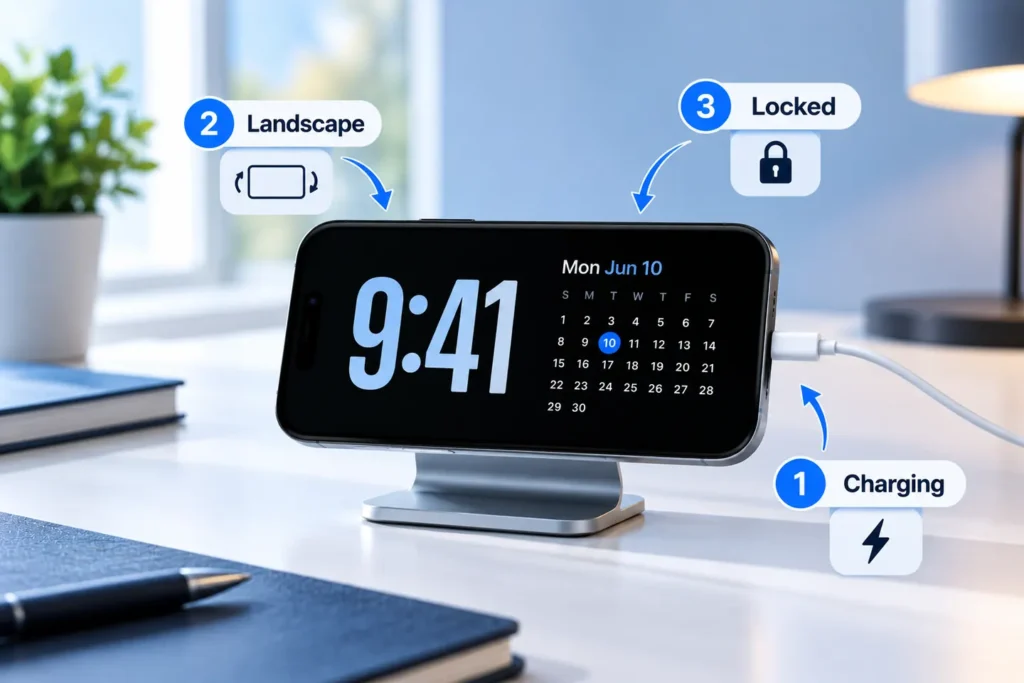
For standard iPhone models, these are the most important requirements.
If StandBy appears but quickly disappears, the issue may involve the display timeout or your iPhone’s Always-On display capability rather than a failure of the feature.
Why Is My iPhone StandBy Mode Not Working?
StandBy behaves differently from ordinary screen rotation.
Turning your phone sideways isn’t enough to activate it. On most iPhones, the device must also be connected to power, locked, and positioned correctly.
Common reasons include:
- StandBy is disabled in Settings.
- The iPhone isn’t actually charging.
- The phone is positioned vertically or lying flat.
- The screen is unlocked.
- The StandBy display has timed out normally.
- The iPhone doesn’t support a continuously visible Always-On display.
- Low Power Mode or Sleep Focus is affecting Always-On visibility.
- A wireless charging accessory isn’t aligned properly.
- A temporary software issue is interfering with the feature.
Apple introduced StandBy in iOS 17, and newer releases continue to support and develop it.
The steps below focus on regular iPhone models. The foldable iPhone Duo has additional StandBy positions and can use the feature in supported folded positions without charging, so its setup requirements are different.
1. Make Sure StandBy Is Enabled
The first setting to check is whether StandBy is turned on.
You may have disabled it previously, or its current setting may not match your expectations.
To check:
- Open Settings.
- Scroll down and select StandBy.
- Find the main StandBy switch.
- Turn it on if it’s disabled.
- Return to the Lock Screen.
- Connect your iPhone to power and place it horizontally.
If StandBy is already enabled, leave it on and continue with the next fix.
If you can’t find the StandBy menu, confirm that you’re using a compatible iPhone and an iOS version that supports the feature.
On a standard iPhone, StandBy was introduced with iOS 17, so an older unsupported iOS version will not provide the feature.
Also remember that enabling StandBy in Settings doesn’t immediately switch your phone into its clock display. The required charging and positioning conditions still apply.
2. Verify That Your iPhone Is Actually Charging
If your iPhone StandBy Mode is not working, the next thing to check is whether the device is receiving power.
A connected cable doesn’t always mean charging has started successfully.
To test it:
- Connect your iPhone to a reliable power adapter.
- Make sure the adapter is plugged into a working wall outlet.
- Check whether the iPhone indicates that it is charging.
- Leave it connected while testing StandBy.
- Try another compatible cable or charger if charging isn’t detected.
If the iPhone isn’t charging, the StandBy setup may fail even when the feature is enabled.
A loose connection, damaged charging accessory, or wireless charging alignment problem can interrupt the required power connection.
For this initial test, a compatible wired charger can be particularly useful because it removes wireless alignment from the troubleshooting process.
If charging itself doesn’t work, follow our detailed guide: iPhone Not Charging? 12 Fixes to Try (2026).
Safety tip: Stop using damaged, overheating, or wet charging accessories. Never force a charging connector into the port.
3. Position Your iPhone Horizontally and Keep It Still
StandBy is designed primarily for viewing information at a distance while an iPhone rests on its side.
For ordinary iPhone models, simply placing the phone flat on a desk or leaving it upright in portrait orientation may prevent StandBy from starting.
Try this setup:
- Connect your iPhone to power.
- Place it horizontally in landscape orientation.
- Support it securely with a stable phone stand.
- Keep the screen facing toward you.
- Avoid moving the phone repeatedly.
- Wait briefly and check whether StandBy activates.
A stand isn’t mandatory, but it makes the positioning more reliable.
If you’re using a charging dock, make sure the iPhone is securely supported and isn’t slipping out of its horizontal position.
Apple specifically recommends keeping the iPhone stationary while entering StandBy.
If you’re frequently picking up the phone to check whether it’s working, leave it resting on the stand during the test instead.
4. Lock the iPhone and Press the Side Button
Another easy-to-miss requirement is the Lock Screen.
On a regular iPhone, StandBy is intended to display useful information while the device is locked and positioned appropriately.
If you’re still browsing Safari, watching a video, or using an application, turning the phone sideways won’t necessarily open StandBy.
To test:
- Connect the iPhone to power.
- Place it horizontally on a stable surface.
- Press the Side button to lock the screen.
- Keep the iPhone stationary.
- Watch for the StandBy interface.
If nothing appears, tap the screen once and check again.
When StandBy is active, you can normally swipe between its different views.
Swiping left or right moves between the widgets, photos, and clocks. Swiping up or down changes options within supported views.
If these views appear, the feature is functioning.
5. Wake StandBy if the Screen Turns Black
One of the most common complaints is that StandBy works for a few seconds and then disappears.
However, this can be normal.
Not every iPhone has an Always-On display. On models without this hardware capability, StandBy can still work while the screen turns off when it isn’t being actively viewed.
To check whether StandBy is still available:
- Leave your iPhone connected to power.
- Keep it positioned horizontally.
- Allow the display to turn off naturally.
- Tap the screen.
- Check whether the StandBy clock or widgets return.
Apple also describes waking StandBy by gently nudging the surface supporting the phone or using Siri.
If the StandBy display returns when you tap it, the feature may be operating normally.
That is different from a phone that never enters StandBy at all.
Don’t assume a black screen means the feature has crashed before checking your model’s Always-On capabilities.
6. Review StandBy Display Timeout Settings
Your iPhone may have a display timeout setting that causes StandBy to go dark sooner than expected.
On supported configurations, Apple provides StandBy display preferences.
To review them:
- Open Settings.
- Tap StandBy.
- Select Display, if the option is available.
- Review the display timeout choices.
- Select the behavior you prefer.
Depending on your model and software version, you may see:
- Automatically: The display can turn off when your iPhone isn’t being used and the surrounding environment is dark.
- After 20 Seconds: The display turns off after approximately 20 seconds.
- Never: The display is intended to remain visible while StandBy is active, subject to supported hardware and system conditions.
If you have an Always-On capable iPhone and want a bedside clock to remain visible, review whether Never is available and appropriate.
On models without Always-On hardware, choosing a display preference cannot necessarily make the screen remain illuminated continuously.
The exact options can differ by model and iOS version.
7. Check Always-On Display, Low Power Mode, and Sleep Focus
If StandBy activates but the display refuses to remain visible, check the settings that influence Always-On behavior.
Supported iPhone models offer an Always-On display, which can keep a dimmed version of useful information visible.
To review it:
- Open Settings.
- Select Display & Brightness.
- Look for Always On Display, if available.
- Turn it on if you want that feature enabled.
- Return to StandBy and test again.
If your iPhone doesn’t have this option, it may not support an Always-On display.
Even on supported models, Apple explains that the display can turn off automatically under certain conditions, including Low Power Mode and Sleep Focus.
For testing, you can temporarily:
- Turn off Low Power Mode using the Battery settings available on your model.
- Turn off Sleep Focus in Control Center.
- Place the iPhone back on its charger.
- Lock it and enter StandBy again.
Other conditions, such as an obscured display, CarPlay, or using Continuity Camera, can also affect Always-On visibility.
You don’t need to keep Low Power Mode or Sleep Focus disabled permanently. The goal is to identify whether either setting explains the behavior.
8. Check Your Wireless Charger or MagSafe Stand
Wireless charging setups introduce another possible cause.
If an iPhone is slightly misaligned on a charging stand, it may fail to charge consistently even when it appears to be resting in the correct position.
To investigate:
- Remove and reposition the iPhone on the wireless charger.
- Check whether charging begins successfully.
- Make sure the stand has a reliable power connection.
- Remove a bulky or incompatible case if it interferes with alignment.
- Test the charger again.
- If available, compare the result with a compatible wired charger.
If StandBy works through wired charging but not on the wireless stand, investigate the stand, power supply, case, and positioning.
A compatible MagSafe charger can provide more reliable alignment on supported models, but it isn’t required for StandBy on regular iPhones.
Apple also notes that StandBy can remember your preferred view at different MagSafe charging locations.
For example, you may prefer a clock beside your bed and widgets on your office desk.
Don’t mistake a different saved StandBy view for the feature failing.
9. Restart Your iPhone
If all the necessary settings are correct but StandBy still refuses to open, restart your iPhone.
A restart can help clear a temporary system problem without deleting your personal information.
For iPhones with Face ID:
- Press and hold the Side button and either Volume button.
- Wait for the power-off slider.
- Drag the slider to turn the phone off.
- Wait approximately 30 seconds.
- Press and hold the Side button until the Apple logo appears.
- Unlock the device and let it finish starting.
- Connect the charger and test StandBy again.
For older models, use the restart procedure provided by Apple for your specific iPhone.
After restarting, check that StandBy is enabled before repeating the charging and horizontal-position test.
A normal restart won’t usually delete your photos, apps, messages, or other personal content.
10. Turn StandBy Off and On Again
If restarting hasn’t helped, you can try refreshing the feature’s own setting.
This isn’t a documented cure for every StandBy issue, but it’s a simple test that doesn’t require resetting the entire iPhone.
Follow these steps:
- Open Settings → StandBy.
- Turn StandBy off.
- Return to the Home Screen.
- Open the StandBy settings again.
- Turn the feature back on.
- Connect your phone to power.
- Place it horizontally and lock the screen.
Check whether the StandBy interface appears.
If it does, confirm that your preferred clock or widget layout still behaves as expected.
If the issue continues, don’t repeatedly toggle settings without making any other diagnostic changes.
Move on to checking your software version.
11. Check for an iOS Update
An iOS software issue may occasionally interfere with display behavior or system features.
Apple releases updates that can include compatibility improvements and bug fixes.
To check for updates:
- Open Settings.
- Select General.
- Tap Software Update.
- Review any compatible update available for your device.
- Back up important data before installing an update.
- Follow the installation instructions.
After the update, reconnect your iPhone to power and test StandBy.
Remember that an iOS update doesn’t change your iPhone’s physical display hardware. Installing a newer version won’t give an unsupported model a continuously visible Always-On display.
If no update is available, that alone doesn’t establish a fault. Continue by checking whether the problem also affects charging, orientation detection, or other display functions.
12. Check for a Device Problem and Contact Apple Support
If your iPhone StandBy Mode is not working after all the previous checks, use a controlled comparison to narrow down the cause.
Start by asking these questions:
- Does the iPhone charge normally with a different charger?
- Does the device respond to landscape orientation in a supported app?
- Does StandBy ever appear, even briefly?
- Does the problem happen with both wired and wireless charging?
- Did the issue begin after a drop, repair, or software update?
If the phone doesn’t detect orientation reliably, you can also use the built-in Measure app’s Level feature as a basic motion-response check, if that feature is available on your model.
If charging and rotation work normally but StandBy never activates, the problem may be software-related or require further diagnosis.
Contact Apple Support or an authorized service provider if the behavior persists.
Explain your iPhone model, iOS version, charging setup, and exactly what happens when you try to activate StandBy.
Avoid factory-resetting your entire iPhone as an early troubleshooting step. The simpler checks above are more appropriate before considering disruptive actions.
iPhone StandBy Mode Turns Off After 20 Seconds
If StandBy opens normally but the display goes black after approximately 20 seconds, first check your StandBy display timeout.
Open Settings → StandBy → Display, if that menu is available.
Look for the After 20 Seconds setting.
If you’re using an Always-On capable iPhone, review the other available display options and check Low Power Mode or Sleep Focus.
For iPhones without an Always-On display, having the screen turn off doesn’t necessarily mean StandBy is broken.
Try tapping the screen to bring the StandBy view back.
The key distinction is whether StandBy fails to activate or whether its screen simply turns off.
iPhone StandBy Mode Not Working at Night
StandBy behaves differently in low-light conditions.
Apple’s Night Mode feature can adjust the StandBy display to be dimmer and show a red tint.
This is intended to make the bedside screen less distracting while you’re sleeping.
If the display appears red, that may be normal Night Mode behavior.
To review it:
- Open Settings → StandBy.
- Find the Night Mode option, if available.
- Check whether it’s enabled.
- Adjust the setting according to your preference.
If the display becomes completely dark in a dim room, also review StandBy’s Display settings.
When the timeout is set to Automatically, the display can turn off when the iPhone isn’t being used and the room is dark.
Night Mode’s red appearance and a black screen caused by display timeout are different behaviors.
Why Is StandBy Mode Not Showing Widgets or Photos?
StandBy can show multiple types of content, including clocks, photos, and widgets.
If you only see a clock, you may simply be viewing the clock section rather than experiencing a malfunction.
Try swiping left or right while StandBy is active.
You can move between its available views and select different content.
For standard iPhones, you can normally touch and hold supported widget views to customize them, with the available controls depending on your iOS version.
Some widgets require an internet connection, the relevant application, or permission to access certain information.
If a particular widget doesn’t update, investigate that app separately rather than assuming StandBy itself is broken.
Why Are Notifications Missing in StandBy?
StandBy has its own notification display preferences.
If StandBy is active but messages or alerts aren’t appearing as expected, open Settings → StandBy and review Show Notifications.
You may also see Show Preview on Tap Only, which can hide notification details until you interact with the screen.
For app-specific problems, check the permissions in Settings → Notifications.
Also review active Focus modes if alerts appear to be silenced.
For detailed notification troubleshooting, read our guide: iPhone Notifications Not Working? 12 Fixes to Try (2026).
Notification delivery issues and StandBy activation failures should be diagnosed separately.
Frequently Asked Questions
Why is my iPhone StandBy Mode not working?
The most common causes are a disabled StandBy setting, an inactive charging connection, incorrect landscape positioning, or an unlocked screen. A display that turns off normally may also be mistaken for a failure.
How do I activate StandBy Mode on iPhone?
For a standard iPhone, enable StandBy in Settings, connect the phone to a charger, place it horizontally on its side, and lock the device. Keep it stationary while testing.
Does StandBy work without charging?
For most regular iPhone models, StandBy requires an external power connection. Apple’s newer iPhone Duo supports StandBy in certain partially folded positions without charging, so its requirements differ.
Why does StandBy turn off after 20 seconds?
Your display timeout may be set to After 20 Seconds, or your iPhone may not support continuously visible Always-On behavior. Check Settings → StandBy → Display where available.
Can I use StandBy without MagSafe?
Yes. A compatible wired charging connection works for standard iPhone models. MagSafe is not a requirement for the feature.
Does every iPhone support Always-On StandBy?
No. StandBy can work on compatible iPhones without an Always-On display, but the screen may turn off and need to be awakened.
Why does StandBy turn red at night?
Night Mode can change the StandBy appearance to a dimmer, red-tinted display in low light. This is normal when the feature is enabled.
Why isn’t my iPhone StandBy clock showing?
Make sure StandBy is enabled, the phone is charging, and it’s locked in a stable landscape position. If the feature opens but widgets appear instead of a clock, swipe between its views.
Does Low Power Mode affect StandBy?
Low Power Mode can affect Always-On display visibility on supported iPhones. It doesn’t necessarily mean that StandBy itself is disabled. Turn Low Power Mode off temporarily to compare the behavior.
Will restarting my iPhone erase StandBy settings?
A normal restart doesn’t generally erase personal content or reset the entire device. Your StandBy preferences should normally remain available.
Final Thoughts
If your iPhone StandBy Mode is not working, start by confirming the basic setup: enable StandBy, connect your phone to power, place it on its side, and lock the screen.
If StandBy appears but quickly turns black, investigate the display timeout and Always-On capabilities before assuming something is broken.
For wireless charging problems, test a compatible wired charger to determine whether the stand or charging alignment is involved.
Restarting your iPhone and installing an appropriate iOS update may help if the problem is temporary, but neither step can change hardware limitations.
With the correct settings and positioning, StandBy can provide a useful bedside clock, photo display, and widget dashboard without requiring unnecessary resets or third-party applications.