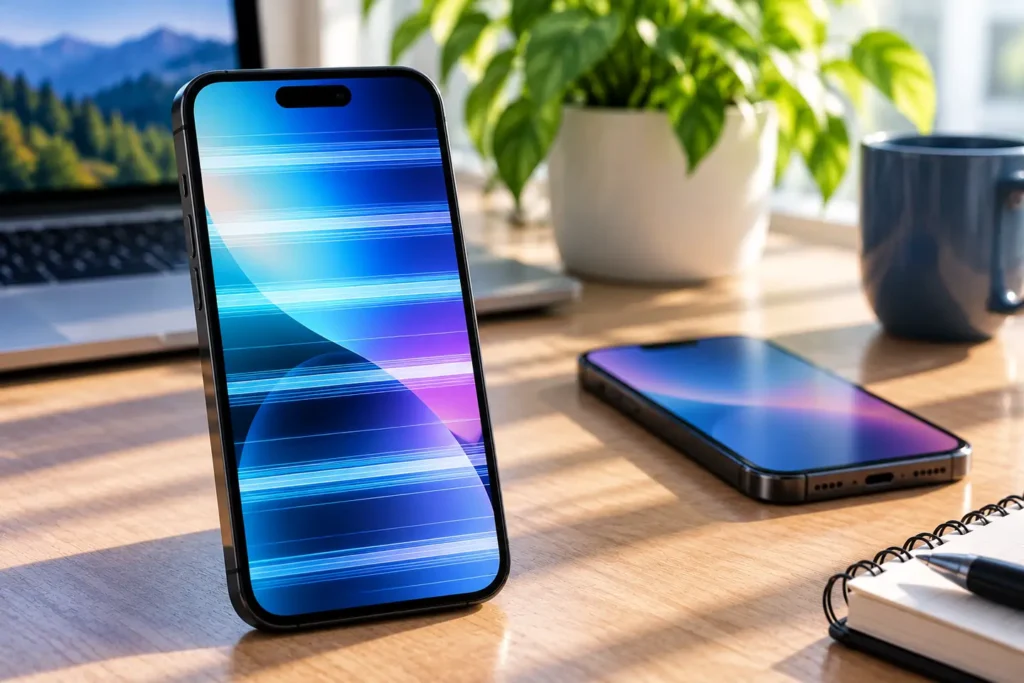
Is your iPhone screen flickering unexpectedly while you’re using it? Maybe the display keeps flashing, horizontal lines appear across the screen, or the brightness changes so rapidly that using your phone becomes uncomfortable.
Some iPhones appear to flicker only when the brightness is low. Others start flashing after an iOS update, while charging, or following a screen replacement.
Fortunately, not every flickering screen indicates damaged hardware. Display settings, temporary software problems, application issues, and certain brightness-control technologies can affect how the screen looks.
However, persistent colored lines or flashing after a drop may require professional repair.
In this guide, we’ll explain 12 practical fixes for iPhone screen flickering, including how to distinguish software-related visual problems from possible display damage.
Table of Contents
Quick Answer: How to Fix iPhone Screen Flickering
If your iPhone display is flickering, try these steps first:
- Restart your iPhone normally.
- Check whether the flickering occurs in every app or only one.
- Open Settings → Display & Brightness and adjust the brightness slider.
- Temporarily disable Auto-Brightness to compare the behavior.
- On supported models, test Display Pulse Smoothing if flickering is most noticeable at low brightness.
- Check whether the issue occurs only while charging.
- Disconnect external accessories and test again.
- Install an appropriate iOS update if one is available.
- If your iPhone was dropped or recently repaired, consider professional display inspection.
Important: If the phone has a cracked or lifting screen, is unusually hot, or shows signs of battery swelling, stop using it and arrange professional assistance.
A force restart may resolve a temporary software freeze, but it cannot repair a physically damaged display.
Why Is My iPhone Screen Flickering?
Your iPhone display combines hardware and software to produce images, adjust brightness, and control refresh behavior.
Unexpected flickering can occur when one of these processes behaves differently from normal.
Common possible causes include:
- A temporary iOS display problem.
- A particular app rendering content incorrectly.
- Rapid automatic brightness adjustments.
- Perceived flicker caused by OLED brightness control.
- Display refresh-rate behavior on supported models.
- Flashing visual effects within videos or apps.
- Charging accessories or electrical interference.
- Temperature-related display behavior.
- A poorly functioning replacement display.
- Damage from a fall or liquid exposure.
- A display or another internal component requiring service.
The appearance of the problem matters.
Rapid brightness changes: Investigate Auto-Brightness and display settings.
Flickering mainly at low brightness: Consider OLED dimming behavior and supported smoothing settings.
Horizontal or vertical colored lines: Consider possible display hardware problems.
Flashing only in one app: Investigate that app and its content.
Screen flashing only during notifications: Check whether an alert-flash feature is responsible.
The following steps help narrow down the cause without unnecessarily resetting your iPhone.
1. Identify What Kind of Flickering You’re Seeing
Before changing settings, observe when the flickering happens.
Different symptoms can have different causes, and a simple comparison can prevent unnecessary troubleshooting.
Test different screens
- Open your iPhone’s Home Screen.
- Check whether the display flickers.
- Open Settings and observe a plain screen.
- Open Safari or another familiar application.
- Compare the behavior in different apps.
- Lock and unlock your iPhone.
- Check whether the flickering appears immediately after the display wakes.
If the display flickers everywhere, the problem may involve a system setting, iOS, or the display hardware.
If it happens only in one app, investigate that app first.
Test whether the lines are part of the screen image
If the screen shows persistent bands or other artifacts, you can try taking a screenshot and viewing it on another device.
If the artifact appears in the screenshot file itself, it may be related to the rendered image or software.
If the screenshot looks normal but the physical display has visible lines, a display-side problem becomes more plausible.
This isn’t a conclusive hardware test. Rapid flicker may not appear in screenshots, and some visual artifacts can occur during image capture or playback.
If necessary, use another phone to record the display externally. A recording may help document the problem for Apple Support, although camera shutter effects can also produce misleading bands.
2. Restart Your iPhone
A normal restart is one of the safest early troubleshooting steps for an iPhone with unusual display behavior.
Restarting closes active processes and allows iOS to initialize the display again.
For an iPhone with Face ID
- Press and hold the Side button and either Volume button.
- Wait for the power-off slider.
- Drag the slider to turn the phone off.
- Wait approximately 30 seconds.
- Press and hold the Side button until the Apple logo appears.
- Unlock your iPhone.
- Check whether the flickering continues.
If the screen is frozen
If touch controls aren’t responding and you can’t restart normally, use a force restart.
For iPhone 8 and later:
- Press and quickly release Volume Up.
- Press and quickly release Volume Down.
- Press and hold the Side button.
- Release it when the Apple logo appears.
Older iPhone models use different combinations.
A force restart doesn’t normally delete personal data.
If the display returns to normal afterward, a temporary software issue may have contributed.
If colored lines remain visible during startup or the problem immediately returns, continue with the next checks.
3. Check Whether Only One App Is Flickering
Sometimes iPhone screen flickering occurs only while using a specific application.
For example, a video player might flash during playback, or an app might display unusual graphics while scrolling.
That doesn’t automatically indicate that the iPhone’s display is damaged.
Test another application
- Close the affected application if it isn’t responding.
- Return to the Home Screen.
- Open another app.
- Compare the display behavior.
- Open the affected app again.
- Check whether the same problem returns.
If the issue is limited to one app, check the App Store for an available update.
You can also restart the application and contact its developer if the flickering continues.
Check videos and animations
Some videos contain intentional flashing effects, rapidly changing colors, or high-contrast animation.
Test another video or ordinary static content before assuming that your screen is malfunctioning.
If the display is stable elsewhere, focus on the affected content or application rather than system-wide resets.
Don’t delete an app containing important local data until you’ve checked whether that information is safely stored or backed up.
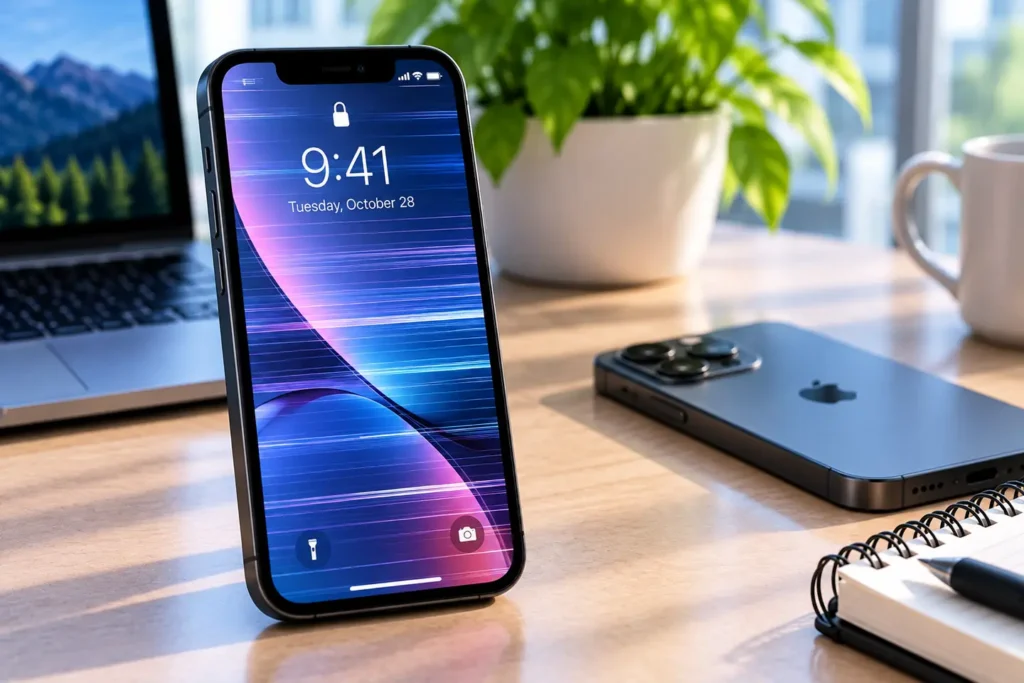
4. Adjust Brightness and Test Auto-Brightness
If your iPhone screen keeps flickering as you move between bright and dark environments, check the brightness settings.
Apple explains that iPhones use an ambient light sensor to adjust display brightness automatically.
This can sometimes create noticeable changes that users mistake for flickering.
Adjust brightness manually
- Open Control Center.
- Find the brightness slider.
- Increase the brightness to a comfortable level.
- Observe whether the flickering changes.
- Repeat at a lower, comfortable brightness setting.
Avoid testing at unnecessarily high brightness for extended periods.
Temporarily turn off Auto-Brightness
- Open Settings.
- Tap Accessibility.
- Select Display & Text Size.
- Scroll down.
- Find Auto-Brightness.
- Turn it off temporarily.
- Test the display again.
If the rapid changes stop, automatic brightness adjustments may have contributed.
Apple notes that disabling Auto-Brightness may increase power consumption.
You can turn it back on after testing if you prefer automatic control.
Check True Tone
Under Settings → Display & Brightness, you can also compare the display with True Tone enabled and disabled.
True Tone adjusts the display’s color and intensity to suit ambient lighting.
It’s not the same as the physical screen rapidly flashing, so changing True Tone is mainly useful when the perceived problem involves shifting colors or display intensity.
5. Try Display Pulse Smoothing on Supported Models
This is an important setting for people who notice flicker mainly when the screen is dim.
Apple explains that iPhone displays use a brightness-control technique called pulse width modulation (PWM).
Some people can perceive this modulation as flickering, particularly at lower brightness levels.
On supported iPhone models, Apple provides a setting called Display Pulse Smoothing (PWM).
How to enable Display Pulse Smoothing
- Open Settings.
- Tap Accessibility.
- Select Display & Text Size.
- Look for Display Pulse Smoothing (PWM).
- Turn it on if the option is available.
- Test the display at a comfortable low brightness level.
This feature is available only on supported models and software versions.
If you don’t see it, don’t assume your iPhone is malfunctioning.
What does this setting do?
Display Pulse Smoothing changes how the screen handles brightness transitions to reduce perceptible flicker for some users.
Apple notes that this can affect low-brightness display performance under certain conditions.
Important: PWM-related flicker is different from a damaged display showing permanent green lines or strong flashing.
Display Pulse Smoothing isn’t designed to repair broken display hardware.
See Apple’s official guide: Customize Onscreen Motion on iPhone.
6. Test ProMotion Refresh-Rate Settings
Some iPhone models use ProMotion, Apple’s adaptive high-refresh-rate display technology.
These models can vary their refresh rate depending on the content and system conditions.
If you notice unusual motion or visual instability while scrolling, testing a fixed maximum refresh rate may help narrow down the behavior.
Limit the frame rate
On supported ProMotion models:
- Open Settings.
- Tap Accessibility.
- Select Motion.
- Find Limit Frame Rate.
- Turn it on.
- Test the application or screen where the flickering occurred.
Apple explains that this setting limits the maximum display frame rate to 60 frames per second on supported ProMotion devices.
Does this fix hardware flickering?
Not necessarily.
This is a diagnostic comparison for motion and refresh behavior, not a guaranteed repair.
If the screen is showing persistent colored lines, flashing during startup, or a failure following physical damage, changing the refresh-rate limit is unlikely to solve the underlying problem.
Restore your preferred setting after testing.
7. Check Flashing Video Effects and Alert Settings
Sometimes what looks like screen flickering is actually a visual feature.
For example, an app may contain rapidly flashing effects, or a notification setting may activate a flash when an alert arrives.
Reduce flashing content
Apple provides accessibility options to reduce certain flashing effects.
- Open Settings.
- Select Accessibility.
- Tap Display & Text Size.
- Look for Dim Flashing Lights.
- Turn it on if you want supported flashing video effects to be dimmed.
You can also test Reduce Bright Effects, which reduces some bright visual effects that appear when interacting with onscreen elements.
These features can make supported content more comfortable to view.
However, they do not repair a defective display.
Check Flash for Alerts
If you see flashes only when notifications or calls arrive, review the alert flash settings under Settings → Accessibility → Audio & Visual → Flash for Alerts.
Depending on the model and software version, Apple may offer LED or screen flash options.
An intentional notification flash is different from hardware flicker.
Note: If flashing light causes significant discomfort, stop using the affected content rather than repeatedly testing intense visual effects.
8. Disconnect Chargers and Other Accessories
Does your iPhone screen flicker only while charging?
If so, the charging setup deserves attention.
A damaged or unreliable charging accessory may contribute to abnormal device behavior, although flickering while charging doesn’t automatically prove the charger is responsible.
Test without the charger
- Disconnect the charging cable.
- Check whether the flickering stops.
- Inspect the cable for visible damage.
- Test the iPhone while operating on battery power.
- If necessary, try another compatible cable and power adapter.
- Compare results using a different working outlet.
Avoid using damaged, overheating, or unreliable accessories.
If flickering disappears only when one particular charger is disconnected, investigate that accessory.
If it continues with several reliable charging setups and while unplugged, the display or another component may be involved.
Don’t repeatedly connect a damaged cable just to reproduce the problem.
Apple also recommends disconnecting accessories as part of its general troubleshooting for abnormal screen and touch behavior.
9. Check Whether Your iPhone Is Overheating
Temperature can affect how an iPhone behaves.
Apple explains that when its internal temperature becomes too high, the system may reduce display brightness or limit certain functions.
This is especially relevant during:
- Gaming.
- Long video recordings.
- Navigation in direct sunlight.
- Demanding applications.
- Wireless charging in a hot environment.
Let the device cool safely
- Stop demanding activities.
- Move the iPhone out of direct sunlight.
- Disconnect charging when appropriate.
- Remove a case if it traps heat.
- Let the phone return to a normal temperature.
- Test the display again.
Apple designs iPhones for ambient operating temperatures between 32°F and 95°F (0°C and 35°C).
Don’t put your iPhone in a refrigerator or freezer to cool it.
Is heat always responsible?
No.
Thermal management normally involves controlled changes to display brightness and device performance.
Persistent bands, colored lines, or flashing at ordinary temperatures should not simply be dismissed as overheating.
If the visual problem continues after the device has cooled, investigate software and hardware causes.
10. Check for an iOS Update
If the screen began flickering after a software change, check whether an appropriate iOS update is available.
Apple releases software updates that can address compatibility issues and other system problems.
Update your iPhone
- Back up important information.
- Connect to reliable Wi-Fi.
- Open Settings.
- Select General.
- Tap Software Update.
- Check for a compatible update.
- Follow the installation instructions.
After updating, test the screen again.
If flickering only occurs in a particular app, check whether that app also needs an update.
What if flickering started after an update?
The timing can suggest software involvement, but it doesn’t prove that iOS caused the problem.
A display issue, charging problem, or existing hardware fault may become noticeable around the same time.
If the phone works normally except for persistent visual lines, don’t assume another update will definitely repair them.
Avoid factory resetting your iPhone simply because a screen problem appeared after an update. Back up your data and complete the targeted checks first.
11. Check Previous Display Repairs and Parts History
If your iPhone screen is flickering after a screen replacement, investigate the repair history.
Apple explains that replacement displays may experience performance or compatibility problems when the part is not functioning or calibrated as expected.
This can include brightness, color, or touch issues.
Check Parts and Service History
On supported iPhone models:
- Open Settings.
- Tap General.
- Select About.
- Find Parts and Service History, if present.
- Review any information about the display.
Depending on the model and repair, you may see labels such as Genuine, Used, Unknown, or Finish Repair.
What does Unknown Part mean?
An Unknown Part message can appear for several reasons, including a part that isn’t genuine, isn’t operating as expected, or hasn’t been verified through the relevant repair process.
It doesn’t conclusively prove that the replacement display is causing flickering.
However, it provides useful information for the repair provider.
If the problem started immediately after a screen replacement, return to the repair provider and explain the symptoms.
You can also review Apple’s iPhone Parts and Service History guide.
What about colored lines?
A screen showing permanent green, pink, white, or horizontal lines may have a display or internal connection problem.
If these lines persist across different apps and during startup, professional inspection is more appropriate than repeatedly switching display settings.
Avoid pressing firmly on the screen or opening the device to adjust its internal connections.
12. Back Up Your iPhone and Arrange Screen Service
If your iPhone continues flickering after the relevant software and setting checks, it may require professional diagnosis.
Apple advises seeking service when screen problems persist.
This is particularly important if:
- The display shows persistent colored lines.
- Flickering began after a drop.
- The screen has cracks or visible damage.
- The problem occurs throughout the system.
- The display suddenly turns black.
- Touch responsiveness is also affected.
- A replacement screen has started malfunctioning.
- Flickering continues at normal operating temperatures.
Protect your data first
If the iPhone remains usable, create a backup before arranging service.
You can use iCloud Backup or a supported computer backup through Finder or the Apple Devices app.
Don’t assume all data will remain accessible if the display problem gets worse.
If you cannot unlock the device, tell the service provider before authorizing any procedure that may erase it.
Contact Apple Support
Visit Apple iPhone Screen Service and Repair.
Service availability, repair cost, and warranty coverage depend on your model and location.
Apple or an authorized service provider can assess whether the display or another component needs attention.
Do not attempt to repair a flickering iPhone by pressing on the glass, heating the screen, or opening the device without appropriate training.
iPhone Screen Flickering at Low Brightness
If the flickering is most noticeable when the brightness slider is low, consider the difference between OLED brightness modulation and a faulty display.
Some users can perceive PWM-related flicker when OLED screens operate at lower brightness levels.
Apple provides Display Pulse Smoothing on supported models to address this type of experience.
Try a comfortable brightness level and compare the screen with Display Pulse Smoothing enabled, if available.
If you see permanent colored bands, or the screen flashes even at normal brightness, don’t assume PWM is the explanation.
Persistent hardware-like symptoms deserve a separate assessment.
iPhone Screen Flickering After iOS Update
If flickering began after an iOS update, start with a normal restart.
Then test multiple apps and review the brightness settings.
Check whether a newer compatible update is available.
If the flickering appears only in one application, updating that app may be more useful than changing unrelated display settings.
If the problem appears throughout the system and persists during startup, the display or another component may need inspection.
Avoid repeatedly erasing the device without a clear diagnosis.
iPhone Screen Flickering With Green or Horizontal Lines
Green lines, white stripes, pink bands, and other persistent display artifacts are not the same as ordinary Auto-Brightness adjustments.
Possible causes include display hardware or internal connection problems.
Record whether the lines appear during startup, on the Lock Screen, and in multiple apps.
If safe, take an ordinary screenshot and compare it on another device.
However, remember that screenshots alone cannot prove where the failure originates.
If lines remain consistently visible or appeared after a drop, seek a professional display assessment.
For a completely black screen that still receives calls or notifications, see our separate guide: iPhone Black Screen but Still On.
iPhone Screen Flickering While Charging
If the display flickers only while charging, disconnect the cable and compare the behavior.
Try a compatible cable, adapter, and electrical outlet.
Avoid using accessories with exposed wires, loose connectors, or unusual heat.
If the issue disappears after replacing one unreliable accessory, monitor the phone for further problems.
If flickering continues without any accessories connected, investigate iOS and display hardware separately.
iPhone Screen Flickering After Screen Replacement
A replacement display can cause compatibility or performance problems when it isn’t functioning or calibrated correctly.
Check your available Parts and Service History and note the repair provider.
If the flickering began immediately after repair, contact that provider.
Don’t assume all aftermarket displays will behave identically, or that every post-repair flicker has the same cause.
An inspection is more useful than attempting to fix an internal display connection yourself.
iPhone Screen Flickering but Touchscreen Still Works
If taps and swipes work normally while the display flashes, the visual part of the display may be affected without an obvious touch-input failure.
Start with a normal restart and compare different apps.
Review brightness and refresh-rate settings if the symptoms match those controls.
If the screen develops persistent lines or suddenly goes black, professional diagnosis may be appropriate.
If the display is visible but does not register taps or swipes, read our separate iPhone Touchscreen Not Working guide.
Frequently Asked Questions
Why is my iPhone screen flickering?
Possible causes include display settings, temporary software problems, OLED dimming behavior, app-specific graphics issues, charging interference, or display hardware damage.
How do I stop iPhone screen flickering?
Restart the phone, check whether the problem appears in every app, review brightness settings, and test Display Pulse Smoothing on supported models. Persistent lines or flashing may require professional service.
Why does my iPhone flicker at low brightness?
Some people perceive OLED pulse width modulation as flicker at low brightness. Apple offers Display Pulse Smoothing on supported iPhone models.
Can Auto-Brightness cause screen flickering?
Auto-Brightness can create noticeable brightness changes as ambient light changes. However, it’s different from a damaged display producing persistent colored lines.
Why is my iPhone screen flickering after an update?
A software or app compatibility issue is one possibility, but the timing alone does not prove the update caused the problem. Restart, check for subsequent updates, and compare behavior across apps.
Can a damaged charger cause iPhone screen flickering?
An unreliable charging accessory can contribute to abnormal behavior. If flickering happens only while charging, compare the phone with the charger disconnected and try reliable equipment.
What does a green line on my iPhone screen mean?
A persistent green line may indicate a display or internal component problem. It isn’t necessarily an ordinary software animation or brightness setting issue.
Does changing the refresh rate fix iPhone flickering?
On ProMotion models, limiting the frame rate may help determine whether the issue involves motion behavior. It won’t repair broken display hardware.
Can I fix iPhone flickering without losing my data?
Many initial steps, including restarting, adjusting settings, and checking software updates, don’t normally erase personal content. Back up the phone before any disruptive recovery or repair procedure.
Why is my iPhone flickering only in one app?
The app may have a rendering problem, incompatible content, or intentional visual effects. Compare with other apps and check for an application update.
Does iPhone screen flickering mean the display needs replacing?
Not always. Some causes involve settings or software. Persistent lines, damage, and flashing across the entire system increase the need for professional assessment.
Should I factory reset my iPhone because the screen flickers?
A factory reset isn’t an appropriate early troubleshooting step. It erases data and may not solve physical display problems.
Final Thoughts
If your iPhone screen is flickering, begin by checking whether the problem affects the entire device or only one application.
Restart the phone, review brightness behavior, and test available display settings that match the specific symptoms.
For low-brightness flicker, Display Pulse Smoothing may help on supported models.
If the problem started while charging, compare the phone without its accessories.
Persistent colored lines, severe flashing, or flickering following physical damage should be professionally assessed rather than treated as an ordinary display-setting problem.
Most importantly, back up important data before more disruptive troubleshooting.
Identifying the type of flicker is usually more useful than changing every display setting at once.
Official Apple Support Resources
- Apple: Customize Onscreen Motion on iPhone
- Apple: Adjust iPhone Brightness and Color
- Apple: If the iPhone Screen Isn’t Working
- Apple: Restart an Unresponsive iPhone
- Apple: About Genuine iPhone Displays
- Apple: iPhone Parts and Service History
- Apple: iPhone Screen Service and Repair
- Apple: If Your iPhone Gets Too Hot or Too Cold