macOS 27.2 new features include expanded Siri AI capabilities, contextual Suggestions in Messages, improvements to Photos and Podcasts, accessibility updates, and important security fixes.
Apple released macOS Golden Gate 27.2 on October 26, 2026, following the launch of macOS 27 in September.
Among the most notable changes are Siri AI’s improved conversation memory, access to additional personal context, new language support, and more convenient privacy controls.
Apple also refined several built-in applications, while reports of redesigned brightness and volume controls highlight additional interface changes.
However, not every feature is available on every Mac. Eligibility depends on your hardware, software, language, and region.
This guide explains 12 important changes, identifies supported Mac models, and shows how to check, download, and install the update safely.
Table of Contents
Quick Answer: What’s New in macOS 27.2?
The most important macOS 27.2 updates include:
- Siri AI can recall previous conversations.
- Siri AI understands more personal information.
- Excluded Apps provides more control over Siri access.
- Write with Siri is easier to access in Mail.
- Siri AI supports five additional languages.
- Messages offers contextual suggestions.
- Photos Shared Albums receive editing improvements.
- SynthID helps identify certain AI-generated images.
- Podcasts gets a reorganized Home tab.
- FaceTime introduces additional accessibility support.
- Brightness and volume controls receive visual changes.
- Apple includes security and reliability fixes.
The update is free for compatible Macs.
Not every feature is available in every language or region, and Siri AI requires supported hardware.
macOS 27.2 Release Date
Apple publicly released macOS Golden Gate 27.2 on October 26, 2026.
The stable release follows macOS 27 and its earlier maintenance update, macOS 27.0.1.
macOS 27.2 at a Glance
| Detail | Information |
|---|---|
| Version | macOS Golden Gate 27.2 |
| Release date | October 26, 2026 |
| Build | 26B123 |
| Release type | Public stable update |
| Main additions | Siri AI, Messages, Photos and other improvements |
| Security fixes | Included |
| Supported Macs | Compatible Apple silicon Macs |
| Installation | System Settings > General > Software Update |
| Price | Free |
One important distinction: macOS 27 originally introduced the redesigned Siri AI experience, Visual Intelligence, new Safari tools, and other major system improvements.
macOS 27.2 builds on that foundation. It doesn’t introduce all of those features for the first time.
You can review Apple’s original Golden Gate feature overview in the official macOS 27 update notes.
macOS 27.2 Compatibility and Feature Availability
macOS Golden Gate 27.2 supports compatible Apple silicon Macs, including M1 and newer MacBook Air and MacBook Pro models, as well as the MacBook Neo.
Intel-based Macs cannot install macOS 27.2 through Apple’s supported upgrade process.
Important: Installing macOS 27.2 does not guarantee access to every Siri AI feature. Siri AI remains in beta, and supported languages, Apple Account region, and hardware requirements affect availability.
Some advanced capabilities have additional hardware requirements. For example, certain expressive Siri voice features require a Mac with an M3 chip or later and at least 12GB of unified memory.
Check Apple’s official compatibility list and Siri AI requirements before attempting to enable a missing feature.
12 Important macOS 27.2 Changes
1. Siri AI Remembers Conversations
One of the biggest macOS 27.2 improvements is more useful conversation memory.
Siri AI can recall relevant information from earlier interactions.
For example, imagine asking Siri for restaurant recommendations while planning a weekend trip.
Later, you could ask about a restaurant Siri recommended during that earlier conversation without explaining everything again.
This is designed to make conversations feel more continuous.
It can be especially useful when researching information, comparing options, or organizing tasks over multiple interactions.
macOS 27 already included a dedicated Siri app with conversation history.
The difference in macOS 27.2 is improved use of past interactions as context for new requests.
Siri AI is still in beta, and its availability depends on supported hardware, language, and region.
2. Siri AI Uses More Context
Apple has expanded the information sources Siri AI can use to answer certain questions.
These sources include:
- Photos attached to Messages conversations.
- People attending Calendar events.
- Voicemail information.
- Safari browsing history.
- Safari Reading List.
This helps when you remember part of something but don’t know exactly where the information is stored.
For example, you might ask Siri about a website you previously saved or details associated with a Calendar event.
Siri can use supported personal context to look for relevant information.
However, this doesn’t guarantee that Siri can find every file, attachment, or message.
Its responses depend on supported services, available information, permissions, and the particular request.
You should also review your privacy settings before enabling access to personal information.
3. Better Siri Privacy Controls
macOS 27.2 introduces an Excluded Apps option for Siri, Search, and suggestions.
This provides a more convenient way to choose which applications can contribute information to supported Siri features.
For example, you might want Siri to use information from Calendar but exclude a particular application.
The setting gives users more control over personalization.
What to do:
- Open System Settings on your Mac.
- Select Siri.
- Review the available app-access or excluded-app controls.
- Choose which apps Siri may access.
- Keep your preferred privacy settings.
The exact controls displayed depend on whether Siri AI is available and enabled on your device.
Restricting an app can also limit how effectively Siri uses information from that application.
This is a privacy choice, not a performance repair.
4. Write With Siri in Mail
The Mail app receives a convenient improvement for writing assistance.
macOS 27.2 makes Write with Siri available from the newer formatting bar when composing an email.
This allows eligible users to access supported Siri writing assistance more directly.
You might use it to prepare a message, improve wording, or organize an existing draft.
For example, if you’ve written a long email explaining a technical problem, Siri may help you make the text clearer.
The feature builds on the broader Siri AI experience introduced in macOS 27.
It’s particularly relevant for people who spend considerable time composing emails on their Macs.
However, AI-generated writing should always be reviewed before sending.
Check names, dates, facts, and instructions carefully.
Don’t assume suggested text is automatically accurate simply because it appears inside Apple’s Mail application.
5. Siri AI Adds More Languages
macOS Golden Gate 27.2 expands Siri AI beyond its original English-language availability.
The newly supported languages include:
- French.
- Japanese.
- Korean.
- Portuguese.
- Spanish.
This makes the new Siri experience available to more users.
For example, someone who prefers asking questions in Japanese or Spanish may now be able to use Siri AI in that language on an eligible Mac.
However, the language selected for the Mac and Siri, supported hardware, Apple Account eligibility, and regional restrictions all matter.
Siri AI is not currently available for Apple Accounts registered in mainland China.
Apple’s requirements can change as the beta expands.
For current eligibility and activation instructions, consult Apple’s Siri AI support guide.
6. Smarter Suggestions in Messages
macOS 27.2 introduces contextual Suggestions in Messages.
The feature can identify useful actions based on information in a conversation.
For example, suppose a friend sends you a dinner plan with a date, time, and location.
Messages may suggest adding the event to Calendar.
Supported suggestions may also help you create reminders or take other relevant actions.
Instead of manually moving between apps and copying details, you can review the suggestion and decide whether to use it.
The suggestions are designed to make everyday communication more convenient.
They don’t mean Messages automatically performs every proposed action without your involvement.
Availability may vary depending on language and Apple Intelligence support.
If a suggested Calendar event isn’t appearing correctly on your other devices, our iPhone Calendar Not Syncing guidecovers related synchronization troubleshooting.
7. Improved Shared Albums
Photos receives improvements to Shared Albums in macOS 27.2.
Shared Albums allow people to share selected photos and videos with invited participants.
Apple has added more convenient ways to manage shared content.
The changes include:
- Editing captions.
- Editing comments.
- Reducing accidental duplicate additions.
- Receiving reminders before certain albums expire.
These features may be useful for families or friends who share photos from events, holidays, or everyday activities.
For example, if you and several friends contribute images to the same album, improved duplicate handling can help keep the collection organized.
Caption and comment editing also makes it easier to correct mistakes.
However, Shared Albums are not a replacement for a complete backup of your photo library.
Before deleting important photos or changing your storage settings, confirm that your originals are backed up safely.
8. SynthID for AI Images
macOS 27.2 adds SynthID watermark support for certain images generated or modified using supported generative AI tools.
This includes relevant features in Photos and Image Playground.
SynthID is an invisible watermarking technology that can help identify some AI-generated or AI-modified images.
For example, images created using certain supported Image Playground operations may contain watermark information.
The feature supports transparency around AI-created content.
However, it has important limitations.
Not every AI-generated image carries a SynthID watermark, and not every edit necessarily qualifies.
Likewise, failing to detect a watermark doesn’t prove that an image is genuine or unmodified.
Think of SynthID as one useful signal rather than a universal way to verify an image’s authenticity.
9. Podcasts Gets a Better Home Tab
Apple has reorganized the Podcasts Home tab in macOS 27.2.
It now provides separate areas for:
- New Episodes.
- Continue Playing.
The New Episodes section helps listeners find recently available episodes.
Continue Playing makes it easier to return to unfinished listening sessions.
This is useful if you follow multiple podcasts and frequently switch between episodes.
For example, you might start listening to a long interview in the morning and return to it later.
The updated organization can reduce the effort needed to find where you stopped.
It’s a relatively small improvement compared with Siri AI, but one regular Podcasts users may notice immediately.
10. FaceTime Accessibility
FaceTime receives additional accessibility functionality in macOS 27.2.
Apple says the update supports adding a third-party sign-language interpreter or live captioner to supported calls.
This can help people who rely on interpretation or captions during conversations.
For example, a person participating in a video meeting may benefit from having an interpreter included in the communication experience.
The new functionality is intended to make supported FaceTime conversations more accessible.
Its availability and setup may depend on the configuration of the call.
This is separate from Siri AI and does not require you to use Siri to make an ordinary FaceTime call.
11. Redesigned Volume Controls
macOS 27.2 also brings visible interface refinements.
The brightness and volume sliders have been redesigned.
These changes are smaller than the AI upgrades but affect controls people use regularly.
They may be noticeable when adjusting display brightness or audio output.
The revised appearance continues Apple’s work on the Liquid Glass design language introduced with earlier macOS releases.
The change doesn’t mean your Mac’s speakers or screen suddenly gain new hardware capabilities.
It is primarily a user-interface improvement.
Apple has also made visual updates to certain built-in app branding, including the Apple Music icon.
Remember that an interface change and a new system feature are not necessarily the same thing.
The redesigned brightness and volume controls were reported by MacRumors in its October 26, 2026 release coverage. Unlike the major Siri AI and application changes, Apple does not separately list these interface refinements in its main macOS 27.2 release notes.
12. Important Security Fixes
Security updates are one of the most important reasons to consider installing macOS 27.2.
Apple published fixes for vulnerabilities in multiple system components.
Its security documentation includes changes involving:
- APFS.
- The macOS kernel.
- App Store components.
- Calendar.
- CoreAudio.
- CloudKit.
- Quick Look.
- Time Machine.
- System Settings.
- Privacy and permissions frameworks.
Some issues could potentially allow an application to access sensitive information, bypass certain protections, or cause unexpected system behavior under specific conditions.
Other vulnerabilities involved memory handling or file-processing operations.
Installing a security update reduces exposure to the vulnerabilities addressed by that update.
However, it doesn’t eliminate every possible security risk.
Continue using trusted apps, installing relevant security updates, and maintaining reliable backups.
For the technical details, see Apple’s macOS Golden Gate 27.2 security release notes.
What’s Already in macOS 27?
It’s important not to confuse features introduced in the original Golden Gate release with features newly added in 27.2.
macOS 27, released in September 2026, introduced several major capabilities.
Siri AI and Spotlight
The original macOS 27 update introduced the redesigned Siri AI experience and its integration with Spotlight.
macOS 27.2 improves Siri’s memory and available personal context.
Visual Intelligence
macOS 27 brought Visual Intelligence capabilities to supported Macs, including the ability to ask questions about selected screen content.
This feature was not first introduced in macOS 27.2.
Safari Improvements
macOS 27 introduced major Safari features, including intelligent tab grouping and tools for monitoring selected webpage changes.
If you experience browsing problems on another Apple device, our iPhone Safari Not Loading Websites guide covers iPhone-specific troubleshooting.
The Mac and iPhone use different operating-system interfaces, so their exact troubleshooting steps should not be confused.
Photo Editing and Shortcuts
The original Golden Gate release also introduced more advanced Photos editing tools and the ability to describe Shortcuts using natural language.
macOS 27.2 includes additional refinements, but it shouldn’t be described as the original launch of all these features.
Which Macs Support macOS 27.2?
macOS Golden Gate 27.2 is available for compatible Macs running Apple silicon.
Apple supports Macs with M-series chips and the MacBook Neo with a compatible A-series chip.
Compatible Mac Families
| Mac family | Compatibility |
|---|---|
| MacBook Air with M1 or later | Supported |
| MacBook Pro with M1 or later | Supported |
| MacBook Neo with A18 Pro | Supported |
| iMac with Apple silicon | Supported |
| Mac mini with Apple silicon | Supported |
| Mac Studio with Apple silicon | Supported |
| Mac Pro with Apple silicon | Supported |
| Intel-based Macs | Not supported |
Important: macOS 27.2 does not bring Golden Gate support to older Intel-based Macs.
If your Mac cannot run macOS 27, it cannot normally install macOS 27.2.
You may still be eligible for other macOS updates appropriate to your hardware.
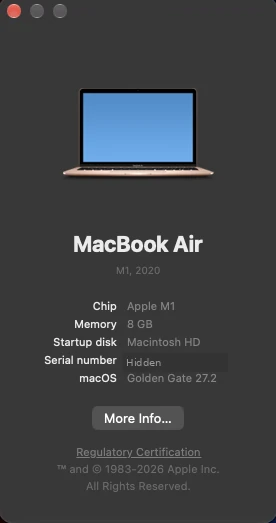
How to Check Your Mac
- Click the Apple menu.
- Select About This Mac.
- Find your Mac model and chip information.
- Confirm that your computer uses supported Apple silicon.
- Check Apple’s official compatibility list.
Visit Apple’s macOS 27 supported Mac list for the complete model breakdown.
macOS 27.2 Update Size
The download size of macOS 27.2 may vary depending on your Mac and its currently installed software.
For example, a Mac may show an update package of 4.95 GB.
That figure is an example from an individual Software Update screen, not a guaranteed size for every Mac.
The actual size can depend on:
- Your existing macOS version.
- Your Mac model.
- The update package being downloaded.
- Whether you’re upgrading from an older macOS release.
- The components required for installation.
The space needed to install an update may also be greater than the download itself.
The download size of macOS 27.2 varies depending on your Mac, its currently installed macOS version, and the update package Apple provides.
To check the actual size, open System Settings > General > Software Update and review the available update.
Make sure you have sufficient free storage for installation, which may require more space than the downloaded package itself.
Check Available Storage
- Open System Settings.
- Select General.
- Click Storage.
- Review available free space.
- Remove unnecessary large files if additional storage is required.
Don’t delete important documents or photos without a verified backup.
If you’re upgrading from a much older macOS version, the overall requirements may be different.
Always follow the storage information shown on your own Mac.
How to Install macOS 27.2
Installing macOS 27.2 is straightforward on a compatible Mac.
However, preparing your device first can help reduce the risk of losing important work.
Step 1: Back Up Your Mac
Before upgrading, create a current backup.
Time Machine is Apple’s built-in Mac backup solution.
You can also use another reliable backup method appropriate to your needs.
A backup is particularly important if you store work documents, photos, or irreplaceable files locally.
Step 2: Connect to Power
If you’re using a MacBook, connect it to power before beginning the update.
Make sure you have a stable internet connection.
Avoid interrupting the installation once it has started.
Step 3: Open Software Update
- Click the Apple menu.
- Select System Settings.
- Click General.
- Open Software Update.
- Allow macOS to check for available updates.
If macOS Golden Gate 27.2 is available, review the update details.
Step 4: Choose Installation
Depending on your update status, your Mac may show:
- Update Now.
- Update Tonight.
- Restart Now.
Select the option that works best for you.
If you choose Update Tonight, follow Apple’s instructions for keeping your Mac powered and connected.
Your Mac may restart multiple times during installation.
Do not force it to shut down while the update is actively installing.
Step 5: Verify the Version
After installation:
- Open the Apple menu.
- Click About This Mac.
- Check the macOS version.
- Confirm that macOS 27.2 appears.
You can also return to Software Update and check for any additional recommended updates.
Apple provides detailed instructions in its official macOS updating guide.
macOS 27.2 Not Showing?
If macOS 27.2 isn’t appearing in Software Update, first confirm that your Mac supports Golden Gate.
Then try these checks:
- Make sure your internet connection works.
- Open System Settings > General > Software Update.
- Allow the Mac to finish checking.
- Review Beta Updates if your Mac is enrolled in a beta program.
- Restart your Mac normally.
- Check for relevant device-management restrictions.
- Try Software Update again.
If your Mac is managed by a company or school, its administrator may control when major updates become available.
Don’t remove organization-managed profiles without authorization.
You should also avoid downloading unofficial macOS installers from unfamiliar websites.
If the update still doesn’t appear, check Apple’s official support guidance before trying more disruptive troubleshooting.
macOS 27.2 Not Installing?
If your Mac downloads macOS 27.2 but cannot complete the installation, identify where the problem occurs.
For example:
- Does the download fail?
- Does Software Update display an error?
- Is there insufficient storage?
- Does the installer stop before restarting?
- Does the Mac restart but remain on its earlier macOS version?
These symptoms may have different causes.
Basic Checks
- Confirm that your Mac is compatible.
- Check the internet connection.
- Review available storage.
- Connect your MacBook to power.
- Close unnecessary applications.
- Restart normally if no installation is running.
- Retry the update through Software Update.
Do not repeatedly force shutdowns during installation.
If your Mac cannot start after a failed update, Apple’s startup and recovery instructions are more appropriate than random Terminal commands found online.
A factory reset should not be the first troubleshooting step.
Is Siri AI Available on Your Mac?
Siri AI is supported on eligible Apple silicon Macs running macOS 27 or later.
However, installing macOS 27.2 doesn’t automatically guarantee that every Siri AI feature becomes available.
The requirements can include:
- A compatible Mac.
- Supported device and Siri languages.
- An eligible Apple Account region.
- Siri AI beta availability.
- Completion of any required activation process.
How to Enable Siri AI
- Open System Settings.
- Select Siri.
- Turn on Siri if it is disabled.
- Look for Try Siri AI (Beta).
- Follow the onscreen activation instructions.
- Complete any required setup or enrollment.
The option may not appear if your Mac, account, or language isn’t eligible.
Apple also notes that access may involve a waitlist and that certain Apple Intelligence features have usage limits.
If Siri AI is missing, verify compatibility and availability before assuming macOS 27.2 failed to install.
Should You Update to macOS 27.2?
For most people using a compatible Mac, installing the latest stable software is generally sensible.
Security fixes alone can be an important reason to update.
However, the decision should reflect how you use your Mac.
Reasons to Update
- You want Apple’s current security fixes.
- You use Siri AI.
- You want new Siri language support.
- You regularly use Messages or Shared Albums.
- You prefer keeping macOS current.
- You want the latest supported system improvements.
Reasons to Prepare First
- Your Mac is managed by an organization.
- You depend on specialist software.
- Your computer has very little free storage.
- You’re working on an urgent project.
- You rely on older drivers, extensions, or peripherals.
- You haven’t backed up important files.
If you use professional applications, confirm compatibility before upgrading.
This is especially relevant for music production, video editing, specialized hardware, and software that depends on system extensions.
You don’t have to install an update in the middle of an important project.
Choose a convenient time and create a backup first.
Does macOS 27.2 Improve Battery Life?
Apple includes improvements and fixes in macOS updates, but a new version doesn’t guarantee better battery life for every MacBook.
Battery performance can be affected by:
- Background applications.
- Display brightness.
- Browser activity.
- External accessories.
- Battery condition.
- System tasks following an update.
After installing macOS 27.2, your Mac may temporarily perform background activities that use additional power.
These can include indexing and other system maintenance processes.
If battery life seems worse immediately after updating, allow normal background activity to settle before drawing conclusions.
You can also review Activity Monitor to identify applications that use significant energy.
A software update cannot repair a physically degraded battery.
Persistent, unexplained power problems may require further diagnosis.
Does macOS 27.2 Improve Performance?
macOS 27.2 includes bug fixes and system improvements, but there isn’t a universal guarantee that every Mac will feel faster.
Performance depends on your hardware, available storage, running applications, and background processes.
After upgrading, consider the following:
- Allow initial background tasks to complete.
- Update important applications.
- Review available storage.
- Check Activity Monitor if the Mac feels unusually slow.
- Restart normally if a particular application freezes.
- Confirm compatibility with external devices.
If only one app becomes slow or unresponsive, troubleshoot that application separately.
Don’t assume a hardware failure simply because performance changes after an update.
Likewise, don’t assume macOS 27.2 resolves every issue previously reported on macOS 27.
Frequently Asked Questions
What Are the Main macOS 27.2 New Features?
The main changes include improved Siri AI memory, expanded personal context, new languages, Excluded Apps controls, Messages suggestions, Shared Albums improvements, SynthID support, Podcasts updates, and FaceTime accessibility features.
When Was macOS 27.2 Released?
Apple released macOS Golden Gate 27.2 on October 26, 2026.
Is macOS 27.2 a Stable Update?
Yes. macOS 27.2 is a public stable release. However, Siri AI remains a beta feature on supported devices.
Is macOS 27.2 Available for Intel Macs?
No. macOS 27 Golden Gate requires compatible Apple silicon hardware. Intel-based Macs cannot install macOS 27.2 through the normal supported upgrade process.
Does macOS 27.2 Support M1 Macs?
Yes. Compatible Macs with M1 chips can install macOS 27.2.
Is macOS 27.2 Free?
Yes. Apple provides the update free for compatible Macs.
How Big Is macOS 27.2?
The download size varies. Some Macs may display a package of approximately 4.95 GB, but your actual update size depends on your device and currently installed version.
Does macOS 27.2 Improve Siri?
Yes. It adds improvements to Siri AI conversation memory, personal-context access, application controls, and language availability.
Does macOS 27.2 Include Security Fixes?
Yes. Apple released security patches for numerous components, including the kernel, APFS, Quick Look, and other system frameworks.
Will macOS 27.2 Fix Battery Drain?
Not necessarily. Battery life depends on device condition, applications, and usage patterns. Installing the update does not guarantee a battery-life improvement for every MacBook.
Can I Skip macOS 27.2?
You can choose when to install a supported update, but postponing security fixes leaves your Mac without the protections included in that release. If compatibility concerns exist, review them and arrange a suitable installation time.
How Do I Know macOS 27.2 Installed?
Open Apple menu > About This Mac and check the macOS version. It should display macOS 27.2 after a successful installation.
Final Thoughts
The macOS 27.2 new features focus on making Siri AI more useful, improving contextual assistance, and refining everyday Mac applications.
The ability to recall earlier Siri interactions and use additional personal information may be particularly helpful for people who use their Macs for work, planning, and research.
Messages suggestions, improved Shared Albums, and updates to Podcasts and FaceTime provide smaller but practical changes.
There are also interface refinements and important security fixes.
For most users with compatible Apple silicon Macs, macOS 27.2 is worth considering.
Before installing, back up your files, check the available storage, and confirm that your essential applications remain compatible.
If you manage several Apple devices, explore more troubleshooting guides in The Synced Desk’s Apple section, including our guides for iPhone Safari loading problems and iPhone startup problems.
Last updated: October 27, 2026.