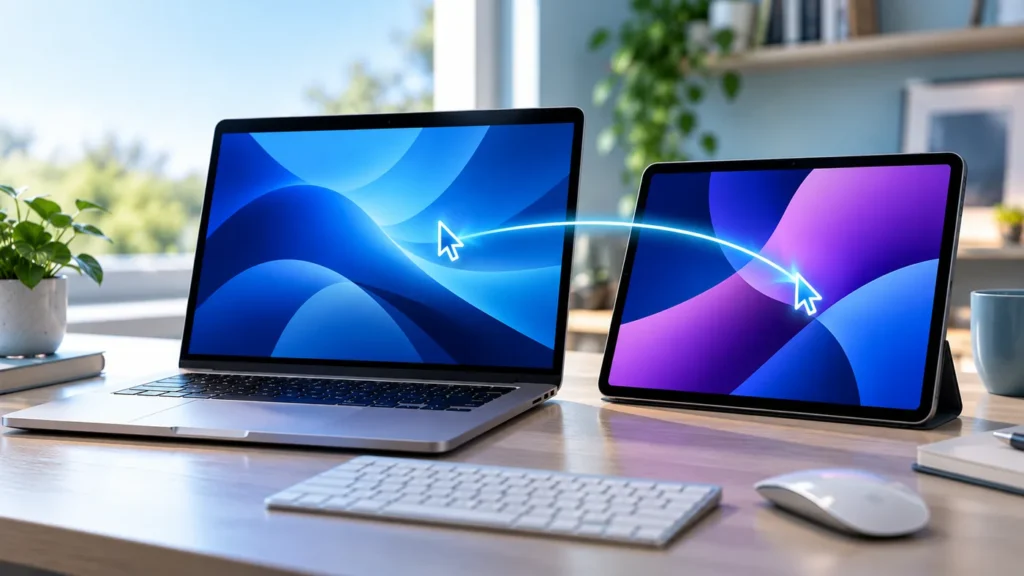
Is Universal Control not working when you move your Mac’s mouse or trackpad toward your iPad? Maybe the pointer stops at the edge of the screen, your iPad never appears in the connection menu, or the keyboard won’t type on your second device. The same issue can happen when trying to control two Macs with one keyboard and pointer.
Universal Control lets you control a nearby iPad or another Mac using the keyboard, mouse, or trackpad connected to your Mac. Each device keeps its own screen and apps. Unlike Sidecar, it doesn’t turn your iPad into a second Mac display.
Fortunately, most connection problems come down to compatibility, Apple Account settings, Wi-Fi, Bluetooth, Handoff, or a disabled Universal Control option. Work through these 12 fixes in order before changing advanced settings.
Table of Contents
Quick Answer
If Universal Control is not working, confirm that both devices support the feature and use the same Apple Account with two-factor authentication. Turn on Wi-Fi, Bluetooth, and Handoff, then enable Universal Control under Mac System Settings > Displays > Advanced and iPad Settings > General > AirPlay & Continuity > Cursor and Keyboard. Keep the devices awake and close together, push your pointer through the screen edge, and try linking them manually from Displays settings. Restart both devices if needed.
Why Universal Control Stops Working
When Universal Control is not working, the cause is often one of several Apple Continuity settings that must work together. One missing requirement can prevent your devices from discovering each other.
Common reasons include:
- The Mac or iPad doesn’t meet Universal Control’s minimum hardware or software requirements.
- The devices are signed in to different Apple Accounts, or two-factor authentication isn’t enabled.
- Wi-Fi, Bluetooth, or Handoff is switched off.
- The Mac’s Universal Control option or the iPad’s Cursor and Keyboard setting is disabled.
- The devices are asleep, locked, or too far apart to connect reliably.
- The pointer is being pushed toward the wrong display edge.
- A VPN, security application, or restrictive firewall is interfering with discovery.
- A software update or temporary connection glitch has interrupted the feature.
If Universal Control is not working after a recent change, start by checking the setup rather than resetting your Mac or iPad.
1. Check Device Compatibility
If Universal Control is not working on an older Mac or iPad, an unsupported device may be the reason, regardless of how many times you restart it.
Supported Mac and iPad models
Apple lists macOS Monterey 12.4 or later as the minimum Mac software and iPadOS 15.4 or later for the iPad.
Compatible iPads include all iPad Pro models, iPad (6th generation or later), iPad Air (3rd generation or later), and iPad mini (5th generation or later).
For Macs, Apple’s supported list includes iMac and iMac Pro introduced in 2017 or later, plus the iMac (Retina 5K, 27-inch, Late 2015). Other Mac models introduced in 2016 or later are supported, except MacBook Air (13-inch, 2017).
Check your Mac model through Apple menu > About This Mac. On iPad, open Settings > General > About. If either device is outside the supported list, a setting change cannot add the feature.
2. Use the Same Apple Account
If Universal Control is not working between Mac and iPad, first confirm that the devices are signed in to the same Apple Account.
On your Mac, open System Settings and select your account name at the top. On your iPad, open Settings and check the name shown at the top. Compare the account details rather than relying on similar device names.
Apple also requires two-factor authentication on the account.
If you use a work or school device with a separate managed Apple Account, check with your administrator before changing any account settings. Signing out is not a sensible first troubleshooting step because it can affect synchronized data and other services.
3. Turn On Wi-Fi and Bluetooth
Both wireless technologies must be enabled on each device even when your Mac already has a working internet connection.
On your Mac
- Open System Settings > Wi-Fi and turn Wi-Fi on.
- Open System Settings > Bluetooth and turn Bluetooth on.
- Join your normal Wi-Fi network.
On your iPad
- Open Settings > Wi-Fi, enable it, and connect to your Wi-Fi network.
- Open Settings > Bluetooth and turn Bluetooth on.
- For a simple test, place both devices on the same Wi-Fi network.
Apple requires both Wi-Fi and Bluetooth to be enabled. Universal Control also requires the iPad not to be sharing its cellular connection and the Mac not to be sharing its internet connection.
If the Mac’s wireless connection itself is failing, see our MacBook Wi-Fi not working guide before returning to Universal Control.
4. Enable Handoff on Both Devices
Handoff is a separate Continuity setting that Universal Control requires. It can be disabled even when Wi-Fi and Bluetooth are running.
Enable Handoff on Mac
- Open Apple menu > System Settings.
- Choose General > AirDrop & Continuity. On some releases, this is called AirDrop & Handoff.
- Enable Allow Handoff between this Mac and your iCloud devices, if available.
Enable Handoff on iPad
- Open Settings > General.
- Tap AirPlay & Continuity (or AirPlay & Handoff on older software).
- Turn on Handoff.
Now check whether the Mac can discover the iPad. If an option is missing, verify the device compatibility and software versions first.
5. Enable Universal Control on Mac
You can have Bluetooth, Wi-Fi, and Handoff enabled but still find Universal Control not working because the actual display-control feature is off.
- On the Mac, open System Settings > Displays.
- Select Advanced near the bottom of the window on macOS Ventura 13 or later.
- Enable Allow your pointer and keyboard to move between any nearby Mac or iPad.
- For easier setup, also enable the option to push through the edge of a display and the option to automatically reconnect.
- Close Settings and try again.
On macOS Monterey, the control is in System Preferences > Displays > Universal Control.
Apple may adjust the wording and placement across releases, so follow the equivalent setting when menus look different.
6. Enable Cursor and Keyboard on iPad
When Universal Control is not working on iPad, check its own switch for accepting the Mac’s pointer and keyboard.
- Open Settings on your iPad.
- Select General > AirPlay & Continuity (or AirPlay & Handoff).
- Enable Cursor and Keyboard.
- Return to your iPad Home Screen and keep the device unlocked.
If Cursor and Keyboard doesn’t appear at all, verify that the iPad model and iPadOS version support Universal Control. The option isn’t available on unsupported iPads.
7. Put Devices Close and Unlock Them
Apple allows Universal Control connections within approximately 10 meters (30 feet), but recommends placing devices much closer when troubleshooting, ideally within 1 meter (3 feet).
Set the iPad beside the Mac, wake both screens, and unlock both devices.
Then move the pointer slowly toward the edge nearest the second display. Avoid testing through walls or across a large room.
If the connection suddenly starts working when the devices are together, distance or interference could have contributed. You can try a more comfortable layout once the feature is stable.
8. Push the Pointer Through the Edge
A surprisingly common mistake is expecting the pointer to jump onto the iPad automatically without pushing it beyond the Mac’s screen edge.
- Place the iPad to the right or left of the Mac.
- On your Mac, move the pointer toward the corresponding screen edge.
- Keep pushing the pointer beyond that edge for a moment.
- Watch for the pointer beginning to appear on the other device.
- Continue moving to complete the connection.
Once linked, open System Settings > Displays on the Mac and arrange the screens to match their physical positions.
If you disabled the push-through option earlier, use the manual method below instead.
9. Connect from Displays Settings
If your iPad isn’t responding to the pointer, link it directly from the Mac rather than repeatedly moving the mouse.
- On the Mac, open System Settings > Displays.
- Look for the Add Display (+) menu.
- Under Link Keyboard and Mouse, choose the nearby iPad or compatible Mac, if it appears.
- Wait for the connection and test the pointer again.
Depending on your macOS release, the connection can also be managed from Control Center > Display. Older macOS Monterey versions use an Add Display button in Displays preferences.
If no device appears, go back to account, wireless, and Handoff checks. Choosing an iPad under screen mirroring is not the same as linking its keyboard and mouse controls.
10. Sleep and Wake Both Devices
If Universal Control is not working after sleep or a period of inactivity, Apple recommends a sleep-and-wake cycle when the nearby device isn’t available.
Put your Mac and iPad to sleep normally. Wake and unlock both, then attempt the connection again.
This is less disruptive than resetting network settings and often worth trying before a full restart.
If the pointer works on the Mac but not the iPad, first confirm that your mouse or trackpad is functioning normally on the Mac itself.
For wider wireless-accessory problems, see our MacBook Bluetooth not working guide.
11. Restart and Re-Enable the Feature
If Universal Control is still not working, restart the connection settings on both devices.
- On your Mac, return to System Settings > Displays > Advanced and turn off the main Universal Control setting.
- On your iPad, go to Settings > General > AirPlay & Continuity and turn off Cursor and Keyboard.
- Save your work and restart the Mac and iPad.
- Once both devices are unlocked, re-enable Universal Control on the Mac and Cursor and Keyboard on the iPad.
- Try the pointer edge or Link Keyboard and Mouse menu again.
This follows Apple’s recommended troubleshooting approach and doesn’t erase personal data.
If you are troubleshooting two Macs, repeat the relevant Mac-side setting checks on both computers.
12. Check VPN, Firewall, and Updates
When everything else looks correct, investigate security software and out-of-date system components.
Review VPN and security apps
Apple warns that VPNs and some third-party security tools can interfere with Universal Control.
If you control the device and your organization’s policy permits it, temporarily disconnect a VPN to test the feature, then reconnect it.
Don’t bypass work or school security policies.
On a personally managed Mac, check System Settings > Network > Firewall > Options.
If Block all incoming connections is enabled, it can prevent discovery. Record existing settings and make only changes you understand; restore protection after the test.
Update both devices
On the Mac, check System Settings > General > Software Update.
On iPad, check Settings > General > Software Update.
Install compatible updates after backing up important work, then test again.
If Bluetooth fails specifically on the iPad, our iPad Bluetooth not working guide can help isolate that problem.
Universal Control Not Working After Update?
An update often restarts one or both devices and may require you to sign in again.
First confirm that both devices are fully unlocked. Then review the Mac and iPad Universal Control switches, Handoff, Bluetooth, and Wi-Fi.
If the Mac cannot discover the iPad, run the sleep-and-wake test and restart both devices.
An update is not a reason to erase device settings or sign out of your Apple Account without further evidence.
Universal Control Not Working Between Two Macs?
If Universal Control is not working between two Macs, the same core requirements apply to both computers:
- Compatible macOS versions and models.
- One Apple Account with two-factor authentication.
- Wi-Fi and Bluetooth enabled.
- Handoff enabled.
- Universal Control enabled on both Macs.
Place the computers close together and use Link Keyboard and Mouse from the Mac you want to control them with.
If one Mac is asleep or signed in to a different account, it may not appear.
Common Universal Control Problems
iPad Not Showing in Link Keyboard and Mouse
Confirm your iPad supports Universal Control, is unlocked, and uses the same Apple Account with two-factor authentication.
Enable Wi-Fi, Bluetooth, Handoff, and Cursor and Keyboard.
Bring it within three feet of the Mac, then retry the Add Display menu. Test without a personal VPN if permitted.
Pointer Moves but Keyboard Won’t Type
Click a text field or app on the iPad before typing.
If you can control its pointer but can’t enter text, test the keyboard locally on the Mac, check whether an app is capturing input, and disconnect then reconnect Universal Control.
Restart both devices if the keyboard remains unresponsive.
Universal Control Keeps Disconnecting
Move the devices closer, keep them awake, verify wireless connections, and check for security software or a weak network.
Test again after sleep-and-wake and software updates. Avoid unnecessary network resets before identifying whether Wi-Fi or Bluetooth is actually unstable.
Universal Control vs. Sidecar
These features are different.
Universal Control moves your pointer and keyboard between independently running Macs and iPads.
Sidecar extends or mirrors the Mac desktop onto an iPad.
If you want your iPad to act as an additional monitor, use Sidecar rather than Universal Control.
Frequently Asked Questions
Does Universal Control require the same Apple Account?
Yes. Apple requires the devices to use the same Apple Account with two-factor authentication. A Mac and iPad signed into different accounts won’t form a standard Universal Control connection.
Does Universal Control work with an iPhone?
No. Universal Control is designed for a Mac and up to two other compatible Macs or iPads. It doesn’t let you move a Mac’s pointer directly onto an iPhone screen.
Why is Universal Control not working even with Bluetooth on?
Bluetooth alone is not enough.
Both devices also need Wi-Fi, Handoff, a compatible operating system, the same Apple Account with two-factor authentication, and enabled Universal Control settings.
Check every requirement before attempting an advanced reset.
Does Universal Control need Wi-Fi and Bluetooth?
Yes. Both must be switched on, along with Handoff.
For troubleshooting, put both devices on the same Wi-Fi network and near each other.
The devices don’t need to share their internet connection, and internet sharing should be off.
Why is Universal Control missing from my iPad?
Your iPad may not support the feature, its software might be too old, or you’re looking in the wrong menu.
Check Settings > General > AirPlay & Continuity > Cursor and Keyboard and confirm your model meets Apple’s requirements.
Can I drag files between a Mac and iPad?
In supported apps and workflows, you can drag items across devices. Because each device runs its own apps, the drag destination must accept the item.
If you only need to copy text between Apple devices, Universal Clipboard is another Continuity feature with its own requirements.
Do I need to reset my Mac or iPad?
Usually not.
Compatibility checks, account settings, wireless connections, Handoff, the two Universal Control switches, and a restart are safer first steps.
A factory reset isn’t an appropriate routine fix for this issue.
Final Thoughts
If Universal Control is not working between your Mac and iPad, focus first on compatibility, the same Apple Account, two-factor authentication, Wi-Fi, Bluetooth, Handoff, and the device-specific controls.
Then bring both devices close, connect from Displays > Link Keyboard and Mouse, and restart or re-enable the feature if necessary.
Universal Control is most useful when the Mac and iPad each keep running their own apps, so make sure you aren’t expecting Sidecar-style screen extension.
If one device still never appears despite meeting every requirement, Apple’s official troubleshooting page is the best next resource.