
Does your iPad keep restarting while you’re browsing Safari, watching videos, using an app, or working on something important?
Perhaps your iPad suddenly turns black, displays the Apple logo, and starts again. Sometimes the problem happens only when you open a particular application. Other times, your iPad restarts several times throughout the day without an obvious reason.
An iPad that keeps restarting doesn’t automatically have a hardware failure. Software issues, problematic applications, limited storage, charging problems, and battery-related faults can all contribute to unexpected shutdowns or restarts.
The important thing is to identify when the restart happens before deciding what to fix.
This guide explains 10 practical troubleshooting steps for an iPad that restarts unexpectedly, including what to check after an iPadOS update and when professional service is appropriate.
These instructions apply to compatible iPad, iPad Air, iPad mini, and iPad Pro models, although some settings and button combinations differ.
Table of Contents
Quick Answer: How to Fix an iPad That Keeps Restarting
If your iPad keeps restarting randomly, try these steps in order:
- Restart the iPad normally, or force restart it if it becomes unresponsive.
- Install the latest compatible iPadOS update.
- Update or troubleshoot applications associated with the problem.
- Check available storage and free up unnecessary files.
- Disconnect external accessories and test the iPad independently.
- Check battery level, charging accessories, and power behavior.
- Rule out excessive heat or physical damage.
- Review available diagnostic information for repeated system crashes.
- Consider Reset All Settings if simpler troubleshooting fails.
- Use computer-assisted updating or contact Apple Support when necessary.
Before you begin: If your iPad is still usable, back up important data. Unexpected restarts can interrupt work, and some advanced recovery procedures may erase the device.
Why Does My iPad Keep Restarting?
Unexpected restarts can involve software, power, storage, or hardware.
Some possible causes include:
- An application that becomes unstable during use.
- A problem introduced by an iPadOS update.
- Very limited available storage.
- A malfunctioning connected accessory.
- A worn or defective battery.
- Excessive heat or physical damage.
- A serious operating-system error.
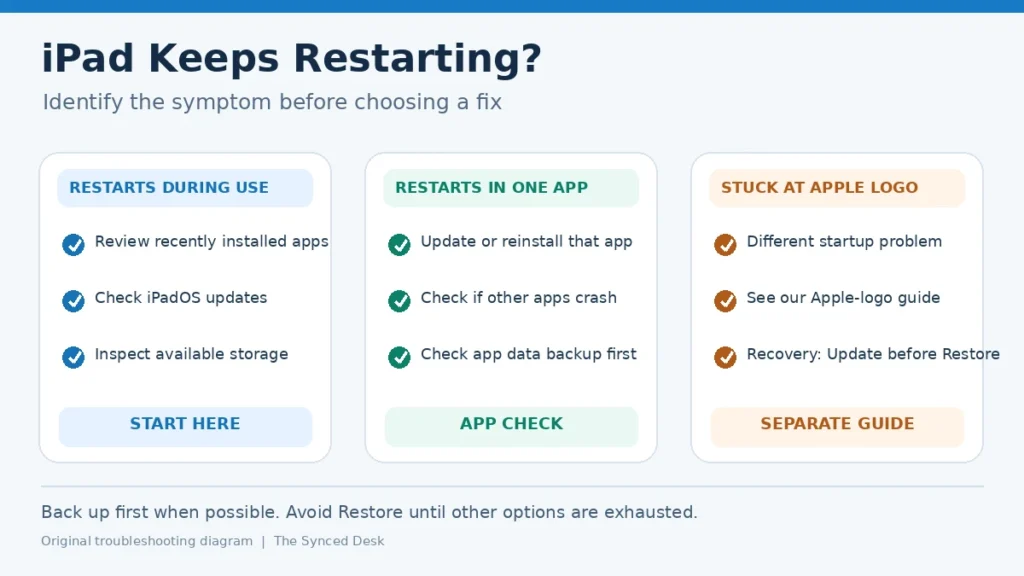
The timing of the problem offers valuable information.
For example, if the iPad restarts every time you open the same application, investigating that application makes sense.
If it restarts only while charging, the charging cable, adapter, battery, and charging port deserve attention.
If the iPad continuously returns to the Apple logo without reaching the Home Screen, that is a different startup problem. Our iPad Stuck on Apple Logo guide addresses that situation in detail.
The steps below focus primarily on an iPad that can start normally but then restarts unexpectedly.
Fix 1: Restart Your iPad Properly
If the issue has occurred only once or twice, begin with a normal restart.
Restarting closes active processes and starts the operating system again.
For an iPad Without a Home Button
- Press and hold the top button and either volume button.
- Wait for the power-off slider.
- Drag the slider.
- Wait approximately 30 seconds.
- Press and hold the top button until the Apple logo appears.
For an iPad With a Home Button
- Press and hold the top button.
- Drag the power-off slider.
- Wait for the device to shut down.
- Press and hold the top button to turn it on again.
What If the iPad Is Frozen?
If your iPad becomes completely unresponsive, try a force restart.
Without a Home button:
- Press and quickly release the volume button closest to the top button.
- Press and quickly release the other volume button.
- Press and hold the top button until the Apple logo appears.
With a Home button:
Press and hold the Home button and the top button until the Apple logo appears.
A force restart normally doesn’t erase personal data. However, unsaved work in an application may be lost.
Avoid repeatedly force restarting a device that is actively installing an update.
For model-specific instructions, see Apple’s guide for an unresponsive iPad.
Fix 2: Update iPadOS
If your iPad keeps restarting after an update or during ordinary use, check whether another compatible iPadOS update is available.
Software updates can address bugs, compatibility problems, and system stability issues.
How to Update Your iPad
- Open Settings.
- Tap General.
- Select Software Update.
- Wait for the device to check for updates.
- If a compatible update is available, follow the installation instructions.
Before updating, back up your iPad and make sure it has sufficient power and a reliable internet connection.
What If the Problem Started After Updating?
An update can coincide with increased background processing or expose an issue involving an older application.
Check whether the affected applications have updates available.
If the iPad is completing an installation, let it finish. Several restarts during a legitimate software installation are not automatically a malfunction.
However, an iPad that repeatedly restarts during ordinary use after installation is complete requires further troubleshooting.
If your iPad cannot download, verify, or install iPadOS, investigate that update problem separately rather than repeatedly restarting it.
Fix 3: Update or Reinstall a Problematic App
Does your iPad restart whenever you open a particular app?
That pattern suggests the app, its data, or a software interaction associated with it may be involved.
An ordinary application crash usually closes the app rather than restarting the entire iPad. So, if the whole device reboots, don’t assume the app alone is responsible.
Check for App Updates
- Open the App Store.
- Tap your profile picture.
- Review available app updates.
- Update the application associated with the problem.
- Open the app again and observe whether the restart returns.
Close and Reopen the App
If the application is frozen or unresponsive, close it using the App Switcher.
For an iPad without a Home button, swipe upward from the bottom and pause to open the App Switcher.
For an iPad with a Home button, double-click Home.
Find the affected application and swipe its preview upward to close it.
Open the app again and test.
Reinstall the App If Necessary
If the problem continues, consider deleting and reinstalling the application.
Important: Deleting an app may also delete locally stored app data. Back up or synchronize important information first.
If reinstalling does not resolve the issue, contact the app developer.
Apple provides similar troubleshooting steps in its guide for apps that stop responding.
Fix 4: Check Available iPad Storage
An iPad with very little free storage can experience performance problems and may struggle to complete updates or save application data.
Although low storage does not automatically cause repeated reboots, it is worth checking when the device behaves abnormally.
How to Check iPad Storage
- Open Settings.
- Tap General.
- Select iPad Storage.
- Review the storage usage chart.
- Check which applications and files occupy the most space.
Look for large downloads, unused apps, cached content, and locally stored videos that you no longer need.
How to Free Up Storage Safely
You can:
- Remove downloaded content that is no longer needed.
- Offload unused applications.
- Delete large files after backing them up.
- Review storage recommendations provided by iPadOS.
Offloading an application removes the app while retaining its documents and data, where supported.
Deleting an app is different and may remove its locally stored information.
Apple doesn’t recommend a universal free-storage amount that guarantees prevention of restarts. The goal is to ensure enough capacity for normal operation and software updates.
See Apple’s iPad storage management guide for details.
Fix 5: Disconnect External Accessories
Some iPads connect to external accessories through USB-C, Lightning, or compatible wireless interfaces.
Examples include:
- USB-C hubs.
- External storage devices.
- Keyboards.
- Docking stations.
- External displays.
- Charging adapters and cables.
A malfunctioning accessory or incompatible software associated with it may contribute to abnormal behavior.
How to Test
- Save your work.
- Safely disconnect removable storage.
- Remove nonessential accessories.
- Restart your iPad normally.
- Use the iPad without those accessories.
- Observe whether the unexpected restarts continue.
If the problem disappears, reconnect accessories one at a time.
Test the iPad after each connection.
If the restart returns with one accessory, investigate that device, cable, or associated app.
Do not continue using a visibly damaged adapter or connector.
If a keyboard is causing additional problems, our iPad Magic Keyboard Not Working guide covers related accessory troubleshooting.
Fix 6: Check Battery and Charging Behavior
Unexpected restarts can sometimes occur alongside battery or power-related problems.
Pay attention to whether the iPad restarts:
- When battery percentage becomes low.
- Immediately after being disconnected from a charger.
- Only while charging.
- During demanding applications.
- At unpredictable battery percentages.
These symptoms don’t prove that the battery is defective, but they provide useful diagnostic clues.
Check Battery Information
- Open Settings → Battery.
- Review available battery usage information.
- Check Battery Health if your model supports that feature.
- Look for unusual battery-related warnings or behavior.
Not every iPad model displays a Battery Health menu.
Test the Charging Accessories
Use a compatible charging cable and power adapter.
Check whether the device charges normally and whether the charging port shows visible damage.
If the problem occurs only while connected to one charger, test another known-working compatible charger if available.
Don’t insert metal objects into the charging port or use damaged accessories.
If charging itself is unreliable, read our iPad Not Charging guide.
Fix 7: Check Temperature and Physical Damage
An iPad can become warm when performing demanding tasks, installing updates, or charging.
However, unusually high temperatures or physical damage deserve immediate attention.
What Should You Check?
Observe whether the restart problem happens during:
- Extended gaming sessions.
- Video editing.
- Intensive multitasking.
- Charging in a hot environment.
- Use in direct sunlight.
If the device becomes very hot, stop demanding activities and allow it to return to a normal operating temperature.
Remove any accessory or case that appears to trap excessive heat during troubleshooting.
Avoid trying to cool the iPad using a refrigerator, freezer, or other extreme method.
Warning Signs That Need Service
Stop using and charging an iPad if it shows:
- Battery swelling.
- A damaged or separating display.
- Liquid intrusion.
- A burning smell.
- Unusual heat during very light activity.
These symptoms may indicate a safety or hardware problem that should not be handled through repeated software resets.
Fix 8: Review iPad Analytics for Repeated Crashes
If your iPad continues restarting without an obvious cause, you can check whether it has recorded diagnostic information.
How to Open Analytics Data
- Open Settings.
- Select Privacy & Security.
- Tap Analytics & Improvements.
- Open Analytics Data, if available.
- Review the available diagnostic records.
Some logs may contain references to application crashes or serious system problems.
For example, repeated panic-related records may indicate that the device is experiencing serious system errors.
However, these files are technical and can be difficult to interpret.
A diagnostic filename alone cannot establish whether your iPad has a software or hardware fault.
Do not delete system files or install untrusted diagnostic utilities based on a log entry.
If the restart problem persists, Apple Support may be able to use diagnostic information to help investigate the cause.
Also, avoid posting complete diagnostic logs publicly. They may contain device or software information you do not wish to share.
Fix 9: Reset All Settings as a Last Software Troubleshooting Step
If your iPad can start normally but continues restarting after simpler troubleshooting, resetting its settings may be worth considering.
This option returns system settings to their defaults without intentionally deleting your apps, photos, messages, or documents.
However, it is not a guaranteed fix for unexpected restarts.
Before Resetting
Make a backup of important information.
Also, be prepared to reconfigure certain settings afterward.
Reset All Settings can reset or remove items such as network settings, Bluetooth pairings, privacy permissions, display preferences, and Apple Pay cards.
How to Reset All Settings
- Open Settings.
- Select General.
- Tap Transfer or Reset iPad.
- Select Reset.
- Choose Reset All Settings.
- Follow the onscreen instructions.
Do not select Erase All Content and Settings.
That is a different action and removes your content and settings.
Apple describes Reset All Settings as an option that is rarely necessary, so try the less disruptive fixes first.
See Apple’s official Reset All Settings guide.
Fix 10: Update iPadOS Using a Computer or Contact Apple Support
If your iPad continues restarting despite the previous checks, computer-assisted troubleshooting may be appropriate.
The next step depends on whether the iPad can still start normally.
If the iPad Reaches the Home Screen
You can use a compatible Mac or Windows computer to check for iPadOS updates.
On a Mac running macOS Catalina or later, use Finder. On Windows, use the Apple Devices app.
Connect the iPad with a compatible cable, select it in the computer’s device-management interface, and follow the available update instructions.
Back up the iPad before proceeding whenever possible.
If the iPad Cannot Complete Startup
An iPad that repeatedly displays the Apple logo or enters a continuous startup loop may require recovery mode.
This situation is covered in our iPad Stuck on Apple Logo guide.
Apple’s computer recovery process can present two options:
Update: Attempts to reinstall iPadOS while preserving existing data.
Restore: Erases the iPad and reinstalls the operating system.
If you’re troubleshooting startup failure and haven’t attempted Update, Apple recommends trying that option first.
Neither option guarantees recovery of a device with serious storage or hardware failure.
Do not choose Restore without understanding the consequences and checking for a backup.
See Apple’s official iPad recovery instructions.
When to Contact Apple Support
Consider professional inspection if your iPad:
- Restarts even after appropriate software troubleshooting.
- Cannot reliably start or remain powered on.
- Has signs of battery damage.
- Restarts repeatedly during charging.
- Experiences frequent system crashes across unrelated apps.
- Cannot complete an update or recovery process.
Hardware repair or replacement may be necessary depending on the diagnosis.
iPad Keeps Restarting: Common Scenarios
| Problem | Possible explanation | First action |
|---|---|---|
| Restarts after opening one app | App or system interaction | Update and test the app |
| Restarts after an iPadOS update | Software or compatibility issue | Check available updates |
| Restarts while charging | Charger, battery, or power issue | Test charging accessories |
| Restarts with USB-C accessories | Accessory or compatibility issue | Disconnect accessories |
| Restarts during demanding tasks | Software workload, heat, or hardware | Check temperature and behavior |
| Restarts after the screen freezes | Temporary software failure | Force restart if unresponsive |
| Never gets past the Apple logo | Startup loop | Follow the existing Apple-logo guide |
These are possible explanations, not confirmed diagnoses.
Frequently Asked Questions
Why Does My iPad Keep Restarting on Its Own?
An iPad can restart unexpectedly because of software errors, problematic apps, charging issues, or hardware faults. Check whether the restarts happen during a particular activity, after an update, or while using an accessory.
Why Does My iPad Keep Restarting After an Update?
An iPadOS update may coincide with application compatibility problems or other software issues. Check for additional updates and test whether the restarts occur only with particular apps.
Can Low Storage Cause an iPad to Restart?
Very limited storage can interfere with normal device operation and software updates. It is worth checking, but low storage alone does not prove why the iPad is restarting.
Will a Force Restart Delete My iPad Data?
A force restart normally does not erase photos, apps, or documents. However, unsaved work may be lost when the device restarts.
Why Does My iPad Keep Restarting When Charging?
Possible causes include problems with charging accessories, battery condition, or device hardware. Test compatible charging equipment and check for damage. If the iPad becomes unusually hot or shows swelling, stop charging it and seek service.
Is Reset All Settings the Same as Factory Reset?
No. Reset All Settings restores system preferences to their defaults without deleting personal media and documents. Erase All Content and Settings is different and removes data from the device.
Can I Fix an iPad That Keeps Restarting Without a Computer?
Sometimes. If the iPad still reaches the Home Screen, you can update apps, review storage, change settings, and troubleshoot charging without a computer. Serious startup failures may require a Mac or Windows PC.
When Should I Replace My iPad?
Repeated restarts don’t automatically mean replacement is necessary. First investigate software and accessories. If professional diagnostics identify an expensive or irreparable hardware fault, compare the repair cost with the value of replacing the device.
Final Takeaway
If your iPad keeps restarting, start by identifying whether the problem occurs during ordinary use, when opening a particular app, while charging, or during startup.
Check for iPadOS and app updates, review storage, disconnect unnecessary accessories, and investigate battery or temperature-related symptoms.
If the device remains unstable, consider more advanced troubleshooting or professional service.
Avoid erasing the iPad as an early troubleshooting step.
The best approach is to find the reason for the unexpected restarts before making changes that could affect your data or settings.
Official Apple Support References
- Apple: If Your iPad Doesn’t Respond
- Apple: Troubleshoot Apps That Close Unexpectedly
- Apple: Manage iPad Storage
- Apple: Reset All Settings
- Apple: If You Can’t Update or Restore Your iPad
The Synced Desk | Practical solutions for everyday technology problems.