Does your MacBook keep restarting without warning? Maybe your MacBook Air suddenly goes black and displays the Apple logo, or your MacBook Pro repeatedly restarts after you log in.
Sometimes macOS displays the message “Your computer was restarted because of a problem.” Other times, the MacBook restarts without showing an obvious explanation.
Unexpected restarts can be caused by incompatible software, connected accessories, startup problems, storage errors, or hardware faults. However, not every restart means your MacBook is physically damaged.
This guide explains 10 practical ways to fix a MacBook that keeps restarting, including how to identify kernel panics, troubleshoot restart loops, use Safe Mode, and test hardware safely.
The instructions cover MacBook Air and MacBook Pro models with Apple silicon and Intel processors.
Table of Contents
Quick Answer: How to Fix a MacBook That Keeps Restarting
If your MacBook keeps restarting unexpectedly, try these steps:
- Identify when the restart happens and check for a kernel panic message.
- Back up important files and install available macOS updates.
- Disconnect external devices and accessories.
- Check recently installed applications and extensions.
- Review login items and background software.
- Start your MacBook in Safe Mode.
- Check power, temperature, and ventilation.
- Run First Aid using Disk Utility.
- Use Apple Diagnostics to check for hardware problems.
- Reinstall macOS without erasing the disk if simpler fixes fail.
Important: If your MacBook restarts repeatedly before reaching the desktop, skip steps requiring normal access to macOS and begin with the external-device and Safe Mode checks.
Do not erase your startup disk as a routine troubleshooting step.
Why Does My MacBook Keep Restarting?
There are several reasons a MacBook might restart unexpectedly.
One important cause is a kernel panic, which occurs when macOS encounters a serious problem from which it cannot safely continue operating.
When that happens, your Mac may restart automatically and display a message explaining that it restarted because of a problem.
Apple identifies incompatible software and connected hardware as common causes of unexpected restarts.
Potential causes include:
- Outdated or incompatible macOS applications.
- Third-party drivers and system extensions.
- USB-C hubs, external storage devices, or docking stations.
- Software conflicts during startup.
- Corrupted files or storage-related errors.
- Hardware faults affecting memory, storage, or other components.
- Power delivery problems or excessive heat.
The timing of the restart is an important diagnostic clue.
| When the restart happens | What to investigate |
|---|---|
| Immediately after login | Login items or background software |
| After a macOS update | Update completion or software compatibility |
| When connecting an accessory | External hardware, cables, or drivers |
| During demanding tasks | Software crashes, heat, power, or hardware |
| During startup at the Apple logo | Startup disk, macOS, or hardware |
| Randomly throughout the day | Kernel panic reports, software, and hardware |
These are starting points for investigation, not confirmed diagnoses.
Fix 1: Identify the Type of Unexpected Restart
Before making changes, determine exactly what happens when your MacBook restarts.
Does the screen suddenly turn black? Does macOS display an error message after restarting? Or does the computer repeatedly return to the Apple logo?
These situations can have different causes.
Check for a Kernel Panic Message
After an unexpected restart, macOS may display:
“Your computer was restarted because of a problem.”
This indicates that a serious system error occurred.
A kernel panic can result from software or hardware problems, so the message does not automatically identify the defective component.
If the message names a specific third-party application or extension, note that information.
Do not delete unfamiliar system files simply because they appear in an error report.
Check When the Problem Started
Think about whether the restarts began after:
- Installing a new application.
- Updating macOS.
- Connecting a USB device.
- Installing system-level software.
- Using a new docking station.
- Changing hardware or peripherals.
If the issue began immediately after one of these events, that change is a useful place to investigate.
What If Your Mac Restarts During an Update?
During a macOS installation, the Mac can restart several times, display a progress bar, or temporarily show a blank screen.
This can be normal.
If the installation is still progressing, avoid repeatedly forcing the MacBook to shut down.
If startup never completes, continue with the appropriate recovery steps later in this guide.
Fix 2: Update macOS and Back Up Important Files
Apple recommends installing available software updates when investigating unexpected restarts.
Updates may resolve compatibility problems, system bugs, and other software issues.
Before making major troubleshooting changes, create a backup if your MacBook is usable.
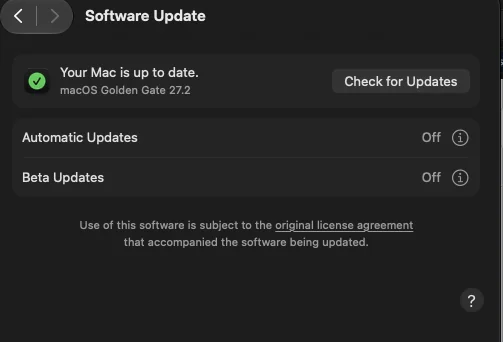
Check for macOS Updates
- Click the Apple menu.
- Open System Settings.
- Select General.
- Click Software Update.
- Check whether a compatible update is available.
- Back up important files.
- Install the update when appropriate.
If your MacBook is currently stable, avoid installing experimental software just to troubleshoot a problem you are not experiencing.
If the unexpected restarts began after an update, make sure your third-party applications and extensions are also compatible with the installed macOS version.
What If Wi-Fi Prevents the Update?
If your MacBook cannot connect to the internet, investigate that issue separately using our MacBook Wi-Fi Not Working guide.
A failed internet connection does not itself prove that macOS is responsible for the restarts.
Fix 3: Disconnect External Devices and Accessories
External accessories are a common factor worth checking when a MacBook restarts unexpectedly.
A problematic USB device, incompatible driver, or malfunctioning docking station can interfere with normal operation.
Test Without Accessories
- Shut down your MacBook normally.
- Disconnect nonessential USB-C, Thunderbolt, and other accessories.
- Disconnect external hard drives and docking stations.
- Keep your MacBook connected to a reliable power source if necessary.
- Start the computer normally.
- Use it long enough to determine whether the problem returns.
If the computer stops restarting, reconnect accessories individually.
Test the MacBook after connecting each device.
When the restarts return, investigate the most recently connected accessory.
Accessories Worth Checking
Pay particular attention to:
- USB-C hubs.
- Thunderbolt docks.
- External SSDs and hard drives.
- External monitors and adapters.
- USB audio interfaces.
- Other devices requiring third-party drivers.
If the MacBook restarts only when using an external display, our MacBook External Monitor Not Detected guide explains related cable, adapter, and dock checks.
Don’t reconnect visibly damaged accessories.
Also, always eject external storage safely before disconnecting it.
Fix 4: Check Recently Installed Apps and Extensions
Sometimes the problem begins after installing software that interacts deeply with macOS.
Examples include antivirus software, VPN clients, storage drivers, audio extensions, and certain system utilities.
These applications can require components that operate beyond an ordinary app window.
If those components are incompatible with your current macOS version, they may cause instability.
What Should You Check?
- Open Applications in Finder.
- Identify software installed or updated shortly before the restarts began.
- Check whether the developer provides a newer compatible version.
- Review any related system extensions.
- Temporarily uninstall a suspected application using its official removal instructions, if appropriate.
- Restart normally and observe the result.
Avoid deleting random files from the System or Library folders.
Many system-level utilities require a proper uninstaller to remove their components safely.
If the MacBook becomes stable after removing an application, contact its developer before reinstalling it.
If no application appears responsible, continue to the login-item checks.
Fix 5: Disable Unnecessary Login Items
Does your MacBook keep restarting after login but remain more stable before you sign in?
A login item or background application may be contributing to the problem.
Login items are applications or processes that open automatically when you start or log in to your Mac.
How to Check Login Items
- Open System Settings.
- Click General.
- Select Login Items & Extensions.
- Review the applications under Open at Login.
- Note which applications are currently enabled.
- Temporarily remove unnecessary login items.
- Restart the MacBook and test again.
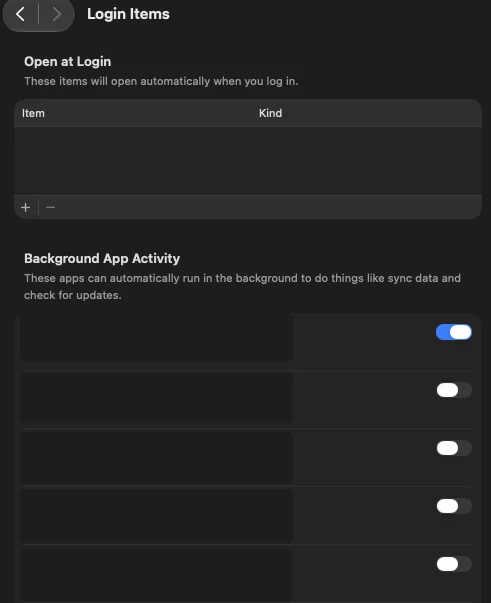
If the restart problem disappears, restore items one at a time to identify the potential conflict.
Some macOS versions also display background activity permissions in this section.
Don’t disable essential security or backup utilities without understanding their function.
Apple documents a similar troubleshooting approach in its Login Items guide.
Fix 6: Start Your MacBook in Safe Mode
Safe Mode is one of the most useful tools for diagnosing recurring MacBook restarts.
It helps isolate problems associated with software that loads during normal startup.
The startup procedure depends on whether your MacBook uses Apple silicon or an Intel processor.
For Apple Silicon MacBooks
This includes MacBook Air and MacBook Pro models with M-series chips.
- Shut down the MacBook completely.
- Press and hold the power button.
- Continue holding until Loading startup options appears.
- Select your startup disk.
- Press and hold the Shift key.
- Click Continue in Safe Mode.
- Sign in when prompted.
You should see Safe Boot indicated at the login screen or in the menu bar.
For Intel MacBooks
- Shut down the MacBook.
- Turn it on.
- Immediately press and hold the Shift key.
- Release Shift when the login screen appears.
- Sign in.
The Safe Boot indicator should appear.
What Does the Result Mean?
If your MacBook works in Safe Mode but continues restarting during normal startup, software loaded only during normal operation becomes a stronger suspect.
This does not prove the hardware is healthy, but it helps narrow the investigation.
If the MacBook restarts even in Safe Mode, investigate storage and hardware issues.
To leave Safe Mode, restart the MacBook normally.
Read Apple’s Safe Mode instructions for model-specific information.
Fix 7: Check Power, Temperature, and Ventilation
Unexpected shutdowns and restarts can sometimes involve power or temperature-related problems.
A MacBook running demanding applications may become warm during normal use. However, severe overheating or unstable power should not be ignored.
Check the Environment
- Place the MacBook on a firm, flat surface.
- Keep ventilation areas unobstructed.
- Avoid using it on bedding or soft surfaces that trap heat.
- Disconnect unnecessary external devices.
- Use a compatible charging adapter and cable.
- Observe whether the restarts occur only during demanding tasks.
Check Charging Behavior
If the MacBook is connected to power, confirm that the charger is working correctly.
An inadequate or damaged power adapter can cause charging difficulties.
If you also experience charging failures, see our MacBook Not Charging guide.
When Should You Stop Using the MacBook?
Stop using the computer and seek qualified assistance if it has:
- A swollen or damaged battery.
- A burning smell.
- Liquid damage.
- Unusual heat during basic tasks.
- Signs of damaged charging equipment.
Do not open the battery or attempt internal repairs without appropriate expertise.
Fix 8: Run First Aid Using Disk Utility
Problems involving the startup disk’s file system or directory structure can sometimes contribute to abnormal behavior.
macOS includes Disk Utility, which can check and repair certain storage errors.
Disk Utility cannot repair every hardware or storage problem.
Before running repairs, back up important data whenever possible.
How to Open Disk Utility
If your MacBook starts normally:
- Press Command + Space.
- Search for Disk Utility.
- Open the application.
- Select View → Show All Devices.
If the MacBook cannot start normally, use Disk Utility from macOS Recovery instead.
How to Run First Aid
- Locate the internal startup storage device.
- Select the last volume under that device.
- Click First Aid.
- Follow the onscreen instructions.
- Repeat for the remaining volumes.
- Continue with the container and physical device, following Apple’s recommended order.
If repairing the active startup disk, macOS Recovery is the recommended environment.
Do not click Erase. Erasing a disk can permanently remove its contents.
If First Aid reports an issue it cannot repair, preserve your backup and consult Apple Support before performing more destructive operations.
For the full procedure, see Apple’s Disk Utility First Aid instructions.
Fix 9: Run Apple Diagnostics
If your MacBook continues restarting after software and external-device checks, hardware testing becomes important.
Apple Diagnostics is a built-in tool that can help identify certain hardware problems.
It does not guarantee detection of every possible fault.
Before Starting
- Shut down the MacBook.
- Disconnect nonessential external accessories.
- Connect a suitable power adapter.
- Place the computer on a stable, well-ventilated surface.
Apple Silicon MacBook
- Press and hold the power button.
- Wait until startup options appear.
- Release the power button.
- Press and hold Command + D until the computer restarts into Diagnostics.
- Follow the onscreen instructions.
Intel MacBook
- Turn on the MacBook.
- Immediately press and hold D.
- Release the key when prompted.
- Follow the diagnostic instructions.
If D does not work, Apple documents using Option + D on supported Intel Macs.
Understanding the Results
If Diagnostics reports a reference code, write it down.
That code may help Apple Support determine what requires further investigation.
If no problem is detected, it does not conclusively rule out hardware failure.
A MacBook that continues restarting even after software troubleshooting may still require professional inspection.
See Apple’s official Diagnostics guide.
Fix 10: Reinstall macOS or Contact Apple Support
If the previous steps do not resolve the issue, reinstalling macOS may be appropriate.
This is an advanced troubleshooting step and should not be the first thing you attempt.
Apple states that reinstalling macOS from Recovery normally keeps applications and personal data intact when the disk is not erased.
However, you should still make a backup before proceeding.
Reinstall macOS on Apple Silicon
- Shut down the MacBook.
- Press and hold the power button until startup options appear.
- Select Options.
- Click Continue.
- Follow the prompts to access macOS Recovery.
- Select Reinstall macOS.
- Follow the onscreen instructions.
Reinstall macOS on an Intel MacBook
- Shut down or restart the MacBook.
- Immediately press and hold Command + R.
- Continue until macOS Recovery appears.
- Select Reinstall macOS.
- Follow the onscreen instructions.
Make sure you select the appropriate startup disk.
Do not use Disk Utility’s Erase function unless you have a separate, deliberate reason and a complete backup.
Apple explains the process in How to Reinstall macOS.
When Should You Seek Professional Service?
Contact Apple Support if:
- The MacBook continues restarting in Safe Mode.
- Apple Diagnostics reports a hardware reference code.
- The computer cannot reliably enter macOS Recovery.
- Disk Utility reports unrepairable storage problems.
- Reinstallation fails.
- The MacBook has signs of liquid damage, battery swelling, or other physical damage.
Repeated unexpected restarts can also risk losing unsaved work, so avoid continuing important tasks on an unstable computer until the cause has been investigated.
MacBook Keeps Restarting: Common Situations
MacBook Keeps Restarting After Login
Start with Login Items & Extensions and Safe Mode.
If the computer is stable in Safe Mode, investigate recently installed apps, system extensions, and login items.
MacBook Keeps Restarting After macOS Update
Allow a legitimate update to finish.
If the MacBook continues restarting after installation is complete, check for software compatibility issues and test Safe Mode.
MacBook Keeps Restarting at the Apple Logo
If the computer never reaches the desktop, investigate startup problems rather than ordinary application crashes.
Disconnect unnecessary accessories, try Safe Mode, and use macOS Recovery if necessary.
MacBook Keeps Restarting When Connected to a Monitor
Disconnect the display and docking station.
If the MacBook becomes stable, test cables, adapters, and connected accessories individually.
MacBook Keeps Restarting While Charging
Check the charger, cable, and charging behavior.
If the computer shows other power-related symptoms, professional hardware assessment may be necessary.
Frequently Asked Questions
Why Does My MacBook Keep Restarting Randomly?
Unexpected restarts can result from incompatible applications, system extensions, peripheral devices, storage problems, or hardware faults. A kernel panic message and the timing of the restart can help identify where to investigate.
Does a Kernel Panic Mean My MacBook Is Broken?
Not necessarily. Kernel panics can be caused by software or connected hardware. Repeated panics should be investigated, but one occurrence does not automatically mean the MacBook requires replacement.
Can Safe Mode Fix a MacBook That Keeps Restarting?
Safe Mode can help isolate software-related startup problems. If the issue disappears in Safe Mode, inspect normal startup applications and extensions. Safe Mode itself is not a guaranteed permanent fix.
Will Reinstalling macOS Delete My Files?
A standard macOS reinstall from Recovery normally preserves personal files and applications when the disk is not erased. However, always make a backup because installation or storage problems can still create a risk of data loss.
Why Does My MacBook Restart When I Open Certain Apps?
An incompatible application, extension, driver, or hardware-related issue triggered by that workload may be involved. Update the application, check compatibility, and review whether the same problem occurs with other software.
Does Resetting NVRAM Fix Unexpected Restarts?
NVRAM reset procedures apply to Intel-based Macs. They are not a universal solution for kernel panics, and Apple silicon Macs do not use the same manual startup-key procedure. Focus on software, Safe Mode, connected devices, and Diagnostics first.
Can an Overheating MacBook Restart Itself?
Thermal or power-related problems can contribute to shutdowns or abnormal behavior. However, not every restart is caused by overheating. Check ventilation and workload, and seek service if the computer becomes excessively hot during light use.
Final Takeaway
If your MacBook keeps restarting, don’t immediately erase the disk or assume the computer needs replacing.
Start by identifying when the problem occurs, backing up important files, updating macOS, and disconnecting external devices.
Then investigate recently installed applications, login items, and Safe Mode behavior.
If the issue persists, use Disk Utility and Apple Diagnostics to check for storage and hardware-related problems.
Reinstalling macOS or arranging professional service should generally come after the simpler, lower-risk troubleshooting steps.
The key is to identify whether the restarts are caused by software, accessories, the startup disk, or hardware before making major changes.
Official Apple Support Resources
- If Your Mac Restarted Because of a Problem
- Start Up Your Mac in Safe Mode
- Use Apple Diagnostics
- Repair a Mac Storage Device With Disk Utility
- How to Reinstall macOS
The Synced Desk | Practical solutions for everyday technology problems.