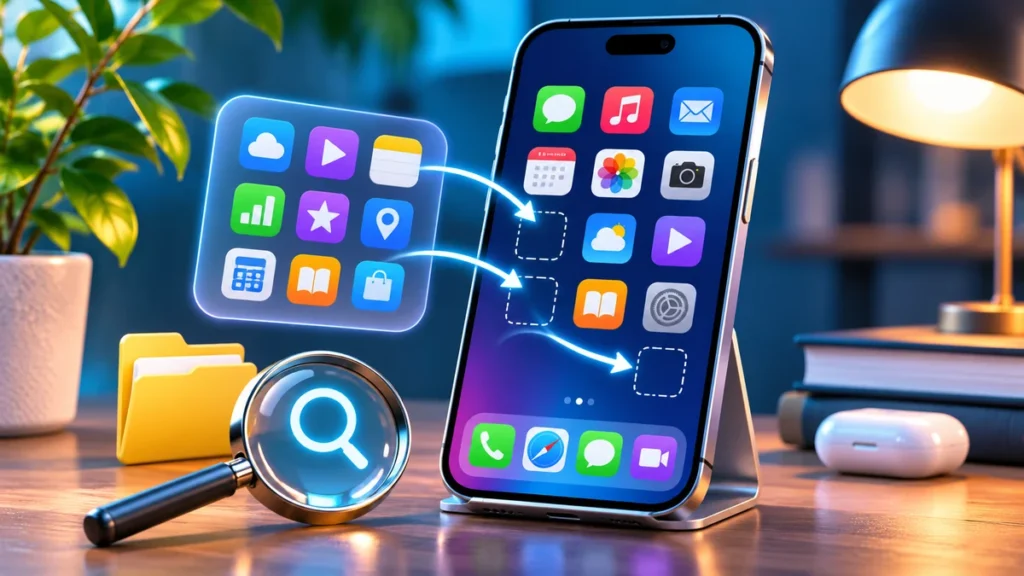
Have your iPhone apps disappeared from the Home Screen, even though you never intentionally deleted them? Maybe several icons vanished overnight, a newly downloaded app is missing, or you can open an app through Search but cannot find it on your Home Screen.
The good news is that a missing icon doesn’t necessarily mean the app was deleted. iOS lets you remove apps from the Home Screen while keeping them installed. Apps can also be placed on hidden pages, moved into folders, hidden behind Face ID, or shown only on a particular Focus Home Screen.
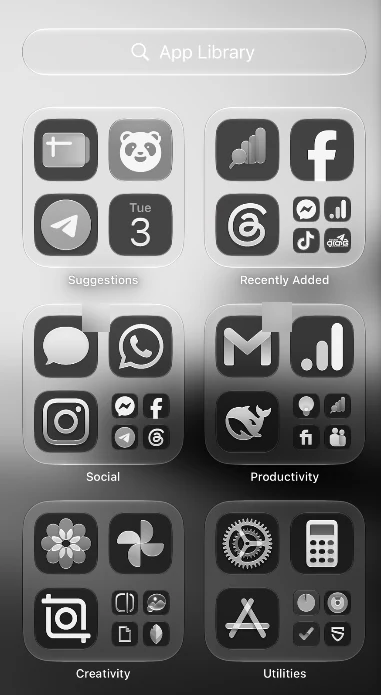
Before reinstalling anything, it’s worth finding out where the app actually went.
This guide covers 12 ways to restore missing app icons on iPhone, including the settings used in iOS 27. We’ll start with simple, reversible checks and leave Home Screen layout resets until the end.
Table of Contents
Quick Answer: How to Get Missing Apps Back on iPhone
If an app suddenly disappeared from your iPhone Home Screen, try these checks in order:
- Swipe down from the Home Screen and search for the missing app.
- Swipe left through all Home Screen pages to open App Library.
- If the app is in App Library, touch and hold it, then drag it back to the Home Screen.
- Check whether an entire Home Screen page was hidden.
- Look inside the Hidden folder at the bottom of App Library.
- Temporarily turn off Focus if your Home Screen changes during Work, Sleep, or Personal Focus.
- Check the App Store to see whether the app is still installed.
Start with App Library, not a reset. You may be able to restore the missing icon within seconds without changing your iPhone’s data or settings.
Why Did My iPhone Apps Disappear?
The same symptom can have several explanations.
| What you notice | Likely explanation | Best first check |
|---|---|---|
| One app icon disappeared | Removed from Home Screen or moved to a folder | App Library |
| Multiple icons disappeared together | Hidden page or Focus layout | Home Screen pages |
| App cannot be found using Search | Hidden app, search restriction, or deletion | Hidden folder |
| New downloads never appear on Home Screen | New apps set to App Library Only | Home Screen & App Library |
| An Apple app is missing | Screen Time restriction or deletion | Allowed Apps & Features |
| App has a cloud symbol | App may have been offloaded | Reinstall from its icon |
| App Store shows a download button | App may no longer be installed | App Store |
These differences matter because an app removed from the Home Screen, a hidden app, and a deleted app require different solutions.
1. Search for the Missing App
Best for: An app you know is installed but cannot locate.
Your iPhone includes built-in Search, which can find installed apps even when their icons aren’t visible on your current Home Screen page.
Follow These Steps
- Go to your iPhone Home Screen.
- Swipe down from the middle of the screen.
- Type the app’s name into the search field.
- Look for its icon in the results.
- Tap the icon to check whether the app opens.
On supported iPhones, you can also use the Search control near the bottom of the Home Screen.
What the result means: If the app opens normally, it is still installed. Your next task is finding its icon in App Library or on another Home Screen page.
If the app doesn’t appear in Search, don’t immediately assume it was deleted. Apps hidden with Face ID won’t appear in ordinary search results, and search visibility settings can also affect results.
2. Restore the App from App Library
Best for: An app that is installed but has been removed from the Home Screen.
App Library is one of the most useful iPhone features for recovering a missing icon.
When an app is removed using Remove from Home Screen, it remains installed and accessible in App Library.
How to Restore It
- Go to the Home Screen.
- Swipe left past your last Home Screen page.
- Open App Library.
- Tap the search field at the top or browse the categories.
- Find the missing app.
- Touch and hold the app icon.
- Drag it to the Home Screen.
- Release it in your preferred location.
If the app is already visible in an App Library category, you can touch and hold it there and drag it onto the Home Screen.
What the result means: If the icon returns and opens normally, the app was never deleted. It was simply absent from the visible Home Screen layout.
Important: Choose to move the existing app, not delete it and reinstall it. Reinstalling can be unnecessary and may put locally stored app data at risk if you delete the app first.
3. Restore Hidden Home Screen Pages
Best for: Several apps disappearing at the same time.
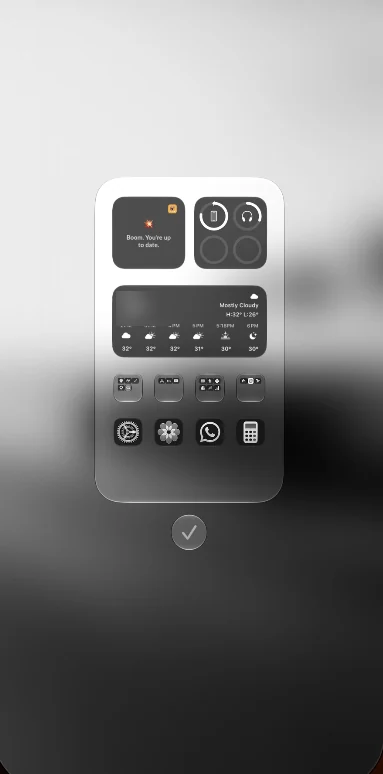
iOS allows you to hide an entire Home Screen page. The apps on that page remain installed, even though their icons are no longer visible while the page is hidden.
This is especially worth checking if you notice a whole group of apps has disappeared.
Show Hidden Pages
- Touch and hold an empty area of your Home Screen.
- Wait until the icons enter editing mode.
- Tap the page dots near the bottom, or use Edit → Edit Pages if that option appears.
- Review the page thumbnails.
- Find any page with an unchecked circle.
- Tap the circle to show that page again.
- Tap Done or exit editing mode.
Return to the Home Screen and swipe through the pages again.
What the result means: If the missing apps reappear, they were on a hidden page rather than deleted.
You don’t need to reinstall or reset any apps to fix this situation.
4. Check the Hidden Apps Folder
Best for: An app that doesn’t appear on your Home Screen, in ordinary App Library categories, or in Search.
Beginning with iOS 18, supported apps can be deliberately hidden behind Face ID, Touch ID, or a passcode.
This differs from simply removing an icon from the Home Screen.
A hidden app is moved into the Hidden folder at the bottom of App Library. It also stops appearing in ordinary Search results.
How to Unhide an App
- Swipe left past all your Home Screen pages.
- Open App Library.
- Scroll to the Hidden folder.
- Tap the folder.
- Authenticate with Face ID, Touch ID, or your passcode.
- Find the app you want to restore.
- Touch and hold its icon.
- Tap Don’t Require Face ID, Don’t Require Touch ID, or the equivalent option.
- Authenticate again if prompted.
The app returns to the regular App Library.
If you also want its icon on your Home Screen, move it there using Fix 2.
You can review a list of hidden apps under Settings → Apps → Hidden Apps, where authentication is required.
Privacy note: Do not unhide an app unless you intend to make it visible again. The Hidden folder is designed to protect apps from casual access.
5. Check Whether Focus Changed Your Home Screen
Best for: Apps disappearing only during work hours, at bedtime, or whenever a Focus is active.
Focus can do more than silence notifications. It can also switch your iPhone to a particular Home Screen page.
For example, you may have configured Work Focus to show only work-related apps. When that Focus activates, your usual pages may no longer be visible.
Test the Focus Setting
- Open Control Center.
- Check whether a Focus such as Work, Sleep, or Personal is enabled.
- Temporarily turn off the active Focus.
- Return to your Home Screen.
- Check whether your normal app pages return.
If they do, review the relevant Focus configuration:
- Open Settings → Focus.
- Select the Focus involved.
- Find its Home Screen customization option.
- Review the selected Home Screen pages.
What the result means: If the apps return after Focus is turned off, the icons were being hidden by a different Home Screen layout, not removed from the device.
You can keep using Focus while adjusting which pages it displays.
6. Make Newly Downloaded Apps Appear on the Home Screen
Best for: Apps you just installed from the App Store that never appear on your Home Screen.
Your iPhone can be configured to add new downloads directly to App Library rather than automatically creating a Home Screen icon.
This setting doesn’t delete apps. It changes where newly downloaded apps appear.
Change the Download Location
- Open Settings.
- Tap Home Screen & App Library.
- Find the section for newly downloaded apps.
- Select Add to Home Screen instead of App Library Only.
After this change, newly downloaded apps can appear on your Home Screen automatically.
What the result means: If only newly downloaded apps were missing, this setting may explain the behavior.
Changing it will not automatically restore all previously downloaded app icons. Use App Library to add those apps manually.
7. Look for Apps Inside Home Screen Folders
Best for: One or two app icons missing while everything else looks normal.
Sometimes an app isn’t missing at all. Its icon may have been moved into a folder on another Home Screen page.
If the app still appears in Search and App Library, inspect your existing folders.
What to Check
- Swipe through every visible Home Screen page.
- Open folders that contain similar apps.
- Check for additional pages inside each folder.
- Look for the missing app icon.
- If you find it, touch and hold the icon.
- Drag it out of the folder to your preferred Home Screen position.
What the result means: An app found in a folder needs no software repair. Its location was simply changed.
Avoid rearranging every folder before checking App Library, which is usually faster.
8. Check Whether Search Is Hiding the App
Best for: An installed app that appears in App Library but not in iPhone Search.
On iOS 27, Search includes app-specific visibility controls.
An app excluded from search results might look missing when you rely on Spotlight to find it.
Review Search Visibility
- Open Settings.
- Tap Search.
- Scroll down and select the app.
- Check Show App in Search.
- Enable it if you want the app to appear in results.
- Return to the Home Screen and search for the app again.
On some older iOS versions, related controls may appear under Siri or Siri & Search settings.
What the result means: If the app appears after enabling the option, the problem involved search visibility.
This setting does not itself restore the Home Screen icon. For that, use App Library.
9. Check Screen Time Restrictions
Best for: A built-in Apple app such as Mail or another permitted feature suddenly being unavailable.
Screen Time can temporarily hide or restrict certain built-in apps and features.
This is particularly relevant on family-managed or supervised devices.
Review Allowed Apps
- Open Settings → Screen Time.
- Select Content & Privacy Restrictions.
- Authenticate with the Screen Time passcode if necessary.
- Open Allowed Apps & Features.
- Review the app or feature you’re trying to find.
- If you’re authorized to change the setting, enable the necessary permission.
Some apps may also be affected by content-rating restrictions.
What the result means: If an app returns after an allowed-app setting is changed, the app was restricted rather than permanently deleted.
If the iPhone belongs to a child, school, or workplace, do not bypass restrictions. Ask the person or organization managing those settings.
For related problems with app limits, see our guide: iPhone Screen Time App Limits Not Working?.
10. Check Whether the App Was Actually Deleted
Best for: An app missing from Search, ordinary App Library categories, and the Hidden folder.
If none of the previous checks locate the app, it may have been deleted rather than merely removed from the Home Screen.
Apple makes an important distinction:
- Remove from Home Screen: Keeps the app installed.
- Delete App: Removes the app and its locally stored data from the iPhone.
Check in the App Store
- Open App Store.
- Search for the exact app name.
- Open its App Store listing.
- Check the available action.
If the button says Open, the app is installed. If it offers a download or redownload action, the app may not currently be installed.
For previously downloaded apps, Apple also provides:
App Store → Account → Apps & Purchase History → Your Apps
You can use the purchased-app history to find previously downloaded apps that are still available.
Important: Downloading an app again does not guarantee that all locally stored data will return. Data recovery depends on the app and whether it stores information in iCloud or another account.
If the problem is that apps cannot download or reinstall, see iPhone App Store Not Downloading Apps?.
11. Restart Your iPhone if Icons Still Won’t Display
Best for: An apparent Home Screen display problem after you’ve confirmed the apps are installed and the normal visibility settings are correct.
If app icons are missing even after checking App Library, hidden pages, Focus, and restrictions, a normal restart is a reasonable next step.
On an iPhone with Face ID:
- Press and hold the side button and either volume button.
- Drag the power-off slider.
- Wait for the iPhone to shut down.
- Hold the side button until the Apple logo appears.
- Unlock your iPhone.
- Recheck the Home Screen and App Library.
If you use an iPhone with a Home button, the shutdown procedure may differ.
What the result means: If the icons reappear after restarting, the issue may have been temporary. However, a restart will not normally unhide a deliberately hidden app or restore a page that’s still disabled.
Don’t erase your iPhone or reset all settings just because an icon is missing.
12. Reset the Home Screen Layout as a Last Resort
Best for: A confusing or severely disorganized Home Screen layout after you’ve tried the targeted checks.
If the apps are still installed but their positions are difficult to recover, Apple provides a reset that restores the default Home Screen arrangement.
Reset Home Screen Layout
- Open Settings.
- Select General.
- Tap Transfer or Reset iPhone.
- Select Reset.
- Tap Reset Home Screen Layout.
- Confirm Reset Home Screen.
What this changes: Folders you created are removed, and downloaded apps are arranged alphabetically after the built-in Apple apps.
This does not perform a factory reset or intentionally delete your installed apps and personal data. However, it changes your customized layout, so use it only when simpler solutions haven’t worked.
If the app was actually deleted, this layout reset will not reinstall it. If an app is protected in the Hidden folder or restricted by Screen Time, address that setting directly.
Missing iPhone Apps After an iOS Update
If your apps appeared to disappear after installing an iOS update, don’t assume the update deleted them.
First, determine whether the apps are still installed.
- If the app opens from Search, inspect App Library and hidden pages.
- If multiple Home Screen pages disappeared, check page visibility and Focus.
- If the app is in the Hidden folder, authenticate and unhide it if appropriate.
- If the App Store offers a redownload button, the app may no longer be installed.
- If the Home Screen remains unresponsive, restart the iPhone and check for a newer compatible update.
This approach is more useful than deleting apps or resetting settings without identifying the actual issue.
App Missing, Hidden, Deleted, or Offloaded: What’s the Difference?
These terms sound similar but mean different things on iPhone.
| App status | Still installed? | What happens |
|---|---|---|
| Removed from Home Screen | Yes | Remains in App Library |
| On a hidden Home Screen page | Yes | Page is invisible until shown |
| Hidden behind Face ID | Yes | Moves to the protected Hidden folder |
| Deleted | No | App and locally stored app data are removed |
| Offloaded | App installation removed, data retained | Usually retains an icon with a cloud symbol |
An offloaded app is a particularly important distinction. When Offload Unused Apps is enabled and storage is low, iOS may remove an unused app’s installation while keeping its documents and data. Its icon typically remains visible with a cloud symbol, so this is not the same as an icon disappearing entirely.
You can inspect storage under Settings → General → iPhone Storage.
Frequently Asked Questions
Why did all my iPhone apps suddenly disappear?
If many icons disappeared together, check whether a Home Screen page is hidden or a Focus has switched your visible pages. If apps still appear in App Library, they haven’t necessarily been deleted.
How do I get an app icon back without reinstalling it?
Open App Library, find the app, touch and hold its icon, and drag it onto your Home Screen. This works when the app is still installed and hasn’t been deliberately hidden behind authentication.
Why are apps not showing on my iPhone after downloading them?
Your Home Screen & App Library setting may be configured to use App Library Only. Change it to Add to Home Screen if you want new downloads to appear on the Home Screen automatically.
Why is an app not showing in iPhone Search?
It may be hidden with Face ID, excluded from Search, restricted, or no longer installed. Check the Hidden folder and Settings → Search before reinstalling.
Do hidden apps still exist on my iPhone?
Yes. Apps hidden with Face ID remain installed in the protected Hidden folder of App Library. They aren’t visible through ordinary Home Screen browsing or Search.
Will resetting Home Screen Layout delete my apps?
No. Reset Home Screen Layout rearranges the Home Screen rather than factory-resetting the iPhone. However, it removes your custom folders and changes app placement, so it’s best used only when necessary.
Can I recover an app deleted from my iPhone?
You can usually redownload an app from the App Store if it’s still available. Whether its data returns depends on how the app stored that information.
Are missing apps the same as apps that keep crashing?
No. A missing icon is generally a visibility, organization, restriction, or installation issue. An app that opens and then closes unexpectedly is a different problem. See iPhone Apps Keep Crashing? 12 Fixes.
Final Thoughts
When iPhone apps disappear from the Home Screen, the most important step is finding out whether the apps are still installed.
Start with Search and App Library. Then investigate hidden pages, the Hidden folder, Focus, and Home Screen settings according to your symptoms.
Only check redownloading when the app is genuinely missing, and reserve Reset Home Screen Layout for situations where targeted fixes haven’t solved the problem.
Most missing-icon problems can be investigated without deleting apps, erasing personal data, or performing a factory reset.