iPhone Visual Look Up not working? If the Look Up option is missing in Photos, the information button doesn’t show its usual stars, or your iPhone won’t identify plants, animals, or landmarks, the problem may involve the photo itself, language availability, internet connectivity, or an iOS issue.
Before changing any settings, there’s one important thing to know: Visual Look Up doesn’t work with every photo.Apple only displays the Look Up option when the feature recognizes supported content.
This guide explains eight troubleshooting steps for Visual Look Up on iPhone, including devices running iOS 27.
Table of Contents
Quick Answer: How to Fix Visual Look Up on iPhone
If Visual Look Up isn’t showing or working, try these steps:
- Check whether you’re using the correct Look Up button in Photos.
- Try a clearer photo of a recognizable subject.
- Check language and regional availability.
- Make sure your iPhone has a working internet connection.
- Confirm that the photo is available on your device.
- Close Photos and restart your iPhone.
- Check for an available iOS update.
- Check screenshot-specific Visual Look Up settings if the problem only affects screenshots.
Start with a different photo before changing iPhone settings. A missing Look Up icon on one image doesn’t necessarily mean the feature is broken.
What Is Visual Look Up on iPhone?
Visual Look Up is an Apple feature that helps identify recognizable subjects appearing in photos and videos.
Depending on availability and the content of an image, it can provide information about:
- Plants and flowers.
- Dogs, cats, and other animals.
- Popular landmarks and buildings.
- Famous artwork and statues.
- Books and other recognizable objects.
- Food and related recipes.
You can use Visual Look Up in Photos, Safari, Quick Look, and certain other supported interfaces.
How Visual Look Up normally works
- Open the Photos app.
- Select an image and view it in full screen.
- Find the Info (i) button.
- If Visual Look Up is available for that image, the button displays a symbol with stars or a subject-specific icon.
- Tap the button.
- Select Look Up to see available information.
On supported images, Apple may display a plant, animal, or other recognition icon.
If the Info button doesn’t display stars, Visual Look Up may simply be unavailable for that particular photo.
Apple explains this in its official Visual Look Up guide.
Why Is Visual Look Up Not Working?
Different symptoms can have different explanations.
| Problem | Possible explanation |
|---|---|
| Look Up icon missing | Image wasn’t recognized or feature unavailable |
| Works for some photos but not others | Subject recognition varies |
| Look Up results won’t load | Internet or service connectivity issue |
| Not available in your language | Regional or language limitation |
| Photos app becomes unresponsive | Temporary app or iOS issue |
| Doesn’t work with screenshots | Screenshot-specific settings or support limitation |
The important distinction is whether Visual Look Up is missing everywhere or only for a particular image.
1. Check That You’re Using Visual Look Up Correctly
Visual Look Up can be confused with other iPhone photo features, especially Live Text and Visual Intelligence.
On recent iOS versions, the Look Up action is associated with a recognized subject in an image.
Check the Photos app
- Open Photos.
- Select a clear picture of a flower, animal, or well-known landmark.
- Open the image in full screen.
- Tap the Info button or swipe up to view photo information.
- Look for a starred Info icon or Look Up action.
- Tap the available option to display recognition results.
If you see only information about the date, camera, or location, the photo may not have a recognized Visual Look Up subject.
Don’t confuse the ordinary Info button with a Visual Look Up result. The information panel can appear even when object recognition isn’t available.
Visual Look Up vs. Live Text
These features perform different tasks.
Visual Look Up identifies subjects such as plants, pets, and landmarks.
Live Text recognizes written text within images.
If your iPhone recognizes words but doesn’t identify a flower, that doesn’t automatically mean Live Text has stopped working.
For text-recognition problems, see our iPhone Live Text Not Working guide.
2. Try a Different Photo With a Clear Subject
If Visual Look Up isn’t showing for one image, test a different photo before restarting your phone.
Apple doesn’t guarantee that every visible object can be identified.
For example, a blurry photograph of a small plant surrounded by many objects may not produce the same recognition result as a clear, close-up image.
Try this test
- Open Photos.
- Select a clear image containing one recognizable subject.
- Avoid heavily blurred or dark images.
- Open the image at its original size.
- Check the Info button for Visual Look Up availability.
A good test image might show a single flower, a dog, or a recognizable landmark.
If Look Up appears on the second image, the original image may simply not have been recognized.
What if Visual Look Up works only sometimes?
That can be normal.
Recognition depends on the subject, image quality, and availability of the relevant identification feature.
A missing result is not necessarily evidence of a hardware problem.
If your camera regularly produces blurry photos, our iPhone Camera Not Focusing guide addresses that separate issue.
3. Check Visual Look Up Language and Regional Availability
This is one of the most important checks when the Look Up option is completely missing.
Visual Look Up isn’t available in every language or region.
Apple’s published feature availability information lists Visual Look Up support for several languages, including:
- English
- French
- German
- Italian
- Japanese
- Spanish
Availability may change as Apple expands support.
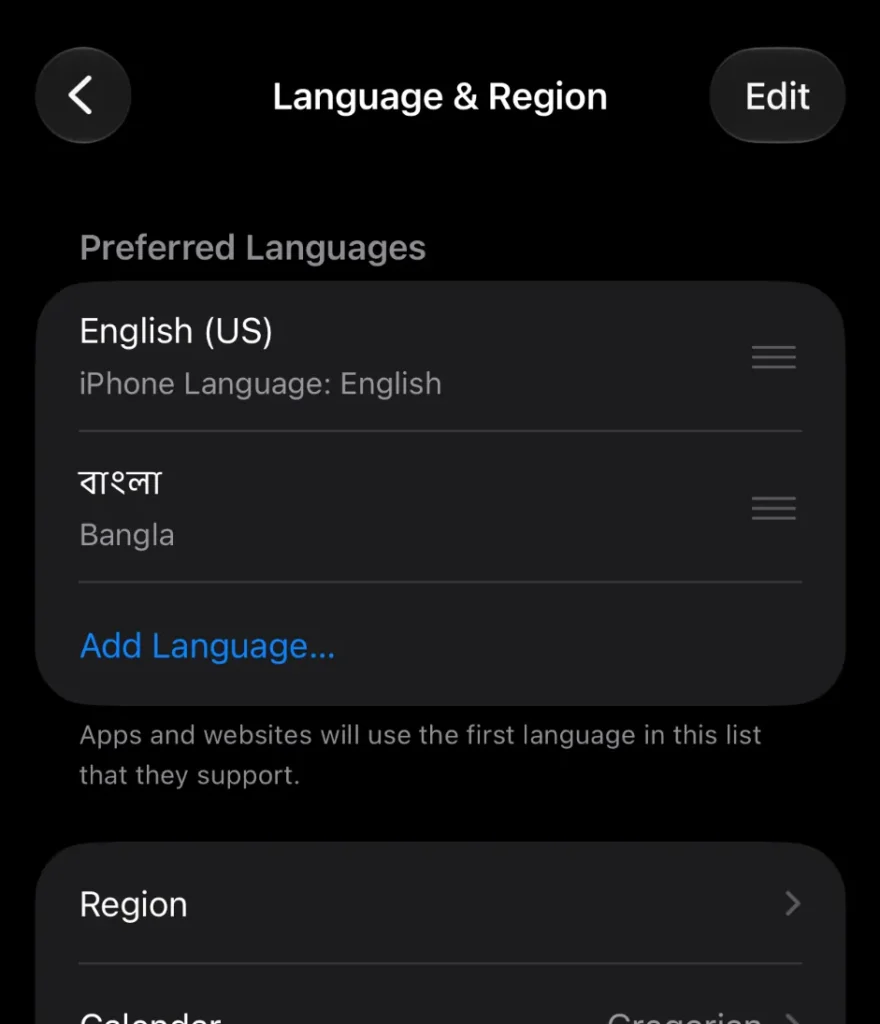
Check your iPhone language
- Open Settings.
- Tap General.
- Select Language & Region.
- Review the languages configured on your iPhone.
- Compare your setup with Apple’s current feature availability information.
You can check Apple’s list at iOS and iPadOS Feature Availability.
If your preferred language or region isn’t supported, Visual Look Up may not appear even when your iPhone is otherwise working correctly.
Should you change your region?
Changing region or language settings isn’t a guaranteed solution.
Your iPhone’s language settings affect other parts of the operating system, and changing the region doesn’t necessarily enable an unsupported feature.
Only make such changes if they’re appropriate for your actual usage and you understand the effects.
There’s no reason to reset your iPhone simply because Visual Look Up isn’t supported in your current configuration.
4. Check Your Internet Connection
Visual Look Up can use online information to provide details about recognized subjects.
If your iPhone has no working internet connection, available results may fail to load.
Check connectivity
- Open Safari.
- Try loading a website.
- If it doesn’t load, check Wi-Fi or cellular data.
- Reconnect to a working network.
- Return to Photos and try Visual Look Up again.
If Safari works normally, that tells you the device has at least some network connectivity.
It doesn’t guarantee that every online service is accessible, but it helps narrow down the problem.
If Look Up loads slowly
Try again over a stable connection.
If you’re using a VPN or a filtered network, its configuration may affect access to some services. Test with another trusted network if available.
Don’t disable security protections unnecessarily.
For broader web connectivity problems, read our iPhone Safari Not Loading Websites guide.
5. Make Sure the Photo Is Available on Your iPhone
If you use iCloud Photos, some original images may be stored in iCloud while your iPhone keeps smaller, space-saving versions locally.
That can make troubleshooting confusing when an image hasn’t fully loaded.
Check the photo
- Open Photos.
- Select the image you want to inspect.
- Make sure it displays properly.
- If Photos indicates that the image is downloading, allow it to finish.
- Reopen the image and try Look Up again.
This step is especially useful if the image doesn’t display at full quality or Photos reports a download problem.
However, downloading a photo doesn’t guarantee that Visual Look Up will recognize it.
A fully available photo can still contain unsupported or unrecognized content.
If Photos isn’t loading images correctly, investigate the iCloud Photos syncing problem separately.
6. Close Photos and Restart Your iPhone
If Visual Look Up previously worked but suddenly stops responding across multiple compatible images, a restart is a reasonable troubleshooting step.
Close Photos
- Open the App Switcher.
- Find the Photos app.
- Swipe up on its preview to close it.
- Reopen Photos.
- Test Visual Look Up again.
If the behavior continues, restart your iPhone normally.
Restart your iPhone
For an iPhone with Face ID:
- Press and hold either volume button and the side button.
- Wait for the power-off slider.
- Drag the slider to turn off the device.
- After the device shuts down, hold the side button until the Apple logo appears.
- Unlock the iPhone and test Photos again.
Restarting doesn’t erase your photos or personal files.
If you cannot turn off the iPhone because the screen is unresponsive, follow Apple’s separate force-restart instructions for your model.
7. Check for an iOS Update
An outdated iOS installation may lack newer improvements or fixes available for supported features.
If Visual Look Up behaves unexpectedly across many images, check whether Apple has released an update for your iPhone.
How to update
- Open Settings.
- Tap General.
- Select Software Update.
- Check for available updates.
- Review and install an appropriate update.
Back up important data before making major software changes.
After updating, reopen Photos and test a recognizable subject.
Apple provides current instructions in its iPhone software update guide.
Important: Updating iOS won’t necessarily enable Visual Look Up in an unsupported language or region.
Also, don’t assume every missing Look Up icon indicates an iOS bug. The photograph itself may simply not be eligible.
8. Check Automatic Visual Look Up for Screenshots
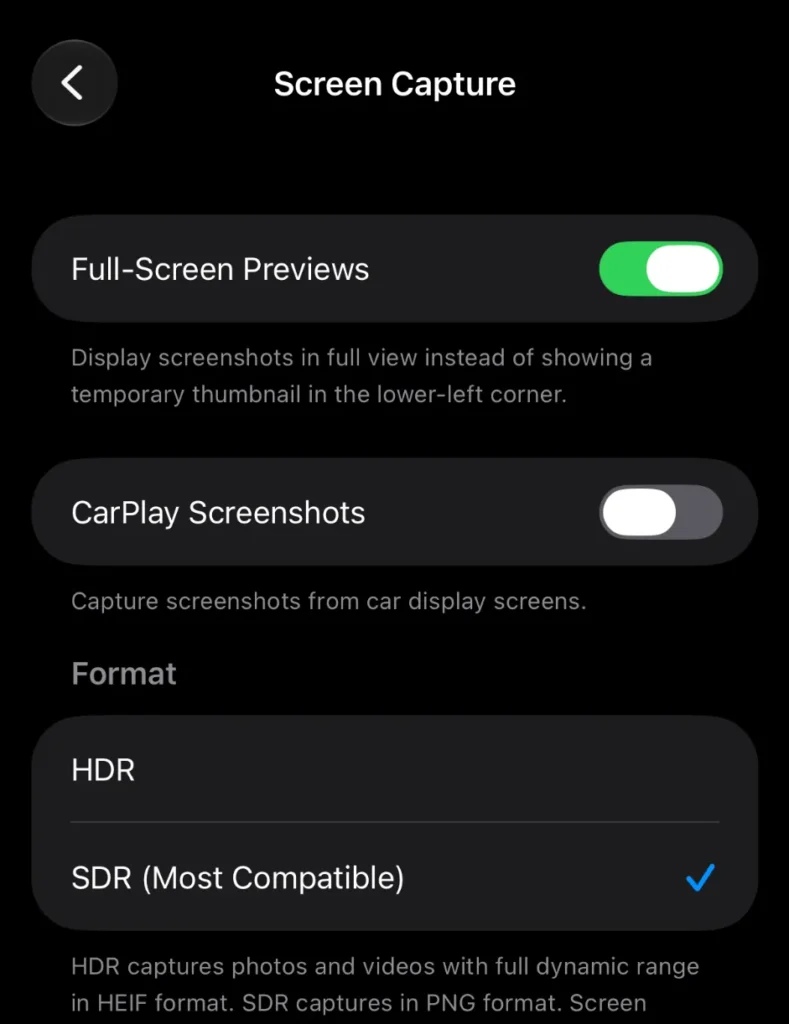
iOS 27 includes a setting related to identifying objects and places appearing in screenshots.
This is particularly relevant if you can use Visual Look Up in normal photos but not in screenshots.
Check the screenshot setting
On supported iPhone models and languages:
- Open Settings.
- Tap General.
- Select Screen Capture.
- Find Automatic Visual Look Up.
- Enable it if it’s available and you want to use the feature.
Apple documents this setting in its iOS 27 Screen Capture guide.
This is a screenshot-specific setting. It’s not a universal switch for enabling Visual Look Up in Photos.
If the option isn’t shown, check device and language availability rather than assuming your Settings app is malfunctioning.
After checking the setting, test it with a supported image or screenshot.
Visual Look Up Still Not Working? Test Another App
Visual Look Up is also supported in apps such as Safari and Quick Look.
Testing another supported interface can help distinguish a problem specific to Photos from a broader availability issue.
For example:
- Open Safari.
- Find a clear image containing a recognizable plant or animal.
- Touch and hold the image.
- Look for an available Look Up action in the menu.
- Compare the result with what happens in Photos.
The available options may differ depending on the app, iOS version, and image.
If Visual Look Up works in Safari but not Photos, the issue may be associated with a particular image or the Photos app.
If Look Up is unavailable in every supported location, review the language and availability checks before pursuing further troubleshooting.
Visual Look Up vs. Visual Intelligence: What’s the Difference?
These two Apple features are related but aren’t identical.
| Visual Look Up | Visual Intelligence |
|---|---|
| Identifies recognizable subjects in photos and videos | Helps users learn about objects and information using supported visual interactions |
| Available through Photos and other supported apps | Uses Apple Intelligence features on compatible devices |
| Relies on supported image categories, languages, and regions | Has its own device, language, and regional requirements |
| Doesn’t require photographing everything in real time | Can support camera-based interactions on compatible devices |
Having a phone that supports Visual Intelligence doesn’t automatically mean Visual Look Up will recognize every photo.
Likewise, missing Visual Look Up results shouldn’t immediately be diagnosed as an Apple Intelligence failure.
Check the requirements of the particular feature you’re using.
Frequently Asked Questions
Why is the Visual Look Up icon missing on my iPhone?
The image may not contain a recognized subject, or Visual Look Up may be unavailable for your language or region. Try another recognizable image and check Apple’s availability information.
How do I enable Visual Look Up on iPhone?
For ordinary Photos recognition, Apple doesn’t document a universal on/off switch that activates Visual Look Up in all regions. The feature appears automatically for eligible content on supported configurations.
iOS 27 does provide a separate Automatic Visual Look Up setting for screenshots on compatible devices.
Why does Visual Look Up work on some photos but not others?
Recognition depends on the subject and image content. Apple doesn’t guarantee results for every photograph.
Does Visual Look Up work without Wi-Fi?
Your iPhone can use cellular connectivity for online features. If internet access isn’t available, results that rely on online information may not load normally.
Is Visual Look Up available on every iPhone?
Visual Look Up was introduced with iOS 15, but compatibility also depends on device software, feature availability, and language or region support.
Is Visual Look Up the same as Live Text?
No. Visual Look Up identifies subjects such as plants, animals, and landmarks. Live Text recognizes written text in images.
Will resetting my iPhone fix Visual Look Up?
A full reset isn’t a recommended first step. Check image recognition, language availability, internet access, and iOS updates first. Resetting won’t remove a regional restriction or make every photo recognizable.
Can Visual Look Up identify any plant or animal?
No. Visual Look Up can recognize many plants and animals, but results can be incomplete or incorrect. Don’t rely on image identification alone for safety-critical decisions, such as determining whether a plant or mushroom is safe to eat.
Final Thoughts
When iPhone Visual Look Up isn’t working, the first thing to check is whether the selected photo contains a subject Apple can recognize.
If the Look Up icon never appears, review language and regional availability. If it appears but results don’t load, investigate connectivity and software behavior.
A missing Look Up option is not always a fault, and there’s no need to erase your device or repeatedly change settings.
By checking the symptom first, you can avoid unnecessary troubleshooting and determine whether the feature is unavailable, temporarily unresponsive, or simply unable to recognize a particular image.
Editorial note: This guide is based on Apple’s official Visual Look Up, Photos, Screen Capture, and iOS documentation. TheSyncedDesk has not claimed that every troubleshooting step was personally tested.