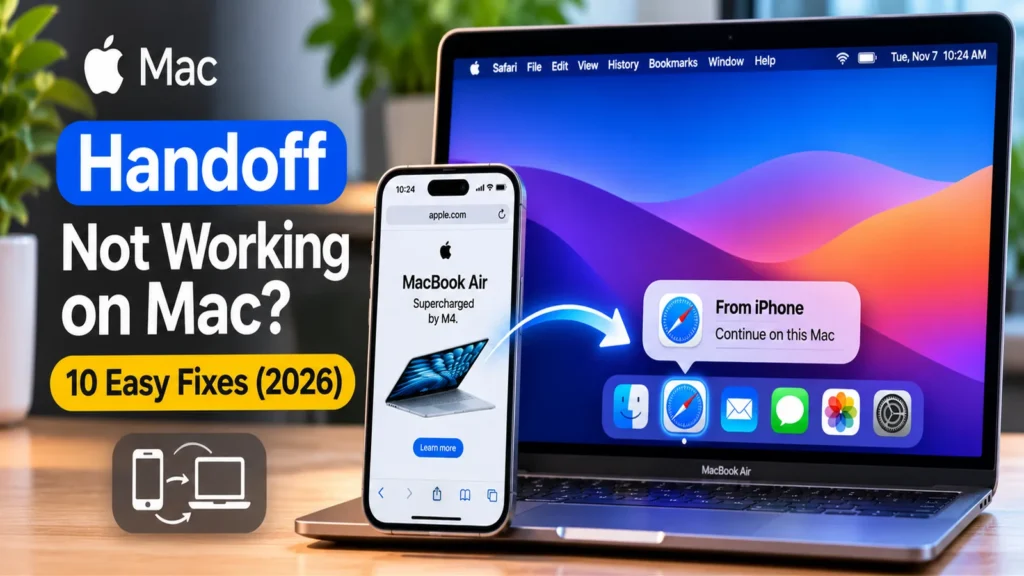
Handoff not working on Mac? You open a Safari webpage or start writing an email on your iPhone, but the Handoff icon never appears on your Mac. Sometimes the feature works in one direction but fails when you try switching back.
Handoff is one of Apple’s Continuity features. It lets you start a supported activity on one Apple device and continue it on another nearby device without starting over.
When it stops working, the cause may be a disabled Handoff setting, a Bluetooth or Wi-Fi issue, different Apple Accounts, incompatible software, or an app that doesn’t support the feature.
In this guide, we’ll cover 10 practical fixes for Handoff not working on Mac, including MacBook Air, MacBook Pro, iMac, and Mac mini.
Table of Contents
Quick Answer: How to Fix Handoff Not Working on Mac
If Handoff isn’t working between your Mac and iPhone, start with these steps:
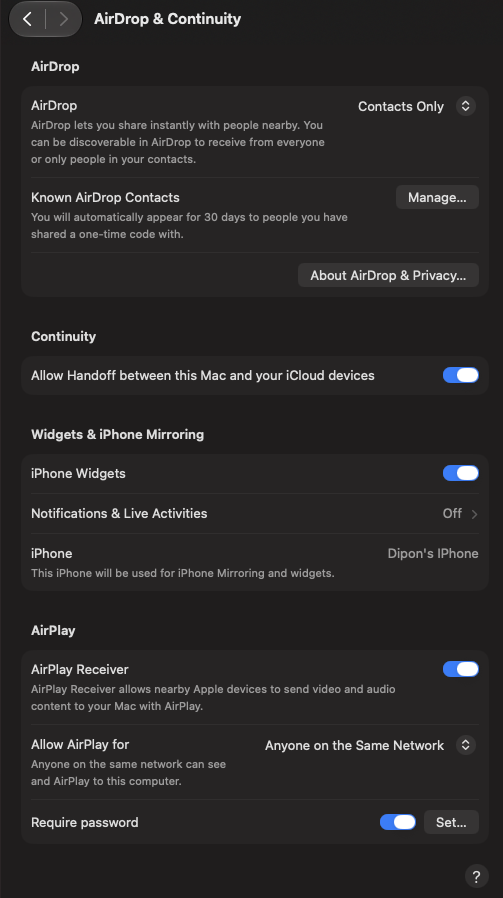
- Open System Settings > General > AirDrop & Continuity on your Mac.
- Enable Allow Handoff between this Mac and your iCloud devices.
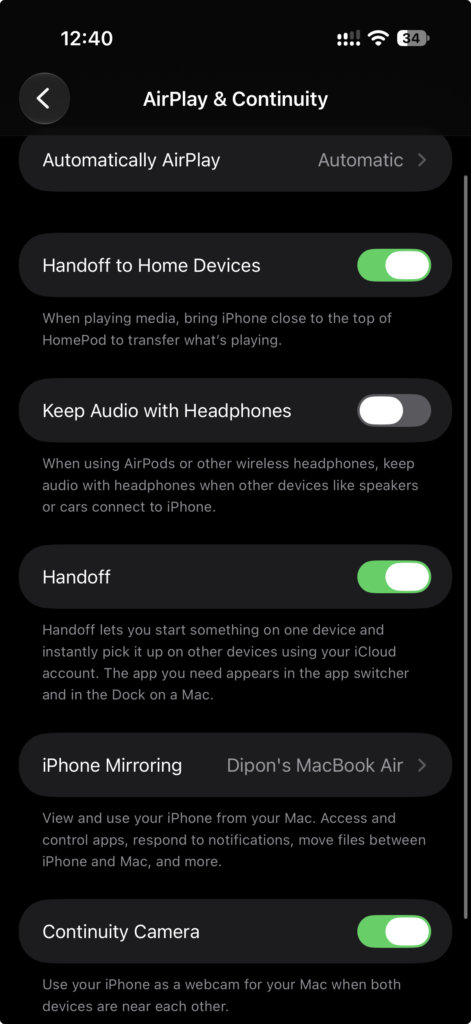
- On your iPhone, open Settings > General > AirPlay & Continuity and enable Handoff.
- Make sure both devices use the same Apple Account.
- Turn on Wi-Fi and Bluetooth on both devices.
- Keep your iPhone and Mac close together.
- Open a Safari webpage on your iPhone and check the Mac’s Dock for the Handoff icon.
If it still doesn’t work, restart both devices and follow the additional steps below.
Why Is Handoff Not Working on My Mac?
Several different problems can prevent Handoff from working properly.
The most common causes include:
- Handoff disabled: The feature may be turned off on either your Mac or iPhone.
- Different Apple Accounts: Your devices must be signed in to the same Apple Account.
- Wireless connectivity: Bluetooth and Wi-Fi must be enabled on both devices.
- Distance: Handoff is designed for nearby devices.
- Unsupported applications: Not every Mac or iPhone app supports transferring activities with Handoff.
- Temporary software issues: An app or macOS process may not be responding correctly.
- Network restrictions: Certain VPN configurations may interfere with local communication.
The following troubleshooting steps help identify which of these problems is responsible.
1. Enable Handoff in Your Mac’s System Settings
The first thing to check is whether Handoff is enabled on your Mac.
On macOS Ventura and later:
- Click the Apple menu.
- Open System Settings.
- Select General.
- Click AirDrop & Continuity. On some versions, this may be called AirDrop & Handoff.
- Find Allow Handoff between this Mac and your iCloud devices.
- Make sure the setting is enabled.
If the setting was already enabled, turn it off, wait briefly, and turn it back on.
On macOS Monterey or earlier, open System Preferences > General and look for the Handoff checkbox.
Now open a supported application on your iPhone and check whether it appears on your Mac.
Apple’s official Handoff setup guide confirms these settings.
2. Turn On Handoff on Your iPhone
Enabling Handoff on your Mac is only half of the setup. Your iPhone must also allow the feature.
Follow these steps:
- Open Settings on your iPhone.
- Tap General.
- Select AirPlay & Continuity or AirPlay & Handoff, depending on your iOS version.
- Find Handoff.
- Make sure it is turned on.
If Handoff is already enabled, try turning it off and on again.
Then open Safari on your iPhone and visit a webpage.
Check your Mac’s Dock for a Safari icon associated with Handoff. When it appears, click it to continue browsing on your Mac.
If the icon doesn’t appear, continue to the next step.
3. Check That Both Devices Use the Same Apple Account
Handoff requires your Apple devices to be signed in with the same Apple Account.
It’s possible to use different accounts on your Mac and iPhone without immediately noticing, especially if you’ve recently changed devices or Apple Account settings.
On your Mac:
- Open System Settings.
- Click your Apple Account name near the top.
- Confirm which account is signed in.
On your iPhone:
- Open Settings.
- Tap your name at the top.
- Check the Apple Account information.
Both devices should use the same account for Handoff.
If the accounts don’t match, that may explain the issue.
You generally don’t need to sign out and back in as an initial troubleshooting step. Signing out can affect synced data and other Apple services.
4. Turn On Wi-Fi and Bluetooth on Both Devices
Handoff relies on Apple’s wireless Continuity system.
Both Wi-Fi and Bluetooth need to be enabled.
On your Mac:
- Open System Settings > Wi-Fi.
- Make sure Wi-Fi is turned on.
- Open System Settings > Bluetooth.
- Make sure Bluetooth is enabled.
On your iPhone:
- Open Settings > Wi-Fi and turn it on.
- Return to Settings.
- Open Bluetooth and turn it on.
You don’t necessarily need to connect both devices to the same Wi-Fi network for standard Handoff. The important starting point is that Wi-Fi and Bluetooth are both enabled and the devices can communicate.
If you suspect a temporary wireless problem, toggle the connection off and on again using the Settings apps.
If Bluetooth itself isn’t working on your Mac, read our MacBook Bluetooth Not Working troubleshooting guide.
For Wi-Fi problems, see MacBook Wi-Fi Not Working? 12 Best Fixes.
5. Keep Your Mac and iPhone Close Together
Handoff is intended for devices that are near each other.
Apple advises keeping supported devices within approximately 30 feet (10 meters) for this feature.
If your iPhone is across the house or your Mac is in another room, move them closer.
For testing, place your iPhone beside your Mac.
Then:
- Wake and unlock both devices.
- Open Safari on your iPhone.
- Navigate to a webpage.
- Keep Safari open with that webpage active.
- Check your Mac’s Dock for the Handoff icon.
You can also test the reverse direction by opening a Safari webpage on your Mac and checking the iPhone’s App Switcher.
Testing with both devices nearby helps rule out distance and connection issues.
6. Test Handoff With a Supported App
One important detail is that not every app supports Handoff.
You might assume the feature is broken when the real issue is simply that the application doesn’t offer Handoff support.
Apple lists several compatible apps, including:
- Safari
- Maps
- Calendar
- Contacts
- Reminders
- Notes and other supported apps
- Certain third-party applications
The easiest test is Safari.
Open a webpage in Safari on your iPhone, then look for the Safari Handoff icon on your Mac.
If Safari works but another app doesn’t, investigate whether that specific app supports Handoff and whether its current version is compatible.
Don’t use an unsupported app as evidence that Handoff is broken system-wide.
7. Check Where the Handoff Icon Appears on Mac
Sometimes Handoff is working, but you simply aren’t looking in the right location.
On a Mac, Handoff activity normally appears as an application icon in the Dock.
If your Dock is positioned at the bottom of the screen, the icon usually appears toward its right end.
If the Dock is positioned vertically, check near the bottom.
You can also try Command + Tab to look for the application associated with the Handoff activity.
On an iPhone, the Handoff indicator may appear at the bottom of the App Switcher.
On an iPad, it appears toward the right side of the Dock.
Remember that Handoff doesn’t transfer every open app or browser tab automatically. It offers a way to continue a supported activity that is currently available from another device.
8. Restart Your Mac and iPhone
Temporary software problems can prevent Handoff from responding correctly.
Restarting both devices is a straightforward way to refresh their connections and application processes.
Restart your Mac:
- Save any open work.
- Click the Apple menu.
- Select Restart.
- Allow macOS to load completely.
Restart your iPhone:
- Use the appropriate buttons to open the power-off slider.
- Turn the iPhone off.
- Turn it back on normally.
Once both devices are running, verify that Wi-Fi, Bluetooth, and Handoff remain enabled.
Open Safari again and test Handoff.
If you frequently experience unrelated Mac connection problems or crashes, see our MacBook Keeps Restarting guide.
9. Update macOS and iOS
Software bugs and compatibility problems can affect Apple’s Continuity features.
Keeping your devices updated helps ensure they have the latest available fixes.
On your Mac:
- Open System Settings.
- Click General > Software Update.
- Install a compatible update if available.
On your iPhone:
- Open Settings.
- Tap General > Software Update.
- Check for available updates.
Back up important data before major operating system upgrades.
You should also check whether your Mac and iPhone models support Handoff.
Most modern devices do, but some older devices or specialized Handoff activities have additional compatibility requirements.
Apple maintains an official Continuity feature compatibility list that you can use to verify your devices.
10. Check VPN and Network Restrictions
If Handoff is still not working on Mac after the previous fixes, consider whether network security software is interfering with communication between your devices.
Certain VPN configurations may restrict local networking and affect Continuity features.
If you use a VPN:
- Check whether its settings allow local network communication.
- If permitted and safe, temporarily disconnect the VPN for testing.
- Test Handoff again between your nearby Apple devices.
- Reconnect the VPN after the test.
If Handoff only works when the VPN is disconnected, investigate the VPN’s local network settings or contact its provider.
Also consider whether managed work or school devices have restrictions that affect Continuity.
Avoid disabling your firewall or other security protections permanently just to make Handoff work.
If your Mac is managed by an organization, contact its administrator before changing security settings.
Handoff Not Working From iPhone to Mac: What Should You Check?
If Handoff works from your Mac to iPhone but not in the other direction, focus on the activity being offered by the iPhone.
Open Safari on your iPhone, keep a webpage active, and look for the Safari Handoff icon on your Mac.
If it doesn’t appear, verify the iPhone’s Handoff setting, Apple Account, Bluetooth, and Wi-Fi connection.
If the reverse direction works, that suggests the devices can communicate through at least some Continuity functions. The problem may involve the app or the particular activity.
Is Handoff the Same as AirDrop or Universal Control?
These Apple features are related, but they perform different tasks.
| Feature | Main purpose |
|---|---|
| Handoff | Continue a supported activity on another device |
| AirDrop | Send files and other content between devices |
| Universal Clipboard | Copy on one Apple device and paste on another |
| Universal Control | Use compatible Mac and iPad devices with one keyboard and pointing device |
| Continuity Camera | Use an iPhone camera with compatible Mac applications |
This distinction matters when troubleshooting.
For example, if you can’t share a photo through AirDrop, that doesn’t necessarily mean Handoff is broken.
If you specifically have trouble using one keyboard and mouse with a Mac and iPad, read our Universal Control Not Working guide.
Frequently Asked Questions
Why is Handoff not showing up on my Mac?
Handoff may be disabled, Bluetooth or Wi-Fi may be off, or your devices may be signed in to different Apple Accounts. It’s also possible that the current app doesn’t support Handoff. Start by testing a Safari webpage.
How do I enable Handoff on my MacBook?
Open System Settings > General > AirDrop & Continuity and enable the option allowing Handoff between your Mac and other devices using your Apple Account.
Does Handoff require Bluetooth?
Yes. Apple requires Bluetooth and Wi-Fi to be enabled on the participating devices for standard Handoff.
Does Handoff work without the same Wi-Fi network?
Standard Handoff doesn’t generally require both devices to join the same Wi-Fi network. However, Wi-Fi and Bluetooth must be enabled, and certain network configurations may interfere with nearby-device communication.
Why does Handoff work on my iPhone but not on my Mac?
Check the Mac’s Handoff toggle and look for the app icon in the correct area of the Dock. Also confirm that both devices are signed in to the same Apple Account and that the application supports Handoff.
Is Universal Clipboard the same as Handoff?
No. Universal Clipboard lets you copy content on one device and paste it on another. It depends on several of the same Continuity requirements, including Handoff being enabled, but serves a different purpose.
Does Handoff work on older MacBooks?
Many older Mac models support Handoff, but compatibility depends on the model and operating system. Some activities, such as transferring FaceTime calls, have newer system requirements. Refer to Apple’s official compatibility list.
Final Thoughts
If Handoff is not working on Mac, start with the basics: enable Handoff on both devices, confirm the same Apple Account, and turn on Wi-Fi and Bluetooth.
Then test Safari while keeping your Mac and iPhone nearby. If the Handoff icon still doesn’t appear, restart the devices, check for software updates, and investigate any VPN or network restrictions.
You usually don’t need to reset your Mac, erase your iPhone, or reinstall macOS to troubleshoot Handoff.
Following these steps in order should help you identify whether the problem involves device settings, connectivity, compatibility, or a particular app.
Last reviewed: November 7, 2026.