Is your iPhone Calendar search not working, even though you know the event you’re looking for exists? Maybe you search for a meeting, birthday, appointment, or someone’s name, but the Calendar app displays no results.
Sometimes Calendar finds newer appointments but ignores older events. In other cases, searching stops working after an iOS update, even though you can still find the same events by browsing the calendar manually.
These symptoms don’t always mean your appointments have disappeared. The issue may involve calendar visibility, incomplete event data, a temporary app problem, or how iOS handles search.
In this guide, we’ll explain nine practical troubleshooting steps, starting with the safest checks and moving to more specific fixes.
Table of Contents
Quick Answer: How to Fix iPhone Calendar Search Not Working
If Calendar search suddenly stops finding appointments, try these steps first:
- Open Calendar and locate one missing event manually.
- Tap the Search icon and search for a short word from that event’s title.
- Tap Calendars and make sure the calendar containing that event is selected.
- Refresh the calendar list by pulling down.
- Close and reopen Calendar.
- Restart your iPhone and test the search again.
If older appointments remain missing, check Settings → Apps → Calendar → Sync and review the selected history range.
If the problem began after an iOS update, also check for a newer software update.
Important: Before removing calendar accounts or changing iCloud settings, confirm that your important events are safely stored.
Why Is iPhone Calendar Search Not Working?
Apple Calendar supports searching for events by title, invitees, location, and notes.
According to Apple’s Calendar search documentation, you can search for information contained in your calendar events.
However, several different problems can make search appear unreliable.
For example:
- Calendar search shows no results even when the event is visible.
- Only some appointments appear in search.
- Past calendar events are missing from results.
- Search stopped working after an iOS update.
- Events from a particular Google, iCloud, or Outlook calendar are absent.
- The Calendar app displays events correctly, but iPhone-wide Search cannot find them.
The last problem is especially important because the search feature inside Calendar and the broader iPhone Search feature are related but not identical.
The best troubleshooting approach depends on which symptom you’re experiencing.
1. Check Whether the Missing Event Still Exists
Before changing any settings, confirm that the missing appointment is actually available inside Calendar.
This helps distinguish a search problem from missing event data.
Try this:
- Open the Calendar app.
- Navigate to the date of an event that search cannot find.
- Look for the appointment manually.
- Tap the event and check its title, notes, location, and calendar.
- Return to Calendar’s Search field.
- Search for a short, distinctive word from the event title.
For example, if an event is called “Dental Appointment,” try searching for “Dental” rather than entering a longer phrase.
If the event is visible on its date but doesn’t appear in search, focus on the Calendar app and search-related troubleshooting steps below.
If the event is missing from its date too, check calendar visibility and synchronization first.
That distinction can save you from unnecessary account changes.
2. Make Sure All Relevant Calendars Are Visible
Your iPhone can display several calendars from different accounts, including iCloud, Google, Microsoft Exchange, and Outlook.
You can choose which calendars are shown.
If a calendar is hidden, its appointments may appear missing from your normal view. It’s worth checking this before treating the problem as a broken search feature.
Follow these steps:
- Open the Calendar app.
- Tap Calendars at the bottom.
- Review the calendars under your connected accounts.
- Select the calendars you want displayed.
- Tap Done.
- Search for the missing appointment again.
If you use a separate work calendar, verify that it’s included.
For example, you might have personal appointments in iCloud but work meetings in Microsoft Exchange.
Choosing the correct calendar helps confirm whether the event is available to the app.
This won’t necessarily repair a search-indexing problem, but it can reveal why some appointments appear to be missing.
3. Refresh the Calendar App
Sometimes the Calendar app hasn’t refreshed its event list after an account or device change.
Apple recommends refreshing the calendar list as part of its official troubleshooting process for missing iCloud events.
To refresh Calendar:
- Open Calendar.
- Tap Calendars.
- Swipe downward on the list of calendars.
- Allow the refresh to complete.
- Return to your calendar.
- Search for the event again.
You should have a working internet connection when testing events stored in an online calendar account.
If refreshing brings back missing appointments, the issue may have involved event synchronization rather than the search interface itself.
If the appointments are already visible but search remains empty, continue to the next fix.
4. Close and Reopen Calendar
The Calendar app can occasionally become unresponsive or behave inconsistently after running for a long time.
Closing it and reopening it is a simple way to check for a temporary application problem.
On an iPhone with Face ID:
- Swipe up from the bottom of the screen and pause.
- Find the Calendar app in the App Switcher.
- Swipe its preview upward to close it.
- Return to the Home Screen.
- Wait briefly.
- Open Calendar again.
Now search for an appointment that you previously confirmed exists.
Apple also recommends closing and reopening Calendar when troubleshooting iCloud calendar problems.
If search starts working normally, you can stop here.
If search still returns no results, restart the device.
5. Restart Your iPhone
A restart can resolve temporary software problems affecting an app.
It doesn’t delete your calendar appointments or remove your accounts.
To restart an iPhone with Face ID:
- Press and hold the Side button and either Volume button.
- Wait for the power-off slider.
- Drag the slider to turn off the iPhone.
- Wait around 30 seconds.
- Press and hold the Side button until the Apple logo appears.
- Unlock your iPhone.
- Open Calendar and try searching again.
For older iPhone models, use the restart method appropriate to your device.
A restart may help with a temporary Calendar issue, but it won’t repair an appointment that has been deleted or stored in a disconnected account.
6. Change the Calendar Sync History Range
If Calendar search works for recent events but cannot find older appointments, check the Calendar Sync setting.
Some calendar accounts support a limited history range.
For example, an older meeting might exist in your online calendar but fall outside the range currently available on your iPhone.
Try this:
- Open Settings.
- Tap Apps → Calendar.
- Select Sync, if available.
- Review the selected history range.
- If a limited period is selected, choose All Events.
- Return to the Home Screen.
- Wait a few minutes.
- Open Calendar, refresh its calendar list, and test search again.
If All Events is already selected, Apple’s synchronization guidance also suggests testing another available range and refreshing.
The Sync option can depend on the calendar accounts configured on your iPhone.
Remember that this setting cannot recover appointments deleted from their original account.
For a full explanation of missing appointments across iCloud, Google, and Outlook, read our separate guide: iPhone Calendar Not Syncing? 12 Easy Fixes.

7. Review Calendar Search Settings if iPhone-Wide Search Is Also Affected
There are two different situations to consider:
- Calendar’s own search field cannot locate appointments.
- The iPhone’s general Search feature cannot show Calendar events.
If the second situation is happening, review the app-specific search permissions.
To check:
- Open Settings.
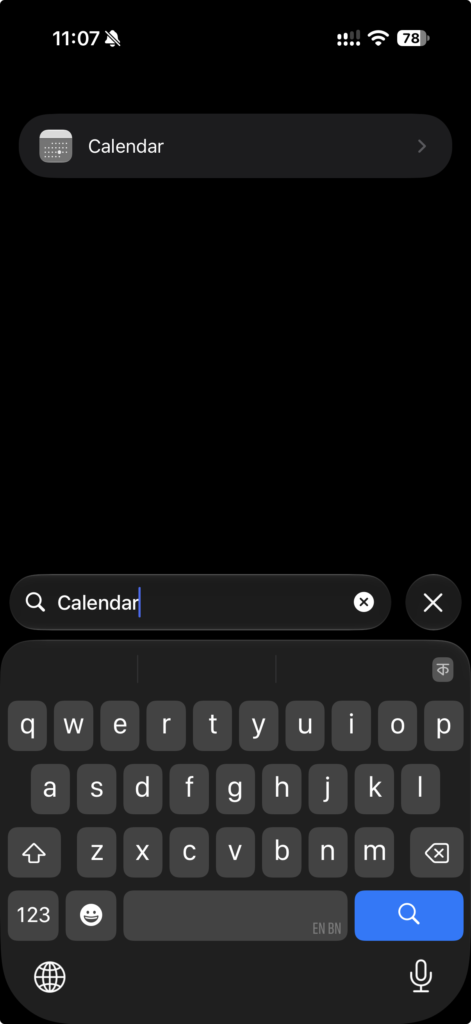
- Tap Search.
- Find Calendar in the list of apps.
- Review Show App in Search and Show Content in Search, where available.
- Enable the appropriate options if you want Calendar information to appear in iPhone-wide Search.
You can then test the iPhone’s general Search feature again.
What about switching these options off and back on?
Some users have reported that toggling search permissions and restarting helped after an iOS update. However, this is a user-reported workaround, not a guaranteed repair for Calendar’s internal search.
If you try it, note the original settings and restore your preferred permissions afterward.
Also, switching off Calendar content in Search can intentionally hide Calendar results from the iPhone-wide search interface.
If Apple’s search features across multiple apps are failing, that may indicate a broader iOS issue rather than a Calendar-only problem.
8. Check Your Calendar Account if Events Are Missing Entirely
If appointments are absent from Calendar itself, the problem may involve the account that stores them.
Apple Calendar supports calendars from several services, but those services don’t all store events in the same place.
Check your connected accounts:
- Open Settings.
- Go to Apps → Calendar → Calendar Accounts.
- Select the account that contains the missing appointments.
- Check that calendar access is enabled, where applicable.
- Return to Calendar.
- Make sure the corresponding calendar is visible.
For iCloud calendars, also confirm that iCloud Calendar is enabled under your Apple Account’s iCloud settings.
You can compare appointments using the relevant website:
If an appointment appears online but not on your iPhone, focus on account visibility and synchronization.
If it appears on your iPhone but doesn’t show up in Calendar search, repeatedly removing and reconnecting accounts is unlikely to be the best first step.
Do not delete a calendar account as a routine search fix. First verify that your events are stored safely online, especially if you use a workplace or school account.
If your iPhone also struggles to access websites, check our iPhone Connected to Wi-Fi but No Internet guide before troubleshooting online calendar access.
9. Update iOS and Allow Time for Search to Recover
If Calendar search stopped working immediately after an iOS update, a software-related issue is possible.
An update may change how calendar data is handled or how search behaves.
Apple periodically releases updates that address software problems, so checking for the latest compatible version is worthwhile.
Check for updates:
- Open Settings.
- Tap General.
- Select Software Update.
- Check whether an update is available for your iPhone.
- Back up important information before installing it.
- Follow the on-screen installation instructions.
- Test Calendar search after the update completes.
If the problem began immediately after an update, you can also leave the iPhone connected to power and Wi-Fi while normal background activity finishes, then test again later.
This is a reasonable troubleshooting experiment, not a guarantee that Calendar will rebuild its search data within a particular time.
If appointments are intact and visible but search continues to fail across multiple events, consider reporting the behavior to Apple Support.
When reporting the issue, mention your iPhone model, iOS version, whether search works for newer events, and whether the affected appointments are visible manually.
iPhone Calendar Search Not Working After an iOS Update
If the problem started after updating iOS, avoid immediately resetting your device.
First check whether the same appointments still exist.
Then:
- Search for a short word from a known event title.
- Verify that the relevant calendar is selected.
- Refresh and reopen Calendar.
- Restart the iPhone.
- Review the Sync history setting if older events are affected.
- Check whether a newer iOS update is available.
If the event is visible in Calendar but cannot be found using the app’s search field, that points to a different problem than an appointment missing from iCloud.
You generally don’t need to delete your Apple Account, erase your iPhone, or recreate every appointment just to investigate a search failure.
What if Calendar Search Works for Some Events but Not Others?
Partial search problems can be confusing because they don’t always follow an obvious pattern.
Try comparing two events:
Event A: A recent appointment that appears in search.
Event B: An older appointment that is visible manually but missing from search.
Check whether both belong to the same calendar account.
If only older appointments are affected, review the available Sync history.
If one account’s events are missing, inspect that calendar’s visibility and connection.
If events from every account are visible but none can be found using Calendar search, focus on the app, iOS version, and possible search-related software behavior.
This comparison helps narrow down the problem without changing unrelated settings.
Frequently Asked Questions
Why does my iPhone Calendar search show no results?
Possible reasons include a temporary Calendar app problem, hidden or unavailable calendar data, limited synchronization history, or a software-related search issue. Start by checking whether a missing event is visible manually.
Why can’t I search old events in iPhone Calendar?
Older events may fall outside an account’s selected synchronization history range. Review Settings → Apps → Calendar → Sync, if available, and check whether All Events is appropriate.
Does restarting an iPhone fix Calendar search?
It can help with temporary app or software problems. However, restarting doesn’t restore appointments deleted from their calendar account, and it isn’t a guaranteed fix for every search issue.
Can I search Google Calendar events inside Apple Calendar?
Yes, when your Google calendar is connected, its relevant events are available to Apple Calendar, and that calendar is visible. If the events don’t appear at all, check the Google account connection first.
Is Calendar search the same as iPhone Spotlight Search?
No. Searching within Calendar and searching across the iPhone are different interfaces. Settings that control whether Calendar information appears in iPhone-wide Search should not automatically be treated as fixes for Calendar’s internal search.
Will changing Calendar search settings delete my appointments?
Changing app visibility settings doesn’t normally delete calendar events. However, removing a calendar account or disabling synchronization can affect which appointments are available on the device. Verify your data before making account-level changes.
Should I factory reset my iPhone if Calendar search stops working?
No, a factory reset is not an appropriate first-line troubleshooting step. Try the safer checks above and contact Apple Support if the problem persists.
Final Thoughts
If your iPhone Calendar search is not working, start by checking whether the appointments still exist. If they’re visible manually but missing from search, refresh Calendar, reopen the app, restart your iPhone, and investigate whether the issue affects all events or only certain ones.
If older events are missing, check the Calendar Sync history range. If entire calendars are absent, review the connected accounts and calendar visibility settings.
Most importantly, avoid deleting accounts or resetting the iPhone without first confirming that your calendar data is safe.
By distinguishing a search problem from a synchronization problem, you can troubleshoot more carefully and avoid unnecessary changes.