iPhone Guided Access not working? Maybe triple-clicking your Side button does nothing, the iPhone will not stay inside one app, or Guided Access starts but refuses to end. In most cases, the first things to check are the Guided Access switch, Accessibility Shortcut, and session controls.
Guided Access is Apple’s feature for temporarily keeping an iPhone inside a single app. It’s useful when sharing a phone with a child, running a kiosk-style display, or concentrating without accidental app switching. This guide walks through 10 practical fixes for Guided Access not working on supported iPhones, including iOS 26 and iOS 27. The menus may look slightly different on earlier software.
Quick Answer: Fix Guided Access Not Working on iPhone
Start with these checks, in order:
- Go to Settings → Accessibility → Guided Access and turn it on.
- Open the app you want to restrict before trying to start a session.
- Triple-click the Side button (or Home button on an older iPhone). If a shortcut list appears, choose Guided Access.
- Set a Guided Access passcode under Passcode Settings and tap Start.
- If the shortcut is unresponsive, check Settings → Accessibility → Accessibility Shortcut and adjust Side Button click speed, then restart your iPhone.
Important: While Guided Access is active, some emergency features are unavailable. End the session before making an emergency call. Do not begin a test session if you don’t know the passcode or cannot access the configured Face ID or Touch ID authentication.
Table of Contents
Why Is Guided Access Not Working?
Guided Access problems usually fall into one of these categories:
| What happens | Most useful check |
|---|---|
| Triple-click does nothing | Enabled setting, shortcut selection, and click speed |
| The wrong accessibility menu appears | Choose Guided Access from Accessibility Shortcut |
| Session begins but screen stops responding | Check whether Touch was turned off in Session Settings |
| Side button or volume buttons do not behave normally | Review hardware-button options for the session |
| Guided Access will not end | Use the configured passcode or biometric authentication |
| Only one app gives problems | Test another ordinary app and update the affected app |
1. Make Sure Guided Access Is Turned On
The Guided Access option must be enabled before you can reliably start a session. It’s easy to confuse it with Assistive Access, Screen Time, or a general accessibility shortcut.
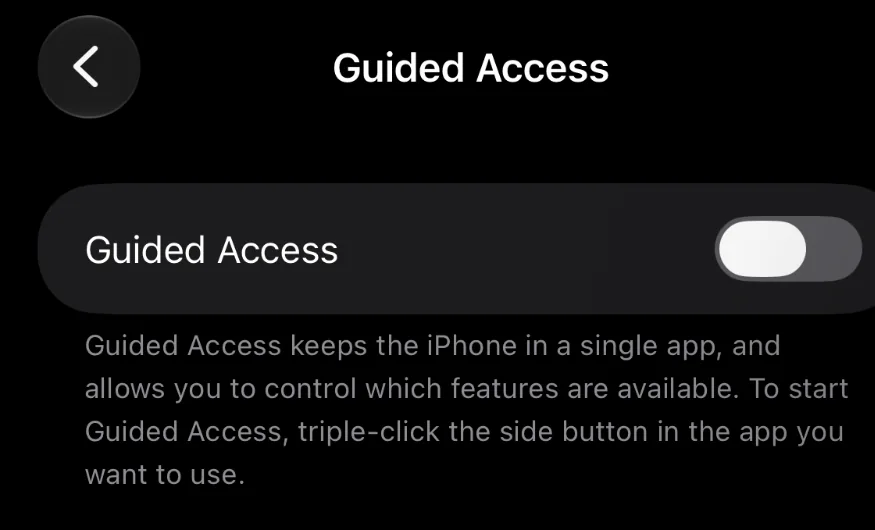
- Open Settings on the iPhone.
- Select Accessibility.
- Scroll to Guided Access and open it.
- Turn Guided Access on.
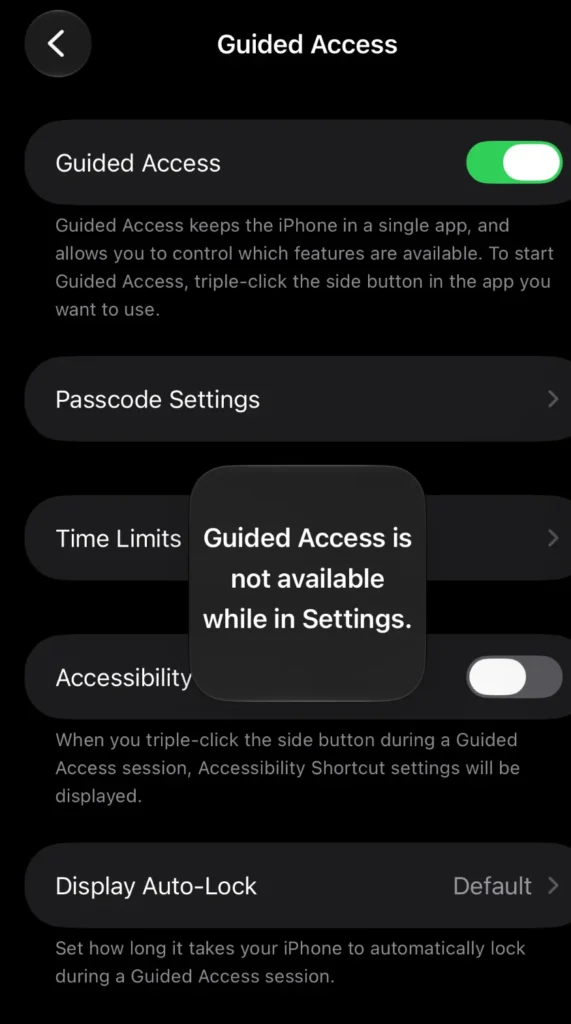
- Open Passcode Settings and check how you plan to authenticate when ending a session.
Now open an ordinary app such as Notes or Calculator and try to start Guided Access. Doing this from inside the target app matters: Guided Access is designed to keep the app that is already open on the screen.
2. Triple-Click the Correct Button While the App Is Open
On an iPhone with Face ID, triple-click the Side button. On an older iPhone with a Home button, triple-click the Home button. Do it while the app you want to restrict is visible.
If an accessibility menu appears, tap Guided Access there. If the Guided Access setup screen appears, inspect the options and tap Start. A triple-click alone does not always begin a session if more setup is required.
Common mistake: Pressing the Side button slowly may cause the iPhone to interpret the presses separately. Make three deliberate presses in quick succession. If that is difficult, use the next fix to change the timing.
3. Check Accessibility Shortcut and Button Click Speed
If the button shortcut opens the wrong feature, or nothing happens, check the shortcuts selected in Accessibility settings.
- Go to Settings → Accessibility → Accessibility Shortcut.
- Make sure Guided Access is available and selected for the shortcut where applicable.
- If multiple accessibility features are selected, expect a menu after triple-clicking and choose Guided Access from that menu.
- If triple-clicking is hard to perform, open Settings → Accessibility → Side Button (or Home Button), then change Click Speed to Slow or Slowest.
Changing click speed is a useful accessibility adjustment, not a repair to the hardware button. If the button also fails to lock the phone normally, the button itself may need attention.
4. Try Starting Guided Access Without the Triple-Click Shortcut
Apple also supports starting Guided Access through Siri or a Control Center control when it has been added. This can help determine whether the problem is specifically with the physical shortcut.
- Open the app where you want a Guided Access session.
- Try asking Siri, “Turn on Guided Access.â€
- Alternatively, if Guided Access has been added to Control Center, open Control Center and select it.
- Follow the setup screen to configure the session and tap Start.
If these methods work but triple-click does not, revisit the Accessibility Shortcut and click-speed settings. Siri availability and Control Center layout can vary with your iOS configuration.
5. Check the Guided Access Passcode and Face ID Settings
Some people think Guided Access is broken because it starts successfully but the expected Face ID prompt does not appear when they try to end it. Guided Access has its own passcode settings.
- When you are not in an active session, open Settings → Accessibility → Guided Access → Passcode Settings.
- Select Set Guided Access Passcode to create or update the session passcode as prompted.
- If offered on your iPhone, enable Face ID or Touch ID for ending a session.
- Remember which authentication method is configured before testing.
Guided Access passcodes and the iPhone’s regular unlock passcode are different settings. If you cannot authenticate to end an active session, do not assume an ordinary app reinstall will solve it; use Apple’s supported recovery guidance or contact Apple Support for your exact device and iOS version.
6. Use the Correct Steps to Pause or End Guided Access
The exit process may differ based on your iOS version. On current versions, Apple describes triple-clicking the Side or Home button, authenticating, and then choosing End. On iOS 18 or earlier, Apple documents a double-click to pause the session in its support instructions.
- Try the documented button shortcut for your iOS version.
- Enter the Guided Access passcode, or authenticate with Face ID or Touch ID if enabled.
- If a shortcut menu appears, choose Guided Access.
- Tap End to exit, or Resume if you want the session to continue.
If a session has expired, you may still need to authenticate before ending it. Repeatedly pressing random buttons is less helpful than following the exit flow for your current version.
7. Review Session Settings if Touch, Keyboard, or Buttons Stop Working
Sometimes Guided Access is functioning exactly as configured, but its restrictions look like a malfunction. The Touch setting can disable touches, and Software Keyboards can prevent the onscreen keyboard from appearing.
- Pause the session using your supported shortcut and authentication method.
- Open Session Settings or Options, depending on your iOS version.
- Review Touch, Software Keyboards, Side Button, Volume Buttons, and Motion.
- Turn on the functions the user needs, then select Done and Resume.
You can also draw a shape around parts of the screen to prevent interaction in those areas. If only one button within the app is unresponsive, check for an existing disabled region before concluding that the touchscreen is defective. For broader display issues outside Guided Access, see our iPhone Touchscreen Not Working troubleshooting guide.
8. Check Whether a Time Limit Is Ending the Session
Guided Access can run with a time limit. When the time ends, the iPhone may display a time-expired message, which can be mistaken for a frozen or failed feature.
- Pause the Guided Access session using the normal button shortcut and authenticate.
- Open Session Settings or Options.
- Check the Time Limit setting and extend or disable it if appropriate.
- Resume and test again.
In the main Guided Access settings, Time Limits also controls warning sounds and spoken announcements; those notifications are different from whether you actually set a session time limit.
9. Test Another App, Then Restart the iPhone
If Guided Access starts in Calculator or Notes but not in one particular app, troubleshoot that app first. Close and reopen it, check for an App Store update, and try again. An app that crashes or reloads during the setup process can complicate testing.
Next, if you’re not currently locked in a session, restart your iPhone normally. After it powers on, open a simple app and test Guided Access before changing other settings. If the affected app itself keeps crashing, our guide to iPhone Apps Keep Crashing covers that separate problem.
Note: Restarting is a general troubleshooting step, not a guaranteed way to bypass an active Guided Access session or its security restrictions.
10. Update iOS and Review Deeper Settings Problems
If basic setup, shortcut, and app-specific checks fail, look for an available iOS update. Updates can include system fixes, although no update guarantees that it will resolve a specific Guided Access problem.
- Back up your iPhone first.
- Open Settings → General → Software Update.
- Install an available compatible update, following Apple’s onscreen instructions.
- Return to Guided Access settings and test again inside one app.
As a last resort only, and preferably after consulting Apple Support, consider Settings → General → Transfer or Reset iPhone → Reset → Reset All Settings. Apple says this does not remove personal photos, apps, or media, but it resets many preferences, including accessibility and networking settings, and removes Apple Pay cards. It is not the same as Erase All Content and Settings. Do not use it casually or while you cannot end a Guided Access session.
Common Guided Access Problems Explained
Guided Access Triple-Click Not Working
Check that Guided Access is enabled, open the target app, and confirm the appropriate Side or Home button shortcut. Reduce the click-speed requirement if needed. If multiple Accessibility Shortcut features are selected, choose Guided Access when the menu appears.
Guided Access Not Locking the iPhone to One App
Be sure you tap Start on the Guided Access screen. If it is only displaying the session setup controls, the restrictions might not be active yet. Test whether you can switch apps after the session actually starts.
Guided Access Won’t Turn Off or Keeps Asking for a Passcode
Use the configured Guided Access passcode or biometric authentication. If you’re on iOS 18 or older, Apple’s pause instructions may differ from the current triple-click flow. If you don’t know the authentication method, seek Apple Support guidance rather than performing an unplanned erase.
Touchscreen Stops Responding During Guided Access
Review Touch in the session controls and any manually disabled screen regions. If touch input fails even outside Guided Access, troubleshoot the screen separately.
Is Guided Access the Same as Screen Time?
No. Guided Access temporarily restricts the device to one app for a session, while Screen Time can impose ongoing app limits and other usage controls. If you’re troubleshooting app-limit enforcement rather than a Guided Access session, see iPhone Screen Time App Limits Not Working.
Frequently Asked Questions
Why doesn’t Guided Access start when I triple-click?
The feature might be disabled, you might be outside the app you intend to restrict, the accessibility shortcut might be configured differently, or the button clicks might be too slow for your current click-speed setting.
Can I use Guided Access without pressing the Side button?
Apple documents starting Guided Access through Siri and a configured Control Center control. Which alternatives are available depends on your current software and accessibility settings.
Why won’t Guided Access let me tap the screen?
The session’s Touch option might be turned off, or a region of the screen may have been deliberately disabled. Pause the session and check Session Settings or Options.
How do I end Guided Access if Face ID is not working?
Use the Guided Access passcode if you set one and the current session allows that method. Check the biometric option later, outside the session. If Face ID itself fails elsewhere, our Face ID Not Working in Apps article covers related troubleshooting, but it does not replace your Guided Access authentication.
Will Reset All Settings erase my iPhone?
No. Apple’s Reset All Settings option does not delete your apps, photos, or media. However, it resets many preferences and removes items such as Apple Pay cards. Back up first, use it only as a last resort, and never confuse it with Erase All Content and Settings.
Does Guided Access work in every app?
It is designed for keeping an iPhone within one app, but an individual app’s behavior can affect your experience. Test a simple built-in app first to identify whether the issue follows Guided Access itself or only one particular app.
Final Thoughts
When iPhone Guided Access is not working, start with the basics: enable it, open the correct app, set a passcode, and use the right Side or Home button shortcut. If the feature starts but feels broken, inspect the session’s Touch, button, and time-limit restrictions before resetting anything.
Most importantly, keep your authentication method available before starting a new Guided Access session. A working restriction should be easy to start and safely end.