Want to send a voice recording from your iPhone to a friend, family member, or colleague? Maybe you’ve recorded an important reminder, interview, lecture, or meeting and need to share the audio without losing its quality.
If you’re wondering how to send voice memos from iPhone, Apple provides several simple options.
You can share recordings directly from the Voice Memos app through Messages, Mail, AirDrop, and compatible third-party applications. You can also save recordings as audio files for uploading or sharing later.
The best part is that you don’t need to install a separate voice recorder.
In this guide, we’ll explain how to record and share Voice Memos, choose the correct file format, send multiple recordings, and troubleshoot common sharing problems.
Quick Answer: How to Send Voice Memos from iPhone
Here’s the easiest method:
- Open the Voice Memos app.
- Find the recording you want to send.
- Tap the recording to select it.
- Tap More Actions (•••).
- Select Share.
- If prompted, choose Rendered for a standard audio file.
- Choose Messages, Mail, AirDrop, or another available sharing option.
- Select the recipient and send the recording.
Your iPhone will prepare the audio for the selected sharing method.
For ordinary sharing, Rendered is usually the simplest option because it produces a standard audio file.
Apple confirms these steps in its official Voice Memos sharing guide.
What Is the Voice Memos App on iPhone?
Voice Memos is Apple’s built-in audio recording application.
It lets you record spoken notes, interviews, classroom lectures, reminders, musical ideas, and other audio.
Recordings are stored within the app and can be played back, renamed, edited, or shared.
The application supports several recording options depending on your iPhone model and iOS version.
Voice Memos vs Audio Messages
It’s important to distinguish between two different iPhone features.
Voice Memos: These are saved recordings created using the Voice Memos app. You can keep them, edit them, and share them as files.
Audio messages: These are recordings created directly within a Messages conversation using the Audio option.
Audio messages are designed for conversations and have different retention behavior. Voice Memos is generally better when you want a recording you can keep and reuse.
We’ll explain how to send an audio message directly through Messages later in this guide.
How to Record a Voice Memo on iPhone
If you haven’t created a recording yet, start here.
Step 1: Open Voice Memos
Find the Voice Memos app on your iPhone.
It may be inside the Utilities folder, or you can use Spotlight search to locate it.
Tap the application to open it.
Step 2: Start Recording
Tap the red Record button.
Your iPhone will begin recording using its microphone or a compatible connected audio input.
Speak clearly and keep the microphone reasonably close to the sound source.
Avoid covering the microphone openings with your hand.
Step 3: Stop and Save
When you’re finished:
- Tap Stop.
- Wait for the recording to save.
- Locate it in your recordings list.
- Tap its name to rename it if you want.
For example, you might use a name such as Meeting Notes - November 2026.
Descriptive filenames make recordings easier to identify when sharing them.
Step 4: Review the Recording
Before sending anything:
- Select the recording.
- Tap Play.
- Listen to the audio.
- Check whether your voice is clear.
- Confirm that the recording contains only what you intended to share.
If your audio sounds unusually quiet, distorted, or completely silent, our iPhone Microphone Not Working on Calls guide explains how to test your microphones and investigate audio problems.
See also Apple’s guide to recording with Voice Memos.
How to Send a Voice Memo from iPhone
Once you’ve recorded your audio, follow these instructions to open the sharing menu.
Step 1: Select Your Recording
Open Voice Memos.
Find the recording you want to share and tap it.
If you have numerous recordings, look for the name you assigned earlier.
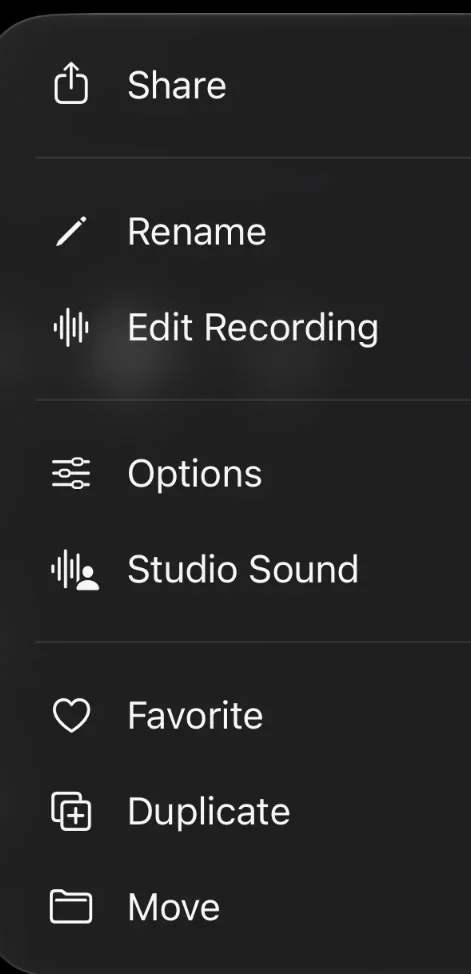
Step 2: Open More Actions
Tap the More Actions button, represented by three dots.
A menu should appear with options for managing the selected recording.
Tap Share.
The sharing interface will open.
Step 3: Choose Your Audio Format
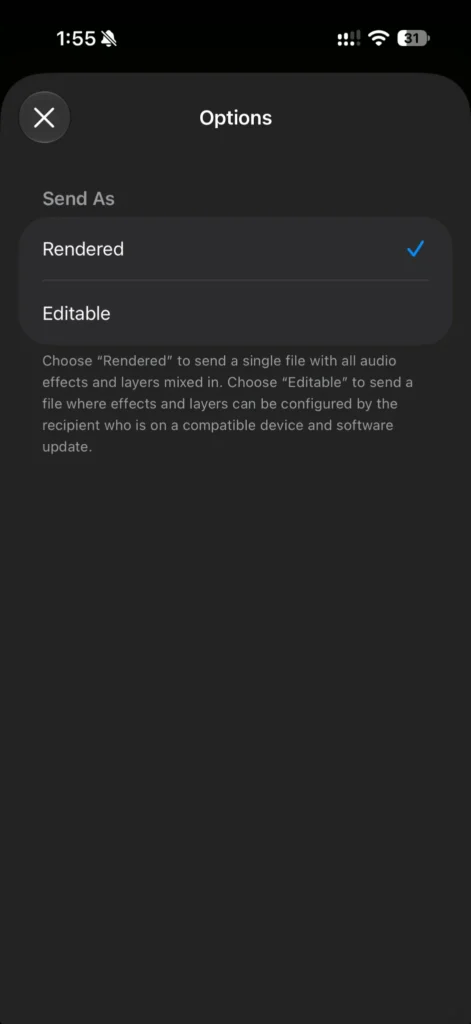
Depending on your iOS version and recording type, you may see Options within the sharing interface.
Tap Options if you want to review how the audio will be exported.
For most people, the Rendered format is appropriate.
Step 4: Choose a Sharing Destination
Select one of the available apps or sharing services.
Common options include:
- Messages
- AirDrop
- Compatible messaging applications
- Save to Files
The available destinations depend on the applications installed on your iPhone and their sharing support.
Once you’ve chosen a destination, complete its usual sending process.
Rendered vs Editable: Which Sharing Format Should You Choose?
Recent versions of Voice Memos can offer two sharing formats.
Understanding the difference helps avoid sending a file your recipient cannot easily use.
Rendered
Rendered creates a single standard audio file.
Apple documents the ordinary rendered export as an M4A audio file.
If your recording contains compatible effects or layers, the exported audio combines them into the final result.
Use Rendered when:
- Sending recordings through Messages.
- Emailing an audio file.
- Sharing with someone using Android or Windows.
- Uploading a recording to a website.
- Sending a normal voice recording that doesn’t need further editing.
For ordinary sharing, Rendered is the recommended option.
Editable
Editable is intended for recipients who have compatible software and want to preserve the ability to work with supported recording layers or effects.
This is more relevant to advanced audio workflows than everyday messaging.
An Editable export may not be as convenient for recipients who simply want to listen to the audio.
If you’re uncertain, choose Rendered.
Apple explains the available options in its Voice Memos sharing documentation.
5 Ways to Send Voice Memos from iPhone
Now that you know how to open the sharing menu, let’s examine the most useful ways to send your recording.
Method 1: Send a Voice Memo Through Messages
Messages is one of the easiest ways to share a saved recording with another person.
Steps
- Open Voice Memos.
- Select the recording.
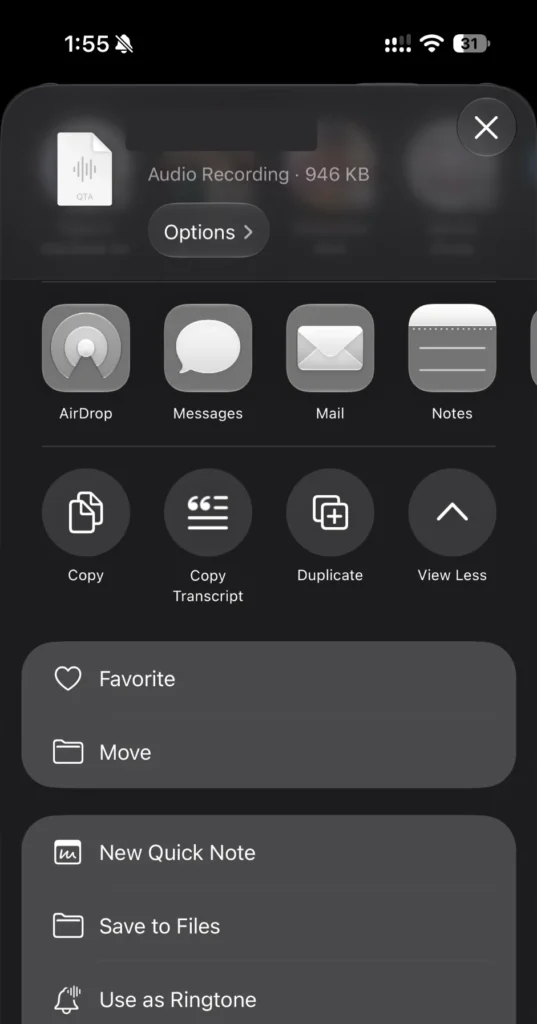
- Tap More Actions → Share.
- Choose Rendered if prompted.
- Select Messages.
- Enter the recipient’s contact information.
- Review the attached recording.
- Tap Send.
Your recording should appear as an audio attachment in the conversation.
The recipient can open or play it using a compatible device.
Can You Send a Voice Memo to Android?
You may be able to send the recording through Messages when the conversation and carrier messaging service support the attachment.
However, MMS and RCS capabilities, attachment limits, and recipient compatibility can vary.
If the file won’t send, consider email or a supported cross-platform messaging application instead.
An M4A recording can also be shared through a compatible cloud storage service.
Method 2: Send a Voice Memo by Email
Email is convenient when you’re sharing recordings for work, study, or personal reference.
It also lets you include additional information alongside the audio.
Steps
- Open Voice Memos.
- Select the recording you want to email.
- Tap More Actions → Share.
- Choose Rendered, if prompted.
- Select Mail or another compatible email application.
- Enter the recipient’s email address.
- Add a subject.
- Write a short message explaining the recording.
- Tap Send.
For example, you could use the subject:
Audio Recording: Meeting Notes
Before sending, verify that the correct audio recording is attached.
What If the Recording Is Too Large?
Email providers have attachment size limits.
If you attempt to email a lengthy recording, you may encounter a file-size restriction.
Possible alternatives include:
- Saving the recording to Files.
- Uploading it to a trusted cloud storage service.
- Sending a link with appropriate access permissions.
- Sharing it through another service that supports larger files.
Don’t assume every email service accepts the same attachment size.
Method 3: Send a Voice Memo Using AirDrop
AirDrop is particularly convenient for sharing a recording between nearby Apple devices.
You can use it to send a Voice Memo from your iPhone to another iPhone, an iPad, or a Mac.
Before You Begin
Make sure both devices:
- Support AirDrop.
- Have Wi-Fi and Bluetooth enabled.
- Are nearby.
- Have appropriate AirDrop receiving settings.
Steps to AirDrop a Voice Memo
- Open Voice Memos.
- Select your recording.
- Tap More Actions → Share.
- Choose AirDrop.
- Wait for nearby available devices to appear.
- Select the receiving device.
- Complete any required acceptance or verification steps.
The recording should transfer to the selected Apple device.
On supported systems, transfers between your own devices using the same Apple Account may be accepted automatically.
Can You AirDrop a Voice Memo to Windows or Android?
Not through Apple’s ordinary AirDrop feature.
AirDrop is designed for compatible Apple devices.
If the recipient uses Windows or Android, consider Messages, email, another compatible messaging app, or a cloud storage link.
See Apple’s official AirDrop instructions.
If you’re also experiencing broader wireless connection problems, our iPhone Bluetooth Not Finding Devices guidecovers Bluetooth-related troubleshooting. Remember that AirDrop problems can have causes beyond Bluetooth discovery.
Method 4: Share Voice Memos Through WhatsApp, Telegram, or Other Apps
Voice Memos can also be shared through compatible third-party applications.
This is useful when the recipient doesn’t use iMessage or prefers another messaging platform.
Steps
- Open Voice Memos.
- Select your recording.
- Tap More Actions → Share.
- Choose Rendered for a standard audio file when the option appears.
- Find the messaging app in the Share sheet.
- Select the intended recipient or conversation.
- Review the file and send it.
The precise steps after choosing the app depend on that application’s current interface.
What If WhatsApp or Telegram Doesn’t Appear?
The iOS Share sheet doesn’t guarantee that every installed app will appear for every content type.
Try the following:
- Scroll through the available sharing apps.
- Check More for additional supported destinations.
- Confirm that the application is installed and updated.
- If it still doesn’t appear, save the recording to Files.
- Open the messaging app and attach the saved audio file using its available document or file-sharing feature.
This alternative can be useful when direct sharing from Voice Memos isn’t supported.
Method 5: Save Voice Memos to Files and Share Them Later
Sometimes you may want to keep a separate copy of the recording before sending it.
For example, you might need to upload it to Google Drive, attach it to a document, or transfer it to another device later.
The Files app provides a useful way to manage exported recordings.
How to Save a Voice Memo to Files
- Open Voice Memos.
- Select the recording.
- Tap More Actions → Share.
- Choose Rendered if offered.
- Find Save to Files in the Share sheet.
- Select an appropriate folder, such as On My iPhone or iCloud Drive.
- Tap Save.
You now have an exported audio file in the chosen location.
The standard exported format is generally M4A.
How to Send the Saved Recording
- Open the Files app.
- Navigate to the saved audio file.
- Touch and hold the recording.
- Choose Share.
- Select a compatible messaging, email, or file-transfer application.
- Complete the sending process.
This method gives you greater control over where the exported file is stored.
Apple documents the process in its Voice Memos export guide.
How to Send Multiple Voice Memos at Once
If you need to share several recordings, you don’t necessarily have to send each one separately.
Voice Memos supports selecting multiple recordings for sharing.
Steps
- Open Voice Memos.
- Tap Select above the list of recordings.
- Choose the recordings you want to share.
- Tap Share.
- Review the available format options.
- Select a compatible sharing destination.
- Complete the process.
The recipient may receive multiple audio files.
Keep in mind that sharing several recordings can create larger attachments.
If the destination has size restrictions, consider using Files or an appropriate cloud service.
How to Send a Voice Message Without Using Voice Memos
If you only want to send a quick spoken message to someone, you don’t necessarily need the Voice Memos app.
Messages includes its own Audio feature.
How to Record an Audio Message
- Open Messages.
- Select a conversation.
- Tap the + button.
- Select Audio.
- Speak to record your message.
- Tap Stop when finished.
- Review or send the recording using the available controls.
This is convenient for short conversations.
However, an audio message recorded directly in Messages isn’t the same as a separately saved Voice Memo.
Messages audio attachments can also have different retention behavior, so don’t rely on them as your only copy of an important recording.
For the current Messages interface, see Apple’s audio messages instructions.
How to Transfer Voice Memos from iPhone to Mac
If you have a MacBook, you may have another convenient option besides manually sending files.
Apple supports synchronizing Voice Memos across devices through iCloud when the feature is enabled and the devices use the same Apple Account.
Check Voice Memos iCloud Sync
On your iPhone:
- Open Settings.
- Tap your Apple Account name.
- Open iCloud.
- Look for the apps using iCloud.
- Find Voice Memos, if listed.
- Make sure synchronization is enabled.
Then check the corresponding iCloud settings on your Mac.
When the devices are configured correctly, supported recordings can appear in the Voice Memos app across your devices.
This is synchronization, not the same thing as sending a separate exported audio file.
If you need a standalone copy, export the recording to Files or send it using AirDrop.
Voice Memo Won’t Send from iPhone? Try These Fixes
If you’ve followed the sharing instructions but the recording won’t send, try the following checks.
1. Verify Your Internet Connection
Messages, email, and internet-based messaging services may require a working network connection.
Try opening a trusted website or sending a short message.
If the network is unavailable, switch to another available connection and retry.
AirDrop has different connectivity requirements, so a failed internet-based message doesn’t automatically mean AirDrop will fail.
2. Check the Recording Itself
Open Voice Memos and play the recording.
If it doesn’t play, investigate the source recording before attempting to send it.
If playback is silent across several applications, see our iPhone Speaker Not Working guide.
3. Choose Rendered Instead of Editable
If the recipient cannot open the audio file, try sharing it again using Rendered.
This produces a more widely compatible audio file than an editable recording intended for supported audio workflows.
4. Check Attachment Limits
Very long recordings can produce large files.
Mail providers and messaging platforms may refuse attachments that exceed their limits.
Try sending a short test recording.
If the smaller file sends successfully, consider using a cloud storage link for the longer recording.
5. Try Another Sharing Destination
If Mail fails, try another compatible service.
If direct sharing from Voice Memos doesn’t work, export the file to Files and share it from there.
This helps determine whether the problem is specific to the application you’re using to send the file.
6. Restart and Update Your iPhone
If multiple sharing destinations fail unexpectedly, try a normal restart.
For an iPhone with Face ID:
- Press and hold the Side button and either Volume button.
- Drag the power-off slider.
- Wait approximately 30 seconds.
- Turn the device back on.
- Test with a short recording.
If the problem persists, check for an available compatible iOS update under Settings → General → Software Update.
Avoid deleting Voice Memos or erasing your iPhone as an early troubleshooting step, especially if you have recordings that aren’t backed up.
Voice Memos vs Screen Recordings: Which Should You Use?
If you only need to record someone’s voice, a discussion, or an audio reminder, Voice Memos is usually the more suitable choice.
If you need to show actions happening on your iPhone screen, Apple’s built-in screen recording feature may be more appropriate.
However, screen recordings are video files and have different sharing and storage requirements.
For problems recording the screen or capturing microphone audio, see our iPhone Screen Recording Not Working guide.
Frequently Asked Questions
How do I send a Voice Memo from iPhone to another iPhone?
Open Voice Memos, select the recording, tap More Actions, choose Share, and select Messages or AirDrop. Complete the sharing process with the intended recipient.
Can I send a Voice Memo from iPhone to Android?
Yes, through compatible cross-platform services such as email or supported messaging apps. Use Rendered to export a standard audio file.
What format are iPhone Voice Memos?
Ordinary rendered exports are generally M4A audio files. Supported recordings may also have editable sharing options.
How do I email a Voice Memo from iPhone?
Open the recording in Voice Memos, choose Share, select Mail, enter the recipient, and send the audio attachment.
Can I send multiple Voice Memos together?
Yes. Use Select in the Voice Memos recordings list, choose the items, tap Share, and select a supported destination.
Can I send a Voice Memo through WhatsApp?
If WhatsApp supports the item through the Share sheet, you can select it there. Otherwise, export the recording to Files and attach it using WhatsApp’s file-sharing controls.
How do I save a Voice Memo as a file?
Open the recording, tap More Actions, choose Share, and select Save to Files. Choose a storage location and save the exported recording.
Why can’t someone play the Voice Memo I sent?
The format may be incompatible with the recipient’s application, or the file transfer may be incomplete. Try sharing again using Rendered and a compatible destination.
Do Voice Memos sync between iPhone and Mac?
They can when Voice Memos is enabled in iCloud and the devices use the same Apple Account. Syncing isn’t the same as sending an exported file.
Will sharing a Voice Memo delete the original recording?
Ordinarily, no. Sharing creates a copy or exported version for the destination. Your original saved recording remains in Voice Memos unless you separately delete it.
Final Thoughts
If you’re wondering how to send voice memos from iPhone, the simplest solution is to open Voice Memos, select your recording, tap Share, and choose a destination.
Messages and Mail work well for ordinary sharing. AirDrop is useful for nearby Apple devices, while compatible messaging apps can help when the recipient uses another platform.
For a reusable audio file, select Rendered and save the recording to Files.
Most importantly, review the recording before sending it and make sure you’re sharing it with the intended recipient. For private conversations or meetings, consider applicable recording and sharing consent requirements.
With these methods, you can share your iPhone voice recordings without needing a separate recording application.