Wondering where all your mobile data went? Maybe your iPhone is consuming more internet data than expected, your monthly allowance is disappearing too quickly, or you want to find out which apps use the most cellular data.
Fortunately, Apple makes it easy to check.
If you’re wondering how to show data usage on iPhone, open Settings → Cellular and scroll to the usage statistics. You’ll find information about the cellular data consumed by individual apps and system services.
However, there’s one important detail: the iPhone’s Current Period statistics don’t necessarily match your monthly mobile data billing cycle.
In this guide, we’ll explain how to check cellular data usage, identify apps consuming the most data, reset usage statistics, and reduce unnecessary consumption on your iPhone.
These instructions apply to recent iPhones, including the iPhone 17 Pro, although some labels vary by iOS version, carrier, and region.
Quick Answer: How to Show Data Usage on iPhone
To check cellular data consumption:
- Open Settings.
- Tap Cellular or Mobile Data.
- Scroll to the cellular usage statistics.
- Find Current Period to see the total recorded usage.
- Scroll through the app list to see individual consumption.
- Tap Show All if that option appears.
- Select System Services to examine system-related data usage.
You can also turn off cellular data for individual apps using the switches beside their names.
Important: Apple’s built-in statistics are useful for monitoring usage, but your carrier’s app or account portal is the more reliable source for billing-period totals.
For Apple’s official instructions, see View or change cellular data settings on iPhone.
How to Check Cellular Data Usage on iPhone
Your iPhone tracks cellular data consumption for supported apps and services.
This makes it possible to identify which applications are consuming the largest amounts of mobile data.
Step 1: Open Cellular Settings
Open the Settings app.
Tap Cellular.
Depending on your region or carrier, this section may be called Mobile Data or Mobile Service.
If you use two SIMs or eSIMs, you may also see separate cellular plans.
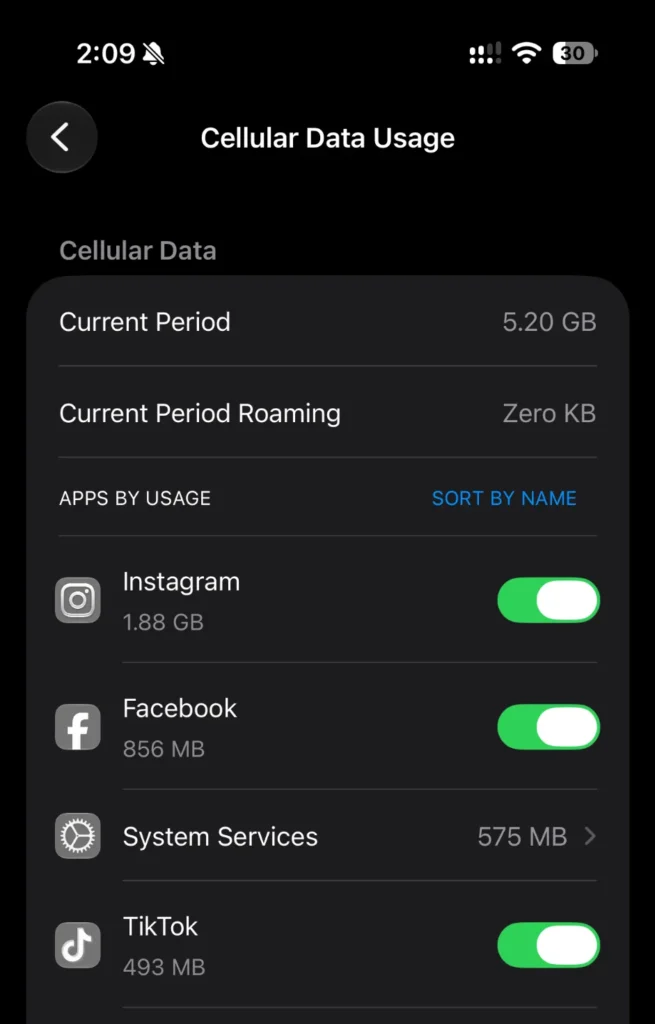
Step 2: Find the Current Period Statistics
Scroll down to the data usage section.
Look for Current Period.
This figure represents the cellular data counted since the relevant statistics were last reset.
It doesn’t necessarily represent data used since the beginning of the current month.
Step 3: Check Individual App Usage
Continue scrolling through the list of apps.
You may see entries such as:
- Safari
- YouTube
- Photos
- Maps
The data usage amount appears below or near each app name.
On supported iOS versions, tap Show All to expand the list.
Apps with larger reported amounts have consumed more cellular data during the recorded period.
For example, if YouTube shows 4 GB and Safari shows 500 MB, YouTube has used substantially more cellular data over that measured period.
However, those numbers alone don’t indicate whether the usage was unnecessary.
Streaming videos naturally consumes more data than browsing mostly text-based websites.
What Does Current Period Mean on iPhone?
This is one of the most misunderstood parts of iPhone cellular settings.
Current Period generally refers to usage accumulated since the last cellular statistics reset.
It isn’t automatically the same as your carrier’s monthly billing period.
For example, suppose your mobile plan renews on the first day of each month.
If you last reset your iPhone’s statistics several months ago, the Current Period total may include data from multiple billing cycles.
That can make the number look unusually high.
Does iPhone Reset Data Usage Automatically Every Month?
Don’t assume it does.
The built-in Reset Statistics control allows you to start a new measurement period manually.
If you want your iPhone statistics to correspond closely to your billing cycle, you can reset them at the beginning of that cycle and monitor the totals afterward.
For the exact usage counted toward your plan, check with your carrier.
What About Current Period Roaming?
Some iPhones display a separate Current Period Roaming statistic.
This reflects cellular data recorded while roaming during the measured period.
Roaming usage can have different billing implications depending on your mobile plan.
Before traveling internationally, check your carrier’s roaming rates and coverage.
How to Check Data Usage for Individual iPhone Apps
Knowing your total usage is helpful, but finding the responsible applications can be even more useful.
Find Apps Using the Most Cellular Data
- Open Settings → Cellular.
- Scroll to the application list.
- Tap Show All if available.
- Review the data amounts.
- Identify apps with unusually large totals.
Video streaming, social media, navigation, cloud services, and large downloads can all contribute to cellular data consumption.
If an app shows more usage than expected, review its own settings.
For example, some streaming applications offer options to reduce video quality or download content only while connected to Wi-Fi.
Not every app provides the same controls.
Turn Off Cellular Data for a Specific App
You can prevent selected applications from using cellular data.
- Open Settings → Cellular.
- Find the application.
- Turn off the switch beside its name.
When cellular data is disabled for an app, it generally uses Wi-Fi for internet access instead.
You can enable cellular data again whenever necessary.
Be careful: Disabling cellular access may prevent an app from updating information or receiving internet-based content while Wi-Fi is unavailable.
If your apps stop receiving alerts, check the network connection and our iPhone Notifications Not Working guide.
How to Check iPhone System Services Data Usage
Not all cellular data consumption comes from ordinary third-party applications.
Your iPhone also uses cellular data for certain system functions.
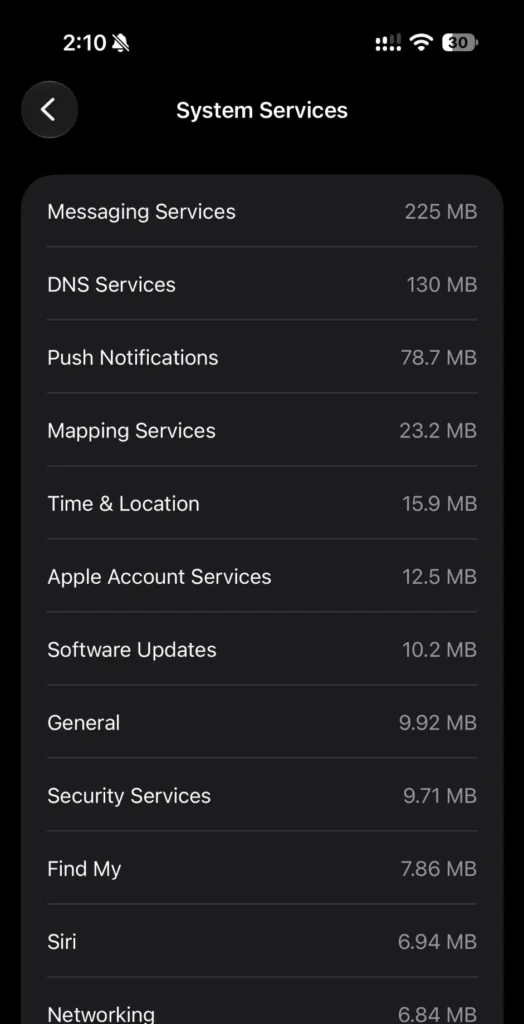
Apple provides a separate System Services breakdown.
View System Services Usage
- Open Settings.
- Tap Cellular.
- Scroll through the cellular data usage section.
- Find System Services.
- Tap it to open the breakdown.
The available entries depend on your iOS version and device configuration.
You may see usage associated with system networking, synchronization, notifications, or other Apple services.
Can You Disable Cellular Data for Individual System Services?
Apple doesn’t provide individual cellular-data switches for every System Services entry.
Instead, you may need to adjust the relevant feature’s settings.
For example, some synchronization and background activities can be affected by Low Data Mode.
Don’t disable unrelated system functions simply because their data usage looks high.
First determine whether that activity is expected.
How to Reset Cellular Data Usage Statistics
Resetting statistics is useful if you want to start measuring cellular consumption from a specific date.
It can help you track usage over a new billing cycle.
Steps to Reset iPhone Data Statistics
- Open Settings.
- Tap Cellular or Mobile Data.
- Scroll to the bottom of the page.
- Select Reset Statistics.
- Confirm if your iPhone requests confirmation.
The recorded cellular usage counters will restart.
You can then monitor how much cellular data is consumed afterward.
Does Reset Statistics Delete Anything?
Resetting cellular data statistics doesn’t normally erase your apps, photos, messages, or other personal content.
It resets the usage counters, not your mobile data plan.
It also doesn’t restore unused data or alter your carrier’s billing records.
Important: If you need your existing totals for reference, take a screenshot before resetting them.
How to Track Monthly Data Usage
A practical approach is to:
- Find your carrier’s billing or renewal date.
- Record the current usage totals.
- Reset Statistics when a new billing cycle begins.
- Review the updated figures periodically.
- Compare them with your carrier’s reported consumption.
Your carrier’s records should take priority if the numbers differ.
How to Check Cellular Data Usage With Dual SIM
Many modern iPhones support two active mobile plans through physical SIM, eSIM, or a supported combination.
The exact configuration depends on your iPhone model and region.
If you use two cellular plans, check which line is selected for cellular data.
Steps
- Open Settings → Cellular.
- Find the available SIM or eSIM plans.
- Open the Cellular Data selection.
- Review which plan is currently selected.
- Examine the available data statistics for the relevant line.
On supported configurations, Apple allows you to view cellular usage associated with the selected data number.
If you regularly switch between mobile plans, your carrier applications may provide clearer billing information for each plan.
Don’t assume that usage from two separate subscriptions is combined into a single carrier allowance.
How to Reduce Cellular Data Usage on iPhone
After identifying the biggest data-consuming apps, you can take steps to reduce unnecessary usage.
The right changes depend on how you use your phone.
1. Enable Low Data Mode
Low Data Mode is designed to reduce network data usage.
It can pause certain automatic updates and background activities.
To enable it for a supported cellular plan:
- Open Settings → Cellular.
- Select the relevant cellular line or Cellular Data Options.
- Tap Data Mode.
- Choose Low Data Mode.
The exact navigation depends on your cellular configuration.
Low Data Mode may reduce background activity, but it doesn’t guarantee a specific amount of savings.
2. Disable Cellular Data for Apps You Rarely Need
If you primarily use a certain app at home on Wi-Fi, you may not need it to access mobile data.
Open Settings → Cellular, find the application, and disable its cellular access.
Consider doing this for nonessential apps rather than services you depend on while traveling.
3. Adjust Streaming Quality
Video and audio streaming can use substantial amounts of data, depending on the quality, duration, and application.
Check the streaming app’s settings for options such as:
- Lower mobile streaming quality
- Download over Wi-Fi only
- Reduced data usage
- Offline playback
Available settings vary by app.
4. Use Wi-Fi for Large Downloads
When you have a trusted, reliable Wi-Fi connection, consider using it for large application downloads, software updates, and media transfers.
However, Wi-Fi connectivity alone doesn’t guarantee that the internet connection works.
If your phone shows Wi-Fi but websites fail to load, our iPhone Connected to Wi-Fi but No Internet guide explains what to check.
5. Review Background Activity
Some applications refresh information while they aren’t actively open.
Go to Settings → General → Background App Refresh to review available controls.
You can adjust background refreshing for supported apps.
However, disabling Background App Refresh isn’t equivalent to completely preventing an application from using cellular data.
Use the per-app cellular switches when you specifically want to restrict cellular access.
Connectivity Assist and Wi-Fi Assist: Why Data Usage Increases
You may notice cellular data usage increasing even when your iPhone frequently connects to Wi-Fi.
One possible explanation is Apple’s connectivity-assistance feature.
Connectivity Assist on iOS 27
On supported iOS 27 versions, Apple uses Connectivity Assist.
It can use cellular data alongside Wi-Fi to maintain a more reliable internet connection when Wi-Fi is weak, busy, or unusable.
To review it:
- Open Settings.
- Tap Wi-Fi.
- Scroll to Connectivity Assist.
- Review whether it is enabled.
- Check the available usage information.
- Turn it off if you’d prefer not to use cellular data for this assistance feature.
Disabling it may make connections less reliable when Wi-Fi performance is poor.
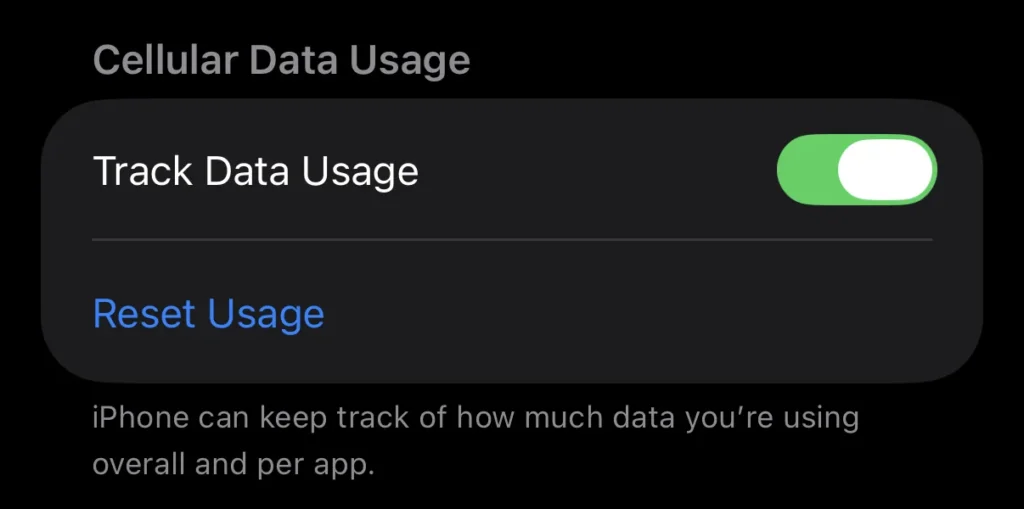
Apple also provides an option to reset the feature’s usage counter on supported software.
What About Older iOS Versions?
On older iOS versions, the related feature is called Wi-Fi Assist.
It generally appears within Cellular or Mobile Data settings.
Apple’s newer Connectivity Assist replaces and extends the older feature, so the setting location and behavior aren’t identical.
For more details, read Apple’s Connectivity Assist guide.
If your iPhone frequently loses its Wi-Fi connection, see our iPhone Wi-Fi Keeps Disconnecting guide before changing unrelated cellular settings.
Why Is My iPhone Using So Much Cellular Data?
Unexpectedly high cellular usage doesn’t necessarily mean your iPhone has a problem.
Possible explanations include:
- Streaming high-resolution videos
- Large downloads
- Cloud synchronization
- Apps refreshing data
- Personal Hotspot usage
- Connectivity assistance when Wi-Fi performs poorly
- A long period since statistics were last reset
Start by checking the individual app and System Services totals.
If the overall figure appears much higher than your mobile plan’s monthly allowance, verify when you last reset the statistics.
If you’re receiving actual carrier overage notices, check your carrier’s reported usage rather than relying solely on the iPhone totals.
If your mobile data connection isn’t functioning at all, our iPhone Cellular Data Not Working guide covers the separate troubleshooting process.
Can You Set a Monthly Cellular Data Limit on iPhone?
iOS provides cellular data controls, Low Data Mode, and usage statistics.
However, it doesn’t offer the same universal built-in per-month cellular usage cap with an automatic hard cutoff found on some Android devices.
Some carriers provide their own data alerts, limits, or account controls.
To manage your allowance, consider using your carrier’s official app and available notifications.
You can also reset your iPhone’s statistics at the beginning of your billing cycle for an additional usage reference.
iPhone Cellular Usage vs. Carrier Data Usage
Your iPhone and your mobile provider may report slightly different numbers.
There can be differences in measurement periods, reporting methods, and the timing of usage records.
For example:
Your iPhone could show several gigabytes under Current Period because the statistics haven’t been reset for months.
Meanwhile, your carrier might show a smaller amount consumed during the current billing cycle.
Those figures aren’t necessarily contradictory.
Apple specifically recommends contacting your carrier for the most accurate cellular data usage information for the current period.
If your bill is unexpectedly high, review the provider’s usage records and billing details.
Frequently Asked Questions
How do I show data usage on iPhone?
Open Settings → Cellular, then scroll to the data usage statistics. You can view Current Period, individual app usage, and System Services information.
Does Current Period mean this month?
Not necessarily. It generally reflects usage accumulated since the last reset of the cellular statistics. For monthly billing information, check your carrier.
How do I see which app uses the most data on iPhone?
Open Settings → Cellular and review the data usage amounts below the app names. Tap Show All if available.
How do I check data usage on iPhone 17 Pro?
Open Settings, choose Cellular, and scroll to the Current Period and application statistics. The same general procedure applies to other recent iPhones.
Does iPhone show Wi-Fi data usage for each app?
The Cellular settings primarily report cellular data usage. They aren’t a comprehensive built-in per-app history of all Wi-Fi data consumed.
What happens if I reset cellular data statistics?
The recorded cellular usage counters start again. This doesn’t reset your carrier’s allowance or normally erase personal files.
Can I turn off cellular data for one app?
Yes. Open Settings → Cellular and turn off the switch beside the app. The app generally needs Wi-Fi for internet access afterward.
Why is my cellular data usage increasing while connected to Wi-Fi?
Connectivity assistance, intermittent Wi-Fi problems, or other network behavior may contribute. Check your current iOS settings and usage statistics.
Can I check data usage separately for two eSIMs?
On supported Dual SIM configurations, you can review usage associated with the selected cellular data number. Your carrier’s account tools can provide separate plan-specific billing information.
Is Low Data Mode the same as turning off cellular data?
No. Low Data Mode reduces certain background network activities. Turning off cellular data prevents the selected cellular internet connection from being used.
Final Thoughts
Learning how to show data usage on iPhone is straightforward once you know where Apple places the information.
Start with Settings → Cellular to review Current Period usage and see which apps have consumed the most data.
Check System Services for additional usage, and consider Low Data Mode or per-app cellular restrictions when appropriate.
If you want to monitor a new billing cycle, reset the statistics at the beginning of that period.
Most importantly, remember that your carrier is the authoritative source for the data usage charged against your mobile plan.
With these checks, you can understand where your cellular data goes and make informed decisions about reducing unnecessary consumption.