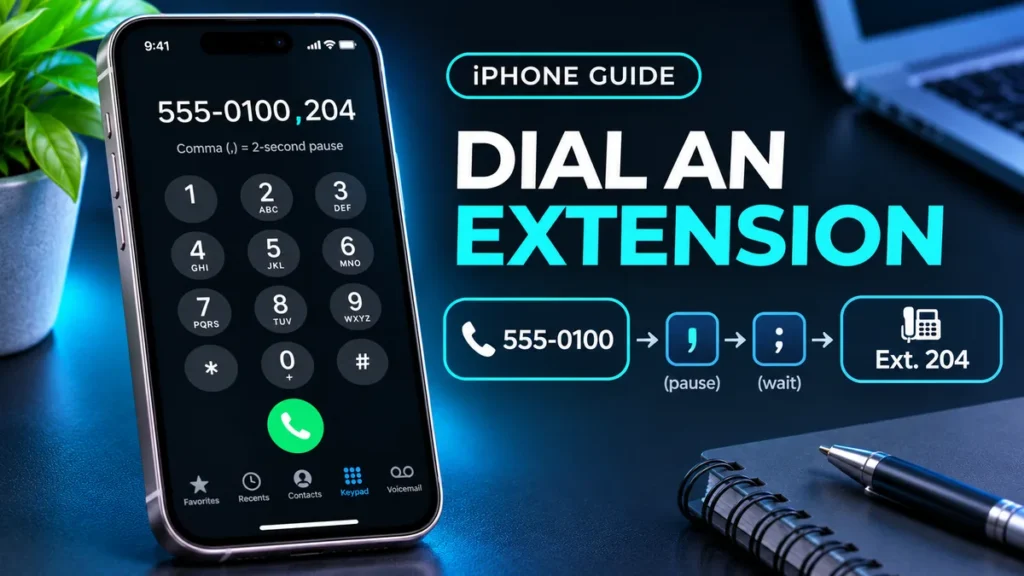
Trying to call a company, hospital, office, or customer support department, but the phone number includes an extension? You might know the main phone number and extension, yet be unsure how to enter both on your iPhone.
Fortunately, you don’t need a special dialing app.
If you’re wondering how to dial an extension on iPhone, you have three options: enter the extension manually during a call, use a comma to dial it automatically after a short pause, or insert a semicolon to wait until you’re ready to send it.
You can also save the extension with a contact so you won’t have to enter it every time.
The best method depends on the company’s automated phone system and how long it takes to ask for the extension.
In this guide, we’ll explain all three methods, show you how to save an extension in Contacts, and help troubleshoot extensions that aren’t connecting.
These instructions apply to recent iPhones, including the iPhone 17 Pro, although the Phone app layout may vary slightly depending on your iOS version.
Quick Answer: How to Dial an Extension on iPhone
The easiest method is to enter the extension during an active call.
- Open the Phone app.
- Tap Keypad.
- Enter the company’s main phone number.
- Tap the green Call button.
- Wait for the automated phone system to answer.
- Tap Keypad on the call screen.
- Enter the extension number when prompted.
For example, if a company’s main number is 202-555-0147 and the extension is 204, call the main number first and enter 204 when requested.
Alternatively, you can dial the complete sequence using a comma:
2025550147,204
The comma inserts an approximately two-second pause before the extension digits are sent.
You can also use a semicolon:
2025550147;204
This makes the iPhone wait until you tap the on-screen Dial control to send the extension.
Important: These numbers are fictional examples. Don’t call them as part of your screenshot tests.
Apple officially documents both methods in its iPhone Phone keypad guide.
What Is a Phone Extension?
A phone extension is a short number used to reach a particular person, department, or service within a larger telephone system.
Businesses often use one main telephone number for multiple departments.
For example, a company’s main line might answer with:
“Welcome. If you know your party’s extension, please enter it now.”
You might then enter 204 to reach a specific employee.
Why Do Companies Use Extensions?
Extensions allow organizations to route calls through a central phone system.
They’re commonly used by:
- Hospitals and medical offices
- Banks and financial institutions
- Corporate offices
- Universities and schools
- Government departments
- Customer support centers
- Hotels and large businesses
An extension usually doesn’t have to be dialed as a separate complete phone number.
Instead, you first reach the main phone system, which routes your call after receiving the extension digits.
Are Extensions the Same as Area Codes?
No.
An area code is part of a telephone number’s normal dialing structure.
An extension is an additional sequence used by the receiving organization’s phone system.
For instance, the 202 in a US phone number is an area code, while 204 could be an internal extension.
The two serve different purposes.
Method 1: Dial an Extension Manually on iPhone
Manual dialing is the simplest approach when you’re calling a company for the first time.
It’s also useful when the automated system has several menu options or takes an unpredictable amount of time to answer.
Step 1: Open the Phone App
Find the green Phone app on your iPhone.
Open it and select Keypad.
If you use the newer Phone app layout, Keypad may appear alongside the current Calls interface.
Step 2: Enter the Main Phone Number
Type the main number of the business or organization.
For example:
202-555-0147
Don’t enter the extension yet.
Step 3: Start the Call
Tap the green Call button.
Wait for the call to connect.
The organization may answer with a recorded greeting or a receptionist.
Step 4: Open the In-Call Keypad
Once the automated system asks for an extension, tap Keypad on the active call screen.
This opens the numeric keypad used for entering digits during an ongoing call.
Step 5: Enter the Extension
Type the extension number.
For example:
204
The iPhone sends the keypad digits to the telephone system.
If the company uses a compatible automated system, it should route the call accordingly.
Do You Need to Press the Pound Key?
Not always.
Some phone systems ask you to press the pound (#) key after entering the extension.
For example:
“Please enter extension 204 followed by the pound key.”
In that case, type:
204#
Other systems accept the extension without an additional key.
Follow the organization’s instructions rather than automatically adding # to every extension.
When Should You Use Manual Dialing?
Manual dialing is best when the organization has a complicated automated menu, requires multiple selections, or doesn’t reliably recognize automatically entered extensions.
Method 2: Automatically Dial an Extension Using Pause
If you frequently call the same extension, you can make the process faster.
Apple provides a Pause feature that automatically waits approximately two seconds before sending additional digits.
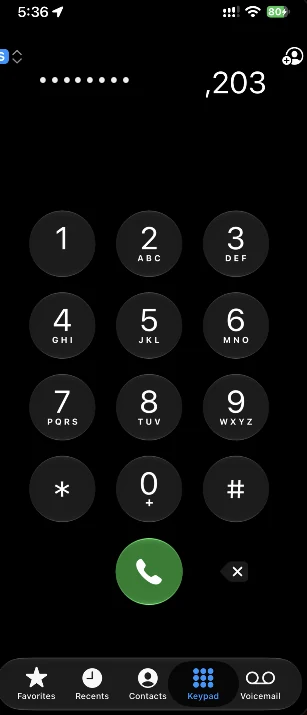
The pause is represented by a comma.
How to Add a Pause on iPhone
- Open Phone → Keypad.
- Enter the main phone number.
- Touch and hold the asterisk (*) key.
- Release it when a comma appears.
- Enter the extension.
- Tap Call when you’re ready to make the call.
For example:
2025550147,204
The iPhone calls the main number, waits approximately two seconds, and then sends 204.
What Does a Comma Mean in an iPhone Phone Number?
A comma represents a timed pause.
Each comma adds approximately two seconds before the phone continues sending the remaining digits.
You don’t need to manually press the extension after the pause completes.
What If Two Seconds Isn’t Enough?
Some businesses play longer recorded greetings.
If the system consistently takes longer before it accepts extensions, you can add another comma.
For example:
2025550147,,204
This inserts approximately four seconds of combined pause time.
A third comma would add another two seconds.
However, more commas aren’t always the best solution.
If the greeting duration changes between calls, Wait is generally more reliable than a fixed delay.
Apple confirms the Pause behavior in its official Phone app documentation.
Method 3: Dial an Extension Using Wait
The Wait feature gives you more control over when the extension is sent.
Instead of sending digits automatically after a fixed delay, your iPhone waits for you to continue.
This is useful for slower automated systems, unpredictable greetings, and calls requiring additional verification.
How to Add Wait on iPhone
- Open the Phone app.
- Tap Keypad.
- Enter the main phone number.
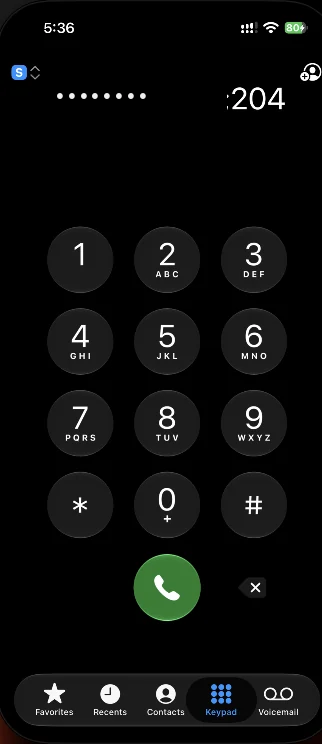
- Touch and hold the pound (#) key until a semicolon appears.
- Enter the extension.
- Tap the green Call button.
For example:
2025550147;204
The semicolon tells your iPhone to stop the dialing sequence at that point.
When the main call connects and the automated system asks for the extension, tap the on-screen Dial control for the pending digits.
Your iPhone then sends the extension.
What Does a Semicolon Mean in a Phone Number?
A semicolon represents a manual wait.
Unlike a comma, it doesn’t automatically continue after two seconds.
The iPhone waits for you to confirm the next sequence.
When Is Wait Better Than Pause?
Suppose you’re calling a customer support center.
Sometimes the automated greeting lasts three seconds. On another call, it takes ten seconds.
If you use a fixed two-second pause, your iPhone may send the extension before the system is ready.
With Wait, you can listen and send the extension at the correct moment.
This makes it more convenient for systems with unpredictable timing.
Pause vs Wait on iPhone: What’s the Difference?
Both features help automate extension dialing, but they work differently.
Pause: Comma (,)
How it works: Waits approximately two seconds, then automatically sends the next digits.
Best for: Phone systems with predictable greeting durations.
Example:
2025550147,204
Wait: Semicolon (;)
How it works: Stops the dialing sequence until you manually tap Dial.
Best for: Long or unpredictable automated greetings.
Example:
2025550147;204
Manual Keypad
How it works: You call the main number and enter the extension during the conversation.
Best for: One-time calls, complex menus, and unfamiliar phone systems.
For most one-time calls, manual dialing is easiest.
For frequently called extensions, save a tested Pause or Wait sequence.
How to Save an Extension in iPhone Contacts
If you regularly call a particular employee or business department, saving the extension in Contacts can eliminate repetitive dialing.
Apple supports storing Pause and Wait directly inside a contact’s phone-number field.
Step 1: Open Contacts
Open the Contacts app.
Find the person or business.
If the contact doesn’t exist, create a new one.
Step 2: Edit the Contact
Select the contact.
Tap Edit.
Find the relevant phone-number field.
Step 3: Add the Main Number
Enter the main business phone number.
If the number is already saved, place the cursor at the end of it.
Step 4: Insert Pause or Wait
Tap the Symbols or +*# button on the number-editing keypad, depending on the interface.
Choose:
Pause to insert a comma.
Or:
Wait to insert a semicolon.
Step 5: Enter the Extension
After the comma or semicolon, type the extension.
For example:
2025550147,204
Or:
2025550147;204
Step 6: Save the Contact
Tap Done to save your changes.
The next time you call using that stored phone number, the iPhone will use the saved sequence.
Should You Save Different Departments as Separate Contacts?
Sometimes.
If you frequently call different extensions at the same organization, separate contacts can make dialing easier.
For example:
- Company Reception
- Company Accounts Department
- Company Technical Support
Each contact can contain the appropriate extension.
This is often clearer than saving several complicated dialing sequences under one general contact.
What If Your Saved Contact Doesn’t Appear?
A missing contact is separate from the extension feature itself.
If your contacts aren’t appearing consistently across your iPhone and other devices, see our iPhone Contacts Not Syncing troubleshooting guide.
This covers account synchronization, contact visibility, and common Contacts problems.
How to Dial an Extension on iPhone Without Saving It
You don’t need to create a contact every time.
You can enter a number with Pause or Wait directly in the Phone app.
For example:
- Open Phone.
- Select Keypad.
- Type the main number.
- Insert a comma by holding
*. - Enter the extension.
- Place the call.
This is convenient when you have the complete number and extension but don’t intend to call the person regularly.
If you’re unfamiliar with the company’s phone menu, manual dialing is still the safer choice.
Can You Dial Multiple Extensions or Menu Options Automatically?
Some organizations require several steps before connecting you to the correct person.
For example, the phone system might ask you to select a language, choose a department, and then enter an employee extension.
An iPhone can store a sequence containing multiple pauses or waits.
Consider a hypothetical example:
2025550147,2;204
Here, the iPhone waits briefly before sending 2, then pauses again until you manually approve sending 204.
However, this only works if the receiving phone system accepts those inputs in that order.
Different systems have different menu structures.
Is Automatic Dialing Always Reliable?
No.
An automated phone system may change its greeting, menu sequence, or response timing.
If a saved dialing sequence stops working, try manual dialing and listen to the current prompts.
Then adjust the saved contact if necessary.
Avoid adding random digits or symbols without understanding what the system requires.
How to Dial an Extension on iPhone 17 Pro
The iPhone 17 Pro supports Apple’s standard Phone keypad and extension-dialing features.
The steps are essentially the same as on other recent compatible iPhones.
For a One-Time Call
Open Phone → Keypad, dial the main number, and use the in-call Keypad to enter the extension.
For an Automatic Extension
Enter the main number, hold * to insert a comma, and add the extension.
For a Manual Wait
Enter the main number, hold # to insert a semicolon, and add the extension.
For a Saved Contact
Open Contacts, edit the phone number, add Pause or Wait, and save.
You don’t need to install a separate application or change your cellular plan to use these features.
Why Is My iPhone Extension Not Working?
Sometimes the iPhone successfully connects to the main business number but fails to reach the intended extension.
This doesn’t necessarily indicate a Phone app problem.
The issue may involve the automated phone system, incorrect extension digits, or the timing of the input.
1. The Extension Is Sent Too Early
This often happens when using a comma.
A single pause lasts approximately two seconds.
If the automated system takes longer to answer, it may ignore the extension.
Solution: Use Wait instead of Pause, or enter the extension manually.
2. The Extension Number Is Incorrect
Confirm the exact digits with the organization.
Some extensions contain three digits, while others use four or more.
A single incorrect digit may route the call to another department or produce an error.
3. The Phone System Requires a Pound Key
Some organizations require # after the extension.
Listen carefully to the instructions.
Add the pound key only when requested.
4. The Automated Menu Has Changed
A saved dialing sequence may stop working when a business updates its phone system.
Try calling without the saved extension.
Listen to the new menu and update the contact accordingly.
5. The Company Doesn’t Accept Extensions Immediately
Some systems require you to select a language or department first.
In this situation, use manual dialing or a carefully tested Wait sequence.
6. The Main Phone Call Isn’t Connecting
If the main number doesn’t connect at all, you may have a separate cellular or calling problem.
Check your signal, carrier status, and whether ordinary calls work.
If you’re using carrier-supported Wi-Fi Calling and experiencing connection issues, see our iPhone Wi-Fi Calling Not Working guide.
The extension feature itself doesn’t determine whether your cellular or Wi-Fi call can connect.
7. The Person Isn’t Available
Sometimes the extension works correctly but routes to voicemail.
This can simply mean the person isn’t available or their organization’s call-routing system forwarded the call.
If you’re experiencing unrelated issues with incoming calls to your own iPhone, our iPhone Calls Going Straight to Voicemail guide explains those separate settings.
Can You Dial an Extension During Wi-Fi Calling?
Yes, generally.
When your carrier supports Wi-Fi Calling and the phone call is working normally, the in-call keypad can still be used to send the digits requested by a compatible telephone system.
The use of Wi-Fi Calling doesn’t automatically change the meaning of Pause or Wait.
However, connection quality and carrier support can affect call reliability.
If the main call fails, troubleshoot the connection first.
Can You Dial Extensions on FaceTime or WhatsApp?
The procedures described in this article apply to Apple’s standard Phone app and telephone dialing.
FaceTime and WhatsApp are separate calling services.
They don’t necessarily provide the same extension-dialing features or connect directly to ordinary business telephone extensions.
Some specialized business calling applications support dialing into telephone systems, but their capabilities depend on the service.
If you’re calling a conventional office number, use the Phone app or another compatible telephone calling service.
Do You Need to Include the Country Code Before an Extension?
If you’re calling internationally, you may need the appropriate international dialing prefix and country code.
However, the extension is still separate from the international telephone number.
For example, the dialing sequence would normally be structured as:
Country code + main number + Pause or Wait + extension
The correct country code and national number format depend on the destination.
On iPhone, you can insert a plus sign by touching and holding 0 on the Phone keypad.
Always confirm the organization’s full international contact number before calling.
International calling charges may apply depending on your carrier and plan.
Frequently Asked Questions
How do I dial an extension on iPhone?
Call the main number, open Keypad during the call, and enter the extension when prompted. You can also use a comma for Pause or a semicolon for Wait.
How do I automatically dial an extension on iPhone?
Enter the main number, touch and hold * to insert a comma, type the extension, and place the call.
How do I add a two-second pause on iPhone?
Touch and hold the asterisk key on the Phone keypad until a comma appears. Each comma represents approximately two seconds of pause time.
What does a comma mean in an iPhone phone number?
A comma is a Pause command. It tells the iPhone to wait approximately two seconds before sending the following digits.
What does a semicolon mean in an iPhone phone number?
A semicolon is a Wait command. It tells the iPhone to pause the dialing sequence until you manually approve sending the remaining digits.
How do I add an extension to an existing iPhone contact?
Open Contacts, select the contact, tap Edit, select the phone-number field, insert Pause or Wait, enter the extension, and tap Done.
Do I press star or pound to dial an extension?
Hold * to insert a timed Pause, or hold # to insert a Wait. During an active call, press the actual keys requested by the automated phone system.
Do I have to press # after entering an extension?
Only if the receiving phone system requests it. Many systems accept the extension digits without an additional terminating key.
Can I save multiple phone extensions on one iPhone?
Yes. You can create separate contact entries or phone-number fields for different extensions, depending on how you want to organize them.
Why does my saved extension dial too early?
A Pause may be too short for the automated greeting. Add another timed pause if appropriate or use Wait to send the extension manually.
Can iPhone dial an extension automatically after answering?
The receiving phone system must first answer the main call. A saved comma-based sequence then sends digits after the programmed pause. A semicolon waits for your confirmation.
Does this work on iPhone 17 Pro?
Yes. The iPhone 17 Pro supports the standard Phone keypad, including Pause and Wait commands.
Is an extension the same as a phone number?
No. An extension is an additional internal routing sequence used by a company’s phone system. The main number must normally be reached first.
Final Thoughts
If you’ve been wondering how to dial an extension on iPhone, the good news is that Apple provides everything you need inside the Phone app.
For a one-time call, dial the main number and enter the extension manually when prompted.
If the phone system answers at a predictable speed, use Pause (,) to send the extension automatically.
If the greeting takes an unpredictable amount of time, use Wait (;) so you can choose exactly when to continue dialing.
And for numbers you call regularly, save the complete extension sequence in Contacts.
For most people, manual dialing is the easiest place to start, while Pause and Wait make repeated business calls more convenient.