New iPhone stuck on signing in during setup? You enter your Apple Account details, but the screen keeps spinning, says “Signing In,” or refuses to move to the next step.
This can happen while setting up a new iPhone, transferring data through Quick Start, restoring an iCloud backup, or signing in to your Apple Account for the first time.
A slow or interrupted internet connection is one possible cause. Apple service problems, verification-code issues, and incomplete account authentication can also prevent setup from continuing.
The good news is that you usually don’t need to erase your new iPhone to investigate the problem.
This guide explains nine practical fixes, starting with the easiest checks and moving toward more advanced solutions when necessary.
Quick Answer: How to Fix a New iPhone Stuck on Signing In
If your new iPhone keeps loading at the Apple Account sign-in screen, try these steps:
- Check Apple’s System Status page for service problems.
- Connect to a different, reliable Wi-Fi network.
- Confirm your Apple Account credentials.
- Complete two-factor authentication.
- Check whether Quick Start or data transfer is still running.
- Force restart the iPhone if it has become unresponsive.
- Complete setup without signing in, if that option is available.
- Update iOS after setup.
- Check for activation problems and contact Apple Support if necessary.
Important: If your iPhone is actively restoring data or transferring information from another device, don’t interrupt that process just because it is taking longer than expected. Large transfers can take considerable time.
Table of Contents
Why Is My New iPhone Stuck on Signing In?
A new iPhone needs to communicate with Apple’s services to authenticate your Apple Account and activate features such as iCloud, the App Store, iMessage, and Find My.
The sign-in process may stall if that communication cannot finish.
Possible causes include:
- Unstable Wi-Fi: The device connects to your router but cannot consistently reach Apple’s servers.
- Apple service problems: An outage or temporary service interruption affects sign-in.
- Account verification: Your iPhone is waiting for a verification code or additional authentication.
- Incorrect account information: The password or Apple Account details have changed.
- Quick Start interruptions: Your old and new devices lose the connection used for setup.
- Temporary software problems: The setup screen becomes unresponsive.
- Activation issues: The device cannot complete activation, which is different from ordinary Apple Account sign-in.
The correct fix depends on what your screen actually says. A spinning “Signing In” message is not the same as “Unable to Activate,” “iPhone Locked to Owner,” or a data-transfer progress screen.
1. Check Whether Apple’s Servers Are Working
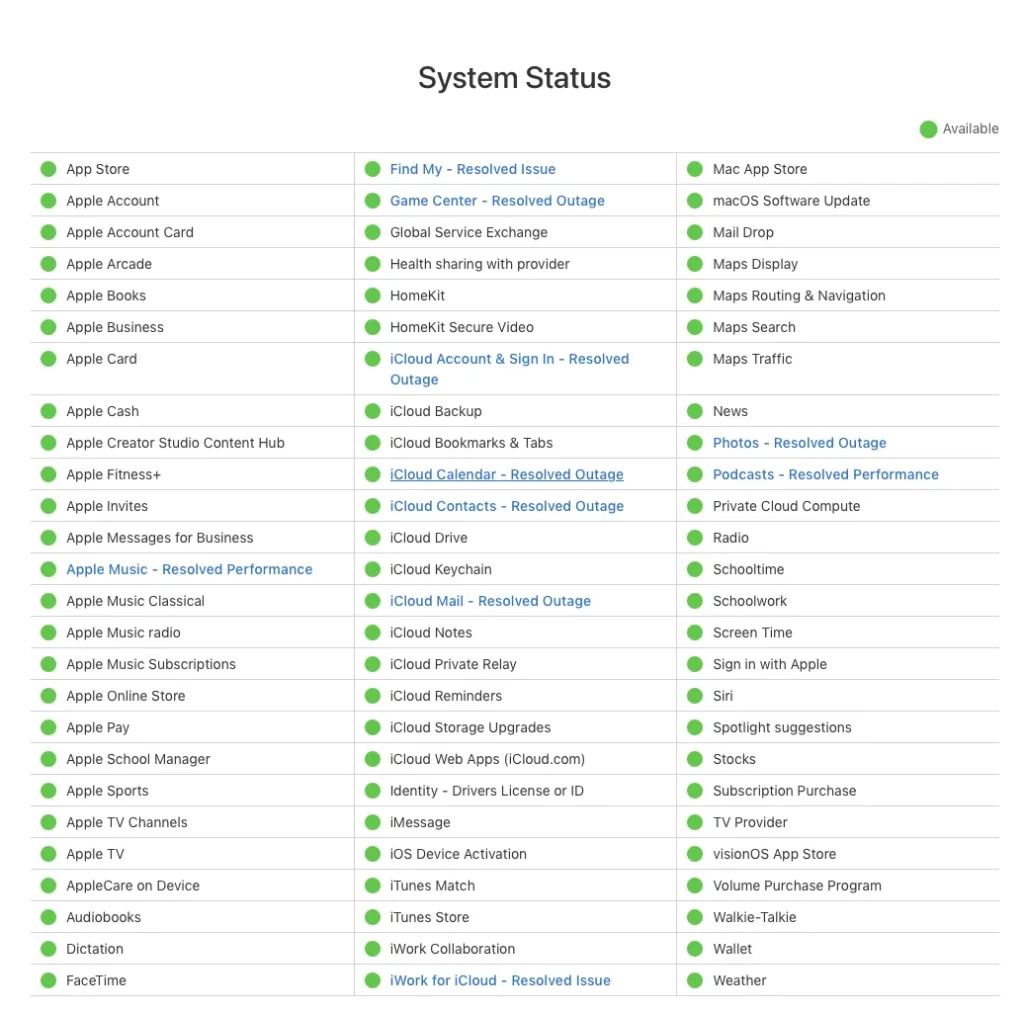
Before changing anything on your iPhone, check whether Apple is experiencing a service interruption.
Apple Account sign-in depends on online services. If an affected service is unavailable, repeatedly entering your password or restarting your phone may not help.
What to do
- Open a browser on another phone, tablet, or computer.
- Visit Apple’s official System Status page.
- Look for any issues involving Apple Account, iCloud, or related sign-in services.
- If a relevant service is unavailable, try again after Apple resolves the issue.
If everything appears operational, continue with the next fix.
Apple also recommends checking service status when an account sign-in attempt keeps spinning or cannot connect to a server. See its official Apple Account sign-in guidance.
Expected result: If a service interruption caused the problem, sign-in should work again once the service is restored.
2. Connect Your New iPhone to a Different Wi-Fi Network
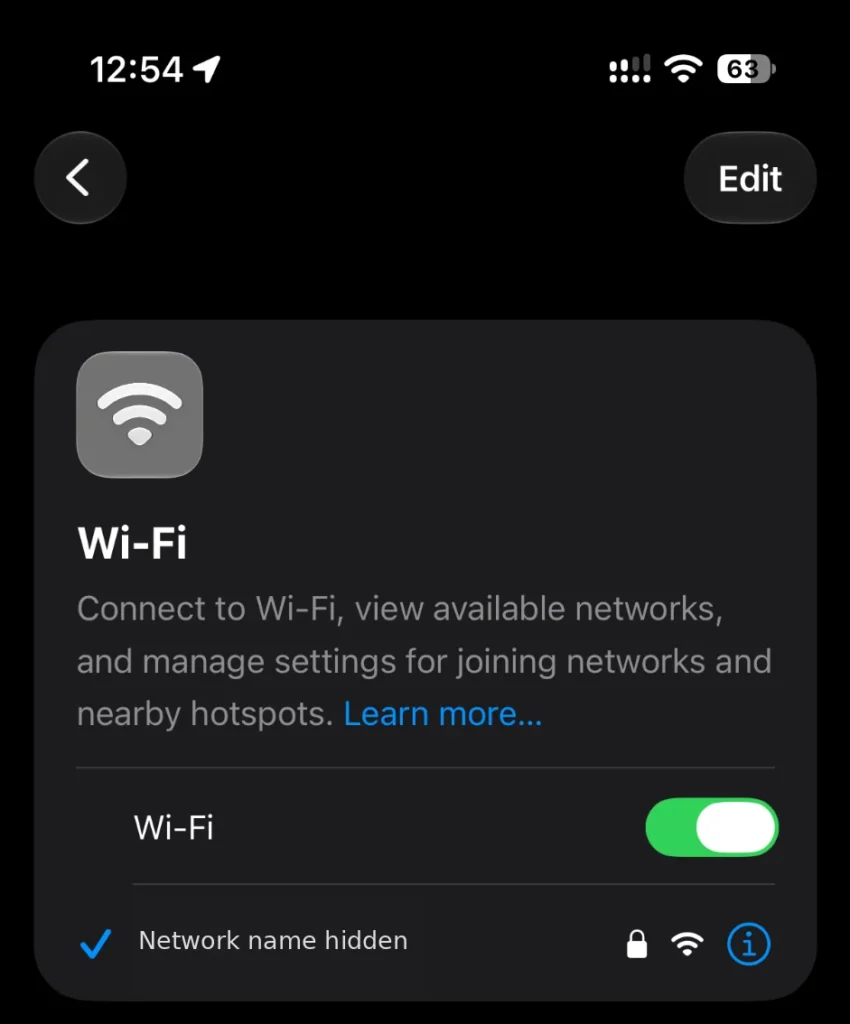
A Wi-Fi connection can look normal while still having internet problems.
Your new iPhone might show a connected network even though it cannot communicate reliably with Apple’s servers.
What to do
If you can return to the network selection screen during setup:
- Go back to the Wi-Fi selection step.
- Disconnect from the current network.
- Choose another reliable Wi-Fi connection.
- Enter its password.
- Return to Apple Account sign-in and try again.
You can also try a trusted personal hotspot if one is available.
Avoid public Wi-Fi networks that require signing in through a browser, especially if the setup process cannot display the network’s login page.
Test the network separately
If you have another device connected to the same Wi-Fi network, open a few websites on it.
If websites fail to load, the issue may be with the network rather than your new iPhone.
We have a separate guide on iPhone connected to Wi-Fi but no internet if you need to troubleshoot the connection itself.
You can also follow our iPhone Wi-Fi keeps disconnecting guide if the connection repeatedly drops.
Expected result: Your iPhone should complete authentication once it has a stable connection to Apple’s services.
3. Verify Your Apple Account Email and Password
If the sign-in screen accepts your information but never completes, confirm that you are using the correct Apple Account credentials.
Your Apple Account is the account used for iCloud, the App Store, Find My, and other Apple services. It was previously called an Apple ID.
Check your account safely
On another trusted device:
- Visit Apple’s official account website.
- Try signing in with the same Apple Account.
- Confirm that the email address or phone number is correct.
- Check whether Apple requests any additional authentication.
If you recently changed your password, use the updated password on your new iPhone.
If you’ve forgotten your password, follow Apple’s account recovery or password-reset instructions. Don’t repeatedly guess passwords, since excessive failed attempts can trigger security restrictions.
Important: Enter your account details only on Apple’s official websites or device interfaces. Avoid third-party pages claiming to bypass Apple Account verification.
4. Complete Two-Factor Authentication
Many Apple Accounts use two-factor authentication.
When you sign in on a new iPhone, Apple may request a six-digit verification code sent to a trusted device or phone number.
Until this verification is complete, you may be unable to finish signing in.
How to get your verification code
- Check your previously trusted iPhone, iPad, or Mac for a sign-in notification.
- If prompted, approve the sign-in request.
- Enter the verification code on your new iPhone.
- If the code doesn’t arrive, look for an option such as Didn’t Get a Code?
- Follow the onscreen instructions to receive a code through your trusted phone number.
Apple explains these options in its two-factor authentication guide.
If you cannot access any trusted device or trusted phone number, you may need to recover access to your Apple Account.
Do not share verification codes with anyone or upload screenshots containing active codes.
Expected result: After successful verification, your new iPhone can proceed with the account sign-in process.
5. Check Whether Quick Start Is Still Running
If you’re moving from an old iPhone to a new one, the problem may involve Quick Start rather than the Apple Account itself.
Quick Start uses your existing device to help configure your new iPhone.
Depending on the method you choose, it may also transfer apps, settings, and other data.
Check these conditions
- Keep both iPhones close together.
- Make sure your old iPhone has Wi-Fi enabled.
- Keep Bluetooth enabled on your old iPhone.
- Connect both devices to power when transferring substantial amounts of data.
- Follow the instructions displayed on both screens.
Apple recommends keeping the devices together and connected to power until direct data migration finishes.
See Apple’s official Quick Start instructions.
What if the Quick Start prompt disappears?
If the prompt disappears from your old device before you begin the transfer, Apple recommends restarting both devices and trying again.
However, if a direct transfer is already underway and showing progress, allow it to continue. Don’t repeatedly force restart the devices or erase the old iPhone.
If the setup screen remains genuinely frozen, continue with the next fix.
Expected result: A properly connected Quick Start session should allow setup and data migration to proceed.
6. Force Restart Your iPhone If the Screen Is Frozen
If the new iPhone is completely unresponsive and the sign-in screen will not change, a force restart may help.
This is different from erasing the phone.
A force restart does not intentionally delete your saved data, although it can interrupt an unfinished setup or transfer process.
How to force restart most modern iPhones
- Quickly press and release Volume Up.
- Quickly press and release Volume Down.
- Press and hold the Side button.
- Keep holding until the Apple logo appears.
- Release the Side button and allow the iPhone to restart.
The device may take several seconds to respond.
These instructions apply to iPhone 8 and later models with the standard button arrangement, including most recent Face ID iPhones. Some models have different button layouts, so follow the instructions for your exact device.
Apple documents this process in its force restart guide.
If the button sequence doesn’t work, read our iPhone Force Restart Not Working guide.
After the phone restarts, reconnect to a reliable network and try setup again.
Expected result: If the problem was a temporary frozen setup screen, the iPhone should become responsive again.
7. Try Completing Setup Without Signing In
If your new iPhone is responsive but Apple Account sign-in repeatedly fails, you may be able to finish the initial setup and sign in afterward.
Apple allows users to set up an account later during the supported setup process.
What to do
- Return to the Apple Account sign-in step, if the setup interface allows it.
- Look for Forgot password or don’t have an Apple Account?, or another option to complete account setup later.
- Follow the available onscreen prompts.
- Complete the remaining device setup.
- Once you reach the Home Screen, open Settings.
- Tap Apple Account at the top and try signing in manually.
The exact wording varies by iOS version and setup path.
You can confirm Apple’s supported options in its iPhone setup instructions.
Important limitation
Skipping sign-in is not appropriate for every setup problem.
If you’re restoring an iCloud backup, using an account-dependent migration path, or dealing with Activation Lock, you may need to authenticate before the relevant process can finish.
Skipping Apple Account sign-in also doesn’t complete an iCloud restore.
Only choose this option if it is available and fits your setup situation.
8. Update iOS After Completing Setup
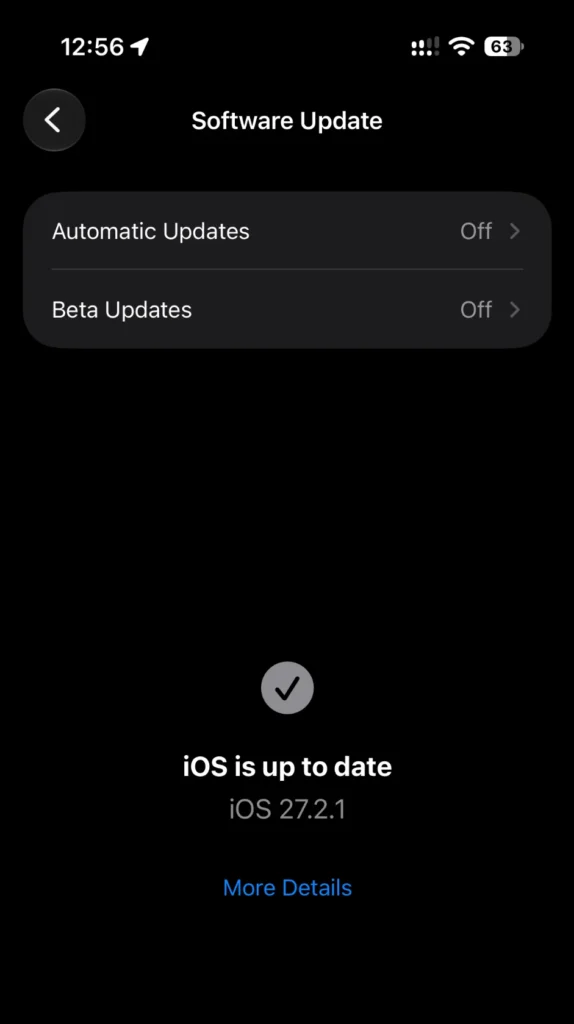
An outdated software version can occasionally cause account or connectivity problems.
If you can reach the Home Screen, check whether a newer compatible iOS version is available.
How to update your iPhone
- Open Settings.
- Tap General.
- Select Software Update.
- Check for an available update.
- Back up your important information if appropriate.
- Install the latest compatible stable update.
Keep your iPhone charged and connected to reliable internet during the installation.
Once the update finishes, return to Settings → Apple Account and try signing in again.
Apple includes installing current software among its recommendations for persistent iCloud sign-in problems in its iCloud connection guide.
If an update itself becomes stuck, our iPhone Stuck on Verifying Update guide covers that separate problem.
Expected result: Updating may resolve a software-related sign-in issue, although it won’t fix incorrect credentials or an unavailable Apple service.
9. Check for Activation Problems and Contact Apple Support
If none of the previous fixes works, examine the exact error shown on your screen.
A new iPhone that says Unable to Activate needs different troubleshooting from one that says Signing In.
If you see an activation error:
- Check Apple’s System Status page for an activation-service issue.
- Restart the iPhone if it is safe to do so.
- Try a reliable Wi-Fi connection.
- Follow Apple’s official iPhone activation troubleshooting.
Apple also provides instructions for activating an iPhone through a Mac or Windows computer when activation cannot be completed on the device.
What if it says “iPhone Locked to Owner”?
That is an Activation Lock issue, not an ordinary spinning sign-in screen.
You must use the Apple Account associated with the device or follow Apple’s legitimate ownership and support procedures.
Do not use unofficial Activation Lock bypass tools.
When should you contact Apple?
Contact Apple Support if:
- Sign-in fails on multiple reliable networks.
- Apple’s services appear operational.
- Your Apple Account works on other devices.
- Your new iPhone repeatedly freezes during setup.
- The phone cannot activate through the supported process.
- You receive an account security or activation warning you cannot resolve.
Keep your purchase details available if Apple requests proof of ownership. Do not share your password or verification code.
What You Should Avoid
When a new iPhone becomes stuck during setup, it’s tempting to try increasingly aggressive fixes.
However, some actions create unnecessary risks.
Don’t erase your old iPhone before confirming that the new one has everything you need. This is especially important during a device-to-device transfer.
Don’t repeatedly reset the new iPhone. A restart and a factory reset are different operations. A factory reset erases local data and should not be the first troubleshooting step.
Don’t repeatedly guess your password. Apple may temporarily restrict an account after excessive failed authentication attempts.
Don’t install unofficial account-unlocking software. Use Apple’s supported recovery processes instead.
Frequently Asked Questions
How long should a new iPhone take to sign in?
Ordinary Apple Account authentication often completes fairly quickly on a stable connection. However, setup time varies. Restoring data or transferring information from another iPhone may take much longer.
If a sign-in screen remains unchanged and unresponsive, troubleshoot the network and account separately rather than assuming a background transfer has failed.
Why is my new iPhone stuck on “Signing In” after entering my password?
Possible causes include an interrupted internet connection, temporary Apple service problems, additional security verification, or a frozen setup interface.
Check Apple’s service status and try another network first.
Can I use my new iPhone without signing in to an Apple Account?
In some setup paths, yes. Apple provides an option to set up an account later.
However, features such as iCloud synchronization, App Store downloads, and account-dependent backup restoration may not work until you sign in.
Will force restarting my iPhone delete my photos?
A force restart does not intentionally erase saved photos or other personal data. It can, however, interrupt an unfinished setup or transfer.
Make sure your old phone or backup remains intact until migration is complete.
Why won’t my iPhone accept the Apple verification code?
Check whether the code is current, whether the correct trusted phone number is being used, and whether you have received a newer code.
Use the account verification options provided on the screen. Never share your verification code.
Is signing in the same as activating an iPhone?
No. Device activation establishes that the iPhone can be activated and used. Signing in connects the device to your Apple Account and services.
Activation errors, Apple Account authentication errors, and Activation Lock problems require different solutions.
Final Thoughts
A new iPhone stuck on signing in doesn’t automatically mean the phone is defective.
Start by checking Apple’s service status and your internet connection. Then verify your account credentials and security code. If you’re transferring information through Quick Start, confirm that the migration isn’t still running.
A force restart may help if the interface has frozen, while signing in after setup or updating iOS may resolve certain software-related problems.
Avoid erasing either device unnecessarily. If the phone still cannot sign in or activate, Apple’s official support procedures are the safest next step.
Last reviewed: November 12, 2026.