iPhone keeps locking itself even when you don’t press the Side button? Perhaps the screen turns off too quickly, returns to the Lock Screen while you’re reading, or asks for Face ID again when you were just using it.
This can be frustrating, especially when you’re following a recipe, reading an article, navigating with Maps, or working in an app.
Fortunately, unexpected locking doesn’t always mean your iPhone has a hardware problem. Auto-Lock settings, Low Power Mode, accidental button presses, and certain accessibility features can explain the behavior.
In this guide, we’ll walk through 10 practical fixes for an iPhone that keeps locking itself, starting with settings you can check in seconds.
Quick Answer: How to Stop Your iPhone From Locking Itself
If your iPhone keeps returning to the Lock Screen, start with these fixes:
- Increase the Auto-Lock timer.
- Check whether Low Power Mode is enabled.
- Turn on Attention Aware Features, if supported.
- Remove your case and test the Side button.
- Check Back Tap shortcuts.
- Review AssistiveTouch controls.
- Check Guided Access if the issue happens in one app.
- Restart your iPhone.
- Install the latest compatible iOS update.
- Check for device-management restrictions or a hardware problem.
Start with Auto-Lock and Low Power Mode if your screen locks after a predictable period of inactivity. If it locks immediately while you’re actively touching the screen, check the Side button and accessibility shortcuts first.
Table of Contents
Why Does My iPhone Keep Locking Itself?
Your iPhone automatically locks after a period of inactivity to protect your information and conserve battery power.
That’s normal. However, it becomes a problem when the timer is shorter than you expect or when something triggers a lock unintentionally.
Here are the most common explanations:
- Short Auto-Lock timer: Your display may be configured to lock after just 30 seconds.
- Low Power Mode: Apple reduces the Auto-Lock interval to 30 seconds while this mode is active.
- Attention detection: On supported Face ID models, Attention Aware Features can help keep the display awake while you’re looking at it.
- Accidental Side button presses: A tight case or damaged button may trigger locking.
- Accessibility shortcuts: Certain touch controls or custom shortcuts can lock the screen.
- App-specific behavior: Guided Access has its own display-lock settings.
- Software or hardware problems: Less commonly, the device may behave unexpectedly despite correct settings.
First, identify what actually happens
Not every black screen means the iPhone has locked itself.
The display turns dark after inactivity: This may simply be Auto-Lock.
The Lock Screen appears while you’re touching the phone: Look for an unintended lock command, button press, or software issue.
The screen goes black and the Apple logo appears: Your iPhone may be restarting rather than locking. Our iPhone Keeps Restarting guide covers that situation.
The screen becomes dim but you’re still inside the app: That’s a different issue. Read our iPhone Screen Keeps Dimming guide.
A dimmed Lock Screen remains visible: If your model supports Always-On Display, this may be expected behavior.
Knowing which symptom you’re experiencing will save time.
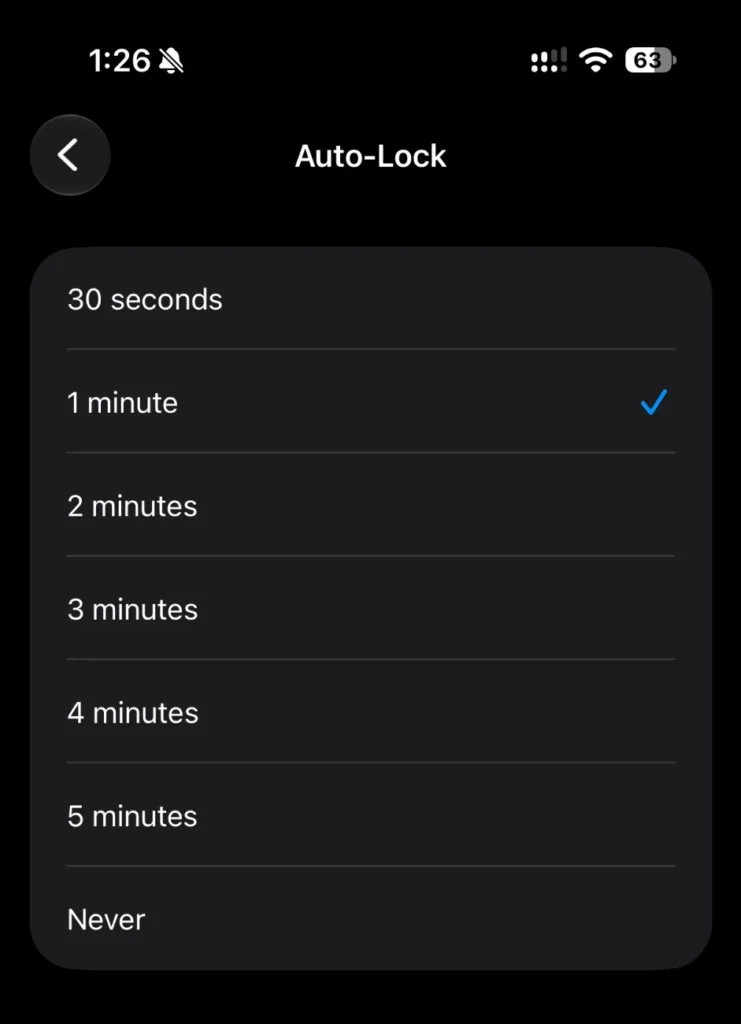
1. Increase Your iPhone’s Auto-Lock Time
The first setting to check is Auto-Lock.
This controls how long your iPhone waits before dimming and locking after you’ve stopped interacting with it.
For example, if Auto-Lock is set to 30 Seconds, your phone may lock much sooner than you’d prefer when reading or viewing information without touching the display.
How to change Auto-Lock
- Open Settings.
- Tap Display & Brightness.
- Select Auto-Lock.
- Choose 2 Minutes or 5 Minutes for testing.
- Return to the Home Screen and observe whether the issue improves.
If your phone stays awake for the expected interval, the previous Auto-Lock setting was likely the explanation.
Apple documents these controls in its official display and Auto-Lock guide.
Should you choose Never?
Some iPhones offer a Never option that prevents ordinary automatic locking.
You can use it temporarily for troubleshooting if it’s available, but leaving the display unlocked indefinitely may increase battery consumption and create privacy risks.
For everyday use, a reasonable Auto-Lock timer is generally preferable.
Expected result: Your iPhone should no longer lock after an unexpectedly short period of inactivity.
2. Turn Off Low Power Mode Temporarily
If you’ve already selected a longer Auto-Lock timer but the screen still locks after approximately 30 seconds, check Low Power Mode.
According to Apple, Low Power Mode sets Auto-Lock to 30 seconds to help reduce energy consumption.
This is a common reason an iPhone appears to ignore a previously selected display timeout.
On iPhone 15 and later
- Open Settings.
- Tap Battery.
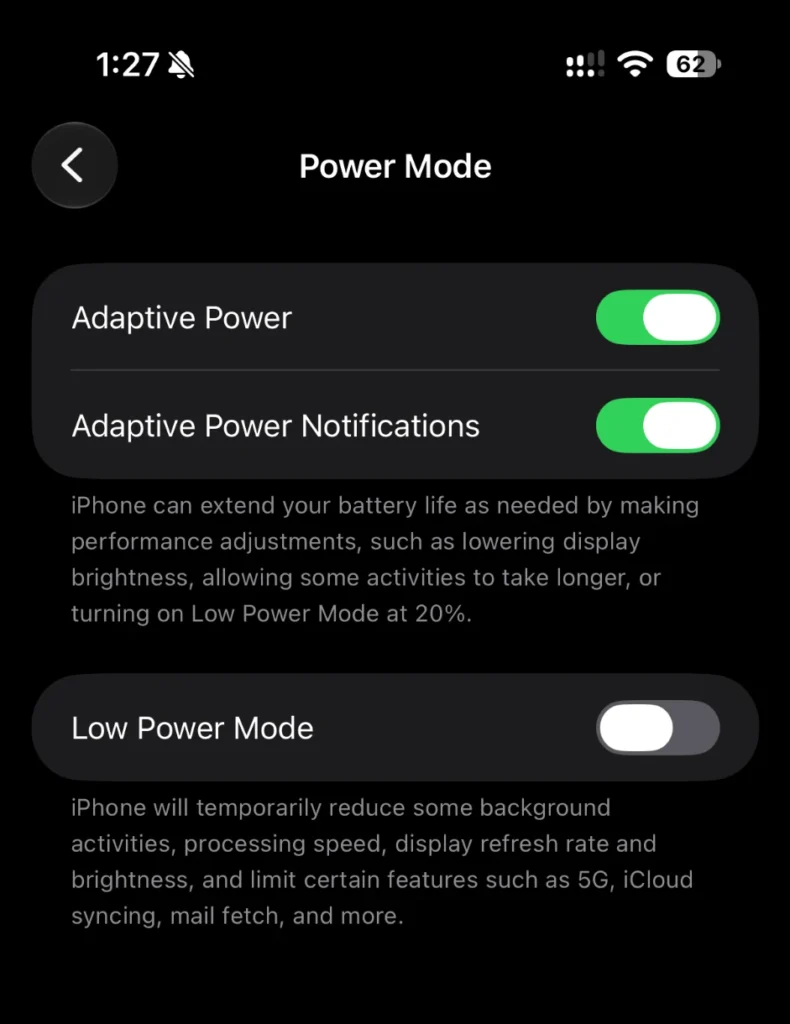
- Select Power Mode.
- Check whether Low Power Mode is on.
- Turn it off temporarily.
On iPhone 14 and earlier
- Open Settings.
- Tap Battery.
- Find Low Power Mode.
- Switch it off temporarily.
You can also identify Low Power Mode by the yellow battery icon.
We explain that indicator in our Why Is My iPhone Battery Icon Yellow? guide.
Apple’s Low Power Mode documentation confirms how this feature affects Auto-Lock and other settings.
What if Low Power Mode keeps turning on?
On supported newer models, Adaptive Power settings can enable Low Power Mode under certain conditions. Check your Battery settings if the behavior repeatedly returns.
Low Power Mode isn’t harmful, and you don’t have to keep it disabled permanently. This step helps determine whether it’s responsible for the shorter lock timer.
Expected result: With Low Power Mode disabled, your iPhone should follow its normal Auto-Lock setting again.
3. Check Attention Aware Features
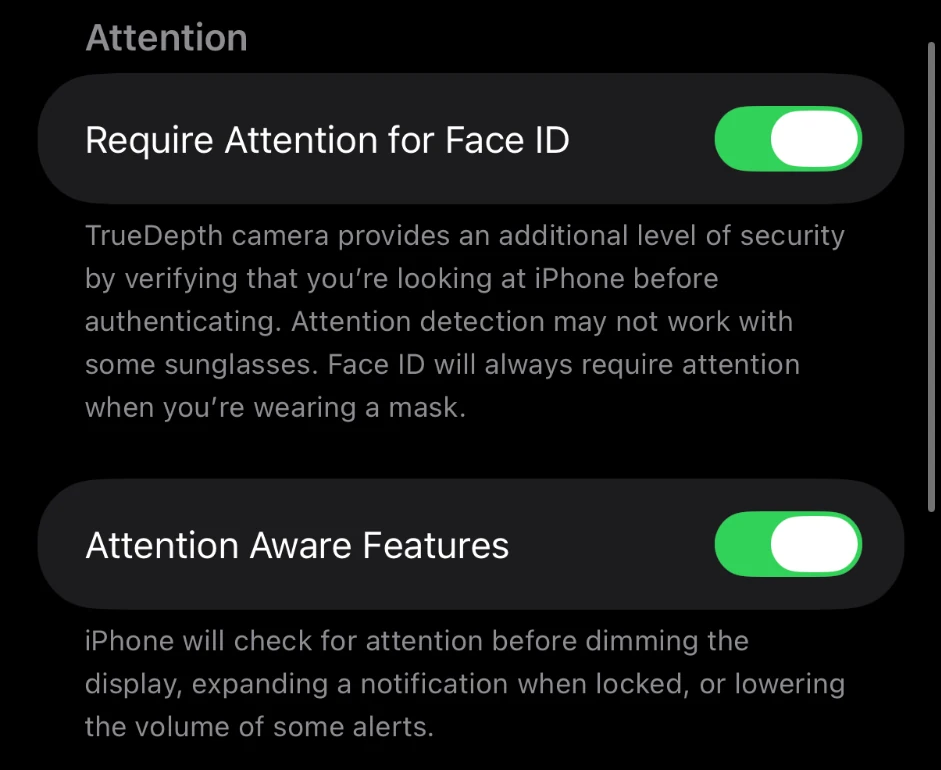
On supported Face ID iPhones, Apple provides Attention Aware Features.
These allow the TrueDepth camera to detect when you’re looking at the device. While your attention is detected, the screen can remain awake instead of dimming or locking.
This is especially useful when reading something without touching the screen.
How to check Attention Aware
- Open Settings.
- Tap Face ID & Passcode.
- Enter your passcode.
- Find Attention Aware Features.
- Turn it on if it’s currently disabled.
- Return to a text-heavy page and test the display timeout.
Apple explains the feature in its Attention Aware support article.
What if Attention Aware is already on?
Check whether the TrueDepth camera area is obstructed by a case, screen protector, dirt, or another accessory.
Try reading the screen while keeping the camera area unobstructed.
Keep in mind that this feature doesn’t guarantee your phone will stay awake in every situation. It depends on supported hardware and whether your attention is detected.
Important: Attention Aware Features and Require Attention for Face ID are different settings. You do not need to weaken Face ID authentication security just to troubleshoot screen locking.
4. Remove Your Case and Check the Side Button
If your iPhone unexpectedly locks while you’re actively using it, Auto-Lock may not be responsible.
On most modern iPhones, pressing the Side button locks the device immediately.
A tightly fitted case, debris around the button, or a damaged mechanism could cause accidental presses.
Test the Side button
- Remove your iPhone case.
- Place the phone on a stable surface.
- Unlock it and open an app.
- Use it normally without touching the Side button.
- Observe whether the unexpected locking continues.
If the issue disappears after removing the case, check whether the case presses against the Side button.
Clean around the button safely
Apple recommends removing obstructive cases or protective films and checking for dirt around a malfunctioning button.
You can gently clean the area with a soft, lint-free cloth.
Avoid inserting sharp objects into the button opening or applying excessive liquid.
For more details, see our iPhone Power Button Not Working guide.
Expected result: If accidental pressure was triggering the lock, the problem should stop when the button is no longer being pressed.
5. Check Back Tap and Custom Shortcuts
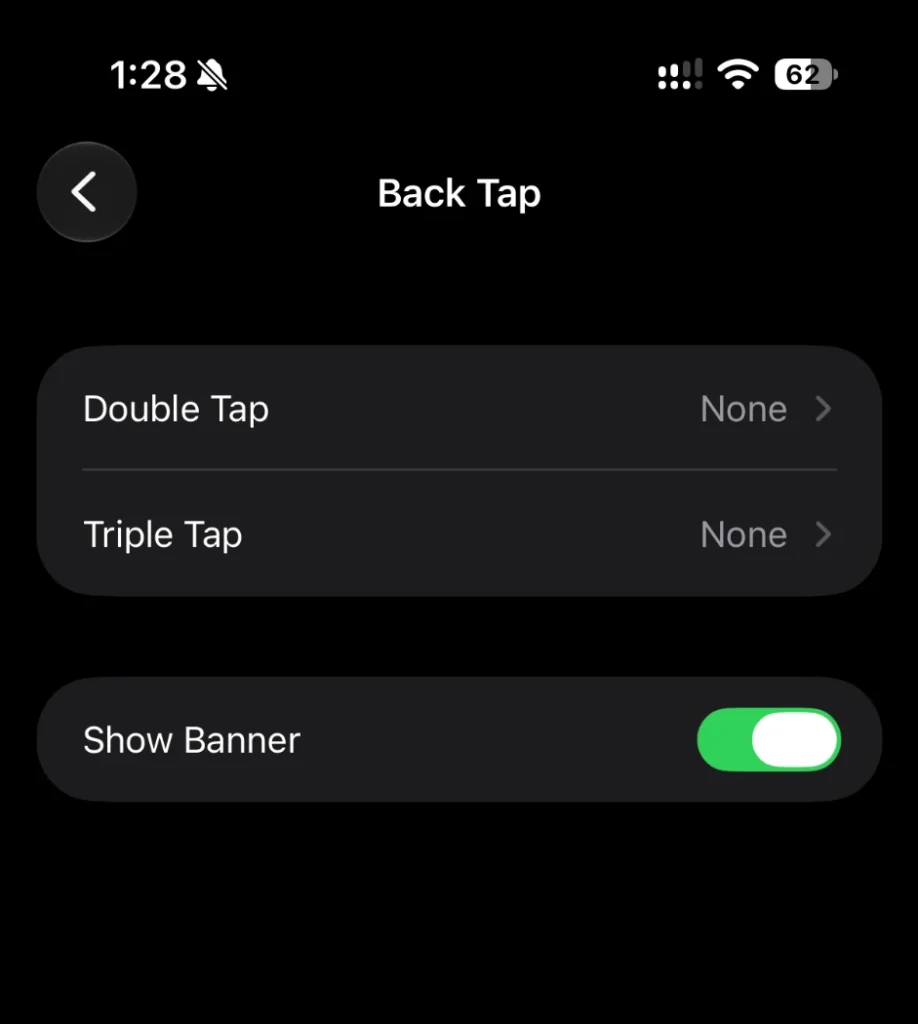
Back Tap is an accessibility feature that lets you run actions by tapping the back of a supported iPhone.
You can assign actions to a double-tap or triple-tap, including compatible Shortcuts.
If you have assigned a shortcut that locks the screen, an unintended Back Tap gesture could trigger it.
Check your Back Tap settings
- Open Settings.
- Tap Accessibility.
- Select Touch.
- Scroll down to Back Tap.
- Open Double Tap and review the assigned action.
- Open Triple Tap and review its assigned action.
- If either uses a shortcut you don’t recognize, investigate it.
- Temporarily select None for testing.
Then use the iPhone normally and see whether the unexpected locking returns.
Apple explains the available controls in its Back Tap user guide.
What if Back Tap was already disabled?
Move to the next fix. This setting only explains the issue when an assigned action or shortcut is actually involved.
Expected result: Disabling an accidental lock-related shortcut should prevent that gesture from locking the device.
6. Review AssistiveTouch Controls
AssistiveTouch provides onscreen controls for actions that would otherwise require physical buttons or gestures.
Among its available functions is the ability to lock the screen.
If you’re using AssistiveTouch with a customized menu or touch action, check whether a gesture is unexpectedly activating a lock command.
How to check AssistiveTouch
- Open Settings.
- Go to Accessibility → Touch → AssistiveTouch.
- Review whether AssistiveTouch is enabled.
- Check the customized top-level menu and any assigned tap actions.
- Look for an action associated with Lock Screen.
- If you suspect an accidental trigger, temporarily change that assignment for testing.
If you rely on AssistiveTouch for accessibility, there’s no need to disable the entire feature. Adjust only the action causing the problem.
Expected result: Your iPhone should stop locking in response to an unintended AssistiveTouch control.
7. Check Guided Access If the Problem Happens in One App
Guided Access lets you restrict an iPhone to a single app for a session.
It also has its own display Auto-Lock setting, which may affect behavior during that session.
This isn’t usually relevant to normal iPhone use, but it’s worth checking if the problem occurs only while Guided Access is active.
What to check
- Open Settings.
- Go to Accessibility → Guided Access.
- Check whether you use Guided Access.
- If a Guided Access session is active, review its session settings.
- Look for Display Auto-Lock and check the selected interval.
If you’re not using Guided Access, skip this fix.
Don’t change a managed accessibility setup without understanding why it’s enabled.
Expected result: Adjusting the session-specific display timeout may resolve locking that happens only during Guided Access.
8. Restart Your iPhone
A normal restart is a sensible next step if the locking behavior started recently and basic settings look correct.
Restarting can clear a temporary software issue without erasing your personal data.
Restart an iPhone with Face ID
- Press and hold the Side button and either Volume button.
- Wait until the power-off slider appears.
- Drag the slider.
- Allow the iPhone to shut down completely.
- Press and hold the Side button to turn it back on.
For older models, the shutdown button sequence may differ.
After restarting, unlock the device and test whether it still locks unexpectedly.
Does a restart delete your data?
No. A normal restart does not erase your photos, contacts, apps, or settings.
If the entire phone is repeatedly restarting instead of simply locking, investigate that as a separate problem rather than repeatedly rebooting it.
Expected result: Temporary software-related locking behavior may disappear after restarting.
9. Install the Latest Compatible iOS Update
If your iPhone keeps locking itself even after you’ve checked its settings, verify that your software is up to date.
Software updates can include stability improvements and bug fixes.
How to update iOS
- Connect your iPhone to reliable Wi-Fi.
- Open Settings.
- Go to General → Software Update.
- Check whether an update is available.
- Back up important information before updating.
- Install the latest compatible stable release.
If your phone already reports that iOS is up to date, you don’t need to reinstall the operating system solely because of this symptom.
After updating, check whether the Auto-Lock and other relevant settings still match your preferences.
Expected result: If a software issue was causing unexpected locking, a compatible update may resolve it.
10. Check for Management Restrictions or Hardware Problems
If the earlier fixes don’t help, it’s time to narrow down whether your device is restricted or malfunctioning.
Check for device management
If you use a work- or school-managed iPhone, your organization may enforce device security settings.
Open Settings → General → VPN & Device Management to check whether a management profile is installed.
Don’t delete a profile simply to change the lock timer. If the phone is managed by your organization, ask its administrator which settings can be changed.
Identify possible hardware trouble
Hardware inspection may be appropriate if:
- The Side button feels stuck or physically damaged.
- The screen locks without any detectable user action.
- Removing the case makes no difference.
- The device has recently been dropped or exposed to liquid.
- The problem continues after software and settings checks.
Apple recommends arranging service when a physical button is damaged or works intermittently despite basic troubleshooting.
You can review Apple’s official button troubleshooting guidance before seeking repair.
Avoid disassembling the device or using unofficial software that claims to disable Apple’s security mechanisms.
What If My iPhone Locks While I’m Using It?
If the iPhone locks in the middle of typing, scrolling, or playing a video, that’s different from ordinary inactivity-based Auto-Lock.
Start by checking whether a case is pressing the Side button, a Back Tap shortcut is running, or an AssistiveTouch action is being triggered.
You can also test the phone in a different app to see whether the problem is device-wide.
If the screen turns black but the device doesn’t return to a recognizable Lock Screen, consider a display or system issue rather than assuming an ordinary lock command.
A genuine lock typically returns you to the Lock Screen and may require Face ID, Touch ID, or a passcode before you resume.
If the phone actually restarts and displays the Apple logo, follow a restart-specific troubleshooting guide instead.
Frequently Asked Questions
Why does my iPhone keep locking after 30 seconds?
Low Power Mode is a common reason because it sets Auto-Lock to 30 seconds. Your normal Auto-Lock setting may also be configured to that interval.
Check Settings → Battery → Power Mode on iPhone 15 and later, or Settings → Battery on older supported models.
Why does my iPhone lock even when Auto-Lock is set to Never?
If the option is available and selected, ordinary inactivity-based Auto-Lock should not be the explanation.
Check for an accidental Side button press, custom accessibility actions, Guided Access behavior, or device-management restrictions.
The screen may still behave differently in certain system-controlled situations.
Why does my iPhone lock while I’m reading?
Your iPhone might not detect interaction while you’re reading, so the regular Auto-Lock timer expires.
On supported Face ID models, Attention Aware Features can help keep the display awake when the camera detects that you’re looking at it.
Can a phone case make my iPhone lock itself?
Yes, if the case unintentionally presses the Side button.
Remove the case temporarily and test the device. If the problem stops, inspect or replace the case.
Does Screen Time automatically lock my entire iPhone?
Screen Time can limit access to apps and content based on configured restrictions, but an app limit is not the same as your iPhone’s normal screen-lock mechanism.
If you see a Screen Time limit message rather than the Lock Screen, investigate your Screen Time settings.
Is Always-On Display causing my iPhone to lock?
Always-On Display is not the same as unexpected locking. On supported models, it can display a dimmed Lock Screen even though the device is already locked.
If the appearance of the screen is confusing, review our iPhone Always-On Display Not Working guide.
Should I factory reset my iPhone?
Not as a first step.
Most common locking problems can be investigated through settings, accessibility controls, case inspection, and software updates.
A factory reset erases local information and should only be considered after an appropriate backup and a clear reason to use that step.
Final Thoughts
If your iPhone keeps locking itself, don’t assume the device is defective.
Begin by checking the Auto-Lock timer, then see whether Low Power Mode is shortening it to 30 seconds. On supported Face ID iPhones, Attention Aware Features may also help when you’re reading without touching the display.
If the phone locks while you’re actively using it, inspect the Side button and review Back Tap or AssistiveTouch actions.
Finally, restart the device, check for software updates, and seek professional assistance if there’s evidence of a hardware problem.
Most importantly, identify whether your iPhone is truly locking, merely dimming, or actually restarting. Each problem has a different solution.
Last reviewed: November 12, 2026.