AMD drivers keep crashing Windows 11 even after updating your graphics card? You might experience a black screen during gaming, an AMD driver timeout notification, sudden application crashes, or AMD Software: Adrenalin Edition refusing to open.
Sometimes Windows recovers automatically. Other times, your game closes unexpectedly or the entire PC restarts.
These problems can happen because of corrupted graphics drivers, incompatible updates, conflicting applications, unstable GPU settings, or hardware problems.
Fortunately, you don’t need to reinstall Windows immediately.
This guide explains 11 practical fixes for AMD Radeon driver crashes on Windows 11, including clean driver installation, AMD Software troubleshooting, driver rollback, and ways to identify the actual cause.
Updated November 2026: Includes current AMD Adrenalin installation options, Windows 11 driver compatibility troubleshooting, and AMD’s latest stability recommendations.
Quick Fix: AMD Drivers Keep Crashing Windows 11
If your AMD graphics driver keeps crashing, start with these steps:
- Restart your computer.
- Press Windows + Ctrl + Shift + B if the display is frozen or black but Windows is still responsive.
- Check your Radeon graphics model and current driver version.
- Install the latest compatible AMD Recommended driver.
- If crashes started after an update, try rolling back the driver.
- Restore default GPU settings and temporarily disable overlays.
- Check for conflicts between Windows Update and AMD Software.
If the crashes continue, AMD’s official Cleanup Utility can help remove a damaged driver installation before reinstalling it.
Important: Back up important files before performing advanced driver or system repairs. Avoid downloading drivers from unofficial websites.
Table of Contents
Why Do AMD Drivers Keep Crashing on Windows 11?
AMD Radeon graphics drivers connect Windows applications and games to your graphics hardware.
If the driver stops responding, Windows may attempt to recover the graphics device. This can result in a temporary black screen, flickering, an application crash, or a driver timeout notification.
Not every graphics crash has the same cause.
Common Reasons for AMD Driver Crashes
Corrupted driver installation: Missing or damaged driver components can create instability.
Driver compatibility problems: A driver may not work properly with a particular graphics card, Windows build, or application.
Windows Update conflicts: Windows can sometimes replace an AMD-installed display driver with a different version.
Unstable GPU settings: Overclocking, undervolting, or aggressive performance profiles may cause crashes under load.
Software conflicts: Recording utilities, performance overlays, monitoring tools, and certain applications may interfere with graphics software.
Overheating: Excessive temperatures can affect graphics stability.
Hardware problems: Faulty memory, inadequate power delivery, or a malfunctioning GPU can produce similar symptoms.
AMD’s official stability guidance recommends checking software, hardware configuration, drivers, cooling, and system updates systematically.
Fix 1: Restart Your AMD Graphics Driver
If your screen temporarily turns black or stops responding, Windows provides a keyboard shortcut that can help recover the graphics display.
Steps
- Save your work if the computer is still responsive.
- Press Windows + Ctrl + Shift + B.
- Wait briefly while Windows attempts to reset the graphics display.
- The screen may flicker, and you may hear a notification sound.
- Check whether the display returns to normal.
This shortcut can help with some display problems without requiring a complete PC restart.
However, it does not reinstall the graphics driver or permanently repair corrupted files.
If the problem happens repeatedly, continue with the next fixes.
For additional information, see Microsoft’s display troubleshooting instructions.
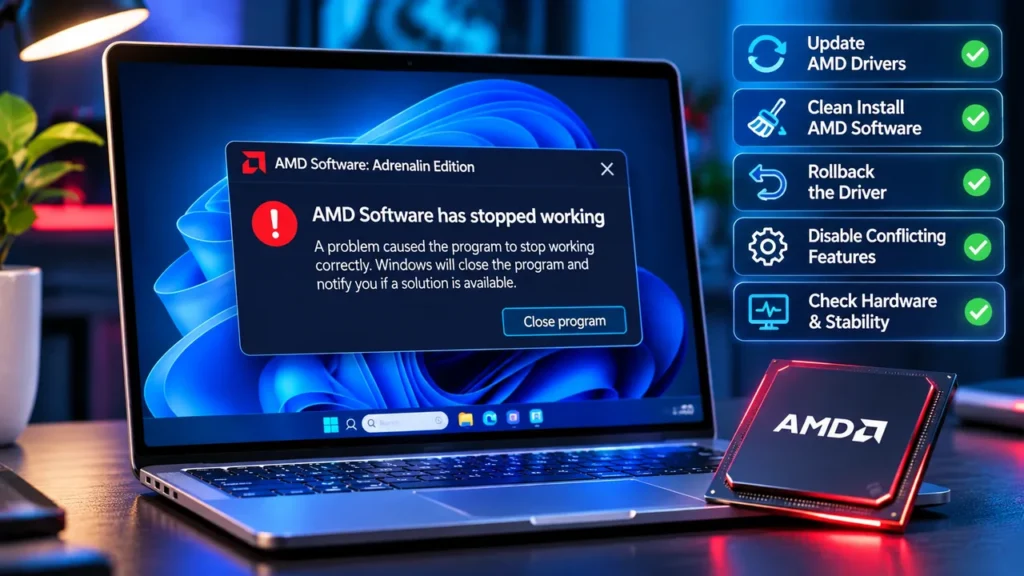
Fix 2: Identify the AMD Driver Crash and Check Release Notes
Before updating or reinstalling anything, identify which component is actually failing.
For example, an AMD Software application crash is not necessarily the same as a graphics driver timeout.
Check Windows Reliability Monitor
- Press Windows + R.
- Type
perfmon /rel. - Press Enter.
- Look for errors around the time your game or application crashed.
- Select the relevant event.
- Review the available technical details.
Look for references to the affected game, AMD Software, Windows hardware errors, or graphics-related failures.
You can also inspect Device Manager:
- Right-click Start.
- Select Device Manager.
- Expand Display adapters.
- Find your AMD Radeon graphics device.
- Open Properties and check the device status.
Record any error code you find.
Check AMD’s Known Issues
Open AMD Software: Adrenalin Edition, search for System, and review the driver information and release notes.
AMD publishes known issues for individual driver releases.
For example, its November 12, 2026 optional driver release notes identify specific game-related driver timeouts affecting certain Radeon graphics families.
That means installing the newest optional driver isn’t always the best solution for every system.
Use the AMD driver information and updates guide to locate the relevant information for your computer.
Fix 3: Update to a Compatible AMD Recommended Driver
A newer compatible driver can resolve bugs, improve compatibility, and fix known stability problems.
However, choosing the correct driver is more important than simply choosing the newest version number.
AMD provides both Recommended and Optional Adrenalin packages for supported graphics products.
Recommended drivers are generally the better starting point when system stability is your priority.
Optional drivers may provide newer optimizations and fixes for particular games.
How to Update AMD Drivers
- Visit the official AMD Drivers and Support website.
- Use AMD’s product selector or the supported auto-detect tool.
- Identify your exact Radeon graphics model.
- Confirm compatibility with Windows 11.
- Review the available Recommended driver and release notes.
- Download the appropriate package.
- Close running games and important applications.
- Launch the AMD installer.
- Follow the installation prompts.
- Restart if required.
AMD Software: Adrenalin Edition also allows supported users to check for updates through its System settings and AMD Install Manager.
Important for Laptop Users
If you own a gaming laptop with AMD Radeon graphics, check the laptop manufacturer’s support website.
Some laptop configurations use manufacturer-specific graphics and power-management components.
A driver supplied by the laptop manufacturer may be more appropriate for troubleshooting than a generic AMD package.
Never download an unknown driver package merely because a third-party website claims it’s newer.
Fix 4: Roll Back Your AMD Driver After a Recent Update
If AMD drivers started crashing immediately after an update, the previous driver may have worked better with your hardware or applications.
Windows Device Manager sometimes allows you to restore the earlier version.
Steps
- Right-click Start.
- Open Device Manager.
- Expand Display adapters.
- Right-click your AMD Radeon graphics device.
- Select Properties.
- Open the Driver tab.
- Click Roll Back Driver, if available.
- Follow the instructions.
- Restart your computer.
Test the same game or application that previously crashed.
What if Roll Back Driver Is Greyed Out?
This generally means Windows doesn’t have a previous driver package available for rollback.
Instead, locate a previously stable, compatible driver through AMD or your device manufacturer’s official support website.
Don’t install arbitrary older drivers without checking that they support your GPU and Windows version.
Also note that AMD’s installer Factory Reset option removes previous AMD Software packages and may prevent rolling back through Device Manager afterward.
Microsoft documents the rollback process in its Windows display driver troubleshooting guide.
Fix 5: Reset AMD Software Settings and Disable Conflicting Features
Custom graphics settings can sometimes cause instability.
For example, aggressive GPU overclocking or undervolting may work in one game but cause crashes in another.
Before reinstalling the driver, test the system using default AMD settings.
Restore AMD Software Defaults
- Open AMD Software: Adrenalin Edition.
- Use its search field to find Factory Reset.
- Select Factory Reset – System Settings, if available.
- Review the warning.
- Select the reset option.
- Complete the reset and test your system.
This resets AMD Software user settings and profiles. It is different from the installer Factory Reset option that removes previous AMD driver packages.
If you’ve configured custom performance tuning, export any settings you want to preserve before resetting them.
Temporarily Disable Extra Features
For troubleshooting, also consider temporarily disabling:
- AMD recording or streaming features.
- Radeon performance overlays.
- Third-party FPS counters.
- GPU overclocking utilities.
- Nonessential hardware-monitoring tools.
Return GPU tuning settings to manufacturer defaults.
Then test the game again.
If stability improves, re-enable features individually to identify the conflict.
See AMD’s official guide to resetting software settings and profiles.
Fix 6: Check Whether Windows Update Replaced Your AMD Driver
Windows Update can sometimes replace the display driver installed through AMD Software.
This can create a mismatch between AMD Software: Adrenalin Edition and the graphics driver currently installed.
AMD documents this scenario under Installer Error 205.
Check for Driver Mismatches
- Open Device Manager.
- Expand Display adapters.
- Right-click the Radeon graphics device.
- Select Properties → Driver.
- Review the driver version and date.
- Compare that information with the supported AMD package you intended to install.
If AMD Software displays a compatibility error, use AMD’s official repair guidance.
Use AMD’s Compatibility Tool
AMD provides an AMD Software Compatibility Tool.
This tool is intended to help match compatible AMD Software with the installed AMD graphics driver.
If AMD Installer Error 205 appears, AMD also documents steps for temporarily adjusting Windows device-installation settings and reinstalling the appropriate driver package.
Follow the official AMD Error 205 guide for that specific situation.
Important: Don’t permanently disable Windows Update or all automatic driver updates as a general performance fix. Keep Windows security updates enabled.
If Windows 11 also has network adapter problems that interfere with driver downloads, our Windows 11 Wi-Fi option missing guide explains how to troubleshoot wireless adapter issues.
Fix 7: Clean Reinstall AMD Drivers Using AMD Cleanup Utility
If ordinary updates and rollbacks haven’t resolved the problem, the existing AMD graphics installation may be corrupted.
AMD provides an official utility to remove previously installed AMD graphics and audio drivers and software.
The AMD Cleanup Utility prepares the system for a fresh graphics driver installation.
It does not remove AMD chipset drivers.
Before You Begin
Download the correct replacement graphics driver first, and make sure it’s accessible locally.
Back up important files, save open work, and review AMD’s official instructions.
If you’re using a laptop, check whether its manufacturer recommends a particular graphics driver package.
Steps
- Open the AMD Cleanup Utility support page.
- Download the official AMD Cleanup Utility.
- Close running games and applications.
- Launch the utility.
- When prompted, choose the recommended Safe Mode option if practical.
- Allow the cleanup to finish.
- Restart Windows when requested.
- Install the appropriate AMD graphics driver package you downloaded earlier.
- Restart if required.
- Test whether the driver crashes again.
AMD recommends running its cleanup utility in Safe Mode for the best results.
The screen may briefly flicker during removal.
Important Safety Notes
Do not interrupt cleanup just because the display becomes temporarily blank.
Don’t perform the cleanup while Windows Update is actively installing something.
If your PC uses BitLocker, make sure your recovery key is accessible before making changes that involve Safe Mode or recovery startup.
AMD Cleanup Utility creates a restore point as part of its normal process, but a separate backup of important files is still sensible.
Avoid downloading unknown driver removal software when the official AMD tool meets your needs.
Fix 8: Try Minimal or Driver Only Installation
Sometimes AMD Software itself crashes even though the graphics driver can still function.
In that case, testing a smaller AMD software installation can help isolate the problem.
AMD supports different installation types for compatible products.
Default: Includes the main AMD Software features and controls.
Minimal: Provides basic controls without some advanced recording, streaming, and performance-tuning features.
Driver Only: Installs the driver without the full AMD Software user interface.
Steps
- Download the compatible AMD Software installer.
- Launch the installer.
- Open Additional Options.
- Find Software Type.
- Select Minimal or Driver Only, if available.
- Complete the installation.
- Restart when required.
- Test the affected applications.
If the problem disappears during a Minimal or Driver Only installation, an optional software component or its interaction with another application may have contributed.
However, this does not prove that your graphics hardware is fault-free.
Remember that Driver Only installation removes access to the normal AMD Software interface and its advanced features.
See AMD’s official Adrenalin installation guide.
Fix 9: Update Windows 11, Chipset Drivers, and Games
AMD graphics stability depends on more than the display driver alone.
A game update, Windows compatibility fix, or chipset driver can sometimes resolve a problem affecting a particular system.
Check Windows Updates
- Open Settings → Windows Update.
- Select Check for updates.
- Install applicable supported updates.
- Restart if requested.
Check AMD Chipset Drivers
If your PC uses an AMD Ryzen platform:
- Identify your motherboard or laptop model.
- Check the manufacturer’s support website.
- Review the available chipset driver version.
- Download a compatible driver if an update is appropriate.
- Follow the installation instructions.
Don’t assume AMD graphics drivers and AMD chipset drivers are interchangeable. They serve different hardware components.
Update Affected Games
If crashes occur only in one game:
- Install the latest official game patch.
- Verify the game files using the game launcher’s built-in feature.
- Review the game’s known issues.
- Check AMD’s driver release notes.
- Temporarily turn off advanced graphics features one at a time to isolate the trigger.
For example, try testing without frame generation, a third-party overlay, or a recent game-specific graphics adjustment.
Don’t change several settings simultaneously. Otherwise, it becomes harder to tell which change helped.
Fix 10: Repair Windows System Files With DISM and SFC
If your PC experiences graphics crashes alongside other Windows problems, corrupted operating-system files may be contributing.
Microsoft provides DISM and System File Checker for certain Windows component repairs.
Run DISM
- Open Start.
- Search for Command Prompt.
- Select Run as administrator.
- Enter:
DISM.exe /Online /Cleanup-Image /RestoreHealth- Press Enter.
- Wait for the operation to complete.
DISM may need internet access to obtain repair files.
Run System File Checker
After DISM finishes, enter:
sfc /scannowPress Enter and wait for the scan to complete.
Once finished, read the result and restart Windows.
Test the application or game again.
These commands can help with damaged Windows system files, but won’t fix an unstable GPU overclock, failing hardware, or every game-specific driver problem.
Follow Microsoft’s official DISM and SFC instructions if either repair reports an error.
If Windows components such as File Explorer are also freezing, our guide to Windows 11 File Explorer not respondingcovers additional system-level troubleshooting.
Fix 11: Check GPU Temperature, Memory, and Hardware Stability
If AMD drivers continue crashing after a clean installation, investigate hardware stability.
A recurring driver timeout doesn’t automatically mean the GPU itself is defective.
However, overheating, unstable memory settings, power problems, and faulty hardware can create similar symptoms.
Check GPU Temperatures
Use a reputable hardware-monitoring utility or AMD Software’s built-in performance metrics, where supported.
Observe temperatures while running an affected game.
Compare the readings with the specifications for your exact GPU model.
There isn’t one universal temperature threshold that applies to every AMD Radeon graphics product.
Return Hardware to Default Settings
If you’ve changed GPU clock speeds, voltages, memory settings, or other performance parameters, restore the manufacturer’s supported defaults.
Avoid using aggressive overclocking or undervolting profiles while diagnosing crashes.
Check Cooling and Power
Make sure:
- Fans and vents aren’t blocked.
- The computer has adequate airflow.
- The power supply meets the graphics card’s requirements.
- External power cables are properly connected.
- The system isn’t using unsupported hardware configurations.
Don’t open a power supply or attempt electrical repairs yourself.
If crashes continue at stock settings, consider manufacturer-approved diagnostics and professional hardware inspection.
AMD provides additional guidance in its system stability troubleshooting documentation.
AMD Driver Timeout on Windows 11: What Does It Mean?
A driver timeout usually means the graphics driver or GPU did not respond within the expected time.
Windows may try to recover the display without restarting the entire computer.
Depending on the situation, you may notice:
- A brief black screen.
- A frozen game.
- A driver timeout notification.
- A game or application suddenly closing.
- The display flickering before recovering.
Driver timeouts can result from software or hardware problems.
If the error started after installing a specific driver, check that driver’s release notes and consider rollback.
If the timeout happens only in one game, investigate the game’s updates and graphics settings first.
Avoid random registry modifications that change Windows graphics timeout behavior. They can obscure the underlying problem rather than resolve it.
AMD Software Keeps Crashing but Games Still Work
If AMD Software closes unexpectedly while games remain stable, the issue may involve the AMD Software interface or one of its optional features.
Start by checking whether your installed driver and AMD Software versions are compatible.
Then try restoring default AMD settings.
If necessary, reinstall the package using Minimal installation.
A Driver Only installation is another diagnostic option, but it removes access to AMD’s full software interface.
If the graphics driver remains stable without the interface, investigate the software installation rather than automatically assuming your GPU is failing.
AMD Drivers Crash Only While Gaming
If crashes happen only during games, compare how different games behave.
For example:
- One game crashing may suggest an application-specific issue.
- Several demanding games crashing may warrant graphics settings, temperature, and power checks.
- Crashes beginning after a driver update may justify reviewing that driver’s release notes.
- Problems that disappear at default clock speeds may suggest unstable performance tuning.
AMD publishes known-issue information for supported graphics products in its Adrenalin release notes.
As of November 12, 2026, AMD’s 26.11.1 Optional release notes still list particular game-specific timeout problems affecting some Radeon models.
For example, AMD recommends version 26.9.1 for users experiencing a documented War Thunder driver timeout on certain Radeon RX 5000-series products.
That recommendation applies to the affected configuration, not to every AMD graphics card.
Always identify your GPU model and the affected application before choosing a different driver.
Frequently Asked Questions
Why do AMD drivers keep crashing on Windows 11?
Common causes include corrupted driver installations, software conflicts, incompatible updates, unstable GPU settings, overheating, or hardware problems. Check the symptoms and release notes before reinstalling drivers.
How do I stop AMD driver timeout errors?
Start with the latest compatible Recommended driver, restore default GPU settings, disable conflicting overlays, and check for known issues. If the installation is corrupted, consider AMD Cleanup Utility and a fresh driver installation.
Should I use AMD Recommended or Optional drivers?
AMD recommends its latest Recommended package for validated stability on supported products. Optional releases may contain newer fixes and game-specific improvements but can also have documented known issues.
Can Windows Update cause AMD driver problems?
Yes. AMD documents situations in which Windows Update replaces a graphics driver installed by AMD Software, potentially creating a compatibility mismatch. AMD provides an official compatibility tool and troubleshooting guidance.
Does AMD Cleanup Utility remove chipset drivers?
No. AMD states that its Cleanup Utility removes AMD graphics and audio drivers or software without removing AMD chipset drivers.
Can I use an older AMD graphics driver?
Yes, if that version is compatible with your hardware and Windows version. A previously stable release may be useful when a newer driver introduces a documented issue.
Will reinstalling AMD drivers delete my games?
Normally, reinstalling the graphics driver doesn’t delete installed games or personal files. However, certain reinstall options remove AMD settings and previous driver packages.
Can overheating cause AMD driver crashes?
Yes. Excessive heat can contribute to graphics instability, although similar symptoms can also result from software conflicts, unstable memory, or power problems.
Is AMD Adrenalin required for gaming?
A compatible AMD graphics driver is needed for proper GPU functionality, but the full Adrenalin interface isn’t required for every gaming configuration. AMD offers a Driver Only installation option for supported products.
Should I reinstall Windows 11 to fix AMD crashes?
Usually not as a first step. Try identifying the error, updating or rolling back the driver, restoring defaults, and reinstalling AMD graphics software before considering Windows recovery.
Final Thoughts
If AMD drivers keep crashing Windows 11, start by identifying whether the issue affects the graphics driver, the AMD Software interface, or a particular game.
Update to an appropriate Recommended driver, check for Windows Update conflicts, and restore default GPU settings.
If the problem persists, AMD Cleanup Utility provides a supported way to remove a corrupted graphics driver installation before reinstalling it.
For repeated crashes across several applications, also investigate Windows system files, cooling, memory, and hardware stability.
The best fix depends on the actual cause, so test changes individually and avoid unsupported driver tools or risky registry tweaks.
Last reviewed: November 2026.