Is your Google Pixel voicemail not working, even though calls are coming through normally? You might see a missing Voicemail tab, a message saying visual voicemail can’t activate, or notifications that arrive without any voicemail appearing.
Sometimes callers leave messages, but you can’t find or play them. Other times, voicemail stops working after a phone update, switching carriers, or activating a new SIM.
Fortunately, you don’t need to factory reset your Pixel immediately.
The problem may involve your mobile carrier, the Phone by Google app, visual voicemail settings, or Google’s newer Take a Message feature.
In this guide, we’ll walk through 10 practical fixes for Google Pixel voicemail problems, including missing messages, failed visual voicemail activation, and voicemail notification issues.
These steps apply to supported Google Pixel phones, although available features and menus vary by model, Android version, carrier, and country.
Quick Fix: Google Pixel Voicemail Not Working
Before changing any settings, try this simple checklist:
- Open the Phone app.
- Tap Dialpad and touch and hold 1 to call your carrier voicemail.
- Check whether your voicemail inbox answers.
- Look in the Phone app’s Voicemail section, if available.
- Check Home → missed call details for messages handled by Google’s Take a Message feature.
- Restart your Pixel.
- Confirm that visual voicemail is supported and enabled for your carrier.
- Update the Phone by Google app.
Important: If calling voicemail works but the voicemail list doesn’t load, the problem may involve visual voicemail rather than the underlying carrier voicemail service.
This distinction can save you from unnecessary troubleshooting.
Table of Contents
Why Is Google Pixel Voicemail Not Working?
Voicemail on a Google Pixel can involve several different systems.
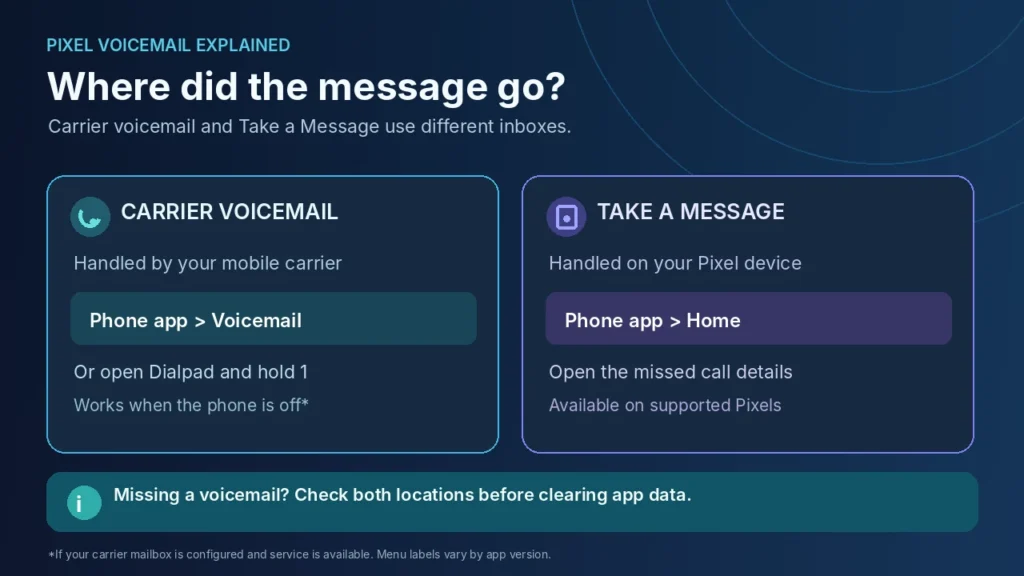
Carrier voicemail is managed by your mobile network provider. It can collect messages when your phone is unavailable, provided voicemail service is configured on your line.
Visual voicemail lets you view supported carrier voicemail recordings as a list inside the Phone app rather than calling your mailbox every time.
Take a Message is Google’s separate on-device feature that can answer missed or declined calls and save recordings directly on supported Pixel phones.
These services don’t always store messages in the same place.
Other potential causes include:
- Visual voicemail not being supported by your mobile carrier.
- Voicemail service not being activated on your account.
- A SIM or eSIM activation problem.
- The Phone app failing to update its voicemail list.
- Disabled notifications.
- A temporary network or software issue.
- Conflicts with a separate carrier voicemail application.
- Problems following a number transfer or carrier change.
Google explains the difference between calling voicemail and viewing messages in the official Phone app voicemail guide.
Let’s identify the source before attempting more advanced fixes.
Fix 1: Check Whether Your Carrier Voicemail Still Works
The first thing to determine is whether voicemail itself has stopped working or whether your Pixel simply isn’t displaying messages.
How to Call Voicemail on Google Pixel
- Open the Phone app.
- Select Dialpad.
- Touch and hold the number 1.
- Wait for your carrier’s voicemail service.
- Enter your voicemail PIN if prompted.
- Check whether your recorded messages are available.
If holding 1 doesn’t connect, check your voicemail number or contact your carrier for the correct access method.
What the Results Mean
If you can hear your messages: Your carrier mailbox is accessible. Concentrate on visual voicemail, notifications, or Phone app synchronization.
If voicemail doesn’t connect: Your voicemail access number, SIM activation, account settings, or carrier service may need attention.
If your mailbox works but no new messages arrive: Ask someone you trust to leave a short test message and check again.
Don’t repeatedly change your voicemail PIN or access number without knowing your carrier’s requirements.
Check Your Voicemail Number
On supported Phone app versions:
- Open Phone.
- Open the menu and select Settings.
- Tap Voicemail.
- Look for Advanced settings → Setup.
- Check the configured voicemail number if this option is available.
Use only the number provided by your mobile carrier.
Fix 2: Check Google’s Take a Message Feature
This is an important troubleshooting step for newer Pixel phones.
Google introduced Take a Message, a feature that can answer missed or declined calls directly on your phone.
Unlike carrier voicemail, the feature handles and stores recordings on the device.
That means a caller may leave a message, but you won’t necessarily find it in the usual carrier voicemail inbox.
Where to Find Take a Message Recordings
- Open the Phone by Google app.
- Select Home.
- Find the relevant missed or declined call.
- Open its call details.
- Look for an available recording or transcript.
- Play the message if one was saved.
If you find the message here, your carrier voicemail may not actually be broken.
Temporarily Turn Off Take a Message
If you prefer using your carrier’s voicemail:
- Open the Phone app.
- Open its menu.
- Select Settings.
- Find Take a Message, sometimes under Call Assist.
- Turn off the feature temporarily.
- Ask someone to leave a new test voicemail.
- Check whether the recording reaches your carrier mailbox.
Take a Message isn’t available on every phone or in every country.
Google also explains that its on-device feature can be unavailable while roaming or outside network coverage, when the carrier mailbox may handle the call instead.
Read Google’s official Take a Message documentation for availability and instructions.
Note: Don’t delete any existing Take a Message recordings before identifying where important messages are stored.
Fix 3: Enable Visual Voicemail on Your Google Pixel
Visual voicemail lets you select and play supported voicemail recordings inside the Phone app.
However, availability depends on your carrier, country, and phone configuration.
How to Check Visual Voicemail
- Open the Phone app.
- Tap the menu icon.
- Select Settings.
- Open Voicemail.
- Find Visual voicemail.
- Make sure it is enabled, if your carrier supports the feature.
- Return to the Phone app and look for the Voicemail section.
Google’s official documentation lists visual voicemail support for providers including AT&T, T-Mobile, and Google Fi, subject to service and plan requirements.
Other carriers may provide voicemail through their own apps or services.
What if Visual Voicemail Is Greyed Out?
If the toggle is unavailable, your carrier may not support the feature on your current plan or SIM configuration.
Contact your carrier and ask whether visual voicemail is enabled for your phone number.
Don’t assume that having a Google Pixel automatically guarantees visual voicemail support.
Important Warning
Google notes that turning off visual voicemail can delete locally stored voicemail recordings from the Phone app.
Your carrier may retain copies, but that isn’t guaranteed.
Avoid repeatedly switching the feature off and on unless you’ve confirmed your important messages are safely accessible.
Fix 4: Check Mobile Network and SIM Settings
Carrier voicemail and visual voicemail depend on the services available through your mobile network.
A SIM problem, incomplete activation, or data connection issue may prevent voicemail from working normally.
Check Your Connection
- Open Settings.
- Select Network & internet.
- Open SIMs.
- Select your active SIM or eSIM.
- Confirm that the correct mobile line is enabled.
- Check your signal and mobile data connection.
- Try placing a normal phone call.
If you use visual voicemail, temporarily testing with Wi-Fi turned off and mobile data enabled may help identify a connection-related problem.
Mobile data charges may apply depending on your plan.
Restart the Mobile Connection
- Open Quick Settings.
- Enable Airplane mode briefly.
- Turn Airplane mode off.
- Wait for your cellular connection to return.
- Try accessing voicemail again.
What About Dual SIM?
On supported devices, the Phone app may provide separate voicemail settings for different SIMs.
However, Google notes that visual voicemail on multiple SIMs isn’t supported by every device or carrier.
Check that you have selected the correct SIM when viewing voicemail settings.
If voicemail stopped working after switching to an eSIM or transferring your number, ask your carrier to verify that voicemail has been provisioned for the active line.
Fix 5: Restart Your Google Pixel Phone
A temporary Phone app or network service problem can sometimes prevent voicemail from loading.
Restarting your phone is a low-risk way to refresh those services.
Steps
- Save any unfinished work.
- Open your Pixel’s power menu.
- On recent Pixels, press Power + Volume Up if your power-button settings require it.
- Tap Restart.
- Wait for the phone to turn on.
- Unlock the device.
- Check the Phone app again.
If a voicemail notification was stuck or the app was temporarily unresponsive, restarting may restore normal behavior.
However, restarting won’t activate a voicemail service that your carrier hasn’t provisioned.
If your mailbox still cannot be reached, investigate the carrier settings instead.
Fix 6: Update the Phone by Google App and Android
An outdated Phone app can sometimes cause compatibility or synchronization problems.
Google regularly updates the Phone app, including features for supported Pixel devices.
Update Phone by Google
- Open Google Play Store.
- Tap your profile picture.
- Select Manage apps & device.
- Open Updates available.
- Look for Phone by Google.
- Install an available update.
- Restart the app and check voicemail again.
You can also open the Phone by Google listing directly in the Play Store.
If the Play Store won’t load, follow our Google Play Store not opening troubleshooting guide.
If it opens but cannot complete app installations, see our guide to Google Play Store can’t install apps.
Check Pixel Software Updates
- Open Settings.
- Select System.
- Tap Software updates or the equivalent update option.
- Check for available updates.
- Install an appropriate supported update.
- Restart if requested.
If voicemail stopped working immediately after an update, record the Phone app version, Android version, and carrier information.
That information can help your carrier or Google Support investigate the issue.
Fix 7: Clear the Phone App Cache Safely
Temporary application cache problems can sometimes interfere with app behavior.
Clearing the Phone app’s cache is a reasonable troubleshooting step when voicemail messages fail to load despite working through the carrier mailbox.
Steps
- Open Settings.
- Tap Apps.
- Select See all apps if necessary.
- Find Phone.
- Open Storage & cache.
- Tap Clear cache.
- Reopen the Phone app.
- Check voicemail again.
The exact menu may differ slightly depending on the Android version.
Should You Clear Storage Too?
Avoid selecting Clear storage or Clear data as an early troubleshooting step.
Clearing app storage is more disruptive than clearing temporary cache.
It may reset the app’s settings and affect locally stored data.
This is particularly important when using Take a Message, because those recordings are stored on the phone rather than solely in a carrier mailbox.
Before considering any app-data reset, save important recordings and consult the relevant Google or carrier support instructions.
A factory reset is not necessary for this step.
Fix 8: Fix Missing Google Pixel Voicemail Notifications
Sometimes voicemail is working correctly, but the phone doesn’t notify you when a new message arrives.
This is different from voicemail failing to record messages.
Check Phone App Notifications
- Open Settings.
- Select Notifications.
- Open App notifications.
- Find the Phone app.
- Confirm notifications are enabled.
- Review individual notification categories if available.
- Enable voicemail-related notifications.
You can also check the voicemail notification controls within the Phone app’s settings.
Check Do Not Disturb
If notifications are silent or hidden:
- Open Settings.
- Select Modes.
- Open Do Not Disturb, if available.
- Review whether it’s currently active.
- Temporarily disable the mode.
- Test a new voicemail notification.
Do Not Disturb primarily controls interruptions and notification behavior. It doesn’t automatically mean your carrier voicemail service has stopped recording messages.
If other Android notifications are also missing, see our complete guide to Android notifications not showing.
Google Fi Notification Problems
Google Fi also documents certain voicemail notification failures.
If you receive a voicemail notification failure message, follow the official Google Fi troubleshooting guidance.
If restarting doesn’t resolve a recurring carrier-specific notification error, contact Google Fi Support.
Fix 9: Check for Conflicts With Carrier Voicemail Apps
Some mobile carriers provide a separate visual voicemail application.
Using a carrier-specific voicemail app may affect whether voicemail appears inside the Phone by Google app.
Google’s documentation specifically notes that the Phone app’s built-in visual voicemail can turn off when a carrier voicemail app is used.
What to Check
- Open the Phone app and review its voicemail options.
- Check whether your carrier has its own voicemail app installed.
- Determine which service your plan is supposed to use.
- Open the carrier’s voicemail app if applicable.
- Check for available voicemail messages.
- Ask the carrier which app should handle visual voicemail on your Pixel.
Don’t randomly uninstall carrier software or disable services without knowing how your voicemail account is configured.
Google Fi Users
Google Fi offers voicemail features through its own service.
On supported phones, visual voicemail is available through Phone by Google.
You can also manage certain voicemail settings and PIN access through the Google Fi app.
See the official Google Fi voicemail setup instructions.
Fix 10: Ask Your Carrier to Reset or Reprovision Voicemail
If none of the previous fixes work, the problem may not be on your Pixel at all.
Voicemail depends on services configured by your mobile carrier.
If your number has been transferred, your SIM was recently replaced, or voicemail suddenly stopped accepting messages, the carrier may need to verify your account configuration.
What to Ask Your Carrier
Contact the provider and explain:
- Your Google Pixel model.
- Whether you use a physical SIM or eSIM.
- Whether ordinary calls are working.
- Whether holding 1 reaches voicemail.
- Whether visual voicemail is supported on your plan.
- Whether the problem began after changing phones or carriers.
- Whether callers receive an error or can leave messages.
Ask the carrier to check voicemail provisioning and conditional call-forwarding settings for your line.
Don’t enter random carrier forwarding or reset codes found online. Those codes vary between networks and can change call routing.
For Google Fi, contact Google Fi Support.
For other US carriers, use their official support channels.
Google Pixel Visual Voicemail Not Showing Messages
If your carrier mailbox receives messages but the Pixel voicemail list stays empty, focus on visual voicemail rather than the general calling service.
Check these items in order:
- Confirm you can retrieve messages by holding 1 in the dialpad.
- Check whether your carrier supports visual voicemail.
- Confirm visual voicemail is enabled.
- Check the active SIM and mobile data connection.
- Update the Phone by Google app.
- Clear the Phone app cache.
- Check for a separate carrier voicemail app.
- Ask your carrier to verify the visual voicemail service.
Avoid deleting app storage or turning off visual voicemail before checking whether important recordings are safely available elsewhere.
Google Pixel Voicemail Tab Missing
A missing Voicemail tab doesn’t always indicate a malfunction.
Google says that visual voicemail availability depends on the carrier and region.
If your Phone app doesn’t show a Voicemail section, call the carrier voicemail service using the dialpad.
Also check whether the phone is using Take a Message, which stores supported recordings in the Home section.
If you previously had a voicemail tab but it disappeared after changing carriers, check the new carrier’s visual voicemail support.
Google’s official instructions explain that you can still call your voicemail even without the Voicemail tab.
Google Pixel Voicemail Transcription Not Working
Voicemail playback and voicemail transcription are separate features.
You might be able to hear a voicemail even when no written transcript appears.
Transcription availability depends on the carrier, device, language, and region.
Check Voicemail Transcription
- Open the Phone app.
- Open its settings.
- Select Voicemail.
- Look for Voicemail transcription, if available.
- Make sure the feature is enabled.
- Confirm that visual voicemail is working first.
Google lists support for particular carriers and configurations, including certain T-Mobile Pixel services.
If the transcription setting isn’t available, it may not be supported on your current configuration.
Don’t confuse carrier voicemail transcription with the live transcription provided by Take a Message.
Google Pixel Calls Going Straight to Voicemail
If incoming calls don’t ring and go directly to voicemail, the issue may involve call routing rather than the voicemail inbox itself.
Check your mobile signal, Do Not Disturb settings, blocked numbers, and any call-forwarding features.
Also review whether Take a Message is answering missed or declined calls before your carrier mailbox handles them.
Test with a trusted contact and note whether the call rings, is silenced, or is answered by an automated greeting.
If all incoming calls are being redirected unexpectedly, contact your mobile carrier to check the line’s call-routing configuration.
Google Pixel Voicemail Not Working After Switching Carriers
Moving from one carrier to another can change how voicemail is delivered.
For example, your previous carrier might have supported built-in visual voicemail while your new carrier requires a different application or service configuration.
If you recently transferred your number:
- Confirm the number transfer is complete.
- Check that incoming calls work.
- Call your voicemail mailbox.
- Verify the active SIM or eSIM.
- Confirm visual voicemail support on the new plan.
- Ask the carrier to activate or reprovision voicemail if necessary.
Do not assume settings from your previous carrier will work on the new network.
Frequently Asked Questions
Why is my Google Pixel voicemail not working?
Possible causes include carrier provisioning issues, unsupported visual voicemail, Phone app problems, inactive SIM settings, missing notifications, or messages being handled by Google’s Take a Message feature.
How do I reset voicemail on my Google Pixel?
There isn’t one universal Pixel voicemail reset procedure. Start by restarting the phone, checking the carrier mailbox, and updating the Phone app. If the voicemail account itself isn’t working, contact your carrier for supported reset or provisioning steps.
Why is visual voicemail unavailable on my Pixel?
Your carrier, plan, country, or SIM configuration might not support visual voicemail. Contact your carrier to confirm whether the service is available and activated for your line.
Can I listen to voicemail without visual voicemail?
Yes. On most supported carrier configurations, open the Phone app, select Dialpad, and touch and hold 1 to call your voicemail service.
Why are my Pixel voicemails showing in the Home tab?
Google’s Take a Message feature can save missed-call recordings locally. Those messages appear within the Phone app’s Home section rather than the normal carrier voicemail list.
Does clearing the Phone app cache delete voicemails?
Clearing temporary cache is different from clearing app storage and normally doesn’t erase carrier-hosted voicemail. However, avoid clearing app storage or disabling visual voicemail without checking for important locally saved recordings.
Why did Pixel voicemail stop working after an Android update?
A software update can coincide with changes to Phone app behavior or compatibility. Check carrier voicemail access first, then review app updates, visual voicemail settings, and any available Google support guidance.
Does Google Pixel voicemail work without Wi-Fi?
Traditional carrier voicemail generally operates through your mobile carrier’s network. Visual voicemail may require an active data connection, depending on the carrier. Google’s on-device Take a Message feature operates differently and doesn’t require an internet connection for its local processing.
Can I get voicemail transcription on every Pixel?
No. Availability depends on the carrier, device, language, and region. A working voicemail inbox doesn’t guarantee transcription support.
Should I factory reset my Pixel to fix voicemail?
Not as a first step. Check the mailbox, carrier service, Phone app, network, and notifications before considering disruptive recovery options.
Final Thoughts
If Google Pixel voicemail is not working, the most useful first step is identifying where the failure occurs.
Call your carrier mailbox by holding 1 in the Phone app. If it works, check visual voicemail and the Phone app’s settings.
If messages seem to have disappeared, look for recordings handled by Take a Message in the Home tab.
Then check the mobile network, notifications, app updates, and carrier configuration.
Most importantly, don’t delete stored voicemail data or factory reset your Pixel simply because visual voicemail isn’t loading.
Using Google’s official instructions and your carrier’s support resources is a safer way to restore voicemail while protecting messages you may want to keep.
Last reviewed: November 13, 2026.