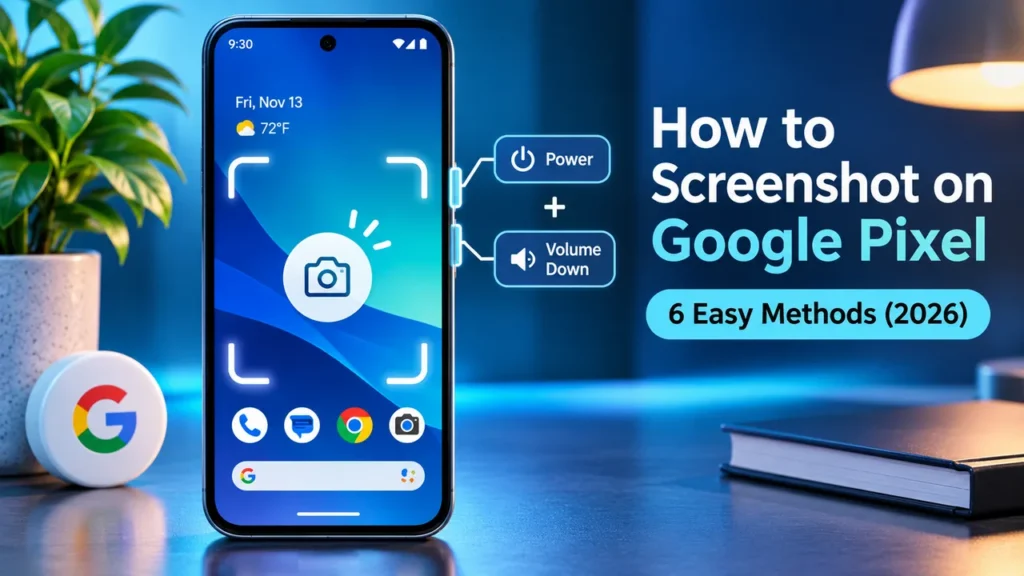
Want to capture something on your Google Pixel but aren’t sure which buttons to press? Learning how to screenshot on Google Pixel is simple, and you have several options beyond the traditional button shortcut.
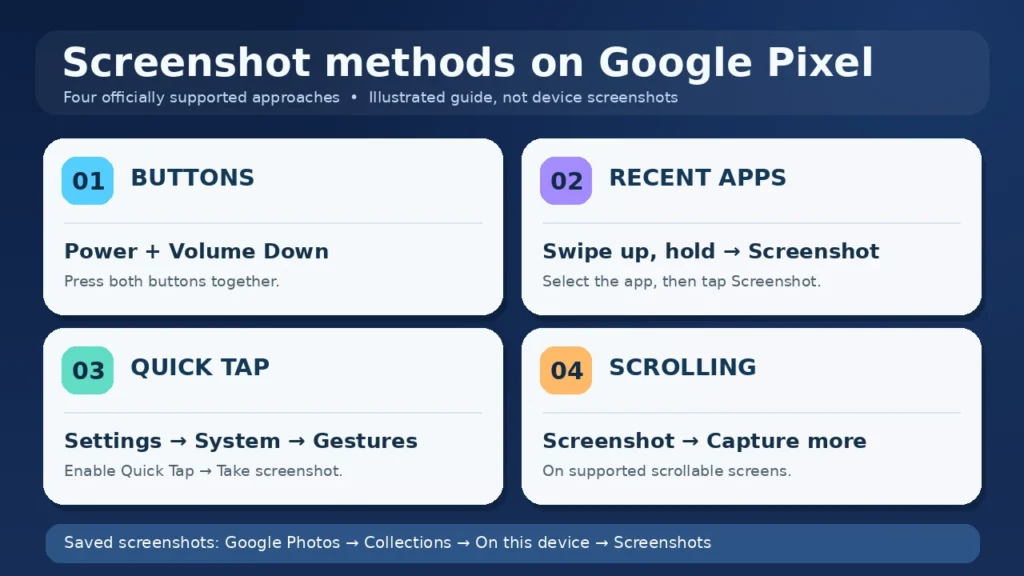
You can take screenshots using the Power and Volume Down buttons, the Recent Apps screen, Quick Tap gestures, or a voice command. You can also capture an entire scrolling webpage instead of saving several separate images.
These options are useful when you need to save information, share an app error, capture a conversation, or keep a copy of something on your screen.
In this guide, we’ll explain six ways to take a screenshot on Google Pixel, how to find saved screenshots, and how to fix common screenshot problems.
The instructions apply to supported Pixel phones, although certain features depend on your Android version, navigation settings, and device model.
Quick Answer: How to Screenshot on Google Pixel
The easiest method is the Power and Volume Down shortcut.
- Open the app or screen you want to capture.
- Locate the Power and Volume Down buttons.
- Press both buttons at the same time.
- Release them quickly.
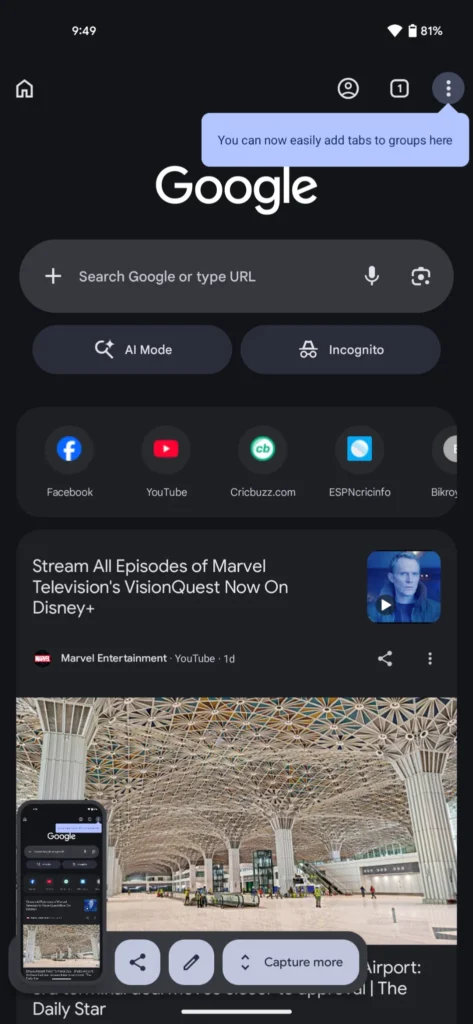
- Wait for the screenshot preview to appear near the bottom-left corner.
- Tap the preview to edit or share the captured image.
Your Pixel automatically saves the screenshot.
You don’t need to install an additional app.
Google confirms this method in its official Pixel screenshot instructions.
Tip: If pressing the buttons opens the power menu or changes the volume instead, try pressing them simultaneously and releasing them without holding them too long.
Table of Contents
Method 1: Take a Screenshot Using Power and Volume Down
This is the standard screenshot method on Google Pixel phones.
It works across supported Pixel generations and doesn’t require special gesture settings.
Steps
- Open the screen you want to save.
- Make sure the content you want is visible.
- Hold your phone comfortably.
- Press Power + Volume Down simultaneously.
- Release both buttons.
- Look for the screenshot animation and preview.
The screenshot should be saved automatically.
What Happens After Taking the Screenshot?
Depending on your Android version, you may see a thumbnail along with options such as Edit, Share, or Capture more.
Tap the thumbnail if you want to open the captured image immediately.
Otherwise, leave the preview alone. It normally disappears after a short time while the screenshot remains saved.
What If the Button Shortcut Doesn’t Work?
Try pressing both buttons at exactly the same time.
If only the volume slider appears, the Volume Down button may have registered before Power.
If the power menu opens, you may have held Power too long.
Check that your phone case isn’t interfering with either button.
If one of the physical buttons isn’t working properly, use the button-free methods below.
Method 2: Screenshot on Google Pixel Without Buttons Using Gestures
You can also capture an open application directly from the Recent Apps screen.
This method is particularly useful when you don’t want to press the physical buttons.
It works on supported Pixel phones using gesture navigation.
Steps for Gesture Navigation
- Open the application you want to capture.
- Swipe up from the bottom of the screen.
- Hold your finger briefly.
- Release when the Recent Apps overview appears.
- Find the app you want to capture.
- Tap Screenshot below its preview.
Your Pixel captures the selected application.
Why Use This Method?
The Recent Apps method is convenient when your phone is resting on a table or when the physical buttons are difficult to reach.
It can also produce a cleaner image of an application’s content than capturing the entire display with navigation controls visible.
However, this method captures the selected app preview, not necessarily every system overlay or notification panel.
If you need to capture the current screen exactly as displayed, use the Power and Volume Down shortcut.
Google documents this button-free approach in its Pixel screenshot help page.
Method 3: Take a Screenshot With 3-Button Navigation
Not everyone uses gesture navigation.
Some Google Pixel users prefer Android’s traditional three-button navigation system.
If your phone displays Back, Home, and Overview controls at the bottom of the screen, you can use Overview to capture an app.
Steps
- Open the app you want to capture.
- Tap the Overview button.
- Find the relevant app preview.
- Tap Screenshot.
- Wait for the capture to finish.
The image is saved to your screenshots collection.
How Is This Different From Gesture Navigation?
The capture process is nearly identical.
The difference is how you open the Recent Apps overview.
With gesture navigation, you swipe up and hold.
With three-button navigation, you press the Overview button.
How to Check Your Navigation Mode
On supported Pixels:
- Open Settings.
- Select System.
- Tap Navigation mode, or the corresponding gesture/navigation setting.
- Review whether your phone uses gesture navigation or three-button navigation.
You don’t need to change your preferred navigation method just to take screenshots.
Both can support a Recent Apps screenshot action.
Method 4: Take a Screenshot by Double-Tapping the Back of Your Pixel
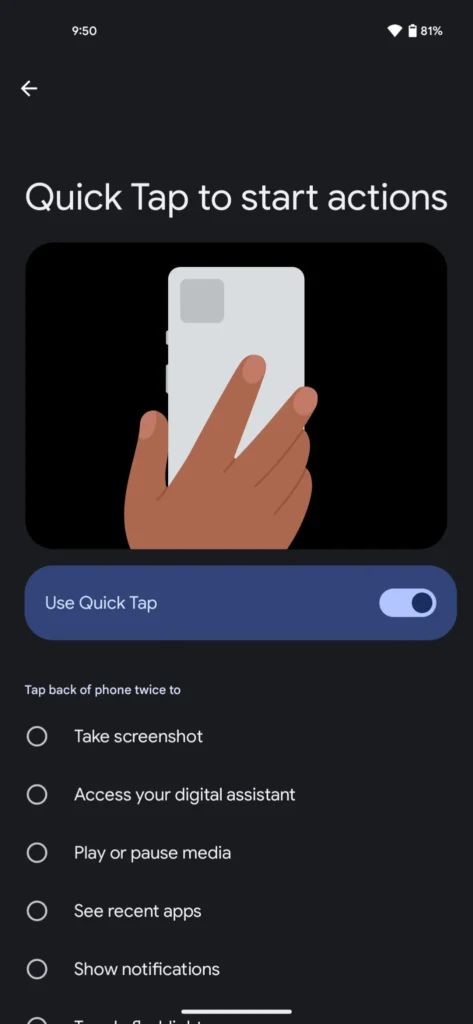
Google Pixel includes a feature called Quick Tap.
On supported Pixel models, Quick Tap allows you to perform selected actions by tapping the back of your phone twice.
One available action is taking a screenshot.
How to Enable Quick Tap for Screenshots
- Open Settings.
- Select System.
- Tap Gestures.
- Choose Quick Tap to start actions or Quick Tap, depending on your Android version.
- Enable Use Quick Tap.
- Find and select Take screenshot.
- Return to the screen you want to capture.
- Double-tap the back of your phone.
If the gesture is recognized, the phone takes a screenshot.
Which Google Pixel Phones Support Quick Tap?
Google lists Quick Tap support beginning with Pixel 4a (5G) and later compatible models.
The availability of specific actions and settings can vary.
If the Quick Tap menu doesn’t appear, your Pixel may not support the feature or may use a different software configuration.
What If Quick Tap Doesn’t Respond?
Try tapping firmly but gently near the center of the back of the phone.
Avoid hitting the device hard.
You can also check whether your phone case interferes with the gesture.
Some versions provide a stronger-tap sensitivity option. Review that setting if available.
Google explains the feature in its official Pixel gestures documentation.
Tip: Quick Tap is useful when you frequently capture images and want to avoid pressing both side buttons.
Method 5: Take a Google Pixel Screenshot Using Your Voice
Another way to capture the screen is through Google Assistant on supported configurations.
Google’s official screenshot documentation includes the voice command:
“Hey Google, take a screenshot.”
Steps
- Open the screen you want to capture.
- Make sure your configured Google Assistant can respond to voice commands.
- Say “Hey Google, take a screenshot.”
- Follow any onscreen prompt.
- Check whether the screenshot was captured or offered for sharing.
This method can be useful when your hands are occupied or the phone is positioned on a stand.
Does This Work With Gemini?
Google Assistant and Gemini don’t necessarily provide identical screenshot actions on every software version.
If your Pixel uses Gemini as its default assistant, the exact behavior may differ.
Don’t assume that every Gemini configuration supports the same screenshot command.
If the voice command doesn’t work, use the hardware buttons, Recent Apps, or Quick Tap instead.
Is Voice Capture Better Than Button Capture?
Not necessarily.
The hardware shortcut is generally more predictable because it doesn’t depend on voice-assistant availability or configuration.
Voice capture is simply an additional supported option.
Method 6: Take a Scrolling Screenshot on Google Pixel
Sometimes the information you want to save extends beyond the visible screen.
For example, you might want to capture a long webpage, a settings list, or a lengthy document.
Instead of saving several separate screenshots, supported Pixels allow you to create a scrolling screenshot.
Google calls this feature Capture more.
How to Take a Long Screenshot
- Open a screen that contains scrollable content.
- Press Power + Volume Down.
- Wait for the screenshot toolbar.
- Tap Capture more, if available.
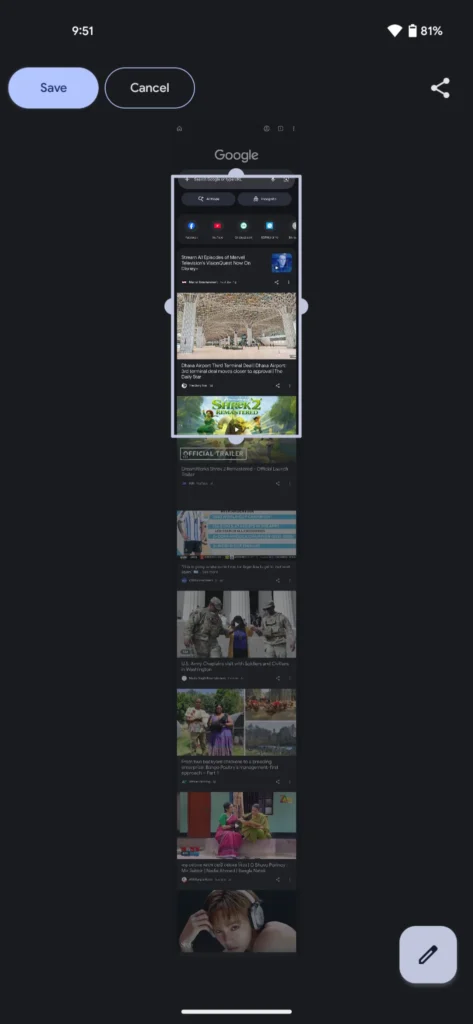
- A larger capture preview will appear.
- Drag the crop handles to select how much content you want.
- Tap Save.
Your Pixel saves the selected extended screenshot.
Requirements for Scrolling Screenshots
Google documents scrolling screenshots on Android 12 and later.
However, Capture more doesn’t appear on every screen or in every application.
The app must support a compatible scrolling capture.
Why Is Capture More Missing?
Possible reasons include:
- The current screen doesn’t scroll.
- The application doesn’t support extended capture.
- The screenshot was taken through a method that doesn’t offer Capture more.
- The screenshot preview has already disappeared.
- The Android version or app interface has limitations.
Try opening a long webpage in Chrome and using the Power + Volume Down shortcut.
If Capture more appears there but not in another app, the difference may be caused by the app’s supported capture behavior.
Avoid downloading unknown screenshot tools just to force extended capture in an unsupported application.
Where Are Screenshots Saved on Google Pixel?
After taking a screenshot, you can usually find it in Google Photos.
Find Your Screenshots
- Open Google Photos.
- Tap Collections.
- Select On this device.
- Open Screenshots.
- Select the image you want to view.
The menu arrangement may vary slightly with Google Photos updates.
Can You Find Screenshots Using the Files App?
Yes. On supported Android configurations, screenshots are commonly stored in the Pictures/Screenshots folder.
You can inspect local files through your phone’s file manager.
The exact folder presentation depends on the file-management app.
Are Screenshots Automatically Backed Up?
Not necessarily.
Screenshots saved on your phone are not automatically guaranteed to be backed up to your Google Account.
Google Photos has separate backup settings for device folders.
If a screenshot is important, check whether its folder is included in your selected backup configuration.
Don’t assume an image is safely stored in the cloud simply because it’s visible in Google Photos.
How to Edit a Screenshot on Google Pixel
Google Pixel provides editing tools after you capture an image.
You can crop unnecessary areas, draw on the image, or use supported photo-editing tools.
Steps
- Take a screenshot.
- Tap the screenshot preview.
- Select an available editing option.
- Crop the image if necessary.
- Add markings or annotations using supported tools.
- Save the edited image or copy.
Alternatively, open the screenshot in Google Photos and choose Edit.
The available editing tools vary depending on your installed Google Photos version.
How to Hide Private Information
Before sharing a screenshot, check whether it contains:
- Email addresses.
- Phone numbers.
- Account names or IDs.
- Private conversations.
- Home or work addresses.
- Payment details.
- Security codes.
For sensitive details, use a reliable opaque cover or crop them out entirely.
Avoid relying on a lightly colored or transparent marker that might leave the information readable.
How to Share a Google Pixel Screenshot
You can share a screenshot directly after capturing it or later through Google Photos.
Share Immediately
- Take the screenshot.
- Tap Share if the option appears.
- Choose an appropriate application.
- Select the intended recipient.
- Review the attachment.
- Send when ready.
Share From Google Photos
- Open Google Photos.
- Find the screenshot.
- Open the image.
- Tap Share.
- Select your preferred sharing method.
For example, you can attach screenshots when contacting technical support.
If your Pixel displays an error involving voicemail or Wi-Fi calling, capturing the exact message may help explain the problem. Our Google Pixel Voicemail Not Working guide and Google Pixel WiFi Calling guide cover those separate issues.
Only share information necessary for troubleshooting.
Why Can’t I Take Screenshots on My Google Pixel?
If the screenshot shortcut isn’t working, the cause may involve button timing, software restrictions, or the screen you’re attempting to capture.
Try the following checks.
Fix 1: Press Both Buttons Together
Press Power and Volume Down at the same time, then release them promptly.
If one button is pressed much earlier than the other, Android may register a different action.
Fix 2: Restart Your Pixel
A temporary software problem can affect phone functions.
Restart your phone normally, then try taking another screenshot.
Fix 3: Try Another Screenshot Method
Use the Recent Apps Screenshot button or Quick Tap if your device supports it.
If these work but the hardware shortcut doesn’t, investigate the physical buttons or phone case.
Fix 4: Check Available Storage
If your phone is nearly full, it may have difficulty saving additional files.
Open Settings → Storage and review available space.
Remove only files you no longer need.
Don’t delete important photos or documents without checking backups.
Fix 5: Check Whether the App Blocks Screenshots
Certain banking, payment, streaming, and security-sensitive applications can block screenshots.
You might see a security-policy message or receive a blank or black capture.
This can be intentional.
If screenshots work elsewhere on your Pixel, the phone’s screenshot function may be operating normally.
Respect application and organization security restrictions rather than attempting to bypass them.
Fix 6: Install Supported Android Updates
If screenshot capture fails across several normal applications, check for Android updates.
Open Settings → System → Software updates and install appropriate available updates.
Restart if required.
Don’t factory reset your Pixel as a first step.
Why Does My Pixel Screenshot Look Black?
A black screenshot can occur when the application protects its content from screen capture.
For example, some streaming apps restrict images of protected video.
Certain authentication or financial applications may also prevent screenshots.
This behavior is different from a broken camera or display.
Test the screenshot shortcut on your home screen or a non-sensitive settings page.
If those captures work, the issue is likely limited to the protected application.
Google Pixel Screenshot Button Not Working
If the Power and Volume Down shortcut fails, begin by testing the buttons separately.
Make sure the Volume Down button actually lowers the sound.
Check whether the Power button responds to normal supported actions.
Don’t repeatedly press a physically stuck button.
Try the Recent Apps method or Quick Tap instead.
If a button is damaged, contact your device manufacturer or an authorized repair provider.
How to Screenshot on Google Pixel 6, 7, 8, 9, 10, and Newer Models
The basic Power + Volume Down combination remains the standard screenshot method across supported recent Pixel generations.
You can also use navigation-based captures and compatible gesture features.
However, the exact Quick Tap controls, Google Assistant behavior, and screenshot editor may differ between Android versions.
If a feature isn’t shown on your device, check the supported instructions for your model.
Don’t assume that every newer Pixel uses an identical interface.
Can You Screenshot the Google Pixel Lock Screen?
You can generally capture ordinary visible lock-screen content using the hardware screenshot shortcut, subject to applicable security restrictions.
However, sensitive or protected content may be hidden or unavailable.
Be careful before sharing lock-screen screenshots that reveal notifications or private information.
If your screenshot contains sensitive notifications, crop or redact them first.
For help managing alerts shown on Android screens, see our Android Notifications Not Showing guide.
Google Pixel Screenshot vs. Screen Recording
A screenshot saves a still image of your display.
A screen recording captures a video of activity happening on your screen.
Use screenshots when you want to document an error message, save a page, or share a single screen.
Use screen recording when you need to demonstrate a sequence of taps, animations, or a problem that happens over time.
Google Pixel includes built-in screen recording controls, but recording is a separate process from taking screenshots.
You don’t need to enable screen recording to capture a normal screenshot.
Frequently Asked Questions
How do I screenshot on Google Pixel without buttons?
Open Recent Apps by swiping up and holding, choose the app, then tap Screenshot. You can also configure Quick Tap on supported Pixel models.
What buttons take a screenshot on Google Pixel?
Press the Power and Volume Down buttons simultaneously, then release them. The screenshot is saved automatically.
How do I take a long screenshot on Google Pixel?
Capture a screen with Power + Volume Down, tap Capture more, adjust the crop handles, and save. This works on supported scrollable screens with Android 12 or later.
Can I double-tap my Google Pixel to take a screenshot?
Yes, on supported Pixel phones. Open Settings → System → Gestures → Quick Tap, enable the feature, and select Take screenshot.
Where are Google Pixel screenshots saved?
Open Google Photos → Collections → On this device → Screenshots. They may also be accessible through a local file manager.
Why is Capture more not appearing on my Pixel?
The screen or application may not support scrolling screenshots. Try a different scrollable page and use the hardware-button method.
Can Google Assistant take a screenshot?
Google documents the voice command “Hey Google, take a screenshot” for compatible Assistant configurations. Availability can vary with your default assistant and settings.
How do I screenshot on Pixel with gesture navigation?
Swipe up from the bottom and hold to open Recent Apps, choose the relevant app, and tap Screenshot.
Does taking a screenshot notify another person?
A normal screenshot generally doesn’t notify people outside your device. However, some applications can implement their own screenshot detection or notification policies. Don’t assume that all apps behave identically.
Why won’t my banking app allow screenshots?
Some banking and security-sensitive applications intentionally restrict screenshots to protect confidential information. This doesn’t necessarily mean anything is wrong with your Pixel.
Will taking screenshots use mobile data?
Capturing and saving an ordinary screenshot locally doesn’t require mobile data. Sharing or backing it up online may use Wi-Fi or cellular data.
Do I need an app to screenshot on Google Pixel?
No. Google Pixel includes built-in screenshot capabilities, so an additional screenshot app isn’t necessary for normal captures.
Final Thoughts
Learning how to screenshot on Google Pixel gives you several ways to capture and share information.
The simplest approach is pressing Power and Volume Down together.
For button-free screenshots, use the Recent Apps screen or Quick Tap on compatible devices.
When you need to save a long webpage, use Capture more to select additional content.
Your screenshots can be found in Google Photos, where you can edit, organize, or share them.
Most importantly, remember to protect private information before sharing screenshots and respect applications that intentionally restrict screen capture.
Last reviewed: November 13, 2026.