Google Maps not working on Android? Maybe the app keeps crashing, your location is showing incorrectly, directions won’t load, or Google Maps gets stuck on a blank screen.
These problems can affect Google Pixel, Samsung Galaxy, Motorola, OnePlus, and other Android smartphones. Sometimes Google Maps opens normally but cannot find your current location. Other times, it closes unexpectedly or refuses to start navigation.
Fortunately, many of these problems can be resolved without resetting your Android phone or deleting personal data.
In this guide, you’ll learn 10 practical ways to fix Google Maps not working on Android, including connection checks, app updates, location permissions, GPS calibration, and cache troubleshooting.
We’ll also explain what to do when Google Maps keeps stopping, displays an incorrect location, or stops giving navigation instructions.
Quick Answer: Google Maps Not Working on Android
If Google Maps isn’t working properly, try these fixes first:
- Check your Wi-Fi or mobile data connection.
- Force stop Google Maps and reopen it.
- Restart your Android phone.
- Update Google Maps from the Play Store.
- Clear the Google Maps cache.
- Check location permissions and precise location access.
- Improve location accuracy and calibrate your compass.
- Review Battery Saver and data restrictions.
- Check your downloaded offline maps.
- Reset Google Maps app data as a last resort.
Start with the first five fixes if the app crashes or won’t load.
If Google Maps opens but shows the wrong location, focus on location permissions and GPS accuracy instead.
Google also recommends updating Maps and reviewing the app’s cache and storage when it repeatedly crashes. You can compare these steps with the official Google Maps troubleshooting guide.
Why Is Google Maps Not Working on Android?
Google Maps relies on several Android features to provide accurate maps, directions, and navigation.
These include internet connectivity, location services, permissions, the Maps application, and your device’s GPS capabilities.
Problems can occur when one or more of these components isn’t working correctly.
Common reasons include:
- An unstable Wi-Fi or mobile data connection.
- Temporary problems with the Google Maps application.
- Outdated Google Maps software.
- Corrupted temporary app files.
- Disabled location services.
- Missing or limited location permissions.
- Inaccurate GPS information.
- Battery-saving restrictions.
- Outdated or unavailable offline maps.
- Temporary service or Android software problems.
The right solution depends on what actually happens when you open Maps.
For example, a blank map usually deserves a different investigation from a blue location dot pointing in the wrong direction.
Before changing advanced Android settings, identify whether Google Maps crashes, cannot load online information, or simply shows the wrong location.
Fix 1: Check Your Internet Connection
A working internet connection is essential for downloading new map information, searching for places, and receiving live traffic updates.
If Google Maps opens but displays empty areas, fails to load directions, or continuously shows a loading indicator, your internet connection is a good place to start.
How to Check Your Connection
- Open Chrome or another browser.
- Visit a familiar website.
- Confirm that the website loads normally.
- Return to Google Maps.
- Search for a nearby public location.
- Check whether search results and map information load.
- If you’re using Wi-Fi, try switching to mobile data.
- If you’re using mobile data, test a reliable Wi-Fi network.
If Google Maps works with mobile data but not Wi-Fi, investigate your wireless network.
If it works on Wi-Fi but not mobile data, check your cellular data connection and app data settings.
Check Airplane Mode
Make sure Airplane Mode isn’t preventing your phone from connecting to the internet.
Open Quick Settings by swiping down from the top of the screen.
Check whether Airplane Mode is enabled.
Turn it off if necessary, reconnect to the internet, and test Google Maps.
Does Google Maps Work Without Internet?
Yes, but only with limitations.
Google Maps supports downloaded offline maps in eligible regions.
If you’ve already downloaded the relevant area, you can use some navigation features without an active internet connection.
However, offline navigation generally doesn’t provide live traffic, alternate routes, or walking, cycling, and public transit directions.
We’ll explain offline maps in Fix 9.
Tip: If you’re using another Android phone’s hotspot for internet access, our Android Hotspot Not Working guideexplains how to troubleshoot connection failures.
Fix 2: Force Stop Google Maps and Reopen It
Sometimes Google Maps becomes temporarily unresponsive.
The app may freeze while searching for a location, stop responding during navigation, or close unexpectedly.
Force stopping the application can help restart its process without removing your account or personal files.
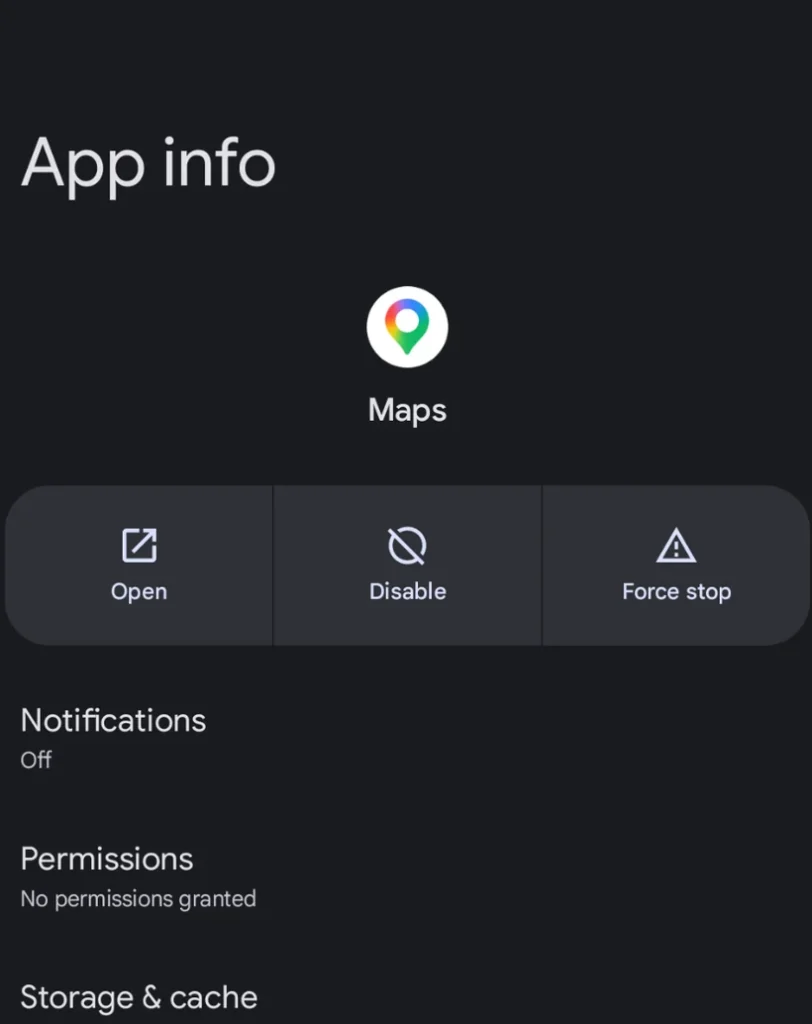
How to Force Stop Google Maps on Google Pixel
- Open Settings.
- Tap Apps.
- Select See all apps if necessary.
- Find and tap Maps.
- Tap Force stop.
- Confirm if prompted.
- Return to your Home Screen.
- Open Google Maps again.
You can also press and hold the Maps app icon, then select App info on supported Android devices.
On Samsung Galaxy
The usual path is:
Settings → Apps → Maps → Force stop.
After stopping the app, reopen it and try searching for a destination.
Does Force Stop Delete Saved Places?
No.
Force stopping Google Maps doesn’t normally delete places saved to your Google Account, uninstall the application, or erase personal files.
It simply stops the current application process.
If Google Maps works again, the problem may have been temporary.
If the app continues crashing, try restarting your device.
Fix 3: Restart Your Android Phone
A normal restart is another useful troubleshooting step.
It restarts Android services and can resolve temporary issues affecting applications, GPS functions, and network connections.
Steps
- Save any unfinished work.
- Open your phone’s power menu.
- Select Restart.
- Wait until Android starts normally.
- Unlock your phone.
- Connect to Wi-Fi or mobile data.
- Open Google Maps.
- Test navigation or search again.
On many recent Google Pixel devices, press Power + Volume Up to access the power menu.
Samsung Galaxy devices may offer a power control in Quick Settings or a supported side-button combination.
The exact method depends on your phone model.
When Should You Restart?
Restarting is worth trying when:
- Google Maps repeatedly freezes.
- The app closes immediately after opening.
- GPS information doesn’t update.
- Multiple Android applications become unresponsive.
- The problem begins after a software update.
Restarting doesn’t guarantee a fix, but it is less disruptive than resetting application data.
If Google Maps still isn’t working properly, continue to the next step.
Fix 4: Update Google Maps From the Play Store
An outdated Google Maps application can sometimes develop compatibility or stability problems.
Google releases app updates that may include bug fixes, security improvements, and changes to navigation features.
If Maps started crashing after an Android update or has been behaving unpredictably, check whether a newer version is available.
How to Update Google Maps
- Open Google Play Store.
- Tap the search field.
- Search for Google Maps.
- Open the official Google Maps listing.
- Look for the Update button.
- Tap Update if it is available.
- Allow the installation to finish.
- Open Google Maps again.
If the button says Open, Google Play isn’t currently offering an update for that installation.
Alternatively, open Play Store → Profile icon → Manage apps & device to review available app updates.
What If the Play Store Doesn’t Open?
If you cannot access Google Play Store to update Maps, resolve the Play Store issue first.
Our Google Play Store Not Opening guide explains how to fix crashes, blank screens, and loading problems affecting the Play Store itself.
Avoid downloading unofficial Google Maps APK files from unfamiliar websites.
Use the official Play Store or another trusted distribution method supported by your device manufacturer.
For more information, see Google’s official Android app update instructions.
Fix 5: Clear Google Maps Cache on Android
If Google Maps keeps stopping or struggles to load map information, clearing its cache is an appropriate next step.
Android applications store temporary information to improve performance.
Occasionally, cached files can become outdated or interfere with normal application behavior.
Clearing the cache allows the application to rebuild temporary files.
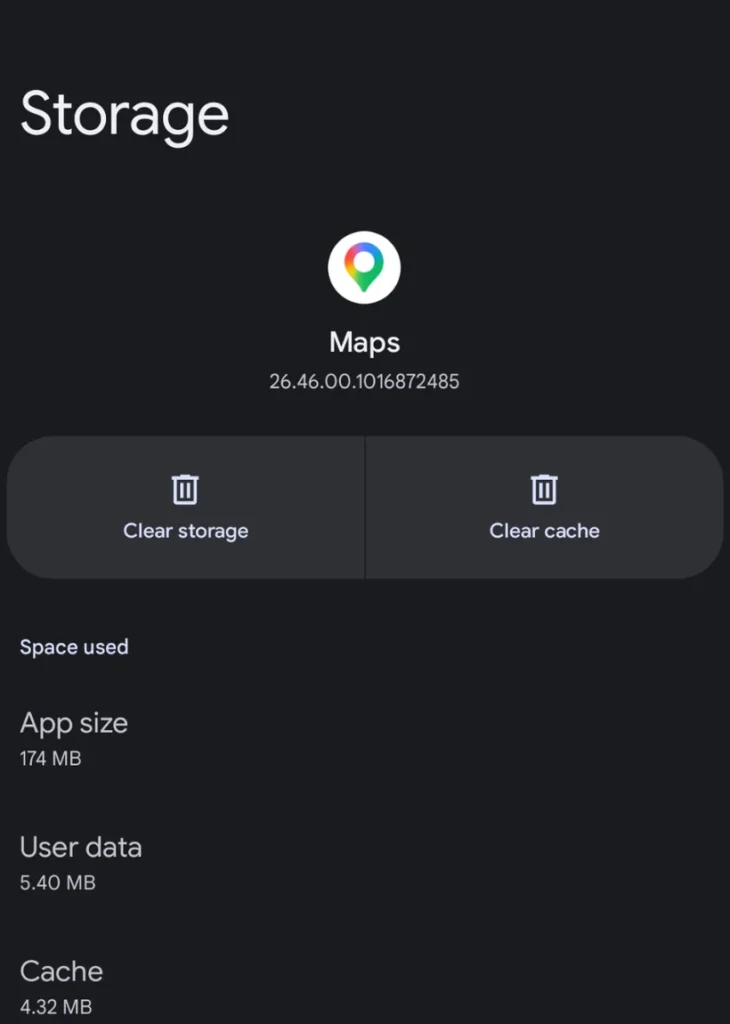
How to Clear Google Maps Cache on Google Pixel
- Open Settings.
- Tap Apps.
- Select See all apps if needed.
- Find Maps.
- Tap Storage & cache.
- Select Clear cache.
- Return to your Home Screen.
- Open Google Maps.
On many Samsung Galaxy phones, use:
Settings → Apps → Maps → Storage → Clear cache.
Does Clearing Google Maps Cache Delete Saved Places?
Clearing the cache doesn’t normally delete places saved to your Google Account.
It primarily removes temporary application files.
However, Google Maps may need to download some information again after the cache is cleared.
Clear Cache vs. Clear Storage
These options are not the same.
Clear cache: Removes temporary information and is generally the less disruptive choice.
Clear storage or Clear data: Resets locally stored application data and may remove downloaded offline maps and other local information.
Do not select Clear storage when you only intend to clear the cache.
Google includes both options in its official Google Maps crash troubleshooting documentation.
Fix 6: Check Google Maps Location Permissions
If Google Maps opens but cannot determine where you are, check its location permissions.
Android allows you to control which applications can access location information.
If Google Maps doesn’t have the necessary permission, it may fail to locate your current position or start navigation correctly.
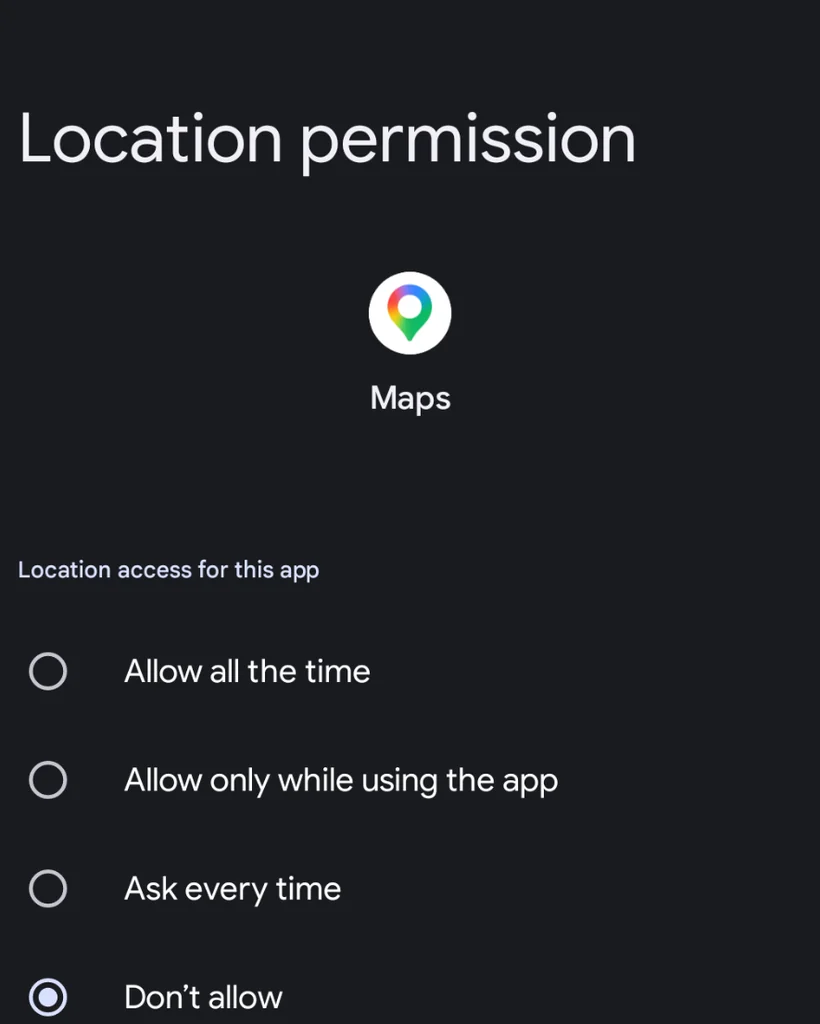
How to Check Google Maps Permissions on Google Pixel
- Open Settings.
- Tap Apps.
- Find and select Maps.
- Tap Permissions.
- Select Location.
- Review the available location permissions.
- Choose Allow only while using the app if appropriate.
- Enable Use precise location when accurate navigation is needed.
- Reopen Google Maps.
The wording may differ slightly depending on your Android version.
Why Does Precise Location Matter?
Android supports approximate and precise location access.
Approximate location may be suitable for certain tasks, such as checking general weather or discovering nearby services.
However, turn-by-turn navigation often benefits from precise location access.
If your phone only allows Maps to access an approximate location, the blue dot may appear less accurately positioned.
Check Device-Wide Location Services
App permission alone isn’t enough if location services are disabled for the entire phone.
Open Settings → Location.
Confirm that Use location is enabled when you want Google Maps to determine your position.
On Samsung Galaxy devices, review Settings → Location and the Maps permission settings.
Privacy note: You don’t need to grant every application permanent location access. Review permissions individually according to how you use each app.
For additional information, see Google’s official Android location permissions guide.
Fix 7: Improve GPS Accuracy and Calibrate Google Maps
Sometimes Google Maps loads normally but shows the wrong location or direction.
For example, the blue dot may appear far from your actual position, move unpredictably, or point in the wrong direction.
This can happen when your phone cannot obtain accurate location information.
Buildings, underground parking areas, tunnels, and weak satellite visibility can contribute to location problems.
Check Location Accuracy
On many Google Pixel phones:
- Open Settings.
- Tap Location.
- Select Location Services.
- Open Location Accuracy.
- Review the Improve Location Accuracy setting.
- Enable it if you want to use Google’s enhanced location accuracy features.
- Return to Google Maps.
On some Samsung and other Android devices, the location accuracy setting may appear under a different menu.
Calibrate the Google Maps Compass
If your location is roughly correct but the direction indicator is inaccurate, calibration may help.
- Open Google Maps.
- Tap the blue dot showing your current location.
- Follow the available calibration instructions.
- If instructed, move your phone in a figure-eight pattern.
- Repeat the movement a few times.
- Check whether the direction indicator becomes more accurate.
On supported devices, Google Maps may offer calibration using the phone’s camera and nearby surroundings.
Follow the onscreen instructions if that option appears.
What Does the Blue Circle Mean?
The blue dot represents your estimated location.
A light-blue circle around it indicates uncertainty.
A larger circle generally means Maps is less certain about your position.
For improved accuracy, move somewhere with a clearer view of the sky, make sure your phone’s location services are enabled, and review Wi-Fi or mobile data connectivity.
Google explains these troubleshooting methods in its official Maps location accuracy guide.
Fix 8: Check Battery Saver and Data Restrictions
Battery-saving features help extend your phone’s battery life.
However, some modes restrict background activity or affect how often location information updates.
If Google Maps navigation becomes unreliable when Battery Saver is active, temporarily disable it for testing.
How to Check Battery Saver
On a Google Pixel:
- Open Settings.
- Select Battery.
- Tap Battery Saver.
- Check whether Battery Saver is enabled.
- Turn it off temporarily if appropriate.
- Return to Google Maps.
- Test whether navigation or location tracking improves.
Samsung devices may call this feature Power saving.
You shouldn’t need to disable battery-saving features permanently.
Check Mobile Data Permissions
If Google Maps works on Wi-Fi but struggles on mobile data:
- Open Settings.
- Select Apps.
- Find Maps.
- Open Mobile data & Wi-Fi or the equivalent settings.
- Review whether data access has been restricted.
- Check whether Data Saver is affecting background activity.
Not every device uses the same menu labels.
Allowing additional background data may increase mobile data consumption.
Only change settings that appear related to the problem you’re experiencing.
What About VPNs?
If Maps stopped loading after you changed VPN or network filtering settings, check whether the issue occurs on another connection.
A VPN may affect which services or regional results are reachable.
Do not disable an organization-required VPN or security service without permission.
Fix 9: Check Downloaded Offline Maps
Google Maps can work without a live internet connection when the relevant map area has been downloaded in advance.
However, offline maps have limitations.
If Google Maps isn’t working properly only when you’re offline, confirm that the necessary area is downloaded and up to date.
How to Check Offline Maps
- Open Google Maps while connected to the internet.
- Tap your profile picture.
- Select Offline maps.
- Review your downloaded map areas.
- Check whether an area needs updating.
- Download or update the appropriate area if available.
How to Download a New Offline Map
- Open Google Maps.
- Tap your profile picture.
- Select Offline maps.
- Tap Select your own map.
- Adjust the map to include the area you need.
- Tap Download.
- Allow the download to finish before disconnecting.
Availability varies by country, region, and map coverage.
What Can’t Google Maps Do Offline?
When you’re using offline maps, some services may be unavailable.
These include:
- Live traffic updates.
- Alternative routes based on traffic.
- Public transit directions.
- Walking directions.
- Cycling directions.
Offline driving navigation also requires the relevant route to be covered by downloaded map data.
Google’s offline Maps instructions explain these requirements.
Don’t clear Google Maps storage if you depend on offline downloads and haven’t checked whether you can download them again.
Fix 10: Reset Google Maps App Data as a Last Resort
If Google Maps still crashes or refuses to work after the earlier troubleshooting steps, resetting its locally stored application data may help.
This step is more disruptive than clearing the cache.
Google includes clearing app storage among its recommended actions for persistent Maps crashes.
Before You Continue
Understand that clearing Google Maps storage may remove:
- Downloaded offline maps.
- Local application settings.
- Temporary application information.
- Other data stored locally by the app.
Places saved to your Google Account generally remain associated with that account, but local-only content may be lost.
Make sure important information is backed up or synchronized before proceeding.
How to Clear Google Maps Storage
- Open Settings.
- Tap Apps.
- Select Maps.
- Open Storage & cache.
- Tap Clear storage or Clear data.
- Read the confirmation carefully.
- Confirm only when you’re ready to reset the local app data.
- Reopen Google Maps.
- Sign in or reconfigure settings if prompted.
- Download any needed offline maps again.
What If Google Maps Still Doesn’t Work?
Check whether the problem affects other applications or device-wide location features.
If several Google applications are crashing, investigate Android software and Google Play services rather than repeatedly resetting Maps.
You can also check for an available Android system update through Settings → System → Software updates on many Pixel phones.
If the problem continues, use the Help and feedback options in Google Maps or seek device-specific assistance.
Avoid factory resetting your Android phone for a single app issue unless a qualified support process determines that it is necessary and you’ve backed up important data.
Google Maps Keeps Stopping on Android
If Google Maps closes immediately after opening, the application may be crashing.
Start with these steps:
- Force stop Google Maps.
- Restart your phone.
- Check for an available Maps update.
- Clear the Maps app cache.
- Test again.
- Consider clearing app storage only if the simpler fixes fail.
If Maps began crashing after a recent update, that timing may provide a clue, but it doesn’t prove the update caused the problem.
An unrelated network or system issue could have happened at the same time.
Check whether other apps are behaving normally.
Google Maps Shows a Blank Screen on Android
A blank or partially loaded map isn’t necessarily a GPS problem.
If search results and map tiles don’t load, check internet connectivity first.
Open Chrome and try visiting maps.google.com to compare the browser experience with the installed app.
If the browser version loads but the application doesn’t, focus on the application itself.
Try force stopping Google Maps, updating it, and clearing its cache.
If neither the browser nor application loads map information, investigate your network and whether other online services work correctly.
Google Maps GPS Not Working or Showing the Wrong Location
If Maps loads but the blue dot is inaccurate, focus on:
- Device location services.
- Google Maps location permission.
- Precise location access.
- Location Accuracy settings.
- Compass calibration.
- Wi-Fi and mobile data.
- Battery Saver restrictions.
- Satellite signal availability.
For example, GPS performance may be limited inside a large building or underground parking facility.
Try testing outdoors in an area with a clearer view of the sky.
If other location-based apps also show an inaccurate position, the issue may involve device-wide location services rather than Google Maps alone.
Google Maps Navigation Not Starting
Sometimes Google Maps displays the destination correctly but fails to start turn-by-turn navigation.
First, confirm that Maps can determine your current position.
Next, check that you’ve selected an appropriate route and travel mode.
Troubleshooting Steps
- Open Google Maps.
- Search for your destination.
- Tap Directions.
- Select the intended travel mode.
- Review the route.
- Tap Start if navigation is available.
- Check whether your current location is shown correctly.
If the Start button is unavailable, review the route and location settings.
Check whether you’re using offline maps with a travel mode that requires an internet connection.
Google Maps Navigation Voice Not Working
If the map moves correctly but you can’t hear navigation instructions, the problem may involve audio settings rather than GPS.
Try These Steps
- Start a supported navigation route when it is safe to do so.
- Tap the sound control in Google Maps.
- Check whether navigation is muted.
- Select an audible navigation mode.
- Increase your phone’s media volume.
- Check whether Bluetooth headphones or speakers are connected.
- Test another available audio output.
Some vehicles and Bluetooth systems route navigation audio differently.
If the phone is connected to a car, review the applicable vehicle or Bluetooth audio settings.
Never change these settings while driving. Pull over safely before troubleshooting navigation controls.
Google Maps Not Working After Android Update
If Google Maps stopped working after you updated Android, avoid assuming that the update permanently damaged the application.
Start by checking for a Google Maps app update.
Then restart your phone and clear the application cache.
If GPS location is inaccurate, recheck location permissions and Location Accuracy settings.
Software updates can sometimes change the appearance or organization of menus, so instructions may vary slightly between Android versions.
If the issue affects multiple applications, check your device manufacturer’s support information for system-wide troubleshooting.
Google Maps Not Working on Samsung Galaxy
Samsung Galaxy phones use Google Maps, but their settings interface can differ from Google Pixel.
For crashes or loading problems, try:
- Settings → Apps → Maps.
- Tap Force stop.
- Open Storage.
- Select Clear cache.
- Reopen Maps.
- Check for updates in Google Play Store.
For location problems, review:
Settings → Location → App permissions or the equivalent permission-management menu.
Ensure Maps has the access necessary for navigation.
Samsung may also provide separate location accuracy and power-saving settings depending on its One UI version.
Don’t clear Maps data unless you’ve already tried less disruptive steps.
Google Maps Not Working on Google Pixel
Google Pixel includes the Android settings needed to troubleshoot Maps without installing additional tools.
For most problems, begin with:
Settings → Apps → Maps.
From this screen, you can review:
- Force stop.
- App permissions.
- Storage & cache.
- Mobile data & Wi-Fi.
- App battery usage.
If Maps can’t locate you, open Settings → Location and review Location Services and Location Accuracy.
If it crashes, focus on updating the app and clearing its cache.
You don’t need to change every setting. Choose the troubleshooting method that matches your specific symptom.
Frequently Asked Questions
Why is Google Maps not working on Android?
Google Maps may fail because of internet connectivity, app crashes, outdated software, location permissions, GPS accuracy problems, or stored application data. Start with a connection check and restart, then investigate permissions or cache depending on the symptom.
Why does Google Maps keep stopping?
The app may be crashing because of a temporary software issue, problematic cached files, or an application compatibility problem. Try updating Google Maps, restarting your phone, and clearing the app cache.
How do I reset Google Maps on Android?
Open Settings → Apps → Maps → Storage & cache and select Clear storage or Clear data. This can remove local information and offline maps, so use it only when necessary.
Why does Google Maps show the wrong location?
The phone may have weak GPS information, limited location permissions, or reduced location accuracy. Check Precise Location, device Location Services, and the app’s calibration guidance.
Can Google Maps work without internet?
Yes, downloaded offline maps support certain features. However, offline navigation has limitations, including unavailable live traffic and certain travel modes.
Why is Google Maps blank even though my internet works?
The application may have a temporary loading or cache problem. Try force stopping Maps, updating it, and clearing its cache. You can also compare it with maps.google.com in a browser.
Does clearing Google Maps cache delete saved locations?
Clearing the cache doesn’t normally remove places saved to your Google Account. Clearing app storage is more disruptive and can remove locally downloaded maps or settings.
Why isn’t Google Maps giving voice directions?
Navigation may be muted, the media volume may be low, or audio may be routed to another Bluetooth device. Review navigation sound and Android media output settings.
How do I fix Google Maps GPS on Samsung?
Check device Location Services and Maps location permissions. Enable precise location if needed, review location accuracy, and calibrate the compass when the direction indicator is incorrect.
Should I factory reset my phone if Google Maps isn’t working?
No. A factory reset is not an appropriate early step for a Google Maps problem. Start with app-specific troubleshooting and seek further support if those methods fail.
Final Thoughts
If Google Maps is not working on Android, the best solution depends on whether the app is crashing, failing to load online maps, or showing inaccurate location information.
For crashes, start with an app update, a restart, and clearing the cache.
For GPS or navigation problems, check location permissions, precise location access, and Location Accuracy settings.
If you’re using offline maps, confirm that the necessary region is downloaded and still available.
Only reset Google Maps app storage after trying less disruptive solutions and reviewing the possible loss of local data.
With these steps, you can troubleshoot most common Google Maps problems without resetting your entire Android phone.