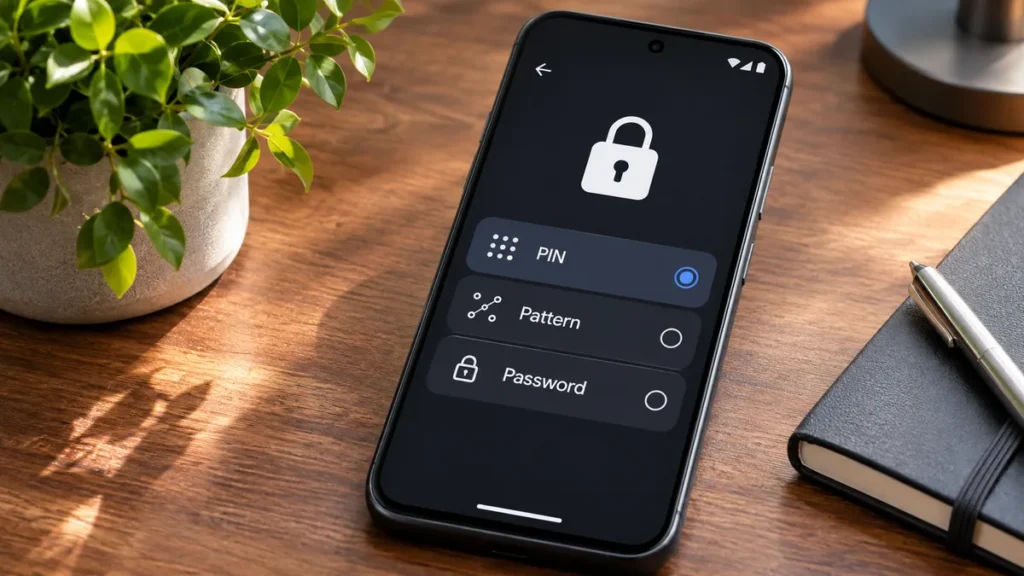
Want to change your lock screen settings Android phone? Whether you need to set a new PIN, change your password, adjust the automatic lock timer, or hide private notifications, Android gives you several ways to control your lock screen.
Your lock screen is an important part of your phone’s security. It helps prevent unauthorized access to personal messages, photographs, applications, and other information.
However, Android lock screen settings aren’t always in one place. PINs and passwords are usually managed under security settings, while wallpapers, clocks, and notification previews may be configured separately.
The exact menus can also differ between Google Pixel, Samsung Galaxy, Motorola, OnePlus, and other Android devices.
In this guide, you’ll learn seven practical ways to change Android lock screen settings, including security methods, fingerprint unlocking, automatic locking, privacy controls, and visual customization.
These instructions apply to modern Android phones, although available features depend on your device and Android version.
Table of Contents
Quick Answer: How to Change Lock Screen Settings on Android
If you want to set or change your Android screen lock, start with these steps:
- Open the Settings app.
- Select Security & privacy.
- Tap Device unlock on a Google Pixel.
- Select Screen lock.
- Enter your current PIN, pattern, or password if prompted.
- Choose a new screen lock method.
- Follow the instructions to confirm your new credentials.
On many Samsung Galaxy phones, the comparable settings are under Security and privacy → Screen lock and biometrics, or Lock screen and AOD → Screen lock and biometrics, depending on the software version.
Important: If you’re changing an existing screen lock, you’ll generally need to know your current unlock credentials.
Google explains the process in its official Set screen lock on your Pixel phone guide.
What Are Lock Screen Settings on Android?
Android lock screen settings control how your phone is protected and what information appears before you unlock it.
They generally fall into two categories.
1. Security Settings
These determine who can access your phone and how it unlocks.
Examples include:
- PIN.
- Pattern.
- Password.
- Fingerprint unlock.
- Face Unlock on supported devices.
- Automatic locking behavior.
- Power button locking.
2. Appearance and Privacy Settings
These determine what your lock screen looks like and what someone can see without unlocking your phone.
Examples include:
- Lock screen wallpaper.
- Clock design.
- Notification previews.
- Shortcut buttons.
- Lock screen messages.
- Always-on display.
- Screen timeout settings.
You don’t need to modify all these settings at once.
For most people, choosing a secure PIN or password and reviewing notification privacy should come first.
Step 1: Change Your Android Lock Screen PIN, Pattern, or Password
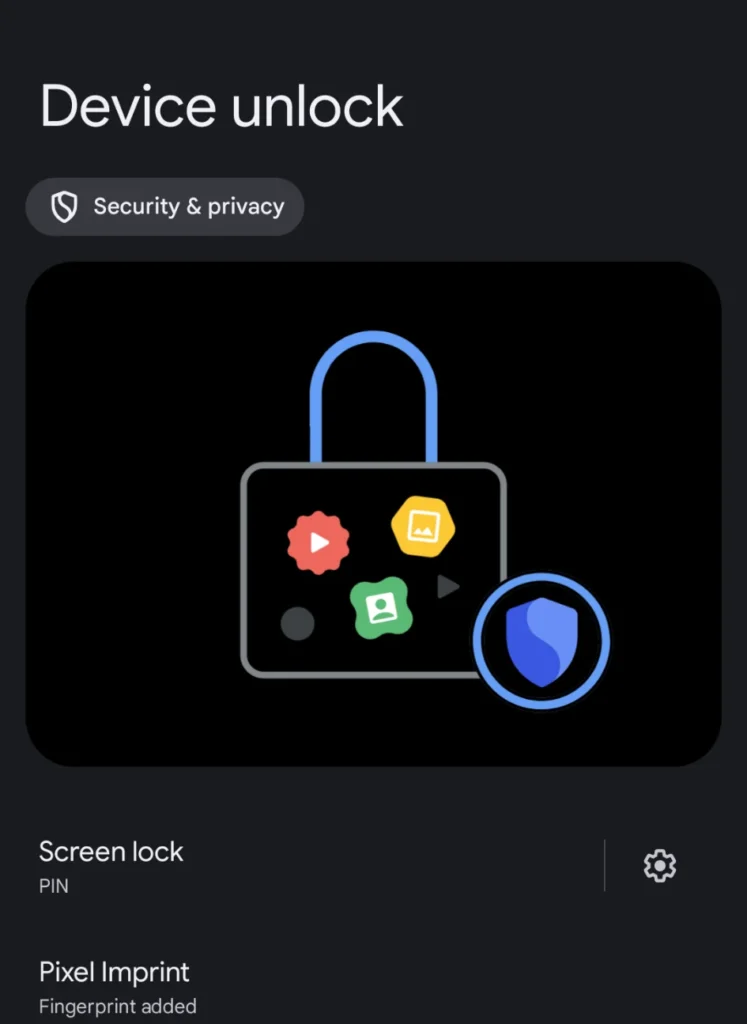
The most important Android lock screen setting is the method used to unlock your device.
Most Android phones support a PIN, pattern, or password.
Google Pixel users can change these options through Security & privacy.
How to Change Your Screen Lock on Google Pixel
- Open Settings.
- Tap Security & privacy.
- Select Device unlock.
- Tap Screen lock.
- Enter your current PIN, pattern, or password.
- Select the new screen lock type.
- Follow the onscreen instructions.
- Confirm the new credentials.
Your phone should now use the newly selected method.
Which Screen Lock Type Is Best?
PIN
A PIN uses numbers to unlock your phone.
Android supports PINs of four or more digits, but Google recommends using at least six digits for better protection.
Avoid predictable combinations such as 123456 or repeated digits.
Pattern
A pattern requires you to connect selected dots on a grid.
It can be convenient, but simple patterns may be easier for someone nearby to observe or guess.
Password
A password uses letters, numbers, or other supported characters.
A strong, unique password is generally the most secure of these standard options.
However, a long password may be less convenient to type frequently.
Should You Choose None or Swipe?
Some Android devices also provide None and Swipe options.
These allow access without a secure PIN, pattern, or password.
They provide little or no protection against someone who physically accesses your phone.
For everyday use, a secure screen lock is strongly recommended.
Best for: Users who want to change their existing PIN, pattern, or password.
Step 2: Change Automatic Lock Timing
You can also control when your Android phone locks after the display becomes inactive.
This helps balance convenience and security.
For example, a shorter locking delay may be appropriate when you frequently use your phone in public places.
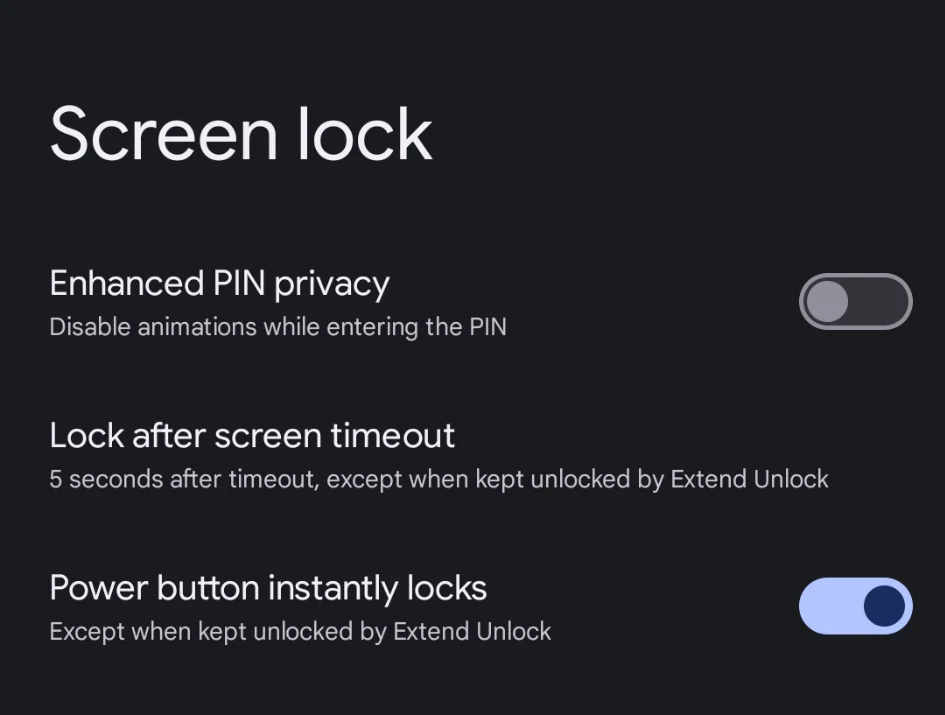
How to Check Screen Lock Timing on Google Pixel
- Open Settings.
- Select Security & privacy.
- Tap Device unlock.
- Locate Screen lock.
- Tap the Settings gear beside Screen lock.
- Review the available locking options.
- Select an appropriate automatic lock delay if offered.
Depending on your Android version, you may also see an option for locking immediately with the Power button.
What Does Power Button Instantly Locks Mean?
When enabled, this setting makes the phone lock as soon as you press the Power button to turn off the screen.
This is helpful when you want the device protected immediately after putting it away.
The feature may not appear under exactly the same name on every Android phone.
Automatic Lock vs. Screen Timeout
These are related but different controls.
Screen timeout: Determines when the display turns off after inactivity.
Automatic lock timing: Determines when authentication is required after the relevant locking conditions.
A phone may turn its display off before it requires a PIN or password again, depending on its settings and supported unlock features.
For stronger protection, use an appropriately short lock delay.
Step 3: Set Up Fingerprint or Face Unlock
Many Android phones support biometric unlocking.
This can make it easier to access your device while keeping a secure PIN, pattern, or password as a backup.
How to Set Up Fingerprint Unlock on Google Pixel
- Open Settings.
- Tap Security & privacy.
- Select Device unlock.
- Tap Fingerprint.
- Enter your existing screen lock credentials.
- Follow the instructions to register your fingerprint.
- Test the feature after completing setup.
The exact enrollment process depends on your Pixel model and its fingerprint sensor.
How to Configure Face Unlock
On supported Pixel phones:
- Open Settings.
- Select Security & privacy.
- Tap Device unlock.
- Select Face.
- Authenticate using your current screen lock.
- Follow the available setup instructions.
Not every Android device supports the same face authentication features.
Why Do You Still Need a PIN or Password?
Biometric authentication doesn’t completely replace your primary screen lock.
For security, Android may require your PIN, pattern, or password after a restart or under other conditions.
If your fingerprint sensor fails or your face isn’t recognized, the backup method allows you to access your phone.
Google explains these requirements in its Pixel fingerprint unlock documentation.
Best for: Users who want convenient unlocking without removing their main security credentials.
Step 4: Change Android Lock Screen Notification Settings
Your phone may display messages, email alerts, calendar reminders, and other notifications on the lock screen.
This can be convenient, but it may also expose private information to someone nearby.
Android lets you control how much notification content is visible.
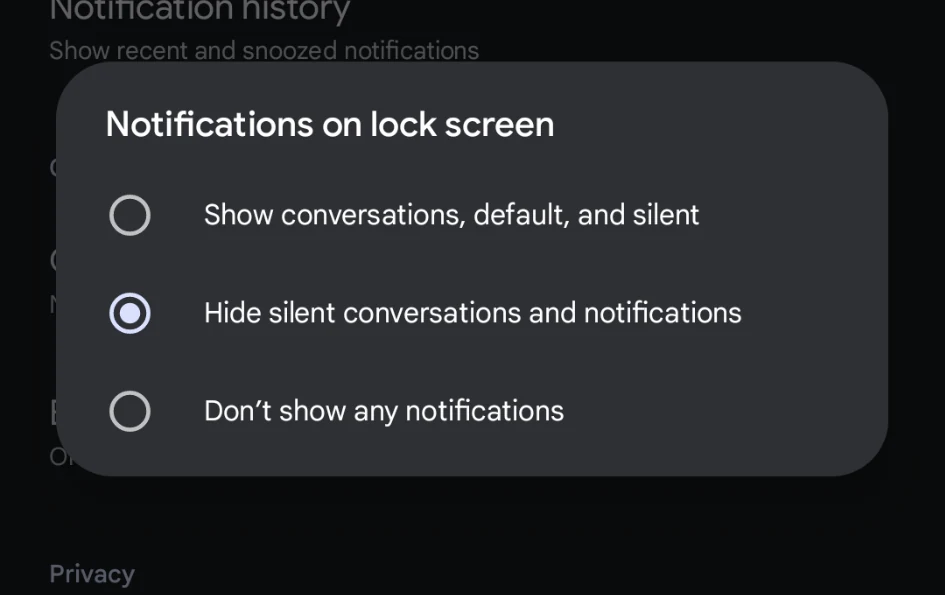
How to Change Notifications on Google Pixel
- Open Settings.
- Tap Notifications.
- Select Notifications on lock screen.
- Review the available notification display options.
- Choose whether notifications should appear.
- Turn sensitive content visibility off if you want greater privacy.
On newer Pixel software, options may include compact notifications, a full list, or controls for viewed and silent notifications.
The exact choices depend on your Android version.
Should You Hide Sensitive Notifications?
Hiding sensitive notification content can help protect private messages and other details.
For example, someone looking at your locked phone might otherwise see part of a text message or a notification containing confidential information.
If you prefer privacy, consider hiding sensitive content while keeping basic notification alerts visible.
Can You Hide Notifications Completely?
Yes, many Android versions provide an option to prevent notifications from appearing on the lock screen.
However, this may make it harder to notice important information without unlocking your phone.
Choose the balance that suits your needs.
If notifications aren’t appearing anywhere on your device, read our Android Notifications Not Showing guide for separate troubleshooting instructions.
Google documents lock screen notification privacy in its official Android notification settings guide.
Step 5: Change Your Android Lock Screen Wallpaper and Clock
Lock screen customization is another important part of Android settings.
On supported phones, you can change the wallpaper, clock design, colors, and other appearance options.
These features don’t replace your screen lock security, but they help personalize the device.
How to Customize the Google Pixel Lock Screen
- Touch and hold an empty area on the Home Screen.
- Tap Wallpaper & style.
- Switch to the Lock screen tab.
- Review the available customization controls.
- Select the setting you want to change.
- Apply your changes.
Change the Lock Screen Wallpaper
Open Wallpaper & style and select the lock screen preview.
Choose an available wallpaper or a personal photo.
Review the preview before applying it.
Avoid selecting a picture that reveals sensitive information you wouldn’t want others to see.
Change the Clock Style
On supported Pixel phones running Android 16 or later:
- Open Wallpaper & style.
- Select Lock screen.
- Swipe up to find additional settings if necessary.
- Tap Clock.
- Choose an available style.
- Review size and color options.
- Tap Apply.
The exact clock customization tools vary depending on your Android version.
Can You Change the Clock Size?
Yes, on supported devices.
Some Pixel versions offer large and small clock choices or a dynamic clock setting.
The larger clock may be more prominent when fewer notifications are displayed.
For additional personalization ideas, see our Google Pixel Home Screen Setup guide.
Best for: People who want their Android lock screen to look different without changing its security.
Step 6: Change Screen Timeout and Always-On Display
Another useful Android lock screen setting controls how long your display remains active.
A long screen timeout can be convenient when reading.
A shorter timeout can help reduce power use and prevent the screen from staying active unnecessarily.
How to Change Screen Timeout on Google Pixel
- Open Settings.
- Tap Display & touch.
- Select Screen timeout.
- Review the available time intervals.
- Choose your preferred duration.
Depending on your phone, available options may include 15 seconds, 30 seconds, one minute, two minutes, five minutes, or ten minutes.
What Is Adaptive Timeout?
Some Pixel phones include Adaptive timeout.
This feature can turn the display off sooner when the device detects that you’re no longer using it.
It may help conserve battery power.
What Is Screen Attention?
On supported Pixel phones, Screen attention can keep the display active while you’re looking at it.
This is useful when reading a long article without frequently touching the screen.
However, availability and behavior depend on the model and Android version.
Change Always-On Display Settings
Some Android phones support an Always-On Display that shows selected information while the device remains locked.
Depending on the model, you may see the time, date, notification icons, or other information.
On supported Pixel phones, review the options under Settings → Display & touch.
The available controls vary by device.
Remember that an Always-On Display doesn’t mean the phone is unlocked.
Google explains the available display controls in its Pixel screen and display settings guide.
Step 7: Change Lock Screen Shortcuts and Add a Message
Some Android phones let you choose which actions are available directly from the lock screen.
For example, you may be able to open the camera or flashlight without navigating through the Home Screen.
You can also display a short message that helps someone contact you if your phone is lost.
How to Change Pixel Lock Screen Shortcuts
On supported Pixel phones:
- Touch and hold an empty space on the Home Screen.
- Select Wallpaper & style.
- Open Lock screen.
- Swipe up to find additional options.
- Select Shortcuts.
- Choose the left or right shortcut.
- Select an available feature.
- Tap Apply.
Available shortcuts may include the camera, flashlight, Wallet, QR code scanner, and other supported actions.
Not every Android device offers the same list.
Add a Lock Screen Message
On supported Google Pixel phones:
- Open Wallpaper & style.
- Select Lock screen.
- Open More lock screen settings.
- Tap Add text on lock screen.
- Enter a short message.
- Save the text.
For example, you might display a general contact email address.
Avoid including your home address, passwords, or other private information.
A lock screen message is visible to people who can view the locked device.
How to Change Lock Screen Settings on Samsung Galaxy
Samsung Galaxy phones use Android, but their lock screen menus are organized differently from Google Pixel.
On recent Samsung One UI versions, security settings may be found under Lock screen and AOD or Security and privacy.
Change the Screen Lock Type
- Open Settings.
- Tap Lock screen and AOD, or Security and privacy.
- Select Screen lock and biometrics.
- Authenticate with your current PIN, pattern, or password.
- Choose the screen lock type you want.
- Follow the instructions to confirm the change.
Depending on the phone, you may also find fingerprint and face recognition options in this section.
Customize Your Samsung Lock Screen
Many recent Galaxy phones support lock screen customization.
Depending on the One UI version, you may be able to edit the wallpaper, clock, widgets, or shortcuts through Settings or the lock screen editor.
Some devices let you touch and hold the lock screen after unlocking to enter customization mode.
Change Samsung Lock Screen Notifications
Open Settings → Notifications and look for Lock screen or Lock screen notifications.
Review whether notifications should be visible and how much content they can display.
Samsung explains the security and customization options in its official Galaxy lock screen guide.
PIN vs. Pattern vs. Password: Which Is More Secure?
Choosing an appropriate screen lock method matters more than choosing a decorative lock screen style.
PIN: Convenient for everyday use. A longer, unpredictable PIN is generally stronger than a short, obvious one.
Pattern: Easy to enter, but simple patterns can sometimes be observed or guessed.
Password: A strong, unique password offers the most flexibility and can provide better protection than weak PINs or patterns.
For many people, a six-digit or longer unpredictable PIN offers a practical balance between security and convenience.
If you store particularly sensitive information on your phone, consider a strong password and review your additional security settings.
Avoid sharing unlock credentials, including with people who don’t need access to the device.
How to Remove the Lock Screen on Android
Some Android phones allow you to select None or Swipe instead of a secure screen lock.
However, disabling the screen lock substantially reduces protection.
General Steps
- Open Settings.
- Select the device’s security settings.
- Open Screen lock.
- Enter your current credentials.
- Review the available screen lock types.
- Select None or Swipe only if you understand the consequences.
- Confirm any warnings.
Removing the secure lock may delete registered fingerprints or disable other security-dependent features.
Certain work-managed devices may not allow screen lock removal.
Recommendation: Keep a secure PIN, pattern, or password enabled unless you have a specific, well-understood reason to remove it.
Android Lock Screen Settings Missing or Greyed Out?
Sometimes a lock screen setting is unavailable or cannot be changed.
There are several possible explanations.
1. You’re Looking in the Wrong Menu
Android lock screen security and appearance settings may be stored in separate sections.
Check Security & privacy for PIN or password options.
Check Wallpaper & style or display settings for visual customization.
2. Your Phone Uses a Different Android Interface
Samsung, Motorola, OnePlus, and other manufacturers customize Android menus.
Use the search field in Settings to look for Screen lock, Lock screen, or Wallpaper.
3. Your Device Is Managed by Work or School
A managed phone may enforce minimum screen lock requirements.
These restrictions can prevent you from selecting a weaker unlock method or changing certain options.
Contact your organization rather than attempting to bypass its policies.
4. A Feature Isn’t Supported
Some options, such as a particular clock style, Face Unlock, or Always-On Display customization, depend on the device model.
If the feature is absent, it may not be supported.
5. Android Needs an Update
If settings behave unexpectedly, check for an available system update.
On many Google Pixel phones, open Settings → System → Software updates.
Don’t perform a factory reset merely because a customization option is missing.
What If You Forgot Your Android Screen Lock PIN?
Changing a screen lock normally requires the existing credentials.
If you forgot your PIN, pattern, or password, simply opening Settings may not be enough to change it.
Start with your phone manufacturer’s official recovery instructions.
Avoid unknown unlocking utilities or websites claiming to bypass Android security.
Some official recovery procedures may require erasing the device, which can result in data loss.
Make sure you understand the consequences before following any reset procedure.
If it’s a work-managed device, contact the administrator responsible for its security settings.
Frequently Asked Questions
Where are lock screen settings on Android?
On Google Pixel, open Settings → Security & privacy → Device unlock → Screen lock for security controls. Wallpaper and notification settings may appear in other menus.
How do I change my Android lock screen PIN?
Open Screen lock settings, enter your current credentials, choose PIN, and follow the onscreen instructions to create and confirm the new PIN.
Can I change my lock screen without changing my password?
Yes. You can customize the wallpaper, clock, shortcuts, and notifications without necessarily changing the device’s security credentials.
How do I change lock screen settings on Samsung?
Open Settings and look for Lock screen and AOD or Security and privacy. Select Screen lock and biometrics to manage the supported unlock methods.
Can I hide messages on my Android lock screen?
Yes. Open Notifications on lock screen and review the controls for sensitive notification content.
Why is my Android phone locking too quickly?
Check your screen timeout and automatic lock settings. A short inactivity period or immediate Power button locking may explain the behavior.
Is fingerprint unlock better than using a PIN?
Fingerprint unlocking can be more convenient, but Android still requires a backup screen lock. A strong PIN or password remains important.
Can I change my Android lock screen clock?
Yes, on supported phones. Google Pixel offers clock customization through Wallpaper & style → Lock screen, while Samsung provides its own lock screen appearance options.
Will changing lock screen settings delete my data?
Changing normal appearance and screen lock settings shouldn’t delete personal files. However, removing secure authentication can disable security-dependent features, and certain recovery or reset procedures can erase data.
What should I do if Android lock screen settings are unavailable?
Check the correct menu, verify your device’s Android version, and consider whether a work or school management policy restricts the setting.
Final Thoughts
Understanding lock screen settings Android options helps you protect your personal information while making your phone easier to use.
Start by selecting a secure PIN, pattern, or password.
Next, review automatic locking, fingerprint or face authentication, and notification privacy.
Once the security settings are configured, customize your wallpaper, clock, shortcuts, and screen timeout to match your preferences.
The exact menus may differ between Google Pixel, Samsung Galaxy, and other Android devices, but the main principles remain similar.
A well-configured lock screen provides everyday convenience while reducing unnecessary access to your phone and personal information.