Microphone on Android not working? Maybe people cannot hear you during phone calls, your voice messages record no sound, or apps such as WhatsApp, Google Recorder, and Google Meet cannot detect your voice.
An Android microphone problem can affect Google Pixel, Samsung Galaxy, Motorola, OnePlus, and other Android phones. Sometimes the microphone stops working completely. Other times, it works during normal calls but fails in one particular application.
Fortunately, the problem doesn’t always mean your microphone is physically damaged.
Android includes several microphone privacy controls, app permissions, and audio connection settings that can affect voice recording and calling.
In this guide, you’ll learn 10 practical ways to fix an Android microphone that isn’t working, including how to test the microphone, check permissions, disconnect Bluetooth devices, examine microphone openings, and investigate software problems.
We’ll also explain what to do when the microphone works in one app but not another, and how to recognize when professional repair may be necessary.
Quick Answer: Microphone on Android Not Working? Start Here
If your Android microphone isn’t working, try these checks first:
- Make sure the microphone isn’t muted during calls.
- Test your microphone with a voice recording.
- Check that device-wide microphone access is enabled.
- Allow microphone access for the affected application.
- Disconnect Bluetooth headphones and wired audio accessories.
- Remove your phone case and inspect microphone openings.
- Restart your Android phone.
- Update the affected application and check its cache.
- Test your phone in Safe Mode.
- Check Android updates and consider hardware diagnostics.
Start by recording your voice. A short recording often provides more useful information than changing several settings without testing them.
If you can hear yourself clearly in a recording, at least one microphone path is working.
If recordings are silent or badly distorted across several applications, investigate the device’s audio settings and physical microphones.
Google recommends using the Recorder and Camera apps to check different microphones on supported Pixel phones. See its official Pixel microphone troubleshooting guide.
Why Is My Android Microphone Not Working?
Your Android phone may have more than one microphone.
Different applications and recording modes can use different microphones or combinations of microphones.
For example, the microphone used during an ordinary phone call may not be the same microphone used for every video recording.
That means a problem can affect one activity while another continues working normally.
Common causes include:
- The microphone is muted during a call.
- Device-wide microphone access has been disabled.
- An application doesn’t have microphone permission.
- Bluetooth headphones are being used as the audio input.
- A phone case or debris is obstructing a microphone opening.
- An application has a temporary software problem.
- Android or an app needs an update.
- A downloaded application is interfering with audio capture.
- The cellular connection is causing poor outgoing voice quality.
- One or more physical microphones have developed a fault.
The most effective troubleshooting method is to compare results from different recording and calling applications.
If the microphone works in Recorder but fails in WhatsApp, focus on WhatsApp’s permissions and settings.
If no application records sound, investigate device-wide controls and potential hardware problems.
Fix 1: Check Whether Your Microphone Is Muted
If someone cannot hear you during a phone call, the first thing to check is the Mute button.
Android calling applications commonly include a microphone control that allows you to mute your outgoing voice.
If Mute is enabled, you may still hear the other person, even though they cannot hear you.
How to Check the Microphone During a Call
- Make or answer a phone call.
- Look at the available call controls.
- Find the Mute or microphone button.
- Check whether muting is currently active.
- Tap to unmute if necessary.
- Speak and ask the other person whether they can hear you.
The appearance of the Mute control may vary between the Phone app, WhatsApp, Telegram, Google Meet, and other calling applications.
Does Silent Mode Disable the Microphone?
No.
Android Silent mode normally affects ringtones and notification sounds. It doesn’t automatically disable the microphone used during calls or voice recordings.
Similarly, lowering media volume doesn’t usually stop your microphone from capturing sound.
If the microphone is already unmuted, move to the recording test.
Best for: People who can hear callers but cannot be heard themselves.
Fix 2: Test Your Android Microphone With a Voice Recording
One of the most useful ways to diagnose a microphone problem is to record a short voice clip.
This can help determine whether your phone is capturing sound independently of a particular calling application.
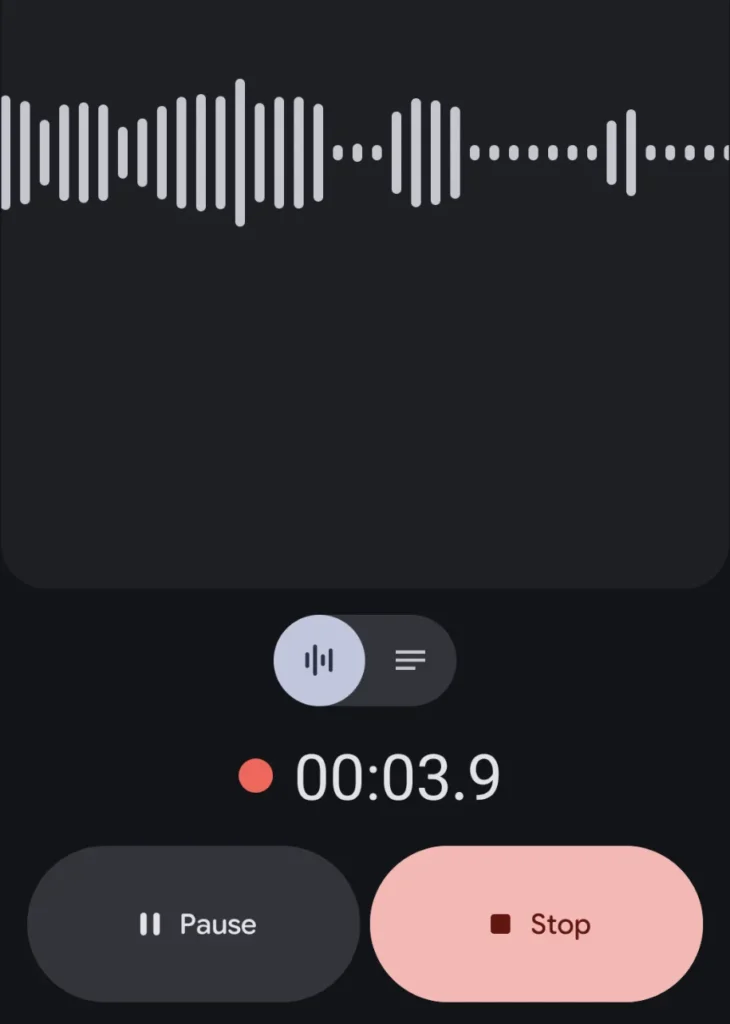
How to Test the Microphone on Google Pixel
- Open the Recorder app.
- Tap the recording control.
- Speak clearly near your phone.
- Record approximately 10 seconds of speech.
- Stop the recording.
- Play it back.
- Listen for your voice and any distortion.
If the recording sounds clear, the microphone used by Recorder is functioning.
If the recording contains only silence or static, continue investigating microphone access, physical obstructions, and possible hardware issues.
Test the Microphone Using the Camera
You can also use your phone’s Camera app.
- Open Camera.
- Switch to Video mode.
- Record a short video while speaking.
- Stop recording.
- Play the video with audio.
- Check whether your voice is clearly audible.
You can repeat the test with another camera direction if appropriate.
What Do the Results Mean?
Recorder works, but calls fail: Check muting, Bluetooth audio routing, and cellular call quality.
Calls work, but Recorder fails: Check Recorder’s permissions, microphone access, and the microphone configuration used for recording.
Video recordings work, but voice notes fail: Investigate the messaging application’s microphone permissions and settings.
Every recording is silent: A device-wide microphone setting or hardware problem becomes more likely.
A successful recording doesn’t prove that every physical microphone is functioning. It only confirms that the microphone path used during that test can capture sound.
Google’s Pixel microphone help page recommends comparing Recorder and Camera audio when diagnosing microphone issues.
Fix 3: Enable Microphone Access in Android Privacy Settings
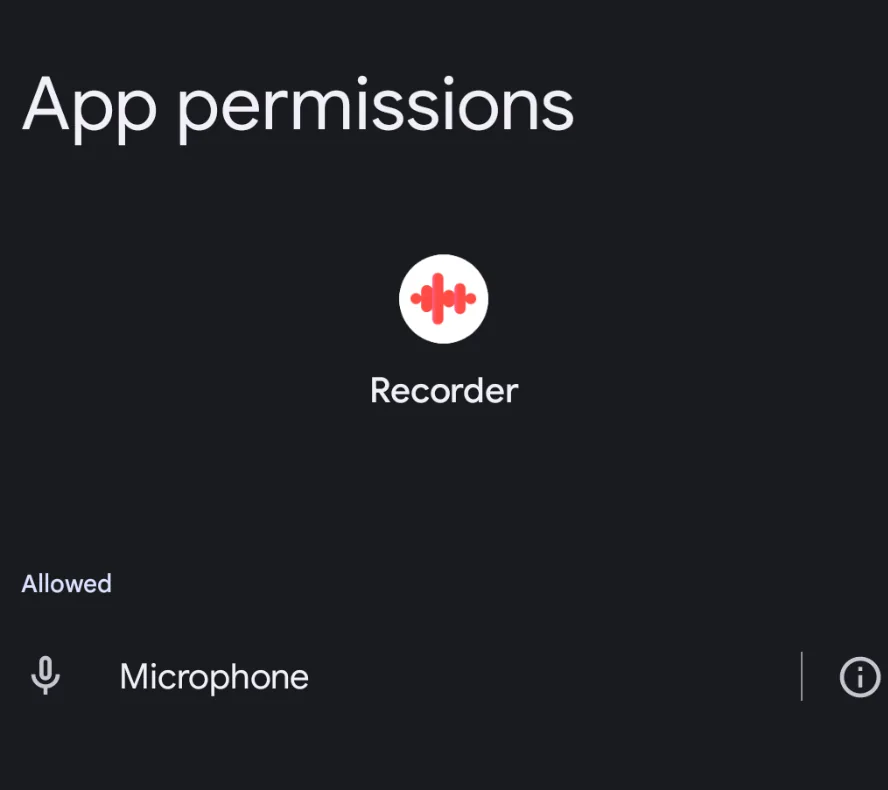
Modern Android versions include a device-wide microphone access control.
When this control is disabled, applications may be prevented from using the microphone even when they have individual microphone permissions.
This is particularly important when the microphone suddenly stops working across several apps.
How to Check Microphone Access on Google Pixel
- Open Settings.
- Select Security & privacy.
- Open Privacy.
- Select Privacy controls.
- Find Microphone access.
- Check whether the switch is enabled.
- Enable it if you want applications with appropriate permissions to use your microphone.
The exact path may vary slightly depending on your Android version.
Check Microphone Access Through Quick Settings
Some Android phones provide a microphone control in Quick Settings.
- Swipe down twice from the top of the screen.
- Look for the Microphone access tile.
- Check its current state.
- If microphone access is blocked, tap the tile to enable it.
- Test your recording again.
If you don’t see the tile, you may need to edit Quick Settings to add it.
What Does the Green Microphone Indicator Mean?
On supported Android versions, a green indicator can appear when an application is accessing the microphone.
Tap the indicator to review which app or service is using it.
However, the indicator shows microphone access, not proof that the recorded sound is clear or functioning correctly.
Google explains these controls in its Android microphone access documentation.
Best for: Users whose microphone stops working in several applications at once.
Fix 4: Check Microphone Permissions for Individual Apps
If your microphone works in one app but not another, application permissions should be your next priority.
Android lets you decide which applications can record audio.
For example, WhatsApp may be unable to send voice messages if microphone permission has been denied.
How to Enable Microphone Permission on Google Pixel
- Open Settings.
- Tap Apps.
- Select See all apps if necessary.
- Find the affected application.
- Tap Permissions.
- Select Microphone.
- Review the permission options.
- Choose Allow only while using the app if appropriate.
- Reopen the application.
- Test its voice recording or calling feature.
Depending on the Android version, you may also see Ask every time and Don’t allow.
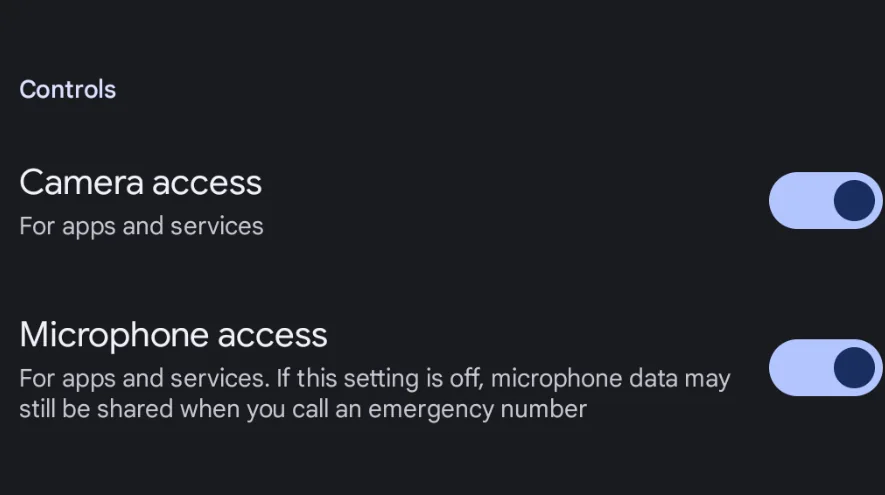
How to Check WhatsApp Microphone Permission
Open:
Settings → Apps → WhatsApp → Permissions → Microphone.
Allow microphone access while using the app if you want WhatsApp to record voice messages and use your microphone during calls.
You can follow the same general procedure for Telegram, Messenger, Google Meet, Zoom, or another affected app.
What If Permission Is Already Enabled?
Try force stopping the application and opening it again.
You should also check the app’s own microphone or audio settings.
If only that app fails, updating it may help.
Check the Android Privacy Dashboard
You can also review microphone usage under:
Settings → Security & privacy → Privacy → Privacy dashboard.
Select Microphone to see relevant recent permission activity when available.
This can help identify which applications have accessed the microphone and whether an unexpected app may be involved.
Google provides more details in its Android app permissions guide.
Best for: WhatsApp, Messenger, Telegram, Google Meet, or Recorder microphone problems.
Fix 5: Disconnect Bluetooth Headphones and Audio Accessories
Sometimes your phone’s built-in microphone isn’t actually the selected audio input.
For example, when Bluetooth headphones are connected, calls may use the microphone in the headphones rather than the phone.
If the accessory’s microphone is damaged, muted, or disconnected, the other person may struggle to hear you.
How to Test Without Bluetooth
- Open Settings.
- Select Connected devices or Bluetooth.
- Check whether headphones, earbuds, or a car audio system are connected.
- Disconnect the connected audio accessory.
- Temporarily turn off Bluetooth if necessary.
- Make a test call or voice recording.
- Check whether your phone’s microphone works normally.
If the microphone works after disconnecting the accessory, the problem may involve Bluetooth audio routing or the accessory itself.
Check Wired Accessories
Also disconnect:
- USB-C headphones.
- Wired headsets.
- Headphone adapters.
- External microphones.
Some accessories may remain connected physically even when they aren’t working correctly.
Why Does Bluetooth Cause Microphone Problems?
Bluetooth audio devices can provide their own microphones.
Applications may select those microphones automatically depending on the available audio routes.
A poor Bluetooth connection or malfunctioning accessory can therefore cause audio problems even when the Android phone’s built-in microphone is functioning normally.
Samsung recommends disconnecting external audio devices when troubleshooting microphone problems.
See the official Samsung microphone troubleshooting guide.
Fix 6: Remove Your Case and Check Microphone Openings
Phone cases, protective films, dust, and other obstructions can sometimes affect microphone performance.
This is especially relevant when your voice sounds muffled or distant rather than completely silent.
How to Inspect the Microphone Safely
- Remove the phone case.
- Disconnect connected audio accessories.
- Power off the phone before cleaning its exterior.
- Inspect visible microphone openings.
- Check whether the case or protective film covers an opening.
- Use a clean, dry, soft lint-free cloth to gently wipe the exterior.
- Turn the phone back on.
- Make another test recording.
Where Are Android Microphones Located?
The microphone openings depend on your phone model.
Many smartphones have an opening near the bottom edge and additional microphones near the top or camera area.
Don’t assume that every small hole is a microphone. Some openings serve other purposes.
Consult your device manufacturer’s documentation if you’re unsure.
What Should You Avoid?
Do not insert needles, pins, toothpicks, or other objects into microphone holes.
Avoid pushing debris deeper into the openings.
Don’t apply water, alcohol, or liquid cleaners inside the microphone openings.
Also avoid directing compressed air into delicate openings, since it can damage internal components.
If the phone has been exposed to liquid, allow it to dry according to the manufacturer’s instructions. Seek professional help if the sound remains distorted.
Best for: Quiet, muffled, crackling, or distorted microphone audio.
Fix 7: Restart Your Android Phone
A normal restart can resolve some temporary software issues affecting microphone access, audio routing, and calling applications.
If the microphone stopped working unexpectedly, restarting is worth trying before resetting app data or making advanced changes.
How to Restart a Google Pixel
On many recent Google Pixel phones:
- Press Power + Volume Up to open the power menu.
- Tap Restart.
- Allow Android to start normally.
- Unlock your phone.
- Open Recorder.
- Make another short recording.
On Samsung Galaxy and other Android devices, the method for opening the power menu may differ.
Why Can Restarting Help?
Android runs several services that manage applications and hardware.
A temporary problem can interfere with these services.
Restarting allows the phone to reload them and can restore normal functionality.
However, a restart cannot repair a physically damaged microphone.
If the problem returns repeatedly, make a note of when it occurs and which applications are affected.
Fix 8: Update the Affected App and Clear Its Cache
If your microphone works normally in most applications but fails in one specific app, investigate that app before making changes to the whole phone.
Outdated software or temporary app data may contribute to unexpected behavior.
Update the Application
- Open Google Play Store.
- Search for the affected app.
- Open its official listing.
- Check whether an Update button is available.
- Install the update if offered.
- Reopen the app.
- Test its microphone again.
If the button says Open, an update isn’t currently being offered for your installed version.
You can also use Play Store → Profile picture → Manage apps & device.
For related instructions, read our How to Update Google Play Store guide.
Clear the App Cache
If the application still fails:
- Open Settings.
- Tap Apps.
- Select the affected app.
- Tap Storage & cache.
- Select Clear cache.
- Reopen the application.
- Test its recording feature.
Clearing the cache is generally less disruptive than clearing the app’s entire storage.
Should You Clear App Storage?
Not as your first step.
Clearing storage or data can remove locally stored application settings, offline content, and other information.
For a messaging app, don’t clear storage unless you understand what data could be lost and have any necessary backups.
If the app continues failing despite correct permissions, updated software, and working recordings in other apps, consider contacting its developer.
Fix 9: Test Your Microphone in Android Safe Mode
Safe Mode can help determine whether a downloaded application is contributing to a microphone problem.
It temporarily disables many third-party applications while keeping the phone’s core Android functions available.
This can be useful when microphone problems start after installing a new application.
How to Enter Safe Mode on Google Pixel
On many recent Pixel phones:
- Press Power + Volume Up to open the power menu.
- Touch and hold Power off or Restart.
- Look for the Safe Mode confirmation.
- Tap OK.
- Allow the device to restart.
- Confirm that Safe mode appears on the screen.
- Test a supported built-in recording function.
The exact steps may differ between Pixel versions and other Android manufacturers.
What Do the Results Mean?
Microphone works in Safe Mode: A downloaded application or third-party software interaction may be contributing to the problem.
Microphone still fails in Safe Mode: Investigate system settings, microphone hardware, and other device-level issues.
A single Safe Mode result isn’t a definitive hardware diagnosis.
How to Exit Safe Mode
Restart the phone normally.
If Safe Mode suggests an app conflict, review recently installed applications and remove suspicious or problematic apps one at a time.
Avoid deleting several unrelated applications without testing between changes.
Google documents these procedures in its official Pixel Safe Mode guide.
Fix 10: Check Android Updates and Run Microphone Diagnostics
If the microphone continues failing across several applications, check whether Android has a relevant software update.
You should also consider device-specific microphone diagnostics.
Check for Android Updates on Google Pixel
- Open Settings.
- Tap System.
- Select Software updates.
- Open System update.
- Check for available updates.
- Review the details.
- Install an appropriate update if offered.
Back up important files before a major system upgrade.
If the problem began immediately after an update, record the Android version and the applications affected. That information may help support staff investigate it.
Run Microphone Diagnostics on Samsung Galaxy
Supported Samsung devices offer diagnostic tests through Samsung Members.
- Open Samsung Members.
- Tap Support.
- Select Phone diagnostics or View tests.
- Find Mic or Microphone.
- Follow the recording instructions.
- Play back the test recording.
- Review the result.
Available menus can vary by device and Samsung Members version.
A failed diagnostic test is a strong reason to contact Samsung support or an authorized service center.
When Should You Consider Hardware Repair?
Professional diagnosis becomes more important when:
- Voice recordings are consistently silent.
- Videos also record no audio.
- The microphone fails across several applications.
- Safe Mode doesn’t improve the problem.
- The phone has suffered physical damage or liquid exposure.
- One microphone test consistently fails while another succeeds.
Don’t assume a motherboard replacement is necessary simply because an app fails to record audio.
Use the device manufacturer’s official support process to identify the problem before authorizing repairs.
A factory reset should not be your first solution. It erases device data and may not resolve damaged hardware.
Android Microphone Not Working During Calls
If people can’t hear you during calls, but Recorder captures your voice normally, start with the calling environment.
Check the Mute button and disconnect Bluetooth accessories.
Then make another call and compare the results.
Compare Cellular and Internet Calls
Try a normal cellular call and, when possible, a supported internet-based call using a reliable connection.
If voice recordings work and only cellular calls fail, the issue may involve call quality, carrier service, or calling app behavior rather than a complete microphone failure.
You can also try making a call from a location with better cellular reception.
If you’re using supported Wi-Fi calling and having connection problems, see our Google Pixel WiFi Calling guide.
Don’t change cellular network settings unnecessarily if your voice recordings and other calling applications are working.
Android Microphone Not Working on WhatsApp
If normal calls work but WhatsApp cannot send voice messages, start with WhatsApp’s microphone permission.
Open Settings → Apps → WhatsApp → Permissions → Microphone.
Allow microphone access while using the app, if appropriate.
Then force stop WhatsApp and reopen it.
Test a short voice message without sharing sensitive information.
If it still doesn’t work, check whether a Bluetooth headset is connected.
Finally, review WhatsApp updates through the official Play Store.
Avoid clearing WhatsApp storage without confirming that important conversations and attachments are safely backed up.
Android Microphone Not Working for Voice Typing
If Gboard voice typing doesn’t detect your voice, the problem may involve permissions, the selected input method, or voice recognition services.
Start by testing the microphone with Recorder.
If Recorder works, check the microphone permissions relevant to your keyboard or voice input app.
Then verify that voice typing is enabled in your keyboard settings.
The exact settings depend on your Android version and keyboard application.
A microphone that works in Recorder but not voice typing is not necessarily physically damaged.
Android Microphone Not Working on Google Pixel
Google Pixel provides several useful built-in troubleshooting tools.
Start by checking device-wide Microphone access through Android privacy settings.
Then open Recorder and record a short sample.
If the recording is silent, try recording a video with audio using Camera.
Google explains that these tests can help evaluate different microphone paths on supported Pixel phones.
If one test consistently fails after permissions, accessories, and software have been checked, contact Google Pixel Support for more detailed diagnostics.
Avoid using undocumented diagnostic codes or disassembling the phone without appropriate technical knowledge.
Android Microphone Not Working on Samsung Galaxy
On Samsung Galaxy, start by removing connected audio accessories and disabling Bluetooth temporarily.
Then open Samsung Voice Recorder or the Camera app.
Make a short recording and listen to the playback.
If the microphone works, focus on the particular calling or messaging application.
If the recording is silent, inspect microphone openings and review the app’s permissions.
Samsung Members may offer a dedicated microphone test.
You can use that test before contacting Samsung support.
The official Samsung Galaxy microphone guide provides additional device-specific instructions.
Frequently Asked Questions
Why is my microphone on Android not working during calls?
Possible causes include accidental muting, Bluetooth audio routing, a calling application problem, poor voice connectivity, or a physical microphone issue. Check the Mute control and compare call audio with a voice recording.
How do I turn on my Android microphone?
Check device-wide Microphone access under Settings → Security & privacy → Privacy → Privacy controls, or use the Microphone access Quick Settings control if available.
How do I test my Android microphone?
Open a voice recording application, record a short sentence, and play it back. You can also record a video with audio to compare results.
Why does my Android microphone work in some apps but not others?
Different applications may use different permissions, audio routes, or microphones. Check the affected application’s microphone permission and compare its behavior with Recorder and Camera.
Why can’t people hear me on my Samsung phone?
Your microphone may be muted, a Bluetooth headset may be selected, or an application or microphone component may be malfunctioning. Test a recording and use Samsung Members diagnostics if available.
Can Bluetooth headphones stop my Android microphone from working?
Yes. A connected headset may become the active microphone input. Disconnect it temporarily to check whether your phone’s built-in microphone works.
Does clearing the app cache fix microphone problems?
It may help when temporary app data is contributing to an application-specific problem, but it won’t repair damaged microphone hardware.
Why is my voice recording silent on Android?
Possible causes include blocked device-wide microphone access, denied app permission, an incorrect audio input, or a malfunctioning microphone. Check permissions and test multiple recording apps.
Will restarting my Android phone fix the microphone?
Restarting can resolve temporary software or audio service issues. However, it won’t necessarily fix hardware faults or incorrect app permissions.
Should I factory reset my Android phone?
Not as an early troubleshooting step. A factory reset erases device data and isn’t guaranteed to resolve microphone problems. Test permissions, recordings, accessories, Safe Mode, and diagnostics first.
Final Thoughts
If your microphone on Android is not working, start by determining whether the problem affects phone calls, one application, or every recording feature.
Check the Mute button, make a test recording, and verify that device-wide microphone access is enabled.
If the microphone fails in only one app, review that application’s permission and available updates.
For wider problems, disconnect Bluetooth accessories, inspect microphone openings, restart the phone, and test Safe Mode.
If recordings remain silent across several applications, use official device diagnostics or contact the manufacturer.
These checks can help identify the cause without immediately resetting your phone or risking unnecessary repairs.