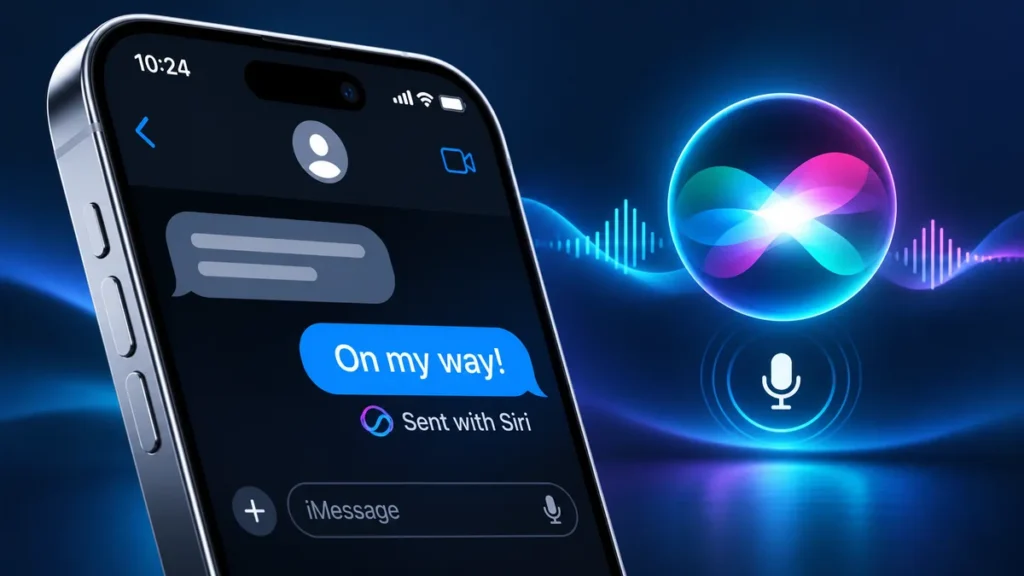
Have you ever noticed “Sent with Siri” below a message on your iPhone and wondered what it means? The label can appear in Apple’s Messages app when Siri is involved in sending a message. You might see it after someone sends you a message using a voice command. Or you may notice it when reviewing a conversation and wonder whether the sender typed the message, dictated it, or sent it from another Apple device.
Quick answer: Sent with Siri means Apple’s Siri assistant was involved in sending the message. It does not automatically mean the sender was driving, used a particular device, or sent the message without checking it.
If you’d rather control when Siri sends messages, iPhone has settings that can require confirmation before sending.
In this guide, we’ll explain what Sent with Siri means, why the label appears, how to adjust Siri’s messaging settings, and how to prevent accidental messages.
Table of Contents
What Does Sent with Siri Mean on iPhone?
When a message displays Sent with Siri, it indicates that Siri participated in the message-sending process.
Apple’s voice assistant can compose, read, reply to, and send text messages using spoken instructions.
For example, you might activate Siri and say:
“Send a message to Sarah saying I’ll be there in ten minutes.”
Siri can identify the contact, prepare the message, and send it after the appropriate confirmation process.
When Siri handles the sending workflow, a message may be identified as Sent with Siri.
That label is different from the ordinary delivery and read indicators used in iMessage.
It describes how the message was sent rather than whether the message has been delivered or read.
Apple documents Siri’s message-sending capabilities in its official guide to calling, texting, and emailing with Siri.
However, Apple does not provide a complete public explanation of every circumstance in which the Sent with Siri label appears.
For this reason, the label should be understood as an indication of Siri involvement, not a detailed record of the sender’s actions.
Why Does It Say Sent with Siri Under a Message?
There are several ways Siri can become involved in sending a message.
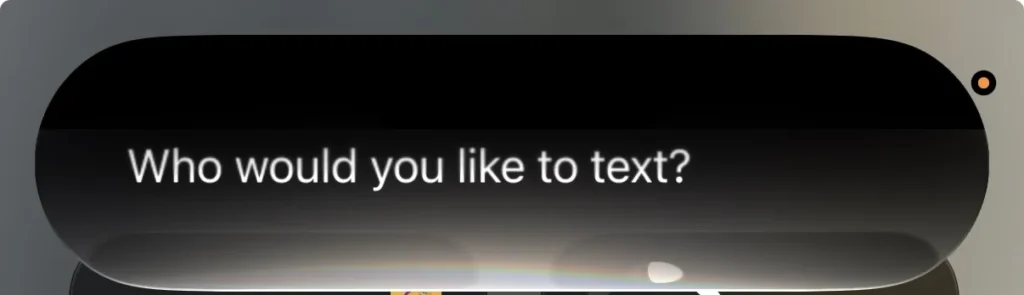
1. The Sender Used a Siri Voice Command
Someone can ask Siri to send a text without opening the Messages app and typing it manually.
For example:
“Hey Siri, text Alex that I’m running late.”
Depending on the settings, Siri may repeat the message and ask for permission to send it.
The resulting message may display the Sent with Siri indicator.
2. The Sender Replied Through Siri
Siri can read incoming messages and help prepare a reply.
After listening to a message, a person might respond with a spoken instruction such as:
“Reply, I’ll call you later.”
Siri then handles the reply workflow.
3. The Message Was Sent Using Supported Headphones
Siri can announce messages through supported AirPods and compatible headphones.
A user can respond verbally without opening the Messages app.
Whether the reply requires confirmation depends on the available Siri and notification settings.
4. The Sender Used CarPlay
CarPlay supports sending and receiving messages using Siri.
Drivers can interact with messages through voice commands and supported vehicle controls.
However, Sent with Siri does not prove that someone was driving.
CarPlay is only one possible method of using Siri.
5. Another Apple Device Was Involved
Siri can work with messaging across compatible Apple devices.
The label alone doesn’t reliably establish which device was used to initiate the message.
It should not be treated as evidence that a particular iPhone, iPad, Apple Watch, or other device was involved.
Sent with Siri: 7 Essential Facts You Should Know
Fact 1: Sent with Siri Is Not an Error Message
The label does not mean your iPhone has malfunctioned.
It is associated with the way a message was sent.
If you see it in a conversation, you don’t need to restart your phone, reset network settings, or reinstall Messages.
If Siri itself is failing to respond, that’s a separate issue.
Our related article, iPhone Siri Not Working? 12 Fixes to Try, covers troubleshooting problems with the voice assistant.
Fact 2: Sent with Siri Does Not Mean the Message Was Automatically Sent
Siri can ask for confirmation before sending a message.
The sender may have reviewed or approved the message first.
Therefore, seeing Sent with Siri does not tell you whether Siri skipped confirmation.
This distinction matters because the Automatically Send Messages setting controls whether Siri waits for a confirmation step.
It isn’t simply a switch that determines whether the Sent with Siri label appears.
Fact 3: The Label Does Not Prove Someone Was Driving
Siri messaging works in multiple environments.
A sender might use Siri while cooking, walking, working, or using their phone hands-free.
CarPlay is another possible environment.
The message label does not disclose the sender’s location or activity.
Fact 4: Siri Can Make Transcription Mistakes
Voice assistants sometimes misinterpret spoken words.
Background noise, unusual names, accents, and similar-sounding phrases can affect transcription.
For example, Siri might misunderstand a contact name or change the wording of a sentence.
This is one reason reviewing a message before sending can be useful.
If accurate wording is important, turn off automatic sending and check the text before approving it.
Fact 5: Sent with Siri Is Different From Voice Dictation
There are two common ways to enter text using your voice.
Siri messaging: You ask Siri to send or reply to a message, and Siri handles the messaging workflow.
Keyboard dictation: You open Messages, tap the microphone on the keyboard, speak your text, and manually tap Send.
These methods are related but not identical.
Using keyboard dictation and tapping Send manually generally avoids the Siri-directed sending workflow.
However, Apple does not publicly document every technical rule governing the Sent with Siri indicator.
Fact 6: The Label Is Not Proof of Hacking
Seeing Sent with Siri does not mean your iPhone or Apple Account has been compromised.
It ordinarily indicates Siri-related message sending.
Nevertheless, an unexpected message that nobody remembers sending deserves attention.
You should check whether someone had access to the device, whether a connected device was involved, and whether Siri could be activated while the phone was locked.
If you also notice unfamiliar devices signed into your Apple Account or other suspicious activity, review your account security separately.
Fact 7: There Is No Documented Dedicated Hide-Label Switch
Apple provides controls for Siri messaging, automatic sending, voice activation, and announced notifications.
But these controls serve different purposes.
Apple does not document a dedicated setting that reliably hides the Sent with Siri label from a recipient while continuing to use Siri to send messages.
Turning off Automatically Send Messages may help prevent accidental sending, but it should not be presented as a guaranteed way to remove the label.
How to Turn Off Automatic Message Sending with Siri
If you want Siri to ask for confirmation before sending a message, review the Automatically Send Messages setting.
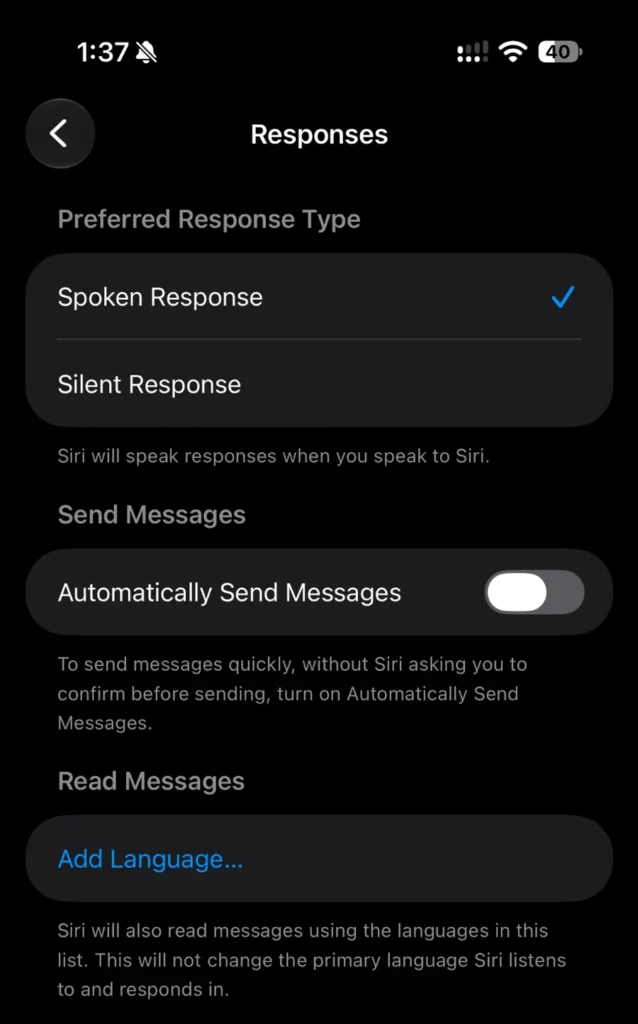
On recent iPhone software, follow these steps:
- Open the Settings app.
- Tap Siri or Apple Intelligence & Siri, depending on the device and software version.
- Select Messaging with Siri.
- Find Automatically Send Messages.
- Turn the setting Off.
When automatic sending is disabled, Siri normally asks you to approve a message instead of sending immediately after reading it back.
This can reduce the risk of sending an incorrect message.
For example, if Siri misunderstands a name or phrase, you’ll have an opportunity to review the message before it is sent.
Important: This setting controls confirmation behavior. Turning it off does not guarantee that the Sent with Siri label disappears from messages sent through Siri.
Apple explains this feature in its official Siri settings guide.
Can You Remove the Sent with Siri Label?
If your main goal is to remove the Sent with Siri indicator, it’s important to understand the limitation.
If You’re the Sender
There is no documented, dedicated Apple setting for reliably hiding the label while continuing to send messages through Siri.
If you prefer not to use the Siri sending workflow, open Messages and send the message manually.
You can still type normally or use keyboard dictation.
This is a more reliable way to avoid relying on Siri to send the message.
If You’re the Recipient
You generally cannot edit or remove the sender-origin indicator from an existing conversation.
Changing your Siri settings will not change how another person’s message was originally sent.
If you find the indicator confusing, remember that it is not a warning that your device is malfunctioning.
Does Disabling Siri Remove the Label?
Disabling Siri or changing its activation settings may prevent you from using certain Siri messaging workflows in the future.
It does not retroactively change the sending method of an existing message.
You don’t need to disable Siri completely just because you see this label.
How to Prevent Accidental Siri Messages on iPhone
Accidental Siri messages may happen if a spoken instruction is misunderstood or someone unintentionally activates Siri.
Here are practical precautions.
1. Require Confirmation Before Sending
Start by disabling Automatically Send Messages.
Go to Settings → Siri or Apple Intelligence & Siri → Messaging with Siri.
Turn off Automatically Send Messages.
This is one of the most useful safeguards if you’re concerned about unintended messages.
2. Review Siri’s Voice Activation Settings
If Siri responds when you don’t intend it to, check how voice activation is configured.
Open Settings → Siri or Apple Intelligence & Siri → Talk to Siri (or Talk & Type to Siri).
You can review the available voice activation options.
Disabling voice activation can reduce unintentional Siri responses, although Siri may remain accessible through other supported activation methods.
3. Review Siri Access While Locked
Depending on your device configuration, Siri may be available when the iPhone is locked.
If you prefer to limit this, open Siri settings and review Allow Siri When Locked.
Turning it off can reduce certain interactions while the device is locked.
However, it doesn’t replace proper device security.
Use a secure passcode and review access to other devices connected to your Apple Account.
4. Check Announced Messages and Replies
If you use supported AirPods or headphones, Siri can announce notifications and allow you to reply verbally.
Review the relevant announcement and confirmation settings.
Depending on the interface, the path may be:
Settings → Siri or Apple Intelligence & Siri → Announce Notifications
Or:
Settings → Notifications → Announce Notifications
For supported reply workflows, look for Reply Without Confirmation.
Disabling that option can make Siri request approval before sending certain spoken replies.
This is related to, but not identical to, the Automatically Send Messages setting.
You can learn more in Apple’s announcement and Siri reply guide.
5. Check Your CarPlay Settings
If you regularly use CarPlay, check its message-sending options.
CarPlay can support automatically sending messages after Siri prepares them.
Within the CarPlay Settings interface, the relevant controls may appear under Siri or Apple Intelligence & Siri.
Adjust these according to your preferences.
The goal is to prevent unwanted messages while maintaining hands-free convenience when needed.
6. Use Manual Sending for Important Messages
If a message contains important information, such as a meeting time, address, or personal detail, consider reviewing it manually.
Open Messages, type or dictate the text, check the recipient and wording, and tap Send yourself.
For voice communication that should remain audio rather than being converted to text, you can use the Messages audio recording feature.
See our related guide, How to Send an Audio Message on iPhone.
Sent with Siri vs. Voice Dictation vs. Audio Messages
These three features have different purposes.
| Feature | What happens | How it’s sent |
|---|---|---|
| Siri messaging | Siri prepares or sends a text message | Through a Siri command |
| Keyboard dictation | Spoken words become text in the message field | You tap Send manually |
| Audio message | Your voice is recorded as an audio clip | You send the recording |
For example, if you tell Siri to send a message, Siri handles the messaging task.
If you tap the keyboard microphone and speak, your words appear in the text field and you can manually send them.
If you record an audio message, the recipient can listen to your actual voice rather than reading transcribed text.
Understanding these differences helps prevent confusion about the Sent with Siri label.
What If Siri Sends the Wrong Message?
If Siri sends a message to the wrong person or misunderstands your words, act quickly.
For eligible iMessages, Apple provides editing and unsending features.
Undo Send an iMessage
You can unsend an eligible iMessage within two minutes after sending it.
- Open the Messages app.
- Find the message you want to unsend.
- Touch and hold the message bubble.
- Tap Undo Send.
The recipient may still have seen the message before you unsent it.
There are also compatibility limitations if the recipient uses older software.
Edit an iMessage
You can edit an eligible iMessage up to five times within 15 minutes after it was sent.
- Open the relevant conversation.
- Touch and hold the message bubble.
- Tap Edit.
- Correct the text.
- Submit the edited message.
The conversation can indicate that the message was edited, and previous versions may remain viewable.
Important: These features do not work the same way for SMS, MMS, and RCS messages.
Apple states that SMS, MMS, and RCS messages cannot be edited or unsent using these iMessage controls.
For exact requirements, see Apple’s guide to editing and unsending messages.
Is Sent with Siri Related to Apple Intelligence?
Not necessarily.
Siri has supported message sending for years, including before Apple Intelligence was introduced.
The Sent with Siri indicator refers to Siri’s role in the sending process.
It does not establish that an Apple Intelligence feature was used to generate the message.
Similarly, using an AI-assisted writing feature does not automatically mean Siri sent the message.
These technologies may work alongside each other in some situations, but they serve different purposes.
Frequently Asked Questions
What does Sent with Siri mean in a text message?
It means Apple’s Siri assistant was involved in sending the message. It doesn’t automatically mean the message was sent without confirmation.
Why does someone’s text say Sent with Siri?
The sender may have used Siri to compose, reply to, or send the message through a compatible Apple device or hands-free interface.
Does Sent with Siri mean the person was driving?
No. Siri can send messages in many situations, including while using an iPhone, supported headphones, or CarPlay.
Does Sent with Siri mean the message was dictated?
Not necessarily. Siri may have handled the sending process, but the label does not prove every word was dictated.
Can I turn off Sent with Siri on iPhone?
Apple does not document a dedicated switch that reliably hides the indicator. You can avoid Siri’s message-sending workflow by manually sending messages through the Messages app.
How do I stop Siri from automatically sending messages?
Open Settings → Siri or Apple Intelligence & Siri → Messaging with Siri and turn off Automatically Send Messages.
Can someone send a message with Siri without touching their phone?
Yes. Siri supports hands-free message sending through compatible Apple devices and accessories, subject to available settings and conditions.
Is Sent with Siri a sign of hacking?
No. The indicator by itself is not evidence that someone hacked your iPhone or Apple Account.
Can I edit a message that Siri sent?
If it’s an eligible iMessage, you can edit it within 15 minutes, up to five times. SMS, MMS, and RCS messages do not support the same editing controls.
Does turning off Siri remove Sent with Siri from old messages?
No. Changing Siri settings does not retroactively alter how an existing message was sent.
Final Thoughts
The Sent with Siri label simply indicates that Siri was involved in the message-sending process.
It does not tell you whether the sender was driving, which device they used, or whether they reviewed the message first.
If you’re concerned about accidentally sending messages, the most useful step is to review Automatically Send Messages and require confirmation before sending.
You can also review Siri’s voice activation, locked-device access, and announced notification settings.
For complete control over message wording and recipients, type or dictate the message in the Messages app and send it manually.
Bottom line: Sent with Siri is a message-origin indicator, not a hacking warning or a delivery error. Understanding the difference helps you use Siri messaging more confidently.