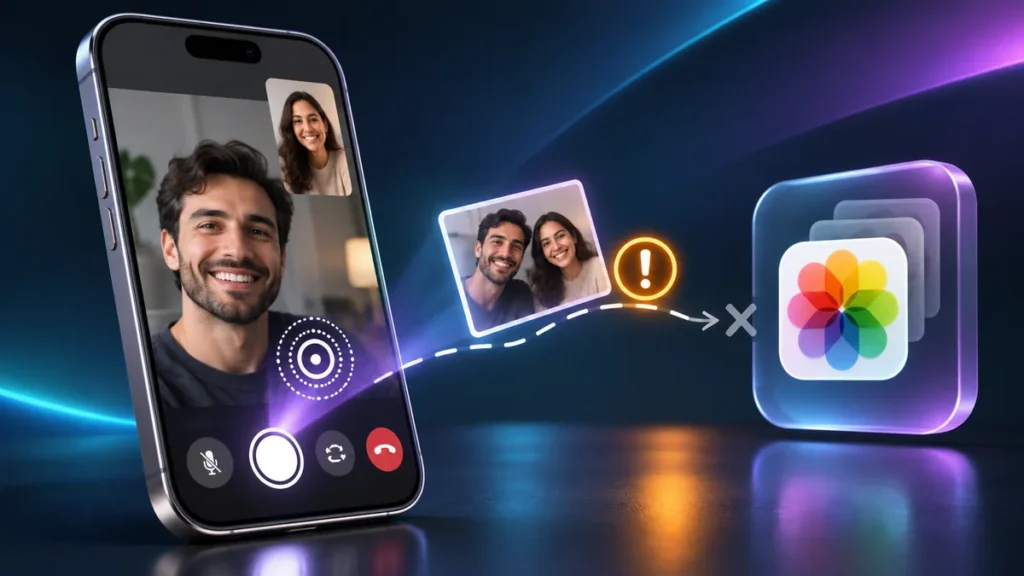
Are your FaceTime photos not saving on your iPhone, even though you tapped the photo button during a video call? Or perhaps FaceTime says a photo was taken, but you can’t find it anywhere in the Photos app.
This can be frustrating, especially when you’re trying to capture a special moment during a call.
Fortunately, missing FaceTime Live Photos do not automatically mean your iPhone camera or Photos library is damaged.
Quick answer: If FaceTime photos are not saving, first make sure FaceTime Live Photos is enabled on both participants’ devices. Then check your Photos library for the captured image, confirm that your iPhone has available storage, and test the feature again during a supported FaceTime video call.
In this guide, we’ll explain why FaceTime photos sometimes fail to save and walk through nine practical fixes for iPhone users, including devices running iOS 27.
Table of Contents
Why Are FaceTime Photos Not Saving on iPhone?
FaceTime includes a feature called FaceTime Live Photos, which lets you capture a moment during a supported video call.
Unlike an ordinary screenshot, a FaceTime Live Photo can capture a short period of movement and sound surrounding the moment you take the photo.
Normally, the captured Live Photo is saved automatically in the Photos app on the device that took it.
However, several conditions can prevent the feature from working as expected.
Common explanations include:
- FaceTime Live Photos being disabled on one participant’s device.
- The photo being captured successfully but not found in the Photos library.
- Using an unsupported calling situation or region.
- Insufficient available iPhone storage.
- A temporary FaceTime or iOS software issue.
- Incorrect expectations about where the photo is saved.
- A problem with the other participant’s device configuration.
Apple confirms that FaceTime Live Photos are saved to the Photos app and that both participants receive a notification when a photo is taken.
The most efficient troubleshooting approach is to identify whether FaceTime failed to capture the photo or whether the photo was captured but cannot be located.
FaceTime Photos Not Saving? Try These 9 Fixes
1. Enable FaceTime Live Photos in iPhone Settings
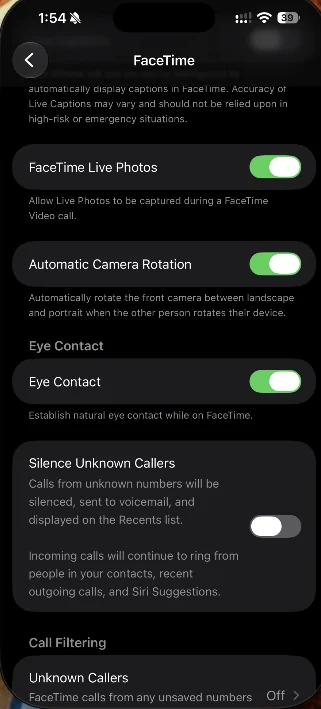
The first setting to check is FaceTime Live Photos.
On iOS 27 and other recent iPhone software versions:
- Open Settings.
- Scroll down and tap Apps.
- Select FaceTime.
- Find FaceTime Live Photos.
- Make sure the switch is turned On.
On some older iOS versions, FaceTime settings may appear directly in the main Settings menu.
Enabling FaceTime Live Photos allows the feature to operate during supported FaceTime video calls.
Keep in mind that enabling it also permits other participants to capture FaceTime Live Photos of you when the required conditions are met.
If the setting is already enabled, continue to the next fix.
Important: Turning on Live Photos in the regular Camera app is not the same as enabling FaceTime Live Photos.
The relevant switch is inside FaceTime settings.
Apple documents the setting and capture procedure in its official FaceTime Live Photos guide.
2. Ask the Other Person to Enable FaceTime Live Photos
This is one of the most important checks.
FaceTime Live Photos requires the relevant feature to be enabled for the participants involved.
If the other person has disabled FaceTime Live Photos, you may be unable to capture a Live Photo of them during the call.
Ask the person you’re calling to check:
Settings → Apps → FaceTime → FaceTime Live Photos
If they’re using a Mac, the setting is located inside the FaceTime app’s settings.
After confirming the settings on both devices, start a new FaceTime video call and test the photo button again.
Do not try to work around another person’s decision to disable FaceTime Live Photos. The setting is also a privacy control.
3. Check Where FaceTime Photos Are Actually Saved
Sometimes the photo isn’t missing. It simply isn’t where you expected it to appear.
FaceTime Live Photos are normally saved to the Photos library on the device that captures them.
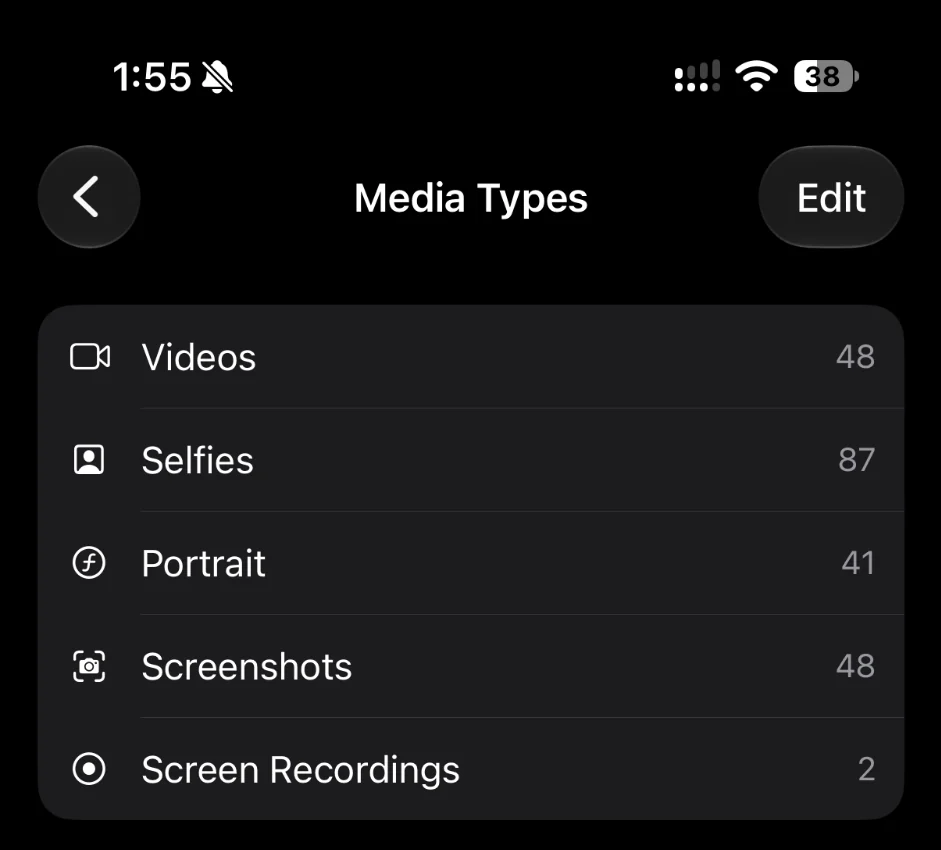
To find a captured Live Photo on iPhone:
- Open the Photos app.
- Check your Library.
- Use the sort control and select Recently Added, if available.
- Look for the photo captured during your FaceTime call.
You can also locate Live Photos through the media-type collections:
- Open Photos.
- Tap Collections.
- Scroll to Media Types.
- Select Live Photos.
- Look for the image from your call.
If you took the Live Photo on another Apple device, check the Photos library on that device first.
The person whose picture was captured does not automatically receive a copy merely because they were notified.
Useful tip: On newer iOS versions, the Photos app can organize images by when they were captured or when they were added. Sorting by Recently Added may help when you’re having trouble locating an image.
For Apple’s instructions on organizing saved images, see Find recently saved photos and videos on iPhone.
4. Make Sure You’re Taking the Photo Correctly
If the photo button is missing or nothing happens when you tap it, confirm that you’re using the proper FaceTime capture controls.
During a one-to-one FaceTime video call:
- Open or remain in the FaceTime video call.
- Tap the screen if the controls are hidden.
- Locate the Take Live Photo button.
- Tap it once to capture the moment.
- Check the Photos app after the capture.
During a Group FaceTime video call, the process is slightly different.
Tap the participant’s tile first, then use the available Live Photo capture button.
The exact control appearance may differ across supported devices and software versions.
If the button is missing, don’t assume the photo-saving feature is broken. Check that you’re in a supported FaceTime video call and that the necessary settings are enabled.
FaceTime Live Photos is not available in every country or region.
5. Check Your iPhone’s Available Storage
An iPhone with very little available storage can have difficulty saving additional photos and other files.
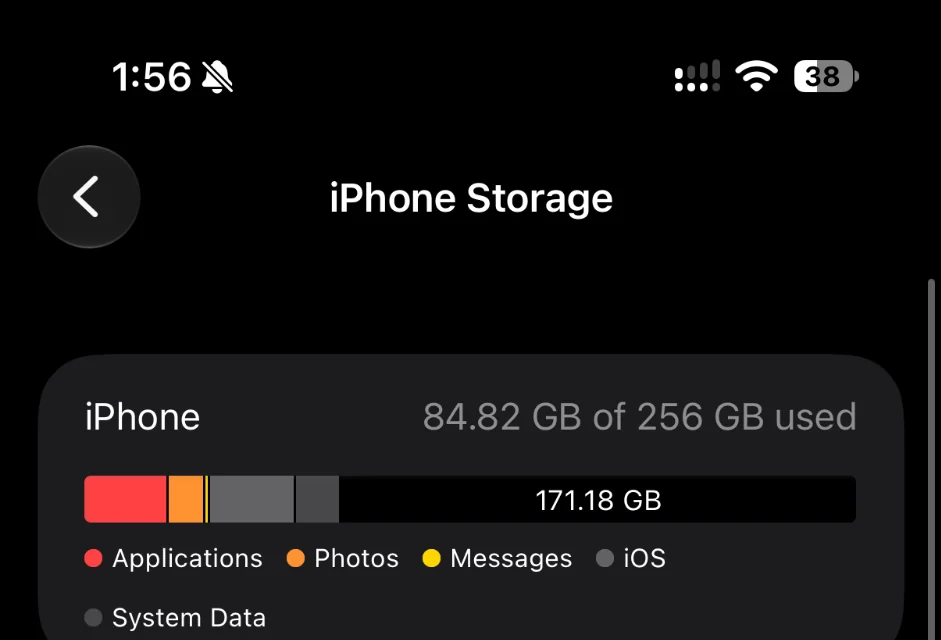
If your Photos library is nearly full, check how much device storage remains.
Follow these steps:
- Open Settings.
- Tap General.
- Select iPhone Storage.
- Review the storage usage information.
- Check whether your device has sufficient free space.
If storage is almost full, consider removing unnecessary downloads or files that you no longer need.
You can also review large applications and unused content.
Be careful when deleting photos from an iPhone using iCloud Photos. Deleting a photo can also remove it from other devices synchronized with the same iCloud Photos library.
Once you’ve made some room, try capturing another FaceTime Live Photo.
Storage shortages are a possible cause of saving problems, but freeing space won’t resolve a feature disabled by the other participant.
Apple explains storage management in its iPhone storage guide.
6. Restart FaceTime and Your iPhone
Temporary software problems can sometimes interfere with app behavior.
If FaceTime Live Photos is enabled on both devices and you still can’t capture a photo, try ending the call and starting a fresh session.
If the problem continues, restart your iPhone.
On a recent iPhone with Face ID:
- Press and hold the Side button and either Volume button.
- Drag the power-off slider.
- Wait for your iPhone to shut down.
- Turn it back on.
- Open FaceTime and make another test video call.
Ask the other participant to reconnect if necessary.
This is a relatively safe troubleshooting step because it doesn’t erase your photos, messages, or device settings.
However, a restart cannot override regional restrictions or another participant’s disabled Live Photos setting.
7. Update iOS to the Latest Compatible Version
Software updates can include fixes for application reliability and system behavior.
If FaceTime Live Photos stopped working after a software change, checking for a subsequent update is reasonable.
To check for an update:
- Open Settings.
- Tap General.
- Select Software Update.
- Review any available update.
- Back up your iPhone before installing an update when appropriate.
If an update is available, follow the onscreen instructions.
After updating, test FaceTime Live Photos again.
It can also help to confirm that the other participant’s device is running a compatible, reasonably current software version.
Note: An update is not a guaranteed fix. It is one step to consider after checking the settings and capture process.
8. Check Whether the Problem Happens With Every FaceTime Contact
If FaceTime photos fail to save only during calls with one person, the issue may involve that particular call or participant.
Try this controlled test:
- Confirm FaceTime Live Photos is enabled on your iPhone.
- Ask a trusted person to enable it on their device.
- Start a FaceTime video call.
- With their permission, capture one Live Photo.
- End the call and check your Photos library.
If the feature works with that person but not another contact, compare the devices, software versions, and FaceTime Live Photos settings.
If it fails with everyone, focus on your own device’s configuration, storage, and software.
This comparison can help narrow down the likely cause without changing unrelated iPhone settings.
Do not record or capture another person’s image without their knowledge and agreement.
9. Check FaceTime Live Photos Settings on Mac
If you’re taking FaceTime photos from your Mac rather than your iPhone, there is an additional point to consider.
Apple says you should open the Photos app on your Mac at least once before taking FaceTime Live Photos so that they can save to the Photos library.
To configure the feature:
- Open the FaceTime app on your Mac.
- Select FaceTime → Settings from the menu bar.
- Open the FaceTime settings tab.
- Enable FaceTime Live Photos.
- Open the Photos app at least once.
- Start a supported FaceTime video call and try capturing a Live Photo.
Apple notes that the FaceTime Live Photos setting on Mac cannot be changed during an active call.
If the setting is unavailable, end the call and check again.
You should also confirm that the other participant has enabled FaceTime Live Photos.
See Apple’s FaceTime Live Photos on Mac guide.
FaceTime Live Photo Button Missing or Greyed Out?
If the capture button isn’t available, the situation is slightly different from a photo being taken but failing to save.
First, check whether FaceTime Live Photos is enabled on both participants’ devices.
Next, make sure you are in a supported FaceTime video call and not simply an audio call.
During a group call, select the relevant participant’s tile before looking for the photo control.
Also consider regional feature availability and device compatibility.
If the capture control remains unavailable, restart the FaceTime call and check for software updates.
You do not need to reset your entire iPhone just because the button is missing.
FaceTime Says Photo Taken, but It’s Not in Photos
If the app appeared to capture the picture, but the resulting image is missing, investigate the destination first.
Start in the Photos app on the device that took the photo.
Look through the Library, sort by Recently Added, and inspect the Live Photos collection.
If the photo was taken on a Mac, check the Mac’s Photos library.
There is also an important distinction between a locally saved photo and a photo being synchronized to another device.
For example, if a FaceTime Live Photo appears in Photos on your iPhone but not your Mac, the capture succeeded. The remaining problem may involve iCloud Photos synchronization.
That’s a different issue from FaceTime photos failing to save in the first place.
If you encounter that situation, see our related guide: iCloud Photos Not Syncing on iPhone? 12 Fixes.
Avoid repeatedly toggling iCloud Photos before confirming whether the image exists locally.
FaceTime Live Photos vs. Regular Screenshots
FaceTime Live Photos and ordinary iPhone screenshots are different.
| Feature | FaceTime Live Photo | Regular screenshot |
|---|---|---|
| Captures | A brief moment of video-call action and sound | A still image of the screen |
| How to capture | FaceTime’s Live Photo control | iPhone screenshot button combination |
| Saved in | Photos app | Photos app |
| Requires FaceTime Live Photos enabled | Yes | No |
| Participant notification | Both participants are notified | FaceTime’s Live Photo notification does not apply |
If you only need a still picture of something on your screen, a regular screenshot is a different tool.
However, capturing and sharing private video calls raises consent and privacy considerations regardless of the method.
Also, taking a regular screenshot does not repair the FaceTime Live Photos feature. It simply uses a different capture mechanism.
Why FaceTime Photos May Not Save After an iOS Update
Sometimes people first notice FaceTime photo problems after updating iOS.
That timing can suggest a software-related issue, but it doesn’t prove the update caused it.
Begin by confirming the FaceTime Live Photos switch is still enabled.
Then check the other participant’s settings and your Photos library.
If those are correct, restart the phone and check whether another compatible update is available.
If FaceTime calling itself is failing, investigate that as a separate symptom.
Our FaceTime Call Failed troubleshooting guide covers problems establishing or maintaining calls.
For issues with activating FaceTime in the first place, see FaceTime Waiting for Activation? 10 Fixes.
Neither a failed call nor an activation error should be confused with a Live Photo that has been captured but cannot be found.
What to Do if Nothing Fixes FaceTime Photos Not Saving
If you’ve checked the settings on both devices, confirmed sufficient storage, updated iOS, and tried another trusted contact, the remaining problem may require closer investigation.
Before contacting Apple Support, record a few useful details:
- Your iPhone model and installed iOS version.
- Whether the photo button appears during a call.
- Whether an error message is displayed.
- Whether FaceTime reports that a photo was taken.
- Whether the problem affects every contact or only one.
- Whether captured images appear anywhere in the Photos library.
These details help distinguish a capture failure from a saving or library problem.
You can then contact Apple Support for device-specific troubleshooting.
Avoid erasing your iPhone or deleting your photo library as an early troubleshooting step.
Frequently Asked Questions
Where do FaceTime photos go on iPhone?
FaceTime Live Photos are normally saved to the Photos app on the device that captured them. Check the Library and the Live Photos media-type collection.
Why are my FaceTime photos not saving to my camera roll?
The feature may be disabled, the other participant may not allow Live Photos, the capture may have failed, or the saved photo may not be where you expected. Check FaceTime settings and the Photos library first.
Do both people need FaceTime Live Photos enabled?
Yes. For supported FaceTime Live Photo capture, both participants should have the feature enabled.
Why is the FaceTime photo button missing?
Possible reasons include disabled FaceTime Live Photos settings, an unsupported call or device situation, or regional limitations. In Group FaceTime, you may need to select the relevant person’s tile.
Does FaceTime automatically save pictures?
A successfully captured FaceTime Live Photo is normally saved automatically to the Photos app. FaceTime does not continuously save pictures of every call.
Can the other person see when I take a FaceTime Live Photo?
Yes. Apple states that both participants receive a notification when a FaceTime Live Photo is taken.
Are FaceTime photos saved to iCloud automatically?
They are saved to the Photos library. If iCloud Photos is enabled and working, photos in that library can synchronize to iCloud and your other supported devices. FaceTime Live Photo capture does not itself require you to enable iCloud Photos.
Can I take a FaceTime Live Photo during a group call?
Yes, in supported Group FaceTime calls. Select the participant’s tile and use the available Live Photo capture control.
Does turning on Camera Live Photos fix FaceTime Live Photos?
Not necessarily. The regular Camera Live Photos setting and the FaceTime Live Photos setting are separate. Check the FaceTime setting directly.
Will resetting my iPhone fix FaceTime photos not saving?
A factory reset is not a sensible first step. Start by checking the settings, capture method, photo location, storage, and software. Seek device-specific support before considering disruptive actions.
Final Thoughts
If your FaceTime photos are not saving, the first thing to investigate is whether FaceTime Live Photos is enabled on both participants’ devices.
Next, check the Photos library on the device that took the picture, including the Live Photos collection and recently added items.
If the capture itself isn’t working, review supported calling conditions, free storage, restart the call, and check for software updates.
For Mac users, remember that Apple’s FaceTime Live Photos guidance includes opening the Photos app at least once before capturing a photo.
The key is to determine whether FaceTime failed to take the photo or whether it was taken successfully but is difficult to locate.
Once you know which situation applies, finding the right solution becomes much easier.