Wondering how to turn on Apple Intelligence on your iPhone? If you’ve updated to iOS 27 but can’t find the familiar Apple Intelligence switch in Settings, you’re probably looking for an option that Apple has changed.
With iOS 27, Apple Intelligence is integrated into supported iPhones and becomes available automatically in eligible languages and regions. Unlike earlier iOS versions, you don’t have to enable everything through one master switch.
However, the new Siri AI (Beta) experience requires a separate activation process.
In this guide, we’ll explain how to enable and access Apple Intelligence features on iOS 27, which iPhones support them, how to activate Siri AI, and what to check if the features aren’t appearing.
Table of Contents
Quick Answer: How to Turn On Apple Intelligence in iOS 27
On a compatible iPhone running iOS 27, Apple Intelligence is available automatically after updating, provided your device meets Apple’s language and regional requirements.
Here’s what to do:
- Open Settings > General > Software Update and install the latest compatible iOS update.
- Confirm that your iPhone supports Apple Intelligence.
- Check that your device language and Siri language are compatible.
- Open a supported app, such as Notes, and look for Apple Intelligence features like Writing Tools.
- If you want Siri AI, open Settings > Siri and select Try Siri AI (Beta) when available.
- Follow the activation instructions and allow any required AI models to download.
Important: You won’t necessarily find an Apple Intelligence master toggle in Settings on iOS 27. Siri AI activation and access to the broader Apple Intelligence features are separate processes.
Which iPhones Support Apple Intelligence?
Before trying to turn on Apple Intelligence, confirm that your device is eligible.
Apple Intelligence requires compatible hardware because many AI tasks use specialized on-device processing.
Supported iPhone models
Apple Intelligence is supported on:
- iPhone 15 Pro
- iPhone 15 Pro Max
- iPhone 16 and iPhone 16 Plus
- iPhone 16 Pro and iPhone 16 Pro Max
- iPhone 16e
- Supported iPhone 17 models, including iPhone 17 Pro and iPhone 17 Pro Max
- iPhone Air
- Supported iPhone 18 models and newer eligible devices
The following older models don’t support Apple Intelligence:
- iPhone 15 and iPhone 15 Plus
- iPhone 14 series
- iPhone 13 series
- iPhone 12 series
- Earlier iPhone models
For example, an iPhone 15 Pro supports Apple Intelligence, but the standard iPhone 15 does not.
This difference comes from hardware compatibility, not simply the installed iOS version.
You can check Apple’s official Apple Intelligence device requirements for the latest compatibility information.
Step 1: Update Your iPhone to iOS 27
The first step is checking which iOS version your iPhone is running.
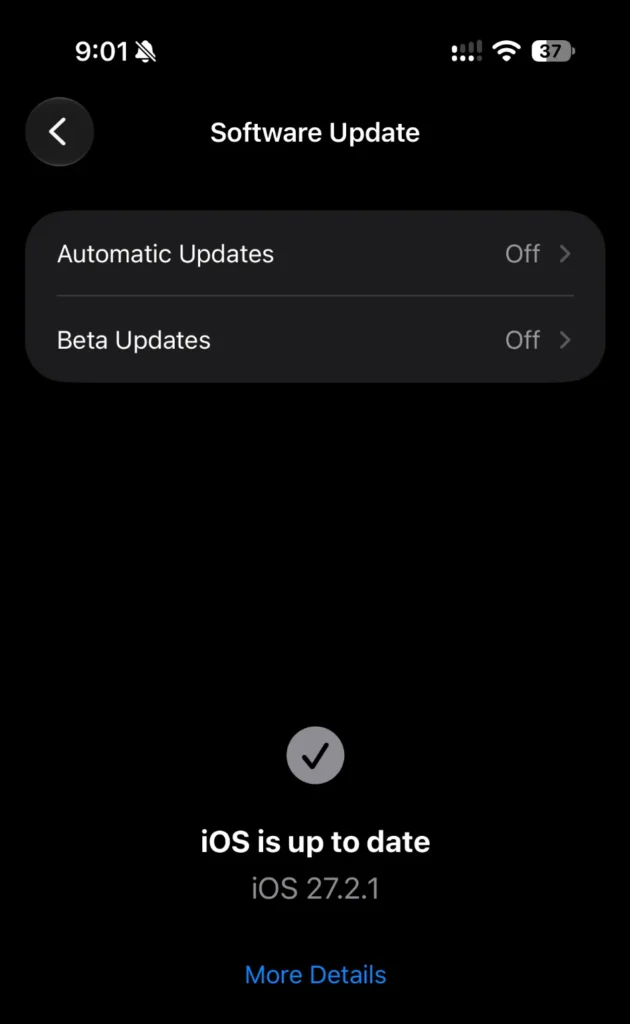
Apple introduced the next generation of Apple Intelligence with iOS 27, including expanded AI features across supported apps.
How to check your iOS version
- Open Settings on your iPhone.
- Tap General.
- Select Software Update.
- Wait while your iPhone checks for available updates.
- Install the latest compatible update if one is offered.
Before updating, back up important photos, files, and other data.
Your iPhone may need additional time to complete background tasks after a major update.
If your device already displays iOS is up to date, you don’t need to reinstall the software simply to activate Apple Intelligence.
What about iOS 26?
On compatible iPhones running earlier software, Apple Intelligence could be enabled through Settings > Apple Intelligence & Siri.
The iOS 27 experience is different. Apple’s current guidance describes the next-generation features as automatically available on eligible devices.
Therefore, instructions written for iOS 18 or iOS 26 may not match the menus on an iPhone running iOS 27.
Step 2: Check Your iPhone Language and Siri Language
Apple Intelligence availability depends partly on language support.
Using a supported language is important because different AI features can have different language requirements.

Check your device language
- Open Settings.
- Tap General.
- Select Language & Region.
- Review your preferred language.
Check your Siri language
- Return to Settings.
- Select Siri.
- Tap Language.
- Review the selected language.
For US readers, English (United States) is a supported option.
Apple’s broader Apple Intelligence features support multiple languages, including English, French, German, Spanish, Japanese, Korean, and others.
However, Siri AI (Beta) has a narrower initial language list.
For the separate Siri AI experience, Apple initially supports English, French, Japanese, Korean, Portuguese, and Spanish.
Make sure you’re checking the requirements for the particular feature you want to use.
Tip: If you’ve recently changed your language, some AI resources may need to download before everything becomes available.
Step 3: Access Apple Intelligence Features on iOS 27
After confirming your device, software, and language settings, you can try the features built into supported applications.
You may not need to activate a separate master switch.
Try Writing Tools in Notes
Writing Tools is one practical way to check whether Apple Intelligence features are available.
- Open the Notes app.
- Create a new note.
- Type a few sentences.
- Select the text.
- Look for Writing Tools in the available editing options.
- Tap it to review the available tools.
Depending on your device and current software, Writing Tools can provide options to proofread, rewrite, or summarize text.
For example, you might enter:
“Please review these meeting notes and help improve the wording.”
Then select the text and explore the available editing tools.
The exact options vary depending on the application, language, and software version.
Check other supported features
Apple Intelligence also powers experiences involving:
- Image creation and photo-editing tools.
- Intelligent writing assistance.
- Supported notification and communication features.
- AI-powered capabilities in compatible applications.
- Additional Siri AI functions when the beta is activated.
Not every feature appears in one central Settings screen.
Some become visible only when you open the relevant application or perform a supported action.
For a broader overview of recent system changes, see our iOS 27.2 New Features guide.
Step 4: Turn On Siri AI (Beta) Separately
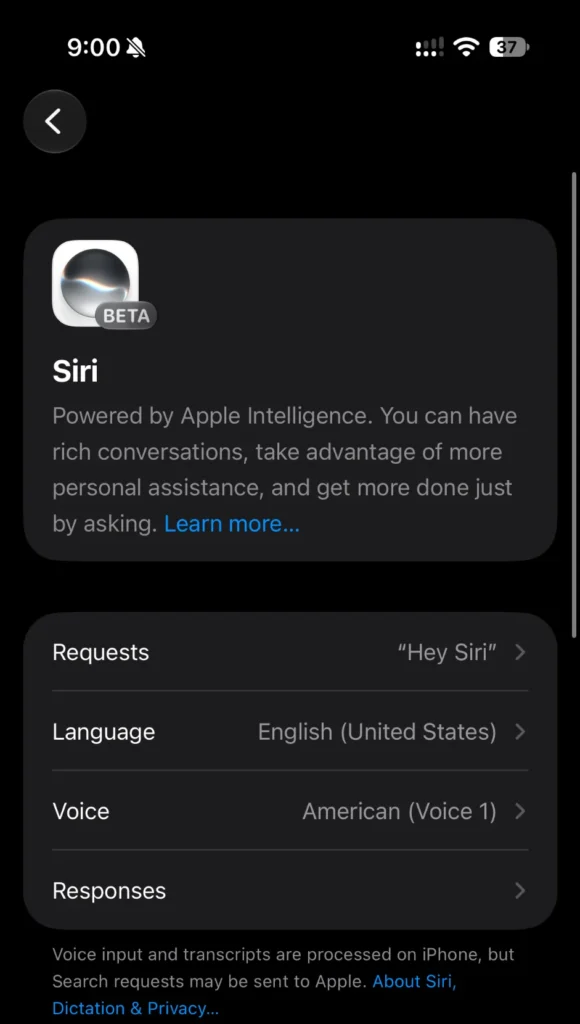
If you’re specifically looking for the new conversational Siri experience, you’ll need to follow the Siri AI activation process.
Siri AI is powered by the next generation of Apple Intelligence, but its setup differs from the general features integrated into iOS.
How to activate Siri AI on iPhone
- Open Settings.
- Tap Siri.
- If Siri is disabled, enable it first.
- Look for Try Siri AI (Beta).
- Tap the option if it’s available.
- Follow Apple’s onscreen setup instructions.
- Choose the requested voice and review the privacy information.
- Complete any required enrollment or waitlist process.
Apple explains that Siri AI access may involve a waitlist during periods of high demand.
If you’re placed on the waitlist, you may need to wait until access becomes available before the required Siri AI models begin downloading.
There is no need to repeatedly restart or reset your iPhone to bypass that process.
What if Siri AI is already active?
If your Siri settings display the Siri AI (Beta) experience and its configuration options, you may already have access.
In that case, you don’t need to repeat activation.
You can review Siri language, voice, requests, and responses through the available settings.
For the official instructions, visit Apple’s How to Get Siri AI guide.
Siri AI isn’t available everywhere
Siri AI requires compatible hardware, supported software, an eligible language and region, and applicable age requirements.
Apple’s initial iOS 27 rollout also has regional restrictions for the Siri AI beta, including availability limitations in the European Union.
This does not necessarily mean that all other Apple Intelligence features are unavailable in those regions.
Always distinguish between Siri AI access and the broader Apple Intelligence feature set.
Step 5: Allow Required Apple Intelligence Resources to Download
Some Apple Intelligence features depend on on-device models or other resources.
These can require additional storage and may download after setup or when a language changes.
For a smoother experience:
- Connect to reliable Wi-Fi.
- Keep your iPhone charged.
- Check that enough device storage is available.
- Allow time for any model downloads to complete.
- Avoid repeatedly changing language settings while the process is underway.
To inspect storage, open Settings > General > iPhone Storage.
On-device AI models can occupy several gigabytes, and requirements vary by hardware and software version.
If storage is nearly full, remove unnecessary downloads or offload apps you no longer use.
Avoid deleting important information without a backup.
For additional storage troubleshooting, read our iPhone System Data Taking Up Storage guide.
If a download seems unusually slow, check your network connection before attempting advanced troubleshooting.
Our iPhone Wi-Fi Keeps Disconnecting guide can help with recurring wireless connection problems.
Apple Intelligence Not Showing in Settings? What to Check
If you can’t find the Apple Intelligence option, don’t immediately assume that something is broken.
In iOS 27, the absence of the older master toggle can be normal.
The correct troubleshooting approach is to determine whether supported AI features are actually unavailable.
1. Confirm device compatibility
An unsupported iPhone won’t gain Apple Intelligence simply by updating to a newer iOS release.
Check your exact model under Settings > General > About.
2. Check software compatibility
Open Settings > General > Software Update and confirm that your device is running a supported release.
3. Review language settings
Check your device language and Siri language, especially if you recently changed either.
4. Check feature availability
Try a supported Apple Intelligence action in an app such as Notes or Photos.
Some features are available only in specific applications.
5. Check your network and storage
If required resources haven’t downloaded, confirm that Wi-Fi works and sufficient storage is available.
6. Review restrictions
Some Apple Intelligence features can be restricted through Screen Time or device-management settings.
On a work-managed or school-managed iPhone, organizational policies may affect what’s available.
7. Restart the iPhone
If a supported feature remains unavailable after the other checks, try a normal restart.
A restart can help with temporary software issues, but it cannot override hardware, language, or regional restrictions.
If Siri itself isn’t responding, our iPhone Siri Not Working guide covers a separate set of troubleshooting steps.
Is Apple Intelligence Free to Use?
Apple Intelligence includes features available on supported Apple devices without a separate subscription for basic access.
However, Apple has introduced usage limits for certain features that rely on server-side models, including Siri AI and some creative tools.
Apple has also indicated that expanded access to some of those capabilities may be offered for a fee.
This means availability, usage limits, and any future paid options should be considered separately.
For current details, consult Apple’s Apple Intelligence information page.
Do You Need ChatGPT to Use Apple Intelligence?
No.
Apple Intelligence and ChatGPT are not the same product.
Apple Intelligence provides Apple’s integrated AI capabilities across supported devices and applications.
ChatGPT integration is an additional option for certain tasks and supported experiences.
You don’t have to install a separate ChatGPT app simply to use Apple’s built-in Writing Tools or other supported Apple Intelligence features.
If you choose to enable a third-party AI integration, review the associated privacy settings and permissions.
Frequently Asked Questions
How do I turn on Apple Intelligence on my iPhone?
On iOS 27, Apple Intelligence is automatically available on eligible devices in supported languages and regions. Update your iPhone, confirm compatibility, and access supported features in apps. Siri AI (Beta) requires a separate activation process.
Where is the Apple Intelligence toggle in iOS 27?
The older system-wide Apple Intelligence toggle is no longer provided in the same way on iOS 27. The next-generation features are integrated into the operating system.
Can I turn on Apple Intelligence on iPhone 15?
Only the iPhone 15 Pro and iPhone 15 Pro Max support Apple Intelligence within the iPhone 15 family. The standard iPhone 15 and iPhone 15 Plus don’t support it.
How do I turn on Siri AI on my iPhone?
Open Settings > Siri and select Try Siri AI (Beta) if it’s available. Complete the onscreen setup and any waitlist or downloading process.
Why can’t I find Try Siri AI (Beta)?
Your device, software, language, region, or account may not meet the requirements. The feature also has beta availability limitations. Check Apple’s current Siri AI requirements.
Does Apple Intelligence require an internet connection?
Some Apple Intelligence capabilities use on-device processing, while others require internet connectivity or server-side resources. An internet connection may also be needed to download or update AI models.
Is Apple Intelligence available on iOS 26?
Yes, supported Apple Intelligence features are available on eligible devices running earlier compatible versions of iOS. However, the setup interface and available features differ from iOS 27.
Do I have to enable Siri to use every Apple Intelligence feature?
Not necessarily. Apple Intelligence includes capabilities across multiple applications, while Siri AI has its own activation requirements.
Final Thoughts
Learning how to turn on Apple Intelligence is easier once you understand how Apple changed its setup in iOS 27.
On eligible devices, the next-generation Apple Intelligence features are integrated into the operating system and automatically available when the software, language, and regional requirements are met.
You don’t need to search endlessly for the old universal toggle.
Start by checking compatibility, updating iOS, and trying a supported feature such as Writing Tools.
If you want Siri AI, activate it separately through Siri settings and follow Apple’s beta instructions.
If something still isn’t available, check device eligibility, language settings, available storage, network connectivity, and feature-specific requirements before attempting a reset.
Last reviewed: November 19, 2026