Quick Answer: How to Check iPhone Storage
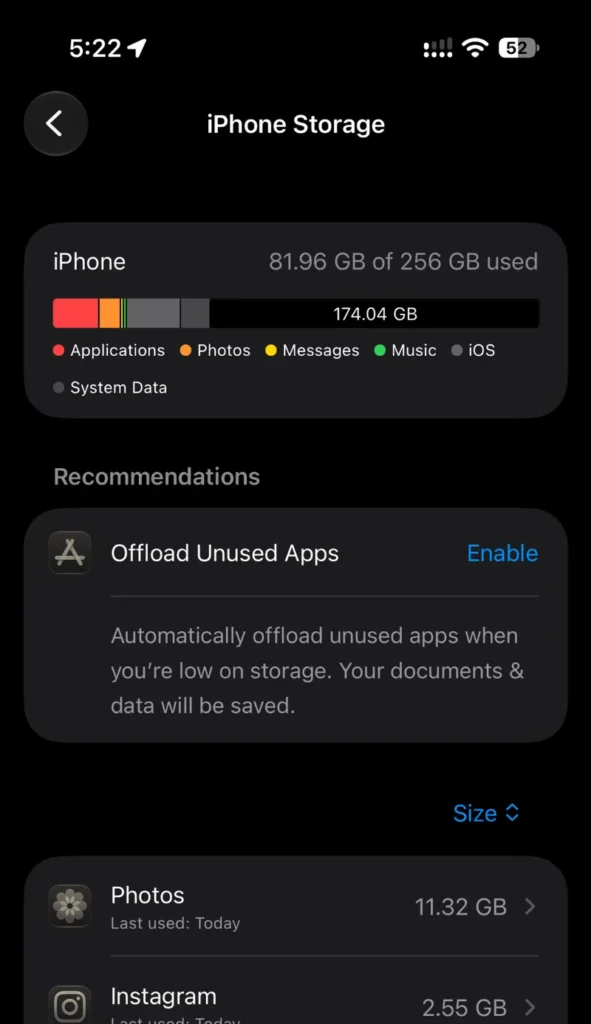
Wondering how to check iphone storage and find out what’s taking up space? Open Settings > General > iPhone Storage. Wait for the storage chart to load. At the top, you’ll see how much of your iPhone’s storage capacity is being used. Scroll down to find which apps, photos, and other content consume the most space.
You can also check storage from a Mac or Windows computer. If you’re trying to understand why your iPhone is almost full, the built-in storage breakdown is the best place to start.
Important: iPhone storage and iCloud storage are different. Your iPhone’s built-in capacity cannot be increased by purchasing additional iCloud storage.
1. How to Check iPhone Storage in Settings
The quickest and most reliable way to check iPhone storage is through the Settings app.
This method works on modern iPhones, including devices running iOS 27. The same basic menu is also available in many earlier versions of iOS.
Step-by-step instructions
- Unlock your iPhone.
- Open the Settings app.
- Scroll down and tap General.
- Select iPhone Storage.
- Wait while iOS calculates your storage usage.
- Review the colored storage chart at the top.
- Scroll down to see the apps installed on your iPhone and the amount of storage each uses.
The storage screen displays your used capacity and total device storage.
For example, an iPhone with 128 GB of built-in storage will show how much of that capacity is occupied by apps, photos, videos, messages, and system files.
The colored chart provides an overview, while the app list helps identify individual applications consuming significant space.
What if the storage calculation takes a while?
Sometimes the storage chart needs time to calculate the size of installed apps and their files.
This is particularly noticeable when the iPhone contains many photos, videos, downloaded files, or large applications.
Keep the Settings screen open briefly and allow iOS to finish calculating.
If it appears stuck, close Settings, reopen it, and check again. You can also restart your iPhone if the calculation repeatedly fails.
The numbers may change slightly as iOS updates its storage estimates or manages temporary files.
2. How to Read the iPhone Storage Breakdown
After opening iPhone Storage, you’ll see a colored chart showing different categories of stored content.
The exact categories depend on your iOS version and the content installed on your device.
Understanding them helps you identify what is actually using storage.
Apps
The Apps category includes installed applications and associated content.
This may include:
- Social media applications
- Games
- Messaging applications
- Offline app downloads
- Files and other content associated with applications
Some apps may also store temporary files or downloaded media.
If Apps is your largest category, scroll through the application list to find the biggest contributors.
Photos
The Photos category represents photos and videos stored locally in the Photos app.
High-resolution videos and large photo libraries can consume substantial storage.
If you use iCloud Photos, your iPhone may store space-saving versions of certain photos while keeping full-resolution originals in iCloud.
The amount of device storage used depends on your settings, the available space, and the files your phone needs locally.
Media
The Media category can include downloaded or stored music, videos, podcasts, ringtones, and similar content.
For example, offline entertainment downloads may take up significant space even when you are not actively using them.
Messages
Messages and their attachments can contribute to storage usage.
Photos, videos, voice messages, and other attachments shared through conversations may occupy considerable space over time.
iOS or System
This category represents storage used by the operating system.
Every iPhone needs some space for iOS to function.
You should not expect the entire advertised storage capacity to be available for personal apps and files.
System Data or Other
System Data can include caches, logs, databases, and other supporting files used by iOS.
These files help the system and applications operate normally.
The category may increase or decrease as your iPhone manages temporary information.
If System Data appears unusually large, see our detailed iPhone System Data Taking Up Storage guide.
That guide focuses on diagnosing unexpectedly large system storage rather than ordinary storage inspection.
What does “Applications” mean in iPhone Storage?
People sometimes use the term Applications when referring to the space occupied by installed apps.
On current iPhones, the storage chart commonly uses the label Apps.
It represents applications and app-related content, although the exact reporting categories can vary.
To find out how much space a particular application uses, tap its name in the list beneath the storage chart.
This is more useful than estimating an application’s storage usage from the colored chart alone.
3. How to Check Which Apps Use the Most Storage
Knowing your remaining storage is helpful, but identifying large apps can be even more useful.
iOS provides individual storage details for installed applications.
Find the largest apps
- Open Settings > General > iPhone Storage.
- Scroll below the storage chart.
- Review the list of installed apps.
- Select an app that appears to use substantial storage.
- Check its storage details.
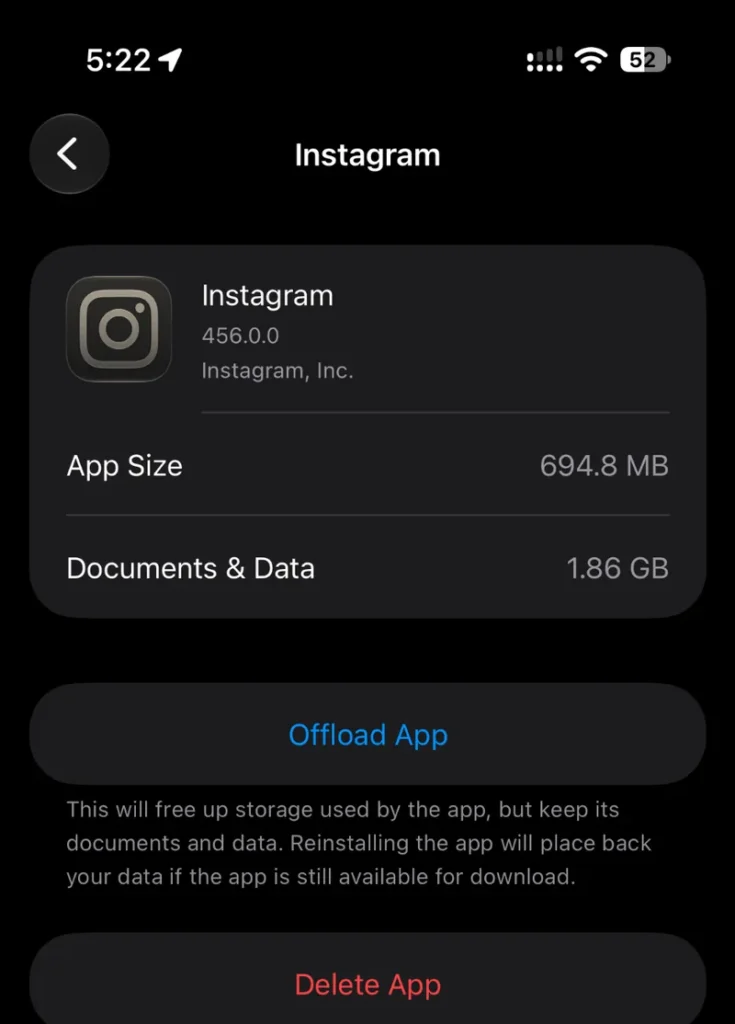
You may see separate values for App Size and Documents & Data.
These values help explain why an app occupies more space than expected.
App Size vs. Documents & Data
App Size generally refers to the storage needed for the installed application itself.
Documents & Data refers to files and content associated with that application.
Depending on the app, this can include downloaded files, saved documents, media, offline content, or other stored information.
For example, a video streaming app may have a relatively small installed application but occupy much more space because of downloaded videos.
Likewise, a messaging application can accumulate attachments over time.
Before deleting an app, check whether it contains important local information.
Some content may not be recoverable simply by reinstalling the app.
Offload App vs. Delete App
When reviewing an app’s storage, you may see two options.
Offload App: Removes the application itself while retaining its documents and data. You can reinstall the app later, subject to its continued availability.
Delete App: Removes the application and its related local data.
Offloading can be a safer first option when you want to preserve an application’s local information, but it won’t remove all the storage used by that app.
Deleting an app may remove downloads, drafts, or other locally stored content that isn’t backed up elsewhere.
For now, you do not need to delete anything. First identify which apps are using the most space.
4. How to Check iPhone Storage on a Mac
You can also inspect iPhone storage using a Mac.
This is particularly useful if you already connect your iPhone to your MacBook for backups, file transfers, or synchronization.
On modern versions of macOS, Apple uses Finder to display connected iPhones.
Steps
- Connect your iPhone to your Mac using a compatible USB cable.
- Unlock your iPhone.
- If prompted, choose Trust This Computer and authenticate.
- Open Finder on your Mac.
- Under Locations in the sidebar, select your iPhone.
- Open the device’s information or General view if needed.
- Look for the storage bar near the bottom of the window.
- Hover over the colored sections to examine storage categories.
Finder provides an overview of content stored on your iPhone.
This can help you see the relative space used by photos, applications, audio, and other content.
Why might Finder show different storage numbers?
Finder and the iPhone Settings app can classify certain files differently.
For example, cached media and temporary content may appear under a broader category when viewed on a computer.
This does not necessarily indicate a storage problem.
For the clearest app-by-app breakdown, use Settings > General > iPhone Storage directly on your iPhone.
Note: On a Mac running macOS Mojave or earlier, iTunes is used instead of Finder for device management.
5. How to Check iPhone Storage on Windows
Windows users can also inspect iPhone storage using Apple’s device-management software.
On supported Windows systems, the Apple Devices app is the recommended option.
Steps
- Install or open the Apple Devices app on your Windows computer.
- Connect your iPhone using a compatible cable.
- Unlock the iPhone and approve any Trust prompt.
- Select the iPhone in the application’s sidebar.
- Review the storage information displayed for the device.
The storage bar indicates how much space is being used by different categories of content.
On older setups, iTunes may provide similar information.
If you only need to know which apps are consuming the most space, checking directly on the iPhone is usually faster.
6. How to Check iCloud Storage on iPhone
Many iPhone users confuse device storage with iCloud storage.
Although they work together, they are not the same.
iPhone storage is the physical capacity built into your device.
iCloud storage is cloud storage associated with your Apple Account.
Check your iCloud storage
- Open Settings.
- Tap your name or Apple Account at the top.
- Select iCloud.
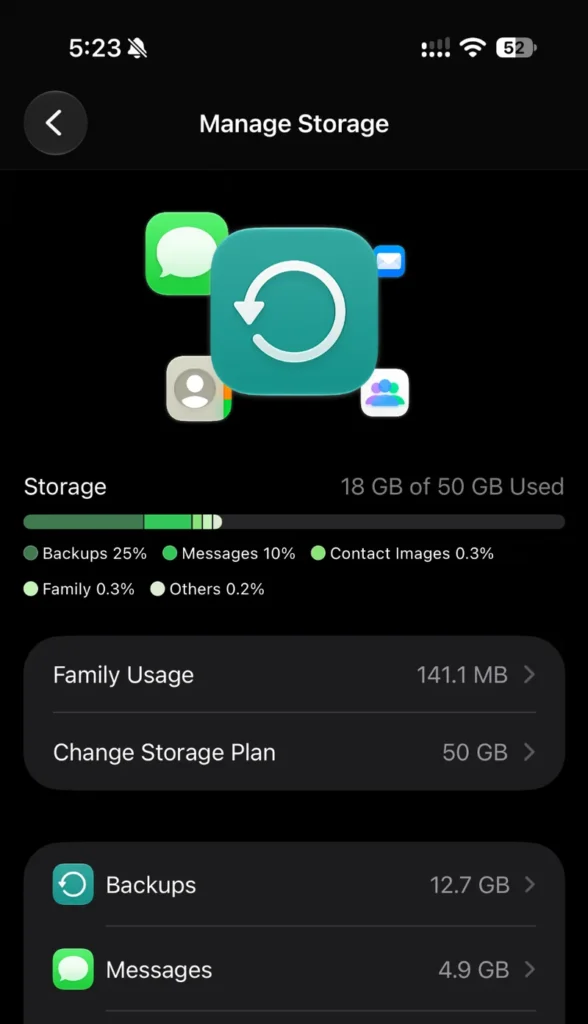
- Review the storage information.
- Tap Storage or Manage Storage, depending on your iOS version, for more details.
You’ll be able to see how much iCloud storage is being used and which types of cloud content consume space.
iCloud storage may include backups, photos, files, messages, and other supported information.
Does buying more iCloud storage increase iPhone storage?
No.
Purchasing more iCloud storage does not physically expand your iPhone’s built-in capacity.
However, certain features, such as iCloud Photos with Optimize iPhone Storage enabled, may help reduce the amount of local space needed for your photo library.
This depends on your settings and available cloud capacity.
If your photos are not syncing correctly, check our iCloud Photos Not Syncing on iPhone guide before changing storage settings or deleting important pictures.
7. What Should You Do If iPhone Storage Is Almost Full?
If the storage screen shows that your iPhone is running low on space, begin by identifying the largest categories.
Do not immediately delete important photos or reset your device.
A sensible approach is to review your storage usage first.
Check Apple’s storage recommendations
Go to Settings > General > iPhone Storage.
If iOS displays recommendations, read them carefully.
Depending on your device and usage, you may see suggestions related to unused apps, large files, or other storage-consuming content.
Review what each recommendation will change before enabling it.
Examine downloaded content
Downloaded videos, podcasts, music, and offline files can occupy considerable space.
Open the relevant apps and review their downloads.
If you no longer need a downloaded item, you may be able to remove its local copy.
Review large applications
Apps with extensive offline files, media libraries, or saved documents may take up more storage than their installation size suggests.
Check each app’s storage options before removing anything.
Check photos carefully
Photos and videos can account for a large portion of iPhone storage.
If iCloud Photos is enabled, deleting a photo in the Photos app generally deletes it from other devices syncing with the same iCloud Photos library.
Make sure important files are backed up before removing them.
Review unusually large System Data
If the storage chart shows excessive System Data usage, investigate that category separately rather than assuming every file can be deleted manually.
System caches are often managed automatically by iOS.
Avoid installing unknown cleaning tools that promise to remove hidden system files or increase your iPhone’s physical storage capacity.
8. Why Is My iPhone Storage Different From What My Computer Shows?
It is possible for the iPhone Storage screen and a computer’s storage summary to show slightly different category totals.
Apple explains that Finder, Apple Devices, and iTunes can categorize cached content differently.
Temporary files may also change as the operating system manages storage.
For example, content classified as Other on a computer may be handled differently in the iPhone’s own storage display.
The most practical way to check current available space and individual app usage is through Settings > General > iPhone Storage.
If your device reports very little free space despite your having removed large files, restart the iPhone and allow the storage calculation to refresh.
If the discrepancy persists, investigate the relevant storage category instead of repeatedly deleting random files.
Frequently Asked Questions
How do I see how many GB are left on my iPhone?
Open Settings > General > iPhone Storage. The screen shows the amount of used storage relative to your iPhone’s total capacity. You can determine the remaining capacity from these figures.
Where is iPhone Storage in iOS 27?
Go to Settings > General > iPhone Storage. This remains the standard location for checking built-in storage on iOS 27.
Is iPhone storage the same as iCloud storage?
No. iPhone storage is built into the device, while iCloud storage is associated with your Apple Account. You can check them separately in Settings.
How do I find which apps use the most storage?
Open Settings > General > iPhone Storage, scroll through the app list, and tap an application to see its storage details.
What is System Data on iPhone?
System Data can include caches, logs, and other supporting files used by iOS. The amount can change over time, and not every item can be manually removed.
Can I check my iPhone storage without a computer?
Yes. The Settings app provides the storage overview and app-by-app details without requiring a Mac or Windows computer.
Why does my iPhone show less available storage than its advertised capacity?
Part of the device’s capacity is used by the operating system and other required files. The remaining space is available for apps, photos, media, and personal information.
Does offloading an app delete its data?
Offloading removes the application while keeping its documents and data. Deleting the app removes the app and associated local data. Check important files and backups before choosing either option.
Final Thoughts
Learning how to check iphone storage makes it easier to understand why your device is filling up and which apps or files deserve attention.
For most people, the best method is Settings > General > iPhone Storage. It provides a quick overview of used capacity, storage categories, and individual apps.
Finder and Apple Devices offer additional ways to inspect storage from a computer.
Remember that iCloud storage is separate from your iPhone’s built-in capacity. Checking both helps you make better decisions about backups, downloads, and storage management.
The next step is not necessarily deleting content. It is identifying what is using your space and deciding which files you actually need to keep.
Official Apple Resources
- How to check the storage on your iPhone and iPad
- Manage storage on iPhone
- Manage your photo and video storage
- What’s the difference between iCloud storage and device storage?
Last updated: November 20, 2026. Instructions reflect Apple’s published storage guidance for recent iOS versions. Some labels and options can vary by device and software version.