Quick Answer: How to Turn On Wi-Fi Calling on iPhone
To enable Wi-Fi Calling on iPhone, open Settings > Cellular > Wi-Fi Calling, turn on Wi-Fi Calling on This iPhone, and tap Enable. If you have multiple SIMs, select the correct cellular line first. Your carrier must support the feature, and you may need to confirm an emergency services address.
This WiFi Calling iPhone guide explains how the feature works, how to check whether calls are using Wi-Fi, what your carrier may charge, and what to do when the option is missing.
Wi-Fi Calling can be particularly helpful when your home, workplace, or another location has reliable Wi-Fi but weak cellular coverage.
Table of Contents
What Is Wi-Fi Calling on iPhone?
Wi-Fi Calling is a carrier-supported feature that lets your iPhone make and receive regular telephone calls through a Wi-Fi internet connection.
Instead of relying entirely on a nearby cellular tower, the iPhone can use a suitable Wi-Fi network to connect calls through your mobile carrier.
The feature is also called Voice over Wi-Fi, or VoWiFi.
How does Wi-Fi Calling work?
Your iPhone normally uses your mobile carrier’s network for telephone calls.
When cellular coverage is limited and Wi-Fi Calling is available, your phone can route supported calls through an internet-connected Wi-Fi network.
This can make it easier to communicate in locations where cellular signals struggle to reach your device.
Examples include:
- Homes with weak indoor cellular reception
- Offices in large buildings
- Rooms located underground
- Certain rural locations with reliable broadband
- Buildings with thick walls that weaken cellular signals
You still use your ordinary phone number.
The person receiving the call does not need to install a special application.
Is Wi-Fi Calling the same as FaceTime or WhatsApp?
No.
Wi-Fi Calling uses your mobile carrier’s telephone service and regular phone number.
FaceTime Audio, WhatsApp, and similar services use their own internet-based calling systems.
With carrier Wi-Fi Calling, you normally place calls through the iPhone’s Phone app just as you would for a cellular call.
This distinction matters because availability, billing, emergency calling, and supported messaging features can differ between these services.
What Do You Need for Wi-Fi Calling?
Before enabling Wi-Fi Calling, verify that your device and mobile service meet the basic requirements.
1. A compatible iPhone
Modern iPhones support Wi-Fi Calling, but the feature also depends on your carrier and active mobile plan.
An iPhone 17 Pro, for example, can support Wi-Fi Calling when used with an eligible carrier.
2. A supported mobile carrier
Not every carrier offers Wi-Fi Calling, and some providers restrict it to particular plans or devices.
In the United States, major carriers such as AT&T, T-Mobile, and Verizon offer Wi-Fi Calling on eligible devices and services.
However, availability can vary among smaller carriers and mobile virtual network operators.
You can check Apple’s US and Canadian carrier feature list for general compatibility information.
Your carrier remains the authoritative source for account-level eligibility.
3. An active cellular line
Wi-Fi Calling is tied to your mobile carrier service.
Simply connecting an iPhone to Wi-Fi does not automatically provide carrier telephone service.
Your SIM or eSIM must be appropriately activated and provisioned.
4. A working Wi-Fi internet connection
Wi-Fi Calling needs a suitable Wi-Fi connection.
A strong Wi-Fi icon does not guarantee that the network has working internet access.
Some public, workplace, or restricted networks may not support Wi-Fi Calling reliably.
5. Current iPhone software
Keep your iPhone updated with a supported version of iOS.
This helps maintain compatibility with carrier settings and calling features.
How to Turn On Wi-Fi Calling on iPhone
Enabling Wi-Fi Calling usually takes less than a few minutes, provided your carrier supports it.
Apple’s iOS 27 documentation uses the Cellular settings path.
Step 1: Open Cellular Settings
- Unlock your iPhone.
- Open the Settings app.
- Tap Cellular.
- Look for the Wi-Fi Calling option or select your mobile line.
Depending on your region, the Cellular menu may be labeled Mobile Service or Mobile Data.
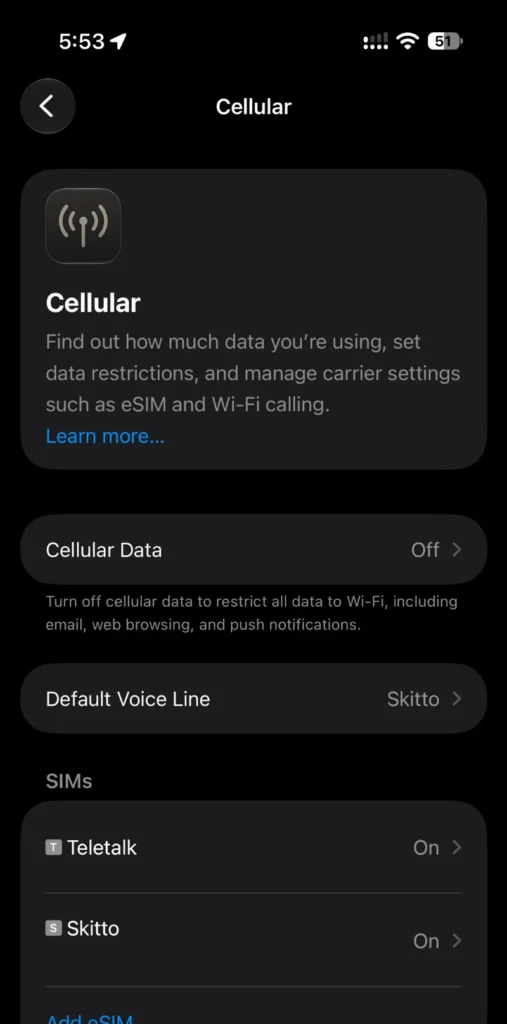
Step 2: Select Your SIM if Needed
If your iPhone uses Dual SIM, you may have multiple cellular plans.
Select the mobile line you want to use with Wi-Fi Calling.
For example, an iPhone with separate personal and work numbers may have different carrier features available for each line.
Wi-Fi Calling must be supported and configured for the relevant cellular service.
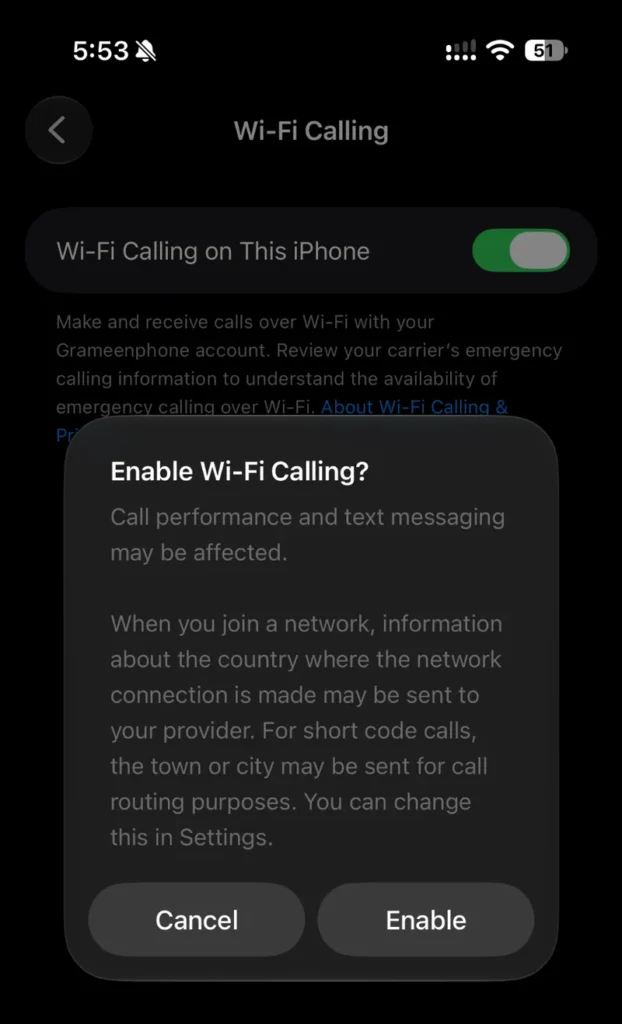
Step 3: Enable Wi-Fi Calling
- Tap Wi-Fi Calling.
- Find Wi-Fi Calling on This iPhone.
- Turn the switch on.
- Tap Enable if a confirmation appears.
Your carrier may display additional information or terms.
Follow the instructions shown on your device.
Step 4: Confirm Your Emergency Address
Some carriers require you to provide or confirm an address for emergency services.
Enter accurate information and review it when your location changes.
This is important because an emergency call made over Wi-Fi may not provide location information in the same way as a call over a cellular network.
Do not enter an incorrect address simply to complete setup.
Step 5: Connect to Wi-Fi
Open Settings > Wi-Fi and connect to a reliable network.
Make sure you can access the internet.
Once the feature is enabled and the carrier recognizes a suitable connection, your iPhone can use Wi-Fi Calling when appropriate.
How to Know if Wi-Fi Calling Is Working on iPhone
Turning on the Wi-Fi Calling switch does not necessarily mean every call is currently using Wi-Fi.
Your iPhone selects an available calling connection based on network conditions and carrier support.
Check the carrier indicator
Apple explains that a Wi-Fi indicator can appear alongside your carrier name when Wi-Fi Calling is active.
On supported iPhones, open Control Center to inspect the carrier status more easily.
You may see an indicator similar to:
Carrier Wi-Fi
The exact display can vary according to your provider and software.
If the Wi-Fi Calling indicator appears, the feature is available for calling through that network.
Place a normal phone call
Use the Phone app to call a trusted contact.
If Wi-Fi Calling is active, your carrier can route the call over Wi-Fi.
Avoid relying only on the ordinary Wi-Fi signal icon, which indicates a wireless network connection but does not prove Wi-Fi Calling is active.
Does Wi-Fi Calling work when cellular signal is weak?
That is one of its primary purposes.
A supported iPhone can make or receive ordinary calls through Wi-Fi when cellular coverage is poor or unavailable.
However, it still needs a suitable internet connection and carrier support.
Is Wi-Fi Calling Free on iPhone?
Enabling Wi-Fi Calling is generally not a separate iPhone purchase.
However, call charges are determined by your carrier, service plan, destination, and location.
Wi-Fi Calling is not automatically free for every call.
Domestic calls in the United States
Many eligible US carrier plans include Wi-Fi calls to US numbers without additional Wi-Fi Calling fees.
For example, AT&T’s published Wi-Fi Calling terms generally allow qualifying calls to US numbers without an additional charge, subject to exclusions.
Your normal plan rules may still apply.
International calls
International Wi-Fi Calling can be billed differently.
A call made over Wi-Fi to an international number may incur international calling charges.
Your physical location may also affect billing rules.
Never assume that using hotel Wi-Fi makes an overseas telephone call free.
Does Wi-Fi Calling use mobile data?
When a call is actually carried over Wi-Fi, the call uses the Wi-Fi internet connection rather than ordinary cellular data for that connection.
However, if the iPhone switches to cellular service, the mobile connection becomes involved.
If your Wi-Fi connection is metered or subject to a data limit, the internet provider’s data usage policies may also matter.
For specific rates, consult your carrier’s Wi-Fi Calling terms.
Does Wi-Fi Calling Work Without Cellular Service?
Wi-Fi Calling can work in an area with little or no cellular coverage, provided it was successfully enabled and your carrier service remains eligible.
That does not mean you can use it without an active mobile subscription.
What if your iPhone says No Service?
If your carrier supports Wi-Fi Calling and your service is properly provisioned, a usable Wi-Fi network may allow supported calls even when nearby cellular coverage is unavailable.
However, this behavior depends on the carrier, network, and activation status.
If you have never activated Wi-Fi Calling on that line, you may need to complete carrier setup first.
Does Wi-Fi Calling work in Airplane Mode?
On some supported carrier and iPhone configurations, Wi-Fi Calling can work with Airplane Mode enabled after you manually turn Wi-Fi back on.
This is not universal.
If the network and carrier permit it, the phone may use Wi-Fi rather than cellular radio service for supported calls.
Do not assume this behavior will work on every carrier or rely on it for emergency communication without understanding the limitations.
Can You Receive Calls and Text Messages With Wi-Fi Calling?
Yes, on supported carrier configurations.
Wi-Fi Calling primarily supports ordinary incoming and outgoing voice calls using your mobile number.
It can also support SMS messaging over Wi-Fi when the carrier and device configuration allow it.
Receiving regular phone calls
When Wi-Fi Calling is active, incoming calls to your mobile number can reach your iPhone through a suitable Wi-Fi connection.
You don’t need to give callers a different number.
Sending SMS messages over Wi-Fi
Apple states that enabling Wi-Fi Calling can allow SMS messages to be sent over Wi-Fi.
Availability may depend on your carrier and messaging configuration.
What about iMessage?
iMessage is a separate Apple messaging service that can communicate over an internet connection.
You do not need carrier Wi-Fi Calling merely to send an iMessage over a working Wi-Fi connection.
Likewise, WhatsApp messaging and calls do not depend on your carrier’s Wi-Fi Calling feature.
Why Is Wi-Fi Calling Not Showing on iPhone?
If the Wi-Fi Calling option is missing from Cellular settings, the issue may involve carrier eligibility rather than an iOS software bug.
Start with these checks.
Check your carrier’s support
Confirm that your carrier supports Wi-Fi Calling for your mobile number and device.
Some plans may require additional activation or provisioning.
If the feature is not offered on your plan, changing unrelated iPhone settings will not necessarily make it appear.
Check the correct cellular line
On Dual SIM iPhones, make sure you selected the intended line.
Wi-Fi Calling support may differ between two mobile plans.
Install available software updates
Open Settings > General > Software Update.
Check whether your iPhone has an available update.
You can also check for carrier settings updates through Settings > General > About, if your carrier offers one.
Restart your iPhone
Restarting can help clear temporary connection or configuration issues.
After restarting, reopen the Cellular settings and check again.
Contact your carrier
If the option remains unavailable, ask whether Wi-Fi Calling is supported and provisioned for your specific number.
Our separate iPhone Wi-Fi Calling Not Working guide covers more detailed troubleshooting.
How to Fix Wi-Fi Calling That Keeps Disconnecting
If you’ve enabled Wi-Fi Calling but calls drop or fail to connect, test the underlying network first.
1. Check your Wi-Fi internet connection
Open Safari and load a website.
If websites won’t load, your Wi-Fi connection may not have usable internet access.
See our iPhone Connected to Wi-Fi but No Internet guide for connectivity troubleshooting.
2. Try another Wi-Fi network
Some networks restrict the connections required for carrier Wi-Fi Calling.
Try a trusted home or workplace Wi-Fi network rather than a public hotspot.
3. Restart the iPhone
A restart can resolve some temporary connection problems.
After restarting, confirm Wi-Fi Calling remains enabled.
4. Toggle Wi-Fi Calling
Open Settings > Cellular > Wi-Fi Calling.
Turn the feature off, wait briefly, and turn it on again.
Follow any required confirmation prompts.
5. Check for unstable Wi-Fi
If the iPhone repeatedly disconnects from the wireless network, the problem may affect Wi-Fi Calling as well.
Our iPhone Wi-Fi Keeps Disconnecting guide explains how to investigate recurring Wi-Fi interruptions.
6. Reset Network Settings only if necessary
Apple includes Reset Network Settings among the advanced troubleshooting steps for Wi-Fi Calling.
Use it only after easier checks and carrier verification.
Go to:
Settings > General > Transfer or Reset iPhone > Reset > Reset Network Settings
This removes saved network configurations, including previously used Wi-Fi networks and certain VPN settings.
Have your Wi-Fi passwords ready before proceeding.
Reset Network Settings is different from erasing all content on your iPhone.
If problems persist after the reset, contact your carrier for assistance.
Wi-Fi Calling and Emergency Calls: Important Safety Information
Emergency calling deserves special attention.
When cellular service is available, Apple says your iPhone normally uses that service for emergency calls.
If cellular service is unavailable and Wi-Fi Calling is enabled, some emergency calls may be placed over Wi-Fi.
However, emergency call routing and location handling can differ.
Keep your emergency address accurate
Some US carriers request a registered emergency address when Wi-Fi Calling is activated.
This address may help route emergency services if the call cannot use ordinary cellular location information.
Update your registered address when required.
Wi-Fi Calling isn’t a guaranteed emergency connection
Wi-Fi Calling depends on compatible service and a suitable internet connection.
Network outages, router failures, power loss, and restrictions can affect availability.
Apple also notes that an iPhone connected through Wi-Fi Calling may not receive certain emergency alerts in some circumstances.
Do not rely exclusively on Wi-Fi Calling as your only way to contact emergency services.
Wi-Fi Calling vs. Cellular Calling: Which Is Better?
Neither connection is automatically better in every situation.
Wi-Fi Calling may be better when:
- Your cellular signal is weak indoors.
- You have a reliable broadband connection.
- You are in a location with limited cellular coverage.
- You need regular phone service through a supported Wi-Fi network.
Cellular calling may be better when:
- Your mobile carrier signal is strong.
- Your Wi-Fi network is slow or unstable.
- You are moving between different Wi-Fi networks.
- Your router or broadband service is unavailable.
On supported networks, an iPhone may switch between Wi-Fi Calling and cellular voice service as conditions change.
However, seamless switching is not guaranteed in every situation.
Frequently Asked Questions
What is Wi-Fi Calling on iPhone?
Wi-Fi Calling is a carrier-supported feature that allows an iPhone to make and receive regular phone calls through a suitable Wi-Fi internet connection instead of relying solely on cellular coverage.
How do I turn on Wi-Fi Calling on iPhone?
Open Settings > Cellular > Wi-Fi Calling, choose the appropriate line if necessary, and enable Wi-Fi Calling on This iPhone. Follow any carrier or emergency-address prompts.
Does Wi-Fi Calling cost extra?
Charges depend on your carrier, plan, call destination, and location. Many US plans include qualifying domestic Wi-Fi calls, but international or premium calls may have additional charges.
Can I use Wi-Fi Calling without cellular signal?
Yes, on supported services, Wi-Fi Calling can work in locations without usable cellular coverage. Your mobile line must still be eligible, and a working Wi-Fi connection is required.
Does Wi-Fi Calling work with Airplane Mode?
It may work on eligible devices and carriers when Wi-Fi is manually enabled after turning on Airplane Mode. Availability and behavior depend on the carrier.
Why can’t I find Wi-Fi Calling in Settings?
Your carrier may not support the feature for your line, or it may not be provisioned. Check the correct SIM, confirm carrier support, update iOS, and contact your mobile provider.
Is Wi-Fi Calling better than FaceTime Audio?
They serve different purposes. Wi-Fi Calling uses your carrier’s telephone service and mobile number, while FaceTime Audio is an internet-based Apple calling service.
Can I receive SMS over Wi-Fi Calling?
On supported carrier configurations, Wi-Fi Calling can support SMS messaging over Wi-Fi. Availability and behavior may vary by mobile provider.
Will Wi-Fi Calling help if my iPhone microphone isn’t working?
Not necessarily. Wi-Fi Calling changes how the call connects to your carrier; it does not repair a faulty microphone. If people cannot hear you on regular calls or Wi-Fi calls, see our iPhone Microphone Not Working on Calls guide.
Can I use Wi-Fi Calling while traveling internationally?
Possibly, if your carrier supports it. Check destination availability, roaming terms, international calling rates, and any emergency-service limitations before traveling.
Final Thoughts
Wi-Fi Calling on iPhone is a useful way to maintain ordinary phone service when cellular coverage is unreliable but Wi-Fi internet access is available.
To get started, open Settings > Cellular > Wi-Fi Calling, enable the feature, and complete any required carrier verification.
Once activated, look for the carrier’s Wi-Fi Calling indicator to check whether it is available.
Remember that your mobile provider determines eligibility and charges. Wi-Fi Calling is also not a guaranteed replacement for reliable emergency phone service.
If you’re having trouble enabling it, verify your carrier support first, then investigate your Wi-Fi connection before considering more advanced resets.
Official Sources and Further Reading
- Apple Support: Make a call with Wi-Fi Calling
- Apple iPhone User Guide: Make calls using Wi-Fi
- Apple Support: US and Canada wireless carrier features
- AT&T: Wi-Fi Calling overview and charges
- Verizon: Wi-Fi Calling FAQs
Last reviewed: November 20, 2026. Feature availability and billing depend on the mobile carrier, plan, and location. This guide uses official Apple and carrier documentation; carrier-specific calling behavior has not been independently tested.