Quick Answer: How to Free Up Storage on iPhone
Wondering how to free up storage on iphone without losing important files? Open Settings > General > iPhone Storage, review what’s taking up space, and start with unnecessary downloads or unused apps. You can also offload apps, optimize iCloud Photos, merge duplicate pictures, and remove large message attachments.
The safest approach is to identify the biggest storage categories first, then remove only content you no longer need.
Important: If iCloud Photos or Messages in iCloud is enabled, deleting content on your iPhone may also delete it from your other synced Apple devices. Back up irreplaceable files before removing them.
This guide covers 12 practical ways to reclaim storage on iPhones running iOS 27 and many earlier versions.
Table of Contents
Why Is My iPhone Storage Full?
Your iPhone stores more than the apps you install.
Photos, videos, messages, downloaded music, offline streaming content, documents, and system files can all consume device storage.
Some applications also accumulate additional files over time.
For example, a messaging app might be relatively small when installed but grow significantly as conversations and attachments accumulate.
Similarly, video streaming apps can store downloaded episodes that remain on the device long after you’ve watched them.
What happens when iPhone storage is almost full?
You may experience:
- Difficulty installing or updating apps
- Problems downloading files
- Limited space for photos and videos
- Failed downloads or software updates
- Reduced responsiveness in some situations
- Messages warning that storage is running low
Apple recommends maintaining at least 1 GB of free storage to help avoid slowdowns. Having more free space may be useful, especially before large software updates or video recordings.
The goal is not to remove everything. It’s to free enough space for the iPhone to function comfortably.
1. Check What’s Taking Up Space
Before deleting anything, identify which storage categories are largest.
Steps
- Open Settings.
- Tap General.
- Select iPhone Storage.
- Wait for the storage calculation to finish.
- Review the colored chart showing storage categories.
- Scroll through the installed apps.
- Tap an app to see its size and associated data.
Depending on your usage, the largest categories may include Applications, Photos, Messages, Media, iOS, or System Data.
For example, if Photos uses substantially more space than other categories, removing a few small apps probably won’t solve your problem.
Likewise, if downloaded media is the main issue, buying more iCloud storage won’t automatically remove those downloads.
Tip: Focus on the largest removable categories first. You’ll usually make more progress than by deleting dozens of tiny files.
2. Offload Unused Apps Without Losing Their Documents
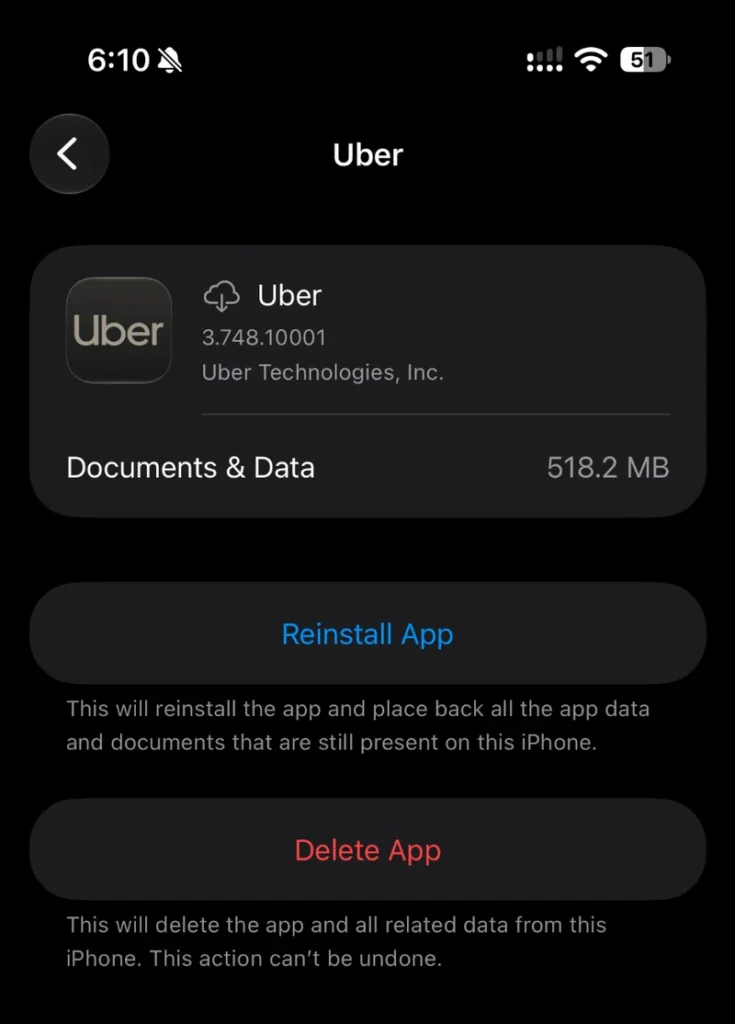
Offloading removes the installed application while keeping its documents and data.
This is useful when you rarely use an app but want to preserve its locally stored information.
How to offload an app manually
- Open Settings > General > iPhone Storage.
- Select an app you rarely use.
- Tap Offload App.
- Confirm the action.
The application is removed, but its documents and data are retained.
You can reinstall the app later, provided it remains available for download.
Enable automatic app offloading
On recent iOS versions:
- Open Settings.
- Tap Apps.
- Select App Store.
- Enable Offload Unused Apps.
When storage is low, iOS can automatically remove apps you haven’t used recently while keeping their documents and data.
Does offloading an app remove everything?
No.
Offloading primarily removes the installed application.
If an app has substantial documents and data, those files may continue occupying storage.
For example, if an application occupies 700 MB but has 2 GB of documents and data, offloading may free much less space than deleting the app and its data.
Be careful: Offloading and deleting an app are not the same operation.
3. Delete Apps You No Longer Need
If an application is no longer useful, deleting it may reclaim both its installation space and related local data.
Steps
- Open Settings > General > iPhone Storage.
- Select the unwanted application.
- Tap Delete App.
- Confirm the deletion.
You can also remove an app from the Home Screen, but be sure to choose Delete App, not simply Remove from Home Screen.
What should you check before deleting an app?
Some apps store important information locally.
This can include:
- Unsent drafts
- Offline notes
- Saved documents
- Downloaded audio and video
- Game progress
- Application-specific files
Check whether these files are backed up or synchronized.
Deleting an app can permanently remove data that isn’t stored elsewhere.
For essential applications, consider offloading first.
4. Optimize iPhone Photos Without Deleting Originals
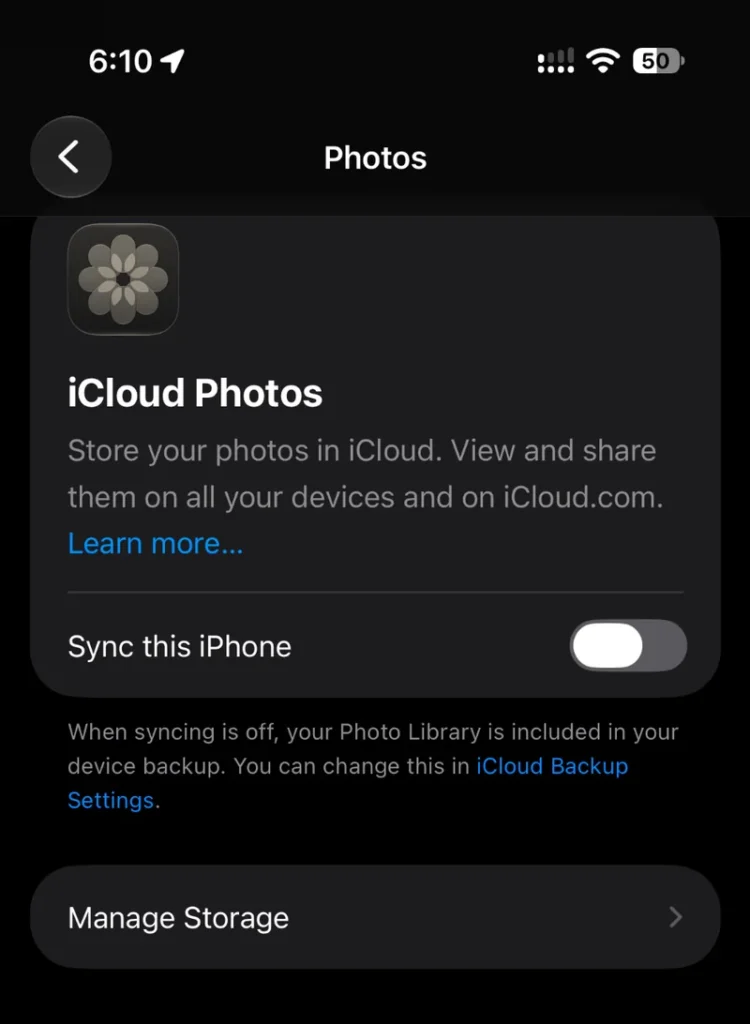
Photos and videos are often among the largest storage categories on an iPhone.
If you use iCloud Photos, Optimize iPhone Storage can reduce the amount of local space needed for your photo library.
The full-resolution originals remain in iCloud, while your iPhone can keep smaller versions when appropriate.
How to enable Optimize iPhone Storage in iOS 27
- Open Settings.
- Tap your name or Apple Account.
- Select iCloud.
- Tap Photos.
- Ensure Sync this iPhone is enabled.
- Tap iPhone Storage.
- Choose Optimize iPhone Storage.
On iOS 26 or earlier, the Optimize Storage option may appear directly on the iCloud Photos settings screen.
How much space can this save?
The amount varies.
It depends on the size of your photo library, the amount of available storage, your iCloud capacity, and the original files that iOS needs locally.
A photo library containing many high-resolution videos may provide a greater opportunity for savings than a small library.
Optimization is not always immediate. Your photos must be properly synchronized, and iOS manages local copies over time.
Important things to know
Optimize iPhone Storage requires sufficient available iCloud storage for your photo library.
It is also different from manually deleting photos.
Deleting a photo from iCloud Photos generally deletes it across devices using the same synced library.
If your library isn’t syncing properly, see our iCloud Photos Not Syncing on iPhone guide before removing important images.
5. Delete Unnecessary Large Videos and Photos
High-resolution videos can consume significant storage.
A few long videos may take up more space than hundreds of ordinary photographs.
Find unnecessary media
- Open the Photos app.
- Open Collections.
- Find Media Types.
- Select Videos.
- Review videos you no longer need.
- Save important recordings elsewhere before deleting them.
You can also review screenshots, screen recordings, and other media categories.
Prioritize files you recognize and no longer need.
Check Recently Deleted
Deleted photos and videos generally remain in the Recently Deleted collection for up to 30 days.
To review them:
- Open Photos.
- Go to Collections.
- Find Recently Deleted under Utilities.
- Authenticate if requested.
- Review its contents.
If you’re certain the files are no longer needed, you can delete them permanently.
Warning: Permanently deleting items from Recently Deleted cannot normally be undone.
Do not empty it simply to make a storage number look smaller if it contains important photos.
Also remember that deleting photos from a synced iCloud Photos library affects the library across your devices.
6. Merge Duplicate Photos and Videos
Your iPhone can detect certain duplicate images and videos automatically.
Merging duplicates can reduce unnecessary copies while retaining the relevant photo information.
How to find duplicate photos
- Open Photos.
- Tap Collections.
- Scroll to Utilities.
- Tap Duplicates, if available.
- Review the detected items.
- Tap Merge for duplicates you want to combine.
Apple says duplicate detection requires the iPhone to analyze the photo library.
This process can take time, and the Duplicates collection may not appear until the system finds matching items.
What if you don’t see Duplicates?
That does not necessarily mean something is broken.
Your iPhone may still be analyzing the library, or it may not have detected any duplicates.
You don’t need to install a third-party duplicate-photo cleaner simply because this collection isn’t visible.
Is merging duplicates safe?
Apple’s feature is designed to consolidate duplicate items while preserving relevant information.
Even so, it’s sensible to maintain a backup of important photos before making large library changes.
7. Remove Downloaded Netflix, YouTube, and Other Offline Videos
Offline videos are easy to forget.
Streaming applications may store several episodes, movies, or other downloads on your iPhone.
These files can occupy substantial storage.
How to remove offline downloads
- Open the streaming application.
- Locate its Downloads or Offline section.
- Review downloaded videos.
- Select content you’ve already watched.
- Use the app’s option to remove the downloaded copy.
The exact procedure varies by application.
Which apps should you check?
Examples include:
- Netflix
- YouTube
- Apple TV
- Disney+
- Spotify
- Apple Music
- Podcast applications
Deleting an offline download generally does not mean deleting the video or music from the provider’s online catalog.
However, availability depends on your subscription and the provider’s content policies.
If you have very limited storage, offline media is often one of the first categories worth reviewing.
8. Remove Unnecessary Files From the Files App
The Files app can store documents, ZIP archives, videos, PDFs, and other downloads.
Some files are stored locally under On My iPhone.
Others are stored in iCloud Drive or third-party cloud services.
This distinction is important when freeing device storage.
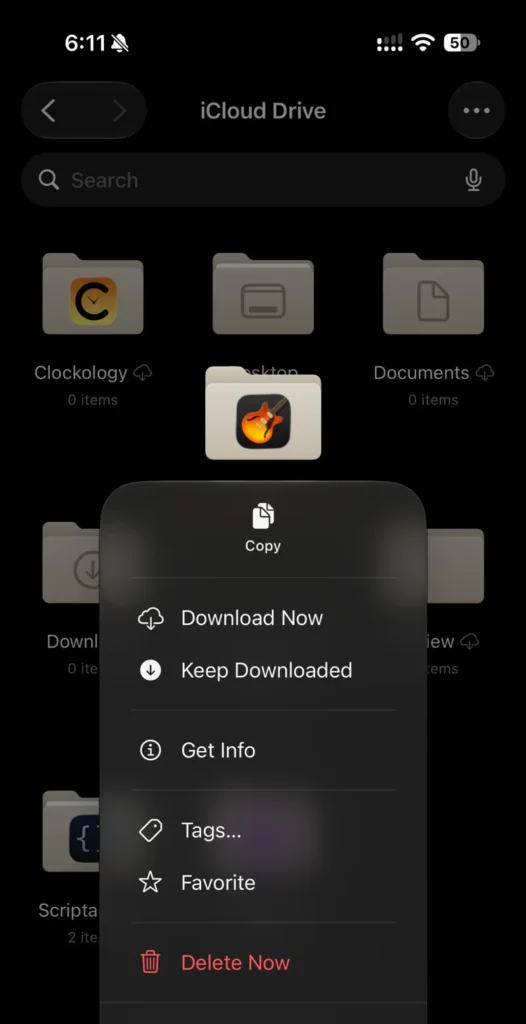
Check locally stored files
- Open Files.
- Tap Browse if needed.
- Open On My iPhone.
- Review its folders and downloaded files.
- Identify files you no longer need.
- Back up important items before deleting them.
Large video files, exported documents, and downloaded archives may be worth reviewing first.
Remove local copies of iCloud Drive files
If an iCloud Drive file has been downloaded onto your device, you may be able to remove its local copy without deleting the cloud original.
- Open Files.
- Go to iCloud Drive.
- Locate a downloaded file.
- Touch and hold the file.
- Choose Remove Download, if available.
This removes the downloaded copy while retaining the file in iCloud Drive.
Delete vs. Remove Download: The crucial difference
Remove Download: Removes the local downloaded copy of a cloud file while keeping the cloud version.
Delete: Can delete the actual file from iCloud Drive and other synced devices.
Never confuse these two options.
If your iCloud Drive files are unexpectedly missing or not updating, check our iCloud Drive Files Not Syncing on iPhone guide.
9. Delete Large Attachments From Messages
Messages can accumulate photos, videos, and other attachments.
Some attachments may be important, but others are unnecessary copies of files you already have.
Review a conversation’s attachments
- Open Messages.
- Select a conversation.
- Tap the contact or group name at the top.
- Open a category such as Photos.
- Review the attachments.
- Tap Edit and select the items you no longer need.
- Delete the selected attachments.
Depending on your software version, the exact buttons may differ slightly.
What about deleting old conversations?
You can delete entire conversations, but that also removes message history.
Avoid doing this if the conversation contains important details.
On supported iOS versions, you can configure automatic message retention through:
Settings > Apps > Messages > Keep Messages
Choosing a shorter retention period can automatically remove older messages and attachments.
Important: This is not merely a cache-cleaning option. It deletes conversation history according to the selected retention period.
If Messages in iCloud is enabled, deletions can synchronize across your other Apple devices.
10. Review App Downloads and Cached Content
Some applications store downloaded media, documents, or temporary information.
The amount varies widely between apps.
Find apps with large Documents & Data
- Open Settings > General > iPhone Storage.
- Select an application.
- Look at App Size.
- Compare it with Documents & Data.
For example, an application might have a relatively small installation size but several gigabytes of locally stored information.
This does not automatically mean the data is unnecessary.
How to reduce app storage safely
First, open the application itself.
Look for settings related to:
- Offline downloads
- Saved media
- Downloaded files
- Cached content
- Temporary files
- Storage management
If the app provides a built-in option to remove unnecessary content, use that first.
Not every iPhone application provides a separate cache-clearing control.
Avoid deleting and reinstalling apps without checking whether important drafts, files, or saved data are backed up.
For a specific example, see our How to Clear Facebook Cache on iPhone guide.
11. Remove Downloaded Music, Podcasts, and Audiobooks
Audio files may use substantial storage if you regularly download music, long podcast episodes, or audiobooks for offline use.
The individual files may seem small, but a large library can add up.
Review downloaded audio
Open the relevant app, such as:
- Apple Music
- Podcasts
- Books
- Spotify or another music service
Locate downloaded content and review what you actually need offline.
Remove downloaded copies you no longer use.
Will removing a download delete my purchased content?
Removing a downloaded copy generally differs from deleting the item from your account or the provider’s library.
However, access to subscriptions, purchased content, and downloads can vary.
Verify the app’s behavior before removing material you cannot easily download again.
12. Move Important Files to a Computer or External Storage
If you’ve already removed unnecessary files but still need more storage, consider moving large personal files somewhere else.
This is particularly useful for original videos, work documents, and archived media.
Transfer files to a Mac
Depending on the file type, you can use:
- Photos import
- Finder
- AirDrop
- A compatible USB cable
- Another supported transfer method
For example, you can import selected photos and videos to a Mac and verify that they are stored safely before considering removal from the iPhone.
Use an external storage device
Compatible iPhones can work with supported external storage devices through the Files app.
Some USB-C iPhone models support direct connections to compatible USB drives and external SSDs.
The device and storage format must be supported.
Verify your backup before deleting anything
Before removing files from your iPhone:
- Open the transferred files on the destination device.
- Confirm the transfer completed correctly.
- Check that important photos and videos play or open.
- Make a second backup for irreplaceable material when possible.
- Only then decide whether to delete the local originals.
A successful file transfer should be verified, not assumed.
What If iPhone Storage Is Still Full After Cleaning?
If your storage remains almost full, examine the storage chart again.
You may discover that most of the remaining space is occupied by necessary applications, photos, or system files.
Check System Data
Open Settings > General > iPhone Storage and review the System Data category.
System Data may contain caches, logs, and other supporting files.
iOS manages many temporary files automatically.
If the category appears unexpectedly large, see our iPhone System Data Taking Up Storage guide.
Avoid apps that claim they can magically erase protected iOS system files.
Restart your iPhone
Restarting may help when temporary storage estimates have not updated correctly.
However, restarting isn’t a guaranteed way to reclaim large amounts of storage.
Review software updates
New software versions may improve storage management or fix certain bugs.
Before updating, confirm that you have sufficient available space and a recent backup.
Do not attempt an unnecessary factory reset simply to reclaim a small amount of storage.
iPhone Storage vs. iCloud Storage: What’s the Difference?
Your iPhone’s built-in storage is the physical space available for apps, files, photos, and other local content.
iCloud storage is cloud capacity associated with your Apple Account.
Purchasing additional iCloud storage does not physically increase the capacity of your iPhone.
However, supported features such as iCloud Photos with Optimize iPhone Storage may help reduce local storage usage.
For example:
An iPhone with 128 GB of built-in storage still has 128 GB of physical capacity even after upgrading to a larger iCloud+ plan.
The additional cloud space may help you store full-resolution photo originals online, but it does not turn the device into a higher-capacity model.
Our separate iCloud storage guide will explain how to manage cloud usage without confusing it with local device storage.
What Should You Avoid When Freeing Up iPhone Storage?
Some shortcuts can cause more problems than they solve.
Avoid:
- Deleting irreplaceable photos without checking backups.
- Removing iCloud Drive files when you only intended to remove local downloads.
- Clearing important app data without understanding what it contains.
- Installing unknown storage-cleaning profiles or utilities.
- Treating every System Data file as unnecessary.
- Factory-resetting your iPhone without a verified backup.
- Deleting entire Messages conversations solely to remove a few large attachments.
The safest storage cleanup is selective and reversible wherever possible.
How Much Free Storage Should You Keep on an iPhone?
Apple recommends maintaining at least 1 GB of free storage to help prevent slowdowns.
That is a minimum troubleshooting guideline, not a target you must keep your phone close to.
For everyday use, having several gigabytes available gives you more flexibility for app installations, downloads, videos, and updates.
The ideal amount depends on how you use your iPhone.
Someone who records long 4K videos may need substantially more free space than someone who primarily uses messaging and web browsing.
Rather than pursuing a fixed percentage, make sure you have enough available storage for your normal activities.
Frequently Asked Questions
How can I free up storage on iPhone without deleting photos?
Start by offloading unused apps, removing offline videos, deleting unnecessary downloads, reviewing message attachments, and using Optimize iPhone Storage with iCloud Photos when appropriate.
Does offloading apps actually free up storage?
Yes. Offloading removes the application itself while keeping its documents and data. The amount of space recovered depends on the application’s installed size.
Does buying iCloud storage free up space on my iPhone?
Not automatically. iCloud storage is separate from your iPhone’s built-in capacity. Features such as Optimize iPhone Storage may reduce local photo storage after proper synchronization.
How do I remove downloaded files without deleting them from iCloud?
In the Files app, locate the downloaded file in iCloud Drive, touch and hold it, and choose Remove Download when available. Do not choose Delete if you want to keep the cloud original.
Why is my iPhone storage full when I don’t have many apps?
Large photos, videos, message attachments, downloaded media, app documents, and System Data may consume substantial space even when relatively few apps are installed.
Is it safe to delete System Data on iPhone?
System Data contains files needed or managed by iOS. Many are not intended for manual deletion. Investigate unusually high usage rather than attempting to erase protected system files.
Does deleting photos free up space immediately?
Not always. Deleted photos may remain in Recently Deleted for up to 30 days. Permanently removing them may reclaim space, but it can also eliminate recovery options.
Can I increase my iPhone’s built-in storage?
You cannot ordinarily upgrade an iPhone’s internal storage capacity after purchase. You can free existing space, use cloud storage for supported content, or transfer files to a computer or compatible external drive.
What is the quickest way to free up several gigabytes?
Check your largest storage categories first. Removing unnecessary offline videos or safely transferring large recordings may reclaim more space than deleting many small applications.
Will clearing Safari history free up iPhone storage?
It may remove some stored website information, but the amount saved varies and may be small. Clearing browsing data can also affect website sessions and saved site information, so it should not be your first storage-cleanup method.
Final Thoughts
Learning how to free up storage on iPhone is about understanding which files you actually need and removing unnecessary content safely.
Start with Settings > General > iPhone Storage, identify the largest categories, and review your downloaded content.
Offloading unused apps, optimizing photos, removing offline media, and clearing unnecessary attachments can all help reclaim space.
Before deleting anything important, verify your backups and remember that iCloud-synced deletions may affect other devices.
A careful, targeted cleanup is usually better than repeatedly deleting random apps or relying on unverified cleaner tools.
Official Apple References
- Apple: How to check the storage on your iPhone and iPad
- Apple: Manage storage on iPhone
- Apple: Manage your photo and video storage
- Apple: Delete files or recover deleted files in Files
- Apple: Delete messages and attachments on iPhone
Last updated: November 20, 2026. Instructions are based on Apple’s published guidance for recent iOS versions. Exact settings may vary by device and software version.