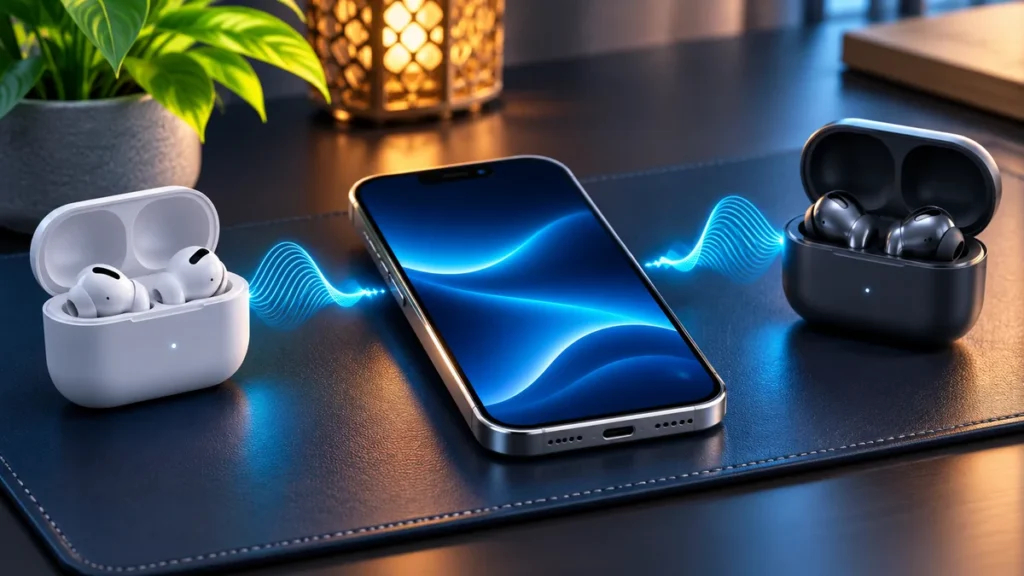
Quick Answer: Can You Connect Two Bluetooth Headphones to iPhone?
Can you connect two bluetooth headphones to iphone and listen to the same music or movie together?
Yes, but it depends on the headphones. Apple provides a built-in feature called Share Audio that lets two compatible pairs of AirPods or Beats headphones play audio from one supported iPhone.
Here’s the simplest way:
- Connect your first compatible AirPods or Beats headphones to your iPhone.
- Start playing music or a video.
- Open Control Center.
- Tap the audio-output icon in the playback controls.
- Select Share Audio.
- Bring the second compatible headphones close to your iPhone.
- Follow the onscreen instructions to connect them.
- Start listening through both pairs.
You can adjust the volume of each pair separately.
Important: Apple’s built-in Share Audio feature does not support every Bluetooth headphone brand. Two ordinary third-party headphones generally cannot receive the same iPhone audio simultaneously through normal Bluetooth settings.
This guide explains compatible iPhones and headphones, the setup process, troubleshooting, and possible hardware alternatives.
Table of Contents
Can an iPhone Play Audio Through Two Bluetooth Headphones at Once?
An iPhone can support two simultaneous headphone listeners when the devices meet Apple’s Audio Sharing requirements.
For example, two people can listen to the same song or movie using compatible AirPods and Beats headphones.
This is useful when:
- Watching a movie together while traveling
- Listening to a podcast with a friend
- Sharing music without using the iPhone speaker
- Watching videos quietly in public
- Listening together without carrying separate phones
However, there is an important distinction between pairing Bluetooth accessories and sharing live audio with two headphones.
Bluetooth pairing is not the same as Audio Sharing
Your iPhone can remember multiple Bluetooth accessories.
You might have wireless earbuds, a car stereo, a speaker, and a smartwatch in its Bluetooth device list.
That does not mean the iPhone can automatically stream the same music to every connected audio device.
Ordinary Bluetooth audio usually has one selected playback destination.
Apple’s Share Audio feature provides a special supported method for sending the same playback to two compatible headphone sets.
Does iPhone have Dual Audio?
Apple’s equivalent feature for supported headphones is called Share Audio, rather than the Dual Audio setting found on some Android phones.
It is not a universal Bluetooth feature that works with any two wireless headphones.
If you have two unsupported third-party headsets, you may need external hardware or another listening arrangement.
Method 1: Connect Two Headphones Using Apple’s Share Audio
This is the recommended approach when both pairs of headphones are compatible.
You do not need a paid application or a separate Bluetooth transmitter.
Step 1: Connect the First Headphones
Start with your first pair of AirPods or compatible Beats headphones.
- Make sure Bluetooth is enabled on your iPhone.
- Put the headphones on or activate them.
- Connect them to the iPhone if they aren’t already connected.
- Open an app that plays music, podcasts, or video.
- Start playing something.
- Confirm the audio is coming through the first headphones.
If the first headphones aren’t working, resolve that connection problem before trying to add a second pair.
For AirPods connection troubleshooting, see our AirPods Not Connecting to iPhone guide.
Step 2: Open the Audio Output Controls
On a Face ID iPhone:
- Swipe down from the upper-right corner to open Control Center.
- Find the Now Playing controls.
- Tap the playback destination icon.
The icon may look different depending on the connected headphones.
You can also access the relevant controls from the Lock Screen or the Now Playing screen in a supported app.
Step 3: Select Share Audio
Look for Share Audio beneath or near the available playback devices.
Tap it.
This starts the process of adding a second compatible pair.
If you don’t see Share Audio, check both headphone models and your iPhone’s compatibility before assuming the setting is broken.
Step 4: Bring the Second Headphones Nearby
Ask the second listener to bring their compatible AirPods or Beats headphones close to your iPhone.
Depending on the model:
- AirPods in a charging case may need the lid open.
- Some headphones may need pairing mode.
- Headphones currently connected to another device may require an additional confirmation.
- The iPhone may show onscreen instructions for completing the connection.
Follow the prompts for the specific headphone model.
Do not assume every AirPods case has the same pairing button or setup procedure.
Step 5: Confirm Both Headphones Are Connected
Once the second pair joins successfully, the playback controls should show both supported headphone sets.
Resume music or video playback if necessary.
Both listeners should hear the same audio content.
If only one pair receives sound, return to the audio-output controls and check which headphones are selected.
Step 6: Test the Volume
Open Control Center and touch and hold the volume control.
When Audio Sharing is active, supported devices can display separate volume adjustments.
Use these controls to make listening comfortable for both people.
You do not need to keep both headphone sets at the same volume.
Which iPhones Support Audio Sharing?
Apple’s Audio Sharing compatibility includes:
- iPhone 8 and later in the main numbered iPhone lineup
- iPhone SE (2nd generation) and later compatible SE models
This includes modern devices such as the iPhone 15, iPhone 16, iPhone 17, and iPhone 18 families.
For example, the iPhone 17 Pro supports the feature.
Older models outside the supported list should not be assumed to provide Audio Sharing.
Do you need the latest iOS version?
Audio Sharing has existed for several generations of iOS.
However, keeping your iPhone on a compatible, up-to-date version is useful for headphone compatibility, connection stability, and newer models.
The steps in this guide reflect Apple’s current iOS 27 instructions.
If you’re using an older version, the appearance of the playback controls may differ.
Which Headphones Work With iPhone Share Audio?
Apple’s documented Audio Sharing feature works with supported AirPods and Beats models.
Compatible AirPods
Apple supports Audio Sharing across compatible models in these product families:
- AirPods
- AirPods Pro
- AirPods Max
This includes supported newer generations.
For example, you can share audio between compatible regular AirPods and AirPods Pro. They do not need to be identical models.
Compatible Beats headphones
Examples documented in Apple’s Beats support guidance include:
- Beats Fit Pro
- Beats Flex
- Beats Solo 4
- Beats Studio Pro
- Beats Studio Buds+
- Powerbeats Pro 2
- Powerbeats Fit
Apple also supports other specific Beats and Powerbeats models.
Not every product with the Beats name is necessarily compatible, so check the exact model against Apple’s current documentation.
Can you mix AirPods and Beats?
Yes, when both headphone models support Apple’s Audio Sharing feature.
For example, compatible AirPods can share audio with compatible Beats headphones.
This is useful if two people own different Apple-supported headphone models.
Do both headphones need Apple’s H1 or H2 chip?
Do not use a particular chip name as the only compatibility test.
Apple’s supported headphone list includes models with different internal hardware.
The reliable approach is to verify the exact model against Apple’s documented Audio Sharing compatibility.
Can You Connect Two Non-Apple Bluetooth Headphones to iPhone?
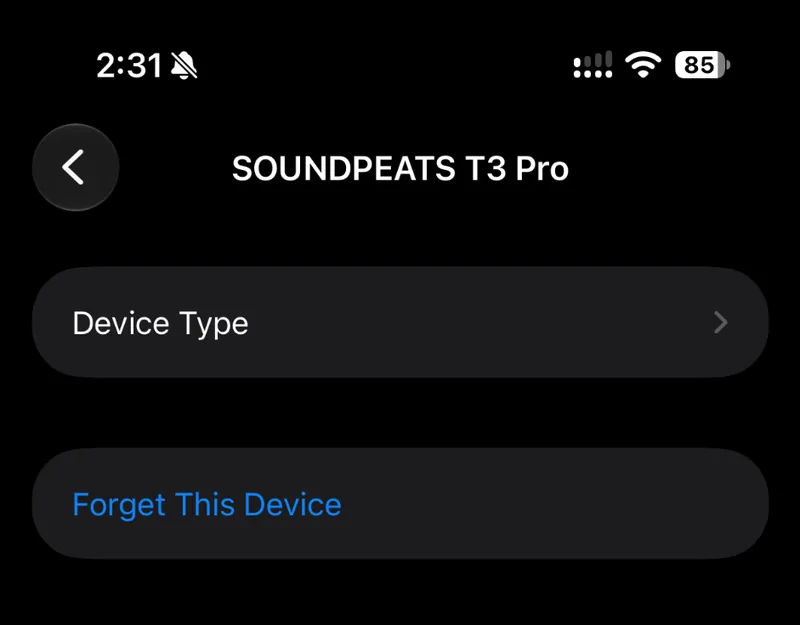
Not through Apple’s native Share Audio feature in the general case.
Headphones from brands such as Sony, Bose, JBL, Soundcore, and SOUNDPEATS may work perfectly well with an iPhone as individual Bluetooth audio devices.
However, ordinary Bluetooth compatibility does not mean those headphones can participate in Apple’s Share Audio system.
Example: Two ordinary Bluetooth earbuds
Imagine you own:
- One pair of SOUNDPEATS earbuds
- One pair of JBL earbuds
- An iPhone 17 Pro
You may be able to pair each pair with the iPhone separately.
However, Apple does not document universal simultaneous audio playback to those two ordinary third-party headphones through Share Audio.
Selecting one audio output may replace the other.
This is a compatibility limitation, not necessarily a fault with your iPhone or either pair of headphones.
Can you use one AirPods pair and one Sony or Bose pair?
Not through Apple’s documented built-in Share Audio workflow unless the second accessory is specifically supported.
Having one compatible AirPods pair doesn’t make an otherwise unsupported Bluetooth headset compatible.
Can a third-party iPhone app unlock Dual Audio?
Do not assume that an app claiming to enable dual Bluetooth audio can change iOS system-wide audio-routing capabilities.
Some applications synchronize playback between multiple phones over an internet or local network connection.
That is different from one iPhone sending its native Bluetooth audio to two arbitrary headphone sets.
Check the technical requirements before paying for an app that promises this functionality.
Method 2: Use a Compatible External Bluetooth Transmitter
If both headphones are ordinary third-party models, an external audio-sharing transmitter may offer an alternative.
A suitable dual-link transmitter receives audio from a source and sends it to two compatible Bluetooth headphone sets.
However, the transmitter must work with your specific iPhone’s audio output.
This is not guaranteed simply because a product advertises Bluetooth 5.3, Bluetooth 5.4, or the ability to connect two headphones.
How the setup works
The general arrangement is:
iPhone → Compatible audio output adapter/transmitter → Two Bluetooth headphones
Instead of using iOS Share Audio, the external transmitter handles the two headphone connections.
For USB-C iPhones
Modern iPhones such as the iPhone 17 Pro use USB-C.
You would need a transmitter or adapter designed to receive audio from a compatible USB-C source, or an appropriate audio-output adapter feeding a transmitter.
Check that the accessory explicitly supports your iPhone model and its audio-output requirements.
Not every USB-C Bluetooth transmitter works with iPhones.
Some products are designed for computers, game consoles, airplane entertainment systems, or televisions.
A product’s USB-C connector alone does not prove compatibility.
For Lightning iPhones
A Lightning-equipped iPhone may require a compatible audio adapter and transmitter arrangement.
The exact equipment depends on the transmitter’s audio input.
Check compatibility with your specific iPhone and connector before buying anything.
Steps to connect two headphones through a transmitter
- Confirm that the transmitter is compatible with your iPhone’s audio output.
- Connect the transmitter using the manufacturer’s instructions.
- Put the first headphones into pairing mode.
- Pair them with the transmitter.
- Put the second headphones into pairing mode.
- Pair the second set with the transmitter.
- Start playing audio on your iPhone.
- Confirm that both headphones receive sound.
The pairing procedure depends on the transmitter.
What are the disadvantages?
External transmitters can introduce limitations:
- Additional hardware cost
- Audio delay during video playback
- Limited support for microphone input or calls
- Differences in audio codec support
- Separate charging requirements
- Compatibility problems with certain devices
A dual-headphone transmitter is not automatically suitable for FaceTime calls, gaming voice chat, or other microphone-based activities.
For most users who already own compatible AirPods or Beats, Apple’s built-in Share Audio is simpler.
How to Adjust Volume for Two Headphones on iPhone
Apple allows independent volume adjustments for compatible headphones during Audio Sharing.
This is especially helpful when two people prefer different listening levels.
Steps
- Start Audio Sharing with two compatible headphone sets.
- Open Control Center.
- Touch and hold the volume slider.
- Look for the individual headphone volume sliders.
- Adjust each listener’s volume separately.
Depending on the headphone model, compatible listening modes may also be available.
Can one listener use Noise Cancellation while the other uses Transparency?
On supported headphone models, Apple provides individual listening-mode controls.
For example, certain AirPods Pro and AirPods Max models allow the two listeners to use different supported listening modes.
The available options depend on the headphones.
Do not assume every Beats or AirPods model has active noise cancellation or Transparency Mode.
How to Disconnect the Second Pair of Headphones
When you’re finished listening together, you can stop Audio Sharing without removing all Bluetooth pairings.
Steps
- Open Control Center or the Now Playing screen.
- Tap the playback destination control.
- Locate the second pair of headphones.
- Tap its name or selection control to end the shared-audio connection.
Your first headphones can continue playing audio normally.
You generally don’t need to select Forget This Device just to stop sharing.
Forgetting a device removes its saved Bluetooth pairing and can create unnecessary reconnection work.
Why Is Share Audio Not Showing on iPhone?
If you can’t find the Share Audio option, check these common causes.
1. The First Headphones Aren’t Compatible
Apple’s Share Audio is intended for supported AirPods and Beats products.
If you’re using an unsupported pair, the feature may not appear.
Check compatibility first.
2. The First Headphones Aren’t Connected
Make sure your first headphones are connected and actively selected as the audio output.
Open Control Center and inspect the playback destination.
Then look again for Share Audio.
3. The Second Headphones Aren’t Ready to Pair
The second pair needs to be nearby and ready for the connection process.
Follow the manufacturer’s pairing instructions.
Some headphones require their case to be open or a pairing control to be activated.
4. Another Device Has Claimed the Connection
Headphones may reconnect automatically to a previously used phone, tablet, or computer.
If the second pair keeps connecting elsewhere, temporarily disconnect it from the other device.
Then retry Apple’s Share Audio procedure.
5. The iPhone Software Needs Attention
Check Settings > General > Software Update for an available compatible update.
Restart the iPhone if the Share Audio interface appears unresponsive.
Do not reset all iPhone settings as your first troubleshooting step.
6. Bluetooth Isn’t Discovering the Headphones
Confirm Bluetooth is enabled.
Charge the headphones, bring them closer, and activate the correct pairing mode.
If the iPhone cannot find Bluetooth devices at all, read our iPhone Bluetooth Not Finding Devices guide.
7. The Headphones Need a Model-Specific Reset
If compatible headphones repeatedly fail to connect, consult the manufacturer’s reset instructions.
AirPods models differ in their pairing and reset procedures.
Don’t follow a reset method intended for a different generation.
For detailed model-specific steps, see our AirPods Not Connecting to iPhone: 12 Fixes.
Can Two Headphones Listen to Different Songs on One iPhone?
Apple’s Share Audio feature is designed for sharing the same audio playback with two listeners.
It does not provide two independent music sessions where one person listens to Spotify and another listens to Apple Music through separate paired headphones.
If two people want entirely different audio streams, separate devices are generally the practical solution.
Does Share Audio work with YouTube or Netflix?
Audio Sharing can work with audio playing through supported applications and compatible headphones.
However, playback behavior can depend on the app, audio route, and content restrictions.
If an application behaves unexpectedly, test the feature with another ordinary audio source to identify whether the issue is app-specific.
Can you use Audio Sharing during phone calls?
Apple’s documented Share Audio workflow is for shared listening.
It should not be assumed to support simultaneous two-headset microphone participation in calls, FaceTime, or conferencing apps.
For calls, use the supported audio-routing controls provided by the iPhone and calling application.
Does Connecting Two Headphones Drain iPhone Battery Faster?
Streaming audio to two headphone sets may require more wireless activity than ordinary single-headphone listening.
However, actual battery use depends on the iPhone model, radio conditions, audio playback, connected accessories, and other factors.
Apple does not provide a universal battery-drain percentage for every Audio Sharing session.
For longer listening sessions, charge your iPhone beforehand or use a suitable power source.
Avoid unnecessary connection troubleshooting while the battery is very low.
Audio Sharing vs. Bluetooth Multipoint: What’s the Difference?
These terms are often confused.
Audio Sharing: One supported iPhone sends the same audio to two compatible headphone sets.
Bluetooth multipoint: One headset can maintain connections to multiple source devices, such as a phone and laptop.
Multipoint does not automatically mean one iPhone can send audio to two separate headphone sets.
For example, headphones that can connect to both your iPhone and Mac are not necessarily compatible with Apple’s Share Audio feature.
Key point: The number of devices a headset can connect to is not the same as the number of headsets one iPhone can play through simultaneously.
Frequently Asked Questions
Can you connect two Bluetooth headphones to iPhone at the same time?
Yes, if you’re using two compatible pairs of AirPods or Beats with Apple’s Share Audio feature. Two arbitrary third-party Bluetooth headphones are not universally supported through iPhone’s built-in audio sharing.
How do I connect two pairs of AirPods to one iPhone?
Connect the first pair, open the playback destination controls, select Share Audio, bring the second pair close, and follow the onscreen pairing instructions.
Can I connect AirPods and Beats to the same iPhone?
Yes, provided both specific models support Apple’s Audio Sharing feature.
Does iPhone 17 Pro support two Bluetooth headphones?
The iPhone 17 Pro supports Apple’s Share Audio feature with compatible AirPods and Beats headphones. This doesn’t mean it supports any two Bluetooth headphones simultaneously.
Can I connect two JBL headphones to one iPhone?
Not through Apple’s standard Share Audio feature unless the exact headphones are supported, which ordinary JBL Bluetooth headphone models are not. Compatible external dual-link transmitting hardware may be an alternative.
Can I connect Sony and Bose headphones simultaneously to iPhone?
Apple does not provide universal native shared playback for that combination. Consider a separately compatible dual-headphone audio transmitter or two playback devices.
Why can’t I find Share Audio on my iPhone?
Check that your iPhone and headphones are compatible, the first pair is connected, and you’re opening the correct playback destination controls.
Can two people control their own volume?
Yes. Apple supports separate volume sliders for the two headphone sets during compatible Audio Sharing sessions.
Can I use Share Audio with Spotify?
Share Audio works with compatible playback sources and headphones. If a particular app causes a problem, test another audio source and check the app’s playback controls.
Can I connect three Bluetooth headphones to one iPhone?
Apple’s built-in Share Audio feature is designed for two compatible headphone sets. It is not a general-purpose three-headphone sharing system.
Does Bluetooth 5.3 or 5.4 mean my iPhone supports Dual Audio?
No. A Bluetooth version number alone does not establish compatibility with Apple’s Share Audio feature.
Is Share Audio the same as AirPlay?
No. Share Audio is Apple’s shared-listening feature for compatible headphones. AirPlay supports media playback and streaming to supported destinations, but it doesn’t make arbitrary Bluetooth headphones compatible with Share Audio.
Does Audio Sharing require Wi-Fi?
The local headphone connection uses supported wireless audio features rather than requiring an internet connection just to pair the headphones. Streaming apps may separately require internet access for their content.
Can I use two Bluetooth headphones for FaceTime?
Apple’s documented Share Audio system is intended for shared listening. You should not assume two separate headphone microphones can participate simultaneously in a FaceTime call.
Do I need to install a third-party app?
No, not for Apple’s built-in Share Audio with compatible AirPods or Beats. It is part of the supported iPhone audio controls.
Final Thoughts
So, can you connect two bluetooth headphones to iphone?
Yes, with an important compatibility limitation.
If you have two compatible sets of AirPods or Beats, Apple’s Share Audio feature lets you listen together from one supported iPhone.
You can set up the connection through Control Center, add a second compatible pair, and control the listening volume independently.
If you have two ordinary third-party Bluetooth headphones, the built-in Share Audio feature generally won’t work with them.
In that case, a compatible external dual-link Bluetooth transmitter may be an option, but it requires additional hardware and careful compatibility checks.
For most supported iPhone users, Apple’s native Share Audio remains the simplest solution for listening together.
Official Apple References
- Apple Support: Share audio with AirPods and Beats headphones from iPhone or iPad
- Apple Support: Share audio with Beats or AirPods from iPhone or iPad
- Apple Support: Pair AirPods with an Apple device
- Apple Support: AirPods User Guide
Last reviewed: November 21, 2026. Device compatibility can change as new headphones and software versions are released. Confirm support for your specific headphone model before purchasing additional equipment.