Quick Answer: How to Connect iPhone to Car Bluetooth
Wondering how to connect iphone to car bluetooth so you can play music, answer calls, and listen through your vehicle’s speakers?
Most Bluetooth-equipped car stereos can pair with a compatible iPhone in just a few steps.
Here’s how to connect your iPhone to your car using Bluetooth:
- Park your car safely and turn on its infotainment system.
- Open your car’s Phone, Bluetooth, or Device Connections menu.
- Select Add Phone, Pair New Device, or the equivalent option.
- On your iPhone, open Settings > Bluetooth and turn Bluetooth on.
- Tap your car’s name when it appears under available devices.
- Confirm the matching pairing code on both screens, if requested.
- Select Bluetooth audio on the car stereo and test music or a call.
Once paired, your iPhone and car may reconnect automatically on future trips.
Important: The exact buttons depend on your vehicle’s make, model, year, and infotainment system. Complete the initial setup while parked, not while driving.
This guide covers iPhone 17 Pro, iPhone 16, iPhone 15, and other compatible models, including devices running recent iOS versions such as iOS 27.
Table of Contents
What Do You Need to Connect an iPhone to Car Bluetooth?
Before pairing, make sure your vehicle actually supports Bluetooth phone connections.
Many modern cars include Bluetooth for hands-free calls, music playback, or both.
However, the exact features depend on the car stereo.
Requirements
You’ll usually need:
- An iPhone with Bluetooth enabled
- A car stereo with compatible Bluetooth functionality
- Access to the car’s phone-pairing menu
- Permission to pair a phone with the vehicle
- A few minutes to complete the setup while parked
You normally don’t need an internet connection just to establish a standard Bluetooth pairing.
How to check whether your car supports Bluetooth
Look for these options on the vehicle display:
- Bluetooth
- Phone
- Add Device
- Pair Phone
- Connections
- BT Audio
- Wireless Devices
Some cars also have a dedicated Phone button on the dashboard or steering wheel.
If you can’t find the feature, consult your vehicle’s owner’s manual.
A USB charging port alone doesn’t establish that the vehicle supports Bluetooth audio.
How to Connect iPhone to Car Bluetooth: 7 Easy Steps
Follow these steps for a first-time connection.
Step 1: Park the Car and Turn On the Infotainment System
Park in a safe location.
Put the vehicle into the appropriate parked or stationary condition.
Turn on the ignition or accessory power as required by your car.
Make sure the stereo or infotainment display is active.
Some vehicles require the engine or accessory mode to remain on during initial pairing.
Safety tip: Do not operate complicated touchscreen menus or attempt Bluetooth pairing while driving.
Step 2: Put Your Car in Bluetooth Pairing Mode
Open the vehicle’s connectivity menu.
Depending on the manufacturer, you might find it under:
Settings > Bluetooth > Add Device
or:
Phone > Pair New Phone
These are examples, not universal menu paths.
Select the option that makes the vehicle discoverable to a new phone.
Some systems display a message such as “Waiting for device” or show the car’s Bluetooth name.
Others search for nearby phones themselves.
Follow the instructions displayed by your vehicle.
Step 3: Enable Bluetooth on Your iPhone
Now take your iPhone and open:
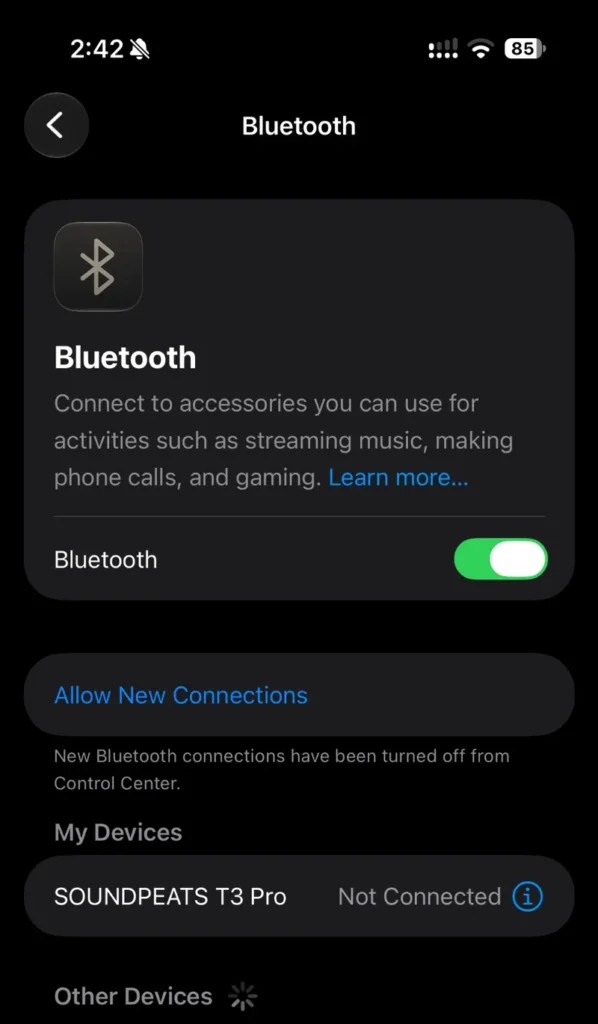
Settings > Bluetooth
Turn the Bluetooth switch on.
Keep this screen open while the car is in pairing mode.
Your iPhone can discover compatible Bluetooth accessories that are actively advertising themselves.
If Bluetooth was already enabled, you generally don’t need to switch it off.
Simply check whether the vehicle appears in the available devices.
Tip: If your iPhone displays Allow New Connections in Bluetooth settings, tap it before trying to pair a new device. Make sure your car’s Bluetooth system is also in pairing mode so it can appear under Other Devices.
Step 4: Select Your Car From the Bluetooth Devices List
Under Other Devices, look for your vehicle’s Bluetooth name.
It might appear as:
- A vehicle manufacturer or model name
- A stereo brand
- A multimedia system name
- A custom device name
Tap the correct entry.
If your car has a touchscreen and is searching for the phone instead, follow its prompts to select your iPhone.
The exact pairing direction can vary by vehicle.
Step 5: Confirm the Bluetooth Pairing Code
Many car systems display a pairing code on both the iPhone and the dashboard.
Compare the codes carefully.
If they match, approve the pairing request.
Some older stereos require a manually entered PIN.
If this happens, use the code provided by the vehicle or its manual.
Don’t assume that every car uses the same default code.
Step 6: Review Contacts and Notification Permissions
Your iPhone or vehicle may ask whether you want to share contacts and related phone information.
This can enable features such as:
- Caller identification
- Contact-name display
- Hands-free dialing
- Access to your phonebook through the vehicle
You don’t necessarily need to grant every optional permission to play music over Bluetooth.
Review the prompt before approving.
If you’re using a rental car, shared vehicle, or someone else’s stereo, think carefully before transferring personal contacts.
Step 7: Test Music and Hands-Free Calling
After pairing succeeds, return to your car’s audio controls.
Choose the appropriate playback source, often labeled:
Bluetooth Audio, BT Audio, or Media.
On your iPhone:
- Open Apple Music, Spotify, Podcasts, or another audio app.
- Start playing something.
- Increase the media volume to a comfortable level.
- Confirm that the sound comes through the vehicle speakers.
You can also make a test call while parked, if the car supports hands-free calling.
If music plays through the phone instead of the car, check the audio-output settings described below.
How to Play iPhone Music Through Car Bluetooth
Successfully pairing a phone doesn’t always mean the stereo has selected the correct audio source.
Some vehicles separate phone calls from music playback.
Select Bluetooth Audio on Your Car
Open the vehicle’s media or source menu.
Look for BT Audio or an equivalent option.
Select it.
Then play music on your iPhone.
If your car only provides a hands-free calling feature, it may not support stereo music playback.
Check your car’s specifications rather than assuming every Bluetooth system supports both.
Choose the Correct Audio Output on iPhone
Apple allows you to select an audio playback destination.
To check:
- Start playing music.
- Open Control Center.
- Locate the Now Playing controls.
- Tap the playback destination icon.
- Select your car’s Bluetooth audio device if available.
Audio should then play through the selected output.
You can use the volume controls on your iPhone and car stereo to adjust the listening level.
Why does the iPhone say connected but no music plays?
Possible explanations include:
- The car is still using FM radio or another source.
- The iPhone is sending audio to a different Bluetooth device.
- Media playback is paused.
- The vehicle supports calls but not Bluetooth music.
- The phone or stereo volume is too low.
- The connection needs to be restarted.
Start with the playback destination and vehicle source before attempting a Bluetooth reset.
How to Use Car Bluetooth for iPhone Calls
If your car supports hands-free calling, you may be able to make and receive calls through its built-in microphone and speakers.
Make a hands-free call
After pairing:
- Confirm that the phone is connected to the vehicle.
- Use the car’s supported phone controls or voice assistant.
- Select the contact or number you want to call.
- Confirm that call audio is routed through the car.
Some vehicles use the iPhone’s Siri integration, while others provide their own voice-command system.
The available controls vary by manufacturer.
Answer an incoming call
Supported vehicles may show an incoming-call notification on the dashboard.
You can often answer using a steering-wheel button or the car display.
During a call, use the vehicle’s volume controls to adjust the audio level.
How to switch call audio between iPhone and car
On the active iPhone call screen:
- Tap Audio.
- Review the available audio destinations.
- Choose your car’s Bluetooth system, the iPhone, or another supported output.
The specific options depend on connected accessories.
What if the caller cannot hear you?
Check whether the call is muted and whether the car’s microphone is functioning.
Try switching the call’s audio destination to the iPhone temporarily.
If the iPhone microphone works but callers cannot hear you through the car, the issue may involve the vehicle’s hands-free system or its Bluetooth connection.
If callers also cannot hear you using the iPhone itself, read our iPhone Microphone Not Working on Calls guide.
How to Make Your iPhone Connect to Car Bluetooth Automatically
Many car systems remember previously paired phones.
When you enter the vehicle again, the stereo may reconnect automatically if:
- The vehicle’s Bluetooth system is active.
- Bluetooth is enabled on the iPhone.
- Both devices still remember their pairing.
- The iPhone is within range.
- The vehicle hasn’t prioritized another connected phone.
How to check automatic reconnection
- Park the vehicle safely.
- Turn off the infotainment system using the normal procedure.
- Leave Bluetooth enabled on the iPhone.
- Restart the vehicle’s system.
- Allow it to search for remembered devices.
- Check whether your iPhone connects.
Some vehicles have a preferred-phone or priority-device setting.
If another household member’s phone regularly connects first, review that option in your car’s Bluetooth settings.
Does the iPhone need to remain on the Bluetooth settings screen?
No.
After successful pairing, you don’t normally need to keep Settings > Bluetooth open.
The car can reconnect through its saved Bluetooth connection.
What if automatic reconnection fails?
Check that neither device has forgotten the pairing.
Make sure another phone hasn’t already taken the connection.
Restart the infotainment system if necessary.
If reconnection continues to fail, remove the saved pairing on both devices and repeat setup.
iPhone Bluetooth vs. Apple CarPlay: What’s the Difference?
Standard Bluetooth pairing and Apple CarPlay aren’t the same feature.
Standard Bluetooth Connection
Traditional car Bluetooth is commonly used for:
- Hands-free calling
- Music and podcast playback
- Basic track controls
- Contact synchronization, where supported
It doesn’t necessarily provide an iPhone-style app interface on the dashboard.
Apple CarPlay
CarPlay is a separate vehicle-integration feature available on compatible vehicles.
It can display supported navigation, messaging, audio, and other applications through the car’s screen.
Depending on the vehicle, CarPlay may use a USB cable or a wireless connection.
Wireless CarPlay requires more than ordinary Bluetooth pairing and uses supported Wi-Fi connectivity as part of its operation.
Does every Bluetooth car support CarPlay?
No.
A car can support Bluetooth phone calls and music without having Apple CarPlay.
Similarly, pairing the iPhone through a car’s standard Bluetooth menu doesn’t guarantee that the CarPlay interface will launch.
What if Bluetooth works but CarPlay doesn’t?
Treat that as a separate issue.
Check CarPlay compatibility, Wi-Fi and Bluetooth settings for wireless CarPlay, Siri availability, and the correct USB connection for wired CarPlay.
Read our Apple CarPlay Not Working: 12 Easy Fixes guide for detailed troubleshooting.
Why Is My iPhone Not Connecting to Car Bluetooth?
If your vehicle doesn’t pair or reconnect successfully, work through these targeted checks.
Fix 1: Make Sure the Car Is Discoverable
This is one of the most common reasons a car doesn’t appear on an iPhone’s Bluetooth screen.
Open the vehicle’s pairing menu again.
Choose Add Phone or the manufacturer-specific equivalent.
If the car was already paired to another device, disconnect that device when appropriate.
Some systems stop advertising once they have an active connection.
Fix 2: Turn Bluetooth Off and Back On
Apple recommends a Bluetooth restart as part of troubleshooting car connections.
On the iPhone:
- Open Settings > Bluetooth.
- Turn Bluetooth off.
- Wait about five seconds.
- Turn Bluetooth back on.
- Return to the vehicle’s pairing screen.
Use the Settings app rather than assuming Control Center’s Bluetooth button fully switches the Bluetooth radio off.
Fix 3: Bring the iPhone Closer
Apple’s general Bluetooth guidance recommends keeping the accessory within approximately 33 feet, or 10 meters, for pairing.
For initial setup, keep your iPhone inside the parked vehicle, near the infotainment system.
Distance generally shouldn’t be a problem inside the cabin, but interference or a device outside the vehicle may complicate discovery.
Fix 4: Check for Previously Connected Phones
Some vehicles automatically connect to a preferred phone.
That may prevent a second device from connecting as expected.
Review the vehicle’s saved-device list.
Disconnect the currently active phone if you have permission.
Then retry pairing your iPhone.
Fix 5: Remove the Old Bluetooth Pairing
If the car appears under My Devices but won’t connect, you can remove the outdated pairing.
On your iPhone:
- Open Settings > Bluetooth.
- Tap the information button beside the car’s name.
- Select Forget This Device.
- Confirm the action.
Next, open the vehicle’s paired-phone list and delete your iPhone’s saved entry.
Return both devices to pairing mode and connect them again.
Note: Forgetting the car means you’ll need to repeat the initial pairing process.
Don’t delete other users’ phone connections without permission.
Fix 6: Restart Your iPhone and Vehicle System
A normal restart may clear a temporary connection issue.
Restart your iPhone.
Then restart the car’s infotainment system using the manufacturer’s recommended procedure.
For some vehicles, this involves turning the vehicle off and allowing the multimedia system to shut down normally.
Do not disconnect the vehicle battery or use undocumented dashboard reset combinations.
After restarting, repeat Bluetooth pairing.
Fix 7: Update iOS and Car Stereo Firmware
Check the iPhone for a compatible software update:
Settings > General > Software Update
If your vehicle manufacturer offers an infotainment-system update, consult its official instructions.
Apple recommends checking the vehicle stereo’s firmware when troubleshooting persistent car connections.
Never install unofficial vehicle firmware from an untrusted website.
Fix 8: Rename Your iPhone if Multiple Phones Are Saved
Apple specifically suggests changing the iPhone’s device name when several phones have been connected to the car stereo.
To rename it:
- Open Settings.
- Tap General.
- Select About.
- Tap Name.
- Enter a recognizable name.
Then try pairing again.
For more detail, see our How to Change Bluetooth Name on iPhone guide.
Changing the name helps identify the correct device. It doesn’t repair a defective Bluetooth radio or vehicle system.
Fix 9: Identify Whether the iPhone or Car Is Responsible
If possible, compare the results with another compatible phone or Bluetooth accessory.
For example:
- If your iPhone connects to headphones but not the car, investigate the vehicle’s pairing mode and compatibility.
- If several phones fail to pair with the car, the car stereo may need attention.
- If your iPhone fails with every Bluetooth accessory, investigate the iPhone’s Bluetooth functionality.
For general discovery failures, read our iPhone Bluetooth Not Finding Devices: 11 Fixes guide.
If basic checks fail, contact the vehicle manufacturer or Apple Support as appropriate.
Why Does My iPhone Connect to Car Bluetooth but Keep Disconnecting?
Repeated disconnections can be caused by competing paired devices, temporary software problems, interference, or issues in the car’s multimedia system.
Check whether another phone is connecting
If two people enter the car with previously paired phones, the vehicle may switch to a preferred device.
Review the manufacturer’s connected-device priority settings.
Check the vehicle’s firmware
An outdated or malfunctioning stereo system may have difficulty maintaining connections with newer iPhones.
Look for manufacturer-approved updates.
Re-pair both devices
If the connection repeatedly fails, remove the old pairing from both the iPhone and vehicle and reconnect.
This can help when saved pairing information is no longer working correctly.
Avoid resetting all iPhone settings immediately
Resetting the entire iPhone’s settings can affect saved connections and other preferences.
It is not an appropriate first step for one vehicle’s Bluetooth problem.
Complete the simpler pairing and compatibility checks first.
How to Connect iPhone to an Older Car Without Built-In Bluetooth
Not every car includes Bluetooth audio.
If your vehicle doesn’t support it, the iPhone cannot create a native Bluetooth connection to a stereo that lacks a Bluetooth receiver.
However, compatible external accessories may provide alternatives.
Option 1: Bluetooth AUX Receiver
If your vehicle has a 3.5 mm AUX input, a compatible Bluetooth receiver can accept audio from your iPhone and pass it to the stereo.
The receiver connects to the vehicle’s AUX input and pairs with the phone.
Check whether it supports music only or also provides a microphone for calls.
Option 2: Bluetooth FM Transmitter
A compatible FM transmitter can receive audio from your iPhone over Bluetooth and broadcast it to an unused FM frequency.
Your car radio tunes to the transmitter’s selected frequency.
Sound quality depends on local interference and the accessory.
Make sure its use complies with applicable radio regulations.
Option 3: Aftermarket Car Stereo
Replacing an old head unit with a compatible Bluetooth receiver may provide a more integrated solution.
Some systems also support Apple CarPlay.
However, installation requirements, steering-wheel controls, vehicle electronics, and compatibility vary.
Check your vehicle’s requirements before purchasing equipment.
How to Disconnect or Remove Your iPhone From a Car’s Bluetooth
If you want to stop using the vehicle temporarily, you can disconnect the audio connection.
If you’re selling a car or returning a rental, remove the saved pairing more thoroughly.
Temporarily disconnect
Open Settings > Bluetooth on your iPhone.
Find the car and disconnect it if that option is available.
You may also use the vehicle’s device-management menu.
Forget the car on your iPhone
- Open Settings > Bluetooth.
- Tap the information button next to the vehicle.
- Select Forget This Device.
- Confirm.
Delete the iPhone from the car
Open the vehicle’s paired-device list.
Find your iPhone and remove its saved pairing.
The instructions depend on the manufacturer.
Why this matters in rental or shared cars
Some vehicle systems retain phonebook entries, recent calls, or other synchronized information.
Deleting the iPhone’s Bluetooth pairing may not erase every item copied into the vehicle’s memory.
Review the vehicle’s privacy or factory-reset instructions and clear your personal data when returning a rental car or selling a vehicle.
Only reset a vehicle system when you’re authorized to do so and understand which settings will be erased.
Frequently Asked Questions
How do I connect my iPhone to my car Bluetooth?
Put your car stereo into Bluetooth pairing mode, open Settings > Bluetooth on your iPhone, select the vehicle’s name, and confirm any matching pairing code.
Why isn’t my car Bluetooth showing up on my iPhone?
The vehicle may not be in pairing mode, could be connected to another phone, or may have reached its paired-device limit. Check the car’s device settings and manufacturer’s instructions.
Can I connect iPhone 17 Pro to car Bluetooth?
Yes. The iPhone 17 Pro supports Bluetooth connections to compatible vehicle stereos. The pairing procedure depends on the car.
Do I need Wi-Fi to connect iPhone to car Bluetooth?
No. Standard Bluetooth audio pairing doesn’t require Wi-Fi. Wireless Apple CarPlay is different and may require Wi-Fi as well as Bluetooth.
Why is my iPhone connected to car Bluetooth but no music plays?
Select Bluetooth Audio or BT Audio on the car stereo. Then check your iPhone’s playback destination and media volume. Some older systems support hands-free calls without supporting stereo music streaming.
Can I use Spotify or Apple Music through car Bluetooth?
Yes, if your car supports Bluetooth audio playback. Pair your iPhone, select the Bluetooth audio source, and start playback in the supported app.
Will my iPhone connect to the car automatically next time?
Many cars reconnect automatically to a remembered phone. Both devices must remain paired, Bluetooth must be enabled, and the vehicle may need to select that phone as its active or preferred device.
Why does my car ask for a Bluetooth PIN?
A pairing code helps confirm the connection. Compare the codes displayed on your iPhone and vehicle, or use the PIN specified by the manufacturer’s instructions.
Can I connect two iPhones to one car Bluetooth system?
Some vehicle stereos remember several phones, but the number of simultaneous active connections and supported functions varies by manufacturer. Check your car’s pairing and priority settings.
Is Apple CarPlay the same as Bluetooth?
No. CarPlay is a separate vehicle integration system. Standard Bluetooth pairing may support calls and music without showing CarPlay apps on the dashboard.
Can I connect my iPhone to an older car without Bluetooth?
Not directly through Bluetooth unless the car has a compatible receiver. A Bluetooth AUX receiver, compatible FM transmitter, or upgraded stereo may provide an alternative.
How do I fix iPhone car Bluetooth pairing after an iOS update?
Check pairing mode, restart Bluetooth from Settings, restart both devices, and verify vehicle firmware. If necessary, remove the saved pairing from the iPhone and car before connecting again.
Does connecting to car Bluetooth share my contacts?
Some vehicles request permission to access contacts or phone information. Review the requested permissions before allowing access, particularly in shared or rental vehicles.
How do I stop my iPhone from connecting to a car?
Disconnect the vehicle under Bluetooth settings or select Forget This Device to remove the saved pairing. You can also delete the iPhone from the car’s device list.
Can I make hands-free calls without CarPlay?
Yes. Many cars support Bluetooth hands-free calling without Apple CarPlay. The vehicle must support the appropriate calling functionality.
Final Thoughts
Learning how to connect iphone to car bluetooth is straightforward once the car stereo is in the correct pairing mode.
Start by parking safely, enabling the car’s Bluetooth discovery setting, and selecting the vehicle in your iPhone’s Bluetooth list.
After pairing, choose the correct car audio source and confirm that music or hands-free calling works.
If the connection fails, investigate pairing mode, other saved phones, old pairings, and vehicle compatibility before changing major iPhone settings.
Remember that ordinary Bluetooth pairing is different from Apple CarPlay. A car can support one without supporting the other.
Once everything works, your iPhone and car may reconnect automatically on future trips.
Official Apple References
- Apple Support: How to connect your iPhone to your car
- Apple iPhone User Guide: Connect iPhone to Bluetooth accessories
- Apple iPhone User Guide: Play audio on a Bluetooth accessory
- Apple Support: Play music and podcasts in your car
- Apple Support: If you need help with CarPlay
Last reviewed: November 21, 2026. Vehicle pairing menus, compatibility, and available Bluetooth functions vary by make, model, year, and infotainment software. Always complete setup while safely parked.