Quick Answer: How to Turn Off Microphone on iPhone
Want to know how to turn off microphone on iphone for privacy, during a call, or while recording your screen?
The quickest way to stop an app from using your microphone is to open Settings > Privacy & Security > Microphoneand turn off access for that app.
You can also mute your microphone during a phone call or FaceTime call, disable the microphone in screen recordings, and turn off voice-activated features such as Siri.
Here are seven practical methods:
- Block microphone access for apps: Settings > Privacy & Security > Microphone.
- Mute your microphone during phone calls: Tap Mute on the active call screen.
- Mute the microphone in FaceTime: Use the microphone control during the call.
- Disable microphone audio in screen recordings: Open the Screen Recording options in Control Center.
- Turn off Siri voice activation: Change the Siri listening settings.
- Disable keyboard Dictation: Settings > General > Keyboard.
- Turn off Voice Control: Settings > Accessibility > Voice Control.
Important: iOS does not provide one standard switch that physically disables every iPhone microphone for every system function. These controls affect specific apps, calls, recordings, or voice features.
The instructions below apply to recent versions of iOS, including iOS 27.
Table of Contents
Method 1: Turn Off Microphone Access for Apps on iPhone
This is the most important method if you are concerned about an application recording your voice or accessing the microphone unnecessarily.
Apple requires apps to request permission before using the microphone.
You can review and change those permissions whenever you want.
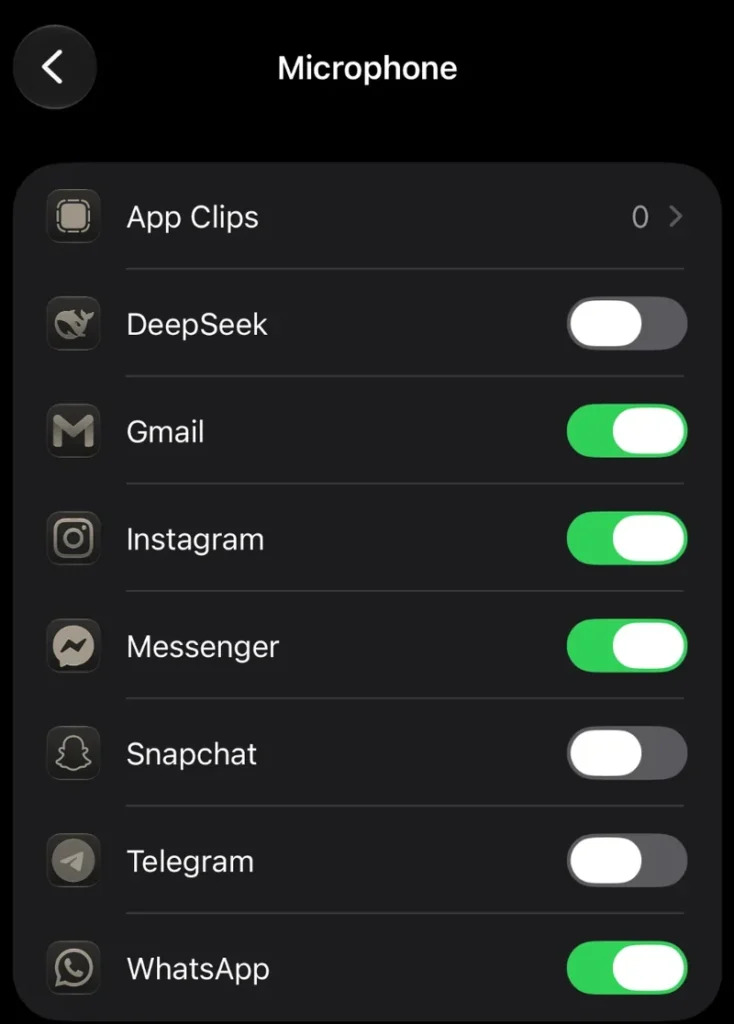
Step 1: Open Privacy Settings
- Unlock your iPhone.
- Open Settings.
- Scroll down and select Privacy & Security.
- Tap Microphone.
You will see applications that have requested access to the microphone.
Step 2: Disable Microphone Permission
Find the application you want to restrict.
For example, you might see a messaging app, social media app, or video conferencing application.
Turn off the switch beside that app.
When the switch is off, iOS prevents that app from accessing the microphone through the permission it previously received.
Step 3: Check Other Applications
Review the remaining applications.
Consider whether each one actually needs microphone access.
An application used for recording audio or making calls may need the microphone to function correctly.
An application that has no clear reason to record audio may not need continued access.
You can disable unnecessary permissions and restore them later.
What happens after you turn off an app’s microphone?
The app may no longer be able to:
- Record voice messages
- Capture spoken audio in a video
- Use voice search
- Hear your voice during an in-app call
- Record audio using its microphone features
The rest of the application may continue working normally.
The exact effects depend on what the application does.
Can you turn microphone access back on?
Yes.
Return to:
Settings > Privacy & Security > Microphone
Turn the app’s switch back on.
Some apps may also display a permission request when you try using an audio feature.
Why is an app missing from the Microphone list?
Apple’s list shows apps that have requested microphone access.
If an app has never requested permission, it may not appear.
That doesn’t necessarily indicate an iPhone problem.
Open the app and try a feature that legitimately requires microphone access. If a permission request appears, decide whether to allow it.
Do not enable microphone access for an unfamiliar app solely to make it appear in the list.
Method 2: Mute Your Microphone During an iPhone Call
If you’re speaking with someone and want to prevent them from hearing you temporarily, use the call’s Mute button.
This is different from blocking an app’s microphone permission.
How to mute your microphone on a call
- Make or answer a phone call.
- Open the active call screen.
- Find the Mute button.
- Tap it.
Your voice will stop being transmitted through that call’s microphone channel while the call is muted.
You can normally continue hearing the other person.
How to unmute
Return to the active call screen.
Tap Mute again to restore your microphone.
Before speaking, make sure the mute state has changed as intended.
Does muting end the call?
No.
The call remains connected.
Muting only affects whether your microphone audio is sent to the other participant.
Does muting stop every app from accessing the microphone?
No.
The call’s Mute button applies to that call.
It does not revoke microphone permissions from other apps.
If you want broader privacy control, use Method 1.
What if someone still can’t hear you after unmuting?
Check whether the call is still muted and whether audio is routed through a Bluetooth accessory.
If your microphone fails during normal calls, see our iPhone Microphone Not Working on Calls: 10 Fixes guide.
That troubleshooting topic is separate from intentionally disabling your microphone.
Method 3: Turn Off the Microphone During FaceTime
FaceTime includes its own microphone-muting control.
You can use it during an audio or video conversation.
Steps to mute the FaceTime microphone
- Open FaceTime.
- Start or join a call.
- Tap the screen if the call controls aren’t visible.
- Find the microphone control.
- Tap it to mute your audio.
The other participant should no longer hear your microphone audio while you are muted.
Tap the control again when you want to speak.
Can you mute the mic without turning off the camera?
Yes.
Microphone muting and camera controls serve different purposes.
You can remain visible during a video call while your microphone is muted.
Similarly, turning off the camera does not necessarily mute your microphone.
Is Voice Isolation the same as muting?
No.
Apple provides microphone modes such as Voice Isolation to change how spoken audio and background sounds are handled during supported calls.
Voice Isolation attempts to prioritize your voice.
It does not stop your microphone from transmitting your voice.
If you want the other participant to stop hearing you, use the call’s actual Mute control.
What about WhatsApp, Zoom, and other calling apps?
Many calling apps provide their own microphone button during a call.
The button’s appearance and location differ by application.
If you mute within an app, that is usually a call-level action.
For longer-term privacy, you can also revoke the app’s microphone permission under Privacy & Security.
Keep in mind that disabling microphone access may prevent voice and video calls from working correctly in that application.
Method 4: Turn Off the Microphone for iPhone Screen Recording
Your iPhone can record screen activity with or without adding audio from the microphone.
If you don’t want your voice or nearby sounds included, check the Screen Recording microphone option before starting.
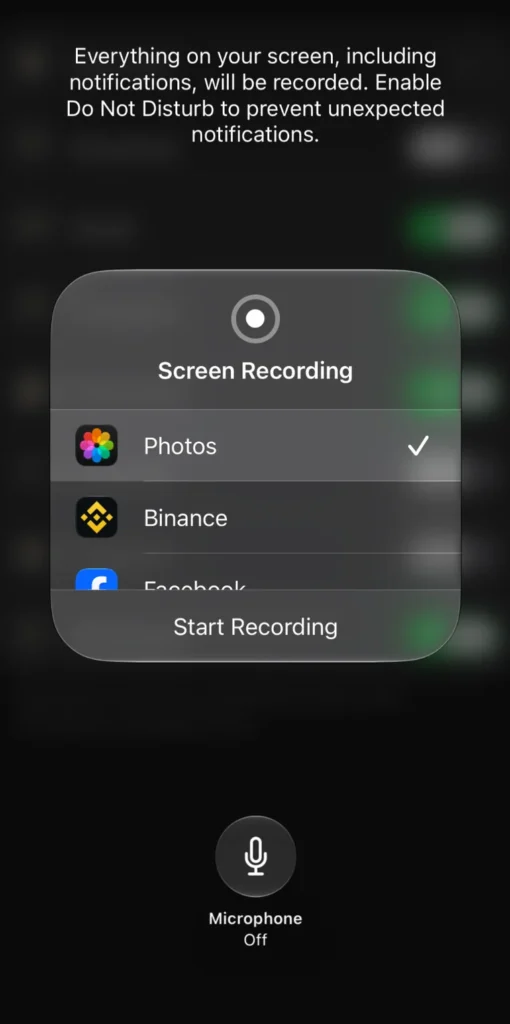
Steps to disable microphone recording
- Swipe down from the upper-right corner to open Control Center on a Face ID iPhone.
- Find the Screen Recording control.
- Touch and hold the Screen Recording button.
- Look for the Microphone button.
- If it is enabled, tap it to turn it off.
- Start your screen recording.
With microphone audio disabled, the recorder should not intentionally add your voice through that option.
Does this also mute all internal app audio?
Not necessarily.
Microphone recording and internal app audio are different.
Some apps may permit system audio in recordings, while others restrict it.
Disabling microphone audio doesn’t guarantee that every other audio source will be silent.
Why is the Screen Recording button missing?
You may need to add it to Control Center.
Apple allows you to customize the controls available there.
If screen recording itself isn’t working, see our iPhone Screen Recording Not Working guide for further troubleshooting.
Method 5: Stop Siri From Listening for Voice Activation
If you don’t want your iPhone responding when it hears “Siri” or “Hey Siri,” change the voice-activation settings.
This is not the same as disabling the entire microphone.
How to disable Siri voice activation
- Open Settings.
- Tap Siri or Apple Intelligence & Siri, depending on your iOS configuration.
- Select Talk & Type to Siri, Talk to Siri, or the equivalent option displayed.
- Choose Off for voice activation.
The available wording may differ between iOS versions.
This prevents Siri from responding to the configured wake phrase.
Does turning off Siri disable microphone access for apps?
No.
Apps with microphone permission may still use the microphone for their intended functions.
FaceTime, Phone, Voice Memos, and other features are not controlled solely by Siri voice activation.
What if Siri still opens when I press a button?
Voice activation and button activation are separate options.
Review the Siri settings for the Side Button if you want to change how Siri is launched.
Do not assume turning off the wake phrase automatically changes every Siri activation method.
Does turning off Siri mean the entire phone stops listening?
No.
It disables the selected voice-activation behavior.
The microphone can still be used by other authorized system features or apps.
For maximum practical control, also review microphone permissions, Dictation, and accessibility features.
Method 6: Turn Off the Keyboard Microphone and Dictation
The microphone icon on the iPhone keyboard is associated with Dictation.
Dictation lets you speak words and have them converted to text.
If you don’t use this feature, you can turn it off.
How to disable Dictation
- Open Settings.
- Tap General.
- Select Keyboard.
- Scroll to Enable Dictation.
- Turn the option off.
- Confirm if your iPhone asks.
This disables the normal keyboard Dictation feature.
Will turning off Dictation disable all microphones?
No.
It affects speech-to-text input through Dictation.
Phone calls, supported camera recording, Voice Memos, and apps with microphone permission can still use the microphone where allowed.
How to turn Dictation back on
Go to:
Settings > General > Keyboard > Enable Dictation
Enable the option again.
This is useful if you later want to type messages or notes using your voice.
Method 7: Turn Off Voice Control on iPhone
Voice Control is an accessibility feature that lets you operate your iPhone using spoken commands.
When enabled, it can listen for commands such as navigating the screen or tapping buttons.
If you activated it accidentally or no longer need it, you can disable it.
Steps
- Open Settings.
- Tap Accessibility.
- Select Voice Control.
- Turn off Voice Control.
You can also use an Accessibility Shortcut or Control Center control if you’ve configured one.
What’s the difference between Voice Control and Siri?
Siri is Apple’s voice assistant.
Voice Control is designed primarily for controlling your device’s interface with spoken commands.
They are separate features.
Disabling one doesn’t necessarily disable the other.
Does this stop voice activation completely?
It turns off Voice Control.
If you also want to stop Siri wake-phrase activation, review Method 5.
If you want to prevent apps from using your microphone, review Method 1.
How to Tell Which App Is Using Your iPhone Microphone
Apple includes privacy indicators that help you recognize when the microphone or camera is being used.
These indicators are useful if you’re concerned about unexpected microphone activity.
What does the orange dot mean?
An orange indicator appears near the top of the screen when an app uses the microphone without the camera.
This indicator is a privacy notification.
It doesn’t automatically mean that an application is secretly spying on you.
For example, the dot may appear during a voice recording or supported voice-input activity.
What does the green dot mean?
A green indicator appears when an app uses the camera.
Apple also uses the green indicator when the camera and microphone are being used together.
Therefore, the absence of an orange dot while a green dot is present does not prove the microphone is inactive.
How to identify recent microphone use
- Open Control Center.
- Look at the privacy information near the top.
- Check which app recently accessed the microphone or camera, when that information is displayed.
If the named application is unfamiliar or shouldn’t need microphone access, investigate its permissions.
Return to Settings > Privacy & Security > Microphone to review or revoke access.
Can the orange dot be turned off?
Apple doesn’t provide an ordinary user setting for permanently hiding the microphone privacy indicator while allowing normal use.
The correct response is to stop unnecessary microphone activity, not to hide the indicator.
If you need to reduce access, change the relevant permissions.
How to Check Your iPhone’s Microphone History
For additional privacy information, Apple provides App Privacy Report on supported iOS versions.
This feature can show how often apps access sensitive resources, including the microphone.
Enable App Privacy Report
- Open Settings.
- Select Privacy & Security.
- Tap App Privacy Report.
- Turn the report on if it is disabled.
Once active, the report collects information about supported app activity.
It may not display useful historical data immediately after you enable it.
Review microphone access
Open App Privacy Report and inspect the Data & Sensor Access information.
Look for microphone access associated with the apps you use.
Consider whether the reported access matches your normal activity.
For example, microphone access during a voice note or video call may be expected.
Unexplained access is a reason to review the app’s settings and permissions.
Does App Privacy Report record conversations?
No.
It is an activity report, not a tool that records the sound captured by every application.
It helps you review access to sensitive resources.
It should not be treated as a full forensic record of everything that happened on the device.
Can You Disable Every iPhone Microphone at Once?
There is no ordinary Settings switch that universally turns off the physical microphones for every app and system feature.
The practical approach depends on your goal.
If your goal is app privacy
Revoke unnecessary permissions under:
Settings > Privacy & Security > Microphone
You can turn off multiple app switches individually.
If your goal is silence during a call
Use Mute in the Phone, FaceTime, or calling app.
Muting is temporary and affects that communication session.
If your goal is stopping voice activation
Turn off Siri voice activation and Voice Control if you don’t want those features active.
You can also disable keyboard Dictation.
If your goal is preventing screen recordings from capturing your voice
Use the Screen Recording control and disable its microphone input.
What about turning the iPhone off?
A fully powered-off iPhone isn’t actively functioning as a normal audio-recording device.
However, shutting down your phone is not the same as an on-device microphone privacy switch.
It also prevents you from using ordinary phone functions.
For everyday use, Apple’s specific privacy controls are the practical solution.
Does Silent Mode Turn Off the Microphone?
No.
Silent Mode primarily changes how the iPhone handles ringtones, alerts, and certain system sounds.
It does not automatically disable microphone input.
Your iPhone can still use its microphone during calls, recordings, or permitted app activities while Silent Mode is enabled.
The same distinction applies to reducing media volume.
Turning down the speaker volume does not prevent your microphone from capturing sound.
Remember: Speaker output, alert sounds, and microphone input are different functions.
Why Can’t I Turn Off Microphone Access for an App?
If you’re unable to change a permission, consider the following possibilities.
1. The app never requested access
Apps normally appear in the Microphone permissions list after requesting access.
If an app isn’t listed, you may not have granted it microphone permission.
2. You’re trying to control a system function
The Microphone permissions list is not a master hardware-disable menu.
Some built-in system functions have their own settings or controls.
For example, active Phone calls have a Mute button, while Siri has separate voice-activation settings.
3. The device has management or Screen Time restrictions
A supervised work or school iPhone may have configuration restrictions.
Some Screen Time settings can also affect permission changes.
If the device is managed by an organization, contact its administrator before changing policies.
4. The app continues asking for permission
An application may need microphone access for a feature and ask you to enable it.
Review the request and decide whether the feature is worth granting access.
You aren’t required to approve a permission request simply because an app displays it.
5. The microphone appears active after closing an app
Check the Control Center privacy information for recent usage.
Verify that a call, recording, or other microphone-related function hasn’t remained active.
If the indicator persists unexpectedly, restart the iPhone and check again.
Do not assume that every microphone indicator represents unauthorized recording.
Best iPhone Microphone Privacy Settings
If your main concern is privacy, use a few straightforward habits.
Review microphone access regularly. Remove permissions that aren’t needed.
Check unfamiliar applications. If an app requests microphone access without a clear reason, consider denying it.
Understand the orange and green indicators. They provide useful information about microphone and camera activity.
Disable voice features you don’t use. Siri voice activation, Voice Control, and Dictation are separate features.
Keep iOS updated. Updates can include privacy and security improvements.
Avoid untrusted configuration profiles. Don’t install profiles or apps that promise unrealistic controls over iPhone hardware.
Use App Privacy Report. Review access patterns when you have concerns.
These steps improve your control over microphone use without disabling necessary functions.
Frequently Asked Questions
How do I turn off microphone on iPhone completely?
iOS doesn’t provide a standard single switch that completely disables every built-in microphone for every function. You can revoke individual app permissions, mute active calls, and disable voice features such as Siri and Dictation.
How do I stop apps from using my microphone on iPhone?
Open Settings > Privacy & Security > Microphone and turn off access for the apps you want to restrict.
Can I turn off microphone access for Instagram or WhatsApp?
Yes, if the app appears in your iPhone’s Microphone permissions list. Disabling access may stop voice notes, in-app calls, and other audio features from working.
How do I mute my microphone during an iPhone call?
Open the active call screen and tap Mute. Tap it again when you’re ready to speak.
How do I turn off the microphone on FaceTime?
During the FaceTime call, display the call controls and tap the microphone mute button.
What does the orange dot on an iPhone mean?
The orange indicator means an app is using the microphone without the camera. You can check recent microphone or camera activity in Control Center.
Can I disable the orange microphone dot?
Apple doesn’t provide a standard setting for hiding the indicator while normal microphone use continues. Review which feature or app is using the microphone instead.
Does Silent Mode disable the microphone?
No. Silent Mode affects alerts and certain sounds, not microphone access during calls and recording.
How do I stop Siri from listening on iPhone?
Open Siri settings, select Talk & Type to Siri or the equivalent option, and turn off voice activation.
Can I disable the keyboard microphone?
Yes. Open Settings > General > Keyboard and turn off Enable Dictation.
How do I stop screen recording from capturing my voice?
Open Control Center, touch and hold Screen Recording, and ensure the Microphone option is turned off before recording.
Can I see which apps accessed my microphone?
Yes. iPhone provides privacy indicators, recent-use information in Control Center, and App Privacy Report for more detailed access activity.
Does turning off an app’s microphone permission delete its recordings?
No. Changing future microphone access does not necessarily erase audio files or recordings the app previously created. Existing data must be managed separately.
Can I turn microphone access back on later?
Yes. Open the Microphone privacy settings and re-enable the app’s permission.
Final Thoughts
Knowing how to turn off microphone on iphone gives you greater control over your privacy and how your device handles audio.
For most people, the best starting point is Settings > Privacy & Security > Microphone. This allows you to disable microphone access for apps that don’t need it.
If you simply want privacy during a call, the call’s Mute button is more appropriate.
You can also disable Siri voice activation, keyboard Dictation, Voice Control, and microphone input for screen recordings.
Just remember that the iPhone does not provide a single standard switch to disable every physical microphone during normal device operation.
Use the specific setting that matches your goal, and check Apple’s privacy indicators if microphone activity seems unexpected.
Official Apple References
- Apple: Control access to hardware features on iPhone
- Apple: About the orange and green indicators on iPhone
- Apple: While on a call on iPhone
- Apple: Change FaceTime audio settings
- Apple: Take a screen recording on iPhone
- Apple: Dictate text on iPhone
- Apple: About App Privacy Report
Last reviewed: November 21, 2026. Settings names and microphone controls can vary slightly by software version, app, and device configuration.