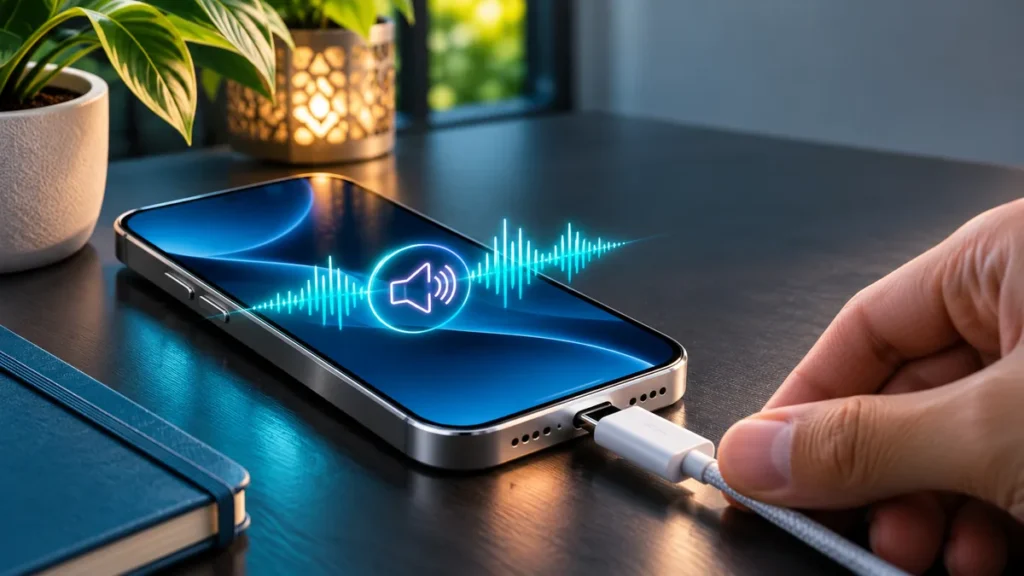
Quick Answer: How to Change Charging Sound on iPhone
Wondering how to change charging sound on iphone without jailbreaking your device?
You can use Apple’s free Shortcuts app to create an automation that plays a custom sound, speaks a phrase, or plays an audio file whenever your iPhone starts charging.
Here’s the easiest method:
- Open Shortcuts on your iPhone.
- Tap Automation.
- Tap + to create a new automation.
- Choose Charger.
- Select Is Connected.
- Choose Run Immediately if available.
- Create a new blank automation.
- Add the Speak Text action.
- Enter a phrase such as “Charging started.”
- Save the automation and reconnect your charger to test it.
Important: This adds a custom charging announcement. It does not necessarily replace Apple’s original charging sound.
The steps work with recent versions of iOS, including iOS 27, although some Shortcuts buttons may have different names depending on the version installed.
Table of Contents
Can You Change the Default Charging Sound on iPhone?
Apple’s iPhone settings do not provide a dedicated option for choosing a different built-in charging sound.
You can customize ringtones, text tones, and various notification sounds, but the charging confirmation sound is separate.
Fortunately, Apple’s Shortcuts app supports personal automations that respond when a charger connects or disconnects.
You can use this feature to add your own charging notification.
What can you customize?
With Shortcuts, you can:
- Make your iPhone speak a custom message.
- Play an available sound effect.
- Play a short audio file.
- Create separate sounds for connecting and disconnecting a charger.
- Edit or disable the automation whenever you want.
You don’t need a jailbreak or a paid charging-sound app.
Will the original charging chime disappear?
Not necessarily.
A custom Shortcuts automation generally adds an action when the charging event occurs.
The original system charging sound may still play, depending on your iPhone’s settings and behavior.
There isn’t a standard Shortcuts action that universally replaces the built-in system charging sound.
If you want a completely different sound without the original tone, be aware of this limitation before setting up an automation.
Method 1: Make Your iPhone Speak When Charging
This is the easiest way to personalize the charging experience.
Instead of a standard chime, your iPhone can say a message such as “Charging started” or “Power connected.”
Step 1: Open the Shortcuts App
Find and open Shortcuts on your iPhone.
Shortcuts is Apple’s own automation application.
If you’ve removed it, you can reinstall it from the App Store.
Step 2: Create a Charger Automation
- Open the Automation tab.
- Tap the + button.
- Scroll or search for Charger.
- Select the Charger trigger.
- Choose Is Connected.
This tells the automation to run when your iPhone detects a new charger connection.
You may also see an Is Disconnected option.
We will use that later to create an unplugging sound.
Step 3: Enable Automatic Running
Choose Run Immediately if that option appears.
On older iOS versions, you may instead need to turn off Ask Before Running.
The goal is to let the automation run without requiring you to approve it manually whenever you plug in your phone.
Apple documents Charger as a personal automation trigger that supports automatic execution.
Step 4: Add Speak Text
- Continue to the action-selection screen.
- Choose to create a new blank automation or shortcut.
- Tap Add Action if shown.
- Search for Speak Text.
- Select the action.
- Tap its text field.
- Enter your preferred charging announcement.
For example:
“Charging started. Have a great day!”
You can choose a shorter phrase if you want the announcement to finish quickly.
Step 5: Adjust the Voice
Tap the available options on the Speak Text action to review supported voice settings.
Depending on your iOS version and selected language, you may be able to adjust:
- Voice
- Speaking rate
- Pitch
- Language
Choose a voice that sounds clear at a comfortable speed.
Step 6: Save and Test
Finish the automation and return to Shortcuts.
Disconnect your charger if it is already connected.
Reconnect it and listen for the announcement.
If the automation runs correctly, your iPhone should speak the selected phrase when a new charging connection is detected.
The sound may be affected by the phone’s volume, audio routing, and current system behavior.
Method 2: Play a Custom Charging Sound Using Shortcuts
If you prefer a sound effect instead of speech, you can use a sound-playing action.
Shortcuts offers actions such as Play Sound, although the options and accepted inputs can differ depending on the setup.
Step 1: Create a New Automation
Open:
Shortcuts > Automation > + > Charger
Select Is Connected and allow automatic running.
Step 2: Add a Sound Action
Create a new blank automation.
Search for Play Sound.
Add the action if it is available.
You can test the action inside Shortcuts before connecting your charger.
Step 3: Check Which Sound Plays
The Play Sound action may use a default sound or audio passed into the action.
It is not necessarily a browser for selecting any system ringtone.
If you want to use a specific sound file, follow Method 3.
Step 4: Save and Connect Your Charger
Save the automation.
Unplug the charger and reconnect it.
Listen for the custom audio action.
If nothing plays, check the automation settings, device volume, and connected Bluetooth accessories.
Method 3: Use Your Own Audio File as a Charging Sound
Want to hear a particular sound effect when your iPhone starts charging?
You can prepare a short audio file and use it in a Shortcuts automation.
This method requires slightly more setup than Speak Text.
Step 1: Prepare a Short Audio File
Choose a sound you have permission to use.
For example:
- A short sound effect you recorded yourself
- A personal voice recording
- An original chime
- A compatible audio clip you are authorized to use
Save the file in the Files app on your iPhone.
A short clip is generally more practical than playing a complete song every time you connect power.
Step 2: Create a Charger Automation
Open Shortcuts.
Select:
Automation > + > Charger > Is Connected
Choose automatic execution and create a new blank automation.
Step 3: Load the Audio File
Search the action library for an action that retrieves a file from Files, such as File or Get File, depending on your available Shortcuts actions.
Configure it to retrieve the audio you saved.
Make sure the chosen file is stored somewhere accessible when the automation runs.
If you use an iCloud Drive file, remember that the file may need to be downloaded before it can play.
Step 4: Add Play Sound
Add Play Sound after the file-retrieval action.
Where supported, configure the sound action to use the audio file retrieved by the preceding action.
The order matters.
Your automation should conceptually follow this sequence:
Charger connects → Retrieve audio file → Play sound
If your version of Shortcuts does not accept the chosen file as input, check the file type and the action’s input options rather than assuming every audio format will work.
Step 5: Test the Audio
Run the actions manually inside Shortcuts first.
Confirm that the selected sound is audible.
Then save the automation and test it by disconnecting and reconnecting your charger.
If the sound plays manually but not when connected to power, the problem likely involves the automation trigger or execution settings.
If the sound fails both manually and automatically, investigate the file and Play Sound configuration.
How to Change the Charging Sound When You Unplug Your iPhone
You can create a second automation that runs when the charging connection ends.
For example, your iPhone could say “Charger disconnected” when you unplug it.
Steps
- Open the Shortcuts app.
- Select Automation.
- Tap +.
- Choose Charger.
- Select Is Disconnected.
- Choose Run Immediately if available.
- Create a new blank automation.
- Add Speak Text or another appropriate audio action.
- Enter your preferred message.
- Save the automation.
Reconnect and then disconnect your charger to test it.
You can maintain separate automations for charging and unplugging.
Does the Custom Charging Sound Work With Wireless Charging?
Apple’s Shortcuts Charger trigger is based on charging connections rather than a particular brand of cable.
The Charger trigger can generally respond to compatible wired and wireless charging events.
For wireless charging, position the iPhone correctly on the charging pad and confirm charging actually begins.
If the charger repeatedly connects and disconnects because of poor alignment, the automation could run more than once.
Check alignment and charger compatibility before troubleshooting Shortcuts.
Does it work with MagSafe?
A compatible MagSafe charger can trigger the charging automation when a charging connection begins.
However, an animation appearing on the screen is not the same as proof that an automation executed.
Test the sound and check whether your automation is enabled.
Does it work with USB-C?
Yes, a compatible USB-C charging connection can trigger the Charger automation.
The Shortcuts method does not require a Lightning connector.
How to Change the Charging Sound Volume on iPhone
Your custom charging sound might be too quiet or too loud.
The correct adjustment depends on the action and where audio is routed.
Check the media volume
For sound-playing actions, adjust the media volume and test again.
You can use Control Center or your iPhone’s volume buttons while audio is playing.
Review Speak Text settings
If your automation uses Speak Text, review its voice and speech settings.
The speaking voice can sound different from ordinary music or notification audio.
Check connected Bluetooth devices
If your iPhone is connected to wireless headphones or a speaker, audio may be routed through that device.
This can make the charging announcement seem silent even when the automation runs.
Disconnect the audio accessory temporarily to test the iPhone speaker.
Can you add Set Volume to the automation?
Shortcuts includes a Set Volume action that can adjust volume before playback.
However, setting the volume automatically can affect other audio played on the phone.
If you use it, consider restoring your preferred volume afterward.
Do not assume the setting controls every type of audio identically.
Why Is My Custom iPhone Charging Sound Not Working?
If the sound doesn’t play, troubleshoot the automation before reinstalling anything.
1. The Charger Trigger Is Incorrect
Open Shortcuts and inspect your automation.
Make sure you selected Charger > Is Connected rather than Is Disconnected.
If the wrong trigger is selected, the automation may run only when you unplug the cable.
2. The Automation Requires Confirmation
Check whether the automation can run immediately.
On supported newer versions, select Run Immediately.
On older versions, review the Ask Before Running option.
If a confirmation prompt is required, the automation may not play until you approve it.
3. The Automation Is Disabled
Open Shortcuts > Automation and inspect the saved automation.
Confirm that it is enabled.
Apple allows personal automations to be disabled without deleting them.
4. Your iPhone Volume Is Too Low
Increase the appropriate volume temporarily.
Test the audio action manually.
If you can hear it manually but not when charging, compare the output settings and connection trigger.
5. Your Audio File Is Missing
If the automation retrieves a file from Files, make sure the file hasn’t been moved, renamed, or deleted.
Check that the sound is available locally when needed.
6. Another Audio Device Is Connected
Bluetooth headphones or speakers can affect where audio plays.
Test with the iPhone speaker to isolate the issue.
7. The Charger Isn’t Creating a New Charging Event
If you create the automation while the iPhone is already charging, it won’t necessarily play immediately.
Disconnect and reconnect the charger.
For wireless charging, lift and reposition the phone correctly.
8. The Charger Has a Connection Problem
If the phone repeatedly connects and disconnects or doesn’t charge, inspect the charger and cable.
A defective charging connection is separate from a Shortcuts problem.
See our iPhone Not Charging troubleshooting guide for hardware and charging checks.
Can You Turn Off the iPhone Charging Sound Completely?
If you want your iPhone to charge silently, distinguish between two things:
The built-in charging chime: Controlled by iOS system behavior and relevant sound settings.
A custom charging automation: An additional sound or speech action created in Shortcuts.
Removing a custom charging automation won’t necessarily change the built-in charging chime.
Similarly, setting a custom charging message does not guarantee the original sound will be suppressed.
What about Silent Mode?
Silent Mode can affect system sounds, but it doesn’t necessarily mute every audio action.
Shortcuts speech and media playback may behave differently from ordinary alert sounds.
Test your specific setup rather than assuming Silent Mode universally disables your charging automation.
Can you permanently replace the original chime?
Apple does not provide a standard dedicated Settings option to assign a different built-in charging confirmation sound.
Shortcuts is a supported way to add a personalized response to the charging event.
Avoid unknown apps or configuration profiles that promise deeper system audio changes without explaining what they modify.
How to Remove a Custom Charging Sound
If you no longer want the sound:
- Open Shortcuts.
- Tap Automation.
- Select your charging automation.
- Disable it, if that option is available.
You can also remove the automation entirely.
Disabling it is useful if you want to stop the sound temporarily without rebuilding everything later.
How to edit the charging message
Open the automation in Shortcuts.
Find the Speak Text action.
Change the spoken phrase.
Save the automation and reconnect the charger to test it.
You don’t need to create a completely new automation every time you want to change the wording.
Do Custom Charging Sounds Affect iPhone Battery Life?
A short charging sound or spoken phrase generally represents a small amount of activity compared with many everyday iPhone tasks.
However, a complex automation that launches apps, plays long audio, or performs repeated actions may use more power than a simple chime.
For the most practical setup, use a short sound effect or brief spoken announcement.
Avoid automations that repeatedly run because of an unstable charging connection.
If you’re investigating broader charging or battery problems, treat those as separate issues rather than assuming the custom charging sound is responsible.
Frequently Asked Questions
How do I change the charging sound on my iPhone?
Open Shortcuts, create a Charger automation with the Is Connected trigger, and add Speak Text or an appropriate sound-playing action. Save it and reconnect the charger to test.
Can I change the iPhone charging sound without jailbreaking?
Yes. Apple’s Shortcuts app supports personal automations that run when a charger connects. This lets you add a custom sound without jailbreaking.
Can I use my own audio file as a charging sound?
Yes, if the audio file is compatible with the available Shortcuts actions. Save it in Files and configure the automation to retrieve and play it.
How do I make my iPhone say something when plugged in?
Create a Charger automation in Shortcuts, choose Is Connected, add Speak Text, and enter the phrase you want spoken.
Can I make a different sound when unplugging my iPhone?
Yes. Create another Charger automation using the Is Disconnected trigger.
Can I completely replace the original iPhone charging chime?
Not through a dedicated standard iOS setting. Shortcuts can add custom audio when charging begins, but the built-in charging sound may still play.
Why doesn’t my Shortcuts charging automation play?
Check the Charger trigger, automatic-running setting, whether the automation is enabled, audio volume, Bluetooth output, and the availability of any selected sound file.
Does the custom charging sound work with MagSafe?
A compatible MagSafe charging event can trigger a Charger automation. Confirm the phone actually begins charging and that the automation is enabled.
Does this work on iPhone 17 Pro?
Yes. The iPhone 17 Pro supports Apple’s Shortcuts personal automations, including the Charger trigger.
Do I need to pay for an app?
No. The Shortcuts app is free and provided by Apple.
Can I change the charging sound on iOS 27?
Yes. Recent iOS versions support Charger personal automations. The exact editor labels may differ, so follow the available Charger trigger and audio actions on your device.
How do I stop my iPhone from speaking every time I charge it?
Open Shortcuts > Automation and disable or delete the charging automation that contains the Speak Text action.
Final Thoughts
Learning how to change charging sound on iphone is straightforward once you understand how Apple’s Shortcuts automations work.
For most users, Speak Text is the easiest method. It requires no audio file and lets you create a personalized charging announcement.
If you prefer a chime, try a supported sound-playing action. You can also use your own compatible audio file or create another automation for unplugging.
The main limitation is that Shortcuts generally adds a custom audio response instead of replacing the original iPhone charging chime.
Keep the automation simple, test it with a real charging event, and remember that you can edit or disable it whenever you want.
Official Apple References
- Apple Shortcuts User Guide: Setting triggers
- Apple Shortcuts User Guide: Enable or disable personal automations
- Apple Shortcuts User Guide: Add automations
- Apple Shortcuts User Guide
Last reviewed: November 21, 2026. Shortcuts action names and available controls may differ slightly by iOS version. The charging sound customization described here adds an automation-based sound rather than modifying protected iOS system audio files.